


A download finishes, but something about the computer no longer feels right. Perhaps an account changes, a warning appears, or the desktop behaves strangely.
KarstoRAT is one name you might encounter while investigating that change. Understanding the alert helps you decide what to protect before trying another fix.
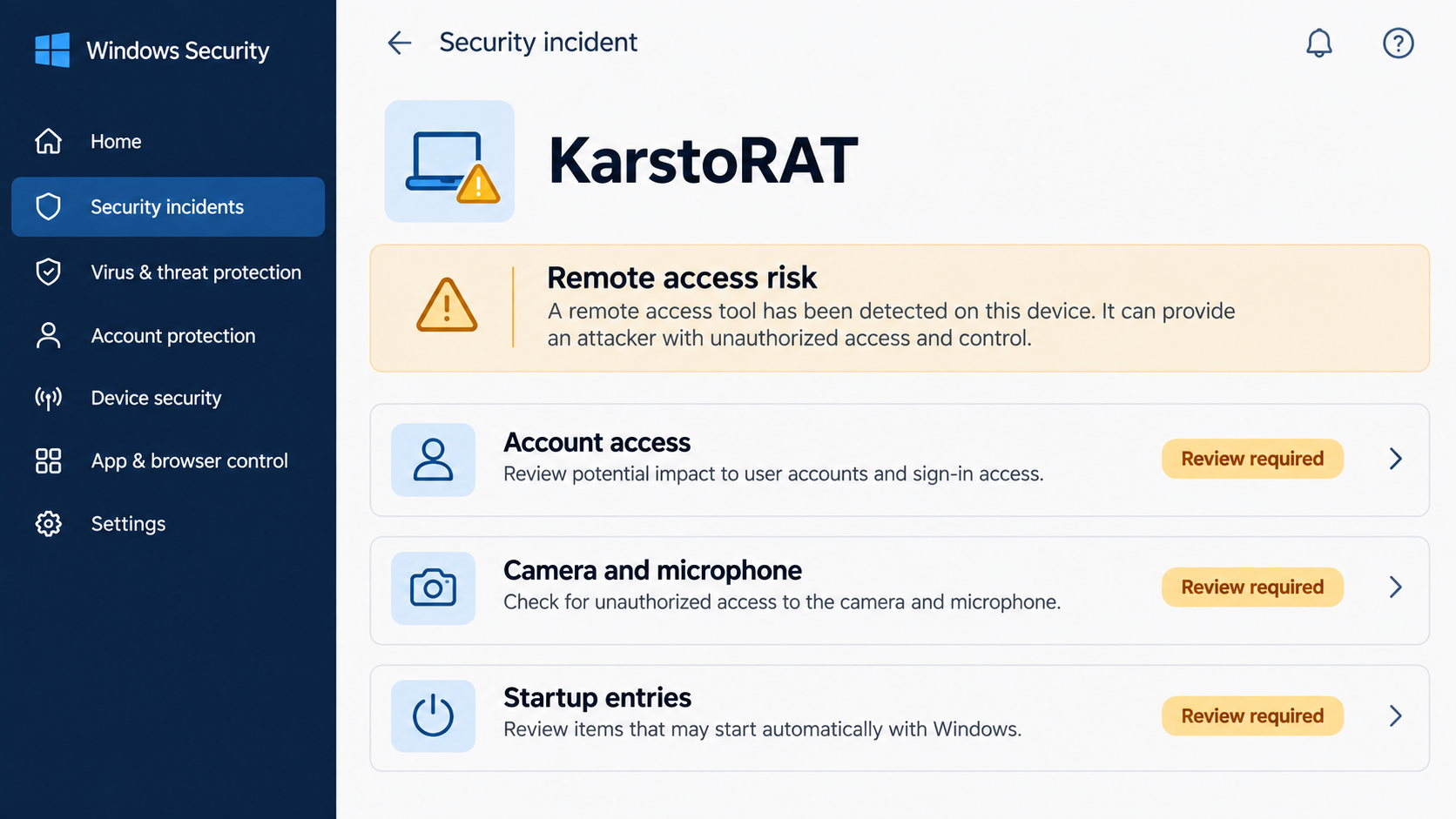
Overview
KarstoRAT is an unauthorized remote-control threat
KarstoRAT is Windows malware with remote-access and information-theft capabilities. Its purpose is not to optimize a game or provide ordinary computer maintenance.
LevelBlue found gaming-themed pages on associated infrastructure and assessed them as possible lure or operator interfaces. The report does not establish every victim’s delivery route.
Blox Fruits and Roblox are not responsible for an impersonating marketplace. A game’s name, familiar artwork, or an appealing trade offer does not authenticate an outside download.
The exposure reaches beyond the downloaded file
Researchers describe functions for capturing screenshots, recording audio and webcam activity, collecting information, and taking credentials or tokens. Operators can also introduce additional payloads.
A token may keep an account signed in without asking for its password again. That is why changing a password and reviewing active sessions are different tasks.
Prioritize these areas if KarstoRAT actually executed:
- Gaming, chat, email, and financial accounts used on the affected PC.
- Camera, microphone, clipboard, and documents exposed during the compromise.
- Startup entries that could restore unauthorized access.
- Other programs downloaded or launched by the intruder.
Strange behavior is a reason to investigate, not a diagnosis
KarstoRAT can disrupt a desktop, but slow performance, a flipped display, or an audio interruption can have other explanations. Preserve the actual detection and file path.
For a confirmed infection, stop using the affected machine for private conversations or account recovery. Those activities belong on a device the attacker cannot observe.
How to Remove KarstoRAT From Windows
For a work or school computer, contact its IT or security team before installing tools or restarting. Its investigation may need evidence from the running system.
If remote access is suspected, disconnect Wi-Fi or Ethernet and stop using this PC for sensitive accounts. Arrange trusted downloads and updates before proceeding with cleanup.
Start with Malwarebytes. HitmanPro and ESET are optional second opinions for unresolved findings or continuing symptoms. Run one scanner at a time.
- STEP 1: Use RKill only if malware blocks your scanner
- STEP 2: Scan and quarantine threats with Malwarebytes
- STEP 3: Optional: Check unresolved threats with HitmanPro
- STEP 4: Optional: Run a second-opinion scan with ESET
Step 1: Use RKill only if malware blocks your scanner
RKill attempts to stop known malware processes so your security software can run. It does not remove the infection.
Use it only on a personal Windows PC when malware is blocking your scanner. Otherwise, skip directly to Malwarebytes.
-
Download Rkill.
Download RKill using the button below. On the download page, choose the iExplore.exe version.
This is a renamed copy of RKill, provided for infections that block security tools by filename.
Download RKillOpens the BleepingComputer download page in a new tab.RKillStops malware processes so other tools can run -
Run RKill.
Open your Downloads folder and double-click iExplore.exe. Allow the program time to finish checking for processes that interfere with cleanup.
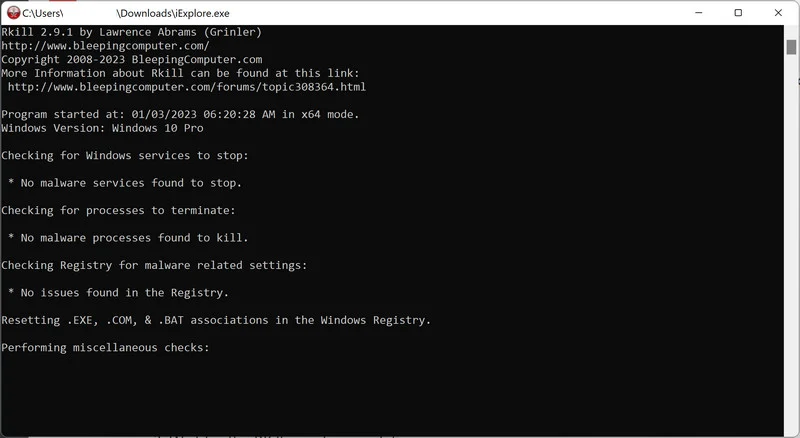
When the black window closes, a log opens. Keep the log, do not restart yet, and continue directly to Malwarebytes.
Step 2: Scan and quarantine threats with Malwarebytes
Malwarebytes for Windows can scan for malware and quarantine detected threats. Use the free Custom Scan below; a paid plan is not required for this cleanup.
Download Malwarebytes
Click the button below to download Malwarebytes for Windows. Paid real-time protection is optional.
Download MalwarebytesMalwarebytes free scanner informationOfficial installer for Windows 11 and 10. Your download starts right away.Want real-time protection? See Malwarebytes PremiumMalwarebytes Free for WindowsScans and removes malware at no cost-
Install Malwarebytes
When the download finishes, open Downloads and double-click MBSetup. If Windows asks for permission, check that the prompt identifies Malwarebytes, then click Yes.

Follow the On-Screen Prompts to Install Malwarebytes
The setup wizard will walk you through a few quick screens:
Installer screens and optional offers vary. Skip unwanted Browser Guard, trial, or paid-plan offers. The free Custom Scan remains available; Threat Scan may require a paid plan.
-
Choose Personal for your own computer, then click Next. For a work-managed device, use your organization’s approved response instead.

-
Wait for installation to finish.

-
If the Welcome to Malwarebytes screen appears, click Get started and follow the remaining prompts.

-
On the final screen, click Open Malwarebytes to launch the program.

-
Choose the scan type and optional rootkit check
On the Scanner tile, click the three dots, choose Advanced Scan, then Custom Scan.
Expand the folder selector and select the C:\ system drive. Include any other drive where the suspicious files were stored.
If Scan for rootkits is available, you can enable it. This setting is unavailable on Windows ARM devices; leave Windows security protections enabled.
Review how potentially unwanted programs and modifications will be handled. Keep detection enabled rather than automatically ignoring these items.
Start the Scan
Click Start Custom Scan. Allow Malwarebytes to update its detection information if prompted.
-
Wait for the Scan to Finish
Wait for the Custom Scan to finish. The time required depends on the selected locations and the amount of data.
-
Quarantine the Detected Threats
When the scan finishes, review the detections and keep the threats you want removed selected. Click Quarantine.
If a detection is unclear, save the report and ask for help before excluding or restoring it.

Wait while Malwarebytes quarantines the selected items. Do not restore a file merely because an unfamiliar name appears in the results.

-
Restart Your Computer
If Malwarebytes asks for a restart, save your work and click Yes. After signing back in, reopen Malwarebytes and check the report for unresolved detections.

Step 3: Optional: Check unresolved threats with HitmanPro
HitmanPro is a second-opinion scanner for Windows. It examines suspicious files using cloud analysis, including SophosLabs. An internet connection is needed for that check.
Scanning is free. Removing detections requires an eligible one-time 30-day trial or a paid license.
A computer that already used its trial may not qualify again. You do not have to buy HitmanPro to follow the Malwarebytes cleanup above.
-
Download HitmanPro
Click the button below to download HitmanPro if you want a second opinion on unresolved symptoms or detections.
Download HitmanProFree scan. Removal requires an eligible 30-day trial or a paid license. Opens the official HitmanPro page in a new tab.HitmanProSecond-opinion malware scanner from Sophos -
Install HitmanPro
When the download finishes, open your Downloads folder and double-click the file: “hitmanpro.exe” on 32-bit Windows, or “hitmanpro_x64.exe” on 64-bit Windows.
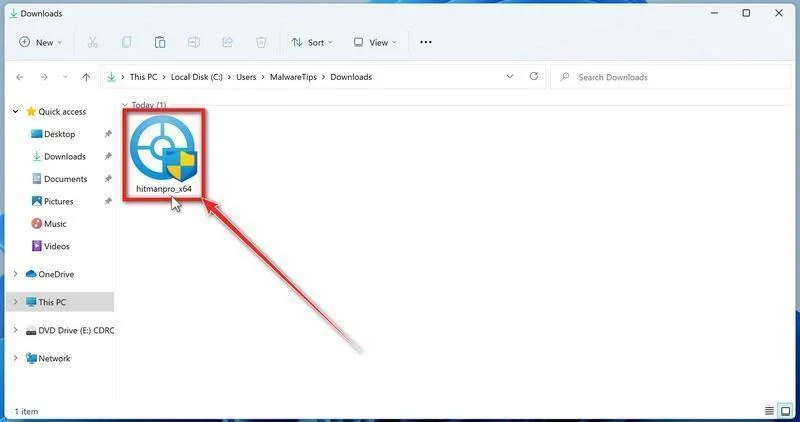
If a User Account Control pop-up asks whether HitmanPro can make changes to your device, click “Yes” to continue.
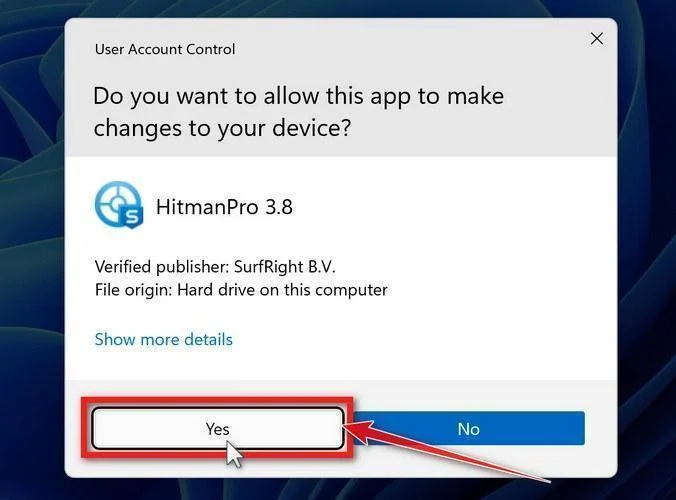
-
Follow the On-Screen Prompts
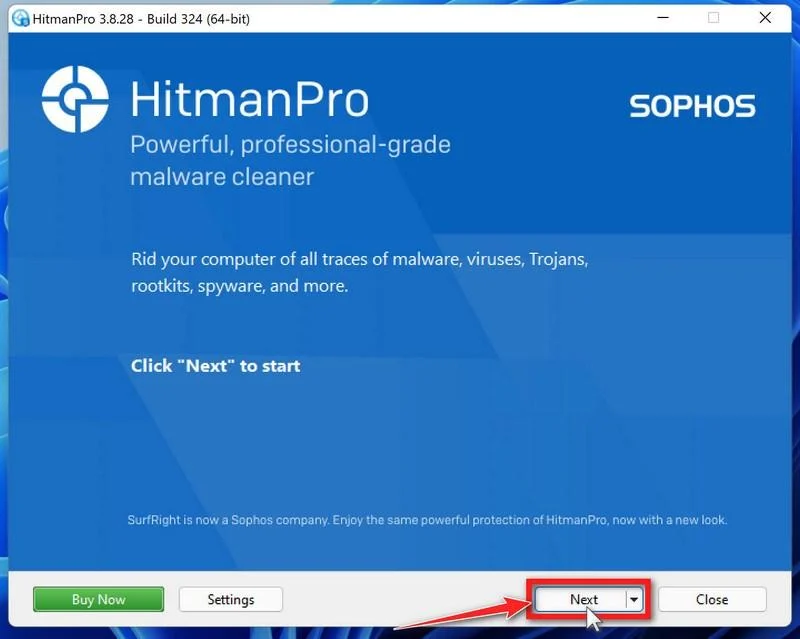
On the HitmanPro start screen, click Next. Read and accept the terms if you agree, then continue.
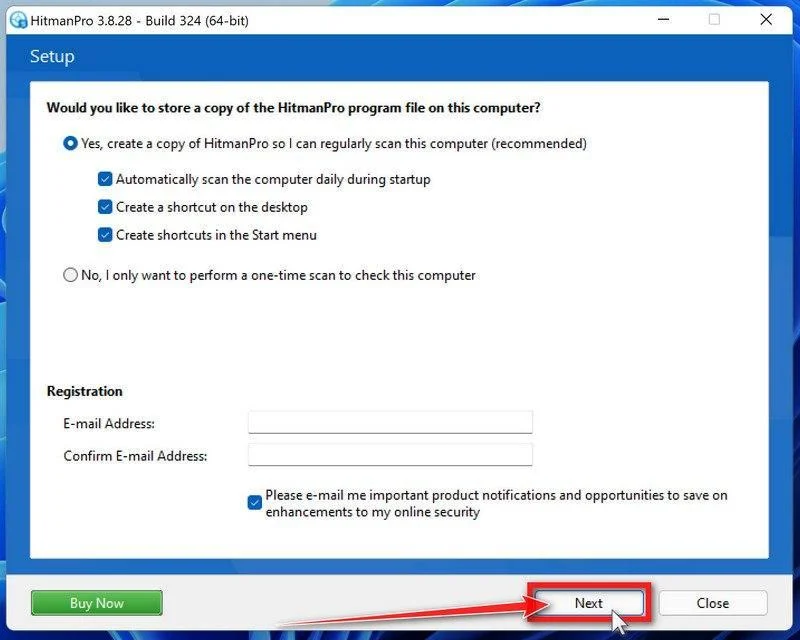
Choose whether to keep a copy for later use or run a one-time scan. Review optional startup and email preferences, then click Next.
-
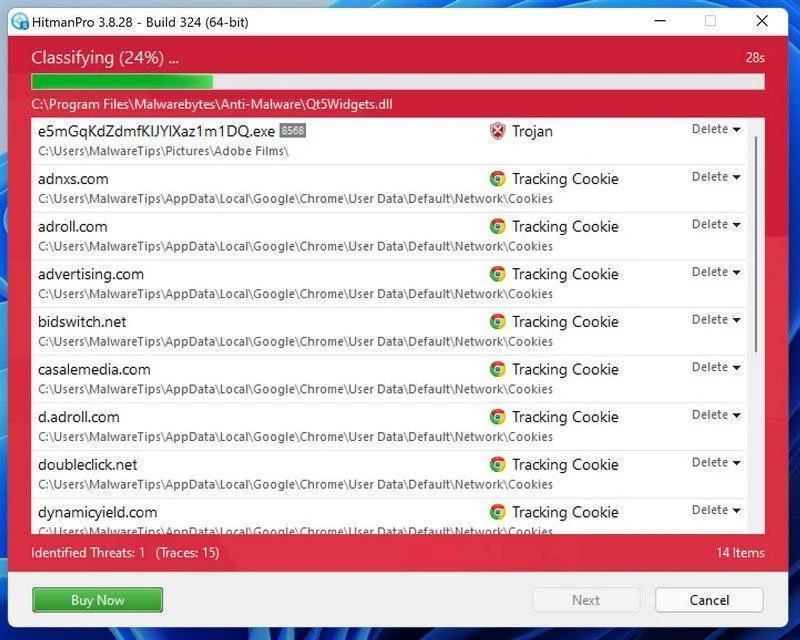
Wait for the Scan to Finish
Let HitmanPro finish scanning. Review its findings once the scan has completed.
-
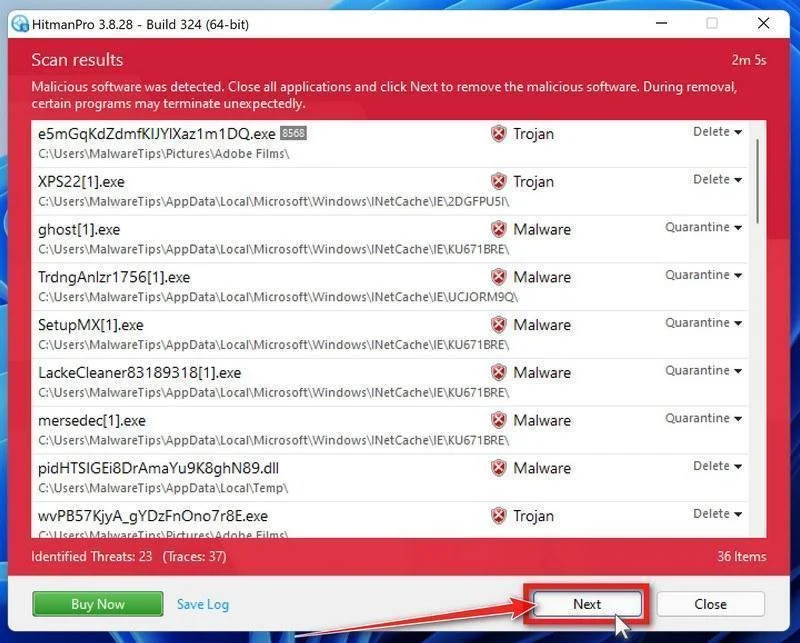
Review the Results and Click “Next”
Review the detected items and their proposed actions. Save the log if you need help with an unfamiliar detection, then click Next to proceed.
-
Click “Activate Free License”
If this computer qualifies, click Activate free license and follow the activation prompts.
If no trial is available, use an existing license or save the report for assistance. Do not assume a purchase is necessary to continue cleanup.
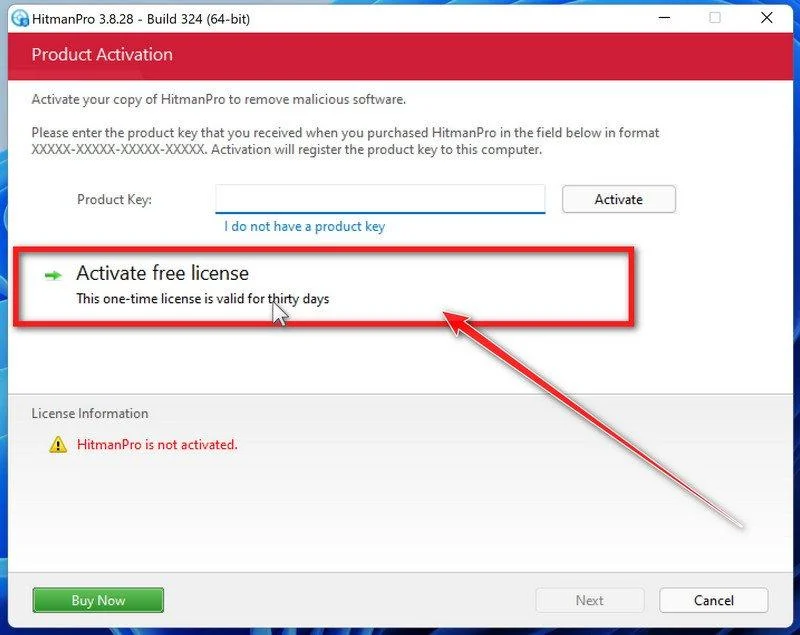
After removal, review the summary and click Next. Choose Reboot if requested, or Close if no restart is needed.
If detections return or the original symptoms persist, keep the reports and ask for help. A clean scan cannot rule out every threat.
Step 4: Optional: Run a second-opinion scan with ESET
ESET Online Scanner is a free second-opinion scanner for Windows. Use it if you need another check after cleanup, rather than running several scanners together.
-
Download ESET Online Scanner
Click the button below to download ESET Online Scanner.
Download ESET Online ScannerOpens the official download page in a new tab.ESET Online ScannerFree one-time malware scan from ESET -
Run the Installer
When the download finishes, open Downloads and double-click esetonlinescanner.exe. Approve the Windows permission prompt after checking that it identifies ESET.
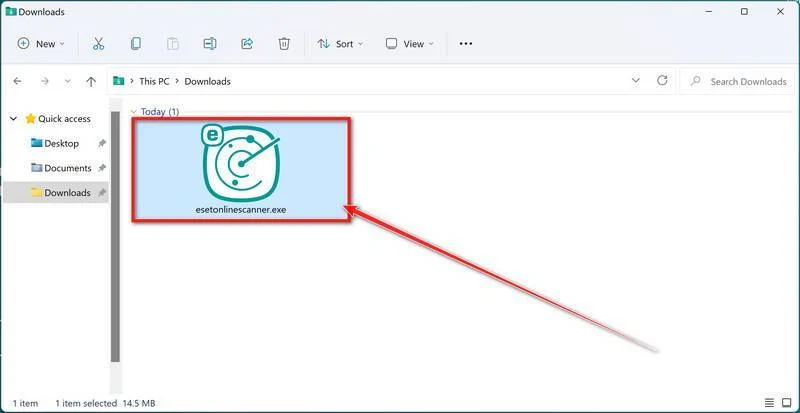
-
Install ESET Online Scanner
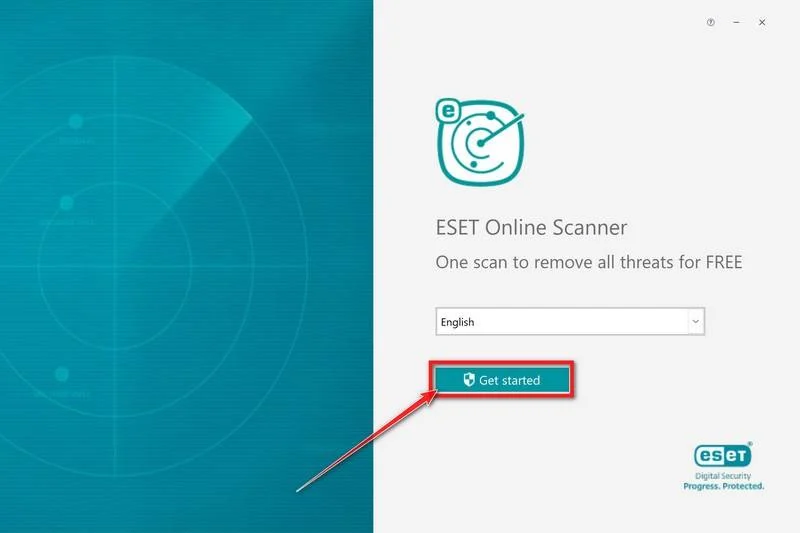
On the start screen, select your language from the drop-down menu and click Get started.
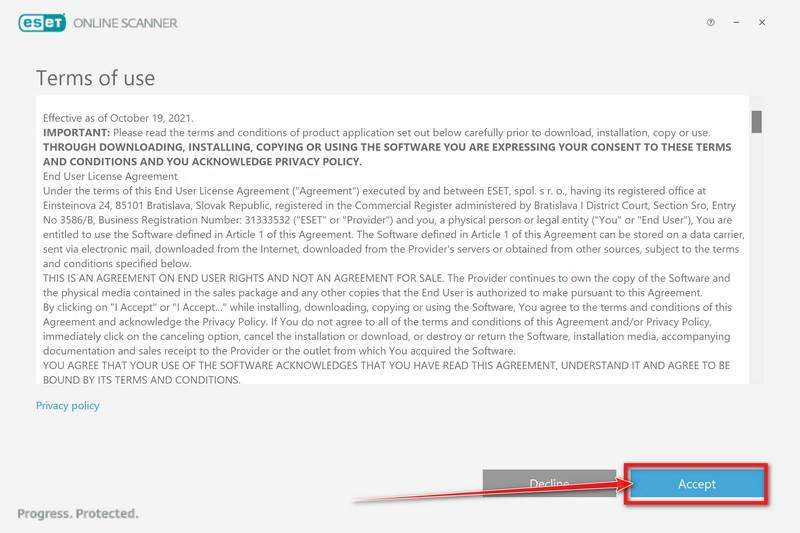
Read the Terms of use. Click Accept if you agree, then Get started if that screen appears again.
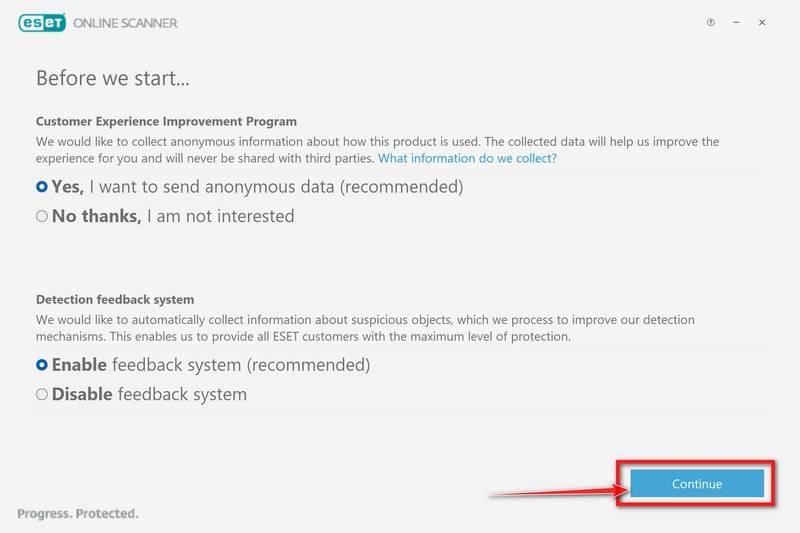
Choose your preferences for the Customer Experience Improvement Program and the Detection feedback system (either choice is fine), then click Continue.
-
Start a Full Scan
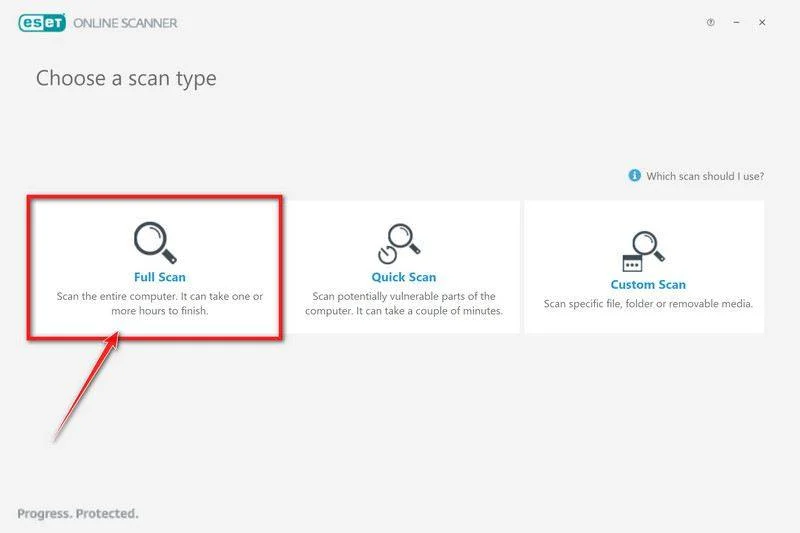
Click Full Scan for a broader check than the quick-scan option.
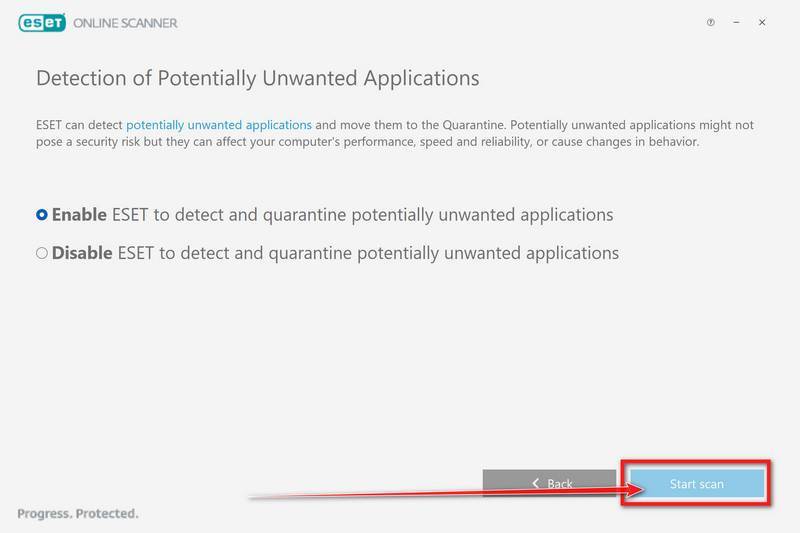
Select Enable for Detection of Potentially Unwanted Applications. Then click Start scan.
-
Wait for the Scan to Finish
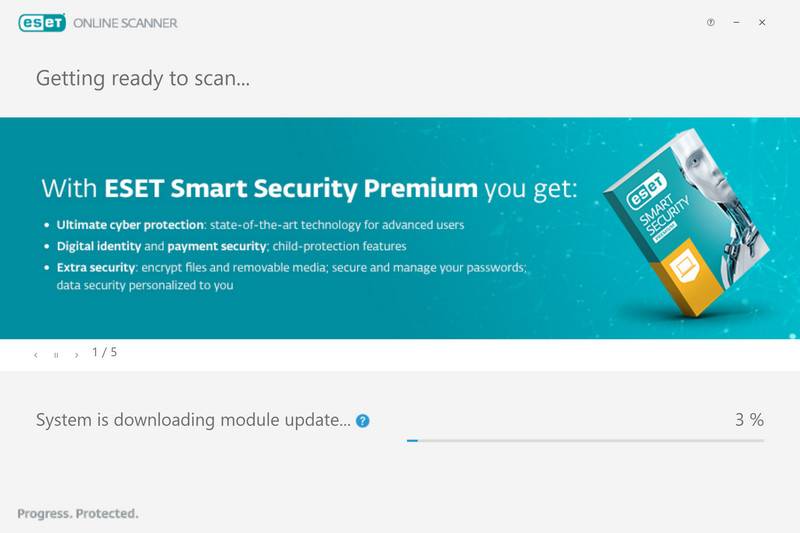
Allow the detection modules to download and update. The file scan begins afterward.
Leave the scan running until it finishes. A full scan can take an hour or longer, depending on your computer and the data being checked.
-
Review the Results
When the scan finishes, open View detailed results and check the action recorded for each detection.
ESET attempts to clean and quarantine detected threats. If an item remains unresolved, keep its details for assistance.
Click Save scan log to keep the results. Then click Continue.
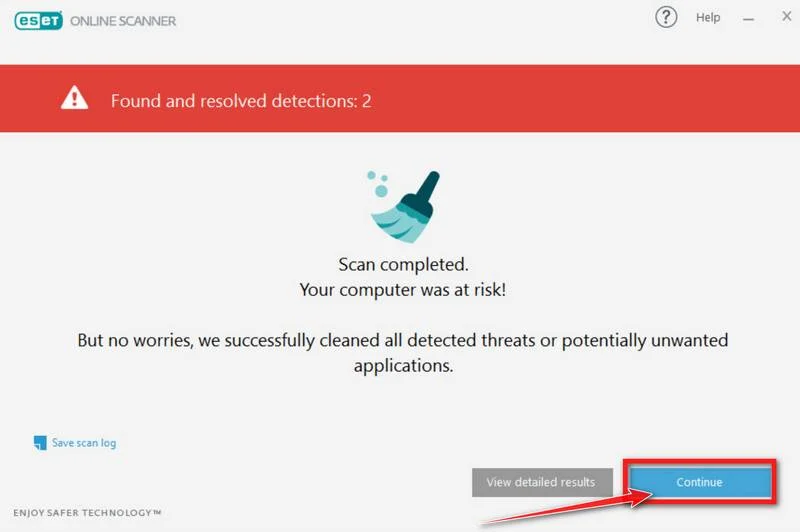
Restart if ESET requests it. Afterward, check whether detections or the original symptoms return.
If problems continue, keep the scan reports and ask for help in the MalwareTips removal forum. Do not repeatedly restore quarantined files.
Technical Details Worth Knowing
The running program contacts an operator
After execution, the RAT can communicate with its command server and provide information about the computer. The operator gains context before choosing further actions.
The analyzed traffic uses a security-sounding user-agent label. Such labels are text selected by software, not independent confirmation that a security vendor operates the connection.
Remote commands expose the user’s activity
Surveillance functions let the attacker collect material from the device. Other capabilities can change its appearance or behavior, including its background or input controls.
Startup mechanisms can bring the RAT back
Reported persistence includes Run entries, Startup locations, and a scheduled task named SystemCheck. These are investigative clues, not an instruction to delete every matching entry.
Legitimate software also uses scheduled tasks and generic maintenance names. A useful finding ties a trigger to the malicious executable and its full path.
Additional payloads or stolen access extend the incident
KarstoRAT’s ability to obtain and run more files means one detection might not describe everything delivered. The next payload determines part of the eventual damage.
Gaming Offers, Tokens, and the Accounts Worth Protecting First
A compromised gaming account can be used to approach friends, advertise another download, or impersonate its owner. Warn contacts if your account sent unfamiliar messages.
Keep that warning simple. Tell them not to open the recent link or file and avoid redistributing the suspicious download while explaining what happened.
If a chat account was exposed, review devices and active sessions using its genuine account settings. Remove unfamiliar access and turn on available multi-factor protection.
Check the primary email account too. A working recovery inbox is important when replacing passwords or reversing unauthorized changes on other services.
Review linked payment methods, purchases, and trade history. Preserve receipts and support references if something was transferred or bought without permission.
Do not confuse a detection name with a proven identity for the attacker. This guide does not establish who operated the particular download you encountered.
What to Do If KarstoRAT Was Detected
End the connection. Disconnect the affected Windows machine so an operator cannot keep using its normal network access while you seek help.
Move private activity elsewhere. Use another trustworthy device for support conversations, email recovery, banking, and replacement passwords.
Keep the detection details. Save the alert, suspected download address, installer name, and approximate first-run time. These are more useful than guessing from symptoms.
Review account sessions. Replace compromised passwords and end unfamiliar access on gaming, messaging, and email services. Report unauthorized purchases to the relevant provider.
Remove the Windows infection carefully. The illustrated procedure above includes quarantine and follow-up checks. Preserve workplace evidence before undertaking consumer cleanup.
Escalate recurring activity. A returning task, fresh remote behavior, or repeated detections warrants a qualified responder rather than repeated blind deletion.
When the Computer Appears Normal Again
Check whether account changes or messages continue after cleanup. Continued online abuse can reflect a stolen session rather than a newly infected Windows installation.
Keep the distinction clear when talking to support. The device may need technical work while an account provider separately revokes tokens or reverses a change.
Review Windows camera and microphone access if appropriate. Those settings can provide useful context, but an empty recent-use list is not proof that surveillance never happened.
Do not restore an entire suspect application folder just because it contains game files you want. Reinstall legitimate software through its verified distribution channel.
Frequently Asked Questions
Is KarstoRAT part of Roblox or Blox Fruits?
No. LevelBlue linked gaming-themed pages to the infrastructure, but assessed them as possible lures or operator interfaces rather than a confirmed delivery route.
Those pages do not make KarstoRAT an official Roblox or Blox Fruits component.
Can KarstoRAT see my camera or microphone?
Those capabilities appear in published technical analysis. Whether they were used against a particular computer requires incident evidence, not an assumption from the family name.
Is a task named SystemCheck always malicious?
No. The name is a clue from a reported sample. Check the task’s action, executable path, and relationship to the confirmed infection before changing it.
Why might account abuse continue after a scan?
Copied credentials or tokens can remain usable away from the original computer. Recover the affected accounts and review sessions as well as removing malware.
Should I pay someone who claims to control my desktop?
Do not negotiate through the intruder’s channel. Disconnect, preserve the communication, and seek independent help. Payment cannot establish that copied information was deleted.
Does a quiet computer mean KarstoRAT has gone?
No. Remote-access software can remain unobtrusive. Review quarantine results, persistence, account access, and any recurring alerts before resuming sensitive use.
The Bottom Line
Treat confirmed KarstoRAT execution as unauthorized Windows access. Do not keep using that PC for account recovery or accept another unverified download as the fix.
If the RAT ran, contain the PC, complete the removal process, and recover exposed accounts separately. Seek further help when access or detections return.

Join the discussion
0 commentsShare your experience or ask a question about this article.
Your progress
Did these steps help?
Let us know how the guide worked for you.
Describe what you see and the step you reached. Keep passwords and other private information out.
Discussion
Start the conversation
Have a question or something useful to share? Add the first comment.