

The Unlock this Page to Continue! or the Complete an Offer infection is a Trojan Horse, that has locked down your desktop and is prompting you to complete an offer or survey to unlock your PC.
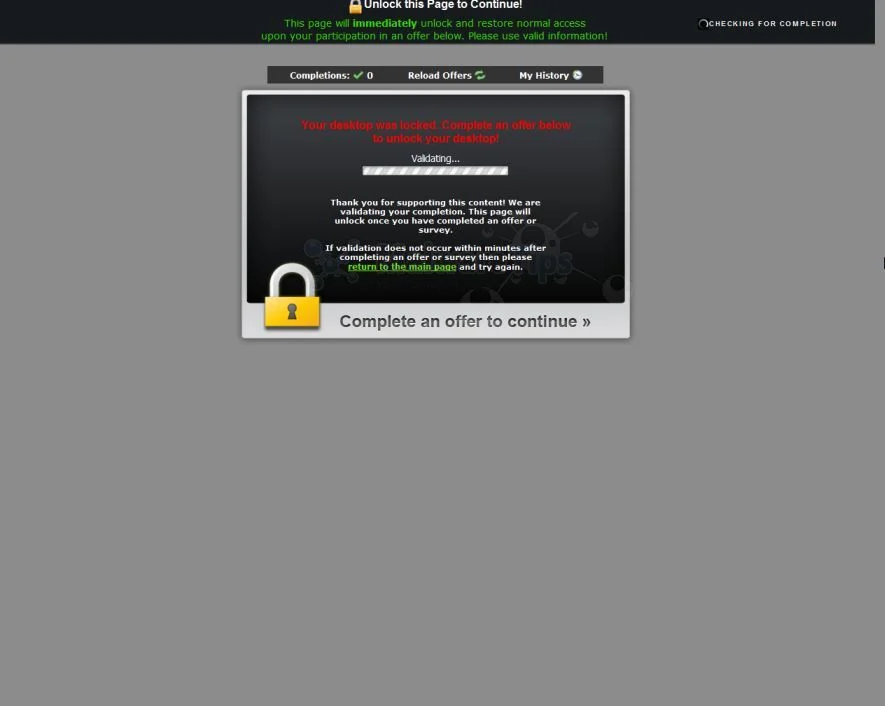
The Unlock this Page to Continue! screen locker will prompt you to complete various surveys or promotions because for each one you finish, the cyber criminals behind this malicious program will receive a commission.Some of the offers and surveys that you may see include:
- Shop & Save with this free Toolbar download!
- Breakfast on Us with a Dunkin’ Donuts Gift Card!
- FREE pair of Studio Beats by Dr. Dre!
- Take a back to school shopping spree!
- Get FREE McDonald’s!
- Take this survey & get a Visa gift card!
- Win a voucher for drinks at Starbucks!
Each time you’ll click on any of these surveys, Internet Explorer will open and you’ll need to complete a short survey , and then this screen locker will be able to detect when you have properly completed the task and then unlock your computer.
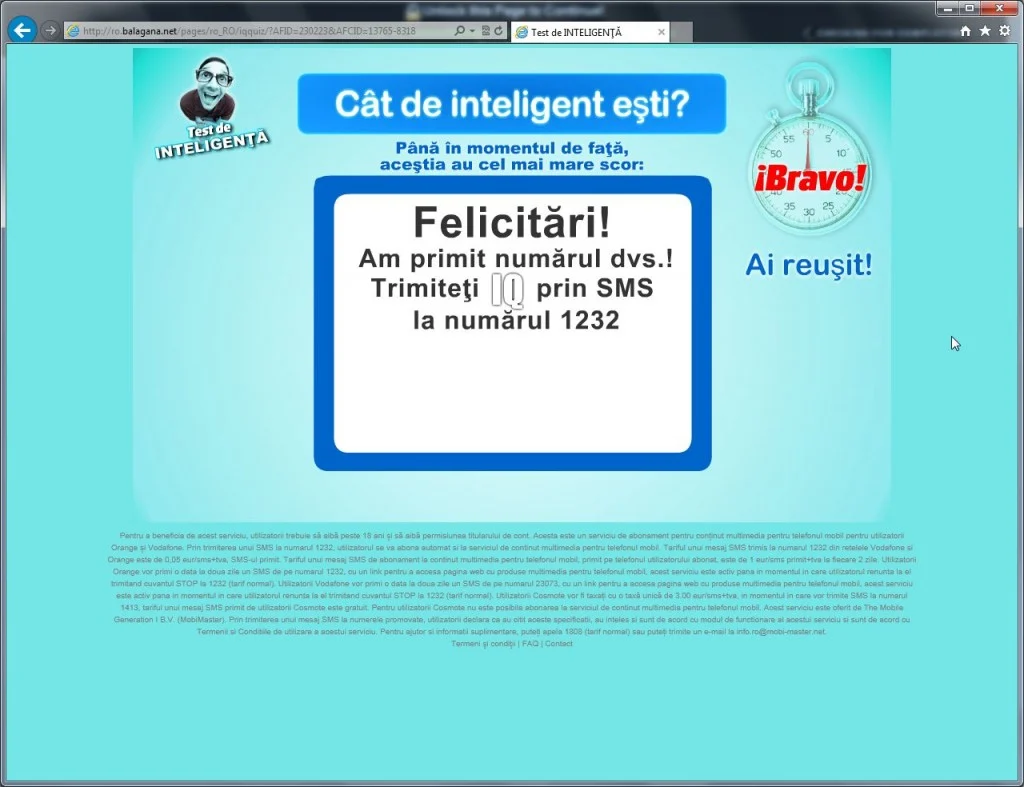
In most cases,even after you have completed an offer or survey, you won’t get access to your desktop and whenever you start Windows you’ll see the following message:
Unlock this Page to Continue!
This page will immediately unlock and restore normal access upon your participation in an offer below. Please use valid information!
Your desktop was locked. Complete an offer below to unlock your desktop.
Complete an offer to continue.
How to remove “Unlock this Page to Continue” lock screen (Removal Guide)
Please perform all the steps in the correct order. If you have any questions or doubt at any point, STOP and ask for our assistance.
-
To remove the “This user is disabled” lock screen, follow these steps:
- STEP 1: Remove the “Unlock this Page to Continue” lock screen
- STEP 2: Scan and clean your computer with Malwarebytes Anti-Malware
- STEP 3: Double-check for malicious programs with HitmanPro
STEP 1 : Remove the “Unlock this Page to Continue” lock screen
In this first step we will remove the “Unlock this Page to Continue” lock screen from Windows.
If your computer is not locked and you can access the Windows desktop, then you can skip to STEP 2
Because there are many versions of this malware, which behave differently, we have provided multiple options to remove the malicious lock screen.
OPTION 1: Start your computer in Safe Mode with Networking
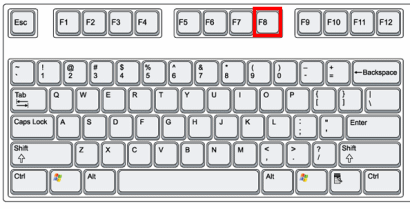
- Immediately after the computer is powered on or restarted (usually after you hear your computer beep), tap the F8 key in 1 second intervals.
- After your computer displays hardware information and runs a memory test, the Advanced Boot Options menu will appear.
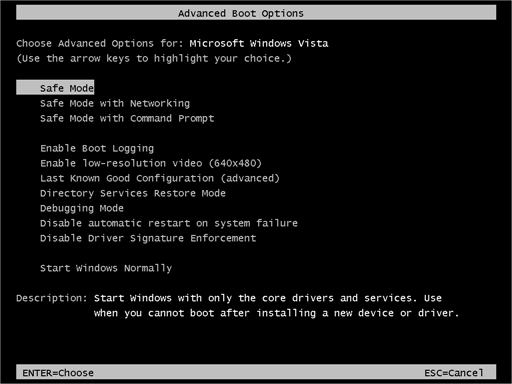
- Use the arrow keys to select Safe Mode with Networking and press ENTER.
- After you have started your machine in Safe Mode with Networking, run a system scan with Malwarebytes Anti-Malware as seen in the below step.
OPTION 2: Start your computer in Safe Mode with Networking
System Restore can return your computer system files and programs to a time when everything was working fine, so we will try to use this Windows feature to get rid of “Unlock this Page to Continue” virus.
- Restart your computer, and then press and hold F8 during the initial startup to start your computer in safe mode with a Command prompt.
Note: With some computers, if you press and hold a key as the computer is booting you will get a stuck key message. If this occurs, instead of pressing and holding the “F8 key”, tap the “F8 key” continuously until you get the Advanced Boot Options screen. - Use the arrow keys to select the Safe mode with a Command prompt option.
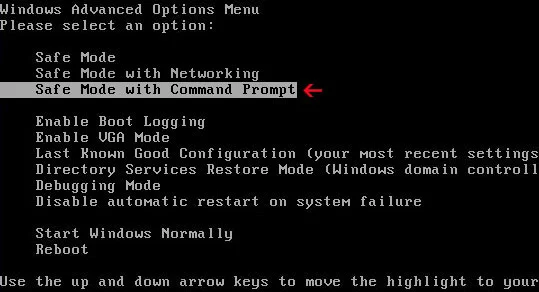
- At the command prompt, type cd restore, and then press ENTER.
Next,we will type rstrui.exe , and then press ENTER.Alternatively, if you are using Windows Vista, 7 and 8, you can just type : C:\windows\system32\rstrui.exe , and press ENTER.
If you are using Windows XP, you will need to type C:\windows\system32\restore\rstrui.exe, and then press ENTER.

- The System Restore utility will start, and you’ll need to select a restore point previous to this infection.
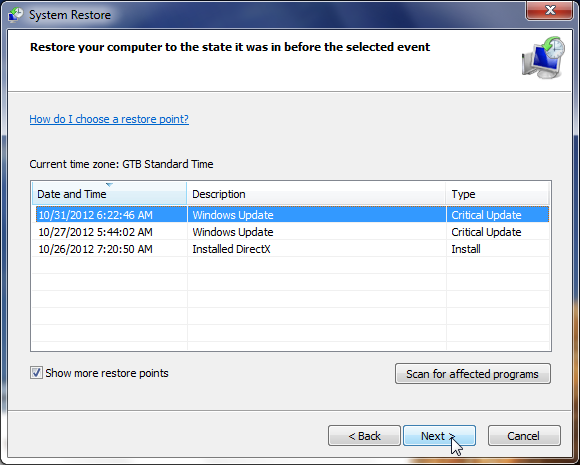
- After System Restore has completed its task, you should be able to boot in Windows normal mode, and perform a system scan (as seen on STEP 2) with Malwarebytes Anti-Malware and HitmanPro to remove the malicious files from your machine.
OPTION 3: Remove the malicious lock screen with HitmanPro.Kickstart
HitmanPro.Kickstart is the solution against ransomware and other persistent malware that has taken your computer hostage or prevents normal computer use.
Because this infection has locked you out of your computer, we will need to create a bootable USB drive that contains the HitmanPro.Kickstart program. We will then boot the infected machine with the HitmanPro.Kickstart USB drive, and use the program to clean the infection.
- Using a “clean” (non-infected) computer, please download HitmanPro from the below link.
Download HitmanProOfficial Sophos download. Free scan, free 30-day trial to remove threats. - Once HitmanPro has been downloaded on the clean machine, insert an USB flash drive and double-click on the file named HitmanPro.exe (for 32-bit versions of Windows) or HitmanPro_x64.exe (for 64-bit versions of Windows).
To create a bootable HitmanPro USB drive, please follow the instructions from this video:
- Once you have created the bootable HitmanPro.Kickstart USB drive, insert the USB into the computer infected with the “This user is disabled” lock screen.
- After you have inserted the HitmanPro Kickstart USB drive, boot your machine from the HitmanPro.Kickstart USB as seen in the below video.
- The malicious lock screen should be removed from your machine. It’s recommended that you perform a system scan with Malwarebytes and HitmanPro as see in the below steps.
STEP 2: Scan and clean your computer with Malwarebytes Anti-Malware
Malwarebytes Anti-Malware is a powerful on-demand scanner which should remove the Unlock this Page to Continue ransomware. It is important to note that Malwarebytes Anti-Malware will run alongside antivirus software without conflicts.
- You can download download Malwarebytes Anti-Malware from the below link.
Download MalwarebytesFree official installer. Your download starts right away. - Once downloaded, close all programs, then double-click on the icon on your desktop named “mbam-setup” to start the installation of Malwarebytes Anti-Malware.
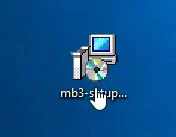
You may be presented with a User Account Control dialog asking you if you want to run this file. If this happens, you should click “Yes” to continue with the installation.
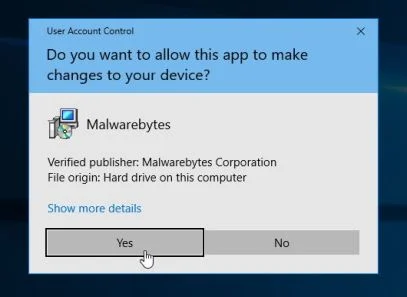
- When the installation begins, you will see the Malwarebytes Anti-Malware Setup Wizard which will guide you through the installation process.
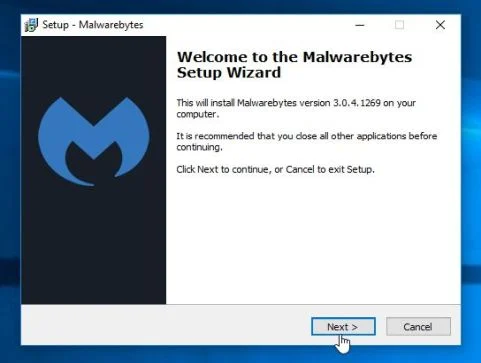
To install Malwarebytes Anti-Malware on your machine, keep following the prompts by clicking the “Next” button.
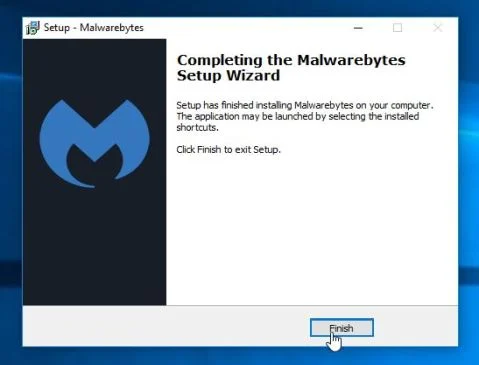
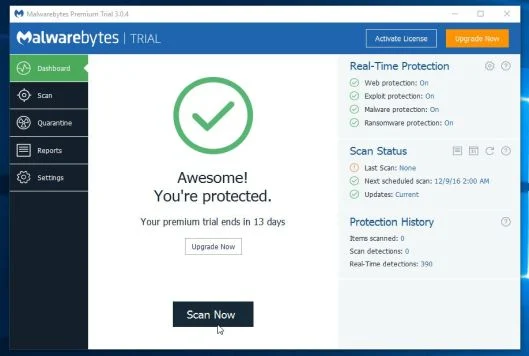
- Once installed, Malwarebytes Anti-Malware will automatically start and will update the antivirus database. To start a system scan you can click on the “Scan Now” button.
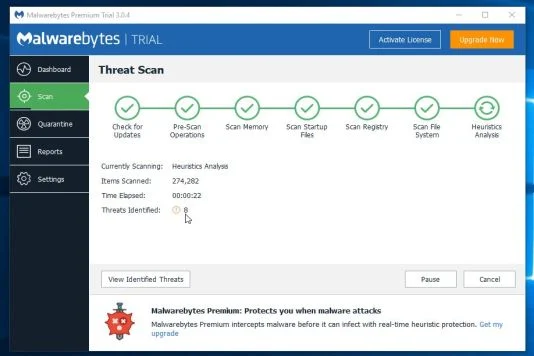
- Malwarebytes Anti-Malware will now start scanning your computer for malware. When Malwarebytes Anti-Malware is scanning it will look like the image below.
- When the scan has completed, you will be presented with a screen showing the malware infections that Malwarebytes Anti-Malware has detected. To remove the malicious programs that Malwarebytes Anti-malware has found, click on the “Remove Selected” button.
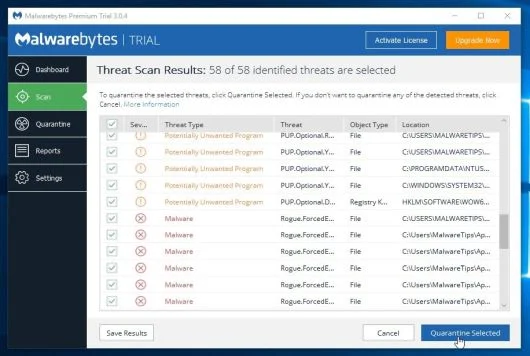
- Malwarebytes Anti-Malware will now quarantine all the malicious files and registry keys that it has found. When removing the files, Malwarebytes Anti-Malware may require a reboot in order to remove some of them. If it displays a message stating that it needs to reboot your computer, please allow it to do so.
When the malware removal process is complete, you can close Malwarebytes Anti-Malware and continue with the rest of the instructions.
STEP 3: Double-check for malicious programs with HitmanPro
HitmanPro can find and remove malware, adware, bots, and other threats that even the best antivirus suite can oftentimes miss. HitmanPro is designed to run alongside your antivirus suite, firewall, and other security tools.
- You can download HitmanPro from the below link:
Download HitmanProOfficial Sophos download. Free scan, free 30-day trial to remove threats. - Double-click on the file named “HitmanPro.exe” (for 32-bit versions of Windows) or “HitmanPro_x64.exe” (for 64-bit versions of Windows).

Click on the “Next” button, to install HitmanPro on your computer.
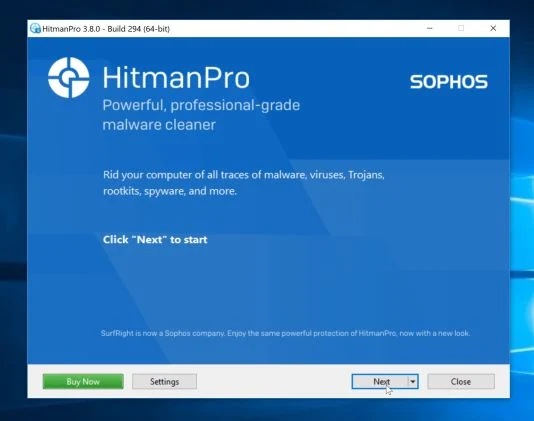
- HitmanPro will now begin to scan your computer for malware.
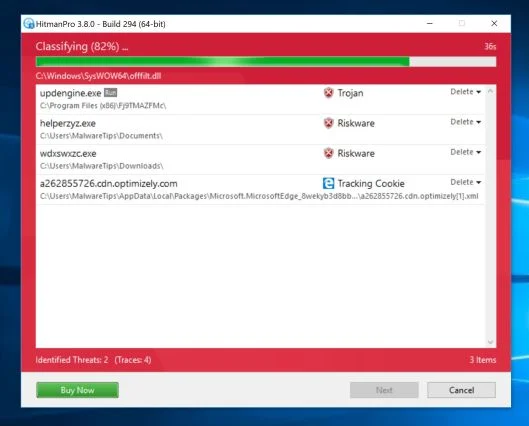
- When it has finished it will display a list of all the malware that the program found as shown in the image below. Click on the “Next” button, to remove malware.
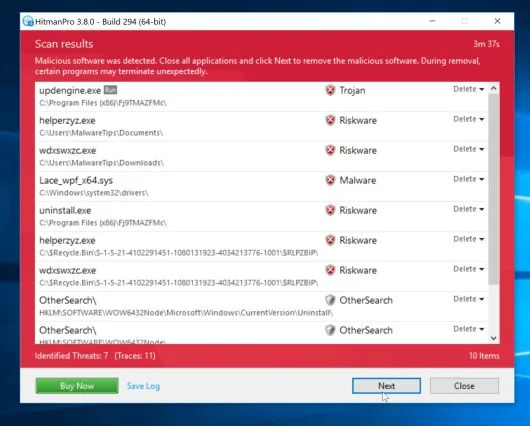
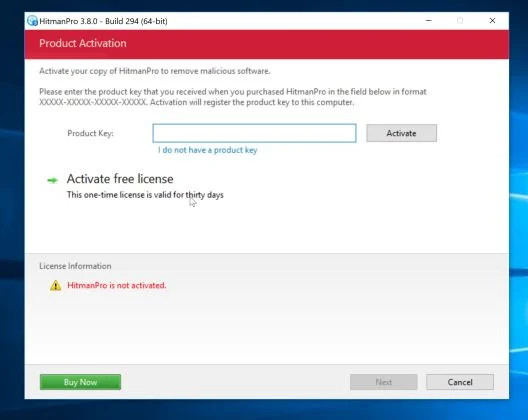
- Click on the “Activate free license” button to begin the free 30 days trial, and remove all the malicious files from your computer.
If you are still experiencing problems while trying to remove Unlock this Page to Continue virus from your machine, you can ask for help in our Malware Removal Assistance forum.

Join the discussion
5 commentsShare your experience or ask a question about this article.
Your progress
Did these steps help?
Let us know how the guide worked for you.
Describe what you see and the step you reached. Keep passwords and other private information out.
Discussion
Man i love you (not gay) , you saved my computer today bro!!!!!!!!!!!!! btw,i used Method 1 :)
so amazing thank you thank you thank you :D
Thank you soooo much ! :D That was very helpful !
I’m not gay, but I LOVE YOU! I can now use my computer LIKE A BAWZ again, im gonna make a video about this side :)
thanks so much..its really help me a lot.. :)