

An unexpected invoice can turn an ordinary workday into a tense search for a purchase nobody remembers approving.
The message looks routine enough to deserve attention, yet several quiet details make a careful review essential.
Overview
The email presents an invoice as unfinished business
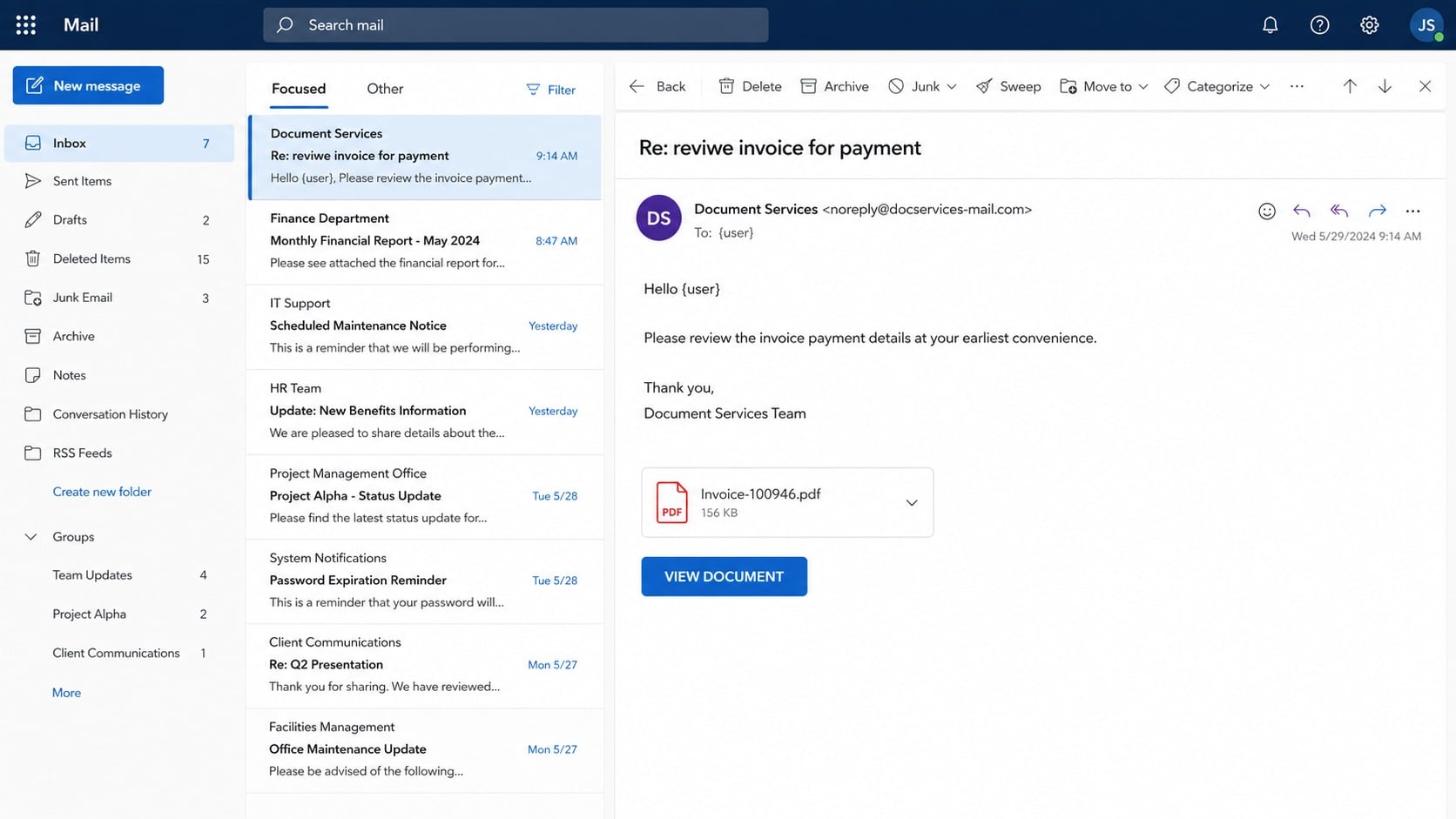
The message asks the recipient to review an attached or linked invoice and confirm payment using account details supplied inside the document.
One observed version used the subject line “Re: reviwe invoice for payment,” including the misspelling, and addressed the reader with a generic greeting.
It referred to a file named Invoice -100946.pdf and offered a prominent “VIEW DOCUMENT” button.
- The sender provides little context about the purchase, supplier, contract, or employee who allegedly placed the order.
- The wording treats payment approval as routine, encouraging action before anyone verifies the underlying transaction.
- The document link opens a sign-in screen styled to resemble familiar business webmail.
- Credentials entered there can give criminals access to email, invoices, contacts, and future payment conversations.
The real target is the recipient’s mailbox
This campaign is more than a request to pay a questionable bill.
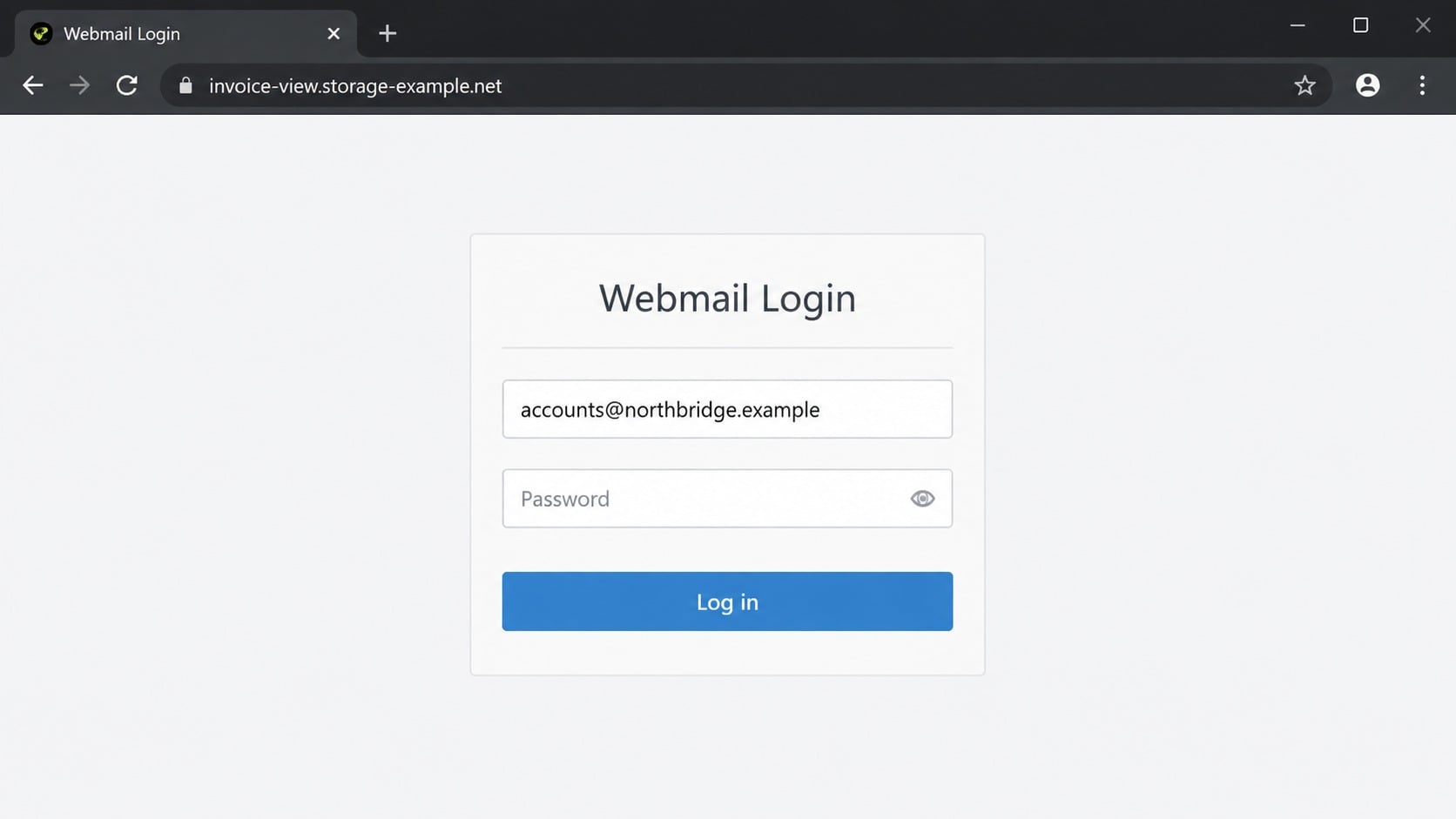
The linked page imitates a cPanel Webmail login and asks for the victim’s email address and password.
A compromised mailbox gives an intruder a convincing identity inside a real organization.
From there, the attacker can study supplier relationships, intercept genuine invoices, and send believable payment changes from a trusted account.
A single login can create several losses
The immediate danger is credential theft, but the damage can spread through password reuse, active sessions, forwarding rules, and business email compromise.
If the invoice contains replacement bank details, a victim may also send money directly to an account controlled by the criminal.
Fast reporting matters because banks and administrators have more options before funds move onward or mailbox evidence disappears.
What the Invoice Message Is Trying to Imitate
Real accounts-payable conversations often involve short replies, familiar invoice numbers, PDF attachments, and requests for confirmation.
The scam borrows that everyday rhythm while removing the details an employee needs to verify a payment.
There may be no purchase order, delivery record, named buyer, supplier telephone number, tax information, or established email thread.
The subject begins with “Re:” to suggest an earlier conversation, even when no related message exists in the mailbox.
That small trick can make a cold email feel like a task the recipient has forgotten.
The attached filename also looks administrative rather than dramatic.
Instead of promising a prize, the message creates mild workplace pressure and relies on the reader’s desire to clear a pending request.
A genuine invoice may still arrive unexpectedly, so appearance alone cannot settle the question.
Verification must happen through purchasing records and known supplier contacts, not through the button or telephone details inside the message.
Employees should also consider whether they normally approve invoices, whether the amount is expected, and whether the claimed vendor already exists.
A request outside the recipient’s normal role is a useful warning, especially when the sender urges immediate confirmation.
Even a recognizable display name proves little because that label can be typed by anyone.
The full sender address, reply address, link destination, and authentication results provide more meaningful evidence.
How the Review the Invoice Email Scam Works
Step 1: A vague payment request reaches the inbox
The attacker sends a brief message that resembles a supplier follow-up or an internal request from accounts payable.
It avoids a detailed explanation because details create facts the recipient could quickly disprove.
The email may reference an invoice number, attach a PDF, or place a document button beneath a short greeting.
Some copies contain awkward grammar, but polished language is not proof that another copy is safe.
Step 2: Familiar business language lowers suspicion
Words such as “review,” “confirm,” and “payment” make the request sound procedural instead of threatening.
The message may imply that colleagues already discussed the bill by adding “Re:” or “Fwd:” to the subject.
A recipient handling many invoices can mistake that manufactured familiarity for a real conversation.
Criminals benefit when the reader processes the email as routine administration rather than a new financial request.
Step 3: The document button redirects away from email
Selecting “VIEW DOCUMENT” opens a website outside the organization’s normal document platform.
In the analyzed version, the destination displayed a counterfeit cPanel Webmail login hosted through unrelated cloud infrastructure.
Cloud storage and hosting services are legitimate, but criminals can misuse temporary pages on them.
The presence of HTTPS only means the connection is encrypted; it does not certify the operator’s identity.
Step 4: The fake portal requests mailbox credentials
The page asks for an email address and password, supposedly to unlock the invoice.
Its logo, colors, and form resemble a common webmail panel, but the address bar does not belong to the recipient’s mail provider.
Some phishing pages prefill the email address from the link, making the form appear connected to the account.
That personalization can be produced with a simple URL parameter and does not prove a legitimate sign-in.
Step 5: Submitted details travel to the attacker
When the victim presses Sign In, the page sends the credentials to infrastructure controlled by the campaign.
It may display an error and request the password again, capturing alternate passwords when the first attempt appears unsuccessful.
The victim may then be redirected to a harmless page or blank document.
That ending encourages the assumption that the portal malfunctioned, delaying a password change.
Step 6: The stolen mailbox becomes a surveillance point
An intruder can search messages for invoices, bank details, signatures, contracts, travel plans, and password-reset notices.
They may create hidden forwarding rules or filters that copy financial conversations and conceal security alerts.
Existing threads reveal how executives, vendors, and finance staff normally write.
That knowledge supports a second message that is much harder for colleagues to recognize as fraudulent.
Step 7: A payment diversion may follow
The criminal can reply inside a genuine invoice thread and announce that the supplier’s bank account has changed.
Because the message comes from a real compromised address, ordinary visual checks may not expose it.
The attacker often chooses a payment already expected, then replaces only the destination account.
Once money arrives, it may be moved through other accounts quickly, reducing the chance of recovery.
Sender, Domain, Invoice, and Account Checks
Inspect the full sender and reply addresses
Expand the sender details instead of trusting the displayed name.
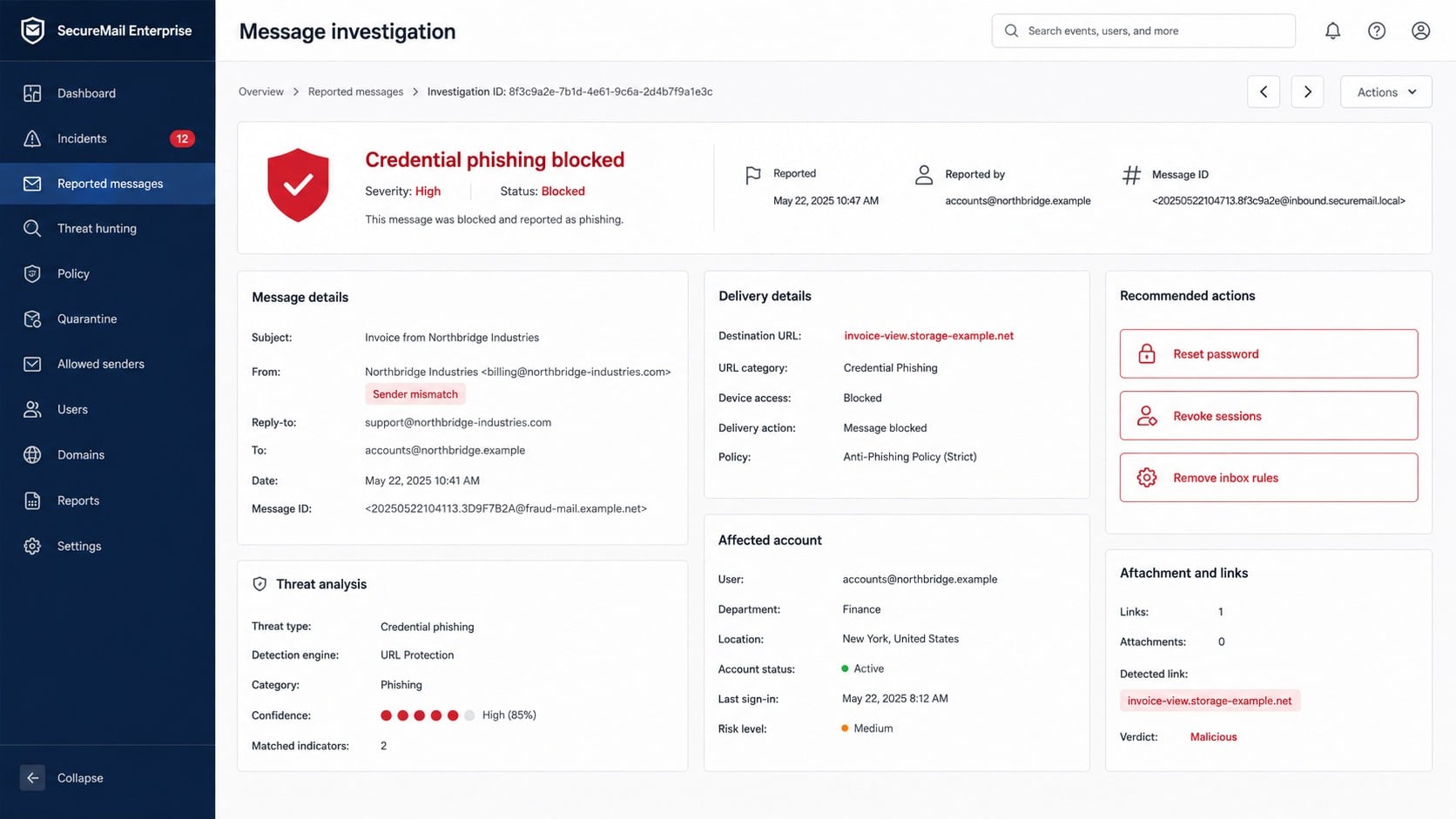
Look for misspelled company domains, unrelated free-mail accounts, extra words, unusual country domains, and a reply address that differs from the sender.
A real domain can also be compromised, so a correct address is only one part of the decision.
Unexpected behavior from a known contact still deserves confirmation through a separate channel.
Read the destination before opening it
Hover over the button on a computer or inspect the link preview without loading the page.
The sign-in destination should belong to the organization’s known mail or document service, not a random storage bucket or newly registered domain.
Long paths, encoded email addresses, and familiar brand words placed before an unrelated final domain are common warning signs.
Never use a login form reached through an unexpected invoice email.
Match the invoice against independent records
Check the purchase order, receiving record, contract, vendor profile, amount, currency, and approval chain inside the organization’s own systems.
Call the supplier using a number already stored in verified records.
Do not use contact information printed on the suspicious invoice because the attacker may control that route.
Any request to change beneficiary details should receive a second-person review and verbal confirmation with a known representative.
Examine the mailbox after any exposure
Changing the password is necessary, but it does not remove active sessions, app passwords, malicious rules, or newly authorized applications.
Administrators should review sign-in locations, devices, OAuth grants, forwarding settings, recovery methods, and recent security changes.
Search sent and deleted folders for messages the attacker may have issued or hidden.
Preserve headers and timestamps before cleanup because they can help trace the incident and notify affected partners.
Why This Scam Can Become Business Email Compromise
Invoice phishing is especially dangerous because email contains both identity and operational context.
A criminal who steals a social account may reach friends, but a stolen finance mailbox can reach active payment workflows.
The attacker does not need to invent an entire transaction after gaining access.
They can wait for a real invoice, observe the approval process, and intervene at the moment a transfer is expected.
Patience makes the eventual instruction feel consistent with the surrounding conversation.
Some intruders register a lookalike domain after learning the names of both companies.
They then move the exchange to that domain while copying genuine signatures, quotations, and prior messages.
Others stay inside the compromised mailbox and use deletion rules to hide replies from the legitimate account owner.
That is why organizations should not treat this as a simple password-reset event.
Finance staff may need to review recent payments, pending bank-detail changes, and sensitive documents accessed during the exposure window.
Suppliers and customers who received messages from the account should receive a concise warning through a trusted route.
The warning should identify the affected period without forwarding the malicious link.
Strong payment controls also limit the damage when an email account fails.
Useful controls include dual approval, verified vendor master data, call-back procedures, and alerts for new beneficiary accounts.
Technical protections help too, especially phishing-resistant multifactor authentication and restrictions on external forwarding.
However, no filter catches every message, and no employee should be expected to judge payment changes alone.
Invoice numbers should also be compared with the supplier’s established numbering pattern.
A convincing format is useful evidence only when the purchase, delivery, amount, and beneficiary also match independent records.
When one detail conflicts, pause the transfer until both companies resolve the discrepancy through known representatives.
What to Do if You Have Fallen Victim to This Scam
- Stop interacting with the message. Close the counterfeit page and do not reopen the attachment or reply to the sender.
- Change the exposed email password. Use the provider’s official app or a manually typed address, then choose a new unique password.
- End every active session. Sign out unknown devices and revoke app passwords, connected applications, and unfamiliar recovery methods.
- Enable strong multifactor authentication. Prefer a security key or passkey where available, and never approve an unexpected login prompt.
- Inspect mailbox rules. Remove unauthorized forwarding addresses, filters, delegates, automatic replies, and rules that hide security or payment messages.
- Tell your administrator immediately. Provide the original email, headers, link, submission time, and any error shown after the login attempt.
- Protect reused accounts. Change every account using the same password, beginning with financial, cloud, payroll, and identity services.
- Contact the bank if money moved. Ask the fraud department to recall or freeze the transfer and preserve the case number.
- Warn affected business contacts. Use a verified telephone number or fresh message, especially if the mailbox sent invoices or bank changes.
- Scan the computer. Run Malwarebytes to check for malicious downloads, then use AdGuard to reduce access to known phishing and advertising domains.
- Monitor for follow-up attempts. Watch for password resets, new invoices, impersonation messages, and calls claiming to help recover the payment.
- Report the incident. Notify the mail provider, relevant fraud-reporting authority, and law enforcement when financial loss or identity theft occurred.
Is Your Device Infected? Run a Free Malware Scan
Slow performance, constant pop-ups, or strange behavior? These are classic signs of a malware infection. The fastest way to find out is to scan your device with Malwarebytes Free — one of the most trusted malware removal tools available.
The free version detects and removes the most common threats, including:
- Adware — the cause of those annoying pop-ups
- Browser hijackers — unwanted redirects and changed homepages
- Trojans and spyware — hidden programs stealing your data
- Potentially unwanted programs (PUPs) — software you never asked for
👉 Select your device below — Windows, Mac, or Android — then follow the simple steps to download Malwarebytes, scan your system, and remove any threats it finds. The scan usually takes 5 to 20 minutes.
Run a Malware Scan with Malwarebytes for Windows
Malwarebytes is one of the most popular and trusted anti-malware tools for Windows — and it’s completely free for removing infections. It catches threats that many antivirus programs miss, including adware, browser hijackers, and trojans. Follow the steps below to scan and clean your PC in just a few minutes.
Download Malwarebytes
Click the button below to download the latest version of Malwarebytes for Windows from the official source. The free version is all you need — it will scan your computer and remove adware, browser hijackers, and other malicious software at no cost.
Download MalwarebytesOfficial installer for Windows 11 and 10. Your download starts right away.Want real-time protection? See Malwarebytes Premium Malwarebytes Free for WindowsScans and removes malware at no cost
-
Install Malwarebytes
When the download finishes, open your Downloads folder and double-click the MBSetup file. If Windows shows a User Account Control pop-up, click “Yes” to allow the installation.

Follow the On-Screen Prompts to Install Malwarebytes
The setup wizard will walk you through a few quick screens:
-
Choose where you’re installing the program — “Personal Computer” or “Work Computer” — then click Next.

-
Malwarebytes will now install on your device. This usually takes under a minute.

-
When installation is complete, the “Welcome to Malwarebytes” screen will open automatically.

-
On the final screen, click Open Malwarebytes to launch the program.

-
Enable “Scan for Rootkits”
Before scanning, turn on rootkit detection so Malwarebytes can find even the most hidden threats. Click the Settings gear icon on the left side of the screen.

In the settings menu, find “Scan for rootkits” and click the toggle so it turns blue.

Done? Click “Dashboard” in the left pane to return to the main screen.
Start the Scan
Click the blue Scan button. Malwarebytes will automatically update its virus database and start checking your computer for malware.

-
Wait for the Scan to Finish
The scan checks your entire system for browser hijackers and other malicious programs, so it can take 5 to 20 minutes depending on your computer. Feel free to do something else — just check back occasionally to see the progress.

-
Quarantine the Detected Threats
When the scan is done, you’ll see a list of everything Malwarebytes found — malware, adware, and potentially unwanted programs. Click the “Quarantine” button to remove all of them at once.

Malwarebytes will now remove the malicious files and registry entries and move them safely into quarantine.

-
Restart Your Computer
Some threats can only be fully removed after a reboot. If Malwarebytes asks you to restart, click Yes. Once you’re logged back in, Malwarebytes has finished removing the threats it found.

That’s it — your Windows PC is now clean of trojans, adware, and other malware, and should be back to running smoothly.
If you are still having problems with your computer after completing these instructions, then please follow one of the steps:
- Run a computer scan with ESET Online Scanner
- Ask for help in our Windows Malware Removal Help & Support forum.
Run a Malware Scan with Malwarebytes for Mac
Malwarebytes for Mac is a free on-demand scanner that removes the malware other security software tends to miss — adware, browser hijackers, and unwanted programs included. Cleaning an infected Mac with Malwarebytes has always been completely free, and it’s our go-to recommendation. Follow the steps below to scan and clean your Mac in just a few minutes.
-
Download Malwarebytes for Mac
Click the button below to download the latest version of Malwarebytes for Mac.
Download MalwarebytesOfficial installer for macOS. Your download starts right away.Want real-time protection? See Malwarebytes PremiumMalwarebytes Free for MacScans and removes malware at no cost -
Open the Malwarebytes setup file
When the download finishes, open your Downloads folder and double-click the setup file to begin the installation.

-
Follow the On-Screen Prompts to Install Malwarebytes
The Malwarebytes for Mac Installer will guide you through a few quick screens. Click “Continue” and keep following the prompts until the installation completes.



When the installation is complete, Malwarebytes opens to the Welcome to Malwarebytes screen. Click “Get started“.
-
Select “Personal Computer” or “Work Computer”
Malwarebytes will ask what type of computer you’re installing it on. Click either Personal Computer or Work Computer, whichever applies.

-
Start the Scan
Click the “Scan” button. Malwarebytes will automatically update its detection database and begin checking your Mac for malware.

-
Wait for the Scan to Finish
Malwarebytes will scan your Mac for adware, browser hijackers, and other malicious programs. This can take a few minutes, so feel free to do something else — just check back occasionally to see the progress.

-
Quarantine the Detected Threats
When the scan is done, you’ll see a list of everything Malwarebytes found. Click the “Quarantine” button to remove all the threats at once.

-
Restart Your Mac
Malwarebytes will now remove all the malicious files it found. Some threats can only be fully removed after a reboot — if Malwarebytes asks you to restart, allow it. Once you’re logged back in, your Mac is clean.

That’s it — your Mac is now free of adware, rogue browser extensions, and other potentially harmful software.
If you are still experiencing problems while trying to remove a malicious program from your computer, please ask for help in our Mac Malware Removal Help & Support forum.
Run a Malware Scan with Malwarebytes for Android
Malwarebytes for Android automatically detects and removes dangerous threats like malware and ransomware so you don’t have to worry about your most-used device being compromised. Aggressive detection of adware and potentially unwanted programs keeps your Android phone or tablet running smooth.
-
Download Malwarebytes for Android.
You can download Malwarebytes for Android by clicking the link below.
Get Malwarebytes for AndroidOpens Google Play in a new tab.Want real-time protection? See Malwarebytes Premium for AndroidMalwarebytes for AndroidScans your phone and removes malware at no cost -
Install Malwarebytes for Android on your phone.
In the Google Play Store, tap “Install” to install Malwarebytes for Android on your device.

When the installation process has finished, tap “Open” to begin using Malwarebytes for Android. You can also open Malwarebytes by tapping on its icon in your phone menu or home screen.

-
Follow the on-screen prompts to complete the setup process
When Malwarebytes will open, you will see the Malwarebytes Setup Wizard which will guide you through a series of permissions and other setup options.
This is the first of two screens that explain the difference between the Premium and Free versions. Swipe this screen to continue.
Tap on “Got it” to proceed to the next step.
Malwarebytes for Android will now ask for a set of permissions that are required to scan your device and protect it from malware. Tap on “Give permission” to continue.
Tap on “Allow” to permit Malwarebytes to access the files on your phone.
-
Update database and run a scan with Malwarebytes for Android
You will now be prompted to update the Malwarebytes database and run a full system scan.

Click on “Update database” to update the Malwarebytes for Android definitions to the latest version, then click on “Run full scan” to perform a system scan.

-
Wait for the Malwarebytes scan to complete.
Malwarebytes will now start scanning your phone for adware and other malicious apps. This process can take a few minutes, so we suggest you do something else and periodically check on the status of the scan to see when it is finished.

-
Click on “Remove Selected”.
When the scan has been completed, you will be presented with a screen showing the malware infections that Malwarebytes for Android has detected. To remove the malicious apps that Malwarebytes has found, tap on the “Remove Selected” button.

-
Restart your phone.
Malwarebytes for Android will now remove all the malicious apps that it has found. To complete the malware removal process, Malwarebytes may ask you to restart your device.
That’s it — your Android phone is now clean — no more malicious apps, adware, or browser redirects.
If you are still having problems with your phone after completing these instructions, then please follow one of the steps:
- Restore your phone to factory settings by going to Settings > General management > Reset > Factory data reset.
- Ask for help in our Mobile Malware Removal Help & Support forum.
Stay Protected: Block Ads and Malicious Sites
Now that your device is clean, keep it that way. Most infections start with a malicious ad or a fake download button — so blocking them at the source is your best defense.
We recommend AdGuard, which blocks malicious ads, phishing pages, and dangerous redirects before they can reach you.
👉 Download AdGuard and browse safely
Frequently Asked Questions
Is Invoice -100946.pdf a real business document?
The filename alone proves nothing.
In this campaign, it supports a deceptive payment message and leads toward a fake login flow.
Verify the supposed purchase through internal records and a known supplier contact.
Can opening the email steal my password?
Simply reading ordinary message text usually does not submit credentials.
The greater risk begins when you open the linked portal, enter information, enable content, or run a downloaded file.
Report the message even if you did not interact further.
Why does the page show my correct email address?
The attacker can place an address inside the link and make the form display it automatically.
That is basic personalization, not evidence that the page belongs to your provider.
Judge the final domain and use your normal sign-in route.
What if my password was rejected?
A rejection on a phishing page does not mean the password was protected.
The form may have recorded it before showing a deliberate error.
Change it immediately and complete the full account review.
Should I pay an invoice after the supplier confirms it?
Confirmation must use a previously verified channel and should cover the amount, invoice, beneficiary name, routing details, and reason for any change.
Follow your organization’s payment controls rather than instructions in the suspicious message.
Can multifactor authentication prevent every takeover?
It greatly reduces risk, particularly when a passkey or security key is used.
However, attackers may steal sessions or manipulate approval prompts.
Account monitoring and disciplined payment verification remain necessary.
The Bottom Line
The Review the Invoice message turns a familiar workplace task into a path toward credential theft and possible payment diversion.
Verify invoices outside the email, avoid linked login pages, and respond quickly if any credentials or funds were exposed.

Join the discussion
0 commentsShare your experience or ask a question about this article.
Discussion
Start the conversation
Have a question or something useful to share? Add the first comment.