


A familiar support message says there is routine work going on in the background. Then it asks you to do one small thing before getting back to your day.
The small thing deserves more attention than the maintenance announcement around it.
Overview
A routine performance notice asks you to prove you are human
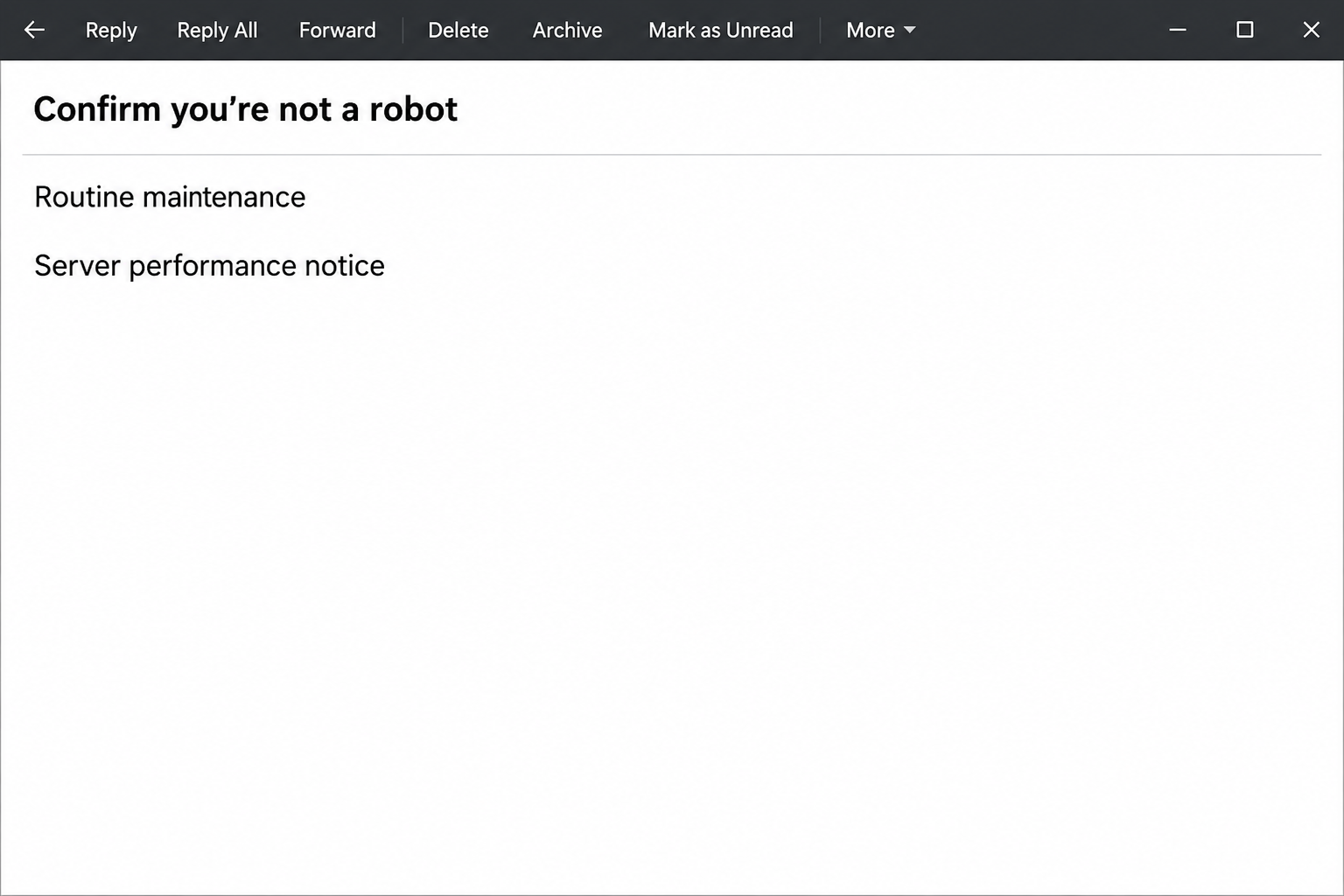
The server maintenance quick check email scam arrives with a subject asking you to confirm you are not a robot. It promises a brief account check.
The text says maintenance is intended to improve server performance. It then presents an action to confirm that your email account is in good standing.
Server work and account standing are different issues. A provider can maintain its systems without an outside email gaining authority to ask for your password.
The opening image recreates the subject and the maintenance framing. It leaves out the original address and does not depict a challenge anyone can use.
The check changes into a password request
The reported link led away from the email to a site imitating a mail sign-in. Instead of verifying a maintenance window, the page asked for credentials.
The notice was not a documented CAPTCHA or a browser command scam. The distinctive move was from a simple “not a robot” premise to an emailed password demand.
A genuine application may ask people to prove they are human during a process they already began. A message received out of the blue is not that process.
The service name in a copied sign-in page may look familiar. What matters is whether you reached it through the provider you actually use.
Keep the maintenance status and your identity separate
An email provider can publish planned work in a service notice or customer dashboard. A workplace may explain planned downtime through its help desk or approved announcements.
If there is an actual problem, you can compare symptoms with a reliable status report. The email’s link is not needed to find out whether others are affected.
- Ask whether you had a problem before opening the message.
- Check your service from your regular app or an established bookmark.
- Use your provider or help desk to confirm planned work.
- If you typed credentials, recover the account rather than trying to prove you are human again.
For a personal Google account that appears exposed, Google’s compromised account guidance starts from the genuine account. Other providers have their own recovery procedures.
How the Server Maintenance Quick Check Scam Works
Step 1: The message borrows the calm tone of routine maintenance
Many people let software update itself and rarely study an announcement about server improvements. An everyday notice can earn less scrutiny than a dramatic account suspension.
The email uses that familiarity to make the request seem small. It does not ask readers to work out whether anything has actually changed in their account.
Look for information you can confirm outside the message: a time window, an affected service or a known support notice. Never let the email source be its own confirmation.
If the service is managed by your employer, ask whether staff are expected to do anything. A routine background change may require nothing from individual mailbox users.
Step 2: Being a real person becomes a question about account standing
The subject invites a simple decision about whether you are a robot. The body moves toward a check of whether the account is in good standing.
That shift matters because you started with a claim about wider performance, not a login you initiated. There is no need to follow the emailed route to resolve that mismatch.
When a familiar site presents a genuine challenge, you generally know what you were doing before it appeared. This notice tries to create the entire context after arrival.
A link that promises only a quick check does not tell you what the next page may ask for. Decide whether to trust the route before seeing the prompt.
Step 3: The button introduces a separate sign-in
In the documented case, the check went to a lookalike login for a mail service. The site was not a verified place to inspect a maintenance announcement.
A copied interface may remind you of the sign-in used for your everyday work. Do not use the logo, background or first field to decide who owns the page.
If you do need to authenticate to your genuine account, go in by the normal route. It is the context you can verify, not just the screen you recognize.
No need for a real password follows from a promise to test whether you are a robot. Close the page if that is how the request reached you.
Step 4: A submitted password is the material exposure
A recipient who enters a current password may give somebody a chance to try that credential at the actual provider. Other controls affect whether the attempt succeeds.
The issue can become larger if the password was reused on personal services. An affected inbox may also receive recovery messages for accounts that use a different password.
Do not wait for the supposed check to produce a success page. The outcome presented by an untrusted site cannot tell you who saw what you entered.
If you approved a prompt at about the same time, give support the actual wording if you remember it. An authentication approval can change what needs to be investigated.
Step 5: A real service problem can exist at the same time
A maintenance notice can arrive when email is already slow. That coincidence does not make the unknown action part of the repair.
Check whether the provider has an incident and which features are affected. A mail client can continue working offline while direct account access behaves differently.
If a known workplace outage is under way, follow its published instructions. Keep everyone on the same verified route rather than having each person try the notice.
If your mailbox works normally, there is less reason to test the unfamiliar page. You can report the message and go back to work without completing its check.
What to Do if You Have Fallen Victim to This Scam
-
Get back to the service through your usual route.
Close the page and do not use its alternate link, even if the first link failed. Open your regular mail app or known provider identifier instead.
If you saw a genuine error there, write down the wording and time. Give that to support without treating the original email as a diagnosis.
On a work device, report the message itself through your normal process. Avoid forwarding a live link for other people to test.
-
Work out whether you provided account access.
Be specific about whether you read, clicked, typed a password or approved an unexpected prompt. There is no need to revisit the page to reconstruct the timeline.
If the page merely appeared, that alone does not show that somebody got your password. Any unexpected file or application request should go in a separate note.
If a colleague acted too, report each person’s exposure separately. One user may have closed the page while another entered a credential.
-
Replace a disclosed password and check sessions.
Start with your actual mail provider or workplace help desk. Ask about using another device if anything happened on the first one that raises a real concern.
Change the password through the genuine account. Review recovery options, recognized devices and sessions with the provider, especially if the page asked for a second action.
If you used the same password elsewhere, change it there too. Start with accounts that provide financial access, document storage or password recovery.
-
Check whether anybody changed the way your mail works.
Ask the provider what it can see about recent sign-ins and forwarding. Check filters, recovery methods and applications if your service exposes those records.
Look for messages sent in your name during the relevant period. If someone received a suspicious request, contact them through a different trusted route.
Do not assume a device scan can show what happened inside a remote sign-in session. The provider’s account records are the better source for that question.
-
Verify the alleged maintenance without relying on the link.
Use an existing status page, bookmarked provider site or familiar support channel. For company mail, ask the person who actually maintains the service.
If there is a real outage, compare the affected service and time with what you observed. Avoid changing credentials merely because one app is slow.
If you already submitted the password, still secure it. A genuine outage at the same time does not make the page you used legitimate.
-
Give yourself a reliable way to handle the next notice.
Keep a bookmark for the genuine login and know where service updates appear. That gives you a route that does not depend on deciding whether every email is real.
For a workplace, tell coworkers what the message called the check without giving them the address it points to. Make sure they know where to report it.
If changes to your account require extra protection, ask the provider what it supports. Review recovery details before relying on a new sign-in method.
If You Were Already Waiting for a Service Update
Find the last announcement you received through a channel you know. Compare the service affected, whether employees need to act and what help is available.
A real change can require action, for example when a workplace replaces a sign-in method. Ask how the official process begins and who can verify an unexpected screen.
If you are still getting mail normally, do not mistake that for a comprehensive check. It only means the services you used at that moment were available.
The important distinction is control over the first step. You can follow a real procedure through your established provider without letting this email start it for you.
When two people get the same supposed maintenance notice
If a coworker received the message too, ask what they saw and which addresses it reached. Two copies make it worth reporting, but they do not authenticate a sender.
A real rollout may have a known distribution list, service owner and deadline. Ask whether the organization can verify those details through a normal support channel.
If some colleagues cannot access mail, check whether they share the same provider, location or client. A real outage may account for their symptoms without explaining the emailed quick check.
Keep a record of which staff submitted credentials and who only saw the message. That distinction lets the support team investigate accounts without interrupting everyone who got the email.
If the team confirms maintenance, ask for written instructions in the usual place. Do not let the copied notice become an unofficial shortcut that keeps circulating after the work ends.
Frequently Asked Questions
Is the server maintenance quick check email safe?
The documented specimen is a phishing notice, not a trusted test of your account. Its reported destination imitated an email login and asked for credentials.
Check planned work directly with the provider. Do not use the message to find out whether the provider knows anything about your account.
Is the “Confirm you’re not a robot” subject a real CAPTCHA?
It is a subject line in this email, not an independent browser challenge. The reported website was a lookalike login screen.
If a service asks you to solve a legitimate challenge, make sure you started from its verified site. A message about server performance does not supply that verification.
Do I need to check if my account is in good standing?
Your provider can tell you through your account dashboard or normal support route. There is no need to share a password with this notice to find out.
If you see a restriction in the real account, ask the provider to help through the correct channels. Ignore the link even if the timing seems relevant.
Can a provider actually send maintenance emails?
An organization can tell customers about planned work or ask them to follow a genuine procedure. You can check the announcement without using a link supplied by an unexpected sender.
Look for the same issue in the official account or contact support from a verified route. The fact that providers send legitimate notices does not authenticate this specimen.
What if I clicked but did not respond to the form?
A visit alone does not prove a password was disclosed. Note any downloads, requests for permissions or sign-in notifications you saw, and report them if appropriate.
If you entered a password or approved anything, recover the account directly through its service. Do not use a confirmation from the page you suspect.
Should I reset my password if my email is simply slow?
A slow app is not by itself evidence that your credentials were stolen. Check service status and the client through your provider or support team.
If the password went into an unverified page, change it even if mail works perfectly. Those two decisions depend on different evidence.
The Bottom Line
Do not complete the quick check from this maintenance notice. The reported route substitutes a copied login for a simple confirmation that you are not a robot.
Check any real outage through your provider. If you entered your password or approved a prompt, recover the account through the service you already trust.

Join the discussion
0 commentsShare your experience or ask a question about this article.
Community experiences
Did this happen to you?
Your experience could help someone recognize the same scam. Submit a private report for our team to review.
I experienced this tooReports are reviewed before publication. Sharing publicly is always your choice.
Discussion
Start the conversation
Have a question or something useful to share? Add the first comment.