

A payment warning bearing Spotify’s name can feel urgent when playlists, downloads, and a family plan appear to be at risk.
Before updating anything, pause long enough to separate a real billing problem from a message borrowing the service’s identity.
Overview
The warning claims a payment method is invalid
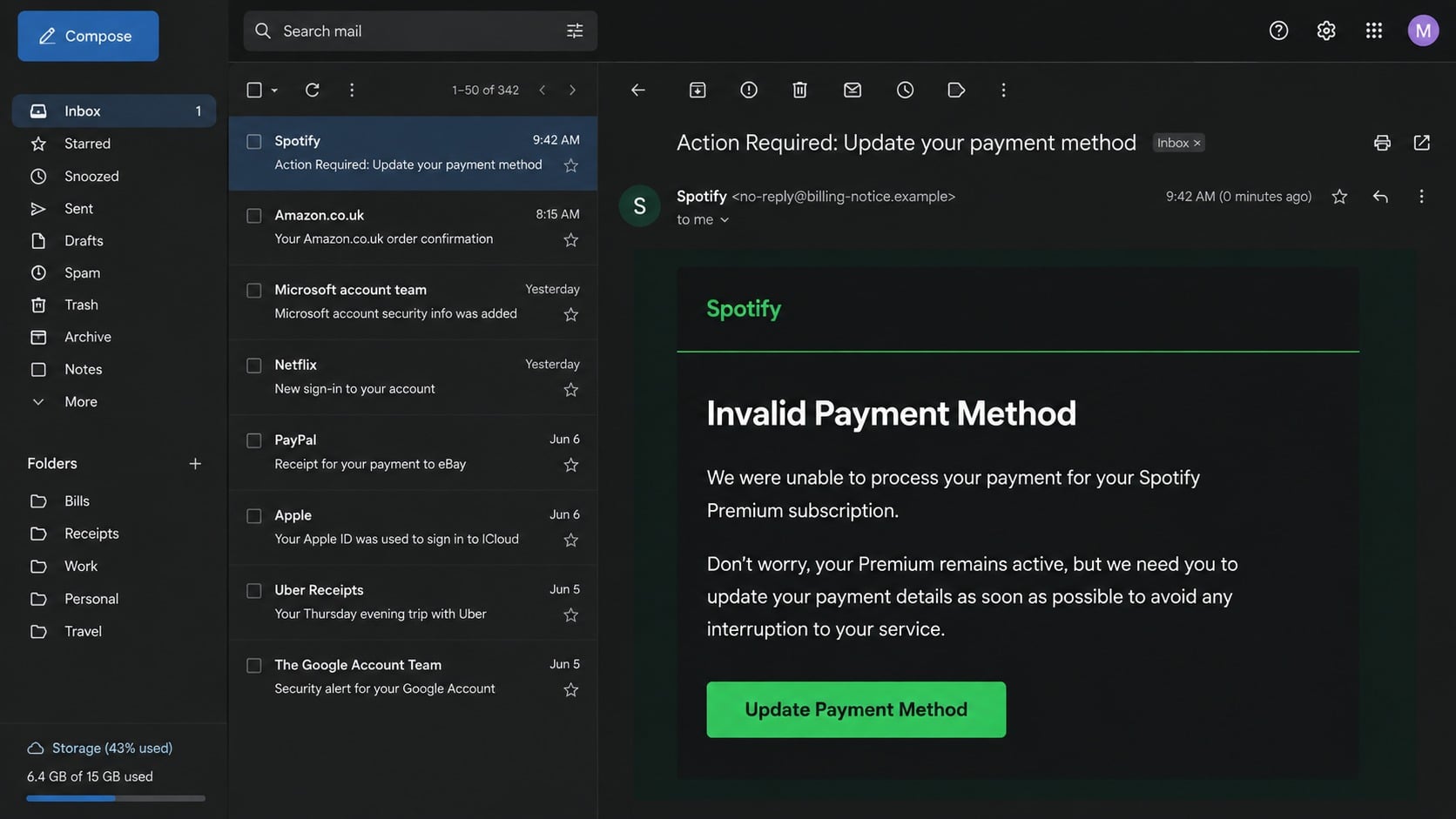
The email says Spotify could not process a subscription payment and asks the recipient to update billing details to keep Premium active.
An observed subject reads “Action Required:: Update your payment method.”
The doubled punctuation and urgent wording are suspicious, although criminals can easily correct those details in another version.
- The message creates fear of losing music access, saved downloads, or a discounted plan.
- A button invites the reader to fix billing through a page reached from the email.
- The sender may use Spotify branding while delivering from a domain unrelated to spotify.com.
- The final page may seek login credentials, card data, or both, depending on the active campaign.
The observed destination was not operating reliably
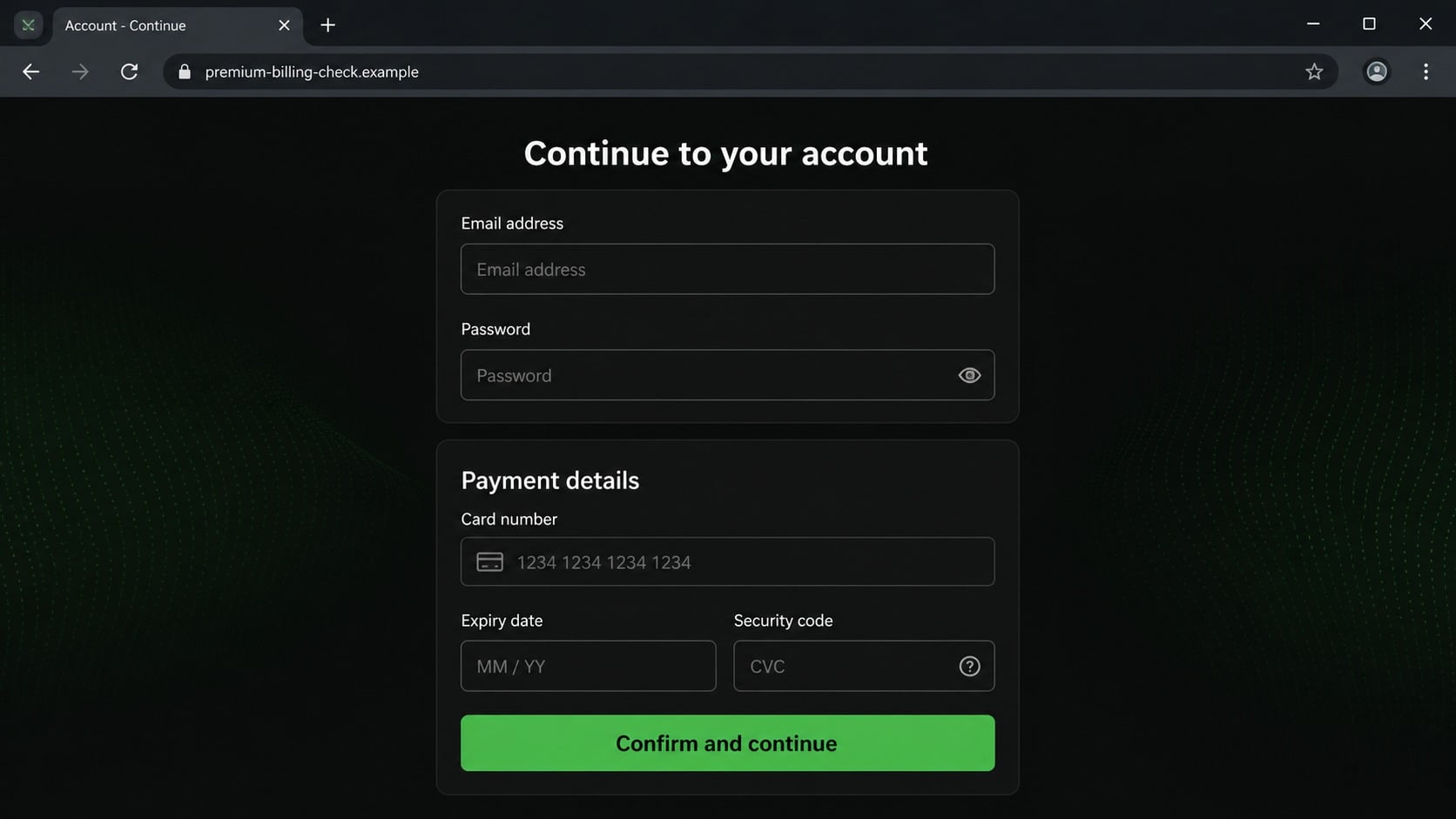
During examination, the linked destination was inactive, so its exact form fields could not be confirmed.
That limitation matters because responsible analysis should distinguish observed behavior from a likely phishing objective.
The safe conclusion comes from the unsolicited billing claim, questionable delivery, and off-platform route, not an imagined final screen.
Spotify provides a safer way to check
A subscriber can open the official Spotify app or manually visit the account page and inspect the plan and payment history.
Spotify says it does not request passwords or payment information by email.
If the official account shows no billing issue, the email’s urgency has no legitimate foundation.
What a Genuine Spotify Payment Problem Looks Like
Card payments can fail for ordinary reasons, including insufficient funds, expiration, regional restrictions, bank declines, or online-payment settings.
A real failure should be visible inside the subscriber’s account after signing in through a trusted route.
For a monthly subscription, one failed attempt does not necessarily remove Premium immediately.
Spotify may retry the payment during the following days, giving the subscriber time to review the method from the official account.
That behavior weakens an email’s claim that immediate action through its button is the only way to prevent instant cancellation.
The account page should show the current plan, billing date, payment history, and available method controls.
A user can reach those details without following any message link.
Legitimate service emails can still mention billing, but they do not need the recipient to surrender a password inside an unfamiliar domain.
Spotify identifies mail from addresses ending in @spotify.com as the expected pattern.
A displayed sender name that merely says “Spotify” is not equivalent to that domain.
Recipients should expand the sender field, examine the complete address, and remain cautious with subtle spelling changes.
Even when the visible address looks plausible, the official app remains the cleanest source of account truth.
Do not reply to the warning to ask whether it is genuine.
A reply stays inside the communication channel selected by the sender and can confirm that the mailbox is actively monitored.
How the Spotify Invalid Payment Method Email Scam Works
Step 1: The campaign targets a common subscription
Spotify has a broad audience, so criminals can send messages widely without knowing which recipients actually subscribe.
Some non-subscribers dismiss the warning, but enough real customers receive it by chance.
Data leaks and marketing lists can also help attackers address people by name.
Personalization increases confidence without proving access to Spotify’s billing system.
Step 2: The email creates a believable interruption
The message says the stored payment method is invalid, expired, declined, or due for verification.
It may promise uninterrupted listening if the reader acts before a short deadline.
Loss aversion is central to the lure.
The victim is encouraged to preserve something already enjoyed instead of evaluating a new offer.
Step 3: Branding directs attention away from the sender
Green accents, familiar typography, plan names, and a polished button can make the email resemble routine subscription correspondence.
Those visual elements are public and simple to copy.
The meaningful evidence sits in the delivery domain, link destination, account status, and message authentication.
Criminals expect recipients to recognize the logo faster than they inspect those quieter details.
Step 4: The update button leaves Spotify
The button can lead through redirects, tracking services, compromised websites, or a newly registered lookalike domain.
A campaign may also deactivate its page after complaints, then activate another destination for later messages.
An unavailable page does not transform the original email into a legitimate notice.
It simply prevents confirmation of the particular form that was previously displayed.
Step 5: A counterfeit page requests valuable information
Typical subscription phishing pages first request an email address and password, then display a supposed billing repair form.
The form may ask for the cardholder name, card number, expiration date, security code, address, and telephone number.
That sequence can deliver both account access and usable payment data.
For this specific observed link, however, the inactive destination means those exact fields remain unconfirmed.
Step 6: The victim sees a reassuring finish
After submission, a page may claim the plan was restored or redirect to Spotify’s real website.
The legitimate destination appearing last can disguise where the information went earlier.
Because Premium continues working, the victim may believe the update succeeded.
In reality, the real subscription may never have experienced a payment problem.
Step 7: Stolen details are tested elsewhere
Criminals can attempt the password on email, shopping, streaming, and social accounts when people reuse credentials.
Card details may support unauthorized purchases or be sold to other fraud operators.
A Spotify account can also be resold, used to alter a plan, or exploited through connected services.
Follow-up messages may reference the first submission and demand additional verification.
Sender, Domain, Billing, and Account Checks
Compare the sender with Spotify’s official domain
Open the full message details and read every character after the @ symbol.
Free-mail domains, unrelated companies, added hyphens, substituted letters, and unusual endings do not become official because the display name says Spotify.
Forward suspicious Spotify-branded mail to spoof@spotify.com without changing the original contents.
Then delete it after preserving anything needed for an incident report.
Check the plan without using the email
Launch the trusted app or type Spotify’s address yourself, then inspect the account’s plan and payment history.
If the email claims a family, student, or individual plan that the account does not have, the mismatch is decisive.
If a real failure appears, update the method only within the authenticated account.
Contact the bank independently if the card continues to fail.
Read the final domain, not the decorative words
A URL can include “spotify,” “premium,” “billing,” and “secure” while belonging to an unrelated operator.
The registered domain near the end of the hostname determines who controls the site.
Padlock icons and HTTPS protect traffic from casual interception but do not validate a billing claim.
Password managers offer a useful warning because they generally refuse to autofill saved Spotify credentials on the wrong domain.
Review every account touched by reused credentials
If a password was submitted, assume it was captured even when the page showed an error.
Change Spotify first, then secure the associated email account and every service using the same or a similar password.
Check for an altered email address, changed plan, unknown playlists, unfamiliar devices, and connected applications you did not approve.
Sign out everywhere after removing suspicious access.
Why Subscription Warnings Are Effective Phishing Bait
Subscription services create recurring relationships that users rarely reconsider each month.
A payment warning fits that background and does not need an extraordinary story.
The price is familiar, the brand is recognizable, and card expiration is common.
Those ordinary facts make the message feel possible before the recipient inspects whether it is true.
Music also has emotional and practical value.
People may worry about losing downloaded content before travel, interrupting a household plan, or changing access for children.
A short deadline pushes that concern into action.
The scammer does not need to threaten an enormous loss when a small interruption can produce a quick click.
Another advantage is that continued service does not expose the fraud immediately.
If the account was always healthy, playback continues after the fake update, apparently confirming the page’s success.
The victim may notice only after an unauthorized card charge or unrelated account takeover appears.
That delay gives stolen information time to circulate.
Organizations can reduce risk by teaching one durable habit: account problems should be checked inside the account, not repaired through an unsolicited message.
The rule works across streaming, cloud storage, delivery memberships, utilities, and other recurring services.
It also remains useful when criminals improve their spelling and visual design.
Content changes quickly, but the trusted route for verification stays under the customer’s control.
What Stolen Spotify and Payment Details Can Expose
A streaming password may appear low value, yet criminals can resell working accounts or use them to test a broader credential set.
An account takeover can change the registered email, remove household members, alter the plan, or leave unfamiliar listening activity.
Connected applications deserve attention because they may retain access after the visible password changes.
Removing unknown integrations closes a route that ordinary sign-out actions may overlook.
The linked email account carries greater importance because it receives reset messages and confirms ownership changes.
If both accounts share a password, the attacker may control the recovery channel before the victim notices Spotify activity.
Card exposure creates a separate incident.
A criminal can test a small transaction, wait for authorization, and then attempt larger purchases through unrelated merchants.
Transaction labels may not mention music or Spotify, so statement review must cover every unfamiliar charge.
Billing addresses and telephone numbers can also support identity checks in later social-engineering calls.
A caller may quote the submitted information and pretend to represent a bank investigating the fake update.
Use the telephone number printed on the physical card or official banking app, never a number provided by the caller.
Keep the original message until the bank records the incident, because its timestamp and destination may help connect later unauthorized transactions.
What to Do if You Have Fallen Victim to This Scam
- Close the page. Do not retry the form, download an offered app, or telephone a number displayed by the suspicious site.
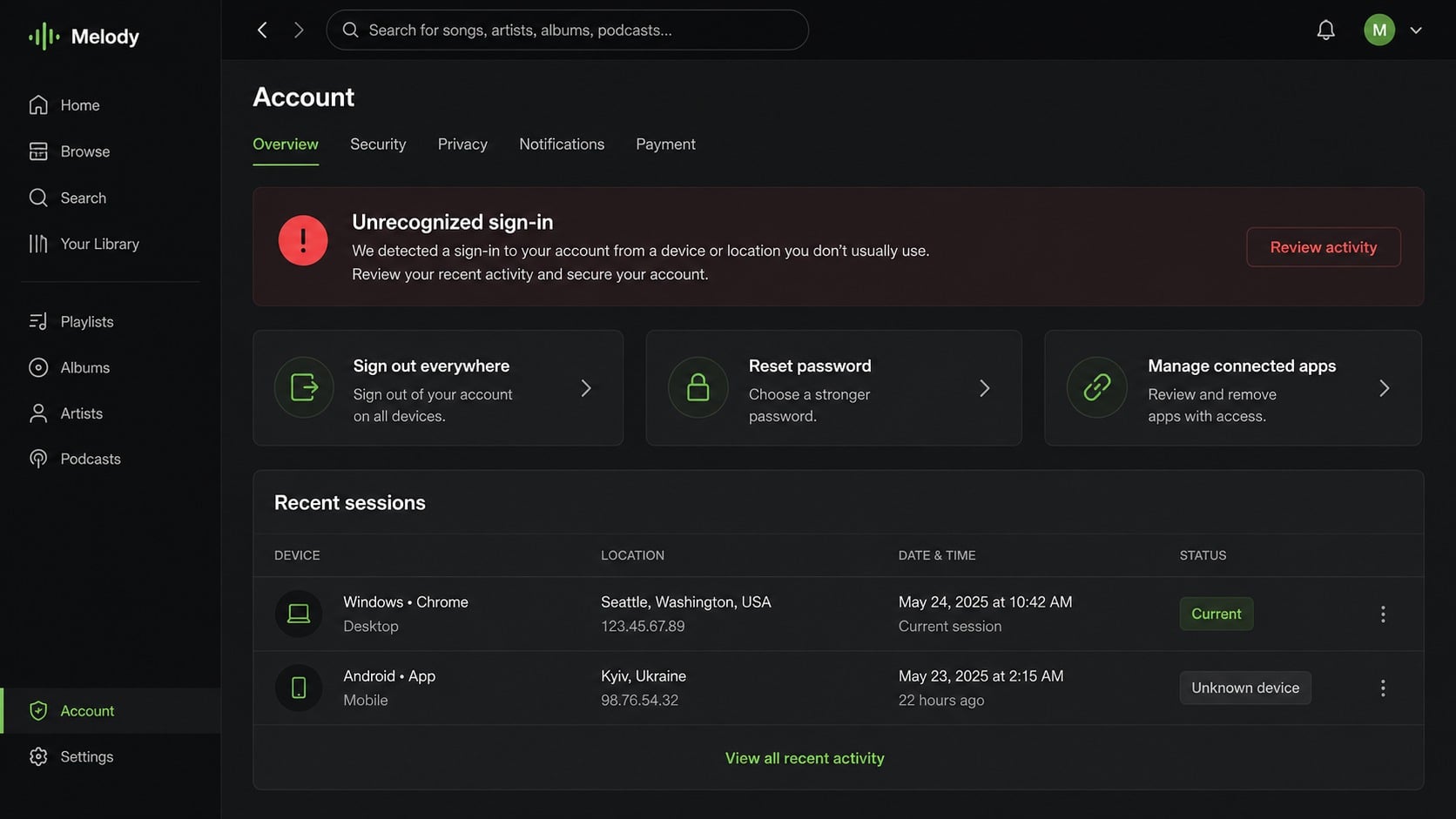
- Reset the Spotify password. Start from the official app or manually entered account page and choose a password used nowhere else.
- Secure the connected email account. Email controls password resets, so change reused credentials and review its sessions and recovery settings.
- Sign out everywhere. Use Spotify’s account controls to end sessions, then reconnect only devices you recognize.
- Remove unfamiliar applications. Revoke access for integrations you did not authorize and check whether the plan or account email changed.
- Enable stronger sign-in protection. Add multifactor authentication to the email account and use passkeys where supported.
- Call the card issuer. If card data was entered, request a replacement and ask the fraud team to monitor or block unauthorized transactions.
- Review recent statements. Look beyond charges labeled Spotify because stolen card data may be tested through unrelated merchants.
- Forward the original email. Send it to spoof@spotify.com and report the phishing page through your browser or mail provider.
- Check the computer. Run Malwarebytes if anything was downloaded, and enable AdGuard to help block known malicious and deceptive destinations.
- Watch for secondary scams. Ignore callers or messages promising refunds, account recovery, or fraud investigation in exchange for more information.
Is Your Device Infected? Run a Free Malware Scan
Slow performance, constant pop-ups, or strange behavior? These are classic signs of a malware infection. The fastest way to find out is to scan your device with Malwarebytes Free — one of the most trusted malware removal tools available.
The free version detects and removes the most common threats, including:
- Adware — the cause of those annoying pop-ups
- Browser hijackers — unwanted redirects and changed homepages
- Trojans and spyware — hidden programs stealing your data
- Potentially unwanted programs (PUPs) — software you never asked for
👉 Select your device below — Windows, Mac, or Android — then follow the simple steps to download Malwarebytes, scan your system, and remove any threats it finds. The scan usually takes 5 to 20 minutes.
Run a Malware Scan with Malwarebytes for Windows
Malwarebytes is one of the most popular and trusted anti-malware tools for Windows — and it’s completely free for removing infections. It catches threats that many antivirus programs miss, including adware, browser hijackers, and trojans. Follow the steps below to scan and clean your PC in just a few minutes.
Download Malwarebytes
Click the button below to download the latest version of Malwarebytes for Windows from the official source. The free version is all you need — it will scan your computer and remove adware, browser hijackers, and other malicious software at no cost.
Download MalwarebytesOfficial installer for Windows 11 and 10. Your download starts right away.Want real-time protection? See Malwarebytes Premium Malwarebytes Free for WindowsScans and removes malware at no cost
-
Install Malwarebytes
When the download finishes, open your Downloads folder and double-click the MBSetup file. If Windows shows a User Account Control pop-up, click “Yes” to allow the installation.

Follow the On-Screen Prompts to Install Malwarebytes
The setup wizard will walk you through a few quick screens:
-
Choose where you’re installing the program — “Personal Computer” or “Work Computer” — then click Next.

-
Malwarebytes will now install on your device. This usually takes under a minute.

-
When installation is complete, the “Welcome to Malwarebytes” screen will open automatically.

-
On the final screen, click Open Malwarebytes to launch the program.

-
Enable “Scan for Rootkits”
Before scanning, turn on rootkit detection so Malwarebytes can find even the most hidden threats. Click the Settings gear icon on the left side of the screen.

In the settings menu, find “Scan for rootkits” and click the toggle so it turns blue.

Done? Click “Dashboard” in the left pane to return to the main screen.
Start the Scan
Click the blue Scan button. Malwarebytes will automatically update its virus database and start checking your computer for malware.

-
Wait for the Scan to Finish
The scan checks your entire system for browser hijackers and other malicious programs, so it can take 5 to 20 minutes depending on your computer. Feel free to do something else — just check back occasionally to see the progress.

-
Quarantine the Detected Threats
When the scan is done, you’ll see a list of everything Malwarebytes found — malware, adware, and potentially unwanted programs. Click the “Quarantine” button to remove all of them at once.

Malwarebytes will now remove the malicious files and registry entries and move them safely into quarantine.

-
Restart Your Computer
Some threats can only be fully removed after a reboot. If Malwarebytes asks you to restart, click Yes. Once you’re logged back in, Malwarebytes has finished removing the threats it found.

That’s it — your Windows PC is now clean of trojans, adware, and other malware, and should be back to running smoothly.
If you are still having problems with your computer after completing these instructions, then please follow one of the steps:
- Run a computer scan with ESET Online Scanner
- Ask for help in our Windows Malware Removal Help & Support forum.
Run a Malware Scan with Malwarebytes for Mac
Malwarebytes for Mac is a free on-demand scanner that removes the malware other security software tends to miss — adware, browser hijackers, and unwanted programs included. Cleaning an infected Mac with Malwarebytes has always been completely free, and it’s our go-to recommendation. Follow the steps below to scan and clean your Mac in just a few minutes.
-
Download Malwarebytes for Mac
Click the button below to download the latest version of Malwarebytes for Mac.
Download MalwarebytesOfficial installer for macOS. Your download starts right away.Want real-time protection? See Malwarebytes PremiumMalwarebytes Free for MacScans and removes malware at no cost -
Open the Malwarebytes setup file
When the download finishes, open your Downloads folder and double-click the setup file to begin the installation.

-
Follow the On-Screen Prompts to Install Malwarebytes
The Malwarebytes for Mac Installer will guide you through a few quick screens. Click “Continue” and keep following the prompts until the installation completes.



When the installation is complete, Malwarebytes opens to the Welcome to Malwarebytes screen. Click “Get started“.
-
Select “Personal Computer” or “Work Computer”
Malwarebytes will ask what type of computer you’re installing it on. Click either Personal Computer or Work Computer, whichever applies.

-
Start the Scan
Click the “Scan” button. Malwarebytes will automatically update its detection database and begin checking your Mac for malware.

-
Wait for the Scan to Finish
Malwarebytes will scan your Mac for adware, browser hijackers, and other malicious programs. This can take a few minutes, so feel free to do something else — just check back occasionally to see the progress.

-
Quarantine the Detected Threats
When the scan is done, you’ll see a list of everything Malwarebytes found. Click the “Quarantine” button to remove all the threats at once.

-
Restart Your Mac
Malwarebytes will now remove all the malicious files it found. Some threats can only be fully removed after a reboot — if Malwarebytes asks you to restart, allow it. Once you’re logged back in, your Mac is clean.

That’s it — your Mac is now free of adware, rogue browser extensions, and other potentially harmful software.
If you are still experiencing problems while trying to remove a malicious program from your computer, please ask for help in our Mac Malware Removal Help & Support forum.
Run a Malware Scan with Malwarebytes for Android
Malwarebytes for Android automatically detects and removes dangerous threats like malware and ransomware so you don’t have to worry about your most-used device being compromised. Aggressive detection of adware and potentially unwanted programs keeps your Android phone or tablet running smooth.
-
Download Malwarebytes for Android.
You can download Malwarebytes for Android by clicking the link below.
Get Malwarebytes for AndroidOpens Google Play in a new tab.Want real-time protection? See Malwarebytes Premium for AndroidMalwarebytes for AndroidScans your phone and removes malware at no cost -
Install Malwarebytes for Android on your phone.
In the Google Play Store, tap “Install” to install Malwarebytes for Android on your device.

When the installation process has finished, tap “Open” to begin using Malwarebytes for Android. You can also open Malwarebytes by tapping on its icon in your phone menu or home screen.

-
Follow the on-screen prompts to complete the setup process
When Malwarebytes will open, you will see the Malwarebytes Setup Wizard which will guide you through a series of permissions and other setup options.
This is the first of two screens that explain the difference between the Premium and Free versions. Swipe this screen to continue.
Tap on “Got it” to proceed to the next step.
Malwarebytes for Android will now ask for a set of permissions that are required to scan your device and protect it from malware. Tap on “Give permission” to continue.
Tap on “Allow” to permit Malwarebytes to access the files on your phone.
-
Update database and run a scan with Malwarebytes for Android
You will now be prompted to update the Malwarebytes database and run a full system scan.

Click on “Update database” to update the Malwarebytes for Android definitions to the latest version, then click on “Run full scan” to perform a system scan.

-
Wait for the Malwarebytes scan to complete.
Malwarebytes will now start scanning your phone for adware and other malicious apps. This process can take a few minutes, so we suggest you do something else and periodically check on the status of the scan to see when it is finished.

-
Click on “Remove Selected”.
When the scan has been completed, you will be presented with a screen showing the malware infections that Malwarebytes for Android has detected. To remove the malicious apps that Malwarebytes has found, tap on the “Remove Selected” button.

-
Restart your phone.
Malwarebytes for Android will now remove all the malicious apps that it has found. To complete the malware removal process, Malwarebytes may ask you to restart your device.
That’s it — your Android phone is now clean — no more malicious apps, adware, or browser redirects.
If you are still having problems with your phone after completing these instructions, then please follow one of the steps:
- Restore your phone to factory settings by going to Settings > General management > Reset > Factory data reset.
- Ask for help in our Mobile Malware Removal Help & Support forum.
Stay Protected: Block Ads and Malicious Sites
Now that your device is clean, keep it that way. Most infections start with a malicious ad or a fake download button — so blocking them at the source is your best defense.
We recommend AdGuard, which blocks malicious ads, phishing pages, and dangerous redirects before they can reach you.
👉 Download AdGuard and browse safely
Frequently Asked Questions
Does Spotify email customers about failed payments?
Spotify may send account correspondence, but it says it will not ask for a password or payment details through email.
Always inspect the official account independently before taking action.
A real issue should be manageable there.
Will Premium stop immediately after one failed payment?
Not necessarily.
Spotify explains that it may retry a failed monthly payment during the following days.
An email threatening instant removal deserves particular caution.
Is an inactive link harmless?
No.
The campaign may have removed the page, changed destinations, restricted access by location, or activated it only for selected visitors.
Do not keep testing it.
What if I entered only my email address?
Expect more targeted phishing and account-reset attempts.
Do not approve unexpected prompts, strengthen the mailbox’s protection, and treat follow-up billing messages as potentially connected.
No card replacement is needed unless card data was also shared.
Can the sender know I use Spotify?
Possibly, but it may simply be a broad guess involving a popular service.
Knowledge of your subscription could also come from older breached data.
Neither possibility makes the link trustworthy.
Why did music continue after I updated the fake page?
The real account may never have had a billing problem.
Continued playback therefore says nothing about the counterfeit form.
Review account activity and contact the card issuer if sensitive details were entered.
The Bottom Line
The Spotify Invalid Payment Method email uses a familiar subscription concern to pull users away from the one place that can confirm their billing status.
Open Spotify independently, protect exposed credentials and cards quickly, and treat every emailed payment form as unnecessary risk.

Join the discussion
0 commentsShare your experience or ask a question about this article.
Discussion
Start the conversation
Have a question or something useful to share? Add the first comment.