

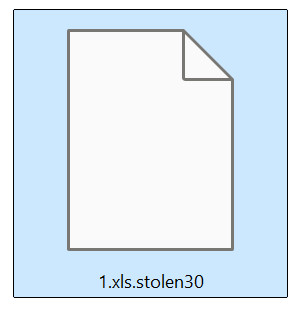
If you cannot open your images, documents, or files and they have a .stolen30 extension, then your computer is infected with the Stolen ransomware.
The Stolen Ransomware is malware that encrypts the personal documents found on the victim’s computer with the “.stolen30” extension, then displays a message which offers to decrypt the data if payment in Bitcoin is made.
This article provides an in-depth look at the Stolen ransomware – how it works, its unique characteristics, the damage it can cause, and most importantly, what you need to know to protect yourself or recover if infected. Read on to learn everything about this malicious threat.
Overview of the Stolen Ransomware
Stolen is a ransomware virus that encrypts files on infected systems and demands ransom payments in bitcoin to decrypt them. Stolen utilizes strong encryption algorithms to lock documents, photos, databases, backups, and other critical files.
This ransomware appends the .stolen30 extension to encrypted files along with a unique victim ID and the attacker’s email address. It leaves ransom notes in every directory naming the email addresses to contact for payment.
Stolen disables antivirus tools and deletes Volume Shadow Copies to block recovery options. Infection often occurs through phishing emails, compromised RDP access, drive-by downloads, and unpatched software exploits.
Some key features of the Stolen ransomware include:
Encrypts a Broad Range of File Types
One of the hallmarks of Stolen is its broad targeting of files for encryption across both local drives and connected network shares. Personal user files like documents, spreadsheets, photos, music and video files are encrypted. But Stolen doesn’t stop there. It will also encrypt critical system files, databases, backups, and more.
For example, database files from programs like MySQL and MongoDB have been locked, as well as backup files created by software such as Veeam and Commvault. Entire network shares of data can be encrypted. This indiscriminate approach leads to maximum damage.
Appends ID, Email and Extension to Files
A common tactic used by Stolen is appending the original filename with a unique victim identification string, the attacker’s email address, and the .stolen30 extension.
For example, a file named “familyphoto.jpg” would become “familyphoto.jpg.stolen30”. This renaming takes place before the encryption process begins.
Leaves Ransom Notes in Text Files
After encrypting files in a given directory, Stolen leaves behind a ransom note in the same folder. This text file contains brief instructions to contact the attackers via email to supposedly obtain decryption.
The language used in the note encourages urgency and implies that paying the ransom is the only way to get files back.
For example, a Stolen ransom note may contain:
YOUR COMPANY NETWORK HAS BEEN PENETRATED
Your files are safe! Only modified.(RSA+AES)
ANY ATTEMPT TO RESTORE YOUR FILES WITH THIRD-PARTY SOFTWARE WILL PERMANENTLY CORRUPT IT. DO NOT MODIFY ENCRYPTED FILES. DO NOT RENAME ENCRYPTED FILES.
No software available on internet can help you. We are the only ones able to solve your problem. We gathered highly confidential/personal data. These data are currently stored on a private server. This server will be immediately destroyed after your payment. If you decide to not pay, we will release your data to public or re-seller. So you can expect your data to be publicly available in the near future.. We only seek money and our goal is not to damage your reputation or prevent your business from running. You will can send us 2-3 non-important files and we will decrypt it for free to prove we are able to give your files back.Contact us for price and get decryption software.
email:stevensfalls@outlook.com
richardfeuell@outlook.com
* To contact us, create a new free email account on the site: protonmail.com
IF YOU DON’T CONTACT US WITHIN 72 HOURS, PRICE WILL BE HIGHER.
* Tor-chat to always be in touch:
By leaving these notes across an infected system, the attackers hope to pressure and panic victims into paying.
May Attempt Deleting Volume Shadow Copies
Some variants of the Stolen ransomware attempt to escalate privileges and delete Volume Shadow Copy backups and system restore points from the infected Windows system.
For example, the command “vssadmin delete shadows /all /quiet” might be executed to wipe volume shadow copies. This prevents victims from utilizing these automated system backups to recover encrypted files.
However, the ransomware does not always succeed in gaining admin privileges necessary to carry out this deletion. When possible, Stolen will attempt to block this recovery option.
Avoids Wasting Effort on Poor Regions
An interesting aspect of Stolen is its use of geo-IP location tracking to identify the physical region an infected system is operating from.
Using this data, the ransomware is programmed to avoid encrypting files and demanding payment if the victim is located in a poorer region where ransoms are less likely to be paid.
For example, if a system in the developing world is infected, Stolen may exit without encrypting to avoid wasting effort. Geo-targeting allows the attackers to maximize profits.
Disables Windows Defender and Firewall
To enable persistence, Stolen also leverages various techniques like adding a run registry key to ensure the ransomware re-executes after a system reboot.
But it goes further – Stolen attempts to disable the native Windows Defender antivirus or firewall to prevent these protections from detecting the ransomware activity or preventing the malicious processes from communicating with command and control servers.
With an overview of how Stolen operates, signatures to watch for, and its technical capabilities, defenders gain an advantage in catching these ransomware attacks before they can inflict major harm. Understanding your enemy is the first step toward defeating them.
Stolen Ransomware Threat Summary
| Threat Details | Description |
| Name | Stolen Ransomware |
| Type | Ransomware |
| File Extension | .stolen30 |
| Ransom Note | pop-up window and text Files |
| Decryptor available | No |
| Detection Names | Trojan.Ransom.Crysis.E, Trojan-Ransom.Win32.Crusis.to, Ransom-Dharma!187085F60A15, Win32:RansomX-gen [Ransom], TR/Dropper.Gen, A Variant Of Win32/Filecoder.Crysis.P, Ransom:Win32/Wadhrama!pz, Win32.Trojan-Ransom.VirusEncoder.A |
| Symptoms | Encrypted Files, Changed Extensions, Ransom Demands |
| Distribution | Email Spam, Malvertising, Compromised Sites |
| Damage | Full Encryption of Files, Lost Access |
The Stolen ransomware encrypts files on infected systems and appends the .stolen30 extension along with a unique victim ID. A ransom note is displayed demanding payment in Bitcoin to receive decryption keys. Stolen spreads through tactics like phishing emails, drive-by downloads, and exploiting unpatched software vulnerabilities. Infection can result in total data loss without recovery options, underscoring the importance of prevention, detection, and backup.
How the Stolen Ransomware Infects Systems
Now that we’ve covered a high-level overview, let’s look at how the Stolen ransomware typically manages to get onto systems in the first place.
The most common Stolen attack vectors include:
Phishing Emails
Fake emails containing infected attachments or links to malicious sites are a prime vector. The emails pretend to be invoices, deliveries, or important notifications to tempt victims.
Compromised Remote Desktop Access
Unsecured RDP ports allow attackers to remotely connect and manually deliver the payload. Brute force attacks on weak RDP passwords are common.
Software Vulnerabilities
Unpatched apps/OS with critical remote code execution flaws can be exploited to download and install Stolen without any action by the victim.
Malicious Downloads
Fake installers, cracks/keygens, or pirated software often bundle Stolen ransomware code without the user’s knowledge.
Malvertising and Scam Sites
Malicious ads or pop-ups that redirect to Stolen download pages can infect those who click without realizing the risks.
As we can see, Stolen employs a variety of social engineering, configuration oversight, unpatched software, and user security awareness gaps to ultimately compromise targets.
Now let’s look at the specific steps Stolen takes once on a system to encrypt files and extort victims.
How the Stolen Ransomware Encryption Process Works
When executed on a system, Stolen ransomware follows a precise process to encrypt data. Understanding how this plays out step-by-step is critical to detecting and interrupting an attack:
1. Kill Processes Holding Files Open
Stolen terminates any processes with open file handles, like database servers or document editing programs. This ensures these files aren’t locked when encryption starts.
2. Enumerate Drives and Shares
The ransomware scans across local hard drives and mapped network shares to build a list of targets for encryption. Home directories and shared storage are not off limits.
3. Check for Existing Encryption
Stolen checks each file against an included list of file extensions already encrypted by other ransomware strains. Any matches are excluded from encryption to avoid wasting time.
4. Append File Names with ID and Extension
Before encrypting a file, Stolen appends the unique victim ID, attacker email, and “.stolen30” extension to the filename. This renaming takes place in preparation of encryption.
5. Encrypt Files with Strong Algorithm
Next, Stolen encrypts files using a robust algorithm like AES-256 or RSA-2048. A securely generated key is used to encrypt each file, which is different per victim.
6. Delete Volume Shadow Copies
If possible, Stolen seeks out and deletes Volume Shadow Copy backups on the system to block recovery options.
7. Drop Ransom Note in All Directories
Stolen drops a ransom note named “read.txt” in every folder where files were encrypted. This contains payment instructions.
8. Change Wallpaper to Ransom Note
Finally, Stolen sets the desktop wallpaper to an image bearing a ransom payment note for visibility.
This sequence highlights the methodical and comprehensive steps Stolen takes to encrypt files and pressure victims. But understanding this pattern is also incredibly useful for detecting Stolen mid-attack.
Detecting an Ongoing Stolen Ransomware Attack
Detecting a Stolen ransomware attack as quickly as possible, before significant encryption takes place, can make recovery much easier.
Here are key signals that may indicate Stolen is encrypting files:
- Running processes like “dharma.exe”, “accepteula.exe” or similar
- High disk I/O activity as files are encrypted
- Changed file extensions appending ID, email, and “.stolen30”
- Deletion of volume shadow copies and restore points
- Presence of “read.txt” ransom notes in folders
- Changed desktop background to ransom note image
Aggressively monitoring endpoints for these indicators can help uncover a Stolen attack in the early stages when less damage has occurred. But prevention is always preferable to detection.
Preventing Stolen Ransomware Infections
The most effective way to deal with Stolen is to prevent it from ever compromising systems in the first place. Here are proactive measures to protect against infection:
- Patch software vulnerabilities – Unpatched apps and operating systems are often targeted as an initial infection vector. Prompt patching prevents exploitation.
- Block malicious email attachments/links – Advanced email security tools can analyze attachments and links in real-time to catch phishing attempts.
- Secure RDP access – Brute force attacks leverage weak RDP passwords. Require strong credentials and limit source IPs for remote access.
- Install robust endpoint protection – Anti-malware tools with behavioral analysis capabilities can block processes associated with ransomware activity.
- Backup critical data – Maintain recent backups offline and immutable to allow recovery of encrypted files without paying the ransom.
- Restrict execution permissions – Limiting normal user execution permissions makes it harder for malware payloads to execute.
- User security training – Educate staff to identify social engineering techniques, safely handle emails/downloads, and report anomalies.
Combining layers of technical defenses with user education offers the best protection against rapidly evolving malware like Stolen.
What to Do If You Become Infected with Stolen Ransomware
Even with proactive measures, ransomware attacks can still slip past defenses. So what should you do if you discover Stolen has encrypted your files?
1. Isolate the Infected System
First, disconnect the compromised device from any networks or shared storage to prevent Stolen from spreading. This limits the potential impact.
2. Determine the Scope of Encryption
Conduct triage to assess the amount of encryption that has taken place across endpoints and file shares. This helps understand the severity and prioritize recovery of critical assets first.
3. Check for a Decryptor
Research whether any free decryption tools have been released that can unlock files encrypted by the specific Stolen variant you are dealing with. These occasionally become available through security researchers.
4. Restore Files from Backup
If viable backups exist and were not compromised by Stolen, restore encrypted files from unencrypted versions in backup storage. Ensure backups are intact first.
5. Consult Incident Response Experts
For extensive infections, leverage professional incident response teams to provide technical analysis and strategize the recovery process. They may have additional options.
6. Report the Incident
File a report with the FBI’s Internet Crime Complaint Center (IC3) and your local authorities. Provide event details, ransom note, bitcoin wallet, etc. This supports law enforcement tracking ransomware attackers.
7. Don’t Pay the Ransom
Unless absolutely necessary, avoid paying the ransom. There is no guarantee you’ll get decryption keys, and it encourages more attacks. Focus on restoration from backups instead.
With the proper response plan, the damage and disruption caused by threats like Stolen ransomware can be minimized.
Remove the Stolen ransomware and recover the files
It’s important to understand that by starting the removal process you risk losing your files, as we cannot guarantee that you will be able to recover them. Your files may be permanently compromised when trying to remove this infection or trying to recover the encrypted documents.
We cannot be held responsible for losing your files or documents during this removal process.
It’s recommended to create a backup image of the encrypted drives or files before proceeding with the malware removal instructions so that you can restore them if the decryption keys are recovered from the cybercriminals’ servers. To create a backup for your encrypted files or drives, you can use EaseUS Todo Backup Free.
Please perform all the steps in the correct order. If you have any questions or doubts at any point, stop and ask for our assistance.
- STEP 1: Start your computer in Safe Mode with Networking
- STEP 2: Use Malwarebytes to remove Stolen ransomware
- STEP 3: Use HitmanPro to scan for Trojans and other malware
- STEP 4: Double-check for malware infections with ESET Online Scanner
- STEP 5: Restore the files encrypted by the Stolen ransomware
STEP 1: Start your computer in Safe Mode with Networking
In this first step, we will start your computer in Safe Mode with Networking to prevent Stolen malicious drivers and services from loading at Windows start-up. We’re using Safe mode because it starts Windows in a basic state, using a limited set of files and drivers.
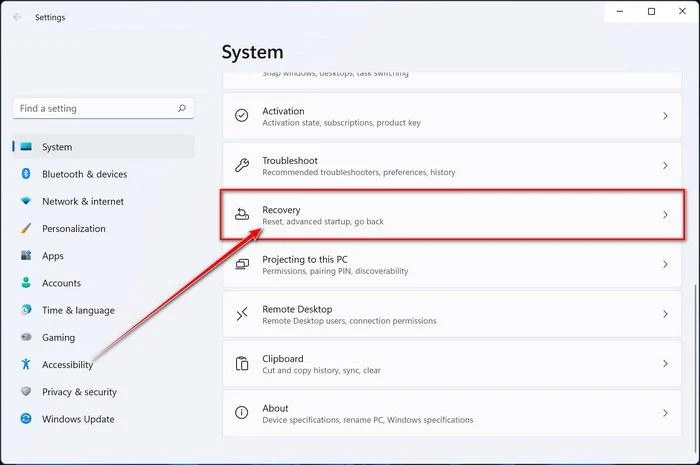
- Press Windows key + I to open Settings. If that doesn’t work, right-click the Start button and select Settings. Then, in the right-hand pane, click Recovery.
- Under Advanced startup, click Restart now. Save any open work first — your PC will restart immediately.
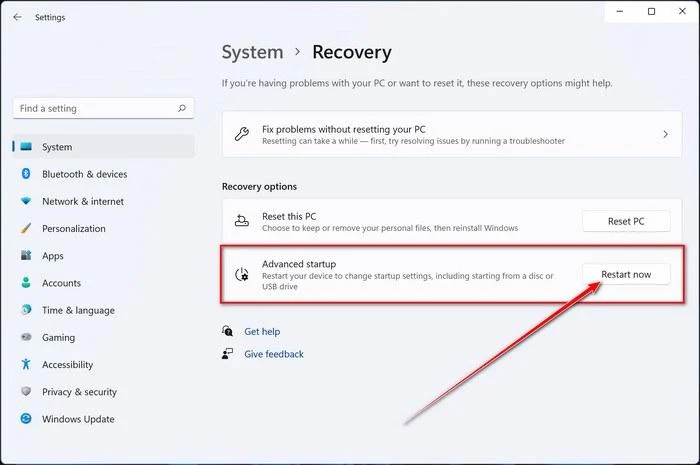
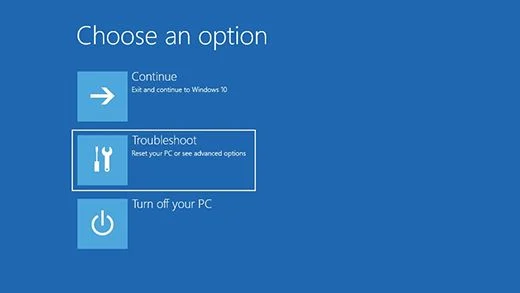
Your PC will restart into the Windows Recovery Environment. From there, follow these steps to reach Safe Mode:
- On the Choose an option screen, select Troubleshoot.
- On the Troubleshoot screen, click Advanced Options.
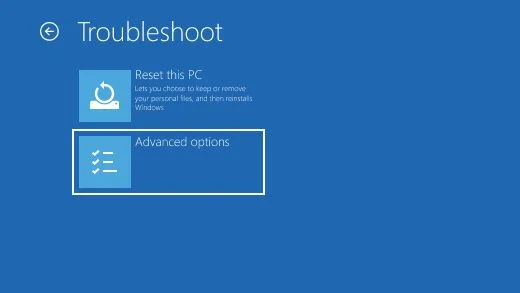
- On the Advanced Options page, click Startup Settings.
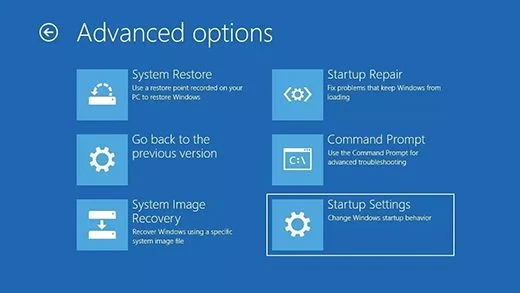
- On the Startup Settings page, click Restart.
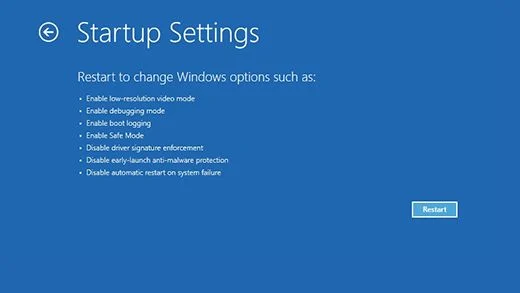
- After your PC restarts, you’ll see a list of startup options. Press 5 or F5 to start Safe Mode with Networking.
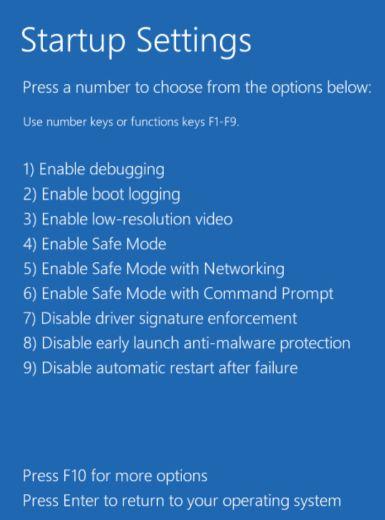
- You’ll know you’re in Safe Mode when “Safe Mode” appears in the corners of the screen. Now continue with the next step of this guide — downloading and running Malwarebytes (explained in Step 2).
- Press Windows key + I to open Settings. If that doesn’t work, click the Start button and select Settings (the gear icon).
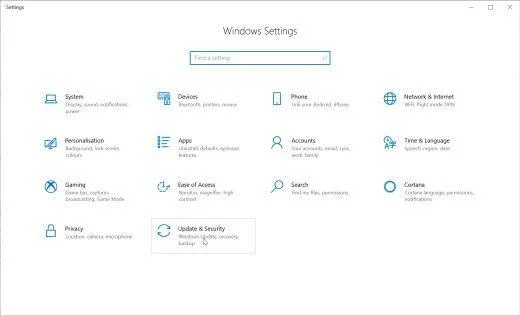
- In the Windows Settings window, select Update & Security, then click Recovery.
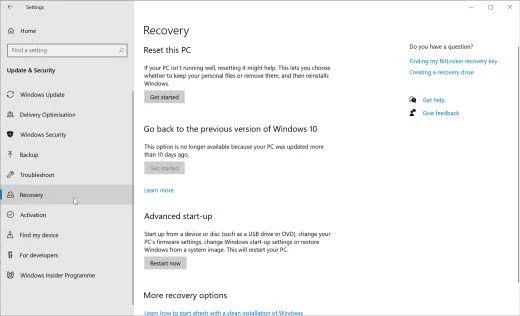
- Under Advanced startup, click Restart now. Save any open work first — your PC will restart immediately.
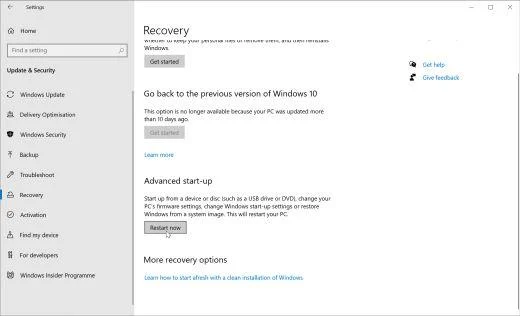
Your PC will restart into the Windows Recovery Environment. From there, follow these steps to reach Safe Mode:
- On the Choose an option screen, select Troubleshoot.
- On the Troubleshoot screen, click Advanced Options.
- On the Advanced Options page, click Startup Settings. (On Windows 8, this option is labeled Windows Startup Settings.)
- On the Startup Settings page, click Restart.
- After your PC restarts, you’ll see a list of startup options. Press 5 or F5 to start Safe Mode with Networking.
- You’ll know you’re in Safe Mode when “Safe Mode” appears in the corners of the screen. Now continue with the next step of this guide — downloading and running Malwarebytes (explained in Step 2).
- Remove any CDs, DVDs, or USB drives from your computer, then restart it.
- As soon as the computer starts (when the hardware information appears on screen), press the F8 key repeatedly until the Advanced Boot Options menu appears. If Windows starts normally instead, you pressed F8 too late — restart and try again.
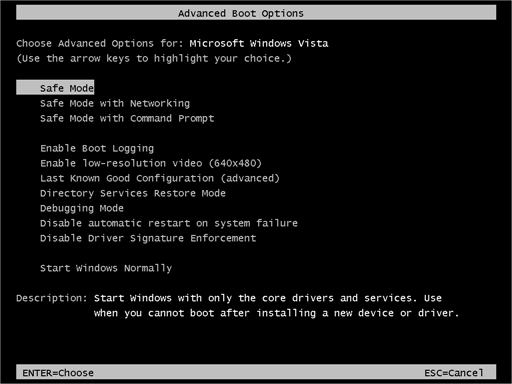
- On the Advanced Boot Options screen, use the arrow keys to highlight Safe Mode with Networking, then press Enter.
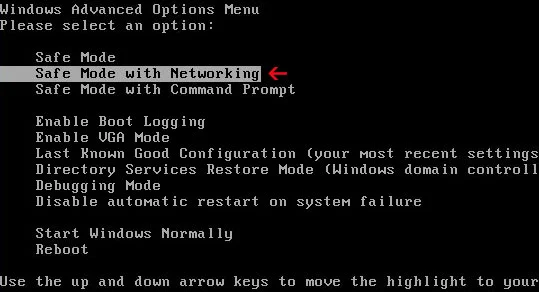
- Once you’re in Safe Mode with Networking, continue with the next step of this guide — downloading and running Malwarebytes (explained in Step 2).
Can’t get into Safe Mode with Networking? No problem — you can run the Malwarebytes scan in normal mode instead and continue the guide from there.
STEP 2: Use Malwarebytes to remove Stolen ransomware
While the computer is in Safe Mode with Networking, we will download, install and run a system scan with Malwarebytes.
Malwarebytes is one of the most popular and trusted anti-malware tools for Windows — and it’s completely free for removing infections. It catches threats that many antivirus programs miss, including adware, browser hijackers, and trojans. Follow the steps below to scan and clean your PC in just a few minutes.
Download Malwarebytes
Click the button below to download the latest version of Malwarebytes for Windows from the official source. The free version is all you need — it will scan your computer and remove adware, browser hijackers, and other malicious software at no cost.
Download MalwarebytesOfficial installer for Windows 11 and 10. Your download starts right away.Want real-time protection? See Malwarebytes Premium Malwarebytes Free for WindowsScans and removes malware at no cost
-
Install Malwarebytes
When the download finishes, open your Downloads folder and double-click the MBSetup file. If Windows shows a User Account Control pop-up, click “Yes” to allow the installation.

Follow the On-Screen Prompts to Install Malwarebytes
The setup wizard will walk you through a few quick screens:
-
Choose where you’re installing the program — “Personal Computer” or “Work Computer” — then click Next.

-
Malwarebytes will now install on your device. This usually takes under a minute.

-
When installation is complete, the “Welcome to Malwarebytes” screen will open automatically.

-
On the final screen, click Open Malwarebytes to launch the program.

-
Enable “Scan for Rootkits”
Before scanning, turn on rootkit detection so Malwarebytes can find even the most hidden threats. Click the Settings gear icon on the left side of the screen.

In the settings menu, find “Scan for rootkits” and click the toggle so it turns blue.

Done? Click “Dashboard” in the left pane to return to the main screen.
Start the Scan
Click the blue Scan button. Malwarebytes will automatically update its virus database and start checking your computer for malware.

-
Wait for the Scan to Finish
The scan checks your entire system for browser hijackers and other malicious programs, so it can take 5 to 20 minutes depending on your computer. Feel free to do something else — just check back occasionally to see the progress.

-
Quarantine the Detected Threats
When the scan is done, you’ll see a list of everything Malwarebytes found — malware, adware, and potentially unwanted programs. Click the “Quarantine” button to remove all of them at once.

Malwarebytes will now remove the malicious files and registry entries and move them safely into quarantine.

-
Restart Your Computer
Some threats can only be fully removed after a reboot. If Malwarebytes asks you to restart, click Yes. Once you’re logged back in, Malwarebytes has finished removing the threats it found.

When the malware removal process is complete, your computer should start in normal mode (if not, simply restart your device to exit Safe Mode) and continue with the rest of the instructions. We do recommend that you run another scan with Malwarebytes once you’re in Normal mode to make sure all the malicious files were removed.
STEP 3: Use HitmanPro to scan for Trojans and other malware
In this third step, while the computer is in normal back, we will download and run a scan with HitmanPro to remove the Stolen ransomware and other malicious programs.
HitmanPro is a second-opinion scanner — it’s designed to catch what your main antivirus might have missed. Instead of relying on a single detection engine, it checks the behavior of files in the locations where malware usually hides. Anything suspicious gets sent to the cloud, where it’s analyzed by two of the best antivirus engines available: Bitdefender and Kaspersky.
Good news: scanning is completely free, with no limits. You only need a license when it’s time to remove what was found — and even then, you can activate a free one-time 30-day trial to clean your PC at no cost. (A full license is $24.95 per year for 1 PC.)
-
Download HitmanPro
Click the button below to download HitmanPro. Remember — the scan is free, so you have nothing to lose by checking your PC.
Download HitmanProFree scan. Removing threats needs the free 30-day trial. Opens the official HitmanPro page in a new tab. HitmanProSecond-opinion malware scanner from Sophos
 -
Install HitmanPro
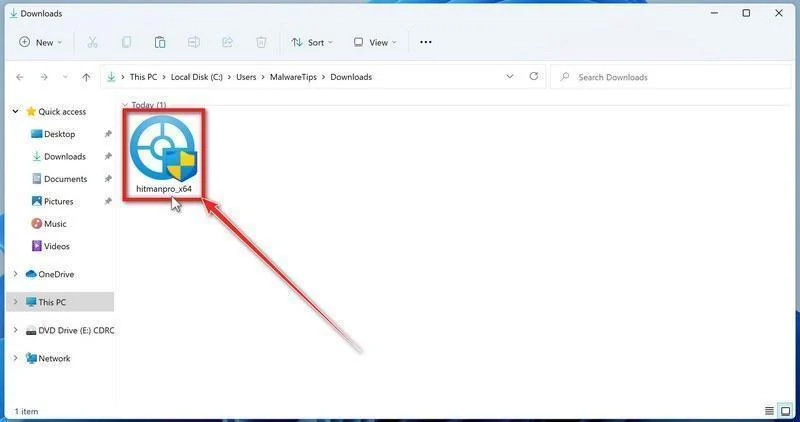
When the download finishes, open your Downloads folder and double-click the file: “hitmanpro.exe” on 32-bit Windows, or “hitmanpro_x64.exe” on 64-bit Windows.
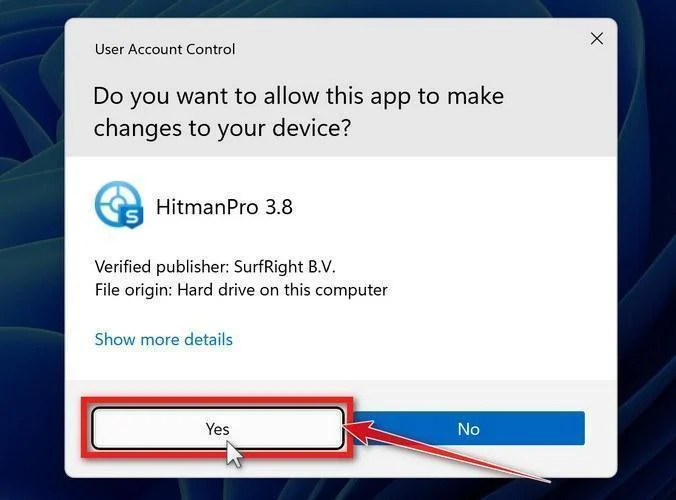
If a User Account Control pop-up asks whether HitmanPro can make changes to your device, click “Yes” to continue.
-
Follow the On-Screen Prompts
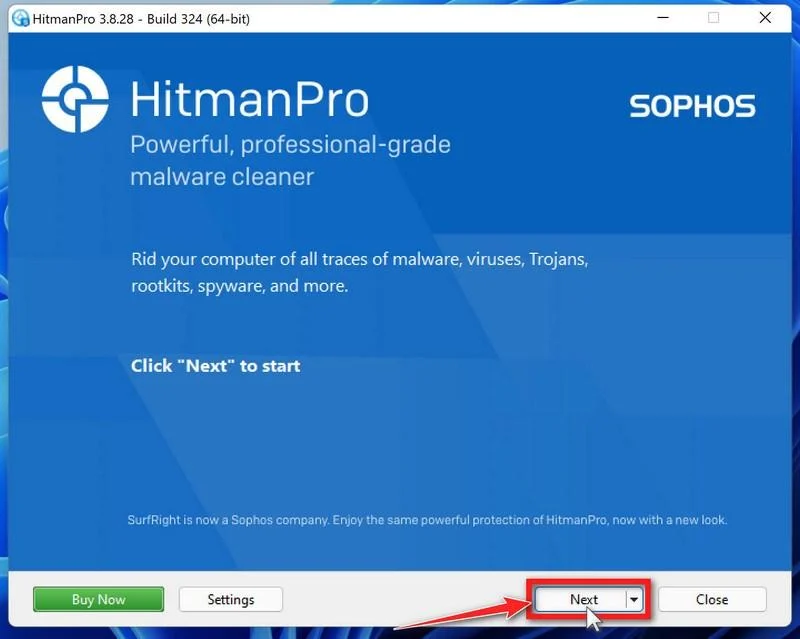
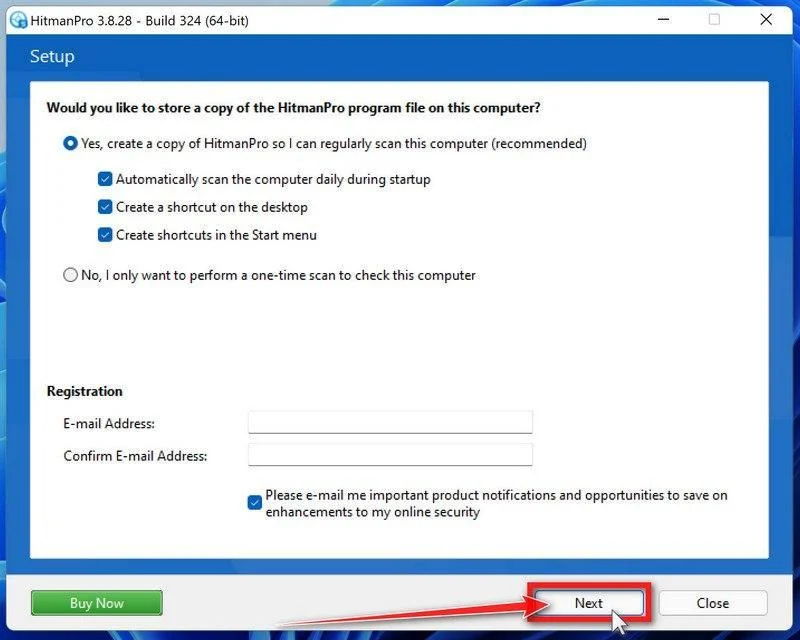
On the HitmanPro start screen, click “Next” to begin the system scan. No lengthy setup required — it goes straight to work.
-
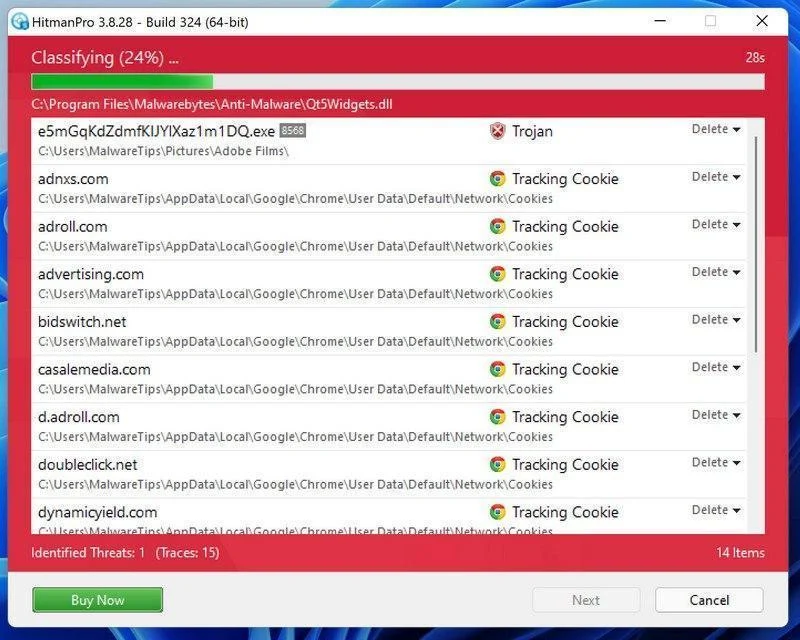
Wait for the Scan to Finish
HitmanPro will now check your computer for malicious programs. This usually takes just a few minutes thanks to its cloud-based scanning.
-
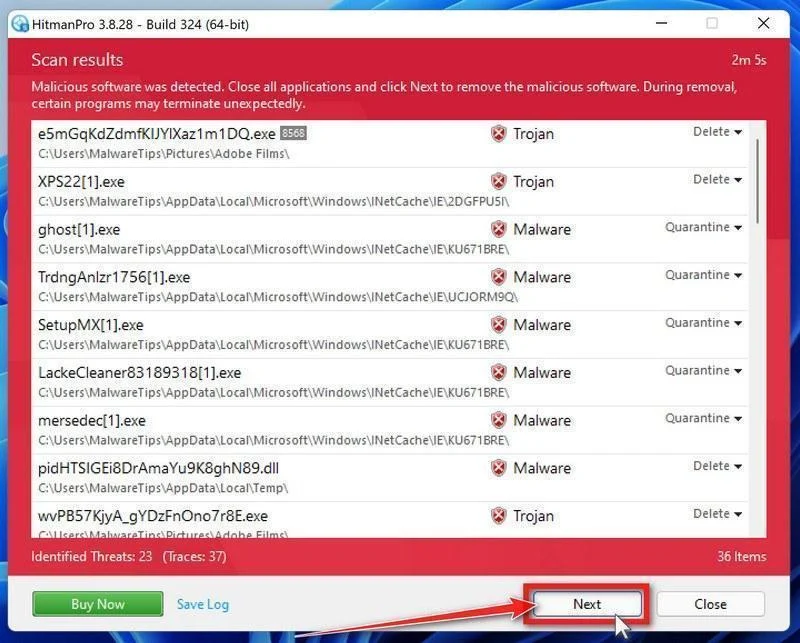
Review the Results and Click “Next”
When the scan is done, HitmanPro will show you everything it found. Click “Next” to remove the detected threats.
-
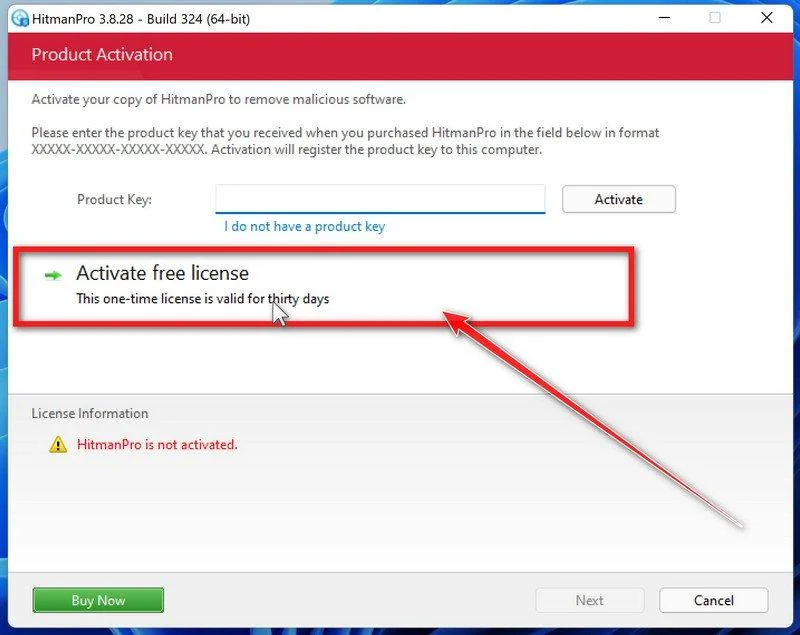
Click “Activate Free License”
To remove the malicious files, click the “Activate free license” button. This starts your free 30-day trial — no payment details needed — and unlocks the full cleanup.
When the removal is complete, HitmanPro will show a summary of everything it cleaned. Click Next, then click Reboot if prompted. If there’s no reboot prompt, just click Close — your PC is clean.
STEP 4: Double-check for malicious programs with ESET Online Scanner
In this fourth step, we run a scan with ESET Online Scanner to remove any leftover files from the Stolen ransomware and other malicious programs.
ESET Online Scanner is a free second-opinion scanner that performs a deep, full-system check for viruses, trojans, rootkits, and other malware. We use it as the final step because it’s thorough — if anything slipped past the previous scans, ESET will find it. A clean result here means your computer is malware-free.
-
Download ESET Online Scanner
Click the button below to download ESET Online Scanner.
Download ESET Online ScannerOpens the official download page in a new tab. ESET Online ScannerFree one-time malware scan from ESET
 -
Run the Installer
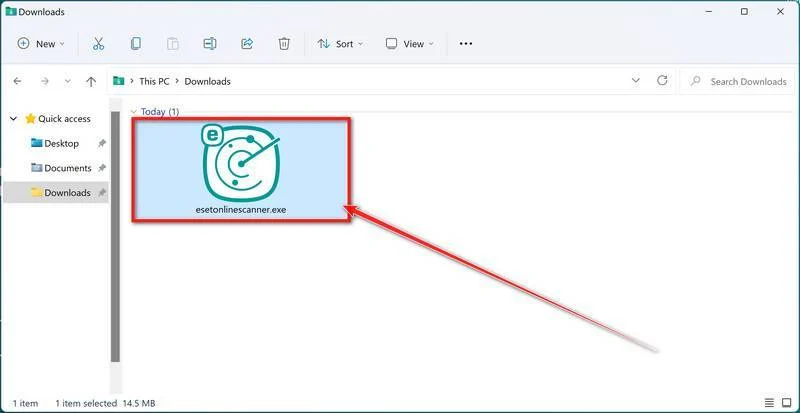
When the download finishes, open your Downloads folder and double-click “esetonlinescanner.exe“.
-
Install ESET Online Scanner
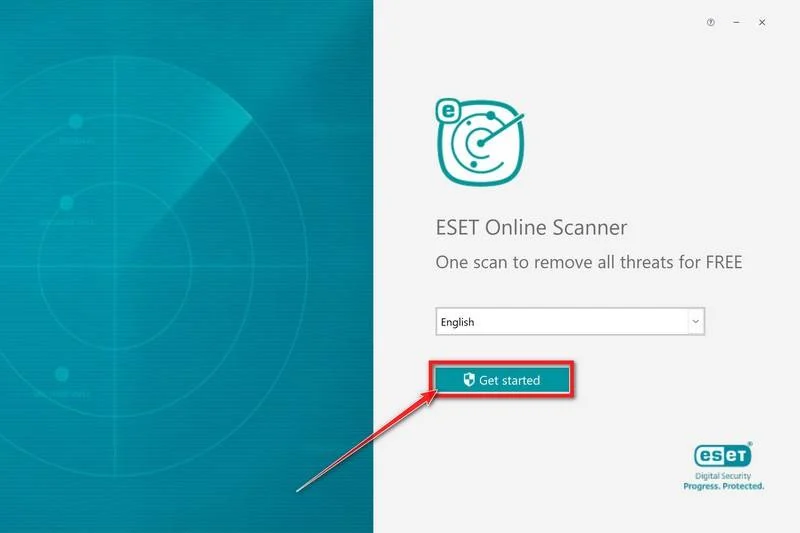
On the start screen, select your language from the drop-down menu and click Get started.
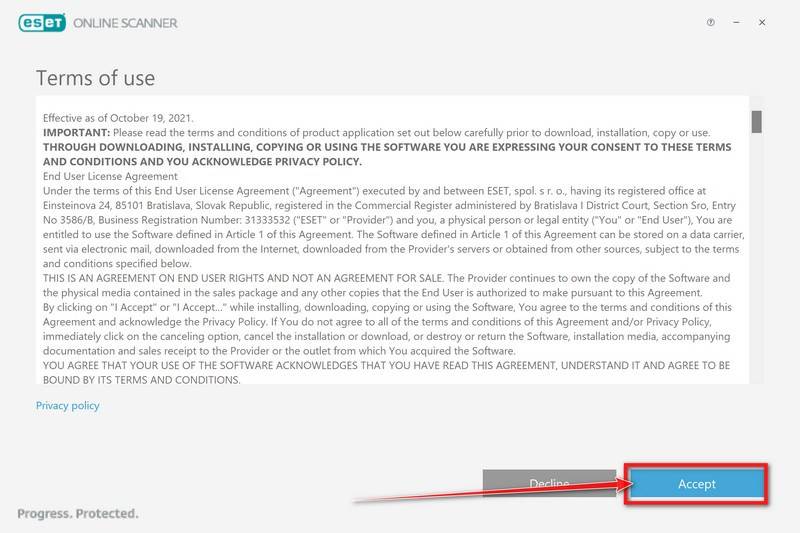
On the Terms of use screen, click Accept.
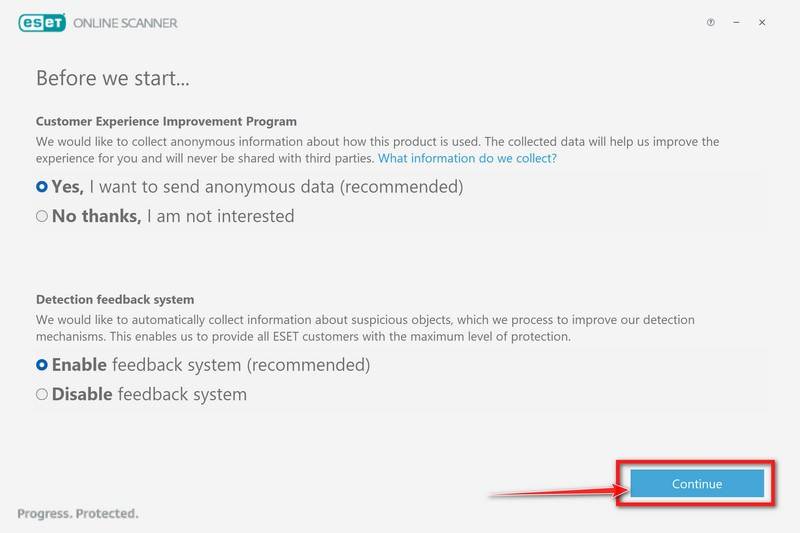
Choose your preferences for the Customer Experience Improvement Program and the Detection feedback system (either choice is fine), then click Continue.
-
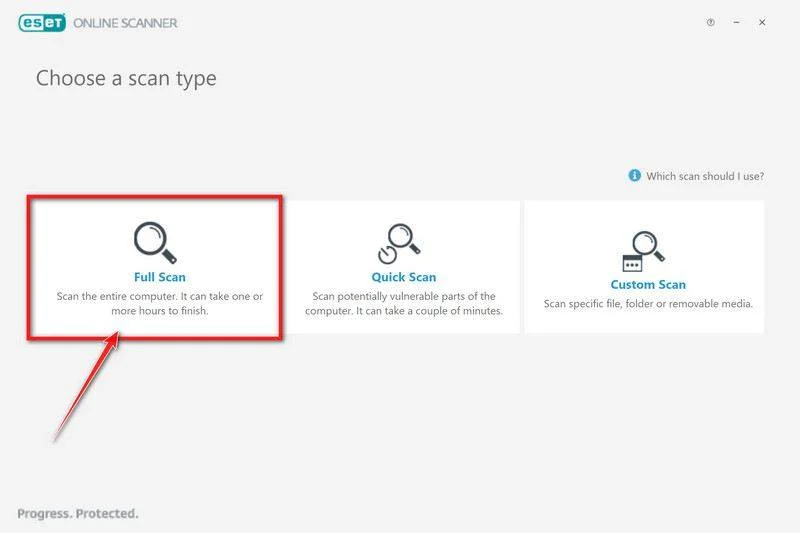
Start a Full Scan
Click Full Scan — this checks your entire computer, not just the common hiding spots.
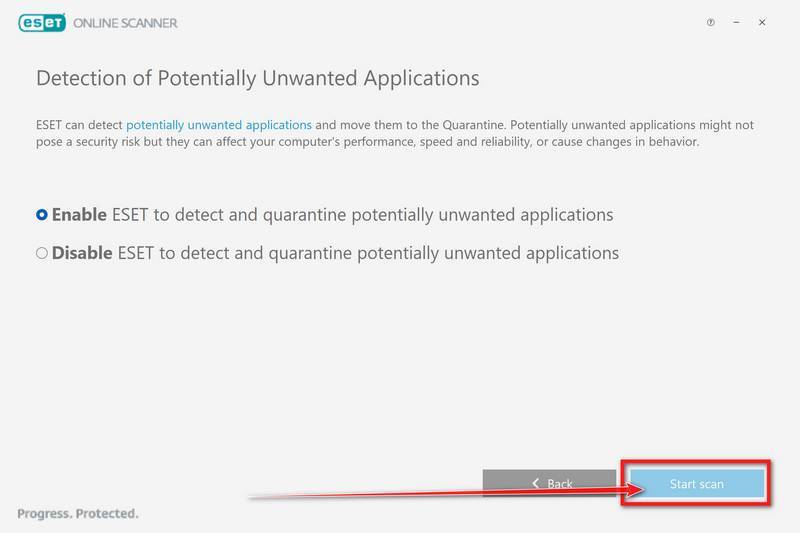
Select Enable for Detection of Potentially Unwanted Applications — this lets ESET catch adware and bundled junk programs, not just viruses. Then click Start scan.
-
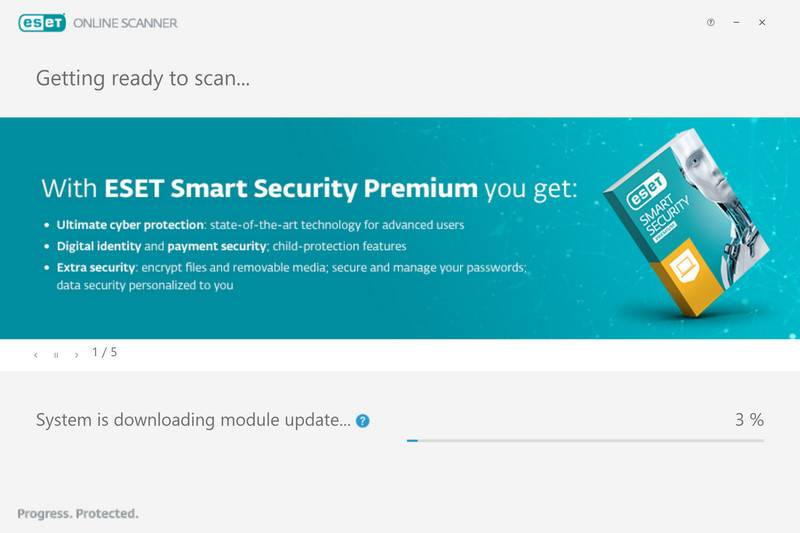
Wait for the Scan to Finish
ESET will now check every file on your computer. Because it’s a full scan, this can take a while — often an hour or more, depending on how much data you have. Leave it running in the background and check on it from time to time.
-
Review the Results
When the scan completes, the Found and resolved detections screen appears. Any threats found were automatically cleaned and quarantined — there’s nothing extra you need to do. Click View detailed results if you want to see exactly what was removed.
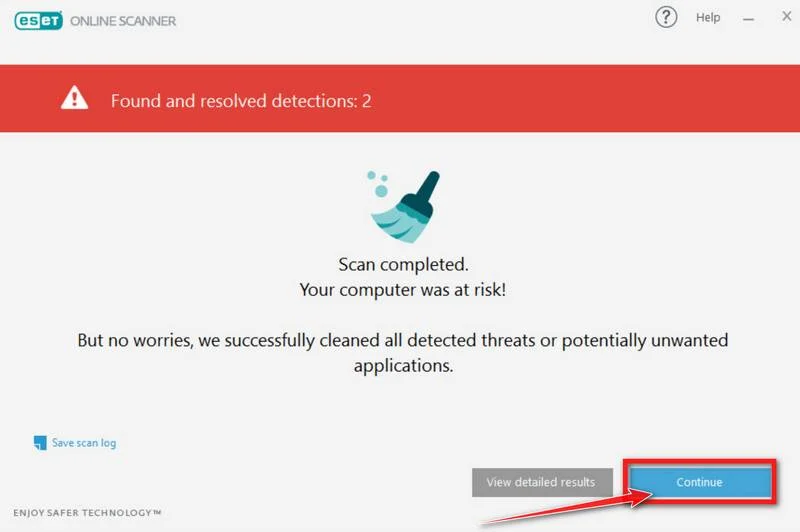
If ESET found nothing — congratulations, your computer has passed the final check and is malware-free.
STEP 5: Restore the files encrypted by the Stolen ransomware
Unfortunately, in most cases, it’s not possible to recover the files encrypted by this ransomware virus because the private key which is needed to unlock the encrypted files is only available through the attackers. However, below we’ve listed three options you can use to try and recover your files.
Option 1: Search a decryption tool for this ransomware
The cybersecurity community is constantly working to create ransomware decryption tools, so you can try to search these sites for updates:
- https://id-ransomware.malwarehunterteam.com/
- https://decrypter.emsisoft.com/
- https://noransom.kaspersky.com/
- https://www.avast.com/ransomware-decryption-tools
Option 2: Use EaseUS Data Recovery Wizard Free to recover the encrypted files
EaseUS Data Recovery Wizard Free can restore files and repair corrupted files with simple clicks. Its powerful scanning algorithms can identify and retrieve huge file type library, including all of the popular video files, audio files, photos, and document formats.
While the free version only allows you to recover 2 GB of data, this can be helpful to see if the recovery is possible and restore back the most important files from your computer.
-
Download EaseUS Data Recovery Wizard Free.
You can download EaseUS Data Recovery Wizard Free by clicking the link below.
Download EaseUS Data Recovery WizardOpens the download page in a new tab. EaseUS Data Recovery WizardFile recovery tool with a free version
 -
Double-click on the EaseUS Data Recovery Wizard Free setup file.
When EaseUS Data Recovery Wizard Free has finished downloading, double-click on the setup file to install EaseUS Data Recovery Wizard on your computer. In most cases, downloaded files are saved to the Downloads folder.
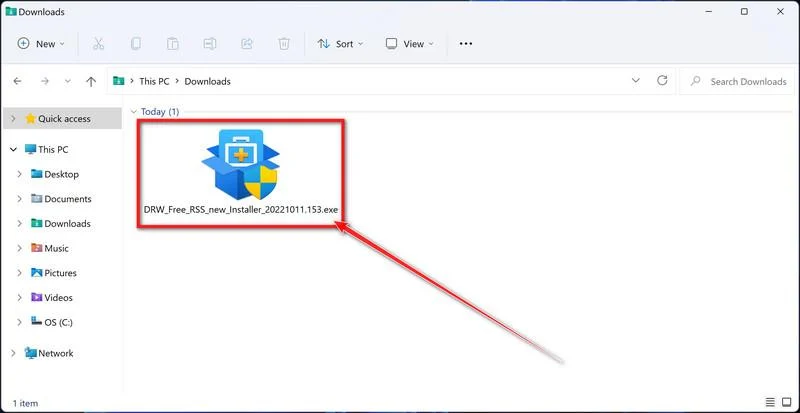
You may be presented with a User Account Control pop-up asking if you want to allow EaseUS to make changes to your device. If this happens, you should click “Yes” to continue with the EaseUS Data Recovery Wizard Free installation.
-
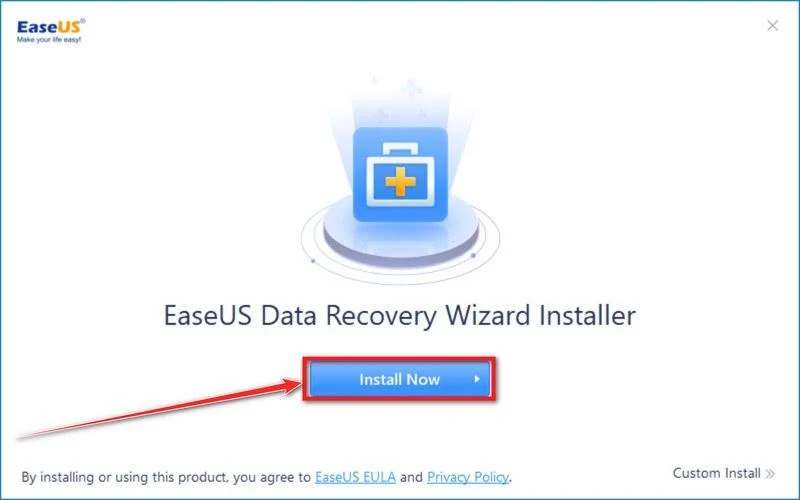
Follow the on-screen prompts to install EaseUS Data Recovery Wizard.
When the EaseUS Data Recovery Wizard installation begins, click on the “Install Now” as seen in the image below.
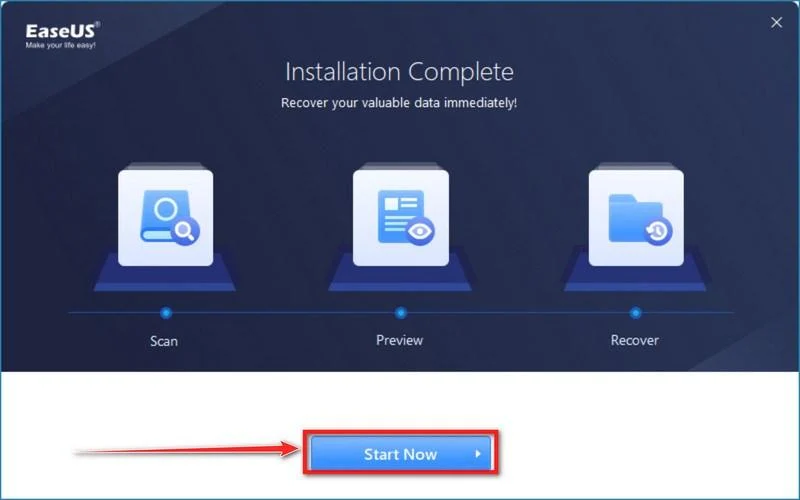
When your EaseUS Data Recovery Wizard installation completes, click the “Start Now” button to start the program.
-
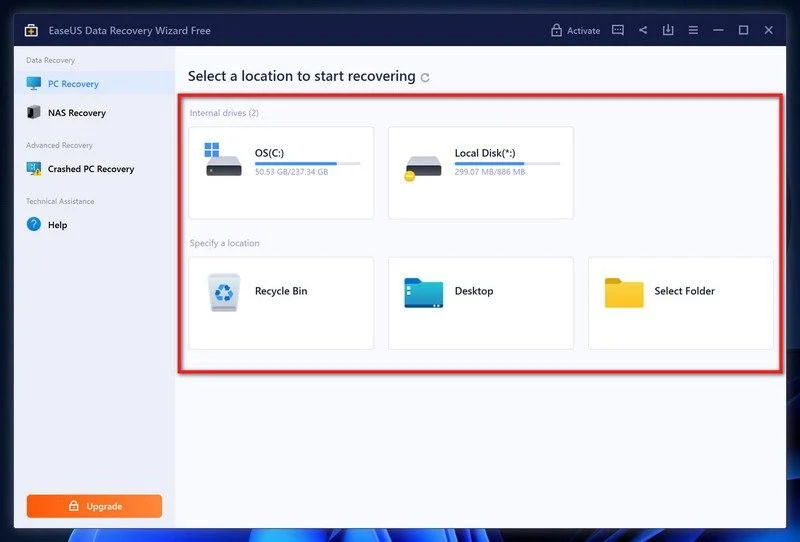
Select a location to start recovering the encrypted files.
Choose the drive or folder where you are the encrypted files that you want to recover and click “Scan“.
-
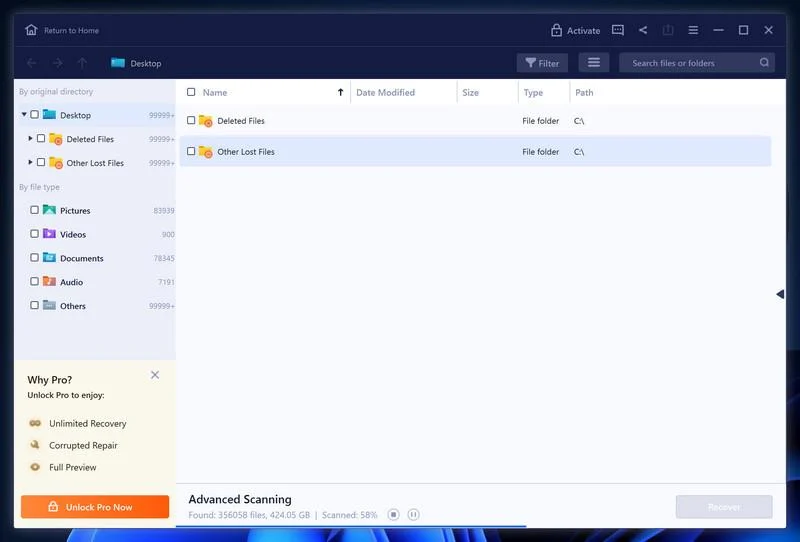
Wait for the EaseUS Data Recovery Wizard scan to complete.
EaseUS Data Recovery Wizard will now scan your computer files that can be restored. This process can take a few minutes, so we suggest you do something else and periodically check on the status of the scan to see when it is finished.
-
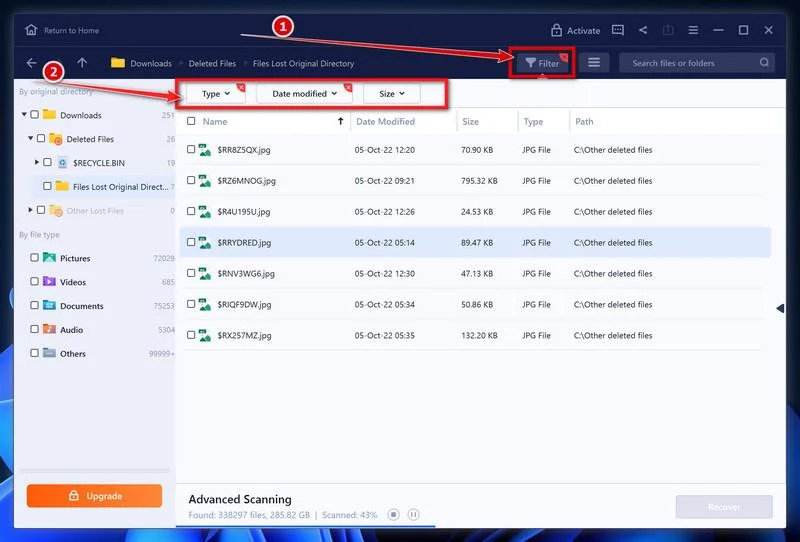
Find the files you want to recover.
When the EaseUS Data Recovery Wizard scan is finished scanning it will show a screen that displays the files that can be recovered. This tool can recover a lot of data, use the “Filter” button to quickly filter specific file types and find the files that you want to recover.
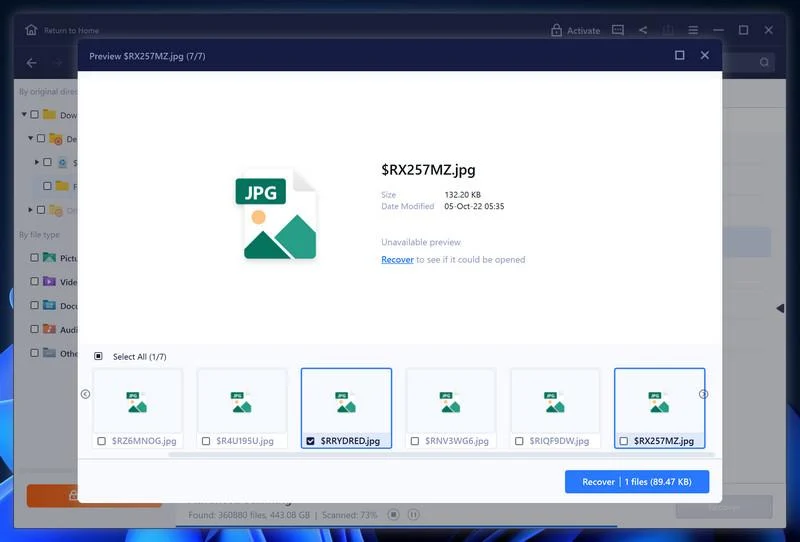
Click the “Preview” button or double-click on a file for a full preview.
-
Select your files and click “Recover”.
Finally, select the the files you want to recover and click “Recover“.
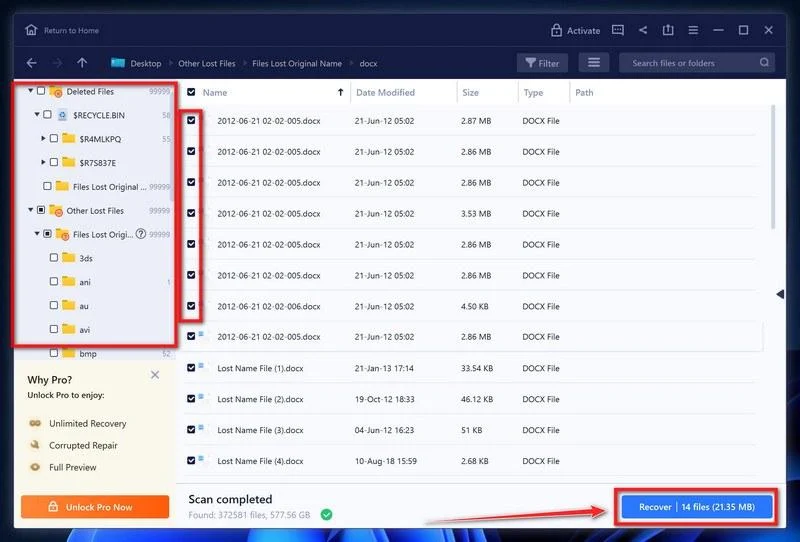
Choose a safe location to save all the files.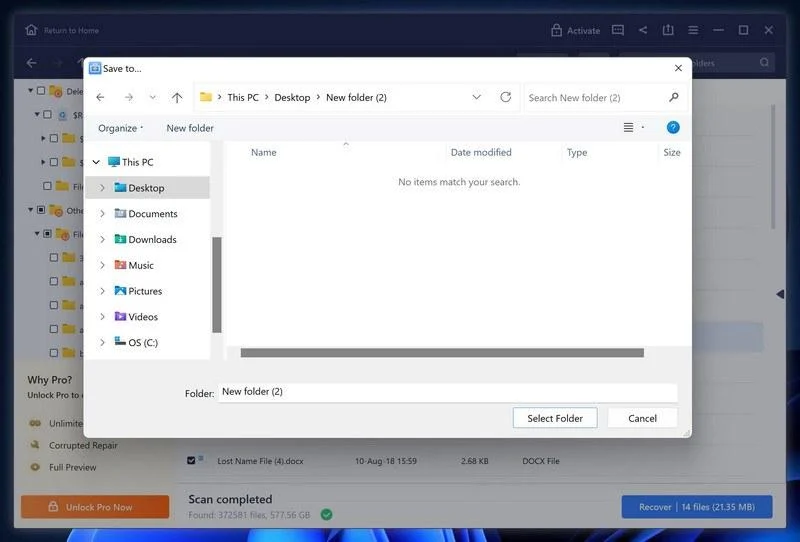
The free version only allow you to recover 2 GB of data, however, this will allow you to recover the most important files and see if EaseUS Data Recovery Wizard can correctly recover them.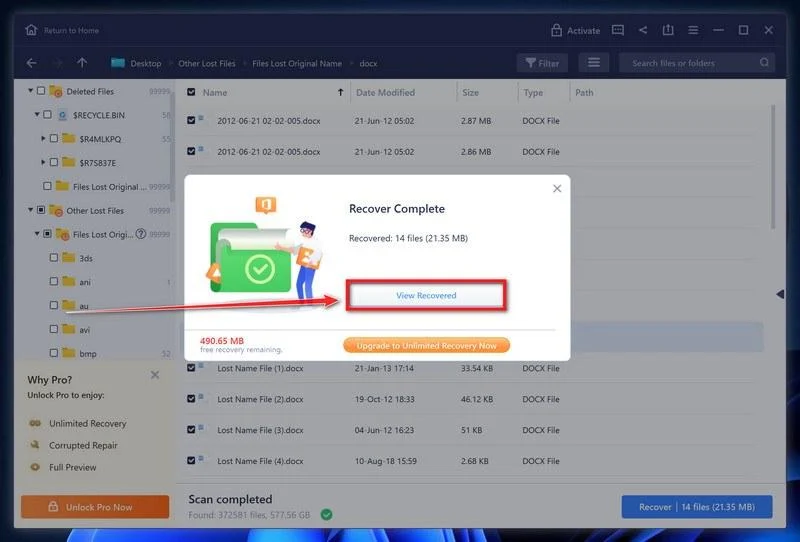
Option 3: Try to restore your files with ShadowExplorer
This ransomware will attempt to delete all shadow copies when you first start any executable on your computer after becoming infected. Thankfully, the infection is not always able to remove the shadow copies, so you should continue to try restoring your files using this method.
-
Download ShadowExplorer.
You can download ShadowExplorer from the below link.
Download ShadowExplorerOpens the official download page in a new tab.ShadowExplorerRestores files from Windows Shadow Volume Copies -
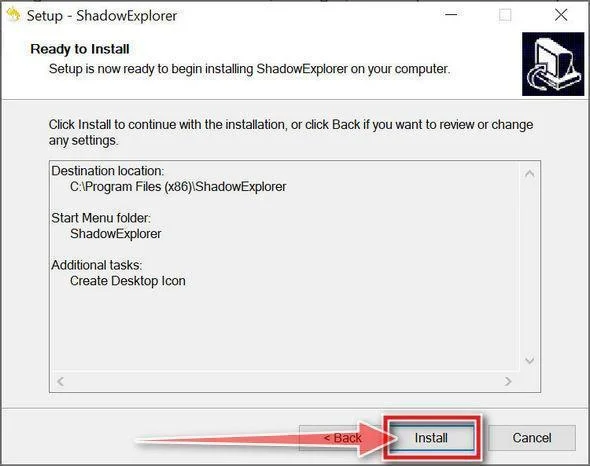
Install ShadowExplorer.
Double-click on the ShadowExplorer-x.x-setup file to start the installation process, then follow the on-screen promts to install this program.
-
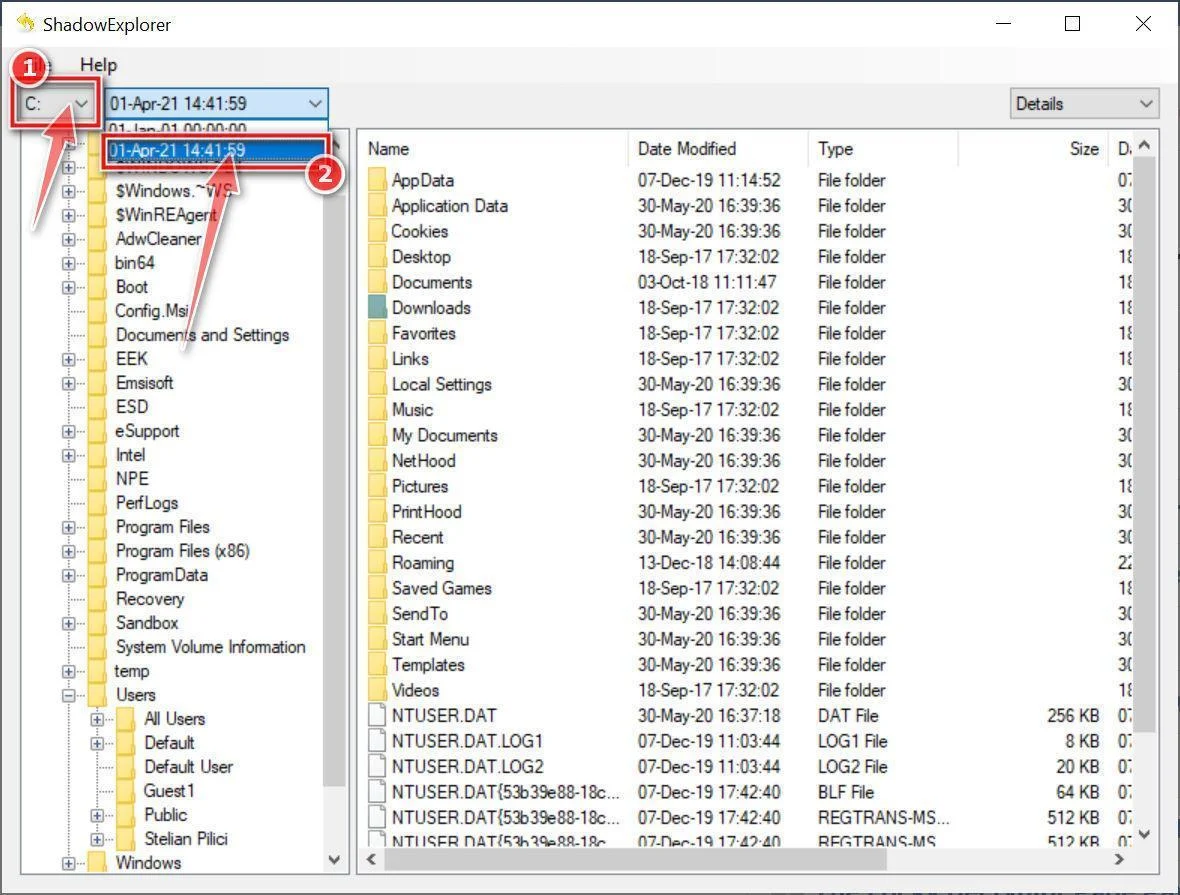
Select snapshot date.
Open ShadowExplorer and then from the top bar select the drive where the files that you want to save are located, then select from the snapshot available one previous to this infection.
-
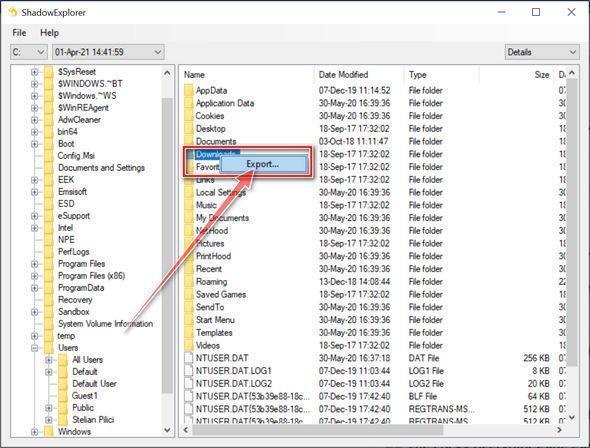
Export the files that you want to recover.
Once you have found a copy of the original file or folder, right-click on it and the select “Export”. A window will prompt you where you want to save the file or folder.
Your computer should now be free of the Stolen ransomware infection and other malware.
If you are still having problems with your computer after completing these instructions, then please follow one of the steps:
- Run a computer scan with Emsisoft Emergency Kit
- Ask for help in our Malware Removal Assistance for Windows forum.
Frequently Asked Questions About the Stolen Ransomware
1. What is the Stolen ransomware?
Stolen is a dangerous ransomware variant in the Dharma family known for encrypting files on compromised systems. It appends the .stolen30 extension and ransom note to encrypted files and demands payment for decryption keys. Stolen utilizes strong encryption algorithms and also deletes Volume Shadow Copies to block recovery.
2. How does the Stolen ransomware infect systems?
Stolen leverages various infection vectors like phishing emails, brute force RDP attacks, software exploits, malvertising campaigns, and compromised software downloads. Social engineering is used heavily to trick users into enabling its installation.
3. What types of files does Stolen ransomware encrypt?
Stolen encrypts a broad range including documents, media files, databases, backups, network shares, and critical system files. This indiscriminate approach maximizes damage and leverage over victims.
4. How can I tell if Stolen ransomware is encrypting my system?
Signs like files appended with ID and .stolen30, ransom notes in each folder, changed desktop backgrounds, disabling of antivirus, and deletion of shadow copies may indicate Stolen activity. Rapid detection can limit damage.
5. Should I pay the ransom if infected with Stolen?
No, we strongly advise against paying the ransom. There is no guarantee you will receive working decryption keys in return, and it encourages more ransomware attacks. Restore from backups instead.
6. How can I recover encrypted files without paying the ransom?
Having a recent, offline data backup that Stolen did not compromise allows you to restore encrypted files. You can also check if any free decryptors have been released to unlock files encrypted by the specific Stolen variant.
7. Can antivirus or firewalls block the Stolen ransomware?
Antivirus with behavioral analysis and firewalls can potentially detect and block processes associated with Stolen activity. However multiple layers of security are ideal, since threats are constantly evolving.
8. Is there any way to decrypt .stolen30 encrypted files without the key?
No unfortunately the strong encryption used by Stolen essentially makes files unrecoverable without the attacker’s unique decryption key. This is why preventing infection is so crucial.
9. Who is responsible for creating and spreading Stolen ransomware?
The origins are unclear but cybercriminal groups and state-sponsored actors have been tied to similar ransomware strains. The decentralized nature makes attribution difficult. Global law enforcement is investigating.
10. How can I improve my defenses against ransomware like Stolen?
Keeping software patched, securing RDP access, filtering email attachments/links, training staff on threats, segmenting networks, and maintaining offline backups are key best practices against ransomware attacks.
The Bottom Line
The Stolen ransomware and its variants represent a dangerous threat capable of inflicting tremendous damage due to its robust encryption tactics, multi-pronged infection methods, and global reach.
However, by understanding Stolen’s core behaviors and technical capabilities covered in this article, organizations are empowered to detect potential attacks early and implement layered defenses to significantly lower the risk.
The key takeaways include:
- Stolen utilizes social engineering, software exploits, supply chain compromise, and RDP brute forcing to infiltrate systems.
- The ransomware encrypts local drives, networks shares, backups, databases, and critical files.
- Warning signs like changed file extensions, ransom notes, and shadow copy deletion can signal Stolen activity.
- Preventive controls like patch management, email security, tight RDP access, endpoint protection, and user education provide protection.
- Offline, immutable backups allow restoration of encrypted data without paying ransoms.
- Quick isolation, scoping the infection, and contacting experts are key incident response steps.
By putting these lessons into action, individuals and organizations can bolster their resilience against ransomware while depriving attackers of illicit profits. Vigilance and preparation are our best defenses against malware like Stolen.

Join the discussion
0 commentsShare your experience or ask a question about this article.
Discussion
Start the conversation
Have a question or something useful to share? Add the first comment.