

Have you seen websites like Streakvade.top that claim to reveal Snapchat locations, best friend lists, private chats, and even “My Eyes Only” content? At first glance, these sites may look tempting, especially for people who want to spy on someone’s Snapchat activity. But here’s the truth: Streakvade.top is a scam.
This article breaks down exactly what the Streakvade.top scam is, how it works step by step, and what to do if you’ve already interacted with it. We’ll also provide actionable tips on protecting your devices, data, and privacy from similar scams.
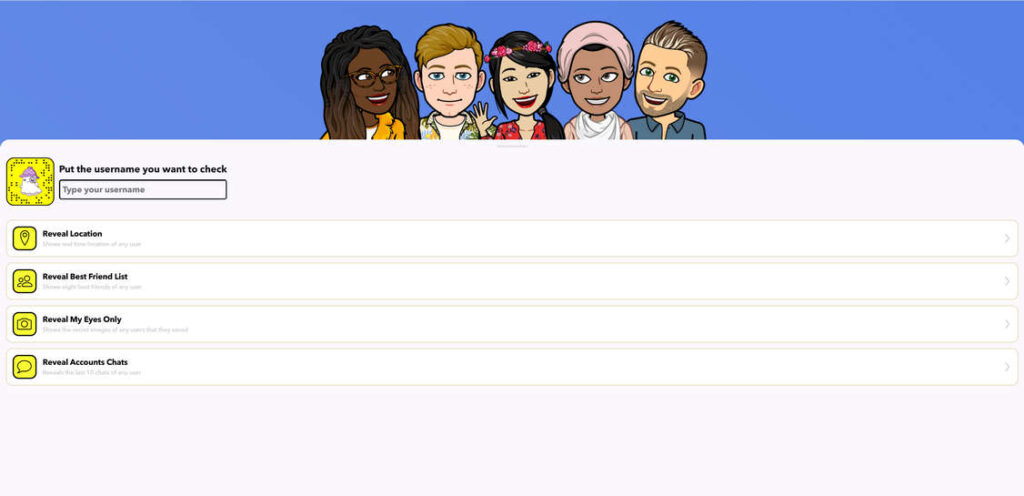
Scam Overview
What Streakvade.top Claims
Streakvade.top advertises itself as a Snapchat spying tool. It offers features like:
- Reveal Location: Claiming it can show the exact location of any Snapchat user.
- Reveal Best Friend List: Supposedly exposing who someone interacts with most.
- Reveal My Eyes Only: Claiming to unlock the user’s private content folder.
- Reveal Account Chats: Promising access to private chat messages.
On the surface, these features look like they could satisfy someone’s curiosity or insecurities. But in reality, none of this is possible. Snapchat has strict privacy protections, and no third-party website can bypass them.
The Illusion of Legitimacy
Streakvade.top tries to appear trustworthy by using familiar Snapchat-style graphics and avatars. The interface looks simple: you enter a Snapchat username, click a button, and watch as the system supposedly “connects” to Snapchat servers.
Fake loading messages such as “Establishing connection…” or “Extracting data…” appear on the screen, giving the illusion that hacking is taking place. Victims are led to believe they’re moments away from gaining access to private Snapchat information.
The Reality
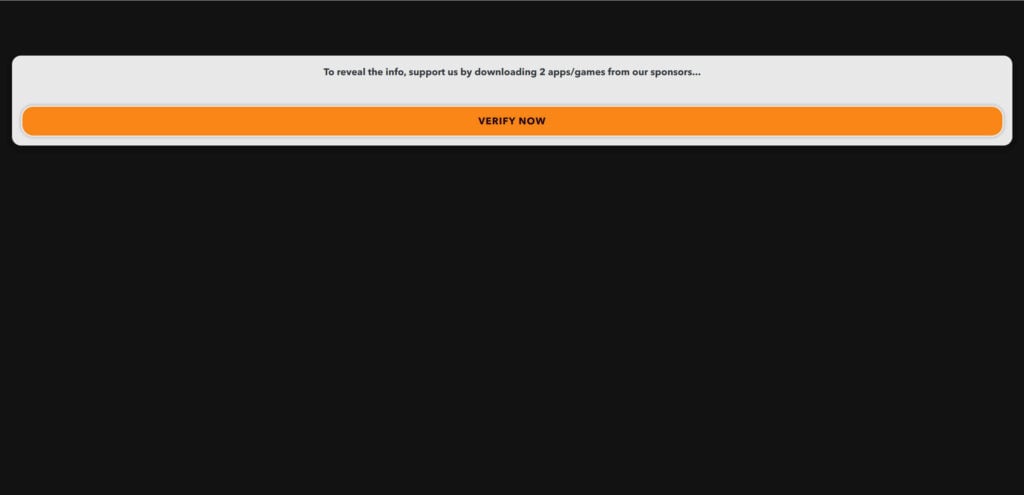
The truth is that Streakvade.top doesn’t hack anything. The site is designed solely to exploit users for profit. Once the fake “hacking” sequence finishes, the site always requires “verification” before revealing any information. This verification process is where the scam makes money.
Victims are tricked into:
- Completing online surveys that generate affiliate revenue.
- Downloading apps or games that benefit scammers financially.
- Providing personal data through forms disguised as verification steps.
- Subscribing to premium SMS services that charge their phone bills.
At the end of the process, no Snapchat data is ever revealed.
Why It Works
Scams like Streakvade.top succeed because they exploit emotions and human psychology:
- Curiosity: Many people want to peek into private content.
- Jealousy or insecurity: Some want to spy on partners, friends, or rivals.
- Urgency: The fake progress bars make it seem like access is just a click away.
- Social proof: Some versions of these sites show fake activity logs with random usernames “successfully hacked.”
This combination creates a powerful lure, drawing victims into the trap before they realize it’s a scam.
How the Streakvade.top Scam Works
To fully understand the fraud, let’s walk through the scam process in detail.
Step 1: Landing on the Website
Victims often find Streakvade.top through:
- Search engines, when searching for terms like “see Snapchat best friends online” or “view Snapchat location secretly.”
- Social media posts or shares in forums.
- Pop-up ads or redirects from unsafe websites.
Once on the site, the user is presented with options like Reveal Location or Reveal Best Friend List.
Step 2: Entering a Username
The site asks users to type the Snapchat username of the account they want to spy on. This creates the impression that the tool customizes results for specific users.
Step 3: Fake Connection Process
After entering a username, the site begins a fake hacking sequence. Victims see phrases like:
- “Establishing connection…”
- “Fetching account data…”
- “Decrypting information…”
Progress bars and animations give the appearance of real technical work. None of this is actually happening.
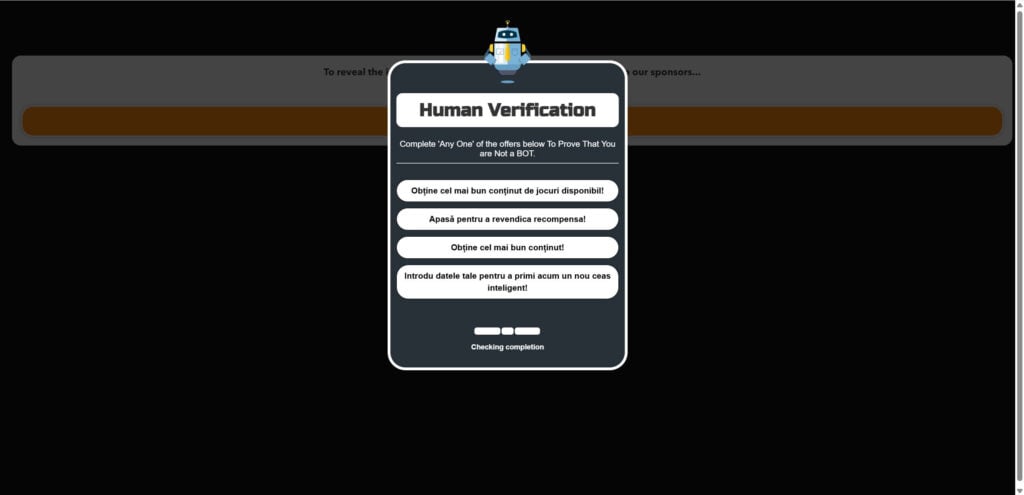
Step 4: The Verification Step
Once the fake sequence finishes, the site displays a message like:
“To reveal the information, please verify you are not a bot.”
This is where victims are asked to:
- Complete surveys.
- Download apps or games.
- Enter personal details such as email addresses or phone numbers.
- Subscribe to “offers” that result in recurring charges.
Step 5: Endless Loops
No matter what the victim does, the site never reveals any Snapchat data. Instead, it sends them through endless loops of new surveys, apps, or offers. Each step generates revenue for the scammers.
Step 6: Possible Malware Risks
Some downloads from these sites may contain malware or adware. This malicious software can:
- Steal personal information.
- Track browsing habits.
- Display intrusive ads.
- Slow down the victim’s device.
Step 7: The Outcome
By the end of the process, the victim has:
- Wasted time on fake processes.
- Potentially lost money through SMS subscriptions or fraudulent charges.
- Exposed personal data to scammers.
- Risked infection from malware.
And, importantly, they never get access to the Snapchat account they were promised.
What To Do If You Have Fallen Victim to the Streakvade.top Scam
If you’ve already engaged with Streakvade.top, it’s crucial to act quickly. Here’s a step-by-step recovery plan:
- Close the Website Immediately
Stop interacting with the site and close the browser tab. - Clear Browser Data
Go to your browser settings and clear cookies, cache, and history. This removes tracking scripts. - Uninstall Suspicious Apps
If you downloaded any apps during the verification process, uninstall them right away. - Run a Full Antivirus Scan
Use a trusted antivirus or anti-malware program such as Malwarebytes, Norton, or Bitdefender. Scan your entire device and remove any threats. - Check for Premium SMS Charges
Review your mobile bill for unauthorized charges. Contact your provider to cancel subscriptions and request refunds if possible. - Change Your Passwords
Update your Snapchat, email, and other important account passwords. Use strong, unique combinations. - Enable Two-Factor Authentication (2FA)
Add an extra layer of protection to your accounts by enabling 2FA. - Monitor Your Accounts
Watch for unusual activity on social media, email, and financial accounts. Early detection helps prevent further damage. - Report the Scam
Report Streakvade.top to Google Safe Browsing and your country’s cybercrime authority. This can help reduce exposure. - Educate Others
Share your experience with friends and family so they don’t fall into the same trap.
Is Your Device Infected? Run a Free Malware Scan
Slow performance, constant pop-ups, or strange behavior? These are classic signs of a malware infection. The fastest way to find out is to scan your device with Malwarebytes Free — one of the most trusted malware removal tools available.
The free version detects and removes the most common threats, including:
- Adware — the cause of those annoying pop-ups
- Browser hijackers — unwanted redirects and changed homepages
- Trojans and spyware — hidden programs stealing your data
- Potentially unwanted programs (PUPs) — software you never asked for
👉 Select your device below — Windows, Mac, or Android — then follow the simple steps to download Malwarebytes, scan your system, and remove any threats it finds. The scan usually takes 5 to 20 minutes.
Run a Malware Scan with Malwarebytes for Windows
Malwarebytes is one of the most popular and trusted anti-malware tools for Windows — and it’s completely free for removing infections. It catches threats that many antivirus programs miss, including adware, browser hijackers, and trojans. Follow the steps below to scan and clean your PC in just a few minutes.
Download Malwarebytes
Click the button below to download the latest version of Malwarebytes for Windows from the official source. The free version is all you need — it will scan your computer and remove adware, browser hijackers, and other malicious software at no cost.
Download MalwarebytesOfficial installer for Windows 11 and 10. Your download starts right away.Want real-time protection? See Malwarebytes Premium Malwarebytes Free for WindowsScans and removes malware at no cost
-
Install Malwarebytes
When the download finishes, open your Downloads folder and double-click the MBSetup file. If Windows shows a User Account Control pop-up, click “Yes” to allow the installation.

Follow the On-Screen Prompts to Install Malwarebytes
The setup wizard will walk you through a few quick screens:
-
Choose where you’re installing the program — “Personal Computer” or “Work Computer” — then click Next.

-
Malwarebytes will now install on your device. This usually takes under a minute.

-
When installation is complete, the “Welcome to Malwarebytes” screen will open automatically.

-
On the final screen, click Open Malwarebytes to launch the program.

-
Enable “Scan for Rootkits”
Before scanning, turn on rootkit detection so Malwarebytes can find even the most hidden threats. Click the Settings gear icon on the left side of the screen.

In the settings menu, find “Scan for rootkits” and click the toggle so it turns blue.

Done? Click “Dashboard” in the left pane to return to the main screen.
Start the Scan
Click the blue Scan button. Malwarebytes will automatically update its virus database and start checking your computer for malware.

-
Wait for the Scan to Finish
The scan checks your entire system for browser hijackers and other malicious programs, so it can take 5 to 20 minutes depending on your computer. Feel free to do something else — just check back occasionally to see the progress.

-
Quarantine the Detected Threats
When the scan is done, you’ll see a list of everything Malwarebytes found — malware, adware, and potentially unwanted programs. Click the “Quarantine” button to remove all of them at once.

Malwarebytes will now remove the malicious files and registry entries and move them safely into quarantine.

-
Restart Your Computer
Some threats can only be fully removed after a reboot. If Malwarebytes asks you to restart, click Yes. Once you’re logged back in, Malwarebytes has finished removing the threats it found.

That’s it — your Windows PC is now clean of trojans, adware, and other malware, and should be back to running smoothly.
If you are still having problems with your computer after completing these instructions, then please follow one of the steps:
- Run a computer scan with ESET Online Scanner
- Ask for help in our Windows Malware Removal Help & Support forum.
Run a Malware Scan with Malwarebytes for Mac
Malwarebytes for Mac is a free on-demand scanner that removes the malware other security software tends to miss — adware, browser hijackers, and unwanted programs included. Cleaning an infected Mac with Malwarebytes has always been completely free, and it’s our go-to recommendation. Follow the steps below to scan and clean your Mac in just a few minutes.
-
Download Malwarebytes for Mac
Click the button below to download the latest version of Malwarebytes for Mac.
Download MalwarebytesOfficial installer for macOS. Your download starts right away.Want real-time protection? See Malwarebytes PremiumMalwarebytes Free for MacScans and removes malware at no cost -
Open the Malwarebytes setup file
When the download finishes, open your Downloads folder and double-click the setup file to begin the installation.

-
Follow the On-Screen Prompts to Install Malwarebytes
The Malwarebytes for Mac Installer will guide you through a few quick screens. Click “Continue” and keep following the prompts until the installation completes.



When the installation is complete, Malwarebytes opens to the Welcome to Malwarebytes screen. Click “Get started“.
-
Select “Personal Computer” or “Work Computer”
Malwarebytes will ask what type of computer you’re installing it on. Click either Personal Computer or Work Computer, whichever applies.

-
Start the Scan
Click the “Scan” button. Malwarebytes will automatically update its detection database and begin checking your Mac for malware.

-
Wait for the Scan to Finish
Malwarebytes will scan your Mac for adware, browser hijackers, and other malicious programs. This can take a few minutes, so feel free to do something else — just check back occasionally to see the progress.

-
Quarantine the Detected Threats
When the scan is done, you’ll see a list of everything Malwarebytes found. Click the “Quarantine” button to remove all the threats at once.

-
Restart Your Mac
Malwarebytes will now remove all the malicious files it found. Some threats can only be fully removed after a reboot — if Malwarebytes asks you to restart, allow it. Once you’re logged back in, your Mac is clean.

That’s it — your Mac is now free of adware, rogue browser extensions, and other potentially harmful software.
If you are still experiencing problems while trying to remove a malicious program from your computer, please ask for help in our Mac Malware Removal Help & Support forum.
Run a Malware Scan with Malwarebytes for Android
Malwarebytes for Android automatically detects and removes dangerous threats like malware and ransomware so you don’t have to worry about your most-used device being compromised. Aggressive detection of adware and potentially unwanted programs keeps your Android phone or tablet running smooth.
-
Download Malwarebytes for Android.
You can download Malwarebytes for Android by clicking the link below.
Get Malwarebytes for AndroidOpens Google Play in a new tab.Want real-time protection? See Malwarebytes Premium for AndroidMalwarebytes for AndroidScans your phone and removes malware at no cost -
Install Malwarebytes for Android on your phone.
In the Google Play Store, tap “Install” to install Malwarebytes for Android on your device.

When the installation process has finished, tap “Open” to begin using Malwarebytes for Android. You can also open Malwarebytes by tapping on its icon in your phone menu or home screen.

-
Follow the on-screen prompts to complete the setup process
When Malwarebytes will open, you will see the Malwarebytes Setup Wizard which will guide you through a series of permissions and other setup options.
This is the first of two screens that explain the difference between the Premium and Free versions. Swipe this screen to continue.
Tap on “Got it” to proceed to the next step.
Malwarebytes for Android will now ask for a set of permissions that are required to scan your device and protect it from malware. Tap on “Give permission” to continue.
Tap on “Allow” to permit Malwarebytes to access the files on your phone.
-
Update database and run a scan with Malwarebytes for Android
You will now be prompted to update the Malwarebytes database and run a full system scan.

Click on “Update database” to update the Malwarebytes for Android definitions to the latest version, then click on “Run full scan” to perform a system scan.

-
Wait for the Malwarebytes scan to complete.
Malwarebytes will now start scanning your phone for adware and other malicious apps. This process can take a few minutes, so we suggest you do something else and periodically check on the status of the scan to see when it is finished.

-
Click on “Remove Selected”.
When the scan has been completed, you will be presented with a screen showing the malware infections that Malwarebytes for Android has detected. To remove the malicious apps that Malwarebytes has found, tap on the “Remove Selected” button.

-
Restart your phone.
Malwarebytes for Android will now remove all the malicious apps that it has found. To complete the malware removal process, Malwarebytes may ask you to restart your device.
That’s it — your Android phone is now clean — no more malicious apps, adware, or browser redirects.
If you are still having problems with your phone after completing these instructions, then please follow one of the steps:
- Restore your phone to factory settings by going to Settings > General management > Reset > Factory data reset.
- Ask for help in our Mobile Malware Removal Help & Support forum.
Stay Protected: Block Ads and Malicious Sites
Now that your device is clean, keep it that way. Most infections start with a malicious ad or a fake download button — so blocking them at the source is your best defense.
We recommend AdGuard, which blocks malicious ads, phishing pages, and dangerous redirects before they can reach you.
👉 Download AdGuard and browse safely
Frequently Asked Questions (FAQ) About the Streakvade.top Scam
1. What is Streakvade.top?
Streakvade.top is a scam website that pretends to let users spy on Snapchat accounts. It claims to reveal private information such as Snapchat locations, best friend lists, private chats, and even “My Eyes Only” content. In reality, none of these features work. The site is designed to trick people into completing surveys, downloading apps, or subscribing to premium SMS services, which generate revenue for scammers.
2. Is Streakvade.top safe to use?
No, Streakvade.top is not safe. The site is fraudulent and can expose you to serious risks, including:
- Downloading malware or adware onto your device.
- Being tricked into providing personal data.
- Unauthorized charges from SMS subscriptions.
- Endless loops of fake “human verification” tasks.
Simply visiting the site may not cause harm, but interacting with its prompts and downloads can compromise your security.
3. Can Streakvade.top really hack Snapchat accounts?
No. Streakvade.top cannot hack Snapchat accounts. Snapchat uses advanced encryption and security measures, and no third-party website can bypass these protections. The fake hacking animations, progress bars, and verification steps are scripted illusions. These tricks are used solely to keep victims engaged while scammers make money.
4. How does the Streakvade.top scam work?
The scam follows a predictable pattern:
- The user enters a Snapchat username.
- The site displays a fake hacking sequence with progress bars and connection messages.
- The user is asked to complete “human verification” through surveys, app downloads, or SMS subscriptions.
- The scammers profit from these actions, while the victim never gains access to any Snapchat data.
This process may repeat in endless loops, ensuring scammers earn maximum revenue.
5. What risks are involved with Streakvade.top?
Interacting with Streakvade.top can lead to:
- Malware infections from app downloads.
- Financial loss through unauthorized SMS charges.
- Data theft if personal information is entered into forms.
- Device performance issues from adware and intrusive scripts.
In short, the site preys on curiosity and leaves users vulnerable to cybercrime.
6. What should I do if I used Streakvade.top?
If you’ve interacted with Streakvade.top, take the following steps:
- Exit the site immediately and do not enter further details.
- Clear your browser cache and cookies to remove tracking elements.
- Uninstall suspicious apps you may have downloaded during the process.
- Run a full antivirus scan to check for malware or adware.
- Check your mobile bill for unauthorized premium SMS charges.
- Change your account passwords for Snapchat, email, and other critical accounts.
- Enable two-factor authentication (2FA) for stronger account security.
7. Can Streakvade.top steal my Snapchat account?
While Streakvade.top itself does not actually hack accounts, it can expose users to phishing attempts. If you provided your Snapchat login credentials on a related scam page, your account may be at risk. Always change your Snapchat password immediately and enable two-factor authentication to prevent account takeover.
8. Why do scammers create sites like Streakvade.top?
The main reason is money. Scammers behind sites like Streakvade.top make money through:
- Affiliate programs tied to surveys and app installs.
- Premium SMS services that silently bill victims.
- Data harvesting that can be sold to marketers or cybercriminals.
They exploit human curiosity and insecurity to drive clicks, downloads, and subscriptions.
9. How can I avoid scams like Streakvade.top?
To protect yourself:
- Be skeptical of websites promising to hack or spy on Snapchat accounts.
- Use only official Snapchat features for account recovery or privacy settings.
- Avoid clicking on suspicious ads, pop-ups, or links shared in forums.
- Keep your device secure with up-to-date antivirus protection.
- Educate yourself and others about common online scams.
10. Should I report Streakvade.top?
Yes, reporting the scam helps reduce its spread. You can:
- Report the site to Google Safe Browsing for malicious activity.
- Report it to your web browser provider (Chrome, Firefox, Safari, etc.).
- Notify cybersecurity authorities in your country.
- Warn friends and family so they don’t fall for similar Snapchat spy scams.
The Bottom Line
Streakvade.top is a scam website designed to exploit curiosity and generate revenue through deceptive tactics. It promises to reveal private Snapchat information like locations, best friends, and chats, but delivers nothing of value. Instead, it pushes victims into endless verification loops, surveys, downloads, and possible malware infections.
If you’ve engaged with Streakvade.top, follow the recovery steps outlined above to secure your devices and accounts. The most important lesson is this: no website can hack Snapchat or reveal private account data. Any site that claims otherwise is a scam.








