

TrojanDropper:Win32/Rotbrow.A is a generic detection used by Windows Defender, Microsoft Security Essentials, Avast Antivirus and other antivirus products for a file that appears to have trojan-like features or behavior.
As its name suggests, a dropper trojan contains malicious or potentially unwanted software which it ‘drops’ and installs on the affected system. Commonly, the dropper installs a backdoor which allows remote, surreptitious access to infected systems. This backdoor may then be used by remote attackers to upload and install further malicious or potentially unwanted software on the system.
What is the TrojanDropper:Win32/Rotbrow.A infection?
TrojanDropper:Win32/Rotbrow.A is a trojan that silently downloads and installs other programs without consent. This could include the installation of additional malware or malware components to an affected computer.
TrojanDropper:Win32/Rotbrow.A is a is a broad classification used by Avast Antivirus, Microsoft Secuirty Essentials, Malwarebytes Anti-Malware and other antivirus engines a file that appears to have trojan-like features or behavior for software that exhibits suspicious behavior categorized as potentially malicious.
The Behavior Monitoring feature observes the behavior of processes as they run programs. If it observes a process behaving in a potentially malicious way, it reports the program the process is running as potentially malicious.
Due to the generic nature of this detection, methods of installation may vary. The TrojanDropper:Win32/Rotbrow.A infections may often install themselves by copying their executable to the Windows or Windows system folders, and then modifying the registry to run this file at each system start. TrojanDropper:Win32/Rotbrow.Awill often modify the following subkey in order to accomplish this:
HKEY_LOCAL_MACHINE\Software\Microsoft\Windows\CurrentVersion\Run
TrojanDropper:Win32/Rotbrow.A may contact a remote host at opencapture.co.kr using port 80. Commonly, malware may contact a remote host for the following purposes:
- To report a new infection to its author
- To receive configuration or other data
- To download and execute arbitrary files (including updates or additional malware)
- To receive instruction from a remote attacker
- To upload data taken from the affected computer
Is TrojanDropper:Win32/Rotbrow.A a False Positive ?
Files reported as TrojanDropper:Win32/Rotbrow.A are not necessarily malicious. For example, users can be tricked into using non-malicious programs, such as Web browsers, to unknowingly perform malicious actions, such as downloading malware. Some otherwise harmless programs may have flaws that malware or attackers can exploit to perform malicious actions. Should you be uncertain as to whether a file has been reported correctly, we encourage you to submit the affected file to https://www.virustotal.com/en/ to be scanned with multiple antivirus engines.
How did TrojanDropper:Win32/Rotbrow.A infection got on my computer?
The TrojanDropper:Win32/Rotbrow.A virus is distributed through several means. Malicious websites, or legitimate websites that have been hacked, can infect your machine through exploit kits that use vulnerabilities on your computer to install this Trojan without your permission of knowledge.
Another method used to propagate this type of malware is spam email containing infected attachments or links to malicious websites. Cyber-criminals spam out an email, with forged header information, tricking you into believing that it is from a shipping company like DHL or FedEx. The email tells you that they tried to deliver a package to you, but failed for some reason. Sometimes the emails claim to be notifications of a shipment you have made. Either way, you can’t resist being curious as to what the email is referring to – and open the attached file (or click on a link embedded inside the email). And with that, your computer is infected with the TrojanDropper:Win32/Rotbrow.A virus.
The threat may also be downloaded manually by tricking the user into thinking they are installing a useful piece of software, for instance a bogus update for Adobe Flash Player or another piece of software.
How to remove TrojanDropper:Win32/Rotbrow.A (Removal Guide)
Please perform all the steps in the correct order. If you have any questions or doubt at any point, STOP and ask for our assistance.
- To remove TrojanDropper:Win32/Rotbrow.A, follow these steps:
- STEP 1: Scan your computer with Malwarebytes AdwCleaner
- STEP 2: Scan your computer with Malwarebytes Anti-Malware
- STEP 3: Scan your computer with HitmanPro
- (OPTIONAL) STEP 4: Scan your computer with Zemana AntiMalware
STEP 1: Scan your computer with Malwarebytes AdwCleaner
Malwarebytes AdwCleaner is a free utility that will scan your computer for adware programs that may have been installed without your knowledge.
- You can download Malwarebytes AdwCleaner from the below link.
Download AdwCleanerFree official download. Nothing to install. - Before starting Malwarebytes AdwCleaner, close your web browser, then double-click on the Malwarebytes AdwCleaner icon.
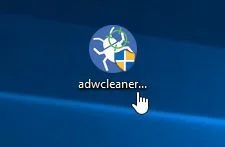
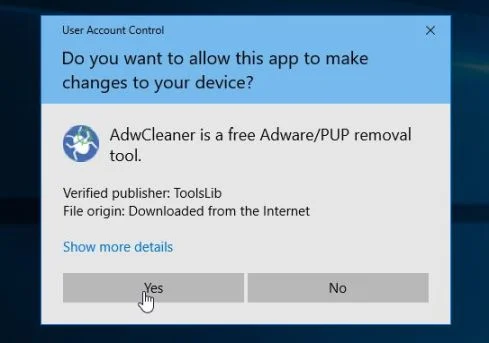
If Windows prompts you as to whether or not you wish to run Malwarebytes AdwCleaner, please allow it to run.
- When the Malwarebytes AdwCleaner program will open, click on the “Scan” button as shown below.
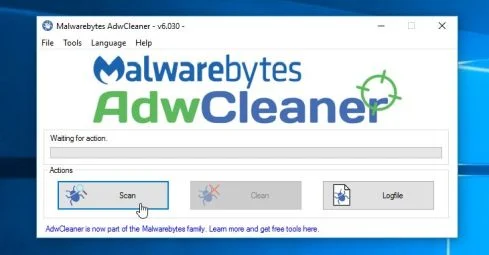
Malwarebytes AdwCleaner will now start to search for adware and other malicious programs. - To remove the malicious files that were detected in the previous step, please click on the “Clean” button.
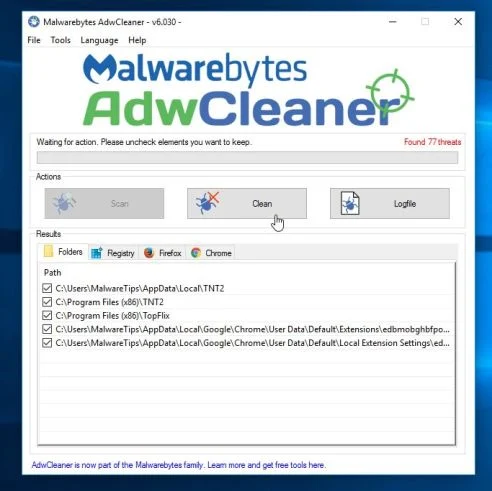
- Malwarebytes AdwCleaner will prompt you to save any open files or documents, as the program will need to reboot the computer to complete the cleaning process. Please do so, and then click on the “OK” button.
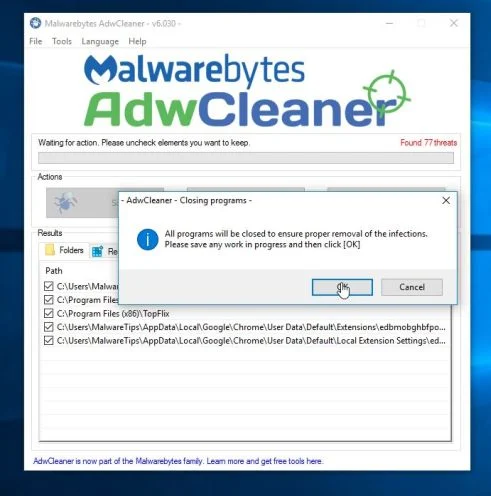
When your computer reboots and you are logged in, Malwarebytes AdwCleaner will automatically open a log file that contains the files, registry keys, and programs that were removed from your computer. Please review this log file and then close the notepad window.
STEP 2: Scan your computer with Malwarebytes Anti-Malware
Malwarebytes Anti-Malware is a powerful on-demand scanner which will remove the TrojanDropper:Win32/Rotbrow.A malware from your machine. It is important to note that Malwarebytes Anti-Malware will run alongside antivirus software without conflicts.
- You can download download Malwarebytes Anti-Malware from the below link.
Download MalwarebytesFree official installer. Your download starts right away. - Once downloaded, close all programs, then double-click on the icon on your desktop named “mbam-setup” to start the installation of Malwarebytes Anti-Malware.
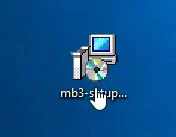
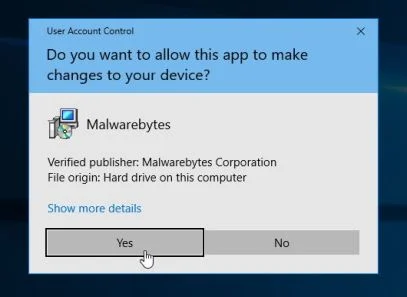
You may be presented with a User Account Control dialog asking you if you want to run this file. If this happens, you should click “Yes” to continue with the installation.
- When the installation begins, you will see the Malwarebytes Anti-Malware Setup Wizard which will guide you through the installation process.
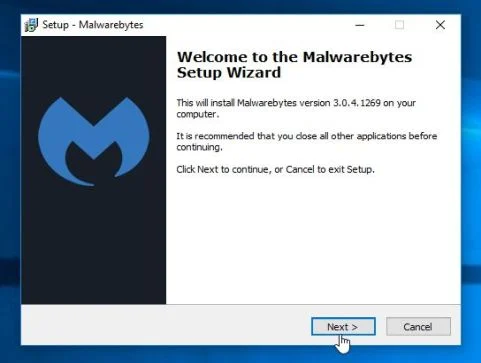
To install Malwarebytes Anti-Malware on your machine, keep following the prompts by clicking the “Next” button.
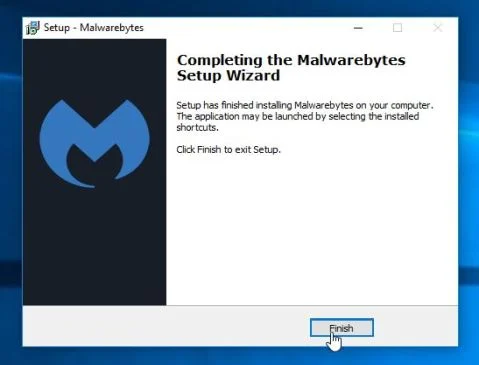
- Once installed, Malwarebytes Anti-Malware will automatically start and will update the antivirus database. To start a system scan you can click on the “Scan Now” button.
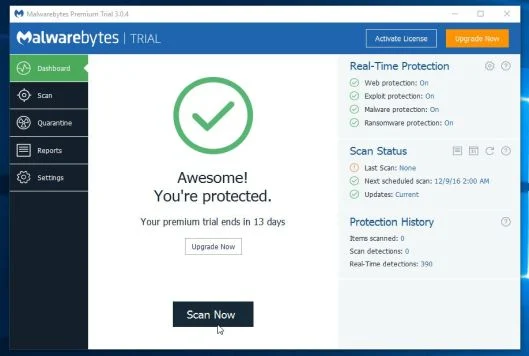
- Malwarebytes Anti-Malware will now start scanning your computer for the TrojanDropper:Win32/Rotbrow.A browser hijacker. When Malwarebytes Anti-Malware is scanning it will look like the image below.
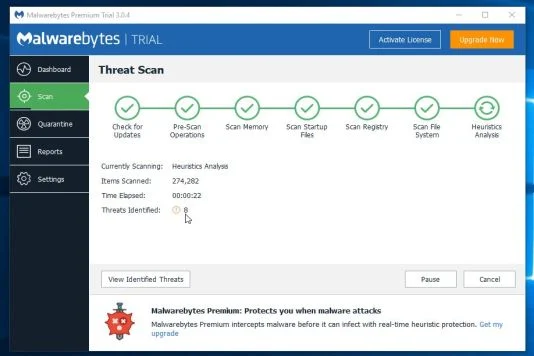
- When the scan has completed, you will be presented with a screen showing the malware infections that Malwarebytes Anti-Malware has detected. To remove the malicious programs that Malwarebytes Anti-malware has found, click on the “Remove Selected” button.
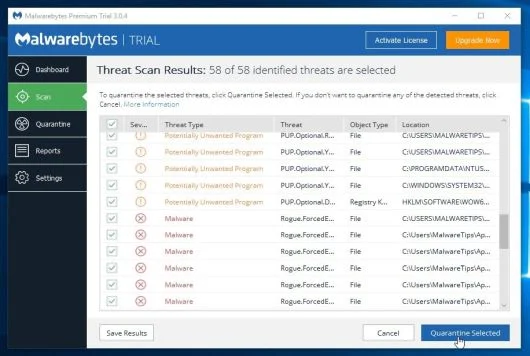
- Malwarebytes Anti-Malware will now quarantine all the malicious files and registry keys that it has found. When removing the files, Malwarebytes Anti-Malware may require a reboot in order to remove some of them. If it displays a message stating that it needs to reboot your computer, please allow it to do so.
STEP 3: Scan your computer with HitmanPro
HitmanPro finds and removes malware, adware, bots and other threats that even the best antivirus suite can oftentimes miss. It’s designed to run alongside your antivirus suite, firewall and other security tools.
- You can download HitmanPro from the below link:
Download HitmanProOfficial Sophos download. Free scan, free 30-day trial to remove threats. - Double-click on the file named “HitmanPro.exe” (for 32-bit versions of Windows) or “HitmanPro_x64.exe” (for 64-bit versions of Windows).
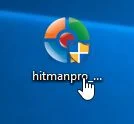
Click on the “Next” button, to install HitmanPro on your computer.
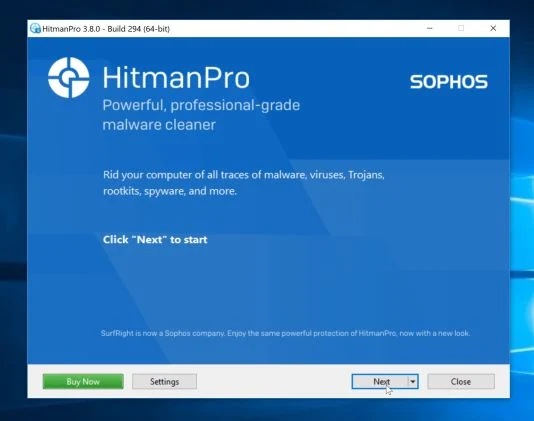
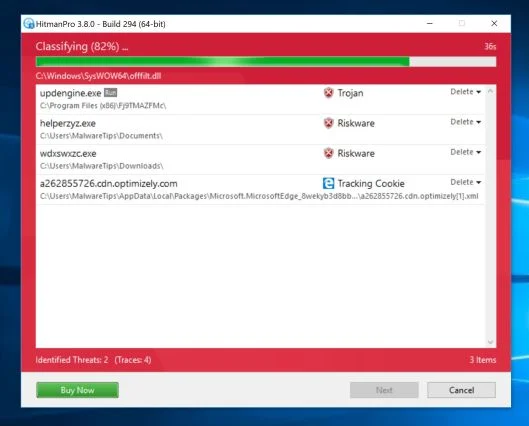
- HitmanPro will now begin to scan your computer for malware.
- When it has finished it will display a list of all the malware that the program found as shown in the image below. Click on the “Next” button, to remove malware.
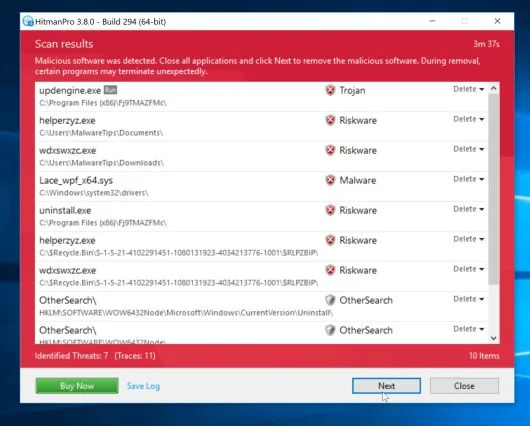
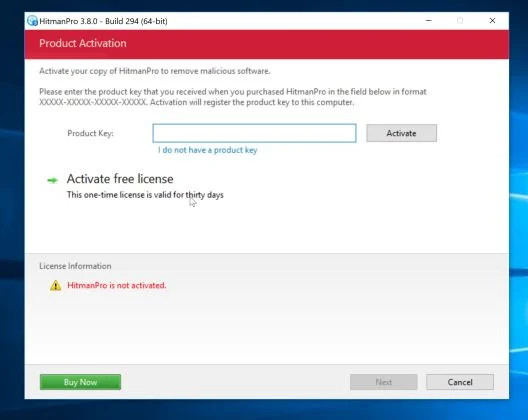
- Click on the “Activate free license” button to begin the free 30 days trial and remove all the malicious files from your computer.
(OPTIONAL) STEP 4: Scan your computer with Zemana AntiMalware
This step should be performed only if your issues have not been solved by the previous steps.
- You can download Zemana AntiMalware from the below link:
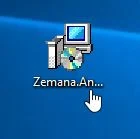
Download Zemana AntiMalwareOpens the download page in a new tab. - Double-click on the file named “Zemana.AntiMalware.Setup.exe” to start the installation of Zemana AntiMalware.
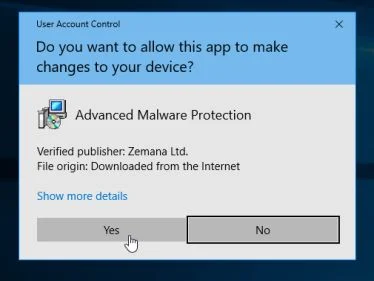
You may be presented with a User Account Control dialog asking you if you want to run this file. If this happens, you should click “Yes” to continue with the installation.
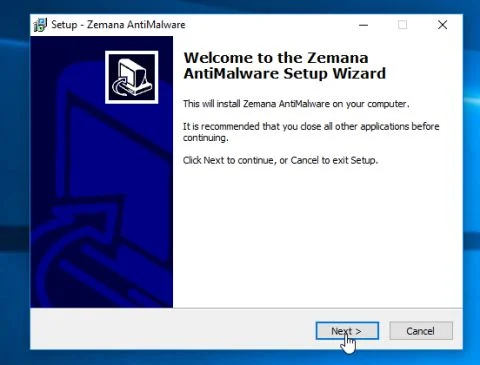
- Click on the “Next” button, to install Zemana AntiMalware on your computer.
When you reach the “Select Additional Tasks” screen, you can opt-out the “Enable Real Time Protection” option, then click on the “Next” button.
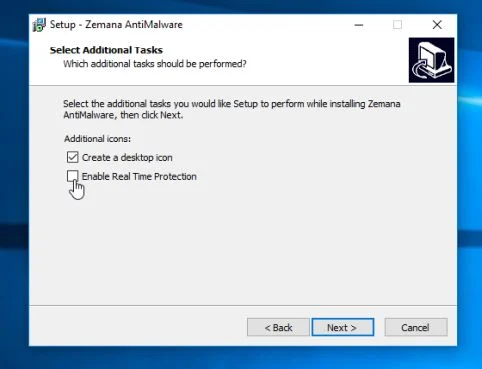
- When Zemana AntiMalware will start, click on the “Scan” button.
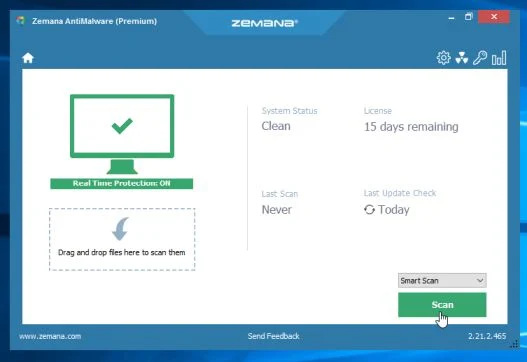
- Zemana AntiMalware will now scan computer for malicious files. This process can take up to 10 minutes.
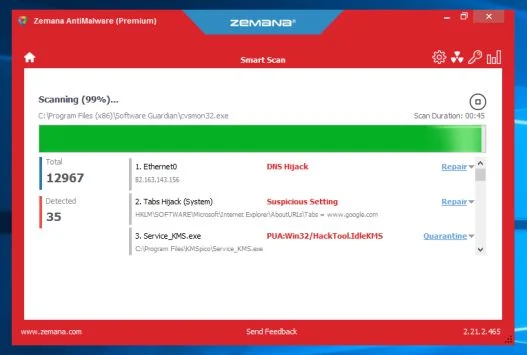
- When Zemana AntiMalware has finished it will display a list of all the malware that the program found. Click on the “Next” button, to remove the malicious files from your computer.
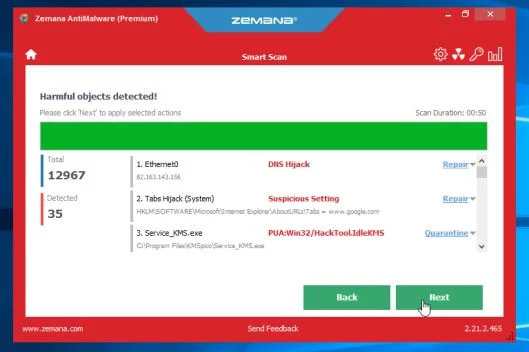
Zemana AntiMalware will now remove all the detected malicious files and at the end a system reboot may be required to remove all traces of malware.
Your computer should now be free of the TrojanDropper:Win32/Rotbrow.A browser hijacker. You can remove AdwCleaner from your machine, however we recommend that you keep Malwarebytes Anti-Malware and HitmanPro installed and perform regular computer scans.If you are still experiencing problems while trying to remove TrojanDropper:Win32/Rotbrow.A malware, please ask for help in our Malware Removal Assistance forum.

Join the discussion
1 commentShare your experience or ask a question about this article.
Your progress
Did these steps help?
Let us know how the guide worked for you.
Describe what you see and the step you reached. Keep passwords and other private information out.
Discussion
At last my netbook can run again, thank you so much.