

A new website called UltaReview.store is circulating across social media, claiming to offer an exclusive “Ulta Beauty Reviewer Program.” According to the page, users can sign up, answer a few questions, and begin receiving Ulta Beauty products to review from home. The offer looks polished, official, and unbelievably simple. But it is a complete scam.
This article breaks down the entire scheme, explains how scammers profit from it, and provides step-by-step guidance for anyone who may have already given away personal information.
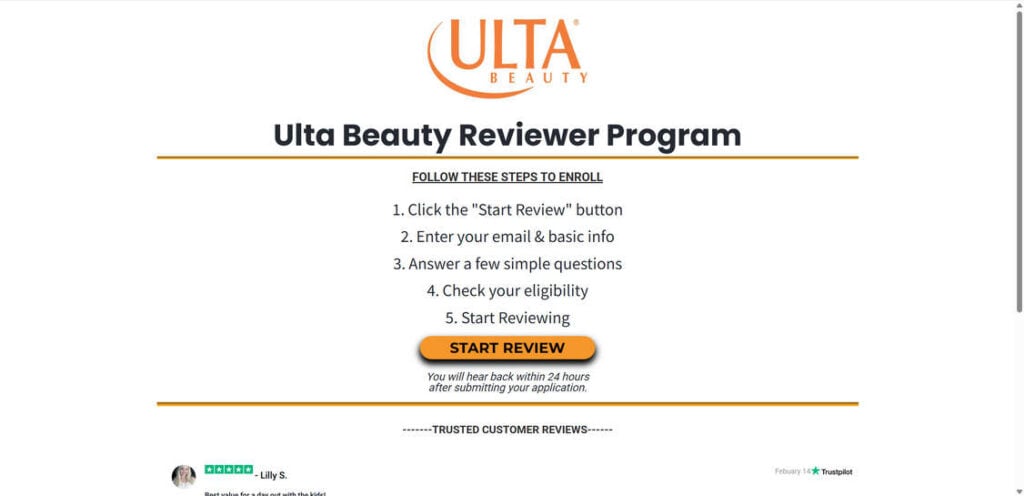
Scam Overview
UltaReview.store is designed to look like a legitimate program from Ulta Beauty. The scam uses Ulta’s logo, brand colors, and similar typography to mimic the appearance of an official promotion. The entire layout is intentionally sleek and minimalistic to appear trustworthy, while subtle prompts and attention-grabbing headlines guide users toward sharing their personal information.
The page claims that the process is easy:
- Click “Start Review.”
- Enter your email and basic details.
- Answer a few questions.
- Check eligibility.
- Begin receiving Ulta products to test.
The simplicity of these steps is a psychological tactic. Scammers know that the easier it looks, the more people will join without questioning the legitimacy. The site exploits the growing trend of influencer marketing, product testing, and brand-review opportunities. Many people have seen legitimate sampling programs online, and UltaReview.store attempts to ride that wave of credibility.
However, a closer look reveals immediate red flags.
No Connection to Ulta Beauty
Ulta Beauty does not own or endorse this program. The company does not use the domain UltaReview.store for any official promotions, nor does it offer consumer-facing “reviewer enrollment” through third-party websites. Any real sampling program would:
- be hosted on Ulta’s verified domain (ulta.com),
- require authenticated account information,
- include a detailed privacy policy,
- follow FTC compliance rules,
- and clearly outline terms of participation.
UltaReview.store provides none of these.
Fake Trustpilot Reviews
The site displays fabricated reviews pulled from a generic template intended to look like Trustpilot entries. The star icons, formatting, names, and timestamps are all designed to mimic legitimate customer feedback, but there is no proof these people exist. Real Trustpilot reviews would link to genuine profiles with verifiable activity.
These artificial testimonials are a well-known scam tactic to build false social proof. Scammers rely heavily on perceived legitimacy to push users deeper into their funnel.
Data Harvesting Scheme
The true goal of the scam is not to provide beauty products but to capture:
- email addresses,
- names,
- demographics,
- browsing behavior,
- and potentially phone numbers or payment information.
Once a user enters their details, they are funneled through a sequence of unrelated promotional pages and “offer walls.” Every time a user completes one of these offers, the scam operator receives an affiliate commission. These commissions typically range from a few cents to several dollars per action, depending on:
- clicks,
- sign-ups,
- downloads,
- trial subscriptions,
- or survey completions.
While the user thinks they’re inching closer to a reward, they’re actually generating income for scammers.
No Reward Exists
No matter how many offers the user completes, no Ulta Beauty products will ever be shipped. No voucher, no package, no credits, no invitations. The system is intentionally designed so the reward is always “almost ready,” but never delivered. This is a classic affiliate-farming scam disguised as a review program.
Domain Age and Anonymity
A domain lookup shows that UltaReview.store:
- was recently registered,
- uses masked ownership,
- and has no public company information.
Legitimate businesses never hide their identity behind anonymous domain services.
Lack of Legal Policies
The site does not include:
- a real privacy policy,
- terms of service,
- data handling disclosures,
- or affiliate transparency.
This alone is a deal-breaker for legitimacy, especially when collecting personal information.
Why the Scam Works
Scammers leverage emotional triggers:
- desire for free products,
- trust in well-known brands,
- fear of missing out,
- belief in exclusive opportunities,
- and social proof via fake reviews.
The illusion is powerful enough that thousands of users fall for identical scams every month.
How the Scam Works
This section breaks down the process in detail to expose how the scam manipulates users from start to finish.
Step 1: The Fake Offer
The scam begins with a clean, attractive headline promising that users can get started reviewing Ulta Beauty products in minutes. This is the “hook.” The offer is intentionally vague but enticing. It targets curious consumers, beauty enthusiasts, and bargain hunters, as well as social media users drawn in by influencers or ads.
Step 2: Mimicking Ulta’s Branding
UltaReview.store imitates Ulta’s brand identity to reduce skepticism. This includes:
- stylized logo placement,
- orange-and-white color palette,
- minimalistic font choices,
- and friendly promotional language.
Scammers rely on brand recognition to build trust instantly.
Step 3: Collecting Personal Data
The first form asks for basic information, usually:
- name,
- email,
- sometimes phone number,
- age or demographic data.
This data allows scammers to:
- sell information to marketing databases,
- target users with further scams,
- create spam lists,
- or send phishing attempts disguised as retail notifications.
Users often submit this information because the form looks harmless and the process feels official.
Step 4: The Fake Eligibility Check
Once details are entered, users are shown a carefully scripted “eligibility check.” It appears to be verifying data, but this is an automated animation. Its purpose is psychological:
- it creates suspense,
- it reinforces legitimacy,
- it gives users the feeling that they are being selected for a real program.
Step 5: The Redirection Funnel
After the “approval,” the site redirects the user into a sequence of pages. These pages are not part of Ulta Beauty. They are affiliate offers such as:
- “complete a survey for bonus rewards,”
- “activate this subscription to proceed,”
- “install an app to qualify,”
- “finish these 3–4 deals first.”
Each of these tasks earns the scammer a payout.
Step 6: Urgency and Pressure Tactics
To keep users engaged, the site may display:
- countdown timers,
- limited availability messages,
- fake pop-ups showing “recent reviewers,”
- or messages claiming items are almost out of stock.
Scammers use urgency to prevent users from thinking too carefully.
Step 7: Endless Requirements
Users may be told they must complete:
- 2–3 deals,
- then 3–5 additional offers,
- then a final confirmation step.
The requirements expand continuously. The goal is to extract maximum value from users.
Step 8: No Reward Delivered
After completing enough tasks to generate substantial affiliate profit, the system stops progressing or loops back to previous steps. No product is ever shipped, and no genuine confirmation is sent.
Step 9: Post-Scam Consequences
Victims often report:
- increased spam
- targeted scam attempts
- unauthorized subscriptions
- phishing emails
- data exposure
- fraudulent messages claiming to be from retailers
This is because their information has been monetized.
What to Do If You Have Fallen Victim to the Sca
If you already interacted with UltaReview.store, take the following steps immediately.
1. Stop using the site
Exit the page. Do not complete any offers or enter additional information.
2. Change your email password
If you used that email elsewhere, update the password on all connected accounts.
3. Enable two-factor authentication
This adds a layer of protection against unauthorized logins.
4. Monitor your bank account
If you entered card details into an offer, review recent charges and report suspicious activity.
5. Cancel unwanted subscriptions
Some offers automatically enroll users in paid trials without clear disclosure.
6. Contact your bank
Request a new card if you suspect the number was compromised.
7. Run a security scan on your device
Check for malware or malicious browser extensions.
8. Block and mark spam emails
Flag any suspicious emails as spam to train your inbox filters.
9. Report the scam
You may report it to:
- FTC.gov
- IC3.gov
- Ulta Beauty customer support
- your email provider
The more reports filed, the easier it is to shut the site down.
10. Educate those around you
Scams spread because victims rarely talk about them. Sharing information helps others stay safe.
Is Your Device Infected? Run a Free Malware Scan
Slow performance, constant pop-ups, or strange behavior? These are classic signs of a malware infection. The fastest way to find out is to scan your device with Malwarebytes Free — one of the most trusted malware removal tools available.
The free version detects and removes the most common threats, including:
- Adware — the cause of those annoying pop-ups
- Browser hijackers — unwanted redirects and changed homepages
- Trojans and spyware — hidden programs stealing your data
- Potentially unwanted programs (PUPs) — software you never asked for
👉 Select your device below — Windows, Mac, or Android — then follow the simple steps to download Malwarebytes, scan your system, and remove any threats it finds. The scan usually takes 5 to 20 minutes.
Run a Malware Scan with Malwarebytes for Windows
Malwarebytes is one of the most popular and trusted anti-malware tools for Windows — and it’s completely free for removing infections. It catches threats that many antivirus programs miss, including adware, browser hijackers, and trojans. Follow the steps below to scan and clean your PC in just a few minutes.
Download Malwarebytes
Click the button below to download the latest version of Malwarebytes for Windows from the official source. The free version is all you need — it will scan your computer and remove adware, browser hijackers, and other malicious software at no cost.
Download MalwarebytesOfficial installer for Windows 11 and 10. Your download starts right away.Want real-time protection? See Malwarebytes Premium Malwarebytes Free for WindowsScans and removes malware at no cost
-
Install Malwarebytes
When the download finishes, open your Downloads folder and double-click the MBSetup file. If Windows shows a User Account Control pop-up, click “Yes” to allow the installation.

Follow the On-Screen Prompts to Install Malwarebytes
The setup wizard will walk you through a few quick screens:
-
Choose where you’re installing the program — “Personal Computer” or “Work Computer” — then click Next.

-
Malwarebytes will now install on your device. This usually takes under a minute.

-
When installation is complete, the “Welcome to Malwarebytes” screen will open automatically.

-
On the final screen, click Open Malwarebytes to launch the program.

-
Enable “Scan for Rootkits”
Before scanning, turn on rootkit detection so Malwarebytes can find even the most hidden threats. Click the Settings gear icon on the left side of the screen.

In the settings menu, find “Scan for rootkits” and click the toggle so it turns blue.

Done? Click “Dashboard” in the left pane to return to the main screen.
Start the Scan
Click the blue Scan button. Malwarebytes will automatically update its virus database and start checking your computer for malware.

-
Wait for the Scan to Finish
The scan checks your entire system for browser hijackers and other malicious programs, so it can take 5 to 20 minutes depending on your computer. Feel free to do something else — just check back occasionally to see the progress.

-
Quarantine the Detected Threats
When the scan is done, you’ll see a list of everything Malwarebytes found — malware, adware, and potentially unwanted programs. Click the “Quarantine” button to remove all of them at once.

Malwarebytes will now remove the malicious files and registry entries and move them safely into quarantine.

-
Restart Your Computer
Some threats can only be fully removed after a reboot. If Malwarebytes asks you to restart, click Yes. Once you’re logged back in, Malwarebytes has finished removing the threats it found.

That’s it — your Windows PC is now clean of trojans, adware, and other malware, and should be back to running smoothly.
If you are still having problems with your computer after completing these instructions, then please follow one of the steps:
- Run a computer scan with ESET Online Scanner
- Ask for help in our Windows Malware Removal Help & Support forum.
Run a Malware Scan with Malwarebytes for Mac
Malwarebytes for Mac is a free on-demand scanner that removes the malware other security software tends to miss — adware, browser hijackers, and unwanted programs included. Cleaning an infected Mac with Malwarebytes has always been completely free, and it’s our go-to recommendation. Follow the steps below to scan and clean your Mac in just a few minutes.
-
Download Malwarebytes for Mac
Click the button below to download the latest version of Malwarebytes for Mac.
Download MalwarebytesOfficial installer for macOS. Your download starts right away.Want real-time protection? See Malwarebytes PremiumMalwarebytes Free for MacScans and removes malware at no cost -
Open the Malwarebytes setup file
When the download finishes, open your Downloads folder and double-click the setup file to begin the installation.

-
Follow the On-Screen Prompts to Install Malwarebytes
The Malwarebytes for Mac Installer will guide you through a few quick screens. Click “Continue” and keep following the prompts until the installation completes.



When the installation is complete, Malwarebytes opens to the Welcome to Malwarebytes screen. Click “Get started“.
-
Select “Personal Computer” or “Work Computer”
Malwarebytes will ask what type of computer you’re installing it on. Click either Personal Computer or Work Computer, whichever applies.

-
Start the Scan
Click the “Scan” button. Malwarebytes will automatically update its detection database and begin checking your Mac for malware.

-
Wait for the Scan to Finish
Malwarebytes will scan your Mac for adware, browser hijackers, and other malicious programs. This can take a few minutes, so feel free to do something else — just check back occasionally to see the progress.

-
Quarantine the Detected Threats
When the scan is done, you’ll see a list of everything Malwarebytes found. Click the “Quarantine” button to remove all the threats at once.

-
Restart Your Mac
Malwarebytes will now remove all the malicious files it found. Some threats can only be fully removed after a reboot — if Malwarebytes asks you to restart, allow it. Once you’re logged back in, your Mac is clean.

That’s it — your Mac is now free of adware, rogue browser extensions, and other potentially harmful software.
If you are still experiencing problems while trying to remove a malicious program from your computer, please ask for help in our Mac Malware Removal Help & Support forum.
Run a Malware Scan with Malwarebytes for Android
Malwarebytes for Android automatically detects and removes dangerous threats like malware and ransomware so you don’t have to worry about your most-used device being compromised. Aggressive detection of adware and potentially unwanted programs keeps your Android phone or tablet running smooth.
-
Download Malwarebytes for Android.
You can download Malwarebytes for Android by clicking the link below.
Get Malwarebytes for AndroidOpens Google Play in a new tab.Want real-time protection? See Malwarebytes Premium for AndroidMalwarebytes for AndroidScans your phone and removes malware at no cost -
Install Malwarebytes for Android on your phone.
In the Google Play Store, tap “Install” to install Malwarebytes for Android on your device.

When the installation process has finished, tap “Open” to begin using Malwarebytes for Android. You can also open Malwarebytes by tapping on its icon in your phone menu or home screen.

-
Follow the on-screen prompts to complete the setup process
When Malwarebytes will open, you will see the Malwarebytes Setup Wizard which will guide you through a series of permissions and other setup options.
This is the first of two screens that explain the difference between the Premium and Free versions. Swipe this screen to continue.
Tap on “Got it” to proceed to the next step.
Malwarebytes for Android will now ask for a set of permissions that are required to scan your device and protect it from malware. Tap on “Give permission” to continue.
Tap on “Allow” to permit Malwarebytes to access the files on your phone.
-
Update database and run a scan with Malwarebytes for Android
You will now be prompted to update the Malwarebytes database and run a full system scan.

Click on “Update database” to update the Malwarebytes for Android definitions to the latest version, then click on “Run full scan” to perform a system scan.

-
Wait for the Malwarebytes scan to complete.
Malwarebytes will now start scanning your phone for adware and other malicious apps. This process can take a few minutes, so we suggest you do something else and periodically check on the status of the scan to see when it is finished.

-
Click on “Remove Selected”.
When the scan has been completed, you will be presented with a screen showing the malware infections that Malwarebytes for Android has detected. To remove the malicious apps that Malwarebytes has found, tap on the “Remove Selected” button.

-
Restart your phone.
Malwarebytes for Android will now remove all the malicious apps that it has found. To complete the malware removal process, Malwarebytes may ask you to restart your device.
That’s it — your Android phone is now clean — no more malicious apps, adware, or browser redirects.
If you are still having problems with your phone after completing these instructions, then please follow one of the steps:
- Restore your phone to factory settings by going to Settings > General management > Reset > Factory data reset.
- Ask for help in our Mobile Malware Removal Help & Support forum.
Stay Protected: Block Ads and Malicious Sites
Now that your device is clean, keep it that way. Most infections start with a malicious ad or a fake download button — so blocking them at the source is your best defense.
We recommend AdGuard, which blocks malicious ads, phishing pages, and dangerous redirects before they can reach you.
👉 Download AdGuard and browse safely
The Bottom Lin
UltaReview.store is not affiliated with Ulta Beauty and does not offer any real reviewer opportunities. It is a data-harvesting and affiliate-farming scam that uses branding, fake testimonials, and psychological manipulation to lure users into endless promotional offers.
If a website promises free products, gift cards, or special reviewer access simply for entering basic information or completing unrelated “deals,” it is almost always a scam. Always verify opportunities through official brand channels and avoid sites that use lookalike domains or pressure tactics.
FAQs
Is UltaReview.store an official Ulta Beauty program?
No. UltaReview.store is not affiliated with Ulta Beauty in any way. The site uses Ulta’s logo, branding, and product-testing language without authorization. Ulta Beauty has not announced or endorsed any reviewer program through this domain. Any authentic sampling or testing opportunities from Ulta will appear only on Ulta’s official website, app, or verified marketing channels.
What does UltaReview.store claim to offer?
The site claims you can join an exclusive “Ulta Beauty Reviewer Program” simply by entering your email and completing a few steps. It suggests that participants will receive free products to test and keep. None of this is real. The promise is designed to lure users into providing personal information and interacting with affiliate offers that profit scammers.
How does the UltaReview.store scam actually work?
Once you enter your information, the site redirects you into a series of unrelated promotional pages, surveys, trial subscriptions, and “offer walls.” Each completed action earns a commission for the scammers. The site uses scripted progress bars, fake approval screens, and urgency tactics to keep users moving forward. No matter how many offers you complete, you will never receive Ulta products or rewards.
Why does the website look professional and trustworthy?
Scammers intentionally mimic the design of real Ulta Beauty marketing pages. They use brand colors, stylized logos, minimal layouts, and fake testimonials. This creates instant trust and reduces skepticism. The clean appearance is not evidence of legitimacy; it is a tactic to improve conversion rates.
What information does UltaReview.store collect?
The site collects:
- email addresses
- names
- age or demographic details
- phone numbers (in some funnels)
- browsing data
- potentially payment information through third-party offers
This data may be sold, shared with marketing networks, or used to target victims with additional scams.
Will I ever receive free Ulta products by completing the steps on the site?
No. The entire program is fabricated. There are no Ulta Beauty products, review packages, vouchers, samples, or rewards connected to the site. The system is built to continually request more tasks without ever fulfilling a reward.
Are the reviews shown on the site real?
No. The reviews displayed on the site are fabricated. They mimic the style of Trustpilot entries but have no real profiles behind them. The names, star ratings, and timestamps are generated to provide artificial social proof.
What happens if I entered my email address?
Expect an increase in:
- spam emails
- marketing messages
- survey invitations
- promotional links
- phishing attempts
Your email may be added to multiple marketing databases, which leads to ongoing spam.
What if I entered my phone number?
You may receive marketing texts, scam calls, or automated messages. Your phone number may also be sold to telemarketing networks or used for SMS-based phishing attempts.
Is my credit card at risk if I entered payment information on a third-party offer?
Yes. If you provided credit card details while completing an offer, you may be enrolled in recurring subscriptions or charged for services you never intended to purchase. Some of these trials convert into paid plans after a few days. Contact your bank immediately to prevent additional charges.
Why do these scams always ask users to complete “deals” or “offers”?
Each deal pays the scammer a commission. These offers may involve:
- trial subscriptions
- app downloads
- survey completions
- service sign-ups
- credit score tools
- sweepstakes entries
The tasks generate revenue for the scam operator, not the user. This is why the site keeps adding more steps instead of delivering a reward.
Is the countdown timer real?
No. The countdown timer resets if you refresh the page. It is a psychological pressure tactic intended to reduce hesitation and push users to submit information quickly.
Does Ulta Beauty ever offer real reviewer programs?
Ulta Beauty occasionally runs genuine sampling, rewards, or loyalty-based promotions, but these are only hosted on:
- the official Ulta Beauty website
- the Ulta Beauty mobile app
- verified social media accounts
- recognized marketing partners
Ulta Beauty does not recruit reviewers through random domains or third-party sites.
How can I avoid falling for fake reviewer programs?
Be cautious of any site that:
- uses a well-known brand but has an unfamiliar URL
- asks for personal information before explaining details
- requires completing unrelated tasks
- displays fake testimonials
- offers unrealistic rewards
- lacks a privacy policy or terms of service
When in doubt, search for the promotion on the brand’s official site.

Join the discussion
0 commentsShare your experience or ask a question about this article.
Reader experiences
How was your shopping experience?
Ordered from ultareview.store? Share your experience with ordering, delivery or refunds.
Share your experienceRatings appear after moderation and reflect readers’ experiences, not an editorial verdict.
Have firsthand experience?
Your review can help the next reader.
Discussion
Start the conversation
Have a question or something useful to share? Add the first comment.