

Smart HDD is a malicious software that will display fake alerts, claiming that several hard drive errors were detected on your computer.The alerts are professional looking pop-ups and when you click on them, you’re advised to buy Smart HDD in order to fix this errors.
In reality, none of the reported issues are real, and are only used to scare you into buying Smart HDD and stealing your personal financial information.
If you’ve got a Smart HDD infection , you’ll be seeing this screens :
![[Image: Smart-HDD.png]](http://malwaretips.com/images/fakeav/Smart-HDD.png "Smart HDD")
Registration codes for Smart HDD
As an optional step,you can use the following license key to register Smart HDD and stop the fake alerts.
15801587234612645205224631045976
Please keep in mind that entering the above registration code will NOT remove Smart HDD from your computer , instead it will just stop the fake alerts so that you’ll be able to complete our removal guide more easily.
We strongly advise you to follow our Smart HDD removal guide and ignore any alerts that this malicious software might generate.Under no circumstance should you buy this rogue security software as this could lead to identity theft.
Removal guide for Smart HDD
STEP 1 : Start your computer in Safe Mode with Networking
- Remove all floppy disks, CDs, and DVDs from your computer, and then restart your computer.
- Press and hold the F8 key as your computer restarts.Please keep in mind that you need to press the F8 key before the Windows start-up logo appears.
- On the Advanced Boot Options screen, use the arrow keys to highlight Safe Mode with Networking , and then press ENTER.
![[Image: Safemode.jpg]](//malwaretips.com/images/removalguide/safemode.jpg "Safe Mode with Networking screen")
- Log on to your computer with a user account that has administrator rights
![[Image: Safemode.jpg]](http://malwaretips.com/images/removalguide/safemode.jpg "Safe Mode with Networking screen")
STEP 2: Remove Smart HDD malicious proxy server
Smart HDD may add a proxy server which prevents the user from accessing the internet,follow the below instructions to remove the proxy.
- Start Internet Explorer
![[Image: Smart HDD- IE]](//malwaretips.com/images/removalguide/Ieicon.png "IE 9") and if you are using Internet Explorer 9 ,click on the gear icon
and if you are using Internet Explorer 9 ,click on the gear icon ![[Image: IE gear icon]](//malwaretips.com/images/removalguide/icongear.jpg "Gear Icon") (Tools for Internet Explorer 8 users) ,then select Internet Options.
(Tools for Internet Explorer 8 users) ,then select Internet Options.
![[Image: Internet-options-IE.png]](//malwaretips.com/images/removalguide/ie1.png "Internet Options in IE")
- Go to the tab Connections.At the bottom, click on LAN settings.
![[Image: Remove-proxy-server2.png]](//malwaretips.com/images/removalguide/ie2.png "Connections tab in Internet Explorer")
- Uncheck the option Use a proxy server for your LAN. This should remove the malicious proxy server and allow you to use the internet again.
![[Image: Remove-proxy-server3.png]](//malwaretips.com/images/removalguide/ie3.png "Uncheck the option Use a proxy server for your LAN")
![[Image: Smart HDD- IE]](http://malwaretips.com/images/removalguide/Ieicon.png "IE 9") and if you are using Internet Explorer 9 ,click on the gear icon
and if you are using Internet Explorer 9 ,click on the gear icon ![[Image: IE gear icon]](http://malwaretips.com/images/removalguide/icongear.jpg "Gear Icon") (Tools for Internet Explorer 8 users) ,then select Internet Options.
(Tools for Internet Explorer 8 users) ,then select Internet Options.![[Image: Internet-options-IE.png]](http://malwaretips.com/images/removalguide/ie1.png "Internet Options in IE")
![[Image: Remove-proxy-server2.png]](http://malwaretips.com/images/removalguide/ie2.png "Connections tab in Internet Explorer")
![[Image: Remove-proxy-server3.png]](http://malwaretips.com/images/removalguide/ie3.png "Uncheck the option Use a proxy server for your LAN")
If you are a Firefox users, go to Firefox(upper left corner) → Options → Advanced tab → Network → Settings → Select No Proxy
STEP 3: Run RKill to terminate known malware processes associated with Smart HDD.
RKill is a program that attempts to terminate any malicious processes associated with Smart HDD ,so that your normal security software can then run and clean your computer of infections.
As RKill only terminates a program’s running process, and does not delete any files, after running it you should not reboot your computer as any malware processes that are configured to start automatically will just be started again.
- While your computer is in Safe Mode with Networking ,please download the latest official version of RKill.

- Double-click on the RKill iconin order to automatically attempt to stop any processes associated with Smart HDD.
![[Image: run-rkill-1.png]](//malwaretips.com/images/removalguide/rkill1.png "RKILL ICON")
- RKill will now start working in the background, please be patient while the program looks for various malware programs and tries to terminate them.
![[Image: run-rkill-2.png]](//malwaretips.com/images/removalguide/rkill2.png "RKILL Command prompt")
IF you receive a message that RKill is an infection, that is a fake warning given by the rogue. As a possible solution we advise you to leave the warning on the screen and then try to run RKill again.Run RKill until the fake program is not visible but not more than ten times.
IF you continue having problems running RKill, you can download the other renamed versions of RKill from here. - When Rkill has completed its task, it will generate a log. You can then proceed with the rest of the guide.
![[Image: Smart HDD rkill3.jpg]](//malwaretips.com/images/removalguide/rkill3.png "RKILL LOG")
![[Image: run-rkill-1.png]](http://malwaretips.com/images/removalguide/rkill1.png "RKILL ICON")
![[Image: run-rkill-2.png]](http://malwaretips.com/images/removalguide/rkill2.png "RKILL Command prompt")
![[Image: Smart HDD rkill3.jpg]](http://malwaretips.com/images/removalguide/rkill3.png "RKILL LOG")
WARNING: Do not reboot your computer after running RKill as the malware process will start again , preventing you from properly performing the next step.
STEP 4: Remove Smart HDD malicious files with Malwarebytes Anti-Malware FREE
- Please download the latest official version of Malwarebytes Anti-Malware FREE.
- Install Malwarebytes’ Anti-Malware by double clicking on mbam-setup.
![[Image: malwarebytes-installer.png]](//malwaretips.com/images/removalguide/mbam1.png "Malwarebytes Anti-Malware Installer")
- When the installation begins, keep following the prompts in order to continue with the installation process. Do not make any changes to default settings and when the program has finished installing, make sure you leave both the Update Malwarebytes’ Anti-Malware and Launch Malwarebytes’ Anti-Malware checked. Then click on the Finishbutton. If Malwarebytes’ prompts you to reboot, please do not do so.
![[Image: install-malwarebytes.png]](//malwaretips.com/images/removalguide/mbam2.png "Install Malwarebytes Anti-Malware")
- Malwarebytes Anti-Malware will now start and you’ll be prompted to start a trial period , please select ‘Decline‘ as we just want to use the on-demand scanner.
![[Image: decline-trial-malwarebytes.png]](//malwaretips.com/images/removalguide/mbam3.PNG "Decline trial period in Malwarebytes Anti-Malware")
- On the Scanner tab,please select Perform full scan and then click on the Scan button to start scanning your computer for any possible infections.
![[Image: malwarebytes-full-system-scan.png]](//malwaretips.com/images/removalguide/mbam4.png "Perform a Full System Scan")
- Malwarebytes’ Anti-Malware will now start scanning your computer for Smart HDD malicious files as shown below.
![[Image: malwarebytes-scanning.png]](//malwaretips.com/images/removalguide/mbam5.png "Malwarebytes Anti-Malware scanning for Smart HDD")
- When the scan is finished a message box will appear, click OK to continue.
![[Image: malwarebytes-scan-finish.png]](//malwaretips.com/images/removalguide/mbam9.png "Malwarebytes when the scan is finished")
- You will now be presented with a screen showing you the malware infections that Malwarebytes’ Anti-Malware has detected.Please note that the infections found may be different than what is shown in the image.Make sure that everything is Checked (ticked) and click on the Remove Selected button.
![[Image: malwarebytes-scan-results.png]](//malwaretips.com/images/removalguide/mbam6.png "Smart HDD infection scan results")
- Malwarebytes’ Anti-Malware will now start removing the malicious files.If during the removal process Malwarebytes will display a message stating that it needs to reboot, please allow this request.
![[Image: malwarebytes-reboot-prompt.png]](//malwaretips.com/images/removalguide/mbam10.png "Reboot prompt from Malwarebytes")
![[Image: malwarebytes-installer.png]](http://malwaretips.com/images/removalguide/mbam1.png "Malwarebytes Anti-Malware Installer")
![[Image: install-malwarebytes.png]](http://malwaretips.com/images/removalguide/mbam2.png "Install Malwarebytes Anti-Malware")
![[Image: decline-trial-malwarebytes.png]](http://malwaretips.com/images/removalguide/mbam3.PNG "Decline trial period in Malwarebytes Anti-Malware")
![[Image: malwarebytes-full-system-scan.png]](http://malwaretips.com/images/removalguide/mbam4.png "Perform a Full System Scan")
![[Image: malwarebytes-scanning.png]](http://malwaretips.com/images/removalguide/mbam5.png "Malwarebytes Anti-Malware scanning for Smart HDD")
![[Image: malwarebytes-scan-finish.png]](http://malwaretips.com/images/removalguide/mbam9.png "Malwarebytes when the scan is finished")
![[Image: malwarebytes-scan-results.png]](http://malwaretips.com/images/removalguide/mbam6.png "Smart HDD infection scan results")
![[Image: malwarebytes-reboot-prompt.png]](http://malwaretips.com/images/removalguide/mbam10.png "Reboot prompt from Malwarebytes")
STEP 5: Double check your system for any left over infections with HitmanPro
- This step can be performed in Normal Mode ,so please download the latest official version of HitmanPro.
- Double click on the previously downloaded file to start the HitmanPro installation.
![[Image: hitmanpro-icon.png]](//malwaretips.com/images/removalguide/hpro1.png "HitmanPro Installer")
NOTE : If you have problems starting HitmanPro, use the “Force Breach” mode. Hold down the left CTRL-key when you start HitmanPro and all non-essential processes are terminated, including the malware process. (How to start HitmanPro in Force Breach mode – Video) - Click on Next to install HitmanPro on your system.
![[Image: installing-hitmanpro.png]](//malwaretips.com/images/removalguide/hpro2.png "HitmanPro installation process")
- The setup screen is displayed, from which you can decide whether you wish to install HitmanPro on your machine or just perform a one-time scan, select a option then click on Next to start a system scan.
![[Image: hitmanpro-setup-options.png]](//malwaretips.com/images/removalguide/hpro3.png "HitmanPro setup options")
- HitmanPro will start scanning your system for malicious files. Depending on the size of your hard drive, and the performance of your computer, this step will take several minutes.
![[Image: hitmanpro-scanning.png]](//malwaretips.com/images/removalguide/hpro4.png "HitmanPro scanning for Smart HDD")
- Once the scan is complete,a screen displaying all the malicious files that the program found will be shown as seen in the image below.After reviewing each malicious object click Next.
![[Image: hitmanpro-scan-results.png]](//malwaretips.com/blogs/wp-content/uploads/2012/02/rsz_hpro5.png "HitmanPro Smart HDD scan results")
- Click Activate free license to start the free 30 days trial and remove the malicious files.
![[Image: hitmanpro-activation.png]](//malwaretips.com/images/removalguide/hpro6.png "Activate HitmanPro free license to remove detected infections")
- HitmanPro will now start removing the infected objects, and in some instances, may suggest a reboot in order to completely remove the malware from your system. In this scenario, always confirm the reboot action to be on the safe side.
![[Image: hitmanpro-icon.png]](http://malwaretips.com/images/removalguide/hpro1.png "HitmanPro Installer")
![[Image: installing-hitmanpro.png]](http://malwaretips.com/images/removalguide/hpro2.png "HitmanPro installation process")
![[Image: hitmanpro-setup-options.png]](http://malwaretips.com/images/removalguide/hpro3.png "HitmanPro setup options")
![[Image: hitmanpro-scanning.png]](http://malwaretips.com/images/removalguide/hpro4.png "HitmanPro scanning for Smart HDD")
![[Image: hitmanpro-scan-results.png]](http://malwaretips.com/blogs/wp-content/uploads/2012/02/rsz_hpro5.png "HitmanPro Smart HDD scan results")
![[Image: hitmanpro-activation.png]](http://malwaretips.com/images/removalguide/hpro6.png "Activate HitmanPro free license to remove detected infections")
STEP 6: Unhide your files and folders
Smart HDD modifies your file system in such a way that all files and folders become hidden, to restore the default settings , you’ll need to run the below program.
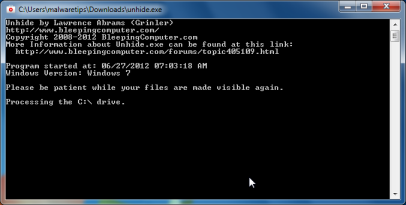
- Download Unhide.exe, to unhide your files and folders.
- Double-click on the Unhide.exe icon on your desktop and allow the program to run.The whole process should not take more than 5 minutes to complete,and at the end this utility will generate a report.
STEP 7 : Restore your shortcuts and remove any left over malicious registry keys
Smart HDD has moved your shortcuts files in the Temporary Internet folder and added some malicious registry keys to your Windows installation , to restore your files we will need to perform a scan with RogueKiller.
- Please download the latest official version of RogueKiller.
- Double click on RogueKiller.exe to start this utility and then wait for the Prescan to complete.This should take only a few seconds and then you can click the Start button to perform a system scan.
![[Image: roguekiller-1.png]](//malwaretips.com/blogs/wp-content/uploads/2012/04/roguek-1.png "Click on the Start button to perform a system scan")
- After the scan has completed, press the Delete button to remove any malicious registry keys.
![[Image: roguekiller-2.png]](//malwaretips.com/blogs/wp-content/uploads/2012/04/roguek-2.png "Press Delete to remove the malicious registry keys")
- Next we will need to restore your shortcuts, so click on the ShortcutsFix button and allow the program to run.
![[Image: roguekiller-1.png]](//malwaretips.com/blogs/wp-content/uploads/2012/04/roguek-3.png "Click on the Start button to perform a system scan")
![[Image: roguekiller-1.png]](http://malwaretips.com/blogs/wp-content/uploads/2012/04/roguek-1.png "Click on the Start button to perform a system scan")
![[Image: roguekiller-2.png]](http://malwaretips.com/blogs/wp-content/uploads/2012/04/roguek-2.png "Press Delete to remove the malicious registry keys")
![[Image: roguekiller-1.png]](http://malwaretips.com/blogs/wp-content/uploads/2012/04/roguek-3.png "Click on the Start button to perform a system scan")
STEP 8: Get your desktop look back!
Smart HDD changes your desktop background to a solid black color,to change it back to default one follow the below instruction.
- Windows XP : Click on the Start button and then select Control Panel. When the Control Panel opens, please click on the Display icon. From this screen you can now change your Theme and desktop background.
- Windows 7 and Vista : Click on the Start button and then select Control Panel. When the Control Panel opens, please click on the Appearance and Personalization category. Then select Change the Theme or Change Desktop Background to revert back to your original Theme and colors.
If you are still experiencing problems while trying to remove Smart HDD from your machine, please start a new thread in our Malware Removal Assistance forum.
What’s next? Join our amazing community and build up your malware defenses !









God bless you!
This is “THE GUIDE”! You are awesome Stelian!!
Thank you so much for your helpful and informative save. i was able to rescue my xp, thanks to you.
Hi, there are no words enough to say thank you for your help. My Laptop all of a sudden contracted a HDD smart infection so bad I thought I might have to have it serviced. As I said no words are enough to show gratitude, but thank you thank you.
Al
Stelian!
If it were biologically possible, I would bare your next child.
THANK YOU!!!!!
Sincerely,
Brian
Procedures where on point and worked exactly as indicated; thanks for taking the time to put together this detailed information. Very much appreciated!
Thank you so much Stelian Pilici !
Wonderful guide! it has rescued my XP!
Rinaya
Hi
My laptop is infected with virus which has made all the folders including files not to open how do i remove the virus without deleting the important files and also how do i open them.And the internet doesn’t wanna open how do i resolve this issue?
Thank you
nono
Hello nono,
Can you please run a scan with Combofix and ESET online scanner and post the logs here :
STEP 1 : Run a scan with Combofix
Download ComboFix from one of the following locations:
COMBOFIX DOWNLOAD LINK #1 (This link will automatically download Combofix on your computer)
COMBOFIX DOWNLOAD LINK #2 (This link will automatically download Combofix on your computer)
VERY IMPORTANT !!! Save as Combo-Fix.exe during the download. ComboFix must be renamed before you download to your Desktop
———————————————————–
———————————————————–
———————————————————–
Notes:
STEP 2: Run a scan with ESET Online Scanner:
ESET Online Scanner Download Link (This link will automatically download ESET Online Scanner on your computer.)
Waiting for your reply to tell me if your machine is ok and the logs from this utilities.
Need xtra assistance, posting from my phone. I have Smart HDD and it will not allow me to enter safe mode or Windows altogether. It will hang if i try to enter safe mode & will claim a disk failure if i let it go. Im trying to get back in in order to follow your guide. Any tips?
Hello Will,
Lets work in NORMAL MODE.
Please run a scan with Malwarebytes Anti-Malware in Chameleon Mode in Norman mode:
2.Please perform a scan with HitmanPro,RogueKiller an Unhide.exe as seen on the guide.
3.Run a scan with ESET Online Scanner:
ESET Online Scanner Download Link (This link will automatically download ESET Online Scanner on your computer.)
Please help I try to get to safe mode with networking but as it loads files it stops and won’t go. I keep starting again and it keeps doing it
Hello steph,
Lets work in NORMAL MODE.
Please run a scan with Malwarebytes Anti-Malware in Chameleon Mode in Norman mode:
2.Please perform a scan with HitmanPro as seen on the guide.
3.Run a scan with ESET Online Scanner:
ESET Online Scanner Download Link (This link will automatically download ESET Online Scanner on your computer.)
I can’t get that far I try normal mode and it takes me to a scream saying checking file system on c: And says a lot more about checking a disk. Says to use system restore feature from control panel. but how can I get to control panel to do so?
Can you ignore that warning? Just go ahead and try to download Malwarebytes Chameleon.
If it doesn’t work than try the below step:
While in NORMAL MODE,download HitmanPro and then start this program in ForceBreach Mode
1.Here are the direct download links for HitmanPro,
– http://dl.surfright.nl/HitmanPro36.exe (For 32bit)
– http://dl.surfright.nl/HitmanPro36_x64.exe (For 64bit)
2.Hold down the left CTRL-key when you start HitmanPro and all non-essential processes are terminated, including this rogue malicious process
Here is a video that explains with graphic details how to do this : http://www.youtube.com/watch?v=m6eRWTv2STk
3. Let HitmanPro scan and remove the detected infections.
Next,run a scan with Malwarebytes Anti-Malware.
my dell has a virus that keeps restarting, ive hit safemode and it restarts before i get to run malwarebits….ive run rkill but it restarts before rkills is finished? any tips would be awesome
Hello,
Lets try do this another way.Please follow the below steps…
STEP 1. While in NORMAL MODE,download HitmanPro and then start this program in ForceBreach Mode
1.Here are the direct download links for HitmanPro,
– http://dl.surfright.nl/HitmanPro36.exe (For 32bit)
– http://dl.surfright.nl/HitmanPro36_x64.exe (For 64bit)
2.Hold down the left CTRL-key when you start HitmanPro and all non-essential processes are terminated, including this rogue malicious process
Here is a video that explains with graphic details how to do this : http://www.youtube.com/watch?v=m6eRWTv2STk
3. Let HitmanPro scan and remove the detected infections.
STEP 2: While in NORMAL MODE,download/Run Rkill and then run a scan with Malwarebytes
1.Download any re-named version of Rkill (direct download links bellow):
RKILL DOWNLOAD LINK #1
RKILL DOWNLOAD LINK #2
RKILL DOWNLOAD LINK #3
2.Next,please perform a scan with Malwarebytes and then do a RogueKiller and Unhide.exe scan as seen on the guide
STEP 3. Run a scan with ESET Online Scanner
ESET Online Scanner Download Link (This link will automatically download ESET Online Scanner on your computer.)
Waiting for your reply to tell me how everything is working.. :) Good luck!
Just a note that HitMan Pro no longer offers the free trial. I used all your steps and they helped rid my computer of this stupid virus, BUT HitMan Pro showed some suspicious items and now I can’t remove those :(
Hello,
Is this your personal computer or from work?It’s important to know that only home users can use this product when it comes to malware removal. :)
You can perform a scan with the following utilities:
1.Run a scan with Kaspersky Virus Removal Tool
Click here to download the Kaspersky Virus Removal Tool.
2.Run a scan with Eset Online Scanner.
ESET Online Scanner Download Link (This link will automatically download ESET Online Scanner on your computer.)
This’s AWESOME!!!!! U saved my laptop! Thank you so much
Thank you so much!
Thank you so much, brilliant, my netbook is now back to its former self, such a relief!!
Whenever I try to download the first step it begins to run then just completely disappears.
Hello,
Try the below steps and see if they work.
STEP 1. While in NORMAL MODE,download HitmanPro and then start this program in ForceBreach Mode
1.Here are the direct download links for HitmanPro,
– http://dl.surfright.nl/HitmanPro36.exe (For 32bit)
– http://dl.surfright.nl/HitmanPro36_x64.exe (For 64bit)
2.Hold down the left CTRL-key when you start HitmanPro and all non-essential processes are terminated, including this rogue malicious process
Here is a video that explains with graphic details how to do this : http://www.youtube.com/watch?v=m6eRWTv2STk
3. Let HitmanPro scan and remove all the detected threats.
Step 2: While in NORMAL MODE,download/Run Rkill and then run a scan with Malwarebytes
1.Download any re-named version of Rkill (direct download links bellow):
http://download.bleepingcomputer.com/grinler/WiNlOgOn.exe
http://download.bleepingcomputer.com/grinler/uSeRiNiT.exe
http://download.bleepingcomputer.com/grinler/rkill.scr
2.Next,please perform a scan with Malwarebytes as seen on the guide. (Direct download link for Malwarebytes: http://www.malwarebytes.org/mbam-download-exe.php )
Let me know , how everything goes.
Hiya I’ve tried uk hiding my programmes which has worked in safe mode but doesn’t in normal mode I’ve used unhind please help!!
Thanks cecilia
Hello Cecilia,
Can you please re-run the software,while in Normal mode.
If you are still having problems , run Unhide Non System Files : http://www.tweaking.com/content/page/unhide_non_system_files.html .
Hi
I have followed this procedure 4 times now and it still keeps comming back. I have even got AVG installed and that does not stop it. Any suggestions?
Mike
OK,lets make some further check-ups:
1.Run a scan with Kaspersky Virus Removal Tool
Click here to download the Kaspersky Virus Removal Tool.
2.Run a scan with Eset Online Scanner.
ESET Online Scanner Download Link (This link will automatically download ESET Online Scanner on your computer.)
Waiting for your reply to tell me how everything is working.. :) Good luck!
Thank you for putting this out there. I am so computer stupid but it worked!!!! Thank you, thank you, thank you!!!
also thanks. but I was in such bad shape the computer was useless. I finally succeeded by hitting F11 when rebooting
(Vista on a Compaq Presario) and finding a backup point (had to choose older than 5 days). It is all very slow.
Thank you for the instructions, got rid of smart on my Samsung 10 running xp.
The only problem left is I can’t get the computer to recognize any wi-fi. I tried Tweaking.com but that didn’t work. Wi-fi is turned on but when I go to network connections the Local Area Connection Network Cable reads unplugged. I can plug in an ethernet cord and the internet works. However this netbook is not able to discover our home Wi-fi network!
While investigating further, I realized that my driver wasn’t showing for my LAN connection, once I updated the driver, bingo, my wireless was working.
Thanks again for your great directions, you saved the day.
Thank you so much for putting this on the Internet. I got blindsided by this stupid virus today and thought I’d have to drop serious $$$ to get my computer fixed. Thanks to you I did it all without having to take it in to Geek Squad or some other computer place. After following all of your steps to the letter my computer now runs perfectly! You’re a life-saver.
Hi, I am trying to help fix a PC at work which has this virus. I have restarted in Safe mode with Networking, but there are still no icons and nothing in the Start Menu other than options to Log Off or Turn Off Computer. There is nothing in the All Programs list. I cannot get into a browser to download any of the software in your walkthrough. Any advice? I’m pretty clueless at this :/
OPTION 1 : While in NORMAL MODE,download HitmanPro and then start this program in ForceBreach Mode
1.Here are the direct download links for HitmanPro,
– http://dl.surfright.nl/HitmanPro36.exe (For 32bit)
– http://dl.surfright.nl/HitmanPro36_x64.exe (For 64bit)
2.Hold down the left CTRL-key when you start HitmanPro and all non-essential processes are terminated, including this rogue malicious process
Here is a video that explains with graphic details how to do this : http://www.youtube.com/watch?v=m6eRWTv2STk
3. Let HitmanPro scan and remove all the detected threats.
4.Run Rkill and then a scan with Malwarebytes.
OPTION 2: While in NORMAL MODE,download/Run Rkill and then run a scan with Malwarebytes.!
1.Download any re-named version of Rkill (direct download links bellow):
http://download.bleepingcomputer.com/grinler/WiNlOgOn.exe
http://download.bleepingcomputer.com/grinler/uSeRiNiT.exe
http://download.bleepingcomputer.com/grinler/rkill.scr
2.Next,please perform a scan with Malwarebytes as seen on the guide and then a scan with HitmanPro.
Let me know , how everything goes.
Hi, apologies for not clarifying in the last post; I have no icons or Start Menu programs in noral mode either. I am posting this from another PC in the office. If I start in safe mode with networking and log in as administrator, I can access a few programs including internet explorer; however since the virus was downloaded to a user profile and that is the one having the problems, I was under the impression that running the solutions in Administator profile would not help.
Is there anyway I can download the software to a CD or something on another PC and then load them on the problem PC? Would that work? How would I load them without access to My Computer or even the Run option? Apologies for the delay in posting this, as the PC is at work I can only access it during weekdays.
Also wanted to add, if I right-click on the desktop nothing happens, and the only things on the toolbar are the clock and a McAfee icon. A recurring message from McAfee keeps popping up saying ‘Your Computer is at Risk, Please check your status so you can address any security issues to keep your PC protected.’ If I click on status it says Real-Time Scanning is Off; if I click Turn On it goes green and says everything is secure, the turns off again a second or 2 later. I don’t know if this is in any way related though.
Please ignore my earlier comments; by right-clicking on the empty Start Bar menu, I was able to get into properties, and change all options back to ‘display this item’. The Programs list is still empty, but I do have access to a browser (Firefox) so should be able to run the solutions outlined above. I will let you know how this goes.
Hello,
Please follow the steps from this post to get back your Start Menu items: http://malwaretips.com/Thread-Files-still-hidden-after-smart-hdd-removal-and-unhide-exe?pid=55462#pid55462
Stay safe!
I was able to download and run RKill, but when I tried to download MalwareBytes nothing happened, it just kept boucing me between 2 different sites. Each one had a link saying ‘download now’ but each link just takes me to the other site. I tried skipping to the next step and downloaded HitManPro36, but when I try to run it I just get an error message saying HitManPro36.exe has encountered a problem and needs to close. We are sorry for the inconvenience.
Hello,
You have a MBR infection which is causing this redirect… Try the below steps and see if they work.
STEP 1. While in NORMAL MODE,download HitmanPro and then start this program in ForceBreach Mode
1.Here are the direct download links for HitmanPro,
– http://dl.surfright.nl/HitmanPro36.exe (For 32bit)
– http://dl.surfright.nl/HitmanPro36_x64.exe (For 64bit)
2.Hold down the left CTRL-key when you start HitmanPro and all non-essential processes are terminated, including this rogue malicious process
Here is a video that explains with graphic details how to do this : http://www.youtube.com/watch?v=m6eRWTv2STk
3. Let HitmanPro scan and remove all the detected threats.
Step 2: While in NORMAL MODE,download/Run Rkill and then run a scan with Malwarebytes
1.Download any re-named version of Rkill (direct download links bellow):
http://download.bleepingcomputer.com/grinler/WiNlOgOn.exe
http://download.bleepingcomputer.com/grinler/uSeRiNiT.exe
http://download.bleepingcomputer.com/grinler/rkill.scr
2.Next,please perform a scan with Malwarebytes as seen on the guide. (Direct download link for Malwarebytes: http://www.malwarebytes.org/mbam-download-exe.php )
Report back if it doesn’t work:)
Let me know , how everything goes.
Hi, thanks for getting back to me. I had previously tried the Force Breach launch for HitManPro, and have tried it again today, but I am still getting the response ‘HitManPro36.exe has encountered a problem and needs to close. We are sorry for the inconvenience.’ I have succesfully downloaded and run Rkill and Malwarebytes, and have had no further issues with the Data Recovery/Smart HDD virus, but it is still sitting in the Programs list. Is there a way to safely remove this? There is an uninstall option in the program list with it, but I am wary of using this as I know this is sometimes used to reinstall virus software.
Thanks again for all your help.
Can you please perform the following scans…
1.Run a scan with Kaspersky Virus Removal Tool
Click here to download the Kaspersky Virus Removal Tool.
2.Run a scan with Eset Online Scanner.
ESET Online Scanner Download Link (This link will automatically download ESET Online Scanner on your computer.)
Waiting for your reply to tell me how everything is working.. :) Good luck!
Hi, both scans came back clear and generated no reports. Thanks again for your help! Apologies for the delay in replying, I was away from work for a week as I was unwell, and the following week I was on holiday.