


A new smishing scam is targeting consumers via text messages pretending to be from USPS. The fraudulent texts state recipients have a package that couldn’t be delivered due to an incomplete address. The message provides a link to update your information so USPS can deliver your stuck package. However, the link sends users to a fake website designed to steal personal and financial data. This USPS “Your Package Is On Hold” phishing scam catches many victims off guard who urgently want their packages, tricking them into providing valuable details to scammers.
Continue reading to learn all about how this USPS phishing scam operates, how to identify fraudulent texts, what you can do if you unfortunately fell victim, and how to best protect yourself going forward.
USPS “Your Package Is On Hold” Scam Overview
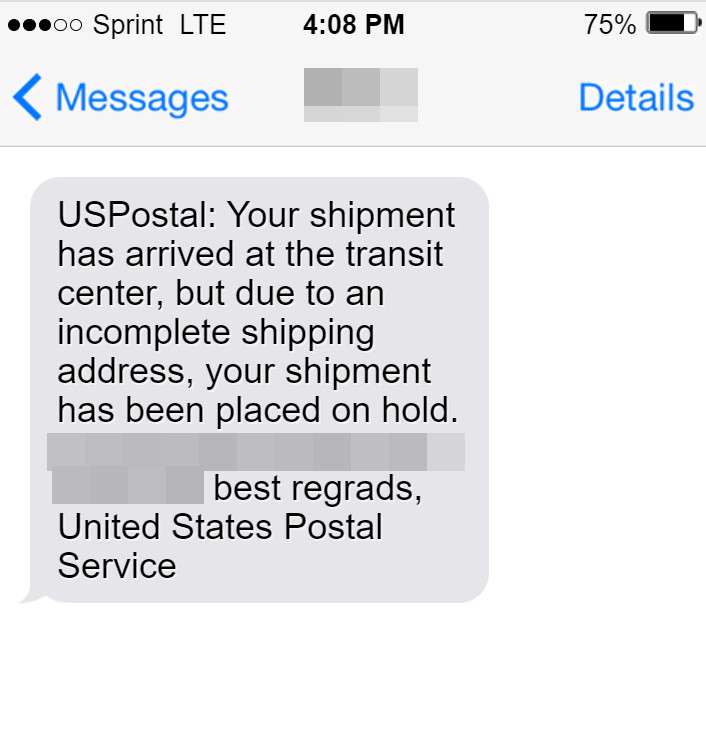
The USPS “Your Package Is On Hold” phishing scam involves cell phone users receiving text messages pretending to be from the United States Postal Service. The texts inform the recipient that a package addressed to them has arrived at a USPS transit center but cannot be delivered due to an incomplete shipping address, invalid address details, or other fictitious address issues.
The fraudulent message then instructs the recipient to click on a link to a website in order to enter or correct their shipping address so that the Postal Service can complete delivery of the stalled package. However, the site linked in the text message is not a legitimate USPS site, but rather a sophisticated fake website designed by scammers to steal personal information and even install malware on victim’s devices.
This USPS scam is categorized as smishing, a form of phishing conducted through SMS text messaging. The texts originate from random phone numbers and email addresses not actually associated with the Postal Service. The messages are made to appear as if they are from USPS support teams or customer service to trick recipients into believing the notification is real.
The texts often start with “USPS” or “United States Postal Service” and some version of stating that a problem with the shipping address is preventing delivery. Two examples of the fraudulent USPS texts include:
- “USPS: Your shipment has arrived at the transit center, but due to an incomplete shipping address, your shipment has been placed on hold. [Malicious Link] Sincerely, USPS Customer Service.“
- “USPostal: Your package has arrived at the transit center, but we are unable to continue delivery due to missing address details. [Malicious Link] Best regards, The United States Postal Service.”
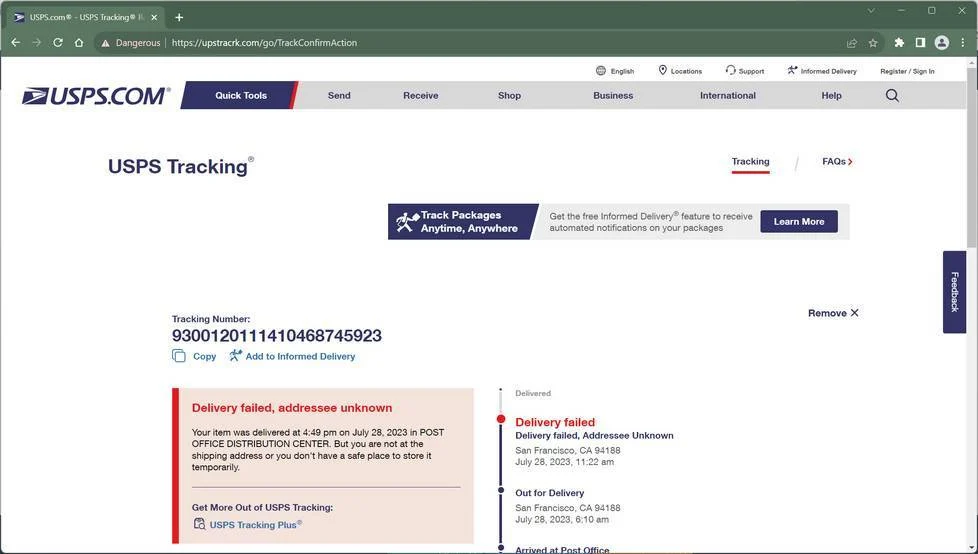
If a recipient clicks on the link, they are taken to a fake USPS site that looks like the real USPS site, but has a slightly different URL and web address. The scam websites are extremely convincing and sophisticated, formatted to mimic actual Postal Service sites with USPS logos, colors, graphics, and web links.
These imitation sites even have forms prompting the user to enter details like their name, address, phone number, and sometimes even financial information, account usernames, and passwords. All information entered on these fraudulent sites goes directly to the scammers behind the phishing scam.
Millions of these fake USPS texts are being sent to random phone numbers across the U.S. Most people receiving the messages do not have a package actually arriving and stuck in transit. The texts are blanketly distributed with the hope that some recipients will believe a real package is awaiting them.
For those who recently placed an online order for merchandise now anxiously awaiting their goods, the message incites even greater urgency and likelihood to comply with the call to action out of fear their items will be returned to sender. However, no matter the circumstances, the texts are always scams.
The USPS never communicates delivery issues via text, nor do they send links to sites outside of USPS.com. Any SMS messages or emails claiming to be Postal Service notifications regarding stalled packages or address problems are fraudulent. Unfortunately, many victims are falling for this trick and having their personal data compromised.
The scam is designed to collect user information for identity theft purposes and infect devices with malware. The scale of impacted individuals continues growing as more of these bogus texts are blasted out across the U.S. Protect yourself and stay vigilant by learning how to identify this USPS smishing scam and others like it.
How the USPS “Your Package Is On Hold” Scam Works
The USPS “Your Package Is On Hold” scam unfolds in several key stages:
1. Receiving the Fraudulent Text
The scam initiates with a smartphone user receiving an SMS text message stating that a package addressed to them has arrived at a USPS transit hub but cannot be delivered due to some shipping address issue.
The message will look like it comes from a legitimate USPS contact and often begins with “USPS” or “United States Postal Service.” The content informs the recipient that a package intended for delivery to them is stuck at a postal facility because the shipping label lacks a complete delivery address, contains inaccurate address details, or has some other unspecified address problem.
A couple examples of the fraudulent text include:
- “USPS: Your package has arrived at our facility but is being held at our hub due to an incomplete shipping address label. Please visit: [malicious link] to update your delivery address so we can complete delivery of your package. Thanks, USPS Delivery Support.”
- “United States Postal Service: Our records indicate we have a shipment for you that cannot be delivered because of an invalid destination address. Please tap here: [malicious link] to verify and correct your shipping address so we can complete delivery of your package successfully. USPS Customer Service.”
The messages give an air of urgency to incentivize the recipient to take action. Terms like “incomplete,” “invalid,” or “on hold” imply the matter needs resolution quickly or the package may face return to sender.
The texts capitalize on typical consumer frustrations with postal delays and missing mail. For victims anxiously awaiting online orders or important items, the phrasing preys on such concerns.
2. Visiting the Fake USPS Site
If the recipient taps the link, they are taken to what appears to be an official USPS site. The scam webpage mirrors legitimate Postal Service sites very convincingly with USPS branding, colors, graphics, navigation links, and domain name.
However, upon closer inspection, subtle differences reveal the fraudulent nature of the site. While seeming close to the real USPS.com URL, the domain will contain additional words or odd strings of numbers and letters.
For example, instead of USPS.com/packageinquiry, the link may direct to USPSonline-packagedelivery457.com. The scam sites are hosted on domains registered and controlled by the scammers specifically for this phishing campaign.
Additionally, though the site looks remarkably similar to the real USPS site, the content itself is limited to just a few pages focused on the address update forms. No other true USPS site navigation or pages beyond the package delivery address update sections exist.
3. Submitting Information
The fraudulent USPS site contains forms prompting users to enter details to “correct” or “update” their address before the package can be released from the transit center and delivered. An example form may request the following data:
- Full name
- Phone number
- Email address
- Physical address
- USPS delivery zip code
- Package tracking number
- Additional package origin/destination details
If users enter this information, all their personal details and contact information go straight into the hands of scammers to be used for identity theft or sold on the dark web.
In some cases, the forms even ask for account login credentials, credit card numbers, social security numbers, or other highly sensitive information that enable financial fraud and account compromise.
4. Installing Malware
In addition to stealing entered data, some fake USPS sites linked in the smishing texts may attempt to download or install malware onto victim’s devices. The sites may feature pop-up windows to “update security settings” where users are prompted to click to download a file or enable external app permissions.
Granting such access can infect phones or computers with spyware, adware, keyloggers, info-stealing Trojans, and other malicious software designed to monitor activity and extract confidential information. The malware can secretly obtain usernames, passwords, financial details, and other sensitive data at huge risk.
How Scammers Use the Stolen Information
Once scammers behind the USPS smishing scam collect user information, it is leveraged for illicit activities like:
- Identity theft – Full names, addresses, birthdates, etc. are used to impersonate victims and commit fraud in their names.
- Phishing – Email addresses and phone numbers are added to phishing databases for distributing additional scam attempts.
- Financial theft – Bank account and credit card data enables scammers to steal funds or make unauthorized transactions.
- Account compromise – Login credentials allow scammers to directly access and take over the victim’s online accounts.
- Dark web sales – All collected data may be sold on the dark web to identity thieves and other cybercriminals, resulting in even more unknown fraud.
- Ransomware – Compromised personal data gives scammers leverage to launch ransomware campaigns or threats.
- Malware-based theft – Any malware installed extracts additional sensitive info over weeks or months that gets forwarded to the scammers.
- Spamming – In a final insult, victims’ email addresses are added to spam email lists for distribution of unwanted advertisements.
The cumulative effects of these fraud activities stemming from the initial USPS smishing scam can be extensive. A single pieces of data like an email address or phone number enables a cascading sequence of criminal misuse and access to additional details. Victims suffer from compromised finances, identities, sensitive accounts, and devices in addition to time and effort resolving the fallout.
Difficulty Getting Help from USPS
Victims who realize they were scammed struggle to get assistance from USPS to recover from the fraud and misuse of their information. Since the attack did not actually occur on USPS systems or sites, the Postal Service has limited capability to aid victims.
USPS will try to take down the fraudulent domains pretending to operate on their behalf. However, plenty more mimic sites arise. The most USPS may offer are mail-forwarding or address change services to prevent physical mail fraud.
Victims are generally left attempting to resolve identity theft, financial fraud, and account access on their own through banks, credit bureaus, online merchants, and other providers. These processes to undo the damages inflicted can be tedious, stressful, and time-consuming.
This lack of help from USPS itself to rectify the phishing attack aftermath further exemplifies the separate systems and data breaches occurring here outside USPS infrastructure. By targeting random civilians not actually expecting packages, scammers maximize success while minimizing protective involvement by USPS against their mimicking scams.
What to Do If You Are Victimized By The USPS “Your Package Is On Hold” Scam
If you receive a text from USPS, UPS, FedEx, or any other delivery service claiming your package is stuck somewhere unless you enter your personal details, do not click the link or provide any information. However, if you did engage with the scam website and shared any data, here are important steps to take:
Do Not Provide Any More Information
If you realize you may have been fooled by a fake USPS site, immediately cease entering or submitting any additional personal data to the website. The more information given, the greater risk of identity theft and irreversible account access and financial theft. Strictly avoid further interaction with the fraudulent site.
Contact Banks and Financial Institutions
If any banking information, credit card numbers, account logins, or other financial data was shared on the phishing site, urgently alert those providers regarding potential compromise. Ask them to monitor for suspicious activity and enact heightened security protocols on your behalf.
Updating passwords and enabling two-factor authentication where possible should occur to block scammers from accessing financial accounts. Request assistance disputing any unauthorized transactions conducted in your name.
Report Malicious Links and Domains
Notify trusted cybersecurity authorities regarding the fake USPS smishing texts and phishing site links. Provide phone numbers, web addresses, and any other details to assist their investigations in dismantling the scams. Recommended contacts include:
- Local police department fraud division
- FBI Cyber Crime Division: ic3.gov
- USPS Postal Inspectors: uspis.gov
- Internet Crime Complaint Center: ic3.gov
- Federal Trade Commission (FTC): reportfraud.ftc.gov
- Anti-Phishing Working Group: apwg.org
- SMS short code 7726 (spell SPAM)
Reporting the scam helps prevent continued victimization, aids tracking and prosecuting cybercriminals, and contributes to strengthening defensive measures across organizations.
Run Anti-Malware Scans
If prompted to download any files to your computer or phone from the fake USPS smishing site, conduct a full system scan using updated and trusted malware protection software. Scan all devices that accessed the scam links.
The scam sites may have stealthily seeded malware to extract more of your personal data in the background. Thorough scans can detect and quarantine such threats before additional damage occurs. Enable real-time protective monitoring as well for ongoing defense.
Reset All Account Passwords
If asked to enter any usernames or passwords on the phishing site, assume those credentials are compromised. Immediately reset the passwords of any accounts whose login information was entered.
Apply updated, unique passwords to every account connected to the details given to the scammers. Using a password manager helps create and organize strong credentials for each account. Enable two-factor authentication as well wherever possible.
Place Fraud Alerts and Freeze Credit
Since full personal information was likely exposed, report to the major credit bureaus (Equifax, Experian, TransUnion) that you were the victim of identity theft. Request fraud alerts be placed on your credit reports to flag suspicious activity. You can also proactively enact credit freezes to block scammers from opening unauthorized accounts in your name. Monitor credit reports carefully for signs of misuse.
Update Personal Information With Companies
Contact all providers that may have records containing the personal details handed to the phishing scam site and update your name, phone number, address, email, and other info. Creating new contact points prevents scammers from accessing existing accounts. Be sure to communicate only over known good channels, not via any information previously exposed.
Carefully Monitor Accounts and Credit
Remain extremely vigilant about reviewing all financial statements, online accounts, and credit reports to identify any indications of access or identity theft stemming from the scam. Precautionary monitoring may be necessary for years following significant personal data compromise. Consider enrolling in identity theft protection services as another layer of defense.
Is Your Device Infected? Run a Free Malware Scan
Slow performance, constant pop-ups, or strange behavior? These are classic signs of a malware infection. A quick way to check is to scan your device with Malwarebytes Free, one of the most trusted malware removal tools available. If you only visited a scam page and didn’t download or install anything, this scan is optional.
The free version detects and removes the most common threats, including:
- Adware — the cause of those annoying pop-ups
- Browser hijackers — unwanted redirects and changed homepages
- Trojans and spyware — hidden programs stealing your data
- Potentially unwanted programs (PUPs) — software you never asked for
👉 Select your device below — Windows, Mac, or Android — then follow the simple steps to download Malwarebytes, scan your system, and remove any threats it finds. The scan usually takes 5 to 20 minutes.
Run a Malware Scan with Malwarebytes for Windows
Malwarebytes is one of the most popular and trusted anti-malware tools for Windows — and it’s completely free for removing infections. It catches threats that many antivirus programs miss, including adware, browser hijackers, and trojans. Follow the steps below to scan your PC and remove what Malwarebytes finds.
Download Malwarebytes
Click the button below to download the latest version of Malwarebytes for Windows from the official source. The free version is all you need — it will scan your computer and remove adware, browser hijackers, and other malicious software at no cost.
Download MalwarebytesOfficial installer for Windows 11 and 10. Your download starts right away.Want real-time protection? See Malwarebytes Premium Malwarebytes Free for WindowsScans and removes malware at no cost
-
Install Malwarebytes
When the download finishes, open your Downloads folder and double-click the MBSetup file. If Windows shows a User Account Control pop-up, click “Yes” to allow the installation.

Follow the On-Screen Prompts to Install Malwarebytes
The setup wizard will walk you through a few quick screens:
-
Choose where you’re installing the program — “Personal Computer” or “Work Computer” — then click Next.

-
Malwarebytes will now install on your device. This usually takes under a minute.

-
When installation is complete, the “Welcome to Malwarebytes” screen will open automatically.

-
On the final screen, click Open Malwarebytes to launch the program.

-
Optional: Check for rootkits with a Custom Scan
You don’t need to change any settings for a normal scan. The standard Threat Scan in the next step is enough for most problems, so you can go straight to it.
If you also want to check for rootkits, use a Custom Scan. In current versions of Malwarebytes, rootkit scanning is only available there:
- On the Scanner tile, click the three-dot menu and select Advanced Scan.
- Choose Custom Scan. In its options, check Scan for rootkits.
- Select your system drive (usually C:\) as the location to scan, then start the scan. It takes longer than a Threat Scan.
- When it finishes, review and quarantine the results as described in the steps below.
Rootkit scanning isn’t available on Windows devices with ARM processors.
Start the Scan
Click the blue Scan button. Malwarebytes will automatically update its virus database and start checking your computer for malware.

-
Wait for the Scan to Finish
The scan checks your entire system for browser hijackers and other malicious programs, so it can take 5 to 20 minutes depending on your computer. Feel free to do something else — just check back occasionally to see the progress.

-
Quarantine the Detected Threats
When the scan is done, you’ll see a list of everything Malwarebytes found — malware, adware, and potentially unwanted programs. Click the “Quarantine” button to remove all of them at once.

Malwarebytes will now remove the malicious files and registry entries and move them safely into quarantine.

-
Restart Your Computer
Some threats can only be fully removed after a reboot. If Malwarebytes asks you to restart, click Yes. Once you’re logged back in, Malwarebytes has finished removing the threats it found.

When the scan is done, check whether the problems you noticed have stopped. If they continue, see the options below.
If you are still having problems with your computer after completing these instructions, then please follow one of the steps:
- Run a computer scan with ESET Online Scanner
- Ask for help in our Windows Malware Removal Help & Support forum.
Run a Malware Scan with Malwarebytes for Mac
Malwarebytes for Mac is a free on-demand scanner that removes the malware other security software tends to miss — adware, browser hijackers, and unwanted programs included. Cleaning an infected Mac with Malwarebytes has always been completely free, and it’s our go-to recommendation. Follow the steps below to scan your Mac and remove what Malwarebytes finds.
-
Download Malwarebytes for Mac
Click the button below to download the latest version of Malwarebytes for Mac.
Download MalwarebytesOfficial installer for macOS. Your download starts right away.Want real-time protection? See Malwarebytes PremiumMalwarebytes Free for MacScans and removes malware at no cost -
Open the Malwarebytes setup file
When the download finishes, open your Downloads folder and double-click the setup file to begin the installation.

-
Follow the On-Screen Prompts to Install Malwarebytes
The Malwarebytes for Mac Installer will guide you through a few quick screens. Click “Continue” and keep following the prompts until the installation completes.



When the installation is complete, Malwarebytes opens to the Welcome to Malwarebytes screen. Click “Get started“.
Malwarebytes needs Full Disk Access to check your whole Mac. When it asks, open System Settings > Privacy & Security > Full Disk Access, turn on Malwarebytes (it may be listed as Malwarebytes Protection), and confirm with your password or Touch ID. Then return to Malwarebytes. On macOS Monterey and earlier, this setting is in System Preferences > Security & Privacy > Privacy.
-
Select “Personal Computer” or “Work Computer”
Malwarebytes will ask what type of computer you’re installing it on. Click either Personal Computer or Work Computer, whichever applies.

-
Start the Scan
Click the “Scan” button. Malwarebytes will automatically update its detection database and begin checking your Mac for malware.

-
Wait for the Scan to Finish
Malwarebytes will scan your Mac for adware, browser hijackers, and other malicious programs. This can take a few minutes, so feel free to do something else — just check back occasionally to see the progress.

-
Quarantine the Detected Threats
When the scan is done, you’ll see a list of everything Malwarebytes found. Click the “Quarantine” button to remove all the threats at once.

-
Restart Your Mac
Malwarebytes will now remove all the malicious files it found. Some threats can only be fully removed after a reboot — if Malwarebytes asks you to restart, allow it. Once you’re logged back in, check whether the problems you noticed have stopped. If they come back, save the scan report and ask for help in our forum.

If the problems you noticed continue after the scan, see the options below.
If you are still experiencing problems while trying to remove a malicious program from your computer, please ask for help in our Mac Malware Removal Help & Support forum.
Run a Malware Scan with Malwarebytes for Android
Malwarebytes for Android scans your phone or tablet for malware, adware, and potentially unwanted apps. The free version scans only when you start a scan. Real-time protection, which checks apps automatically, is part of the paid Premium version.
-
Download Malwarebytes for Android.
You can download Malwarebytes for Android by clicking the link below.
Get Malwarebytes for AndroidOpens Google Play in a new tab.Want real-time protection? See Malwarebytes Premium for AndroidMalwarebytes for AndroidScans your phone and removes malware at no cost -
Install Malwarebytes for Android on your phone.
In the Google Play Store, tap “Install” to install Malwarebytes for Android on your device.

When the installation process has finished, tap “Open” to begin using Malwarebytes for Android. You can also open Malwarebytes by tapping on its icon in your phone menu or home screen.

-
Follow the on-screen prompts to complete the setup process
When Malwarebytes opens, it walks you through a short setup. Tap Get started and follow the prompts. If you see an offer for a trial or a paid plan, read it before you accept. You can skip it and keep using the free scanner.
Malwarebytes will ask for permission to access the files on your phone so it can scan them. Tap Allow, or turn on the permission in the Android screen that opens, then return to Malwarebytes.
-
Run a scan with Malwarebytes for Android
On the main screen, tap Scan now. In some versions, you open the menu, tap Scanner, and then tap Run a scan.
-
Wait for the Malwarebytes scan to complete.
Malwarebytes will now start scanning your phone for adware and other malicious apps. This process can take a few minutes, so we suggest you do something else and periodically check on the status of the scan to see when it is finished.

-
Remove the detected apps.
When the scan has been completed, you will see a list of the threats that Malwarebytes for Android has detected. Next to each detected item, tap the menu icon (three dots), then choose to uninstall the app or delete the file. Android then asks you to confirm. Tap OK or Uninstall to remove the app.
-
Restart your phone.
When the detected apps are removed, restart your phone if Malwarebytes asks you to. Then check whether the problems you noticed have stopped.
If the problems you noticed continue after the scan, see the options below.
If you are still having problems with your phone after completing these instructions, then please follow one of the steps:
- Ask for help in our Mobile Malware Removal Help & Support forum.
- Only as a last resort, reset your phone to factory settings. Read the warning below first.
- Back up your photos, videos, files, and messages, for example to your Google account or a computer.
- Make sure you know your Google account email and password. The phone asks for them after the reset. If you changed the password recently, Google recommends waiting 24 hours before you reset.
- On a Samsung phone, also make sure you know your Samsung account password.
- If you use an authenticator app for two-step verification, move your accounts to another device or save your backup codes first.
Stay Protected: Block Ads and Malicious Sites
No scan can prove a device is completely clean, so it helps to block threats before they reach you. Most infections start with a malicious ad or a fake download button — so blocking them at the source is your best defense.
We recommend AdGuard, which blocks malicious ads, phishing pages, and dangerous redirects before they can reach you.
👉 Download AdGuard and browse safely
Frequently Asked Questions About the USPS “Your Package Is On Hold” Scam
What is the USPS “Your Package Is On Hold” scam?
This is a smishing (SMS phishing) scam where victims receive a text message claiming to be from USPS stating that they have a package that couldn’t be delivered due to an incorrect shipping address. The message contains a malicious link that leads to a fake USPS site designed to steal personal information.
How does the scam work?
You receive a text claiming to be from USPS informing you about an undelivered package. It says you must click a link and enter your information to correct the address so USPS can deliver your package. The link goes to a fake website impersonating USPS and collects your data.
What information do scammers aim to get?
Scammers want your full name, physical address, phone number, email address, passwords, financial information, and any other personal details they can gather by fooling you into entering it on their phishing site.
What do scammers do with my information?
Scammers use your details for identity theft, accessing accounts, and financial fraud. They may sell it online or use it themselves to impersonate you and commit crimes in your name. Your data is now in the hands of criminals.
Why does USPS need me to update address details online?
USPS does not contact customers via unsolicited texts with links to non-USPS websites. They communicate postal issues through official channels only after you initiate contact. Any SMS messages about an undelivered package requiring your immediate address update are scams.
How do I tell if a USPS notification is legitimate?
Real USPS texts will come from a verified USPS number only. They will never contain links outside of USPS.com or request personal details to correct address problems. Contact USPS directly if you have delivery concerns.
I entered my details, what now?
If you shared any personal or financial information, immediately contact those providers to lock down accounts. Watch for fraudulent activity in your name. Enable credit freezes and fraud alerts. Scan devices for malware and reset all account passwords as a precaution.
Can USPS help me if I was scammed?
Unfortunately, USPS has limited capability to aid scam victims since the fake texts/sites are not within their systems. They may attempt shutting down fraudulent domains impersonating them but cannot restore compromised data. Managing fallout is up to individual victims.
How can I protect myself from future scams?
Be wary of texts claiming to be from USPS, UPS, FedEx or others with links requiring you to enter any personal data. Verify the sender’s number first. Never click links or provide information without confirming validity on official sites. Use unique passwords and enable two-factor authentication where possible.
Conclusion
The USPS “Your Package Is On Hold” smishing scam poses serious risks to anyone fooled into clicking the phishing links and submitting their information. These fraudulent text messages and fake websites are intentionally convincing, making it easy to fall victim.
However, being aware of their tactics and following recommended precautions can help you avoid getting swindled. Legitimate delivery notifications will only come from verified sources and numbers. Critically analyzing any communications can expose red flags like odd links, typos, threats, or requests for sensitive data.
If unfortunately deceived, rapidly contact banks, account providers, and credit agencies regarding potential identity theft and account compromise stemming from the breached information. Place fraud alerts, reset account passwords, monitor for suspicious activity, and thoroughly scan devices.
Report all details about the scam instances to cybersecurity authorities. The most vital defense remains exercising extreme caution when contacted over digital channels and never clicking links or entering data unless certain of their authenticity. With vigilance and safe online practices, customers can steer clear of phishing scams while still taking advantage of convenient communications and package tracking from reliable delivery carriers.

Join the discussion
0 commentsShare your experience or ask a question about this article.
Discussion
Start the conversation
Have a question or something useful to share? Add the first comment.