

The ZeroAccess rootkit also known as Sirefef, is a malicious program that has as a primary motivation of to make money through pay per click advertising. It does this by downloading an application that conducts Web searches and clicks on the results. This is known as click fraud, which is a very lucrative business for malware creators.
The threat is also capable of downloading other threats on to the compromised computer, some of which may be Misleading Applications that display bogus information about threats found on the computer and scare the user into purchasing fake antivirus software to remove the bogus threats. It is also capable of downloading updates of itself to improve and/or fix functionality of the threat.
The ZeroAccess rootkit is distributed through several means. Some websites have been compromised, redirecting traffic to malicious websites that host Trojan.Zeroaccess and distribute it using the Blackhole Exploit Toolkit and the Bleeding Life Toolkit. This is the classic “drive-by download” scenario. It also updates itself through peer-to-peer networks, which makes it possible for the authors to improve it as well as potentially add new functionality.
If your antivirus is detecting any of the below files as malicious and it can’t remove them , then you’ll know that you have a ZeroAccess infection:
C:\Windows\assembly\GAC_32\Desktop.ini
C:\Windows\assembly\GAC_64\Desktop.ini
C:\WINDOWS\services.exe << INFECTED
C:\windows\Installer\{random number sequence}\U\80000032.@
C:\windows\Installer\{random number sequence}\U\80000064.@
C:\windows\Installer\{random number sequence}\L\00000004.@
C:\windows\Installer\{random number sequence}\U\80000000.@
C:\windows\Installer\{random number sequence}\U\000000cb.@
How to remove ZeroAccess rootkit virus (Virus Removal Guide)
Please perform all the steps in the correct order. If you have any questions or doubt at any point, STOP and ask for our assistance.
-
To remove ZeroAccess rootkit virus, follow these steps:
- STEP 1: Use ESETSirfefCleaner tool to remove ZeroAccess rootkit
- STEP 2: Use RKill to stop the ZeroAccess rootkit malicious processes
- STEP 3: Scan your computer with Malwarebytes Anti-Malware to remove ZeroAccess rootkit
- STEP 4: Double-check for malicious programs with HitmanPro
- (OPTIONAL) STEP 5: Use Zemana AntiMalware Portable to remove ZeroAccess rootkit
STEP 1: Use ESETSirfefCleaner tool to remove ZeroAccess rootkit
In this first step, we will use the ESETSirefefCleaner tool to remove the ZeroAccess rootkit from your computer.
- You can download ESETSirefefCleaner from the below link.
ESETSIREFEFCLEANER DOWNLOAD LINK(This link will automatically download ESETSirfefCleaner on your computer.)Unable to download “ESETSirefefCleaner.exe contained a virus and was deleted”.
More recent variants of Sirefef might prevent you from downloading this removal tool. If you cannot download the tool, follow the steps below:- Click Start → Computer → Local Disk (C:) → Program Files.
- Right-click the Windows Defender folder and select Rename from the context menu.
- Add a unique variation to the filename, such as .old (for example, Windows Defender.old).
- Click the link above to download the ESETSirefefCleaner tool.When the download is complete, make sure to rename the Windows Defender folder back to its original filename before running the ESET SirefefCleaner tool.
- Double-click on ESETSirefefCleaner.exe to start this utility. You may be presented with an User Account Control pop-up asking if you want to allow this to make changes to your device. If this happens, you should click “Yes” to continue.
- The message “Win32/Sirefef.EV found in your system” will be displayed if an infection is found. To remove ZeroAccess rootkit from your computer, press the Y key on your keyboard
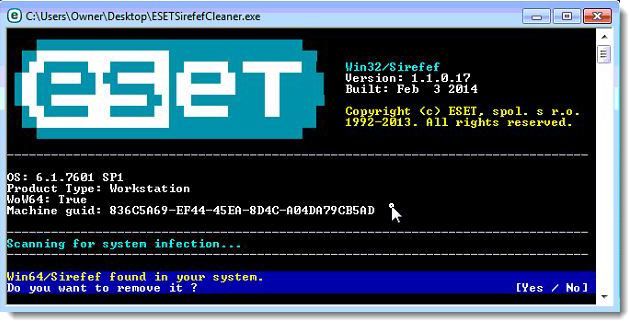
- Once the tool has run, you will be prompted to restore system services after you restart your computer. Press Y on your keyboard to restore system services and restart your computer.
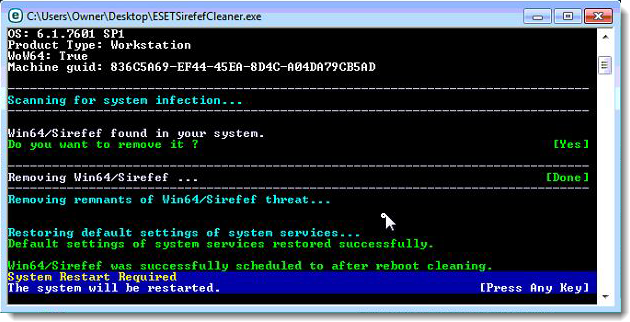
- Once your computer has restarted, if you are presented with a security notification click Yes or Allow. and then continue wit the next step.
STEP 2: Use RKill to stop the ZeroAccess rootkit malicious processes
RKill is a program that will attempt to terminate all malicious processes associated with ZeroAccess rootkit, so that we will be able to perform the next step without being interrupted by this malicious software.
- You can download Rkill from the below link.
RKILL DOWNLOAD LINK (his link will open a new web page from where you can download “RKill”) - Double click on Rkill program to stop the malicious programs from running.
- RKill will now start working in the background, please be patient while this utiltiy looks for malicious process and tries to end them.
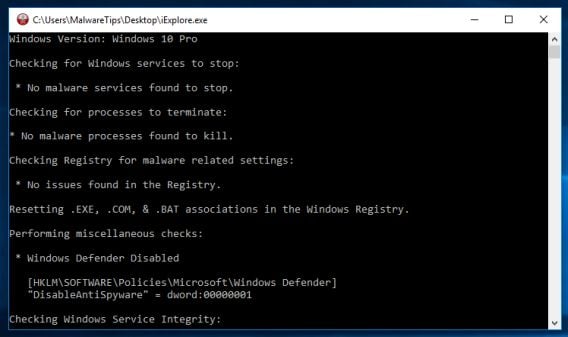
- When the Rkill tool has completed its task, it will generate a log. Do not reboot your computer after running RKill as the malware programs will start again.
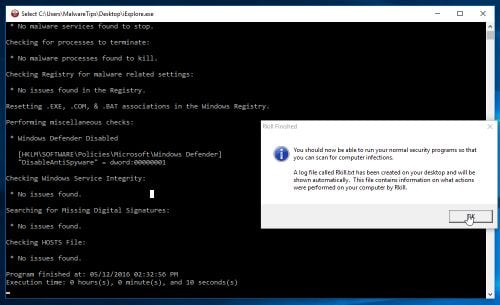
STEP 3: Scan your computer with Malwarebytes Anti-Malware to remove ZeroAccess rootkit
Malwarebytes Anti-Malware is a powerful on-demand scanner which should remove the ZeroAccess rootkit virus from your machine. It is important to note that Malwarebytes Anti-Malware will run alongside antivirus software without conflicts.
- You can download download Malwarebytes Anti-Malware from the below link.
MALWAREBYTES ANTI-MALWARE DOWNLOAD LINK (This link open a new page from where you can download “Malwarebytes Anti-Malware”) - When Malwarebytes has finished downloading, double-click on the “mb3-setup-consumer” file to install Malwarebytes Anti-Malware on your computer.
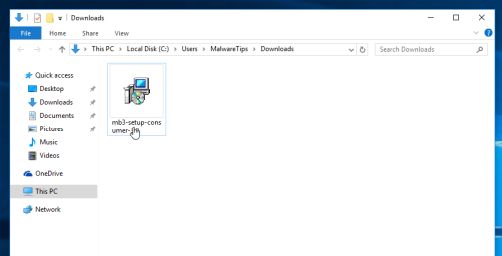
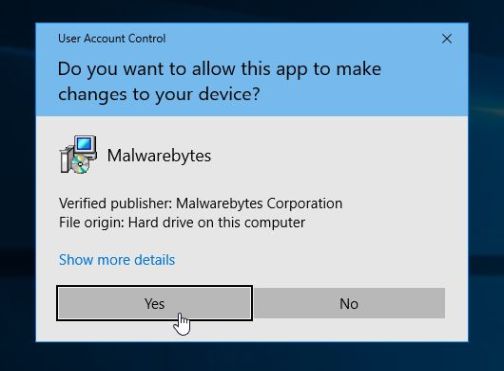
You may be presented with an User Account Control pop-up asking if you want to allow Malwarebytes to make changes to your device. If this happens, you should click “Yes” to continue with the installation.
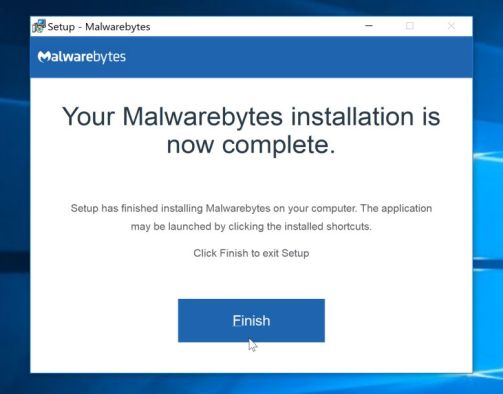
- When the Malwarebytes installation begins, you will see the Malwarebytes Setup Wizard which will guide you through the installation process.
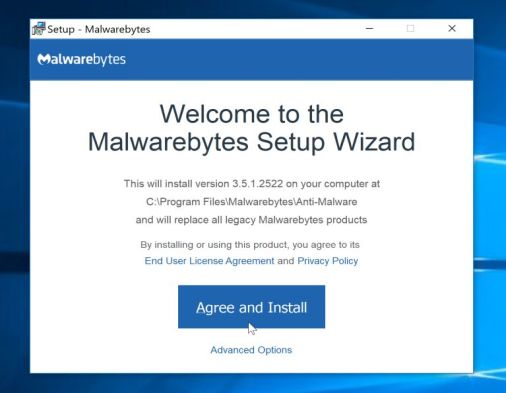
To install Malwarebytes Anti-Malware on your machine, keep following the prompts by clicking the “Next” button.
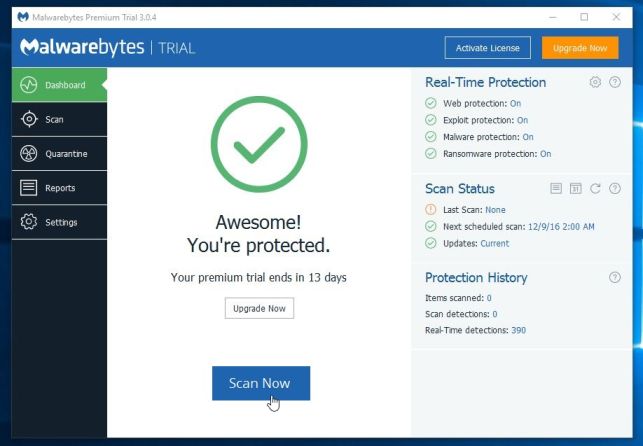
- Once installed, Malwarebytes will automatically start and update the antivirus database. To start a system scan you can click on the “Scan Now” button.
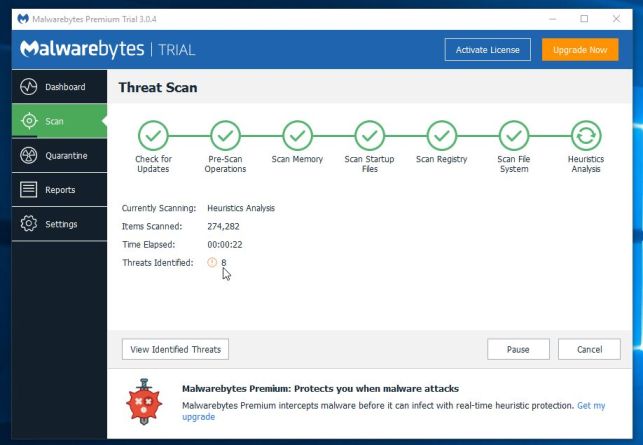
- Malwarebytes Anti-Malware will now start scanning your computer for malicious programs.
This process can take a few minutes, so we suggest you do something else and periodically check on the status of the scan to see when it is finished.
- When the scan has completed, you will be presented with a screen showing the malware infections that Malwarebytes Anti-Malware has detected.
To remove the malicious programs that Malwarebytes has found, click on the “Quarantine Selected” button.
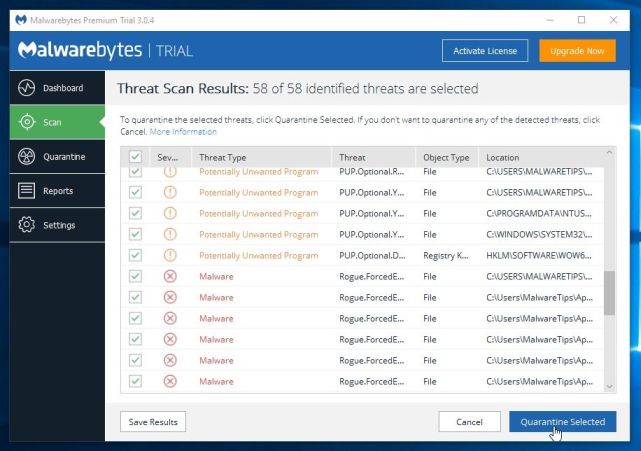
- Malwarebytes Anti-Malware will now quarantine all the malicious files and registry keys that it has found.
To complete the malware removal process, Malwarebytes may ask you to restart your computer.
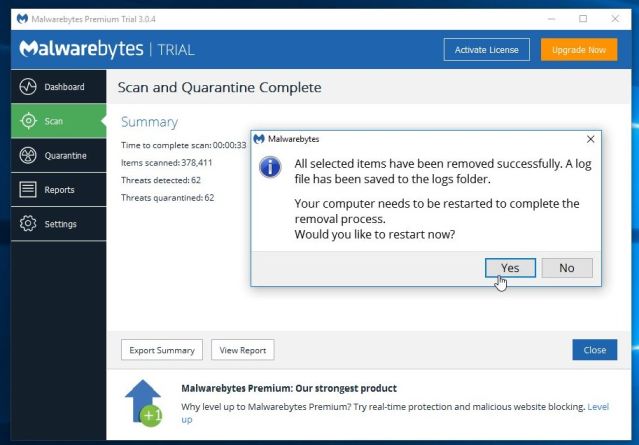
When the malware removal process is complete, you can close Malwarebytes Anti-Malware and continue with the rest of the instructions.
STEP 4: Double-check for malicious programs with HitmanPro
HitmanPro can find and remove malware, adware, bots, and other threats that even the best antivirus suite can oftentimes miss. HitmanPro is designed to run alongside your antivirus suite, firewall, and other security tools.
- You can download HitmanPro from the below link:
HITMANPRO DOWNLOAD LINK (This link will open a new web page from where you can download “HitmanPro”) - When HitmanPro has finished downloading, double-click on the “hitmanpro” file to install this program on your computer.
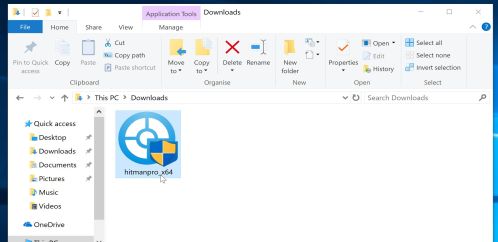
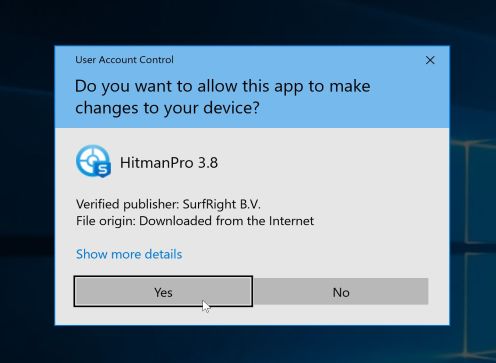
You may be presented with an User Account Control pop-up asking if you want to allow HitmanPro to make changes to your device. If this happens, you should click “Yes” to continue with the installation.
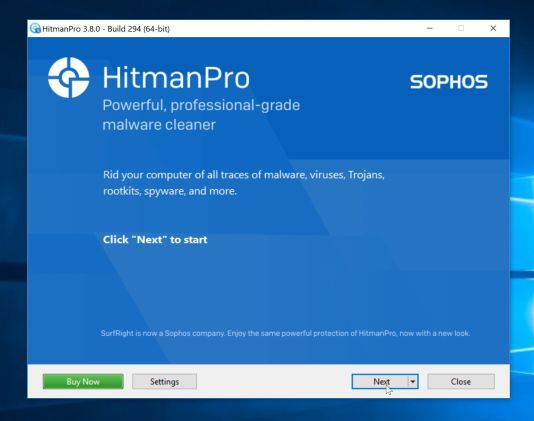
- When the program starts you will be presented with the start screen as shown below. Now click on the Next button to continue with the scan process.
- HitmanPro will now begin to scan your computer for malware.
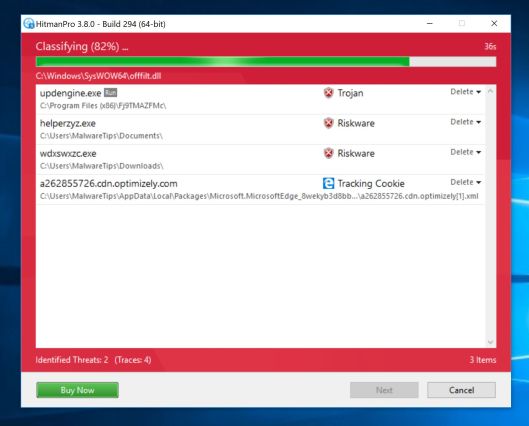
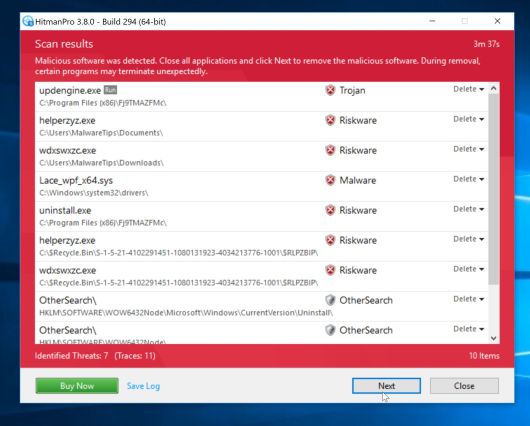
- When it has finished it will display a list of all the malware that the program found as shown in the image below. Click on the “Next” button, to remove malware.
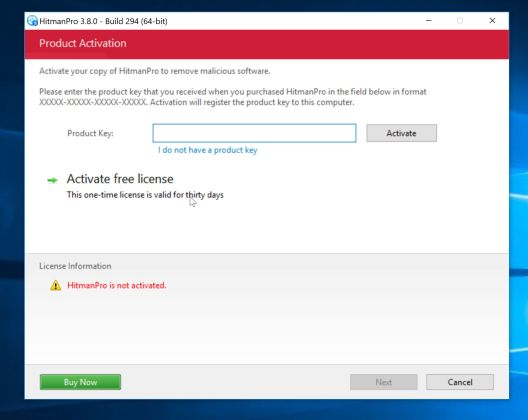
- Click on the “Activate free license” button to begin the free 30 days trial, and remove all the malicious files from your computer.
When the process is complete, you can close HitmanPro and continue with the rest of the instructions.
(OPTIONAL) STEP 5: Use Zemana AntiMalware Portable to remove ZeroAccess rootkit
This step should be performed only if your issues have not been solved by the previous steps.
- You can download Zemana AntiMalware Portable from the below link:
ZEMANA ANTIMALWARE PORTABLE DOWNLOAD LINK (This link will open a new web page from where you can download “Zemana AntiMalware Portable”) - Double-click on the file named “Zemana.AntiMalware.Portable” to perform a system scan with Zemana AntiMalware Free.
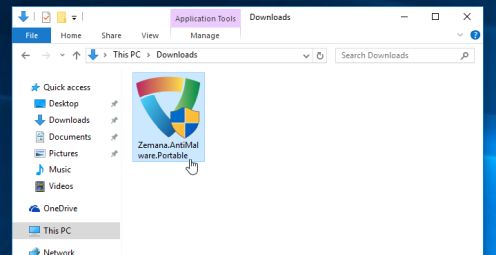
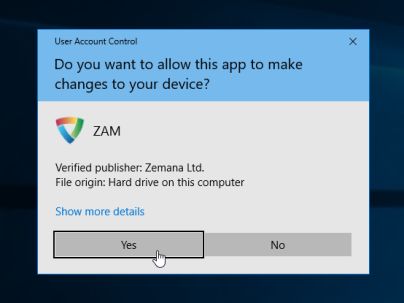
You may be presented with a User Account Control dialog asking you if you want to run this program. If this happens, you should click “Yes” to allow Zemana AntiMalware to run.
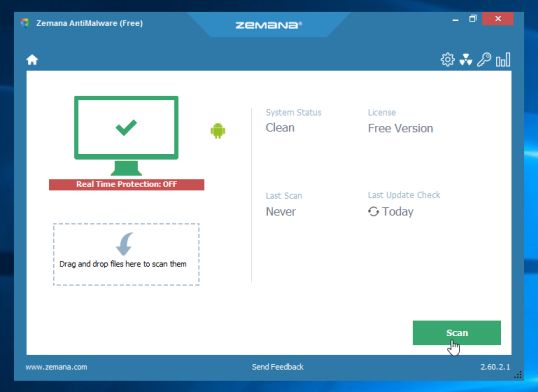
- When Zemana AntiMalware will start, click on the “Scan” button to perform a system scan.
- Zemana AntiMalware will now scan your computer for malicious programs. This process can take up to 10 minutes.
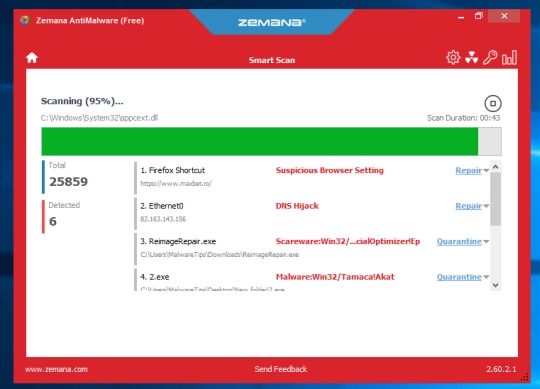
- When Zemana has finished finished scanning it will show a screen that displays any malware that has been detected. To remove all the malicious files, click on the “Next” button.
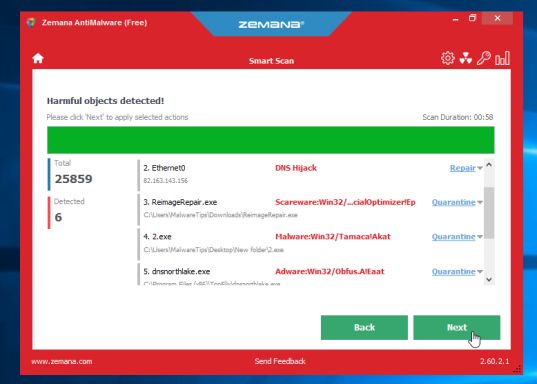
Zemana AntiMalware will now start to remove all the malicious programs from your computer.









Finally, a solution that works! After months of working with a black desktop screen at home and several tries to get rid of the hijackwares, this one did the trick.
I had tried Malwarebytes and Combofix before but that never completely worked. Hitman Pro also couldn’t get rid of everything, my desktop.ini files staid infected. But with Kaspersky TDSSKiller and that Roguekiller on top, everything seems to be clean now.
Thanks man!!!
I’ve been trying to remove this virus for MONTHS. Used combofix and OMG it worked!!! THANK YOU SO MUCH I CAN FINALLY REST IN PEACE and FINALLY not have to see the virus warnings!!!! THANK YOUUUUUUUUUUUUU
I used Rogue Killer and Win Patrol, as well as manually removing files, on one computer where zero access had not been too invasive yet, and the 2 of them seemed to get it all. However, another computer where zero access was really far advanced, I could do nothing at all. I put in another hard drive. When I put in the original drive and wiped it, then checked it with speed fan, the actual hard drive was damaged. Not sure if zero access did the damage, or the drive was already going bad.
The information sounds great, I hope it works. However when I was downloading it told me not to download Rogue Killier.exe because it had no certificates but I am going to research it and still may try it. A million thanks again, it was good info whether it works or not. My system is infected with zeroaccess rootkits and its driving me crazy trying to remove them I’m using my sons computer because mine won’t let me download anything much less let me open anything to fight it. Thanks again, I going to try it in the morning.
Thank you! I spend 5 hours trying to find something to get zeroaccess off of my computer. I think I love you, it worked and wasy easy to use and follow. I am eternally grateful, may the stars never falter on you.
Oh my god, it just worked. I had some .dll problem and windows update disfunction. ALL REPAIRED thanks alot really. (sry my english is bad im french canadian) ! I appreciate alot
—————————
Manual Fix of damaged firewall and Base Filtering services!
Download both the registry files
Windows firewall – Firewall
http://download.bleepingcomputer.com/win-services/7/MpsSvc.reg
Base filtering engine – BFE
http://download.bleepingcomputer.com/win-services/7/BFE.reg
Launch them,You should get a UAC prompt now
Click YES & Restart your PC
Now,Press Windows+ R key and type
regedit and click ok
go to
HKEY_LOCAL_MACHINE\SYSTEM\CurrentControlSet\services\BFE
Right click on it-permissions
Click on ADD and type
Everyone and click ok
Now Click on Everyone
Below you have permission for users
Select full control and click ok
Now,open RUN and type
services.msc and click ok
start base filtering engine service and then windows firewall service
If you still have this error
Windows could not start Windows Firewall on local Computer. See event log, if non-windows services contact vendor. Error code 5.
Download and launch this key,click YES
Shared access
http://download.bleepingcomputer.com/win-services/vista/SharedAccess.reg
give full control permission to this key similar to previous one
HKEY_LOCAL_MACHINE\SYSTEM\CurrentControlSet\services\SharedAccess
Right click on it -permissions
Click on Add and type
Everyone and select Full control
You should able to start firewall now
Good luck
Stelian,
I have followed your process. Tdsskiller ran & found 9 threats listed as medium risk. I put them In quarantine anyway. Combo fix ran as well. I attempted to run rogue killer. It started then I got a blue screen. Listed was stop: 0x0000008E …… dxec02.sys
Please help as this is driving me nuts!!
Thanks!
Can you please copy/paste the Combofix log?You should be able to find it in C:\Combofix.txt.
Also for now,skip the RogueKiller scan and do the other scans.
I replaced the file with a clean copy I found on the dell drivers disc. That fixed the problem and I was able to complete the procedure as you described. All is well! And I’m calm again.
Thanks
Thank you so much for the guide! I am not very literate when it comes to any technical stuff on the computer, but your guide was so easy to follow. Hope I never have to go through that again!
flawless guide!works great,+1 for you Stelian!
I tried this, but I keep seeing remnant of Trojan.0Access in the c:\recycler folder when i run Malwarebytes. Should I run through these instructions again, or try something else?
Hello Jm,
Empty your recycle bin,this should fix this problem.
Did you run all the other scans?
Hey Stelian,
thanks so much for the detailed removal instructions.
I was really hoping that the Windows Repair AIO program would finally repair my Desktop tab under the Display Properties. But it didn’t. I am missing the Web tab which isn’t a big deal. However, of the five tabs, the desktop tab is the only one that doesn’t work. It just shuts down the Properties Dialogue Box whenever I try to change the background picture.
I’ve hacked the registry before and gotten it to work. However, after doing all of this registry cleanup and repair work. I’d rather not create more work for myself if necessary. Any ideas?
-rcjr
Hello raul,
It seems like is a malfunction graphic driver…Can you please uninstall,restart and reinstall your display driver?
Waiting for your reply.
It’s still happening. The icons all keep moving to the upper left hand corner too. No matter how many times i move them around.
Thanks for your detailed set of instructions. I especially like the clean-up part. I tell my customers that there is NO one product that protects them from EVERY type of attack. They are running ESET NODE32 (purchased) and I think that ESET kept this thing from taking over their POS system for almost a year!
Thanks,
The Bot
After running Combo Fix and restarting it got stuck at the “Preparing Log Report”screen and I was unable to open any programs so I rebooted as someone on a forum suggested and now my programs ope fine but I’m wondering if I should rerun Combo Fix? I think the problem was that I didn’t keep my antivirus (Malwarebytes) from enabling protection upon startup so it messed with ComboFix. I’ve figured out how to fully disable protection now but I don’t know if I should rerun ComboFix or not? Also, Kaspersky TDSS Killer is not finding any objects even though RogueKiller is saying I am infected with ZeroAccess. I tried going to the page that RogueKiller links you to for instructions on removing ZeroAccess but it is in another language and there is no sound in the video. Any help would be appreciated.
Thanks
Hello John,
You can re-do another scan with Combofix,just make sure to disable all your antivirus products.
Next,run a scan with Kaspersky Virus Removal Tool
Click here to download the Kaspersky Virus Removal Tool.
2.Run a scan with Eset Online Scanner.
ESET Online Scanner Download Link (This link will automatically download ESET Online Scanner on your computer.)
Good luck!
Thanks SO much for this outstanding walkthrough! It’s thorough, it’s easy to follow, and best of all it works! This is by far the most complete and comprehensive rootkit removal protocol I’ve seen. This is truly a gift, Stelian… good karma to you!
Combofix can take quite awile to prepair the reports after running. You should give it a good 3-4 minutes to finish. Also, I always run Combofix in safemode with any realtime scanners disabled. Also, malwarebytes is NOT an anti-virus program. It is designed to run alongside your anti-virus software to catch many of the malware type infections most anti-virus software programs do not protect against.
WOW, i have literally tried everything, all the way down to the point of nearly re-formatting my system and starting from scratch. However after i ran into your site – low and behold – it is all 100% fixed. . . AND MORE. Thank you very much for your kindness and generosity to the computer world.
-MK
thanks Stelian!it was a nightmare but your guide did the job for me!
Go FC BARCELONA!!
Hello, I just discovery that I have that trojan in my computer.
But I ill erase all partition of my disk, create new partitions and format using ntfs. And then install a clean windows on it.
my question is, Ill this clean my computer? Or the trojan ill still be there? I ill erase all the partitions of the disk.
I cant found a tutorial about it, only about cleaning, but i prefer the formal, after all i dont have anythin interessing on the computer, i just play games on it.
can pls someone help?
Thx a lot
Yes,if you do a reformat you’ll get rid of this virus…. Good luck! :)
Thx so much for the quick tip. I ill format today, and after ill run the malware scanner.
And post here if it solved completly.
Btw i lost my mcaffe CD is the internet security suite 2012, i have to install the microsoft security essencials, is it anygood? or maybe i have to buy a new securiy suite?
Hello Igor,
After you format ,their is no need for you to run Combofix as this is a hard-core tool which needs to be used only in extreme cases…. You can scan with all the other software if you really like. :)
As far as your real time protection goes,I advise to avoid McAfee and Microsoft Security Essetianls because this two products aren’t that great when it comes to zero day malware prevention!
Below you can find some quick suggestions:
Free – Avast 7 Free version or COMODO Internet Security
Paid : Norton Internet Security 2012,Avast Internet Security 7,G-DATA Internet Security 2012 or ESET Smart Security 5.
Anyway ,you should really start a thread in our Security Configuration forum as you need to build a layered security config: http://malwaretips.com/Forum-Security-Configuration-Wizard
Also it would very good if you took the time and read this article that I’ve wrote: http://malwaretips.com/blogs/how-to-easily-avoid-pc-infections/ .. If you follow it,then we’ll never meet again in this conditions:)
Thx so much for your help.
I ill try the Comodo Internet Security the free version, and the malwarebits free too.
The browser that i use is chrome, can you pls add some addons to use?
I check the forum you said, the the information is to complicated for me, lol.
Thx again
Thanks for the idea to use RogueKiller, I tried them all , computer was clean for a week, find this website which had step by step and I said what the heck , I should try it and it found and removed it. Thanks a bunch!!
Thank you!! WORKED PERFECTLY!!
You are my hero! Had some problems with Combofix but in the end everything was ok!
Thanks Stelian!