

The ZeroAccess rootkit also known as Sirefef, is a malicious program that has as a primary motivation of to make money through pay per click advertising. It does this by downloading an application that conducts Web searches and clicks on the results. This is known as click fraud, which is a very lucrative business for malware creators.
The threat is also capable of downloading other threats on to the compromised computer, some of which may be Misleading Applications that display bogus information about threats found on the computer and scare the user into purchasing fake antivirus software to remove the bogus threats. It is also capable of downloading updates of itself to improve and/or fix functionality of the threat.
The ZeroAccess rootkit is distributed through several means. Some websites have been compromised, redirecting traffic to malicious websites that host Trojan.Zeroaccess and distribute it using the Blackhole Exploit Toolkit and the Bleeding Life Toolkit. This is the classic “drive-by download” scenario. It also updates itself through peer-to-peer networks, which makes it possible for the authors to improve it as well as potentially add new functionality.
If your antivirus is detecting any of the below files as malicious and it can’t remove them , then you’ll know that you have a ZeroAccess infection:
C:\Windows\assembly\GAC_32\Desktop.ini
C:\Windows\assembly\GAC_64\Desktop.ini
C:\WINDOWS\services.exe << INFECTED
C:\windows\Installer\{random number sequence}\U\80000032.@
C:\windows\Installer\{random number sequence}\U\80000064.@
C:\windows\Installer\{random number sequence}\L\00000004.@
C:\windows\Installer\{random number sequence}\U\80000000.@
C:\windows\Installer\{random number sequence}\U\000000cb.@
How to remove ZeroAccess rootkit virus (Virus Removal Guide)
Please perform all the steps in the correct order. If you have any questions or doubt at any point, STOP and ask for our assistance.
-
To remove ZeroAccess rootkit virus, follow these steps:
- STEP 1: Use ESETSirfefCleaner tool to remove ZeroAccess rootkit
- STEP 2: Use RKill to stop the ZeroAccess rootkit malicious processes
- STEP 3: Scan your computer with Malwarebytes Anti-Malware to remove ZeroAccess rootkit
- STEP 4: Double-check for malicious programs with HitmanPro
- (OPTIONAL) STEP 5: Use Zemana AntiMalware Portable to remove ZeroAccess rootkit
STEP 1: Use ESETSirfefCleaner tool to remove ZeroAccess rootkit
In this first step, we will use the ESETSirefefCleaner tool to remove the ZeroAccess rootkit from your computer.
- You can download ESETSirefefCleaner from the below link.
ESETSIREFEFCLEANER DOWNLOAD LINK(This link will automatically download ESETSirfefCleaner on your computer.)Unable to download “ESETSirefefCleaner.exe contained a virus and was deleted”.
More recent variants of Sirefef might prevent you from downloading this removal tool. If you cannot download the tool, follow the steps below:- Click Start → Computer → Local Disk (C:) → Program Files.
- Right-click the Windows Defender folder and select Rename from the context menu.
- Add a unique variation to the filename, such as .old (for example, Windows Defender.old).
- Click the link above to download the ESETSirefefCleaner tool.When the download is complete, make sure to rename the Windows Defender folder back to its original filename before running the ESET SirefefCleaner tool.
- Double-click on ESETSirefefCleaner.exe to start this utility. You may be presented with an User Account Control pop-up asking if you want to allow this to make changes to your device. If this happens, you should click “Yes” to continue.
- The message “Win32/Sirefef.EV found in your system” will be displayed if an infection is found. To remove ZeroAccess rootkit from your computer, press the Y key on your keyboard
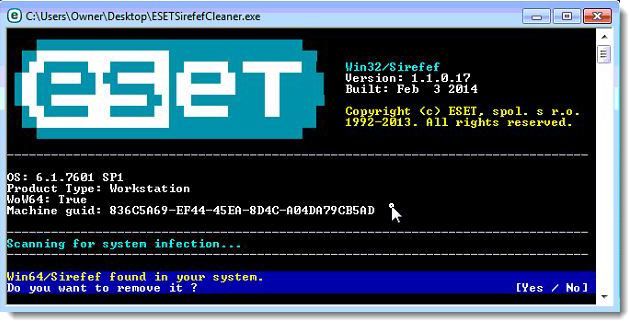
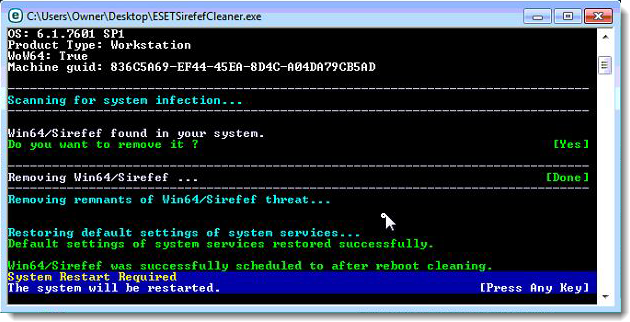
- Once the tool has run, you will be prompted to restore system services after you restart your computer. Press Y on your keyboard to restore system services and restart your computer.
- Once your computer has restarted, if you are presented with a security notification click Yes or Allow. and then continue wit the next step.
STEP 2: Use RKill to stop the ZeroAccess rootkit malicious processes
RKill is a program that will attempt to terminate all malicious processes associated with ZeroAccess rootkit, so that we will be able to perform the next step without being interrupted by this malicious software.
- You can download Rkill from the below link.
RKILL DOWNLOAD LINK (his link will open a new web page from where you can download “RKill”) - Double click on Rkill program to stop the malicious programs from running.
- RKill will now start working in the background, please be patient while this utiltiy looks for malicious process and tries to end them.
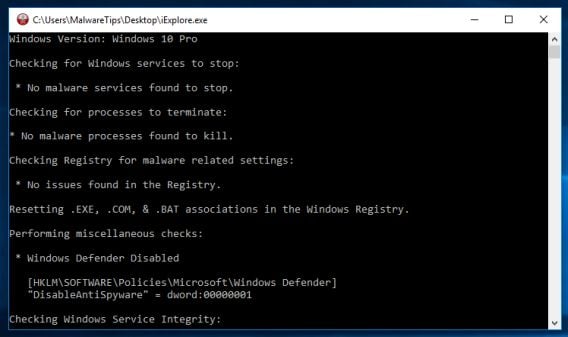
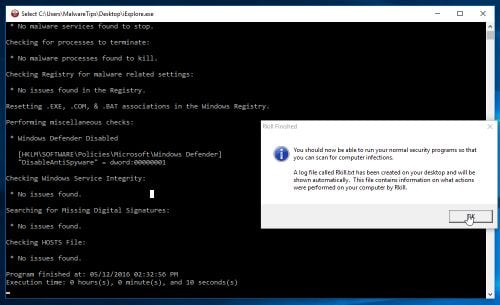
- When the Rkill tool has completed its task, it will generate a log. Do not reboot your computer after running RKill as the malware programs will start again.
STEP 3: Scan your computer with Malwarebytes Anti-Malware to remove ZeroAccess rootkit
Malwarebytes Anti-Malware is a powerful on-demand scanner which should remove the ZeroAccess rootkit virus from your machine. It is important to note that Malwarebytes Anti-Malware will run alongside antivirus software without conflicts.
- You can download download Malwarebytes Anti-Malware from the below link.
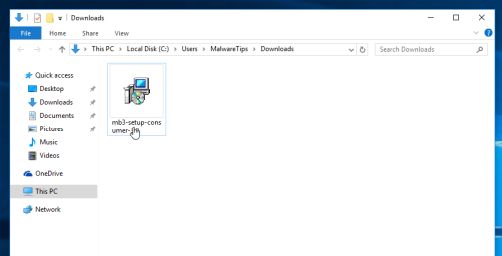
MALWAREBYTES ANTI-MALWARE DOWNLOAD LINK (This link open a new page from where you can download “Malwarebytes Anti-Malware”) - When Malwarebytes has finished downloading, double-click on the “mb3-setup-consumer” file to install Malwarebytes Anti-Malware on your computer.
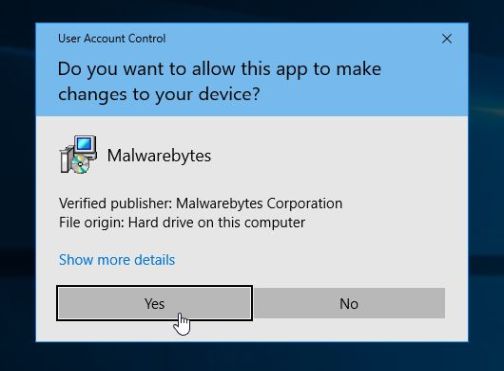
You may be presented with an User Account Control pop-up asking if you want to allow Malwarebytes to make changes to your device. If this happens, you should click “Yes” to continue with the installation.
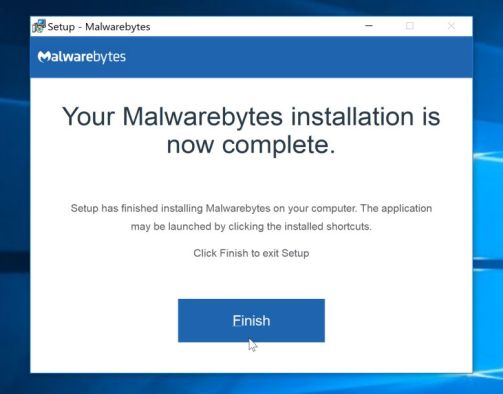
- When the Malwarebytes installation begins, you will see the Malwarebytes Setup Wizard which will guide you through the installation process.
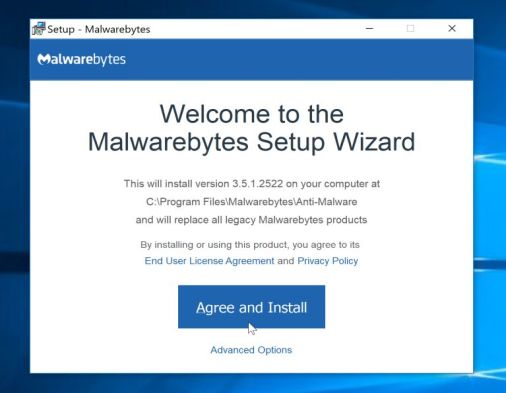
To install Malwarebytes Anti-Malware on your machine, keep following the prompts by clicking the “Next” button.
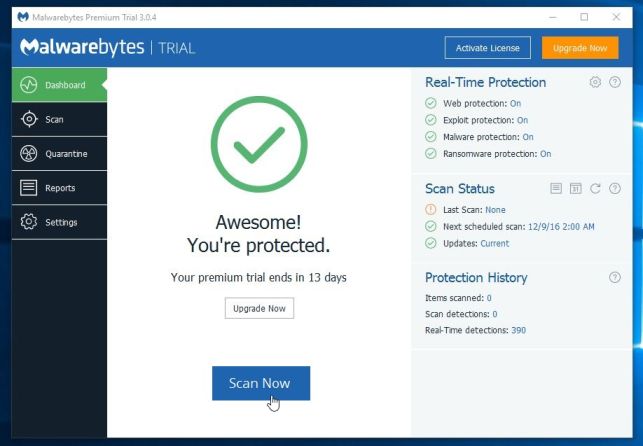
- Once installed, Malwarebytes will automatically start and update the antivirus database. To start a system scan you can click on the “Scan Now” button.
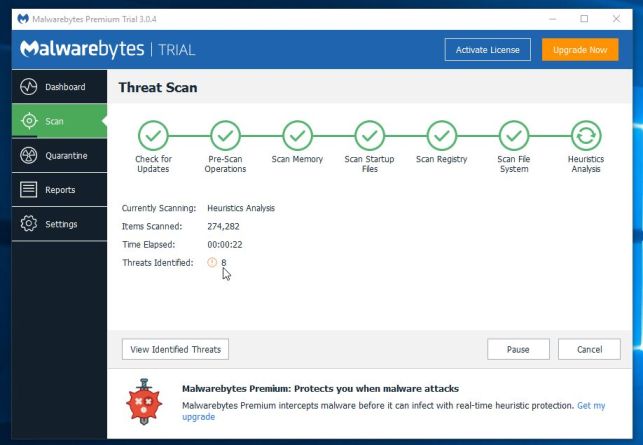
- Malwarebytes Anti-Malware will now start scanning your computer for malicious programs.
This process can take a few minutes, so we suggest you do something else and periodically check on the status of the scan to see when it is finished.
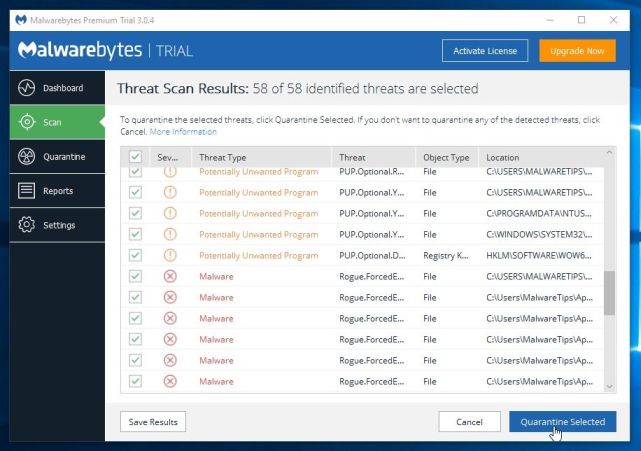
- When the scan has completed, you will be presented with a screen showing the malware infections that Malwarebytes Anti-Malware has detected.
To remove the malicious programs that Malwarebytes has found, click on the “Quarantine Selected” button.
- Malwarebytes Anti-Malware will now quarantine all the malicious files and registry keys that it has found.
To complete the malware removal process, Malwarebytes may ask you to restart your computer.
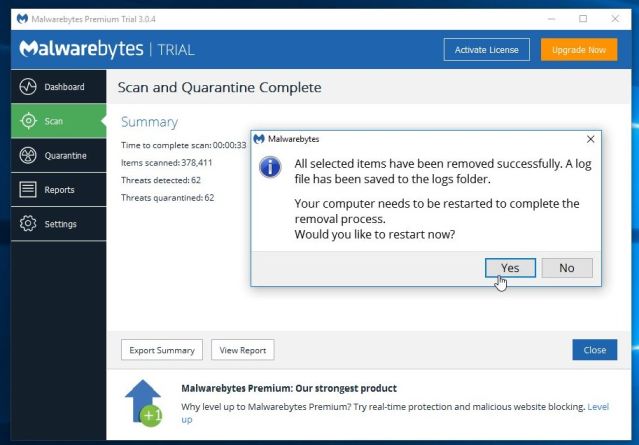
When the malware removal process is complete, you can close Malwarebytes Anti-Malware and continue with the rest of the instructions.
STEP 4: Double-check for malicious programs with HitmanPro
HitmanPro can find and remove malware, adware, bots, and other threats that even the best antivirus suite can oftentimes miss. HitmanPro is designed to run alongside your antivirus suite, firewall, and other security tools.
- You can download HitmanPro from the below link:
HITMANPRO DOWNLOAD LINK (This link will open a new web page from where you can download “HitmanPro”) - When HitmanPro has finished downloading, double-click on the “hitmanpro” file to install this program on your computer.
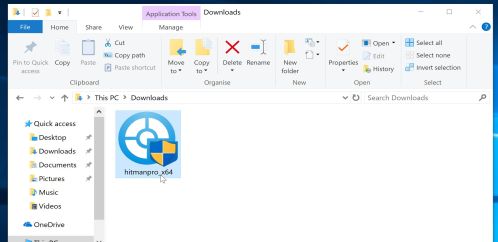
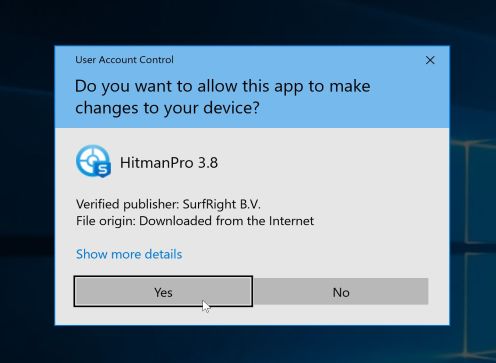
You may be presented with an User Account Control pop-up asking if you want to allow HitmanPro to make changes to your device. If this happens, you should click “Yes” to continue with the installation.
- When the program starts you will be presented with the start screen as shown below. Now click on the Next button to continue with the scan process.
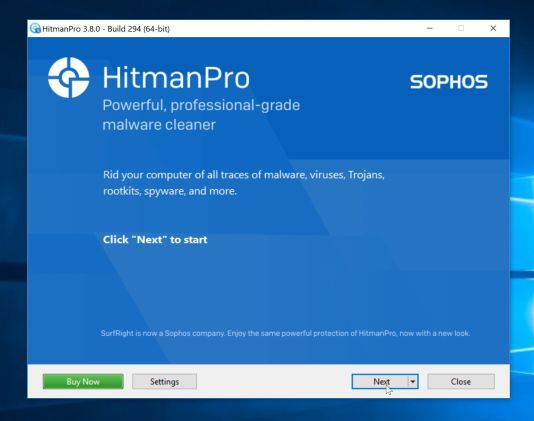
- HitmanPro will now begin to scan your computer for malware.
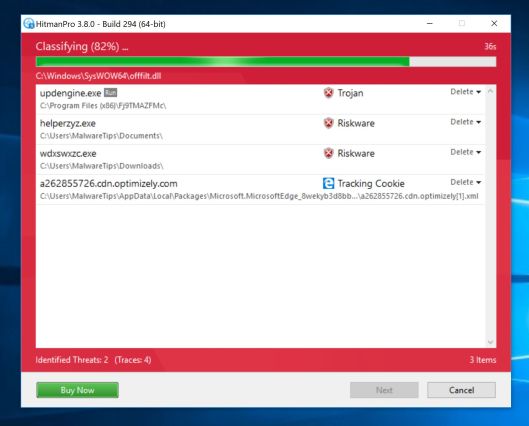
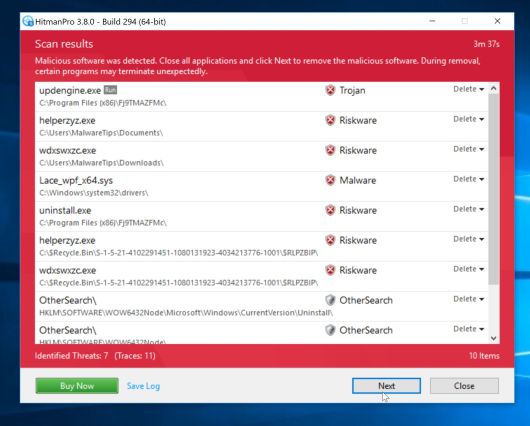
- When it has finished it will display a list of all the malware that the program found as shown in the image below. Click on the “Next” button, to remove malware.
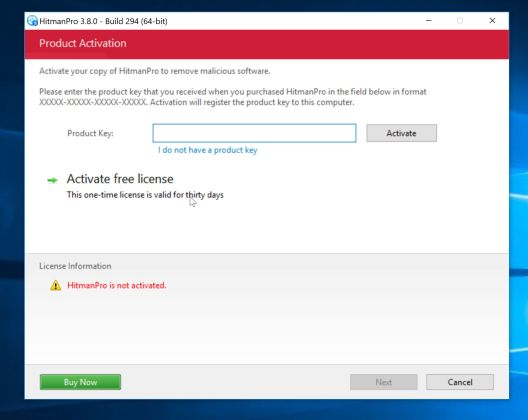
- Click on the “Activate free license” button to begin the free 30 days trial, and remove all the malicious files from your computer.
When the process is complete, you can close HitmanPro and continue with the rest of the instructions.
(OPTIONAL) STEP 5: Use Zemana AntiMalware Portable to remove ZeroAccess rootkit
This step should be performed only if your issues have not been solved by the previous steps.
- You can download Zemana AntiMalware Portable from the below link:
ZEMANA ANTIMALWARE PORTABLE DOWNLOAD LINK (This link will open a new web page from where you can download “Zemana AntiMalware Portable”) - Double-click on the file named “Zemana.AntiMalware.Portable” to perform a system scan with Zemana AntiMalware Free.
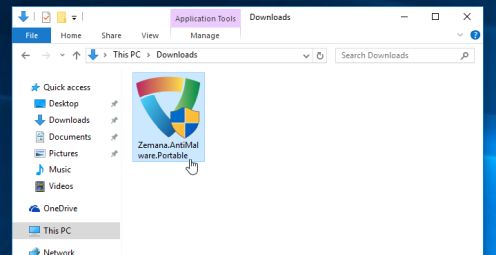
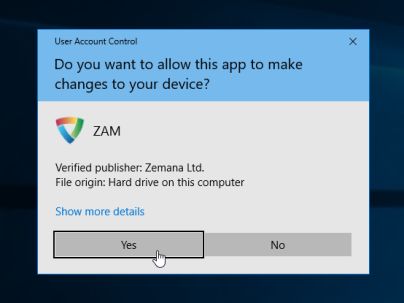
You may be presented with a User Account Control dialog asking you if you want to run this program. If this happens, you should click “Yes” to allow Zemana AntiMalware to run.
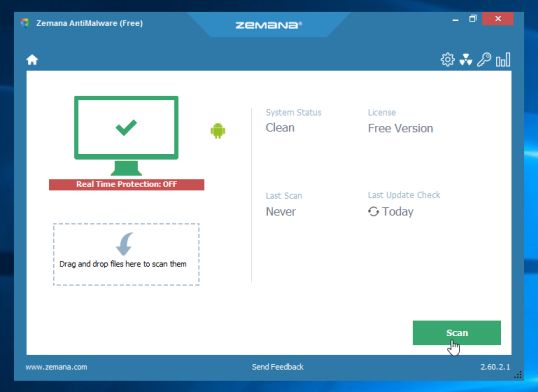
- When Zemana AntiMalware will start, click on the “Scan” button to perform a system scan.
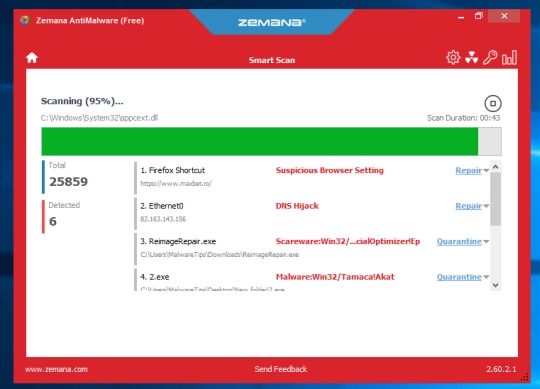
- Zemana AntiMalware will now scan your computer for malicious programs. This process can take up to 10 minutes.
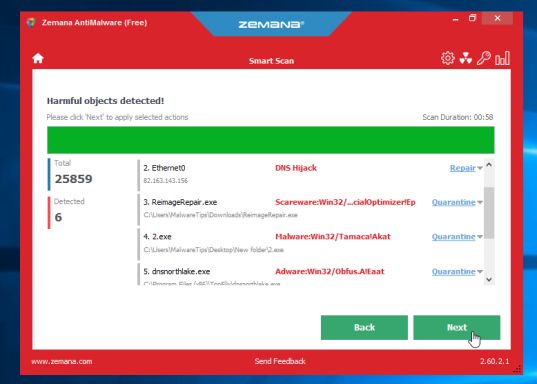
- When Zemana has finished finished scanning it will show a screen that displays any malware that has been detected. To remove all the malicious files, click on the “Next” button.
Zemana AntiMalware will now start to remove all the malicious programs from your computer.









You are awesome dude, I use your guides at my work all the time. I use the Zeus removal guide as well just as a good way to remove general viruses. Used that guide to remove a rouge antivirus! Hope to see more from you soon.
Thank you!! Worked Perfectly!
thank you Stelian, i tried suggestions from other sites but they weren’t comprehensive. i just tried your steps yesterday and it did the job. many thanks.
Can’t download tdsskiller: “:This program contained a virus and was deleted”
Hello,
Do you have any other browser installed on this computer, other than Internet Explorer? If yes, then you can use it to download these tools.
Alternatively, you can download these tools onto a USB stick and transfer them to the infected computer.
Also by any chance do you have AVG installed on this machine? If yes, most like it was compromised by this rootkit, and now it’s blocking your downloads, so you will need to uninstall it.
Please see this guide: http://malwaretips.com/blogs/file-contained-a-virus-and-was-deleted-removal/
great tools great advice, cleaned zeroaccess easy, had to run the first tool from safe mode to get back into my account but all is good now.
This has been a tremendous help, than you!
Avira always detecs Sirefef but Kaspersky TDSSKiller does not find anything.. ?
Help please.
Hello Susane,
Please go ahead with STEP 2. Complete all the guide, then get back to us!:D
Hello,
Did you perform the other steps from this guide?
Thanks! Completely did the job for me!
But….I still have a question!
Im trying to uninstall Kaspersky and RogueKiller…..Weird, I cant find them with control panel – programs and features. They dont appear. How can I delete them then?
Hello!
They are portable application, to remove them, just right click on their icons and select “Delete”
Stay safe!
special thahk brotha
The first time I ran the eset online scanner it found 9 issues, 2 of which were trojans. I wasn’t sure if eset removed them or if it just detected them. I am running it again…it took 2 hours and 44 mins. first time around, but so far so good at more than 50% done. Malwarebytes coming up clean, my regular anti virus not finding anything, I think this did the trick!!!!!! YAY!!!!! You Rock :)
Eset has found the Win32/Toolbar.Zugo application, I’m running Eset in paralell to Malwarebytes and Mb is not finding anything so far(216580 files scanned), Eset has found 6 files so far(167368 files scanned)… I just need to cure My registry of the toolbar and so all I have been able to do is to apply the 3 Reg files in safe mode, mad props to the guy who left those. Do You or can someone tell Me why RogueKiller says DRV and is in RED and not GREEN? I’m staying in safemode until I’ve killed this bugger, in any case HELP!!!! Please.
Hello Victor,
What security product are you using? Can you temporarily disable your antivirus while running this tool.
I can’t get RogueKiller to work even in Safe Mode with Networking under Windows 7 Pro x64, dang rootkit, keeps on coming back, 1st 2 small beeps then later bigger louder beeps, I tried downloading with Firefox 20.0a1 and now with IE9 in Safe Mode, I’ve cleaned the MBR and the bootsector in the recovery console, I’ve used almost all the other programs here, but RogueKiller keeps quiting saying it has a problem and can not continue…. This is My 2nd attempt at posting, I see My 1st attempt is not visible at all, I’ve seen the StartNow Toolbar is involved here on My PC, I’ve seen that toolbar in the registry, I’d rather not have to install an OS on a 250GB hdd, backup My files and wipe this 500GB hdd of everything.
You saved my life dude, thank you!
The infection has clobbered my browser and shut down communications over the internet. I hope to use Spotmau’s toolkit booted from CD to provide access to the internet which will allow me to download your list of rootkit and virus killers. Do you see any problem with an alternate boot via CD with these tools? Thanks in advance.
Hello Tally,
Yes,you can use a bootable CD to fix your computer!Is good to know that your not able to connect to internet because this ZA rootkit has compromised your firewall settings!
You can temporarily disable you firewall and see if you can connect to the Internet!
Good luck!