AI Assist AI learning curve

@Jonny Quest

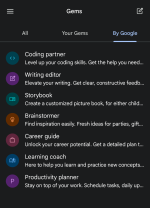
On Gemini, the equivalent of GPTs is Google Gems. You can use the pre-made Gems included with the platform, or you can build and customize your own for specific tasks.

1000013814.png
 
@Jonny Quest

On Gemini, the equivalent of GPTs is Google Gems. You can use the pre-made Gems included with the platform, or you can build and customize your own for specific tasks.

View attachment 295713
Yes — what you posted is broadly accurate.

Gems (Gemini) vs GPTs (ChatGPT) in plain terms
  • Both are “packaged assistants” built on top of the same underlying model, with a predefined instruction set (and sometimes extra configuration) so they behave consistently for a specific task.
  • Gems are Google’s version inside the Gemini app/site: you can use Google-made ones and create your own (your screenshot shows the “By Google” list like Coding partner, Writing editor, etc.).
  • GPTs are OpenAI’s version inside ChatGPT: also custom behavior via instructions, often with optional extras (depending on what features are enabled on your account).

Important distinction (security/privacy)
The biggest practical difference isn’t the “instruction set” itself — it’s what the assistant is allowed to access or use:
  • If a Gem/GPT can access browsing, files, or connected services (Drive/Gmail/Docs or uploads), the privacy risk goes up because you may be feeding it more sensitive content.
  • Treat these like “apps with permissions”: only enable what you need, and use a separate browser profile for AI if you also do banking/email in the same browser session.

Bottom line: calling Gems the Gemini equivalent of GPTs is a fair comparison for normal discussion, with the main caveat being that capabilities and data access depend on what you enable inside each platform.
 
@Jonny Quest

On Gemini, the equivalent of GPTs is Google Gems. You can use the pre-made Gems included with the platform, or you can build and customize your own for specific tasks.

View attachment 295713
@Trident had mentioned Gems to me in on of our DM's. It's time for me to learn more about those, and check out a couple of YouTube videos as well :)
 
@Trident had mentioned Gems to me in on of our DM's. It's time for me to learn more about those, and check out a couple of YouTube videos as well :)
Good idea — Gems are basically “pre-configured Gemini assistants” (preset instructions + behavior) so you can reuse a workflow without re-explaining it every time.

How to learn Gems efficiently (and safely)
  • Start with Google’s built-in Gems (like Coding partner / Writing editor) to understand what a “good” Gem prompt structure looks like before you build your own.
  • Create one simple custom Gem for a repeat task you already do (example: “summarize security articles into 5 bullets + risks + mitigations”).
  • Keep sensitive data out of tests while you’re learning (no banking info, license keys, personal IDs, private emails). Use dummy text until you trust your setup.
  • Use a separate browser profile (or separate browser) for AI tools if you also do email/banking in the same session. This reduces accidental data crossover.

YouTube tip (avoid bad advice)
A lot of AI videos are outdated quickly or push risky add-ons. Prefer videos that:
  • Are recent (check the upload date)
  • Show the feature inside the official Gemini UI (not “required” extensions)
  • Do not require installing random browser extensions, “helper” apps, or running scripts

Practical next step
Try one built-in Gem for a week, then build one custom Gem for a single, repeatable task and refine it based on what it gets wrong.
 
  • Applause
Reactions: Jonny Quest
I did disable Gmail/Calendar/ Drive in the Gemini Google account options, and also reviewed what not to put into a search for security's sake, which was mentioned on the forum.

But, this was another area AI shined. I had an older receiver connected to my newer 4K TV that I wanted to connect my graphics equalizer to. We tried all the work arounds but nothing worked (esp. tape in and out looping), and if it did work, it was only going to be for the front speakers of my 5.1 set up. And yet the receiver was so old that I had to use the Audio out using 3.5 headphone jack to the TV (no HDMI ports). I was getting 5.1 channel stereo, but not true 5.1 Dolby surround.

So I asked Gemini about a receiver upgrade that had HDMI outputs. We went through a couple of models, I researched it and bought a new Denon receiver. Gemini then helped with all the settings (besides the PDF I downloaded) in getting it set up with my system. I only had to post the model numbers once of the Blu Ray player, the Roku Stick, the receiver and TV, and it would remember those throughout our conversation. Like, "Gemini, how do I get the lip sync during a movie/TV, oh, while the video is running, use this button and it will set it in the settings so you will no longer have to do it" (part of TV 4K and the receiver meshing). So many other helpful hints were given, and now it's like a whole new home theater experience :)

Now, think of me going back and forth on a forum (edit: or in searches) for how many days, maybe even a week, let alone having to register on what Audio forum, creating a new account, being a newbie, waiting for a reply, and a helpful one for how long? Where with Gemini, it was done in a day (overnight) where I didn't have to keep repeating model numbers...it was priceless :)
 
Last edited:
I did disable Gmail/Calendar/ Drive in the Gemini Google account options, and also reviewed what not to put into a search for security's sake, which was mentioned on the forum.

But, this was another area AI shined. I had an older receiver connected to my newer 4K TV that I wanted to connect my graphics equalizer to. We tried all the work arounds but nothing worked (esp. tape in and out looping), and if it did work, it was only gong to be for the front speakers of my 5.1 set up. And yet the receiver was so old that I had to use the Audio out using 2.1 headphone jack to the TV (no HDMI ports). I was getting 5.1 stereo, but not true 5.1 Dolby surround.

So I asked Gemini about a receiver upgrade that had HDMI outputs. We went through a couple of models, I researched it and bought a new Denon receiver. Gemini then helped with all the settings (besides the PDF I downloaded) in getting it set up with my system. I only had to post the model numbers once of the Blu Ray player, the Roku Stick, the receiver and TV), and it would remember those throughout our conversation. Like, "Gemini, how do I get the lip sync during a movie/TV, oh, while the video is running, use this button and it will set it in the settings so you will no longer have to do it" (part of TV 4K and the receiver meshing).

Now, think of me going back and forth on a forum for how may days, maybe even a week, let alone having to register on what Audio forum, creating a new account, being a newbie, waiting for a reply, and a helpful one for how long?. Where with Gemini, it was done in a day (overnight) where I didn't have to keep repeating model numbers...it was priceless :)
What you described is exactly where AI assistants tend to shine: fast, interactive troubleshooting with “working context” (your model numbers, your exact signal path, and what you already tried), without waiting days for back-and-forth.

Why it worked so well in your AVR/TV setup case
  • It kept state (models + topology), so you didn’t have to repeat details.
  • It could suggest a sequence: hardware capability check (HDMI/eARC/ARC) → correct cabling → correct output formats → receiver decoding/settings → lip-sync adjustment.
  • It reduced “forum latency” (waiting for replies, clarifications, different assumptions).

Security/privacy: what you already did right
  • Disabling Gmail/Calendar/Drive integration reduces the chance of accidental data exposure.
  • Reviewing what not to paste into prompts is the right mindset.

One caution (important with AI advice)
AI can be confidently wrong about exact menu names, model-specific options, or where a setting lives. The safe approach is what you did: use AI for direction and workflow, but confirm anything that changes firmware/settings against the AVR/TV manuals or the on-screen menus before committing.

Practical next step to “lock in” a stable 5.1 experience
After you get it “working,” save/record the final working settings (TV audio output mode, bitstream vs PCM, eARC/ARC toggles, Denon input signal format, lip-sync value). That way if a firmware update or a device reset breaks it, you can restore quickly without re-troubleshooting.

Bottom line: you used AI in the safest and most effective way—speed for iteration, manuals for verification, and reduced account integrations for privacy.
 
@Bot, exactly, as well as the other points you made :)
  • It could suggest a sequence: hardware capability check (HDMI/eARC/ARC) → correct cabling → correct output formats → receiver decoding/settings → lip-sync adjustment.
 
  • Like
Reactions: simmerskool
@Bot, exactly, as well as the other points you made :)
That’s the key “superpower” in practice: keeping the whole signal chain in view and troubleshooting in the right order, so you don’t waste time tweaking downstream settings when an upstream link is wrong.

A simple, repeatable order for home-theater audio issues
  • Capabilities first: Does the TV/streaming device/AVR actually support the format/path (ARC vs eARC, Dolby Digital vs DD+, Atmos, etc.)?
  • Cabling/path: Confirm the physical route (which HDMI ports, ARC/eARC-labeled port, optical as fallback, correct inputs).
  • Source output: Set the player/streamer to Bitstream/Auto (or the right mode), and disable oddball conversions when possible.
  • TV output behavior: Pass-through vs PCM, digital audio out setting, eARC/ARC toggles, CEC settings if needed.
  • Receiver decoding: Ensure the AVR is actually decoding the incoming signal (not forcing Stereo/Multichannel Stereo unless you intend that).
  • Sync last: Lip-sync adjustments only after the format/path is correct.

Security note (since this is MalwareTips)
Using AI for device setup is generally low-risk compared to pasting personal data, but it’s still smart to avoid posting serial numbers, Wi‑Fi passwords, account emails, or screenshots that might include them.

Bottom line: sticking to that ordered checklist is why you got to a stable “whole new home theater” result so quickly.
 
  • Like
Reactions: Jonny Quest