New Update Announcing Windows 11 Insider Preview builds [Mega-Thread]

Hello Windows Insiders, today we are releasing Windows 11 Insider Preview Build 26220.5770 (KB5064093) to the Dev Channel. Please note the major build number has incremented to Build 26220 with this flight. This build number will only be used for builds flighted to the Dev Channel. Windows 11, version 25H2 will be released as Build 26200 and is now available in the Release Preview Channel. Changes in Dev Channel builds and updates are documented in two buckets: new features, improvements, and fixes that are being gradually rolled out for Insiders who have turned on the toggle to get the latest updates as they are available (via Settings > Windows Update*) and then new features, improvements, and fixes rolling out to everyone in the Dev Channel. For more information, see the Reminders section at the bottom of this blog post.
New Copilot+ PC experiences

New Microsoft 365 text action in Click to Do

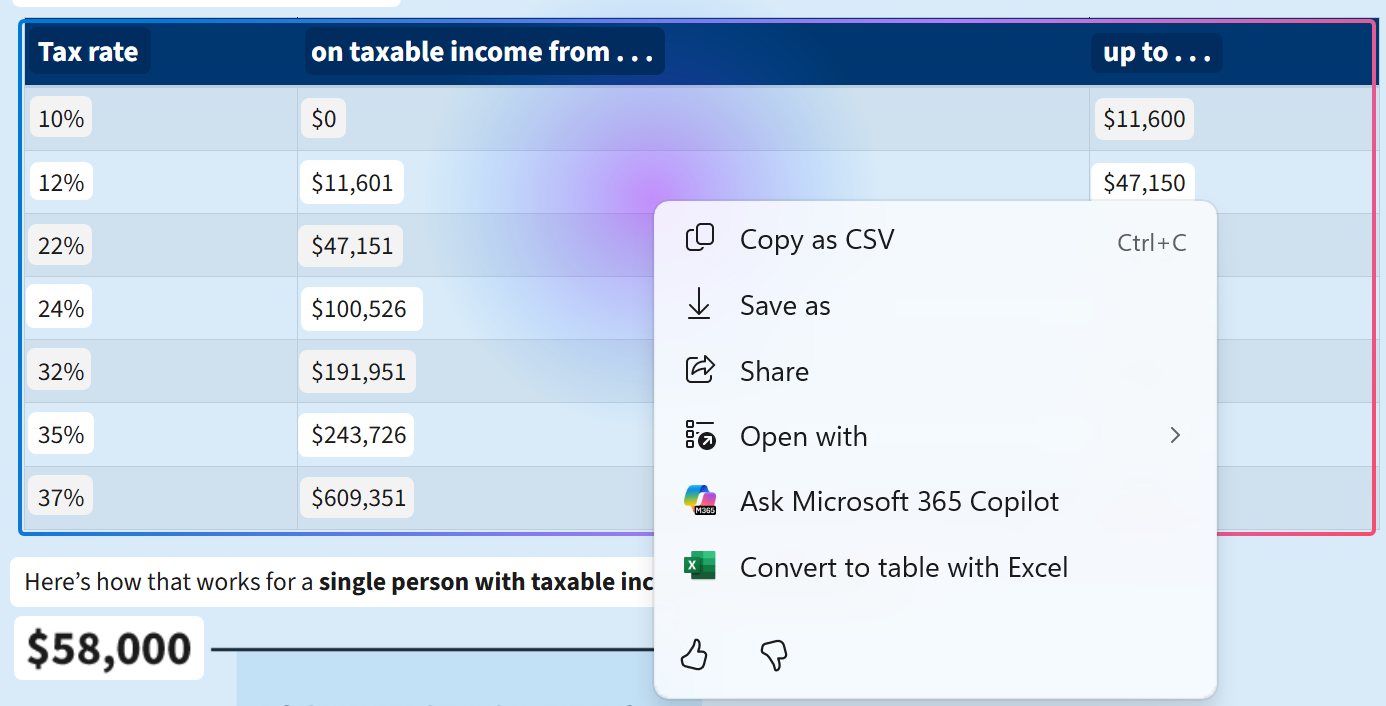
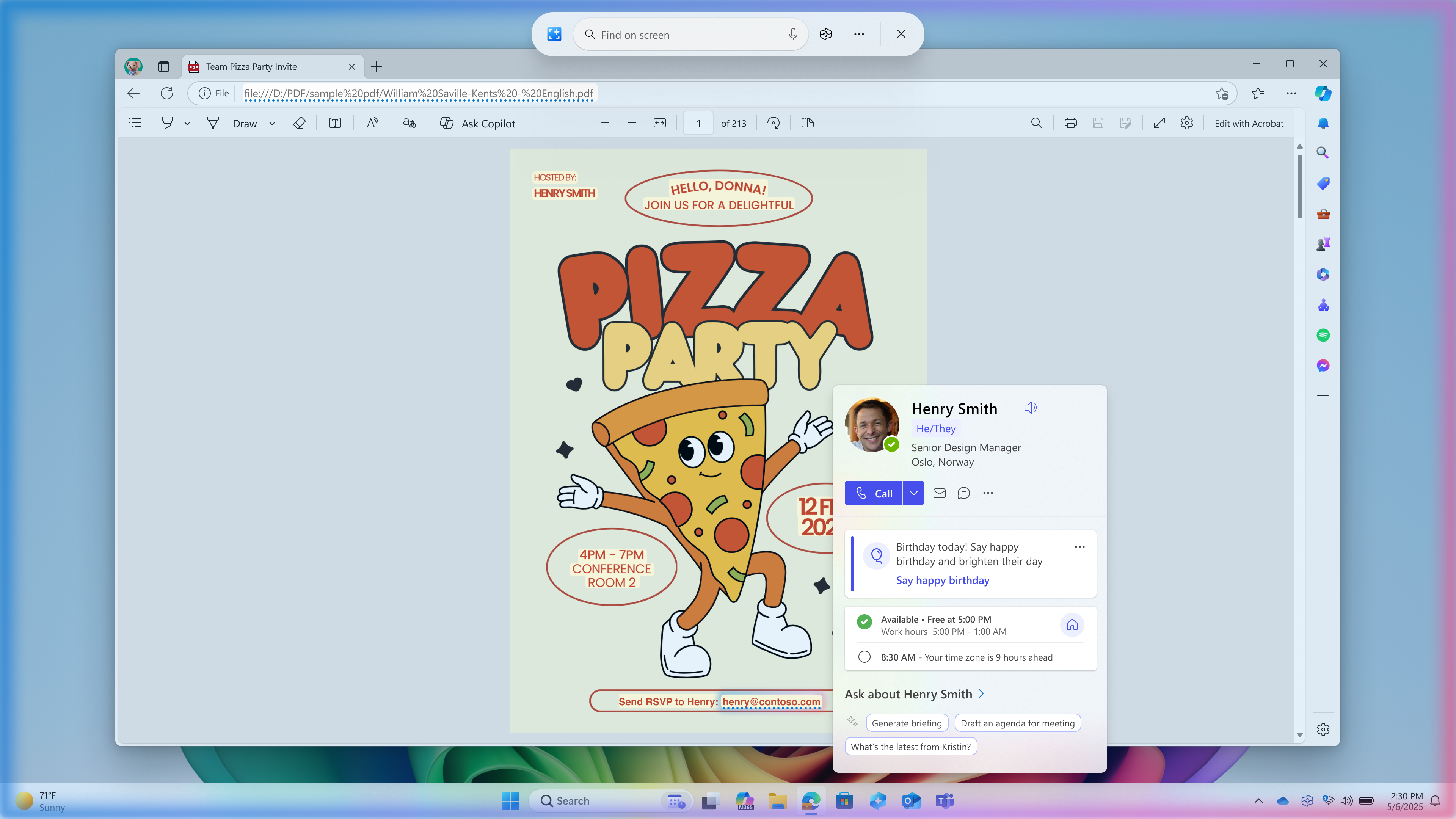
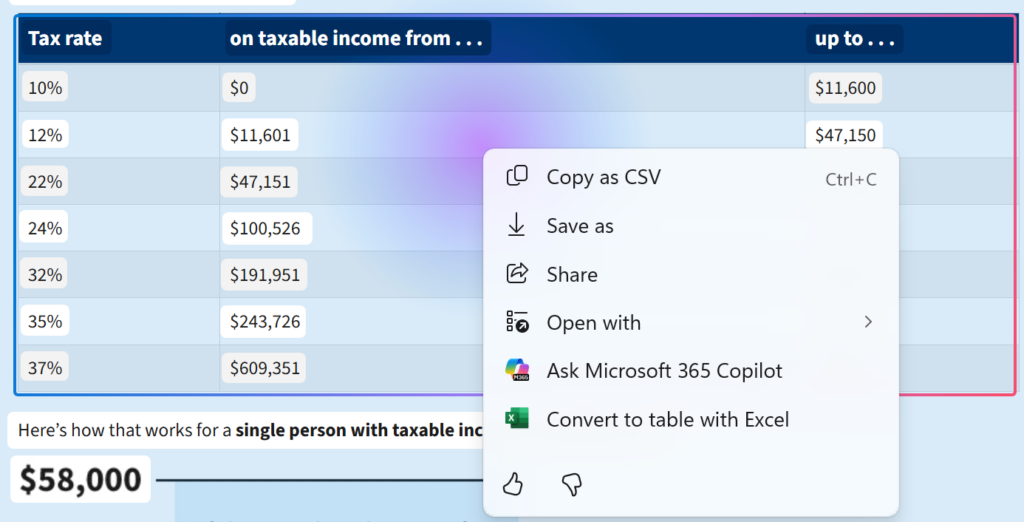
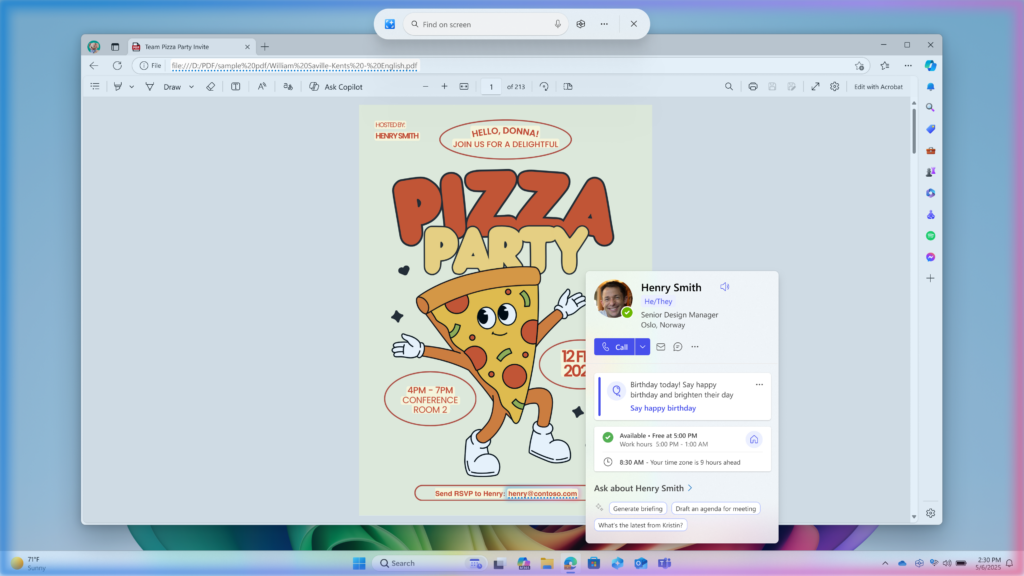
We are beginning to roll out a new text action in Click to Do! Convert to table with Excel: Click to Do now recognizes tables so you can work smarter and faster with information you encounter everyday – whether it’s a table you see shared over Teams in a meeting, a school calendar from a photo, or any other document with an embedded table. With tables in Click to Do, you can now highlight any simple table and immediately send to Excel, copy or share it – all without retyping a single cell. See a table in any application and you can press Win + Click to invoke Click to Do, or Win + Q or right swipe and tap to select the table. Once selected, you’ll see the actions you can take like Convert to table with Excel. Just click, capture and continue. [caption id="attachment_178195" align="alignnone" width="520"]Click to Do with table highlighted and action to convert to table with Excel shown in the Click to Do menu. Click to Do with table highlighted and action to convert to table with Excel shown in the Click to Do menu.[/caption] This is an early preview of this action in Click to Do and table detection may sometimes not work correctly. However, table detection quality will improve over time in subsequent flights to the Dev and Beta Channels. Tables in Click to Do are rolling out to Windows Insiders on Snapdragon-powered Copilot+ PCs, with support for AMD and Intel-powered Copilot+ PCs coming soon. You’ll need the latest Microsoft Excel application installed on your PC to see Convert to table with Excel and a Microsoft 365 Subscription. This change is not yet rolling out to Windows Insiders in the EEA (European Economic Area). View Microsoft 365 Profile Cards: Rather than opening Microsoft Outlook or Teams or anywhere to look up someone’s profile, get straight to their info about them thanks to the integration of Live Persona Cards for from Microsoft 365 in Click to Do. See how to contact them or past collaborations without leaving your flow. This new action is available on emails seen in Click to Do. Press Win + Click right on an email and, if it’s part of your work or school’s organization, the profile card is displayed. [caption id="attachment_178197" align="alignnone" width="1024"]Click to Do showing a Microsoft 365 profile card after clicking on an email address. Click to Do showing a Microsoft 365 profile card after clicking on an email address.[/caption] You must be signed in to your PC with a work or school account (Entra ID) and have a Microsoft 365 subscription. This change is not yet rolling out to Windows Insiders in the EEA (European Economic Area). You can learn more about using Click to Do here. FEEDBACK: Please file feedback in Feedback Hub (WIN + F) under Desktop Environment > Click to Do.
New features gradually being rolled out to the Dev Channel with toggle on*

Get on-screen Braille and text output with Braille viewer

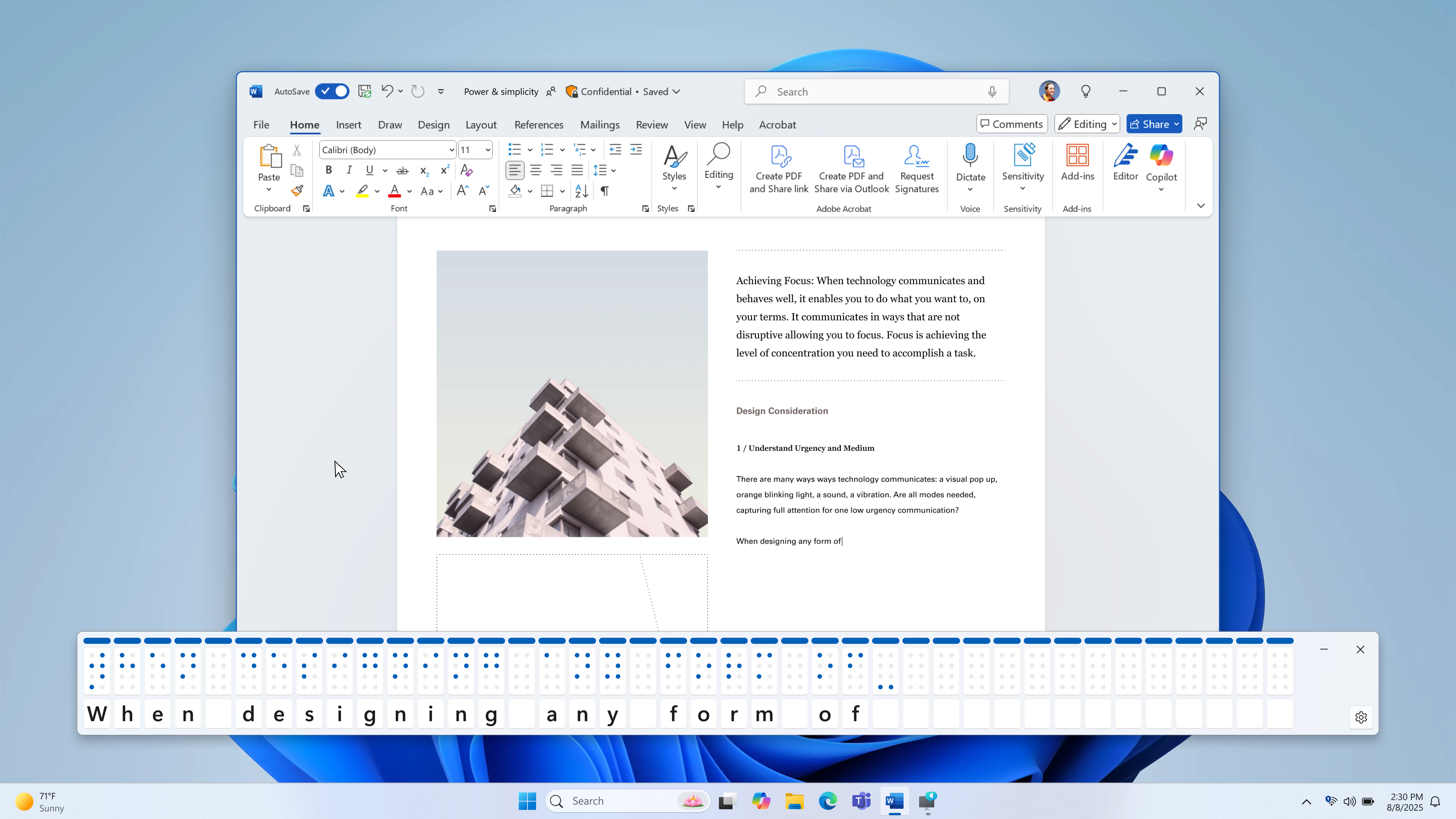
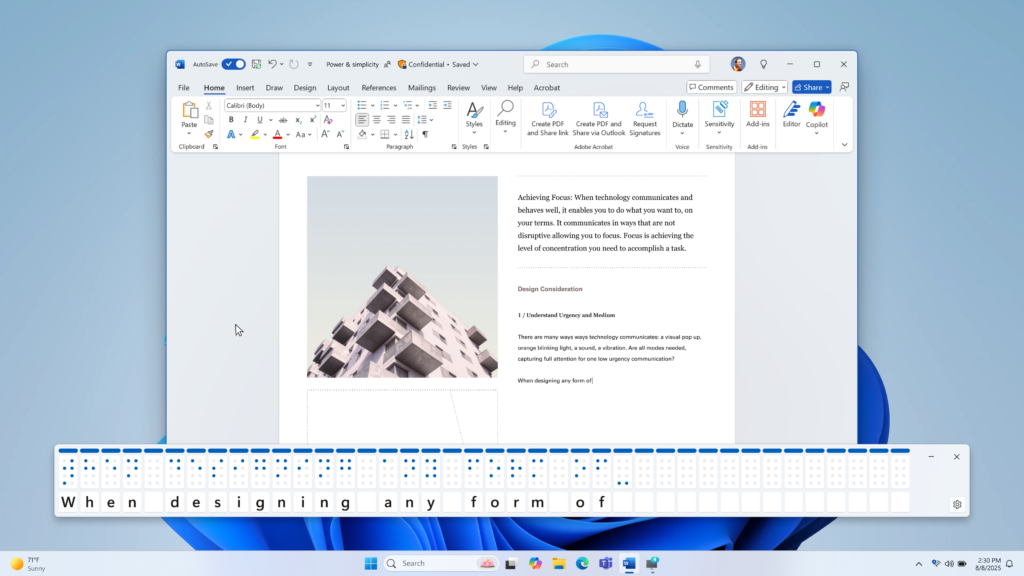
We are adding a new feature in Narrator called Braille viewer that allows you to see on-screen textual and Braille representation of the output shown on a refreshable Braille display. This is a helpful tool for sighted teachers, AT trainers, developers, and testers who do not read Braille or who have limited to no access to a Braille display. Teachers of Students with Visual Impairments (TVIs) can use Braille viewer to help improve student’s Braille skills or follow along in classroom as the teachers can visually see the textual and Braille representation on the screen while the student reads it on their connected Braille display. [caption id="attachment_178198" align="alignnone" width="1024"]On-screen textual and Braille representation shown over a Word document. On-screen textual and Braille representation shown over a Word document.[/caption] To open Braille viewer, start Narrator using Win + Ctrl + Enter and press Narrator key + Alt + B. A new floating window opens - contents of this window are updated as you continue to use Narrator. The number of Braille cells shown on the viewer depends on the size of your refreshable Braille display. If an 80-cell display is connected, the viewer shows 80 cells. If no display is connected, the viewer shows 40 cells by default. You could also change the display size and position of the viewer using settings menu on the viewer. NOTE: For Braille viewer to work, make sure Narrator is set up to give Braille output. To download and install Braille package, navigate to Settings > Accessibility > Narrator > Use a Braille display with Narrator. FEEDBACK: Please file feedback in Feedback Hub (WIN + F) under Accessibility > Narrator.
Changes and Improvements gradually being rolled out to the Dev Channel with toggle on*

[Windows Share]

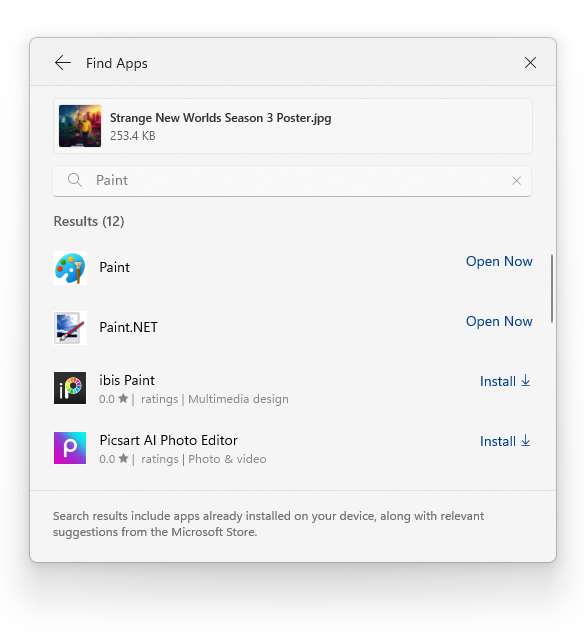
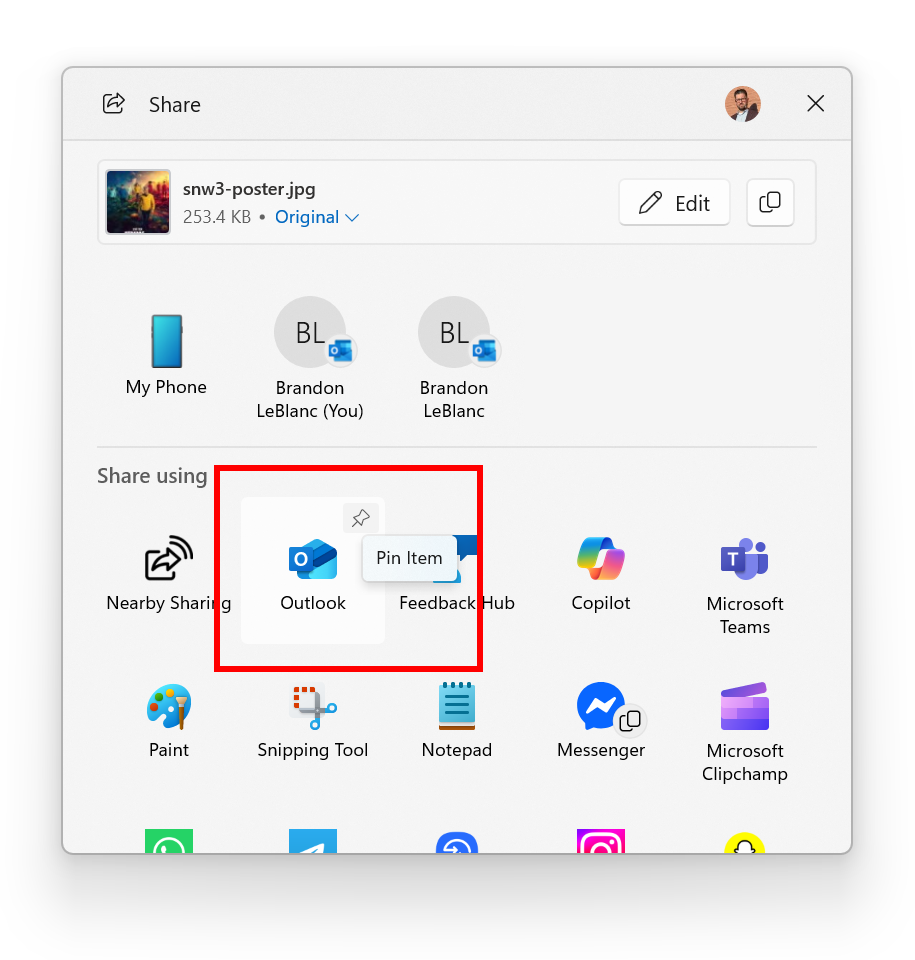
  • You can find apps installed on your PC or apps available in the Microsoft Store directly within the Windows share window using “Find Apps” under the “Share using” section.
[caption id="attachment_178199" align="alignnone" width="393"]Results shown for searching for Paint directly within the Windows search window using “Find Apps”. Results shown for searching for Paint directly within the Windows search window using “Find Apps”.[/caption]

[Other]

Fixes gradually being rolled out to the Dev Channel with toggle on*

[Taskbar & System Tray]

  • Fixed an issue where clicking the date and time on a secondary monitor might open the flyout on your primary monitor.
  • Fixed an issue where if you minimized an app and switched back and forth between desktops, you might end up seeing a duplicate preview thumbnail when hovering over the app in the taskbar.

[Windowing]

  • Fixed an issue which was causing explorer.exe to crash when using ALT + Tab for some Insiders in the previous flight.

[Display]

  • Fixed an issue where the setting to enable HDR under Settings > System > Display might turn off after you turned it on, blocking you from enabling it.

[Audio]

  • Fixed an issue which could result in audio not working a few seconds after casting to a TV.

[Other]

  • Fixed an issue which was causing the drivers for certain smart cards to not work in recent flights (showing error 31).
  • Fixed a typo in the diskusage help list (diskusage /?).
  • Fixed an issue where if you had to enter a PIN for your device to cast from Quick Settings, pressing Enter wouldn’t confirm the PIN.
  • Fixed an issue where the tooltip for the "Abort if insufficient memory" setting in Task Manager’s advanced section of settings wasn’t correct.

Known issues

[File Explorer]

  • For some users, the Shared section in File Explorer Home may be visible even if there is no content to display.

[Settings]

  • We’re investigating reports that Settings > System > Storage > Temporary files is getting stuck when scanning files. We are also investigating previous Windows Installations also not showing.

[Audio]

  • [NEW] Some Windows Insiders in the Dev and Beta Channels are experiencing an issue where audio stops working and Device Manager shows one or more devices with a yellow exclamation mark, including “ACPI Audio Compositor” and others. Selecting Properties on these devices will show “Windows cannot load the device driver for this hardware. The driver may be corrupted or missing.” If you are impacted by this issue, you can follow these instructions to get back into a working state:
    • Right-click on the device with a yellow exclamation mark in Device Manager and select “Update driver”.
    • Choose “Browse my computer for drivers” and then “Let me pick from a list of available drivers on my computer”.
    • Select the driver from the list with the most recent date and click “Next”. If you are presented with a list of common hardware types instead of one or more specific drivers, this device is not related to this issue.
    • This device should be repaired and no longer show a yellow exclamation mark in Device Manager. If it continues to show a yellow exclamation mark, the yellow exclamation mark is not related to this issue.
    • Repeat these steps for each device with a yellow exclamation mark.

[Xbox Controllers]

  • Some Insiders are experiencing an issue where using their Xbox Controller via Bluetooth is causing their PC to bugcheck. Here is how to resolve the issue. Open Device Manager by searching for it via the search box on your taskbar. Once Device Manager is open, click on "View" and then "Devices by Driver". Find the driver named "oemXXX.inf (XboxGameControllerDriver.inf)" where the "XXX" will be a specific number on your PC. Right-click on that driver and click "Uninstall".

Reminders for Windows Insiders in the Dev Channel

  • Windows Insiders in the Dev Channel receive updates based on Windows 11, version 25H2 via an enablement package (Build 26220.xxxx).
  • Many features in the Dev Channel are rolled out using Controlled Feature Rollout technology, starting with a subset of Insiders and ramping up over time as we monitor feedback to see how they land before pushing them out to everyone in this channel.
  • For Windows Insiders in the Dev Channel who want to be the first to get features gradually rolled out to you, you can turn ON the toggle to get the latest updates as they are available via Settings > Windows Update*. Over time, we will increase the rollouts of features to everyone with the toggle turned on. Should you keep this toggle off, new features will gradually be rolled out to your PC over time once they are ready.
  • Features and experiences included in these builds may never get released as we try out different concepts and get feedback. Features may change over time, be removed, or replaced and never get released beyond Windows Insiders. Some of these features and experiences could show up in future Windows releases when they’re ready.
  • Some features in active development we preview with Windows Insiders may not be fully localized and localization will happen over time as features are finalized. As you see issues with localization in your language, please report those issues to us via Feedback Hub.
  • Please note that some accessibility features may not work with features like Recall and Click to Do while in preview with Windows Insiders.
  • Because the Dev and Beta Channels represent parallel development paths from our engineers, there may be cases where features and experiences show up in the Beta Channel first.
  • Check out Flight Hub for a complete look at what build is in which Insider channel.
Thanks, Amanda & Brandon

Source: Announcing Windows 11 Insider Preview Build 26220.5770 (Dev Channel)
 
Hello Windows Insiders, today we are releasing Windows 11 Insider Preview Build 27934 to the Canary Channel.

Changes and Improvements

[General]

  • This update includes a small set of general improvements and fixes that improve the overall experience for Insiders running this build on their PCs.

Fixes

[Windowing]

  • Fixed an issue causing an increase in DWM crashes in the previous build (which could lead to you seeing a black flash).

[Other]

  • Fixed an issue in the last few builds where if you launched cmd non-elevated from the Run dialog, it might open in Windows Console Host rather than Windows Terminal even if Windows Terminal was your default terminal app.
  • Fixed an underlying issue which could lead to certain UWP apps crashing when scrolling in the previous build.

Known issues

[General]

  • We’re investigating reports that Settings > System > Storage > Temporary files is getting stuck when scanning files. We are also investigating previous Windows Installations also not showing.

[File Explorer]

  • In dark mode, the red color used for a low space drive in This PC may be unexpectedly light colored in this build. Some of the other colors may also be incorrect, including that black is used for space remaining instead of a more visible color.

[Reset & Recovery]

  • [NEW] The “Reset this PC” option Settings > System > Recovery will not work on this build. This issue will be fixed in the next Canary Channel flight. Should you need to reset your PC, you can roll back to the previous build and do a PC reset then.

Reminders for Windows Insiders in the Canary Channel

  • The builds we release to the Canary Channel represent the latest platform changes early in the development cycle and should not be seen as matched to any specific release of Windows and features and experiences included in these builds may never get released as we try out different concepts and get feedback. Features may change over time, be removed, or replaced and never get released beyond Windows Insiders. Some of these features and experiences could show up in future Windows releases when they’re ready.
  • Many features in the Canary Channel are rolled out using Control Feature Rollout technology, starting with a subset of Insiders and ramping up over time as we monitor feedback to see how they land before pushing them out to everyone in this channel.
  • Some features may show up in the Dev and Beta Channels first before showing up in the Canary Channel.
  • Some features in active development we preview with Windows Insiders may not be fully localized and localization will happen over time as features are finalized. As you see issues with localization in your language, please report those issues to us via Feedback Hub.
  • To get off the Canary Channel, a clean install of Windows 11 will be required. As a reminder - Insiders can’t switch to a channel that is receiving builds with lower build numbers without doing a clean installation of Windows 11 due to technical setup requirements.
  • The desktop watermark shown at the lower right corner of the desktop is normal for these pre-release builds.
  • Check out Flight Hub for a complete look at what build is in which Insider channel.
Thanks, Amanda & Brandon

Source: Announcing Windows 11 Insider Preview Build 27934 (Canary Channel)
 
Hello Windows Insiders, today we are releasing Windows 11 Insider Preview Build 26120.5790 (KB5065779) to the Beta Channel for Windows Insiders on Windows 11, version 24H2. Changes in Beta Channel builds and updates are documented in two buckets: new features, improvements, and fixes that are being gradually rolled out for Insiders who have turned on the toggle to get the latest updates as they are available (via Settings > Windows Update*) and then new features, improvements, and fixes rolling out to everyone in the Beta Channel. For more information, see the Reminders section at the bottom of this blog post.

New Copilot+ PC experiences

Introducing fluid dictation in voice access

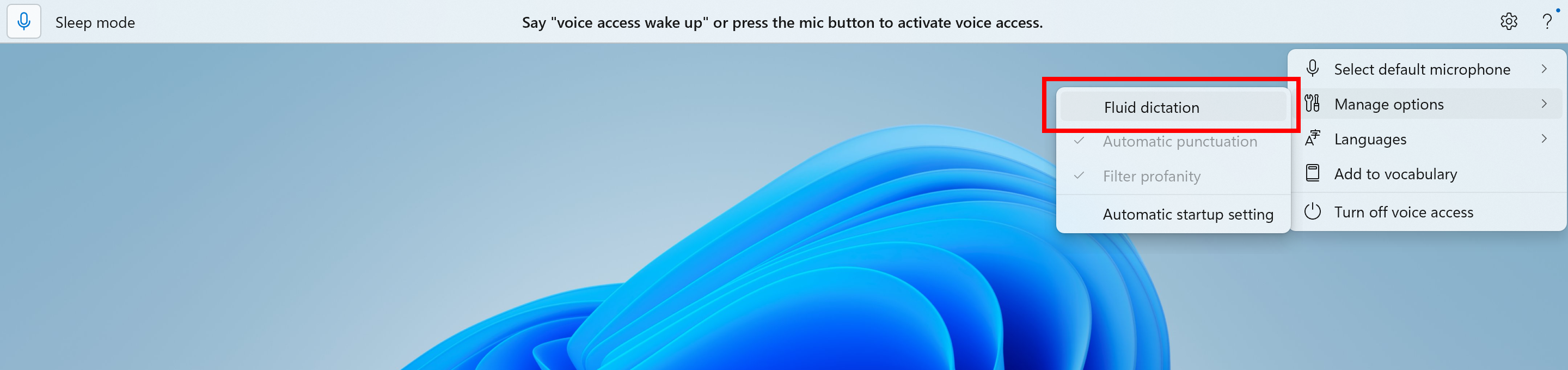
Fluid dictation is a new feature in voice access on Copilot+ PCs, that makes voice-based dictation smoother and smarter. It automatically corrects grammar, punctuation, and filler words as you speak, reducing the need for manual editing. This experience is powered by on-device small language models (SLMs) so ensure fast and private processing. To use it, launch voice access and complete setup if you're a first-time user. Fluid dictation is enabled by default - you can check or toggle it via the settings flyout in the top-right corner or simply say “turn on/off fluid dictation.” [caption id="attachment_178209" align="alignnone" width="1024"]The option to turn fluid dictation on or off in the settings flyout in voice access highlighted in a red box. The option to turn fluid dictation on or off in the settings flyout in voice access highlighted in a red box.[/caption] It works in any text app but is disabled in secure fields like passwords or PINs to protect your privacy. Fluid dictation in voice access is currently available in all English locales and is available on all Copilot + PCs. FEEDBACK: Please file feedback in Feedback Hub (WIN + F) under Accessibility > Voice access.

Making Windows Studio Effects available on additional cameras

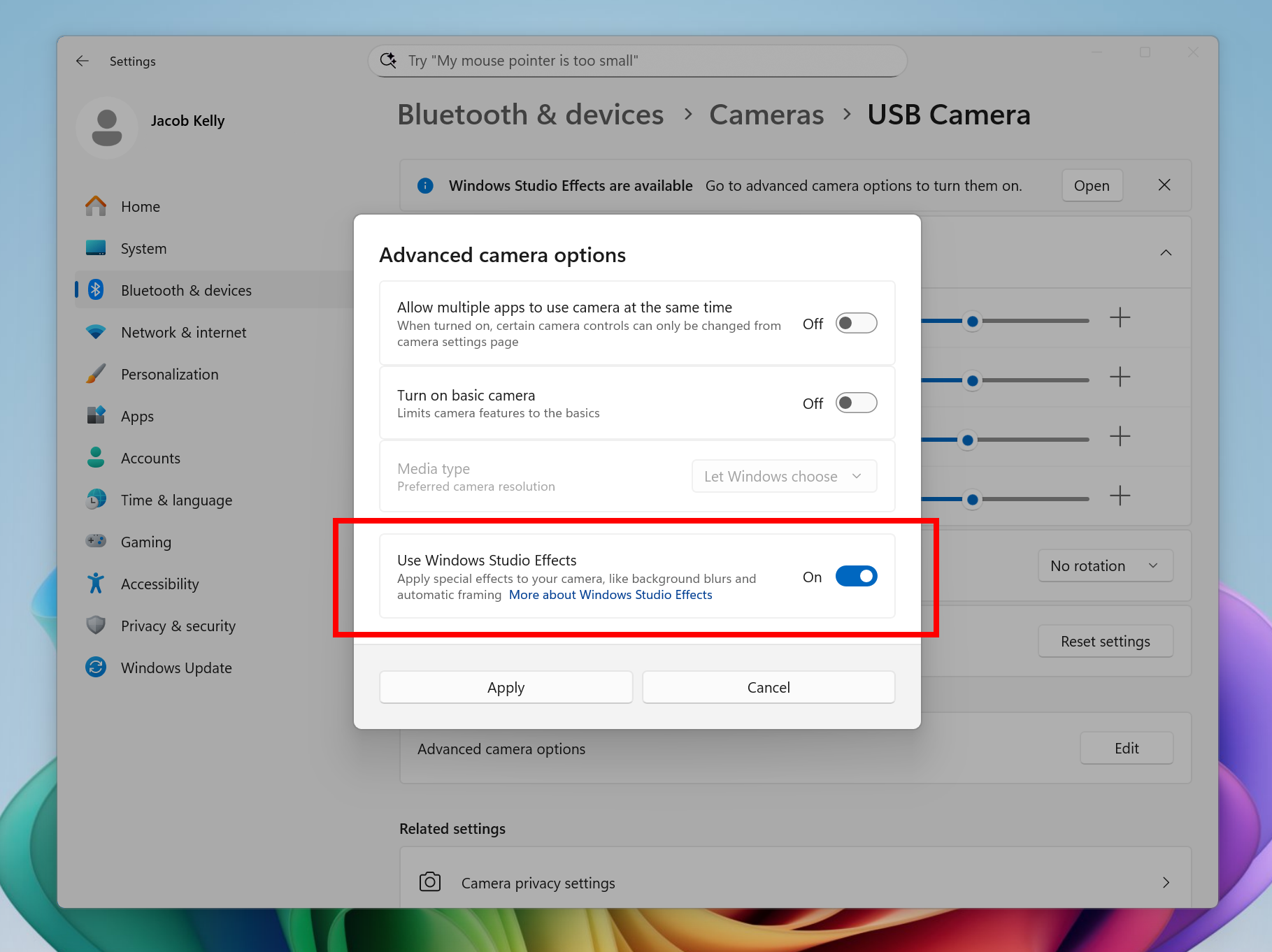
We are working to bring the Windows Studio Effects experience from integrated laptop cameras to a broader range of camera hardware, helping you stay professional and look your best across more setups. On supported Copilot+ PCs, we are rolling out the ability to use Studio Effect’s AI-powered camera enhancements with an additional, alternative camera - such as a USB webcam or your laptop’s built-in rear camera. [caption id="attachment_178211" align="alignnone" width="650"]New option inside Settings to turn on the ability to use Windows Studio Effects on an additional camera highlighted in a red box. New option inside Settings to turn on the ability to use Windows Studio Effects on an additional camera highlighted in a red box.[/caption] To get started, navigate to Settings > Bluetooth & devices > Cameras and select your preferred camera from the connected cameras list. Then, open the advanced camera options menu to find the new “Use Windows Studio Effects” toggle. Once enabled, you can now access and adjust Studio Effects directly from the camera settings page or via the quick settings menu in the taskbar. NOTE: The required update for the Windows Studio Effects driver will first roll out to Intel®-powered Copilot+ PCs with the update rolling out for AMD and Snapdragon-powered Copilot+ PCs in the coming weeks. For more information on Windows Studio Effects and device prerequisites, check out Windows Studio Effects - Microsoft Support. FEEDBACK: Please file feedback in Feedback Hub (WIN + F) under Desktop Environment > Studio Effects.

Changes and Improvements gradually being rolled out to the Beta Channel with toggle on*

[Agent in Settings]

The following changes and improvements are rolling out for agent in Settings on Copilot+ PCs:
  • We are beginning to roll out the new agent in Settings experience to Windows Insiders with their primary display language is set to French.

[File Explorer]

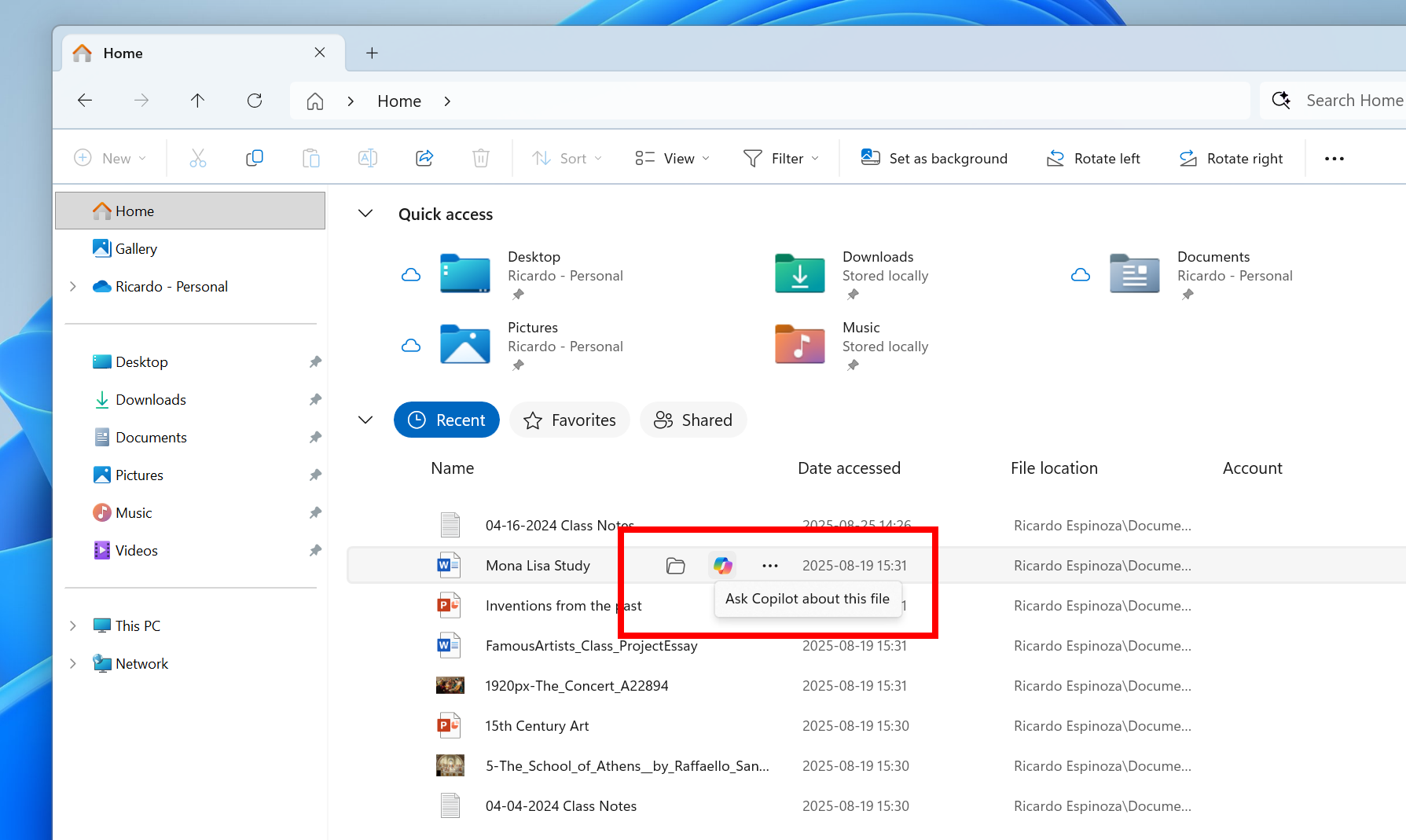
  • File Explorer Home now offers on-hover actions for faster file management. Hovering over a file with your mouse in File Explorer Home will display commands like Open file location and Ask Copilot about this file. You will be able to try out the Copilot integration and attach files easily. This experience currently only works if you’re signed in with a Microsoft account. Work or school account (Entra ID) support is coming in a future flight. This change is not yet rolling out to Windows Insiders in the EEA (European Economic Area).
[caption id="attachment_178212" align="alignnone" width="695"]On-hover actions in File Explorer Home highlighted in a red box. On-hover actions in File Explorer Home highlighted in a red box.[/caption]

[Settings]

  • Advanced Settings will revert to the previous “For Developers” experience after updating to this build. This change will come back soon.

Fixes gradually being rolled out to the Beta Channel with toggle on*

[General]

  • Fixed an underlying issue which was causing Insiders on certain devices to experience an unexpected increase in lag in various scenarios after the latest flights, including when interacting with File Explorer and taskbar (clicks could take 500ms to be processed), and browser windows (particularly when watching videos). Performance issues can have multiple causes, so if you’re continuing to experience issues, please let us know by filing feedback, including as many details as possible.

[Taskbar & System Tray]

  • Fixed an issue which could cause the app preview windows in the taskbar to become misaligned (away from the app icon you’d clicked / hovered over) after a display resolution change.

[File Explorer]

  • Fixed an issue where with certain apps installed, when you right clicked you may see the context menu unexpectedly switch back and forth with each right click between the normal initial view and “Show more options”.

[Settings]

  • Fixed an issue causing Settings > System > Storage > Temporary files to get stuck when scanning files.

[Other]

  • Fixed an issue causing an event saying “The "Microsoft Pluton Cryptographic Provider” provider was not loaded because initialization failed” with error 57 to appear in Event Viewer for some Insiders after boot.

Known issues

[General]

  • [NEW] We’re investigating an issue causing some PCs to bugcheck (green screen) while hibernating after the previous flight. This may make it look like hibernation has shut down your PC. We recommend not hibernating your PC until this is fixed if you are experiencing this issue.

[File Explorer]

  • For some users, the Shared section in File Explorer Home may be visible even if there is no content to display.

[For developers]

  • [NEW] PIX on Windows is unable to play back GPU captures on this OS version. This will be addressed by a new PIX release, estimated to arrive by the end of September. In the meantime, if you are impacted, you can use the "Send Feedback" button in PIX or contact us on the DirectX Discord server and we can help provide private builds.

[Audio]

  • Some Windows Insiders in the Dev and Beta Channels are experiencing an issue where audio stops working and Device Manager shows one or more devices with a yellow exclamation mark, including “ACPI Audio Compositor” and others. Selecting Properties on these devices will show “Windows cannot load the device driver for this hardware. The driver may be corrupted or missing.” If you are impacted by this issue, you can follow these instructions to get back into a working state:
    • Right-click on the device with a yellow exclamation mark in Device Manager and select “Update driver”.
    • Choose “Browse my computer for drivers” and then “Let me pick from a list of available drivers on my computer”.
    • Select the driver from the list with the most recent date and click “Next”. If you are presented with a list of common hardware types instead of one or more specific drivers, this device is not related to this issue.
    • This device should be repaired and no longer show a yellow exclamation mark in Device Manager. If it continues to show a yellow exclamation mark, the yellow exclamation mark is not related to this issue.
    • Repeat these steps for each device with a yellow exclamation mark.

[Xbox Controllers]

  • Some Insiders are experiencing an issue where using their Xbox Controller via Bluetooth is causing their PC to bugcheck. Here is how to resolve the issue. Open Device Manager by searching for it via the search box on your taskbar. Once Device Manager is open, click on "View" and then "Devices by Driver". Find the driver named "oemXXX.inf (XboxGameControllerDriver.inf)" where the "XXX" will be a specific number on your PC. Right-click on that driver and click "Uninstall".

Reminders for Windows Insiders in the Beta Channel

  • Windows Insiders in the Beta Channel on Windows 11, version 24H2 will receive updates based on Windows 11, version 24H2 via an enablement package (Build 26120.xxxx).
  • Updates delivered to the Beta Channel are in a format that offers a preview of enhancements to servicing technology on Windows 11, version 24H2. To learn more, see Introducing Windows 11 checkpoint cumulative updates | Windows IT Pro Blog.
  • Many features in the Beta Channel are rolled out using Controlled Feature Rollout technology, starting with a subset of Insiders and ramping up over time as we monitor feedback to see how they land before pushing them out to everyone in this channel.
  • For Windows Insiders in the Beta Channel who want to be the first to get features gradually rolled out to you, you can turn ON the toggle to get the latest updates as they are available via Settings > Windows Update*. Over time, we will increase the rollouts of features to everyone with the toggle turned on. Should you keep this toggle off, new features will gradually be rolled out to your PC over time once they are ready.
  • Features and experiences included in these builds may never get released as we try out different concepts and get feedback. Features may change over time, be removed, or replaced and never get released beyond Windows Insiders. Some of these features and experiences could show up in future Windows releases when they’re ready.
  • Some features in active development we preview with Windows Insiders may not be fully localized and localization will happen over time as features are finalized. As you see issues with localization in your language, please report those issues to us via Feedback Hub.
  • Please note that some accessibility features may not work with features like Recall and Click to Do while in preview with Windows Insiders.
  • Because the Dev and Beta Channels represent parallel development paths from our engineers, there may be cases where features and experiences show up in the Beta Channel first.
  • Check out Flight Hub for a complete look at what build is in which Insider channel.
Thanks, Amanda & Brandon

Source: Announcing Windows 11 Insider Preview Build 26120.5790 (Beta Channel)
 
Hello Windows Insiders, today we are releasing Windows 11 Insider Preview Build 26220.5790 (KB5065779) to the Dev Channel for Windows Insiders on Windows 11, version 25H2. Changes in Dev Channel builds and updates are documented in two buckets: new features, improvements, and fixes that are being gradually rolled out for Insiders who have turned on the toggle to get the latest updates as they are available (via Settings > Windows Update*) and then new features, improvements, and fixes rolling out to everyone in the Dev Channel. For more information, see the Reminders section at the bottom of this blog post.

New Copilot+ PC experiences

Introducing fluid dictation in voice access

Fluid dictation is a new feature in voice access on Copilot+ PCs, that makes voice-based dictation smoother and smarter. It automatically corrects grammar, punctuation, and filler words as you speak, reducing the need for manual editing. This experience is powered by on-device small language models (SLMs) so ensure fast and private processing. To use it, launch voice access and complete setup if you're a first-time user. Fluid dictation is enabled by default - you can check or toggle it via the settings flyout in the top-right corner or simply say “turn on/off fluid dictation.” [caption id="attachment_178209" align="alignnone" width="1024"]The option to turn fluid dictation on or off in the settings flyout in voice access highlighted in a red box. The option to turn fluid dictation on or off in the settings flyout in voice access highlighted in a red box.[/caption] It works in any text app but is disabled in secure fields like passwords or PINs to protect your privacy. Fluid dictation in voice access is currently available in all English locales and is available on all Copilot + PCs. FEEDBACK: Please file feedback in Feedback Hub (WIN + F) under Accessibility > Voice access.

Making Windows Studio Effects available on additional cameras

We are working to bring the Windows Studio Effects experience from integrated laptop cameras to a broader range of camera hardware, helping you stay professional and look your best across more setups. On supported Copilot+ PCs, we are rolling out the ability to use Studio Effect’s AI-powered camera enhancements with an additional, alternative camera - such as a USB webcam or your laptop’s built-in rear camera. [caption id="attachment_178211" align="alignnone" width="650"]New option inside Settings to turn on the ability to use Windows Studio Effects on an additional camera highlighted in a red box. New option inside Settings to turn on the ability to use Windows Studio Effects on an additional camera highlighted in a red box.[/caption] To get started, navigate to Settings > Bluetooth & devices > Cameras and select your preferred camera from the connected cameras list. Then, open the advanced camera options menu to find the new “Use Windows Studio Effects” toggle. Once enabled, you can now access and adjust Studio Effects directly from the camera settings page or via the quick settings menu in the taskbar. NOTE: The required update for the Windows Studio Effects driver will first roll out to Intel®-powered Copilot+ PCs with the update rolling out for AMD and Snapdragon-powered Copilot+ PCs in the coming weeks. For more information on Windows Studio Effects and device prerequisites, check out Windows Studio Effects - Microsoft Support. FEEDBACK: Please file feedback in Feedback Hub (WIN + F) under Desktop Environment > Studio Effects.

Changes and Improvements gradually being rolled out to the Dev Channel with toggle on*

[Agent in Settings]

The following changes and improvements are rolling out for agent in Settings on Copilot+ PCs:
  • We are beginning to roll out the new agent in Settings experience to Windows Insiders with their primary display language is set to French.

[File Explorer]

  • File Explorer Home now offers on-hover actions for faster file management. Hovering over a file with your mouse in File Explorer Home will display commands like Open file location and Ask Copilot about this file. You will be able to try out the Copilot integration and attach files easily. This experience currently only works if you’re signed in with a Microsoft account. Work or school account (Entra ID) support is coming in a future flight. This change is not yet rolling out to Windows Insiders in the EEA (European Economic Area).
[caption id="attachment_178212" align="alignnone" width="695"]On-hover actions in File Explorer Home highlighted in a red box. On-hover actions in File Explorer Home highlighted in a red box.[/caption]

[Settings]

  • Advanced Settings will revert to the previous “For Developers” experience after updating to this build. This change will come back soon.

Fixes gradually being rolled out to the Dev Channel with toggle on*

[General]

  • Fixed an underlying issue which was causing Insiders on certain devices to experience an unexpected increase in lag in various scenarios after the latest flights, including when interacting with File Explorer and taskbar (clicks could take 500ms to be processed), and browser windows (particularly when watching videos). Performance issues can have multiple causes, so if you’re continuing to experience issues, please let us know by filing feedback, including as many details as possible.

[Taskbar & System Tray]

  • Fixed an issue which could cause the app preview windows in the taskbar to become misaligned (away from the app icon you’d clicked / hovered over) after a display resolution change.

[File Explorer]

  • Fixed an issue where with certain apps installed, when you right clicked you may see the context menu unexpectedly switch back and forth with each right click between the normal initial view and “Show more options”.

[Settings]

  • Fixed an issue causing Settings > System > Storage > Temporary files to get stuck when scanning files.

[Other]

  • Fixed an issue causing an event saying “The "Microsoft Pluton Cryptographic Provider” provider was not loaded because initialization failed” with error 57 to appear in Event Viewer for some Insiders after boot.

Known issues

[General]

  • [NEW] We’re investigating an issue causing some PCs to bugcheck (green screen) while hibernating after the previous flight. This may make it look like hibernation has shut down your PC. We recommend not hibernating your PC until this is fixed if you are experiencing this issue.

[File Explorer]

  • For some users, the Shared section in File Explorer Home may be visible even if there is no content to display.

[For developers]

  • [NEW] PIX on Windows is unable to play back GPU captures on this OS version. This will be addressed by a new PIX release, estimated to arrive by the end of September. In the meantime, if you are impacted, you can use the "Send Feedback" button in PIX or contact us on the DirectX Discord server and we can help provide private builds.

[Audio]

  • [NEW] Some Windows Insiders in the Dev and Beta Channels are experiencing an issue where audio stops working and Device Manager shows one or more devices with a yellow exclamation mark, including “ACPI Audio Compositor” and others. Selecting Properties on these devices will show “Windows cannot load the device driver for this hardware. The driver may be corrupted or missing.” If you are impacted by this issue, you can follow these instructions to get back into a working state:
    • Right-click on the device with a yellow exclamation mark in Device Manager and select “Update driver”.
    • Choose “Browse my computer for drivers” and then “Let me pick from a list of available drivers on my computer”.
    • Select the driver from the list with the most recent date and click “Next”. If you are presented with a list of common hardware types instead of one or more specific drivers, this device is not related to this issue.
    • This device should be repaired and no longer show a yellow exclamation mark in Device Manager. If it continues to show a yellow exclamation mark, the yellow exclamation mark is not related to this issue.
    • Repeat these steps for each device with a yellow exclamation mark.

[Xbox Controllers]

  • Some Insiders are experiencing an issue where using their Xbox Controller via Bluetooth is causing their PC to bugcheck. Here is how to resolve the issue. Open Device Manager by searching for it via the search box on your taskbar. Once Device Manager is open, click on "View" and then "Devices by Driver". Find the driver named "oemXXX.inf (XboxGameControllerDriver.inf)" where the "XXX" will be a specific number on your PC. Right-click on that driver and click "Uninstall".

Reminders for Windows Insiders in the Dev Channel

  • Windows Insiders in the Dev Channel receive updates based on Windows 11, version 25H2 via an enablement package (Build 26220.xxxx).
  • Many features in the Dev Channel are rolled out using Controlled Feature Rollout technology, starting with a subset of Insiders and ramping up over time as we monitor feedback to see how they land before pushing them out to everyone in this channel.
  • For Windows Insiders in the Dev Channel who want to be the first to get features gradually rolled out to you, you can turn ON the toggle to get the latest updates as they are available via Settings > Windows Update*. Over time, we will increase the rollouts of features to everyone with the toggle turned on. Should you keep this toggle off, new features will gradually be rolled out to your PC over time once they are ready.
  • Features and experiences included in these builds may never get released as we try out different concepts and get feedback. Features may change over time, be removed, or replaced and never get released beyond Windows Insiders. Some of these features and experiences could show up in future Windows releases when they’re ready.
  • Some features in active development we preview with Windows Insiders may not be fully localized and localization will happen over time as features are finalized. As you see issues with localization in your language, please report those issues to us via Feedback Hub.
  • Please note that some accessibility features may not work with features like Recall and Click to Do while in preview with Windows Insiders.
  • Because the Dev and Beta Channels represent parallel development paths from our engineers, there may be cases where features and experiences show up in the Beta Channel first.
  • Check out Flight Hub for a complete look at what build is in which Insider channel.
  • Thanks, Amanda & Brandon

Source: Announcing Windows 11 Insider Preview Build 26220.5790 (Dev Channel)
 
Hello Windows Insiders, today we are releasing Windows 11 Insider Preview Build 27938 to the Canary Channel.

What’s new in Build 27938

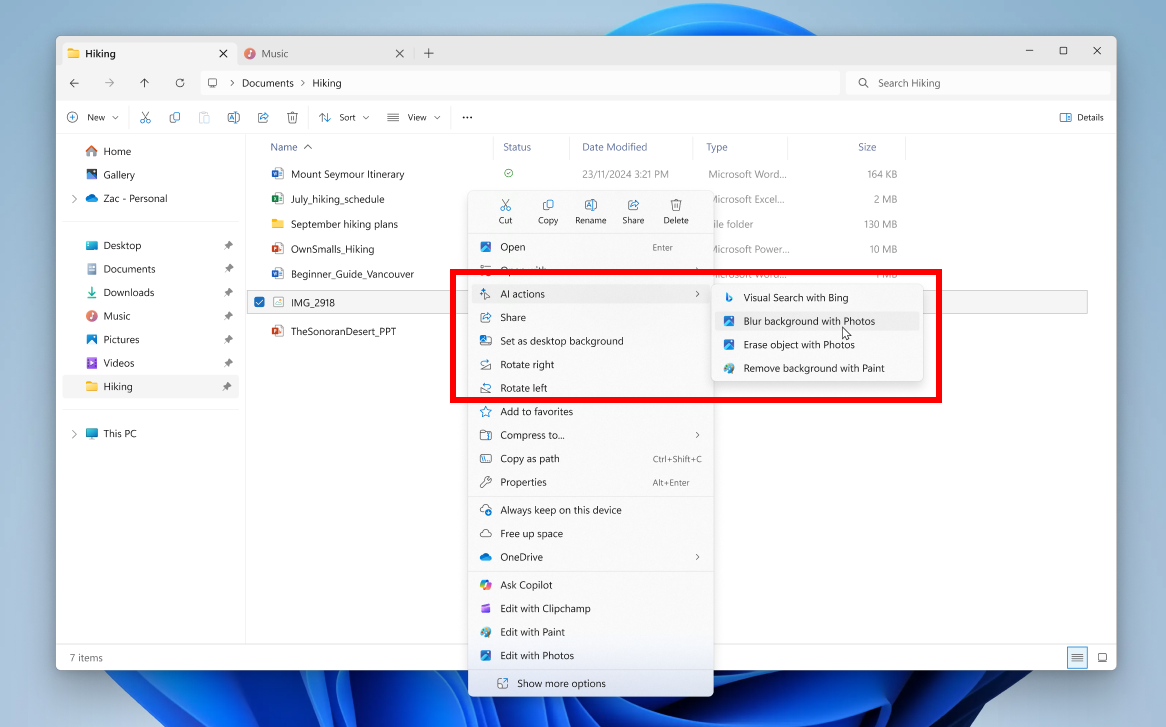
Introducing AI actions in File Explorer

With AI actions in File Explorer, you can interact more deeply with your files by right-clicking to quickly take actions like editing images or summarizing documents. Like with Click to Do, AI actions in File Explorer allow you to stay in your flow while leveraging the power of AI to take advantage of editing tools in apps or Copilot functionality without having to open your file. AI actions in File Explorer are easily accessible – to try out AI actions in File Explorer, just right-click on a file and you will see a new AI actions entry on the content menu that allows you to choose from available options for your file. [caption id="attachment_177881" align="alignnone" width="677"]File Explorer with context menu expanded on a file showing new AI actions highlighted in a red box. File Explorer with context menu expanded on a file showing new AI actions highlighted in a red box.[/caption] Today, you can try one of four image actions for seamless editing or web searches with images:
  • Bing Visual Search: Allows you to search the web using an image instead of text. Find similar images and products, get details about sites using the image, and identify landmarks, plants, and famous faces. From searching what you see on your screen, to shopping your preferred style, getting help with that homework problem, or translating text, getting answers is more intuitive than ever.
  • Blur Background: Opens the Photos app which automatically finds the background in the photo, and with a single click, instantly highlights your subject and blurs out the background. You can also customize the effect by adjusting the Blur Intensity or use the Brush Tool to modify the areas being blurred.
  • Erase Objects: With Photos by selecting or highlighting an unwanted element in your photo and Generative Erase makes it disappear. It allows you to fix and remove distractions from your photos.
  • Remove Background: With Paint allows you to alter any image automatically in just one click leaving a smooth cutout of the subject. Background removal can detect the subject from the entire canvas or using the selection tool.
These four image actions currently support these file types: .jpg, .jpeg, and .png. Let us know what you think of these new AI actions in File Explorer! FEEDBACK: Please file feedback in Feedback Hub (WIN + F) under Files, Folders, and Online Story > File Explorer.

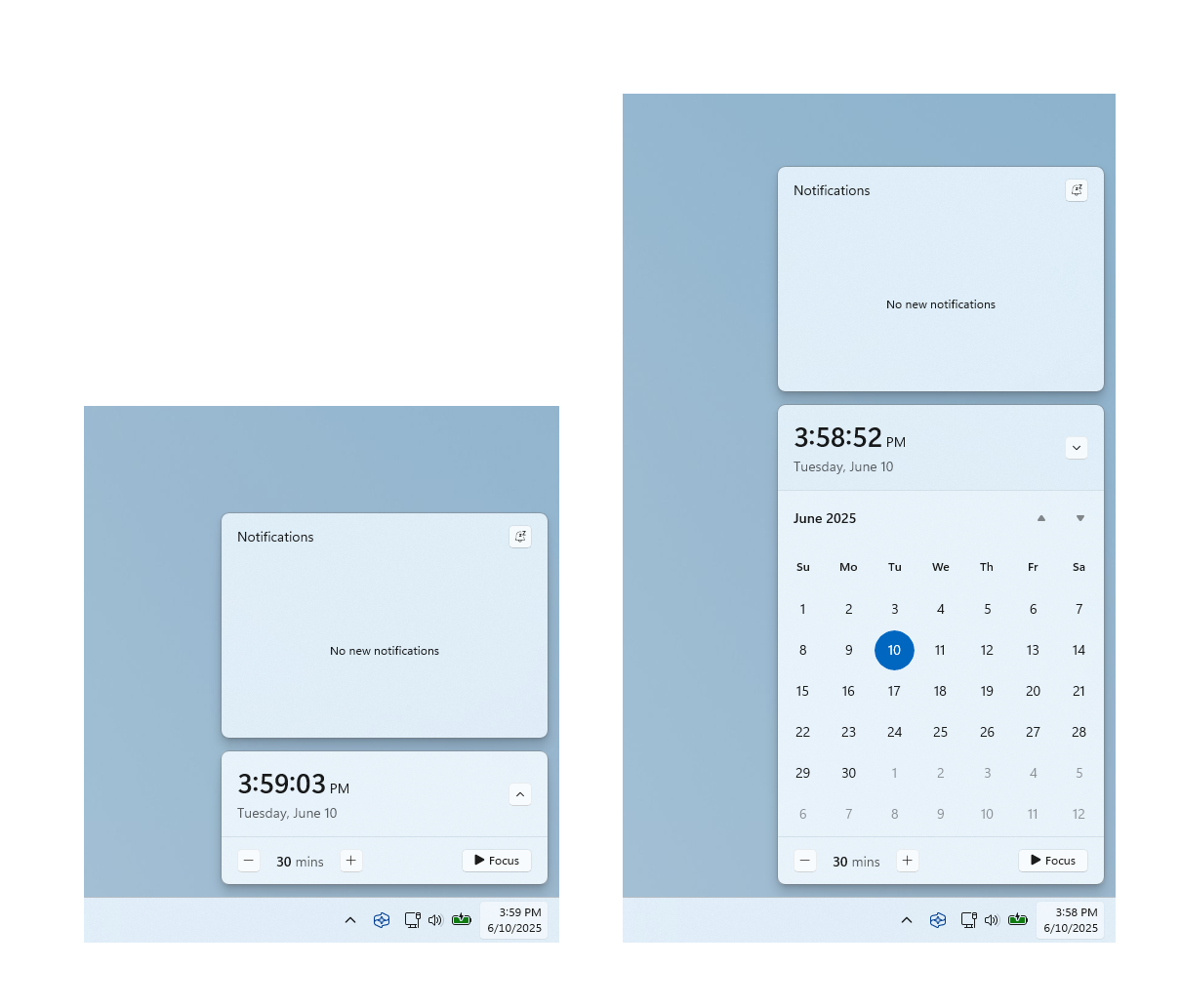
Bringing back the bigger clock with seconds option in notification center

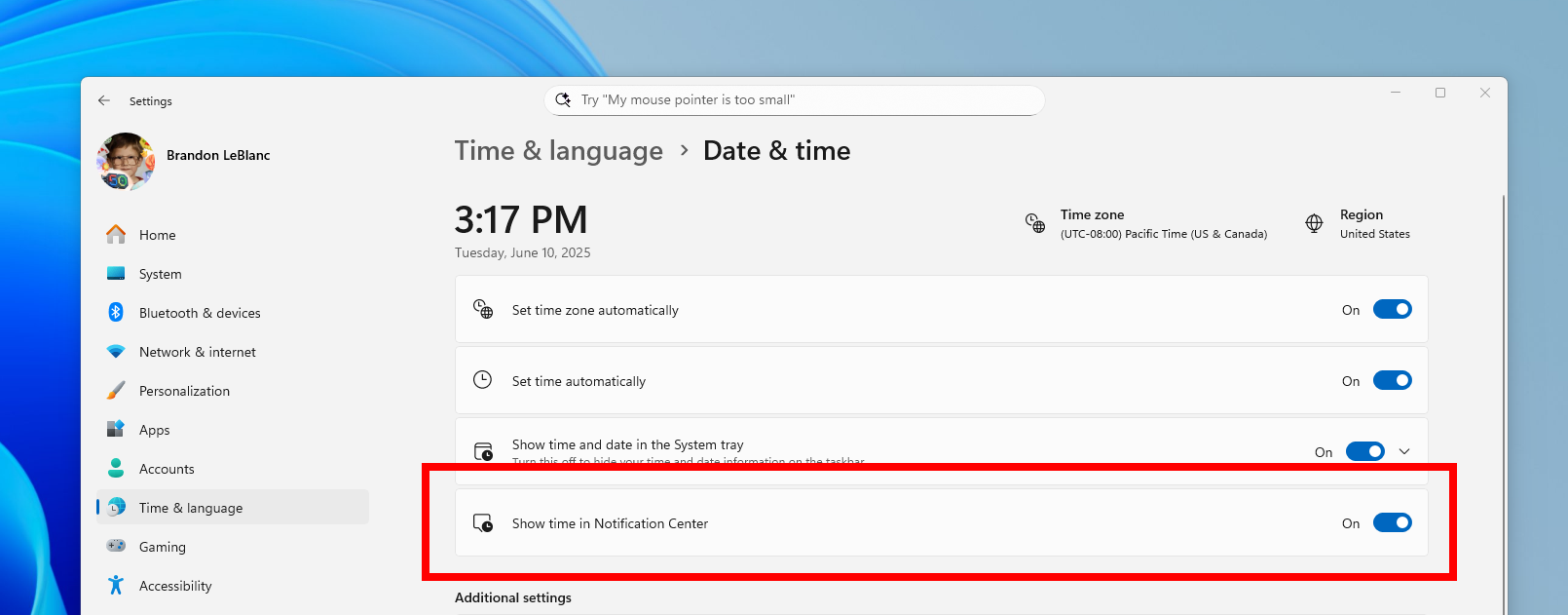
We’re starting to roll out a highly requested feature from Windows 10, the option to show a bigger clock with seconds above the date and calendar in notification center. [caption id="attachment_177979" align="alignnone" width="599"]Clock showing in notification center with the calendar both collapsed and expanded. Clock showing in notification center with the calendar both collapsed and expanded.[/caption] To turn this option on, go to Settings > Time & language > Date & time and flip the switch for Show time in the Notification Center. [caption id="attachment_177980" align="alignnone" width="577"]The toggle to turn on showing the clock in notification center in Settings highlighted in a red box. The toggle to turn on showing the clock in notification center in Settings highlighted in a red box.[/caption] FEEDBACK: Please file feedback in Feedback Hub (WIN + F) under Desktop Environment > Clock and Calendar Flyout.

Changes and Improvements

[Settings]

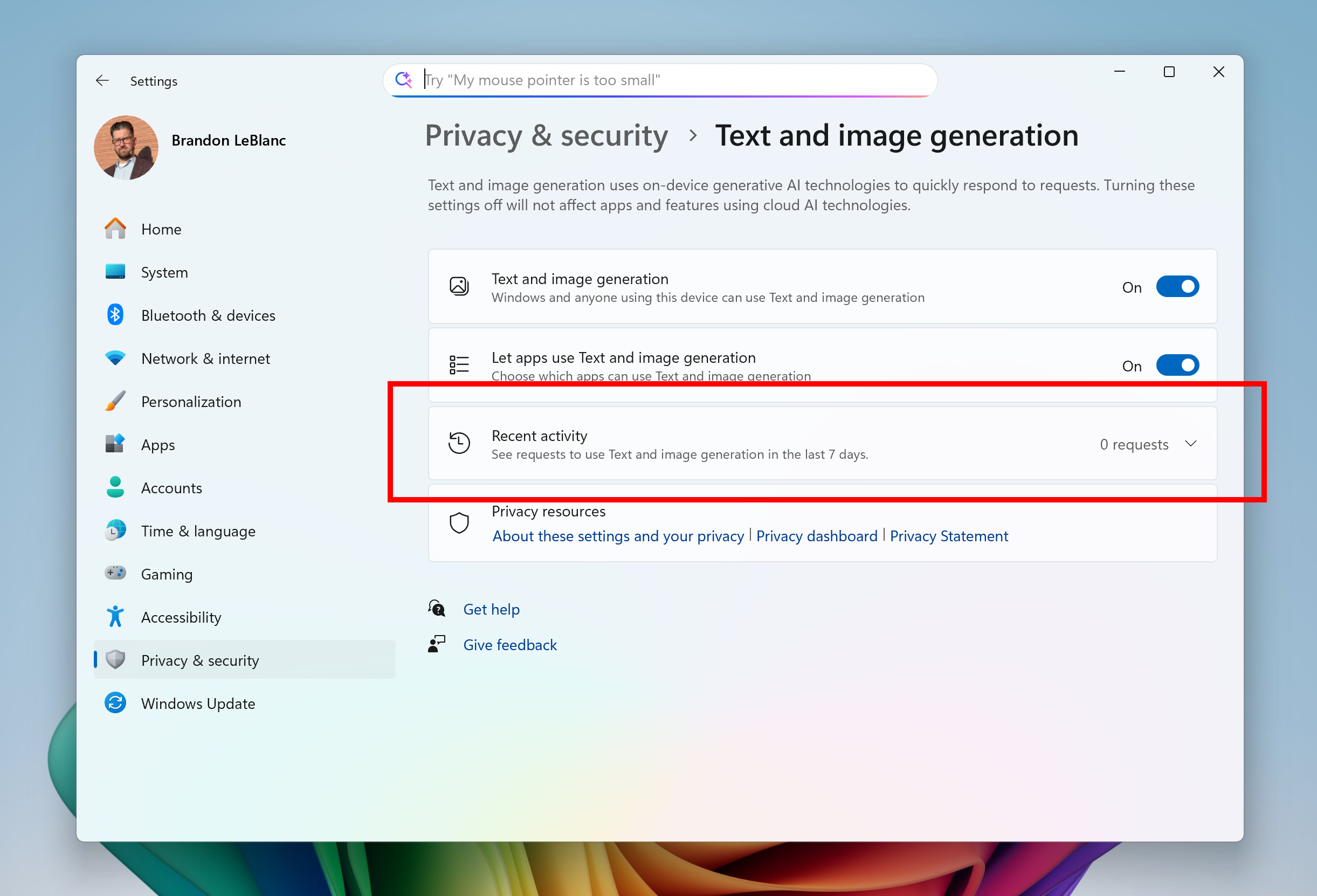
  • You can now visit the Settings > Privacy & security > Text and image generation to see which third-party applications recently used generative AI models provided by Windows. This page gives you visibility into the specific apps leveraging local Windows provided generative AI models and allows you to control which apps are permitted to use them—putting you in charge of your device’s AI experience.
[caption id="attachment_178075" align="alignnone" width="606"]Text and image generation settings page with recent activity highlighted in a red box for seeing which apps use generative AI models provided by Windows. Text and image generation settings page with recent activity highlighted in a red box for seeing which apps use generative AI models provided by Windows.[/caption]

Fixes

[Reset & Recovery]

  • Fixed the issue causing the “Reset this PC” option under Settings > System > Recovery to not work on Build 27934.

[File Explorer]

  • Fixed an issue where In dark mode, the red color used for a low space drive in This PC might be unexpectedly light colored in the latest builds. Some of the other colors might also have been incorrect, including that black is used for space remaining instead of a more visible color.
  • Fixed an issue which was Fixed an issue where File Explorer was unexpectedly not showing thumbnails for video files containing certain EXIF metadata.

[Windows Management Instrumentation (WMI)]

  • Performance improvements related to WMI Registry scanning.

[Login and Lock screen]

  • Fixed an issue which was causing some of the sign in options to have a blank icon.

[Search]

  • Did some work to help reduce instances where search may get stuck in a loading state.

[Input]

  • Fixed an issue where if you typed on the touch keyboard with the Changjie, Bopomoji, or Japanese IME, it wouldn’t work if you had switched to using the previous version of the IME.

[Task Manager]

  • Fixed an issue which was causing Task Manager to freeze when going to the performance section recently for some Insiders.

[Other]

  • Fixed an issue which was causing some Insiders to experience bugchecks (green screens) with error IRQL_NOT_LESS_OR_EQUAL citing an issue with ntoskrnl.exe in the latest Canary builds when attempting to enter safe mode.
  • Fixed an issue causing some Insiders to experience bugchecks recently with error CRITICAL_PROCESS_DIED.

Known issues

[General]

  • [IMPORTANT] Some Windows Insiders may experience a rollback attempting to install this build with either an 0xC1900101-0x20017 error or 0xC1900101-0x30017 error. Unfortunately retrying to install the build will result in another rollback. We are working on a fix.
  • We’re working on the fix for an issue causing Settings > System > Storage > Temporary files to get stuck when scanning files. This issue also causes the entry to clean up previous Windows Installations to not show in Storage Settings.

[For developers]

  • [NEW] PIX on Windows is unable to play back GPU captures on this OS version. This will be addressed by a new PIX release, estimated to arrive by the end of September. In the meantime, if you are impacted, you can use the "Send Feedback" button in PIX or contact us on the DirectX Discord server and we can help provide private builds.

[Graphics]

  • We’re investigating an issue which is causing some Insiders to experience screen flickers when using the browser (and potentially other scenarios) in the latest Canary builds.

[Audio]

  • [NEW] Some Windows Insiders in the Canary Channel are experiencing an issue where audio stops working and Device Manager shows one or more devices with a yellow exclamation mark, including “ACPI Audio Compositor” and others. Selecting Properties on these devices will show “Windows cannot load the device driver for this hardware. The driver may be corrupted or missing.” If you are impacted by this issue, you can follow these instructions to get back into a working state:
    • Right-click on the device with a yellow exclamation mark in Device Manager and select “Update driver”.
    • Choose “Browse my computer for drivers” and then “Let me pick from a list of available drivers on my computer”.
    • Select the driver from the list with the most recent date and click “Next”. If you are presented with a list of common hardware types instead of one or more specific drivers, this device is not related to this issue.
    • This device should be repaired and no longer show a yellow exclamation mark in Device Manager. If it continues to show a yellow exclamation mark, the yellow exclamation mark is not related to this issue.
    • Repeat these steps for each device with a yellow exclamation mark.

Reminders for Windows Insiders in the Canary Channel

  • The builds we release to the Canary Channel represent the latest platform changes early in the development cycle and should not be seen as matched to any specific release of Windows and features and experiences included in these builds may never get released as we try out different concepts and get feedback. Features may change over time, be removed, or replaced and never get released beyond Windows Insiders. Some of these features and experiences could show up in future Windows releases when they’re ready.
  • Many features in the Canary Channel are rolled out using Control Feature Rollout technology, starting with a subset of Insiders and ramping up over time as we monitor feedback to see how they land before pushing them out to everyone in this channel.
  • Some features may show up in the Dev and Beta Channels first before showing up in the Canary Channel.
  • Some features in active development we preview with Windows Insiders may not be fully localized and localization will happen over time as features are finalized. As you see issues with localization in your language, please report those issues to us via Feedback Hub.
  • To get off the Canary Channel, a clean install of Windows 11 will be required. As a reminder - Insiders can’t switch to a channel that is receiving builds with lower build numbers without doing a clean installation of Windows 11 due to technical setup requirements.
  • The desktop watermark shown at the lower right corner of the desktop is normal for these pre-release builds.
  • Check out Flight Hub for a complete look at what build is in which Insider channel.
Thanks, Amanda & Brandon

Source: Announcing Windows 11 Insider Preview Build 27938 (Canary Channel)
 
Hello Windows Insiders, today we are releasing Windows 11 Insider Preview Build 27943 to the Canary Channel.

Changes and Improvements

[General]

  • This update includes a small set of general improvements and fixes that improve the overall experience for Insiders running this build on their PCs.

Fixes

[General]

  • Fixed the issue causing Settings > System > Storage > Temporary files to get stuck when scanning files. This issue also caused the entry to clean up previous Windows Installations to not show in Storage Settings.

[Taskbar]

  • Fixed an issue where if you minimized an app and switched back and forth between desktops, you might end up seeing a duplicate preview thumbnail when hovering over the app in the taskbar.

[Display and Graphics]

  • Fixed an issue which could result in HDR unexpectedly turning off immediately after you enabled it in Settings.

[Other]

  • Fixed an issue causing an event saying “The “Microsoft Pluton Cryptographic Provider” provider was not loaded because initialization failed” with error 57 to appear in Event Viewer for some Insiders after boot.
  • Fixed an issue where if you had to enter a PIN for your device to cast from Quick Settings, pressing Enter wouldn’t confirm the PIN.
  • Made another fix to help with Group Policy Editor having unexpected large blank areas and not rendering correctly with the Chinese display language.

Known issues

[General]

  • [IMPORTANT]Some Windows Insiders may experience a rollback attempting to install this build with either an 0xC1900101-0x20017 error or 0xC1900101-0x30017 error. Unfortunately retrying to install the build will result in another rollback. We are working on a fix.
  • [NEW] We’re working on the fix for an issue causing some Insiders with Arm64 PCs to experience an increase in bugchecks (green screens) with error IRQL_NOT_LESS_OR_EQUAL in the latest Canary builds.

[For developers]

  • PIX on Windows is unable to play back GPU captures on this OS version. This will be addressed by a new PIX release, estimated to arrive by the end of September. In the meantime, if you are impacted, you can use the "Send Feedback" button in PIX or contact us on the DirectX Discord server and we can help provide private builds.

[Graphics]

  • We’re investigating an issue which is causing some Insiders to experience screen flickers when using the browser (and potentially other scenarios) in the latest Canary builds.

[Audio]

  • Some Windows Insiders in the Canary Channel are experiencing an issue where audio stops working and Device Manager shows one or more devices with a yellow exclamation mark, including “ACPI Audio Compositor” and others. Selecting Properties on these devices will show “Windows cannot load the device driver for this hardware. The driver may be corrupted or missing.” If you are impacted by this issue, you can follow these instructions to get back into a working state:
    • Right-click on the device with a yellow exclamation mark in Device Manager and select “Update driver”.
    • Choose “Browse my computer for drivers” and then “Let me pick from a list of available drivers on my computer”.
    • Select the driver from the list with the most recent date and click “Next”. If you are presented with a list of common hardware types instead of one or more specific drivers, this device is not related to this issue.
    • This device should be repaired and no longer show a yellow exclamation mark in Device Manager. If it continues to show a yellow exclamation mark, the yellow exclamation mark is not related to this issue.
    • Repeat these steps for each device with a yellow exclamation mark.

Reminders for Windows Insiders in the Canary Channel

  • The builds we release to the Canary Channel represent the latest platform changes early in the development cycle and should not be seen as matched to any specific release of Windows and features and experiences included in these builds may never get released as we try out different concepts and get feedback. Features may change over time, be removed, or replaced and never get released beyond Windows Insiders. Some of these features and experiences could show up in future Windows releases when they’re ready.
  • Many features in the Canary Channel are rolled out using Control Feature Rollout technology, starting with a subset of Insiders and ramping up over time as we monitor feedback to see how they land before pushing them out to everyone in this channel.
  • Some features may show up in the Dev and Beta Channels first before showing up in the Canary Channel.
  • Some features in active development we preview with Windows Insiders may not be fully localized and localization will happen over time as features are finalized. As you see issues with localization in your language, please report those issues to us via Feedback Hub.
  • To get off the Canary Channel, a clean install of Windows 11 will be required. As a reminder - Insiders can’t switch to a channel that is receiving builds with lower build numbers without doing a clean installation of Windows 11 due to technical setup requirements.
  • The desktop watermark shown at the lower right corner of the desktop is normal for these pre-release builds.
  • Check out Flight Hub for a complete look at what build is in which Insider channel.
Thanks, Amanda & Brandon

Source: Announcing Windows 11 Insider Preview Build 27943 (Canary Channel)
 
Hello Windows Insiders, today we’re releasing Windows 11 Build 22631.5982 (KB5065790) to Insiders in the Release Preview Channel on Windows 11, version 23H2 (Build 22631). This update includes the following features and improvements that are rolling out as part of this update. Text bolded in brackets indicates the area of the change being documented.
  • [Authentication] Fixed: An issue that caused Windows sign-in screen to stop responding after a user enters the SIM PIN during sign-in using a mobile broadband connection.
  • [Country and Operator Settings Asset (COSA)] Fixed: This update brings profiles up to date for certain mobile operators.
  • [Display Kernel] Fixed: This update addresses an issue that affects display configuration changes during Remote Desktop Protocol (RDP) sessions with multiple monitors. The system might shut down unexpectedly when disconnected from a docking station during a streaming session.
  • [Input]
    • Fixed: An issue where some characters didn’t display correctly when using the Chinese Input Method Editor (IME).
    • Fixed: This update addresses an issue where certain Chinese characters appeared as empty boxes in some text fields, such as those used in Connection Manager Administration Kit, when a character limit was set.
  • [Printer] Fixed: An issue where viewing the printer queue in Settings for a shared printer caused the Print Queue user interface to stop working.
  • [System services and reliability] Fixed: Addresses an issue that caused McpManagement service to appear without a description on Windows.
Thanks, Windows Insider Program Team

Source: Releasing Windows 11 Build 22631.5982 to the Release Preview Channel
 
Hello Windows Insiders, today we are releasing Windows 11 Insider Preview Build 26120.6682 (KB5065782) to the Beta Channel for Windows Insiders on Windows 11, version 24H2. Changes in Beta Channel builds and updates are documented in two buckets: new features, improvements, and fixes that are being gradually rolled out for Insiders who have turned on the toggle to get the latest updates as they are available (via Settings > Windows Update*) and then new features, improvements, and fixes rolling out to everyone in the Beta Channel. For more information, see the Reminders section at the bottom of this blog post.

Changes and Improvements gradually being rolled out to the Beta Channel with toggle on*

[Click to Do (Preview)]

The following changes and improvements are rolling out for Click to Do on Copilot+ PCs:
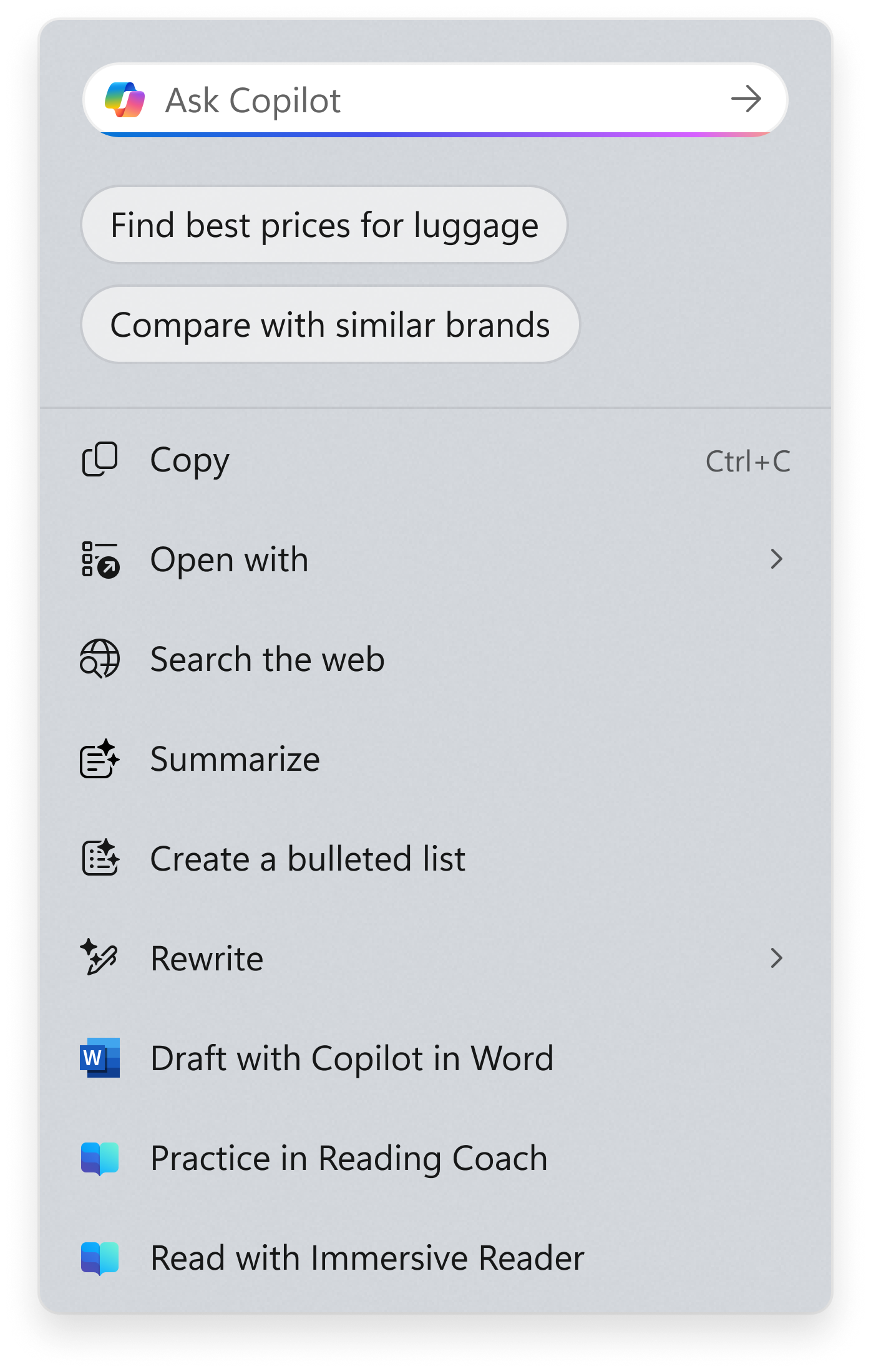
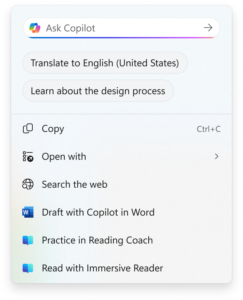
  • Copilot prompt box: The new Copilot prompt box in Click to Do is designed to streamline user interaction with Microsoft Copilot. This enhancement helps save time and allows users to type a custom prompt directly into a text box, which is then sent to Copilot along with your selected content on screen. Suggested prompts appear below the text box as well, powered locally by Phi-Silica (supported for text selections only and English, Spanish, and French). This change is not yet rolling out to Windows Insiders in the EEA (European Economic Area) or China.
[caption id="attachment_178235" align="alignnone" width="252"]New Copilot prompt box at the top of the Click to Do context menu. New Copilot prompt box at the top of the Click to Do context menu.[/caption]
  • New visual animations for the right edge gesture in Click to Do: These new visual animations are designed to give you a clear visual cue as you swipe and follow your finger for a more delightful, intuitive experience. These animations help you better understand the gesture’s intent, making interactions feel more purposeful.
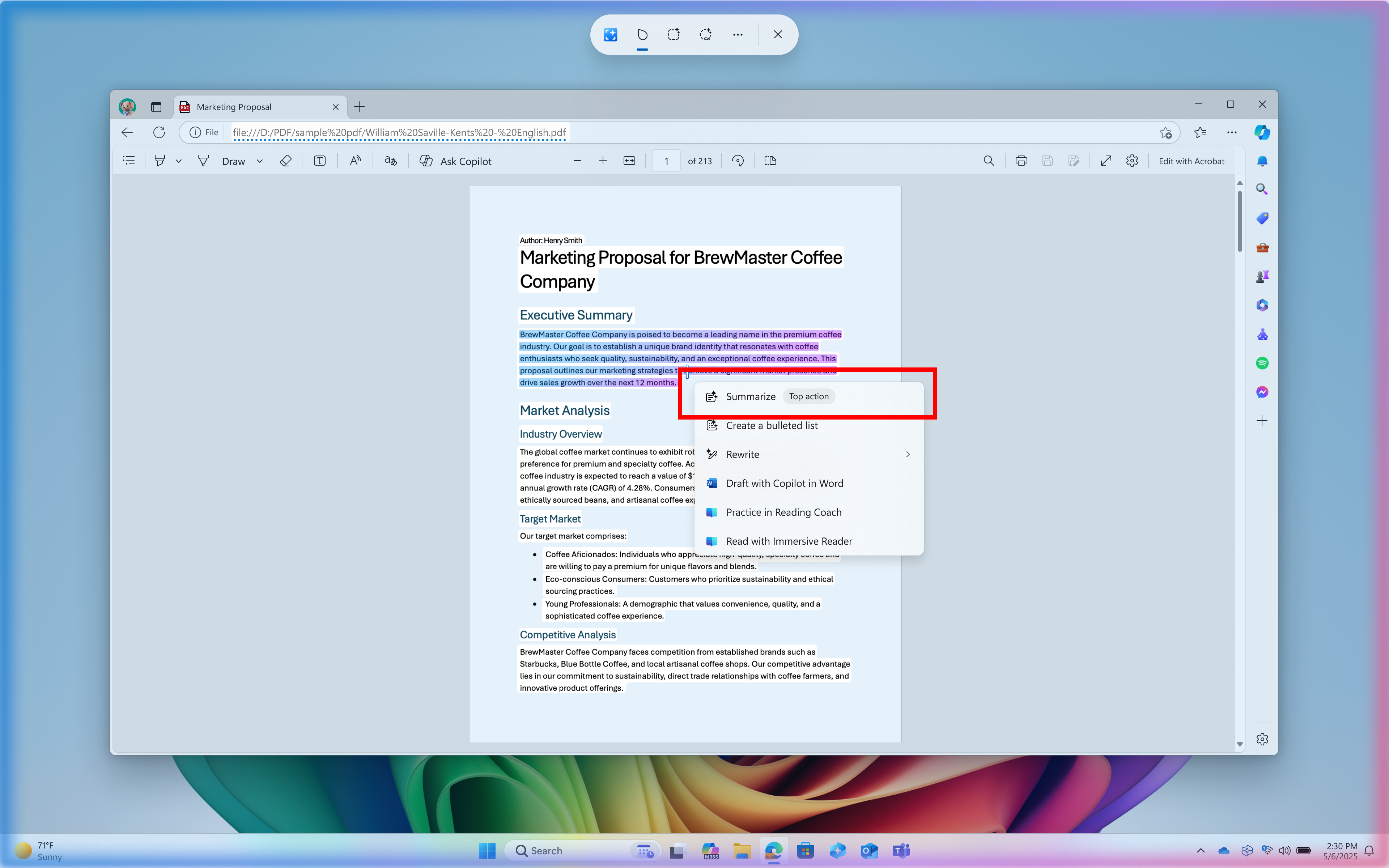
  • New and popular action tags: New and popular action tags to the context menu in Click to Do are designed to help you discover our newest and most popular AI-powered actions available to use.
[caption id="attachment_178236" align="alignnone" width="706"]Example of a top action highlighted in a red box in Click to Do’s context menu. Example of a top action highlighted in a red box in Click to Do’s context menu.[/caption]
  • The output from the Summarize action for text entities in Click to Do should start to feel even more brief and concise as we continue to tune for improvements.

[Start menu]

  • We are trying out a small change in the Recommended section of the Start menu where we will show examples of prompts that you can try using in the Copilot app such as creating an image with Copilot.

[Emoji]

The Emoji 16.0 release introduces a small but thoughtfully curated set of new emojis—one from each major category—designed to resonate across cultures and contexts. Each emoji carries timeless symbolism and practical versatility. With this build, you will see these new emoji available in the emoji panel. [caption id="attachment_178237" align="alignnone" width="609"]New Emoji 16.0 emoji from left to right: Face with Bags Under Eyes, Fingerprint, Root Vegetable, Leafless Tree, Harp, Shovel, and Splatter. New Emoji 16.0 emoji from left to right: Face with Bags Under Eyes, Fingerprint, Root Vegetable, Leafless Tree, Harp, Shovel, and Splatter.[/caption]
  • Face with Bags Under Eyes:Captures exhaustion or the need to rest.
  • Fingerprint:Identity or security.
  • Root Vegetable: Represents healthy eating and gardening.
  • Leafless Tree: Symbolizes winter, emptiness, or dormancy.
  • Harp: A timeless musical icon with ancient roots.
  • Shovel: Useful for gardening or metaphorically digging out of trouble.
  • Splatter: Expressive and fun.

[Gaming]

  • We have made some improvements for using Xbox game controllers for gaming on Windows 11. Short pressing the Xbox button opens Game Bar. A new change we're introducing is when you long press the Xbox button, it will open Task View. Pressing and holding the Xbox button continues to turn off the game controller.

[Narrator]

We’ve made several improvements to ensure Narrator delivers smoother, more reliable experience when working with documents in Word. These updates focus on making reading, writing, and editing more natural and efficient.
  • More natural voice feedback: Narrator no longer raises pitch dramatically when announcing headings or grammar/spelling errors, making the experience smoother and less distracting when using Natural Voices.
  • Better footnote navigation: You can now navigate a document via footnotes and clearly hear the footnote number, helping you stay oriented while reading or editing documents with references.
  • Reliable continuous reading: Narrator will no longer stop unexpectedly during long passages of text. Continuous reading now flows smoothly from start to finish.
  • Improved comment reading: Narrator now correctly tracks focus when moving from the document canvas into the comments pane, so you can review and read comments without losing context
Creating & Consuming List
  • Coherent and consistent announcements: Narrator now reads lists in a consistent manner across surfaces and navigation methods. List entities such as style and level will be announced as per the chosen verbosity to ensure users have context about the formatting and their position in the list.
  • Complete list reading: Narrator will no longer cut off when a list item continues onto the next line — the entire content is announced properly.
  • Navigation List Items: You can now navigate Up and down from one list item to another using Ctrl + Up/Down keys.
Creating & Consuming Tables
  • Easier navigation commands: Narrator now supports quick navigation in Scan Mode to the first or last cell in a row or column, helping users move through tables more efficiently. You can navigate using the following commands:
    • Beginning of Row – Ctrl + Alt + comma
    • End of Row – Ctrl + Alt + period
    • Beginning of Column - Ctrl + Alt + Shift + comma
    • End of Column – Ctrl + Alt + Shift + period
  • Clearer guidance at table boundaries: When navigating with the Tab key inside an editable table, Narrator now provides an announcement when reaching the last cell. This prevents confusion and accidental row additions.
  • Less confusing entry announcements: Narrator no longer announces “entering table” twice when moving across cells. You’ll now hear this feedback only once, making it easier to track whether you’re still inside the same table.
  • Better feedback during selection: Narrator now make clear announcements as you select one or more cells across row and columns or both. It also clearly announces when a text selection extends across multiple cells, so you know exactly how much content they’ve selected.
  • Awareness of non-uniform tables: Narrator now alerts users if a table is non-uniform (for example, missing cells in certain rows or columns), giving important context about table structure.

[Settings]

  • After being temporarily disabled, Advanced Settings is rolling out again to Windows Insiders in the Dev and Beta Channels. However, we have temporarily removed the long path and virtual workspaces options to address some issues.

[Other]

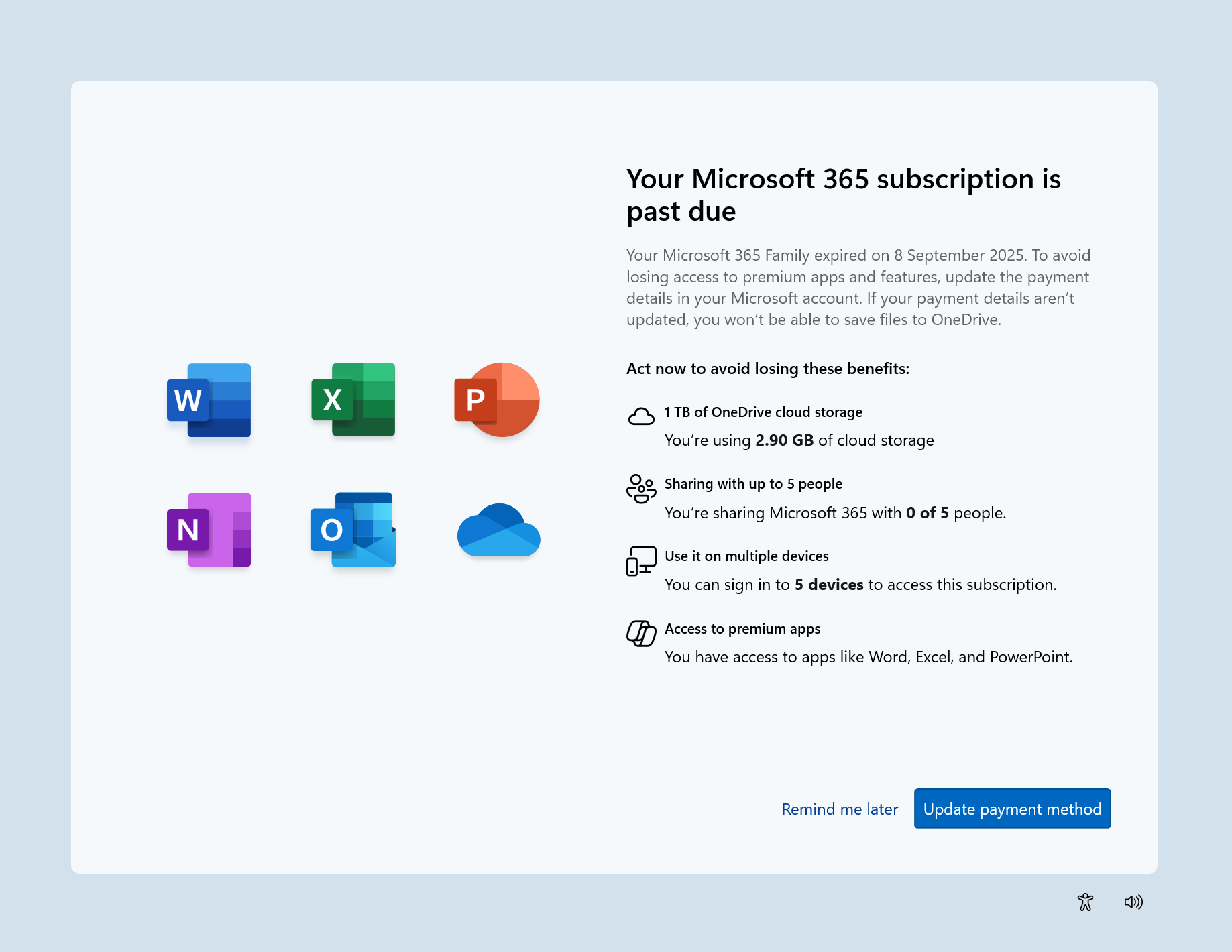
  • We’re introducing a simple reminder that appears as a SCOOBE screen (Second Chance Out of Box Experience) to let you know your Microsoft subscription needs attention (for example, if a renewal payment didn’t go through). In just a few clicks, you can review and update your payment method and keep your subscription benefits uninterrupted.
[caption id="attachment_178233" align="alignnone" width="588"]SCOOBE screen for notifying you your Microsoft 365 subscription is past due with link to take action. SCOOBE screen for notifying you your Microsoft 365 subscription is past due with link to take action.[/caption]

Fixes gradually being rolled out to the Beta Channel with toggle on*

[General]

  • Fixed an issue causing some PCs to bugcheck (green screen) while hibernating after the latest flights. This may have made it look like hibernation had shut down your PC. This issue is believed to also be the cause of some Insiders finding that shutdown had hung and would sit on a black screen with a fan noise.

[Taskbar & System Tray]

  • Did some work to help improve reliability of taskbar hiding and unhiding when the setting “automatically hide the taskbar” is enabled. As part of this work, the animation may be smoother for you now. As a reminder – if an app has an alert (the orange highlight on the app icon) then the taskbar will show.
  • Fixed a couple issues which could lead to you not being able to interact with apps or the desktop in the area directly above the taskbar.

[File Explorer]

  • Fixed an issue for some users, where the Shared section in File Explorer Home might be visible even if there was no content to display.
  • Fixed an issue which was Fixed an issue where File Explorer was unexpectedly not showing thumbnails for video files containing certain EXIF metadata.
  • Fixed an issue where interacting with the context menu in File Explorer could lead to the body of File Explorer becoming unresponsive to clicks.
  • Fixed an issue which could lead to certain apps hanging when launching the Open or Save Dialog.

[Lock and Login screens]

  • Fixed an issue which could cause the lock screen to crash when interacting with the power button in the latest builds.

[Start menu]

  • Fixed an underlying issue which was causing Start menu to dismiss if you tried to use WIN + Shift + S to take a screenshot of it.
  • Fixed an issue impacting Start menu reliability in the latest builds.
  • Fixed an issue which was causing Start menu to randomly scroll back up to the top sometimes.

[Windows Sandbox]

  • Fixed an issue for Windows Sandbox users which could lead to the vmmemCmFirstBoot process consuming large amounts of CPU after login, causing your PC to potentially become unresponsive.

[Search]

  • We did some work to help reduce instances where search may get stuck in a loading state.

[Settings]

  • Fixed an issue which could lead to Settings crashing when interacting with Settings > System > Optional Features.

[Voice Access]

  • Fixed an issue which could result in Voice Access not working, showing error 9001.

[Windows Hello]

  • Fixed an issue where booting into safe mode wasn’t working, with a message saying “Something happened and your PIN isn’t available” for some people.
  • Fixed an issue where Windows Hello Pin setup might fail with error 0x80090010 on Entra-domain joined devices that had installed the latest updates.

[Other]

Fixes for everyone in the Beta Channel

[General]

  • This update addresses an issue that affects audio in apps using the Network Device Interface (NDI). Audio stutters when Display Capture is on in OBS Studio Application. This could occur after installing the latest updates.

Known issues

[Click to Do]

  • [NEW] Launching Click to Do on your primary display via right-edge gesture will result in the swipe visuals appearing on the incorrect display. The issue is being investigated.

[Lock and login screens]

  • [NEW] We’re investigating an issue in this build where the media controls may not display on the lock screen.

[Windows Studio Effects]

  • [NEW] For some classes of external webcams, turning on "Use Windows Studio Effects" in the advanced camera setting may result in a camera preview failure. This is due to a compatibility issue with the camera firmware and is being addressed with a future update. In the meantime, if you are impacted by this issue, turn off Windows Studio Effects inside the camera settings.

[For developers]

  • PIX on Windows is unable to play back GPU captures on this OS version. This will be addressed by a new PIX release, estimated to arrive by the end of September. In the meantime, if you are impacted, you can use the “Send Feedback” button in PIX or contact us on the DirectX Discord server and we can help provide private builds.

[Settings]

  • [NEW] The placeholder text in the Settings search box may appear vertically misaligned.

[Audio]

  • Some Windows Insiders in the Dev and Beta Channels are experiencing an issue where audio stops working and Device Manager shows one or more devices with a yellow exclamation mark, including “ACPI Audio Compositor” and others. Selecting Properties on these devices will show “Windows cannot load the device driver for this hardware. The driver may be corrupted or missing.” If you are impacted by this issue, you can follow these instructions to get back into a working state:
    • Right-click on the device with a yellow exclamation mark in Device Manager and select “Update driver”.
    • Choose “Browse my computer for drivers” and then “Let me pick from a list of available drivers on my computer”.
    • Select the driver from the list with the most recent date and click “Next”. If you are presented with a list of common hardware types instead of one or more specific drivers, this device is not related to this issue.
    • This device should be repaired and no longer show a yellow exclamation mark in Device Manager. If it continues to show a yellow exclamation mark, the yellow exclamation mark is not related to this issue.
    • Repeat these steps for each device with a yellow exclamation mark.

[Xbox Controllers]

  • Some Insiders are experiencing an issue where using their Xbox Controller via Bluetooth is causing their PC to bugcheck. Here is how to resolve the issue. Open Device Manager by searching for it via the search box on your taskbar. Once Device Manager is open, click on "View" and then "Devices by Driver". Find the driver named "oemXXX.inf (XboxGameControllerDriver.inf)" where the "XXX" will be a specific number on your PC. Right-click on that driver and click "Uninstall".

Microsoft Store Update

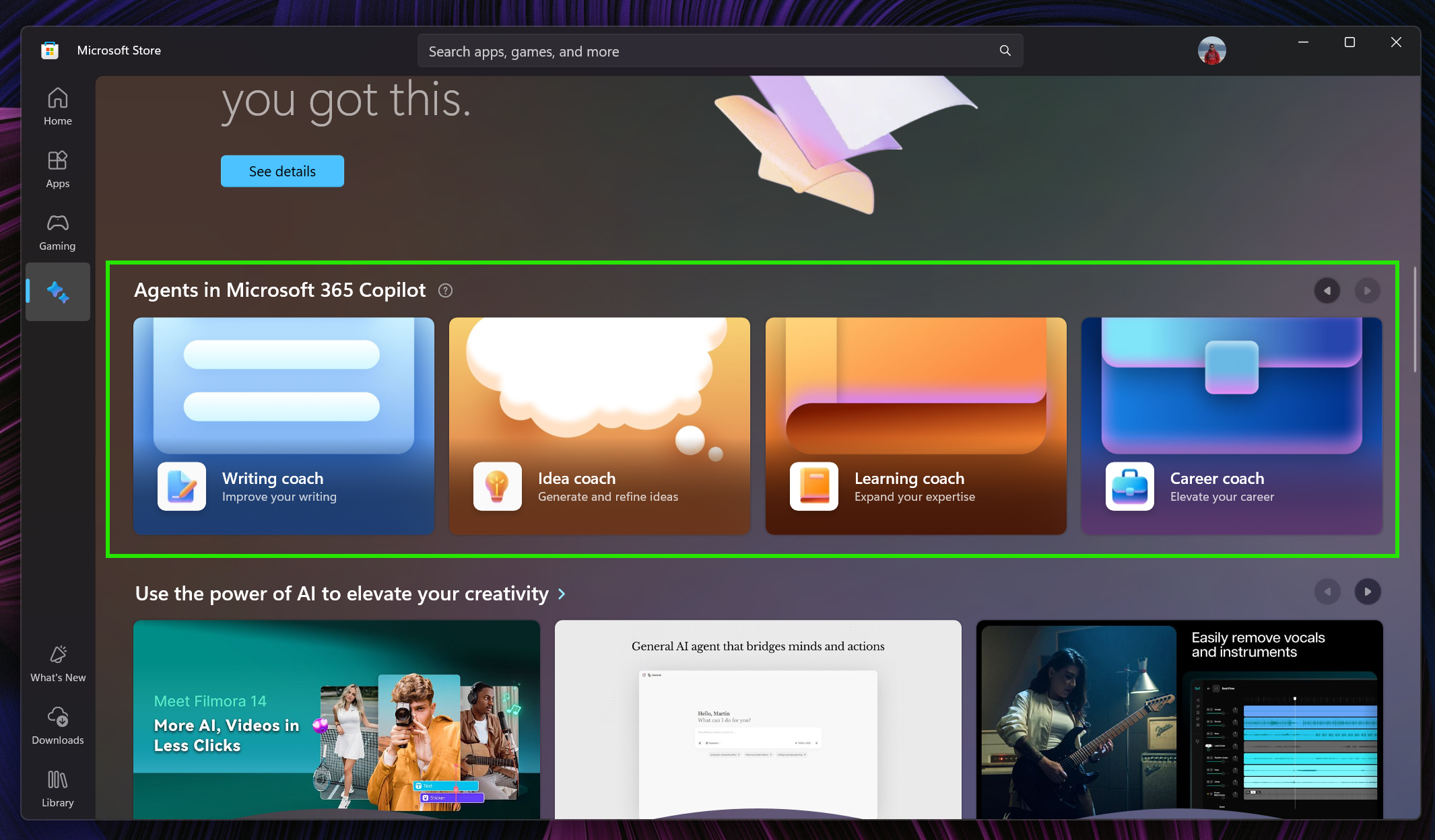
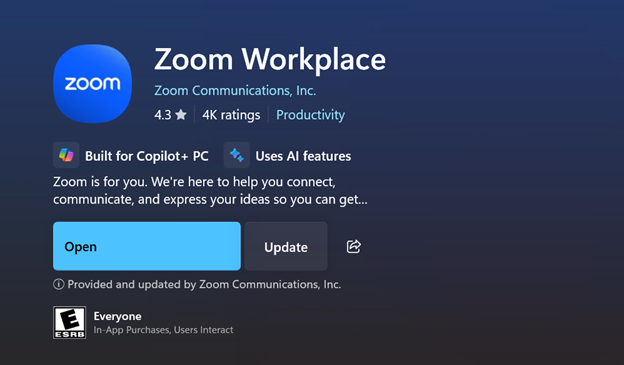
Windows Insiders running version 22508.1401.x.x of the Microsoft Store and higher will see the following improvement rolling out: Microsoft Store's AI Hub is getting a new addition: Microsoft 365 Copilot Agents! Clicking on the agent cards will directly launch Microsoft 365 Copilot where you can explore the deeper capabilities of each agent. These include the Prompt, Writing, Idea, Career and Learning coaches as well as Analyst and Researcher. The cards will be shown to users with the Microsoft 365 Copilot app installed and are subject to availability based on subscription tier. [caption id="attachment_178239" align="alignnone" width="691"]Agents in Microsoft 365 Copilot in the Microsoft Store’s AI Hub. Agents in Microsoft 365 Copilot in the Microsoft Store’s AI Hub.[/caption] Launching apps provided and updated by publishers: In previous months, we rolled out the capability to update apps that are provided and updated by publishers. Starting with this Microsoft Store update, you'll be able to launch these types of apps directly from the product page or from the downloads page if the app supports it. [caption id="attachment_178240" align="alignnone" width="374"]Launch app updates provided from publishers directly on the product page. Launch app updates provided from publishers directly on the product page.[/caption] FEEDBACK: Please file feedback in Feedback Hub (WIN + F) under Microsoft Store.

Reminders for Windows Insiders in the Beta Channel

  • Windows Insiders in the Beta Channel on Windows 11, version 24H2 will receive updates based on Windows 11, version 24H2 via an enablement package (Build 26120.xxxx).
  • Updates delivered to the Beta Channel are in a format that offers a preview of enhancements to servicing technology on Windows 11, version 24H2. To learn more, see Introducing Windows 11 checkpoint cumulative updates | Windows IT Pro Blog.
  • Many features in the Beta Channel are rolled out using Controlled Feature Rollout technology, starting with a subset of Insiders and ramping up over time as we monitor feedback to see how they land before pushing them out to everyone in this channel.
  • For Windows Insiders in the Beta Channel who want to be the first to get features gradually rolled out to you, you can turn ON the toggle to get the latest updates as they are available via Settings > Windows Update*. Over time, we will increase the rollouts of features to everyone with the toggle turned on. Should you keep this toggle off, new features will gradually be rolled out to your PC over time once they are ready.
  • Features and experiences included in these builds may never get released as we try out different concepts and get feedback. Features may change over time, be removed, or replaced and never get released beyond Windows Insiders. Some of these features and experiences could show up in future Windows releases when they’re ready.
  • Some features in active development we preview with Windows Insiders may not be fully localized and localization will happen over time as features are finalized. As you see issues with localization in your language, please report those issues to us via Feedback Hub.
  • Please note that some accessibility features may not work with features like Recall and Click to Do while in preview with Windows Insiders.
  • Because the Dev and Beta Channels represent parallel development paths from our engineers, there may be cases where features and experiences show up in the Beta Channel first.
  • Check out Flight Hub for a complete look at what build is in which Insider channel.
Thanks, Amanda & Brandon

Source: Announcing Windows 11 Insider Preview Build 26120.6682 (Beta Channel)
 
Hello Windows Insiders, today we are releasing Windows 11 Insider Preview Build 26220.6682 (KB5065782) to the Dev Channel for Windows Insiders on Windows 11, version 25H2. Changes in Dev Channel builds and updates are documented in two buckets: new features, improvements, and fixes that are being gradually rolled out for Insiders who have turned on the toggle to get the latest updates as they are available (via Settings > Windows Update*) and then new features, improvements, and fixes rolling out to everyone in the Dev Channel. For more information, see the Reminders section at the bottom of this blog post.

Changes and Improvements gradually being rolled out to the Dev Channel with toggle on*

[Click to Do (Preview)]

The following changes and improvements are rolling out for Click to Do on Copilot+ PCs:
  • Copilot prompt box: The new Copilot prompt box in Click to Do is designed to streamline user interaction with Microsoft Copilot. This enhancement helps save time and allows users to type a custom prompt directly into a text box, which is then sent to Copilot along with your selected content on screen. Suggested prompts appear below the text box as well, powered locally by Phi-Silica (supported for text selections only and English, Spanish, and French). This change is not yet rolling out to Windows Insiders in the EEA (European Economic Area) or China.
[caption id="attachment_178235" align="alignnone" width="252"]New Copilot prompt box at the top of the Click to Do context menu. New Copilot prompt box at the top of the Click to Do context menu.[/caption]
  • New visual animations for the right edge gesture in Click to Do: These new visual animations are designed to give you a clear visual cue as you swipe and follow your finger for a more delightful, intuitive experience. These animations help you better understand the gesture’s intent, making interactions feel more purposeful.
  • New and popular action tags: New and popular action tags to the context menu in Click to Do are designed to help you discover our newest and most popular AI-powered actions available to use.
[caption id="attachment_178236" align="alignnone" width="706"]Example of a top action highlighted in a red box in Click to Do’s context menu. Example of a top action highlighted in a red box in Click to Do’s context menu.[/caption]
  • The output from the Summarize action for text entities in Click to Do should start to feel even more brief and concise as we continue to tune for improvements.

[Start menu]

  • We are trying out a small change in the Recommended section of the Start menu where we will show examples of prompts that you can try using in the Copilot app such as creating an image with Copilot.

[Emoji]

The Emoji 16.0 release introduces a small but thoughtfully curated set of new emojis—one from each major category—designed to resonate across cultures and contexts. Each emoji carries timeless symbolism and practical versatility. With this build, you will see these new emoji available in the emoji panel. [caption id="attachment_178237" align="alignnone" width="609"]New Emoji 16.0 emoji from left to right: Face with Bags Under Eyes, Fingerprint, Root Vegetable, Leafless Tree, Harp, Shovel, and Splatter. New Emoji 16.0 emoji from left to right: Face with Bags Under Eyes, Fingerprint, Root Vegetable, Leafless Tree, Harp, Shovel, and Splatter.[/caption]
  • Face with Bags Under Eyes: Captures exhaustion or the need to rest.
  • Fingerprint: Identity or security.
  • Root Vegetable: Represents healthy eating and gardening.
  • Leafless Tree: Symbolizes winter, emptiness, or dormancy.
  • Harp: A timeless musical icon with ancient roots.
  • Shovel: Useful for gardening or metaphorically digging out of trouble.
  • Splatter: Expressive and fun.

[Gaming]

  • We have made some improvements for using Xbox game controllers for gaming on Windows 11. Short pressing the Xbox button opens Game Bar. A new change we're introducing is when you long press the Xbox button, it will open Task View. Pressing and holding the Xbox button continues to turn off the game controller.

[Narrator]

We’ve made several improvements to ensure Narrator delivers smoother, more reliable experience when working with documents in Word. These updates focus on making reading, writing, and editing more natural and efficient.
  • More natural voice feedback: Narrator no longer raises pitch dramatically when announcing headings or grammar/spelling errors, making the experience smoother and less distracting when using Natural Voices.
  • Better footnote navigation: You can now navigate a document via footnotes and clearly hear the footnote number, helping you stay oriented while reading or editing documents with references.
  • Reliable continuous reading: Narrator will no longer stop unexpectedly during long passages of text. Continuous reading now flows smoothly from start to finish.
  • Improved comment reading: Narrator now correctly tracks focus when moving from the document canvas into the comments pane, so you can review and read comments without losing context
Creating & Consuming List
  • Coherent and consistent announcements: Narrator now reads lists in a consistent manner across surfaces and navigation methods. List entities such as style and level will be announced as per the chosen verbosity to ensure users have context about the formatting and their position in the list.
  • Complete list reading: Narrator will no longer cut off when a list item continues onto the next line — the entire content is announced properly.
  • Navigation List Items: You can now navigate Up and down from one list item to another using Ctrl + Up/Down keys.
Creating & Consuming Tables
  • Easier navigation commands: Narrator now supports quick navigation in Scan Mode to the first or last cell in a row or column, helping users move through tables more efficiently. You can navigate using the following commands:
    • Beginning of Row – Ctrl + Alt + comma
    • End of Row – Ctrl + Alt + period
    • Beginning of Column - Ctrl + Alt + Shift + comma
    • End of Column – Ctrl + Alt + Shift + period
  • Clearer guidance at table boundaries: When navigating with the Tab key inside an editable table, Narrator now provides an announcement when reaching the last cell. This prevents confusion and accidental row additions.
  • Less confusing entry announcements: Narrator no longer announces “entering table” twice when moving across cells. You’ll now hear this feedback only once, making it easier to track whether you’re still inside the same table.
  • Better feedback during selection: Narrator now make clear announcements as you select one or more cells across row and columns or both. It also clearly announces when a text selection extends across multiple cells, so you know exactly how much content they’ve selected.
  • Awareness of non-uniform tables: Narrator now alerts users if a table is non-uniform (for example, missing cells in certain rows or columns), giving important context about table structure.

[Settings]

  • After being temporarily disabled, Advanced Settings is rolling out again to Windows Insiders in the Dev and Beta Channels. However, we have temporarily removed the long path and virtual workspaces options to address some issues.

[Other]

  • We’re introducing a simple reminder that appears as a SCOOBE screen (Second Chance Out of Box Experience) to let you know your Microsoft subscription needs attention (for example, if a renewal payment didn’t go through). In just a few clicks, you can review and update your payment method and keep your subscription benefits uninterrupted.
[caption id="attachment_178233" align="alignnone" width="588"]SCOOBE screen for notifying you your Microsoft 365 subscription is past due with link to take action. SCOOBE screen for notifying you your Microsoft 365 subscription is past due with link to take action.[/caption]

Fixes gradually being rolled out to the Dev Channel with toggle on*

[General]

  • Fixed an issue causing some PCs to bugcheck (green screen) while hibernating after the latest flights. This may have made it look like hibernation had shut down your PC. This issue is believed to also be the cause of some Insiders finding that shutdown had hung and would sit on a black screen with a fan noise.

[Taskbar & System Tray]

  • Did some work to help improve reliability of taskbar hiding and unhiding when the setting “automatically hide the taskbar” is enabled. As part of this work, the animation may be smoother for you now. As a reminder – if an app has an alert (the orange highlight on the app icon) then the taskbar will show.
  • Fixed a couple issues which could lead to you not being able to interact with apps or the desktop in the area directly above the taskbar.

[File Explorer]

  • Fixed an issue for some users, where the Shared section in File Explorer Home might be visible even if there was no content to display.
  • Fixed an issue which was Fixed an issue where File Explorer was unexpectedly not showing thumbnails for video files containing certain EXIF metadata.
  • Fixed an issue where interacting with the context menu in File Explorer could lead to the body of File Explorer becoming unresponsive to clicks.
  • Fixed an issue which could lead to certain apps hanging when launching the Open or Save Dialog.

[Lock and Login screens]

  • Fixed an issue which could cause the lock screen to crash when interacting with the power button in the latest builds.

[Start menu]

  • Fixed an underlying issue which was causing Start menu to dismiss if you tried to use WIN + Shift + S to take a screenshot of it.
  • Fixed an issue impacting Start menu reliability in the latest builds.
  • Fixed an issue which was causing Start menu to randomly scroll back up to the top sometimes.

[Windows Sandbox]

  • Fixed an issue for Windows Sandbox users which could lead to the vmmemCmFirstBoot process consuming large amounts of CPU after login, causing your PC to potentially become unresponsive.

[Search]

  • We did some work to help reduce instances where search may get stuck in a loading state.

[Settings]

  • Fixed an issue which could lead to Settings crashing when interacting with Settings > System > Optional Features.

[Voice Access]

  • Fixed an issue which could result in Voice Access not working, showing error 9001.

[Windows Hello]

  • Fixed an issue where booting into safe mode wasn’t working, with a message saying “Something happened and your PIN isn’t available” for some people.
  • Fixed an issue where Windows Hello Pin setup might fail with error 0x80090010 on Entra-domain joined devices that had installed the latest updates.

[Other]

Fixes for everyone in the Dev Channel

[General]

  • This update addresses an issue that affects audio in apps using the Network Device Interface (NDI). Audio stutters when Display Capture is on in OBS Studio Application. This could occur after installing the latest updates.

Known issues

[Click to Do]

  • [NEW] Launching Click to Do on your primary display via right-edge gesture will result in the swipe visuals appearing on the incorrect display. The issue is being investigated.

[Lock and login screens]

  • [NEW] We’re investigating an issue in this build where the media controls may not display on the lock screen.

[Windows Studio Effects]

  • [NEW] For some classes of external webcams, turning on "Use Windows Studio Effects" in the advanced camera setting may result in a camera preview failure. This is due to a compatibility issue with the camera firmware and is being addressed with a future update. In the meantime, if you are impacted by this issue, turn off Windows Studio Effects inside the camera settings.

[For developers]

  • PIX on Windows is unable to play back GPU captures on this OS version. This will be addressed by a new PIX release, estimated to arrive by the end of September. In the meantime, if you are impacted, you can use the “Send Feedback” button in PIX or contact us on the DirectX Discord server and we can help provide private builds.

[Settings]

  • [NEW] The placeholder text in the Settings search box may appear vertically misaligned.

[Audio]

  • Some Windows Insiders in the Dev and Beta Channels are experiencing an issue where audio stops working and Device Manager shows one or more devices with a yellow exclamation mark, including “ACPI Audio Compositor” and others. Selecting Properties on these devices will show “Windows cannot load the device driver for this hardware. The driver may be corrupted or missing.” If you are impacted by this issue, you can follow these instructions to get back into a working state:
    • Right-click on the device with a yellow exclamation mark in Device Manager and select “Update driver”.
    • Choose “Browse my computer for drivers” and then “Let me pick from a list of available drivers on my computer”.
    • Select the driver from the list with the most recent date and click “Next”. If you are presented with a list of common hardware types instead of one or more specific drivers, this device is not related to this issue.
    • This device should be repaired and no longer show a yellow exclamation mark in Device Manager. If it continues to show a yellow exclamation mark, the yellow exclamation mark is not related to this issue.
    • Repeat these steps for each device with a yellow exclamation mark.

[Xbox Controllers]

  • Some Insiders are experiencing an issue where using their Xbox Controller via Bluetooth is causing their PC to bugcheck. Here is how to resolve the issue. Open Device Manager by searching for it via the search box on your taskbar. Once Device Manager is open, click on "View" and then "Devices by Driver". Find the driver named "oemXXX.inf (XboxGameControllerDriver.inf)" where the "XXX" will be a specific number on your PC. Right-click on that driver and click "Uninstall".

Microsoft Store Update

Windows Insiders running version 22508.1401.x.x of the Microsoft Store and higher will see the following improvement rolling out: Microsoft Store's AI Hub is getting a new addition: Microsoft 365 Copilot Agents! Clicking on the agent cards will directly launch Microsoft 365 Copilot where you can explore the deeper capabilities of each agent. These include the Prompt, Writing, Idea, Career and Learning coaches as well as Analyst and Researcher. The cards will be shown to users with the Microsoft 365 Copilot app installed and are subject to availability based on subscription tier. [caption id="attachment_178239" align="alignnone" width="691"]Agents in Microsoft 365 Copilot in the Microsoft Store’s AI Hub. Agents in Microsoft 365 Copilot in the Microsoft Store’s AI Hub.[/caption] Launching apps provided and updated by publishers: In previous months, we rolled out the capability to update apps that are provided and updated by publishers. Starting with this Microsoft Store update, you'll be able to launch these types of apps directly from the product page or from the downloads page if the app supports it. [caption id="attachment_178240" align="alignnone" width="374"]Launch app updates provided from publishers directly on the product page. Launch app updates provided from publishers directly on the product page.[/caption] FEEDBACK: Please file feedback in Feedback Hub (WIN + F) under Microsoft Store.

Reminders for Windows Insiders in the Dev Channel

  • Windows Insiders in the Dev Channel receive updates based on Windows 11, version 25H2 via an enablement package (Build 26220.xxxx).
  • Many features in the Dev Channel are rolled out using Controlled Feature Rollout technology, starting with a subset of Insiders and ramping up over time as we monitor feedback to see how they land before pushing them out to everyone in this channel.
  • For Windows Insiders in the Dev Channel who want to be the first to get features gradually rolled out to you, you can turn ON the toggle to get the latest updates as they are available via Settings > Windows Update*. Over time, we will increase the rollouts of features to everyone with the toggle turned on. Should you keep this toggle off, new features will gradually be rolled out to your PC over time once they are ready.
  • Features and experiences included in these builds may never get released as we try out different concepts and get feedback. Features may change over time, be removed, or replaced and never get released beyond Windows Insiders. Some of these features and experiences could show up in future Windows releases when they’re ready.
  • Some features in active development we preview with Windows Insiders may not be fully localized and localization will happen over time as features are finalized. As you see issues with localization in your language, please report those issues to us via Feedback Hub.
  • Please note that some accessibility features may not work with features like Recall and Click to Do while in preview with Windows Insiders.
  • Because the Dev and Beta Channels represent parallel development paths from our engineers, there may be cases where features and experiences show up in the Beta Channel first.
  • Check out Flight Hub for a complete look at what build is in which Insider channel.
Thanks, Amanda & Brandon

Source: Announcing Windows 11 Insider Preview Build 26220.6682 (Dev Channel)
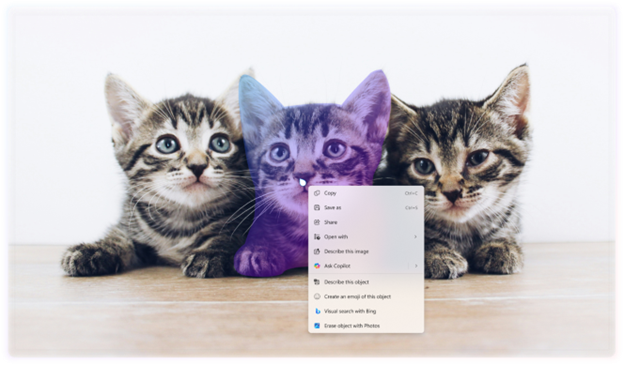
 
Hello Windows Insiders, today we’re releasing Windows 11 Builds 26100.5061 and 26200.6713 (KB5065789) to Insiders in the Release Preview Channel on Windows 11, version 24H2 (Build 26100) and version 25H2 (Build 26200). Below is a summary of the new features and improvements included as part of this update separated into two sections: gradual rollout and normal rollout. The bold text within the brackets indicates the item or area of the change we are documenting.

Gradual rollout

The following features and improvements might not be available to all users because they will roll out gradually. Text bolded in brackets indicate the area of the change being documented. Please note that features and improvements that gradually roll out may not begin rolling out right away nor will they immediately show up right away.
  • [Click to Do]
    • New! Click to Do can now detect tables. You can now highlight any simple table and send it to Excel, copy or share it. With a table in any application, you can press Win + Click to invoke Click to Do, or Win + Q or right swipe and tap to select the table. Once selected, you’ll see the actions you can take like Convert to table with Excel. Just click, capture and continue. This is available on Snapdragon-powered Copilot+ PCs, with support for AMD and Intel-powered Copilot+ PCs coming soon. You’ll need the latest Microsoft Excel application installed on your PC to see Convert to table with Excel and a Microsoft 365 Subscription. This change is not yet rolling out to Windows Insiders in the EEA (European Economic Area).
    • New! New and popular action tags in the Click to Do context menu help you discover the latest and most widely used AI-powered actions.
    • New! Click to Do now provides more concise summaries with the Summarize action. The output for text entities is shorter and more focused. Ongoing improvements continue to enhance clarity and precision.
  • [Agents in Settings] New! A direct navigation link to the corresponding settings page is now available from agent search results. This improvement is currently rolling out to agents in Settings on Copilot+ PCs.
  • [Desktop] New! You can now move the hardware indicators for brightness, volume, airplane mode, and virtual desktops to different positions on your screen. To change their position, go to Settings > System > Notifications, and then pick from the options in the Position of the onscreen pop-up in the dropdown list.
  • [Taskbar] New! IT administrators no longer need to restart explorer.exe to apply the pinning policy. After applying the policy, users might see a pin on their taskbar within approximately 8 hours, depending on the refresh interval.
  • [File Explorer]
    • New! Use AI actions in File Explorer to edit images or summarize documents. Just right click (or press Shift +F10) on the file and select AI actions. This experience is not yet available for customers in the EEA (European Economic Area).
      • Image actions: You can now use four AI-powered image actions with .jpg, .jpeg, and .png files. Visual Search searches the web using an image instead of text. Blur Background opens the Photos app to highlight the subject and blur the background. Erase Objects removes unwanted elements from your photo. Remove Background uses Paint to change any image leaving a smooth cut out the subject.
      • AI actions in Microsoft 365 make it easier to work with your documents. With the Summarize action in Copilot, you can quickly generate summaries of files stored in OneDrive and SharePoint—no need to open each one. This AI action requires an active Microsoft 365 subscription and a Copilot license (Microsoft account and Microsoft Entra ID supported).
    • Improved: The File Explorer context menu has been updated to remove the accent colored backplate behind packaged app icons in the Open With list when right clicking a file (for example, for Snipping Tool). In doing this, the icons should be easier to see now.
    • Improved: Made underlying changes to help improve the performance of launching cloud files from File Explorer and loading context menus.
    • Fixed: Icons and text may become overlapping on the desktop when using increased text scaling.
    • Fixed: Icons in the details, preview, and navigation panes of File Explorer aren’t properly mirrored when using an Arabic or Hebrew display language.
  • [Windows Share] New! You can pin your favorite apps in the Windows share window to quickly access them when you need them.
  • [Emoji] New! The Emoji 16.0 release includes a small but meaningful set of new emoji— Face with Bags Under Eyes, Fingerprint, Root Vegetable, Leafless Tree, Harp, Shovel, and Splatter. These new emoji are designed to resonate across cultures and contexts. You’ll find them in the emoji panel starting with this build.
  • [Advanced Settings] New! The redesigned Advanced settings page (Settings > System > Advanced) is an update of the For Developers page and makes it easier to find key options. Settings include File Explorer + version control, which shows Git details such as branch, diff count, and last commit message directly in File Explorer when you select a repository folder.
  • [Automatic Super Resolution (Auto SR)] New! Auto SR on Snapdragon®-powered Copilot+ PCs helps gamers improve visual quality with minimal effort through simplified settings. When a supported game is launched, Windows displays a notification that allows users to turn on Auto SR with a single click. The feature is now easier to find and manage in Graphics settings, and future updates might enable users to turn on Auto SR directly from the Game Bar during gameplay.
  • [Input]
    • New! Insert dashes with new keyboard shortcuts. You can quickly insert an en dash (–) or em dash (—) while typing. Press Windows logo key + Minus (-) to insert an en dash, and Windows logo key + Shift + Minus (-) to insert an em dash. If Magnifier is running, Windows logo key + hyphen (-) will zoom out Magnifier instead of inserting an en dash.
    • Fixed: After waking a PC from sleep, touch input may not work to enter your pin on the login screen.
  • [Narrator]
    • New! Narrator now includes Braille Viewer, which shows both on-screen text and its Braille equivalent on a refreshable Braille display. To open Braille viewer and start Narrator, press the Windows logo key + Ctrl + Enter, press Narrator key + Alt + B. A new floating window opens and updates dynamically as you navigate with Narrator. Before using Braille viewer, you must set up Narrator for Braille. To download and install the Braille support package, go to Settings > Accessibility > Narrator > Use a Braille display with Narrator.
    • New! Narrator now offers a smoother, more natural experience in Word, with improved voice feedback, reliable continuous reading, and better navigation for footnotes, comments, lists, and tables. Enhancements include consistent list announcements, clearer table boundaries, and intuitive selection feedback.
  • [Administrator Protection Preview] Administrator protection aims to protect free floating admin rights for administrator users allowing them to still perform all admin functions with just-in-time admin privileges. This feature is off by default and needs to be enabled via Windows Security under Account protection or via group policy.
  • [Passkeys] New! A seamless plugin passkey provider integration in Windows 11. You can now use plugin credential manager for passkeys. To set up a plugin credential manager, go to Settings > Accounts > Passkeys > Advanced options. Turn on support and complete user verification using Windows Hello (through face recognition, fingerprint, or PIN). Once verified, you can use your existing passkeys saved to the plugin credential manager or save new passkeys.
  • [Settings]
    • New! The Manage or clear your Bing search history entry under Settings > Privacy & security > Search > Search history has been removed. You can now manage your Bing search history directly from the Privacy dashboard, accessible via the Privacy resources link under Related settings on that Settings page.
    • New! More time, language, and keyboard settings have moved from Control Panel to Settings. You can now add additional clocks, change your time server, and customize date and time formatting—including AM/PM symbols—directly from Settings > Time & language > Date & time. Number and currency formats, Unicode UTF-8 support, and options to copy language and region settings to other accounts are now under Settings > Time & language > Language & region. Keyboard character repeat and cursor blink rate settings are now easier to find under Settings > Accessibility.
    • Improved: Made underlying changes to help improve the performance of loading the apps list in Settings > Apps > Installed apps.
    • Fixed: Settings > System > Storage > Disks and Volumes might show a link for BitLocker drive encryption in unsupported cases. Clicking it results in BitLocker opening and displaying error 0x80004005.
  • [Gaming]
    • New! Xbox controller support for gaming on Windows 11 has been improved. Short pressing the Xbox button opens Game Bar. A new change we're introducing is when you long press the Xbox button, it will open Task View. Pressing and holding the Xbox button continues to turn off the game controller.
    • Improved: Made some underlying changes to help improve performance when gaming with Game Bar or other overlays on top of your game. This may particularly help those with multiple monitors which have different refresh rates.
  • [Other] New! Several dialogs, including the one that appears when an app fails to open, have been modernized with WinUI 3 and match the visuals for Windows 11.
  • [Dynamic Lighting] Fixed: The Dynamic Lighting Background Controller may occasionally consume excessive CPU after unlocking your PC.[Voice Access] Fixed: Voice Access may get stuck in a state where it says it’s listening but is stuck and doesn’t respond.
  • [Windows Hello] Fixed: You may unexpectedly see a message saying “Something happened and your PIN isn’t available” when attempting to enter safe mode.
  • [Windows Sandbox] Fixed: When Windows Sandbox is enabled, the VmmemCmFirstBoot process may consume large amounts of CPU after login, causing your PC to become unresponsive.
  • [HDR] Fixed: HDR may unexpectedly immediately turn off after being enabled in Settings.
  • [Quick Settings]: Fixed: If you had to enter a PIN for your device to cast from Quick Settings, pressing Enter wouldn’t confirm the PIN.

Normal rollout

This update includes the following features and improvements that are rolling out as part of this update. Text bolded in brackets indicates the area of the change being documented.
  • [Input]
    • Fixed: An issue where some characters didn’t display correctly when using the Chinese Input Method Editor (IME).
    • Fixed: This update addresses an issue where certain Chinese characters appeared as empty boxes in some text fields, such as those used in Connection Manager Administration Kit, when a character limit was set.
  • [Servicing] Fixed: This update addresses an issue that disrupted Windows Update for customers using Windows Server Update Services (WSUS).
  • [Windows Hello] Fixed: This update addresses an issue that affects Windows Hello PIN setup with error 0x80090010 on devices joined to Microsoft Entra ID domains after installing Windows updates released on or after KB5060842.
Thanks, Windows Insider Program Team

Source: Releasing Windows 11 Builds 26100.6713 and 26200.6713 to the Release Preview Channel
 
  • Like
Reactions: micasayyo
Hello Windows Insiders, today we are releasing Windows 11 Insider Preview Build 26120.6690 (KB5065786) to the Beta Channel for Windows Insiders on Windows 11, version 24H2. Changes in Beta Channel builds and updates are documented in two buckets: new features, improvements, and fixes that are being gradually rolled out for Insiders who have turned on the toggle to get the latest updates as they are available (via Settings > Windows Update*) and then new features, improvements, and fixes rolling out to everyone in the Beta Channel. For more information, see the Reminders section at the bottom of this blog post.

Changes and Improvements gradually being rolled out to the Beta Channel with toggle on*

[Click to Do (Preview)]

The following changes and improvements are rolling out for Click to Do on Copilot+ PCs:
  • Translation powered by Microsoft Copilot: We are introducing the ability to do translation with Microsoft Copilot with Click to Do, making it easier for you to translate on-screen text with just a few clicks. When you select text that is in a different language from your Windows display language or preferred language settings, a translation suggestion will appear. The selected text is sent to the Copilot app, which provides the translation seamlessly within the experience. This feature currently works if you have the new Copilot prompt box in Click to Do that began rolling out in the previous flight. This change is not yet rolling out to Windows Insiders in the EEA (European Economic Area) or China. [caption id="attachment_178256" align="alignnone" width="243"]
    Option to translate to English what’s on your screen show in the Click to Do context menu.
    Option to translate to English what’s on your screen show in the Click to Do context menu.[/caption]

[Taskbar & System Tray]

  • Just like being able to share a window to Microsoft Teams when mousing over an opened app on your taskbar, we’re trying out this taskbar capability with Microsoft Copilot. When mousing over an opened app window on the taskbar, you will see an option to share with Copilot where you will be able to quickly start a new conversation with Copilot and use Copilot Vision to scan, analyze, and offer insights on what is shown on your screen from that app at that time.
[caption id="attachment_178254" align="alignnone" width="300"]
Ability to share screen with Copilot shown when mousing over Microsoft Edge on the taskbar.
Ability to share screen with Copilot shown when mousing over Microsoft Edge on the taskbar.[/caption] [caption id="attachment_178255" align="alignnone" width="300"]
Microsoft Copilot Vision controls shown when an Edge window is shared.
Microsoft Copilot Vision controls shown when an Edge window is shared.[/caption]

[Desktop Spotlight]

  • We are trying out a change that adds "Learn more about this background" and "Next desktop background" to the context menu when you click on your desktop if you have Windows Spotlight chosen as your desktop background under Settings > Personalization > Background.

[Settings]

  • We’ve refreshed the experience to make it easier to add or manage all your accounts in one place under Settings > Accounts. As part of this update, the “Email & accounts” section is now called “Your accounts,” reflecting a more unified and streamlined way to stay connected across Windows and your apps.

Fixes gradually being rolled out to the Beta Channel with toggle on*

[File Explorer]

  • Fixed an issue where File Explorer may become unresponsive if a UNC server name was directly typed into address bar.

[Windows Update]

  • Fixed an issue causing some Insiders recently to find that installing the latest builds failed with error 0x80070002.

[Audio]

  • If you were having issues with audio not working after the latest updates, that should be resolved now. Audio issues can have multiple root causes, though, so if you continue experiencing issues, please file feedback under Devices and Drivers > Audio and Sound in the Feedback Hub, if possible, including a trace by using the “Capture the issue” option in Step #4 of the problem report.

[Settings]

  • Fixed an issue where Settings > System > Optional Features > Add an optional feature may not load when Administrator Protection was enabled.

Known issues

[Click to Do]

  • Launching Click to Do on your primary display via right-edge gesture will result in the swipe visuals appearing on the incorrect display. The issue is being investigated.

[Lock and login screens]

  • We’re investigating an issue in this build where the media controls may not be displayed on the lock screen.

[Taskbar]

  • [NEW] Our new animations on taskbar previews have been turned off temporarily because they were interfering with the ability to share a window from its preview, we will note when they’re brought back.
  • [NEW] We have a few issues that need ironing out with the changes in the previous flight when “automatically hide the taskbar” is enabled, including that the system tray may unexpectedly peek up – thanks Insiders that have shared feedback about it. We’re working on it.

[Search]

  • [NEW] Certain searches may show unexpected text instead of the expected results and images.

[Windows Studio Effects]

  • For some classes of external webcams, turning on "Use Windows Studio Effects" in the advanced camera setting may result in a camera preview failure. This is due to a compatibility issue with the camera firmware and is being addressed with a future update. In the meantime, if you are impacted by this issue, turn off Windows Studio Effects inside the camera settings.

[For developers]

  • PIX on Windows is unable to play back GPU captures on this OS version. This will be addressed by a new PIX release, estimated to arrive by the end of September. In the meantime, if you are impacted, you can use the "Send Feedback" button in PIX or contact us on the DirectX Discord server and we can help provide private builds.

[Settings]

  • The placeholder text in the Settings search box may appear vertically misaligned.
  • [NEW] Settings may crash when accessing drive information under Settings > System > Storage. This also impacts accessing the drive information from the properties when you right click a drive in File Explorer.

[Xbox Controllers]

  • Some Insiders are experiencing an issue where using their Xbox Controller via Bluetooth is causing their PC to bugcheck. Here is how to resolve the issue. Open Device Manager by searching for it via the search box on your taskbar. Once Device Manager is open, click on "View" and then "Devices by Driver". Find the driver named "oemXXX.inf (XboxGameControllerDriver.inf)" where the "XXX" will be a specific number on your PC. Right-click on that driver and click "Uninstall".

Reminders for Windows Insiders in the Beta Channel

  • Windows Insiders in the Beta Channel on Windows 11, version 24H2 will receive updates based on Windows 11, version 24H2 via an enablement package (Build 26120.xxxx).
  • Updates delivered to the Beta Channel are in a format that offers a preview of enhancements to servicing technology on Windows 11, version 24H2. To learn more, see Introducing Windows 11 checkpoint cumulative updates | Windows IT Pro Blog.
  • Many features in the Beta Channel are rolled out using Controlled Feature Rollout technology, starting with a subset of Insiders and ramping up over time as we monitor feedback to see how they land before pushing them out to everyone in this channel.
  • For Windows Insiders in the Beta Channel who want to be the first to get features gradually rolled out to you, you can turn ON the toggle to get the latest updates as they are available via Settings > Windows Update*. Over time, we will increase the rollouts of features to everyone with the toggle turned on. Should you keep this toggle off, new features will gradually be rolled out to your PC over time once they are ready.
  • Features and experiences included in these builds may never get released as we try out different concepts and get feedback. Features may change over time, be removed, or replaced and never get released beyond Windows Insiders. Some of these features and experiences could show up in future Windows releases when they’re ready.
  • Some features in active development we preview with Windows Insiders may not be fully localized and localization will happen over time as features are finalized. As you see issues with localization in your language, please report those issues to us via Feedback Hub.
  • Please note that some accessibility features may not work with features like Recall and Click to Do while in preview with Windows Insiders.
  • Because the Dev and Beta Channels represent parallel development paths from our engineers, there may be cases where features and experiences show up in the Beta Channel first.
  • Check out Flight Hub for a complete look at what build is in which Insider channel.
Thanks, Amanda & Brandon

Source: Announcing Windows 11 Insider Preview Build 26120.6690 (Beta Channel)
 
Hello Windows Insiders, today we are releasing Windows 11 Insider Preview Build 26220.6690 (KB5065786) to the Dev Channel for Windows Insiders on Windows 11, version 25H2. Changes in Dev Channel builds and updates are documented in two buckets: new features, improvements, and fixes that are being gradually rolled out for Insiders who have turned on the toggle to get the latest updates as they are available (via Settings > Windows Update*) and then new features, improvements, and fixes rolling out to everyone in the Dev Channel. For more information, see the Reminders section at the bottom of this blog post.

Changes and Improvements gradually being rolled out to the Dev Channel with toggle on*

[Click to Do (Preview)]

The following changes and improvements are rolling out for Click to Do on Copilot+ PCs:
  • Translation powered by Microsoft Copilot: We are introducing the ability to do translation with Microsoft Copilot with Click to Do, making it easier for you to translate on-screen text with just a few clicks. When you select text that is in a different language from your Windows display language or preferred language settings, a translation suggestion will appear. The selected text is sent to the Copilot app, which provides the translation seamlessly within the experience. This feature currently works if you have the new Copilot prompt box in Click to Do that began rolling out in the previous flight. This change is not yet rolling out to Windows Insiders in the EEA (European Economic Area) or China.
[caption id="attachment_178256" align="alignnone" width="243"]
Option to translate to English what’s on your screen show in the Click to Do context menu.
Option to translate to English what’s on your screen show in the Click to Do context menu.[/caption]

[Taskbar & System Tray]

  • Just like being able to share a window to Microsoft Teams when mousing over an opened app on your taskbar, we’re trying out this taskbar capability with Microsoft Copilot. When mousing over an opened app window on the taskbar, you will see an option to share with Copilot where you will be able to quickly start a new conversation with Copilot and use Copilot Vision to scan, analyze, and offer insights on what is shown on your screen from that app at that time.
[caption id="attachment_178254" align="alignnone" width="300"]
Ability to share screen with Copilot shown when mousing over Microsoft Edge on the taskbar.
Ability to share screen with Copilot shown when mousing over Microsoft Edge on the taskbar.[/caption] [caption id="attachment_178255" align="alignnone" width="300"]
Microsoft Copilot Vision controls shown when an Edge window is shared.
Microsoft Copilot Vision controls shown when an Edge window is shared.[/caption]

[Desktop Spotlight]

  • We are trying out a change that adds "Learn more about this background" and "Next desktop background" to the context menu when you click on your desktop if you have Windows Spotlight chosen as your desktop background under Settings > Personalization > Background.

[Settings]

  • We’ve refreshed the experience to make it easier to add or manage all your accounts in one place under Settings > Accounts. As part of this update, the “Email & accounts” section is now called “Your accounts,” reflecting a more unified and streamlined way to stay connected across Windows and your apps.

Fixes gradually being rolled out to the Dev Channel with toggle on*

[File Explorer]

  • Fixed an issue where File Explorer may become unresponsive if a UNC server name was directly typed into address bar.

[Windows Update]

  • Fixed an issue causing some Insiders recently to find that installing the latest builds failed with error 0x80070002.

[Audio]

  • If you were having issues with audio not working after the latest updates, that should be resolved now. Audio issues can have multiple root causes, though, so if you continue experiencing issues, please file feedback under Devices and Drivers > Audio and Sound in the Feedback Hub, if possible, including a trace by using the “Capture the issue” option in Step #4 of the problem report.

[Settings]

  • Fixed an issue where Settings > System > Optional Features > Add an optional feature may not load when Administrator Protection was enabled.

Known issues

[Click to Do]

  • Launching Click to Do on your primary display via right-edge gesture will result in the swipe visuals appearing on the incorrect display. The issue is being investigated.

[Lock and login screens]

  • We’re investigating an issue in this build where the media controls may not display on the lock screen.

[Taskbar]

  • [NEW] Our new animations on taskbar previews have been turned off temporarily because they were interfering with the ability to share a window from its preview, we will note when they’re brought back.
  • [NEW] We have a few issues that need ironing out with the changes in the previous flight when “automatically hide the taskbar” is enabled, including that the system tray may unexpectedly peek up – thanks Insiders that have shared feedback about it. We’re working on it.

[Search]

  • [NEW] Certain searches may show unexpected text instead of the expected results and images.

[Windows Studio Effects]

  • For some classes of external webcams, turning on "Use Windows Studio Effects" in the advanced camera setting may result in a camera preview failure. This is due to a compatibility issue with the camera firmware and is being addressed with a future update. In the meantime, if you are impacted by this issue, turn off Windows Studio Effects inside the camera settings.

[For developers]

  • PIX on Windows is unable to play back GPU captures on this OS version. This will be addressed by a new PIX release, estimated to arrive by the end of September. In the meantime, if you are impacted, you can use the "Send Feedback" button in PIX or contact us on the DirectX Discord server and we can help provide private builds.

[Settings]

  • The placeholder text in the Settings search box may appear vertically misaligned.
  • [NEW] Settings may crash when accessing drive information under Settings > System > Storage. This also impacts accessing the drive information from the properties when you right click a drive in File Explorer.

[Xbox Controllers]

  • Some Insiders are experiencing an issue where using their Xbox Controller via Bluetooth is causing their PC to bugcheck. Here is how to resolve the issue. Open Device Manager by searching for it via the search box on your taskbar. Once Device Manager is open, click on "View" and then "Devices by Driver". Find the driver named "oemXXX.inf (XboxGameControllerDriver.inf)" where the "XXX" will be a specific number on your PC. Right-click on that driver and click "Uninstall".

Reminders for Windows Insiders in the Dev Channel

  • Windows Insiders in the Dev Channel receive updates based on Windows 11, version 25H2 via an enablement package (Build 26220.xxxx).
  • Many features in the Dev Channel are rolled out using Controlled Feature Rollout technology, starting with a subset of Insiders and ramping up over time as we monitor feedback to see how they land before pushing them out to everyone in this channel.
  • For Windows Insiders in the Dev Channel who want to be the first to get features gradually rolled out to you, you can turn ON the toggle to get the latest updates as they are available via Settings > Windows Update*. Over time, we will increase the rollouts of features to everyone with the toggle turned on. Should you keep this toggle off, new features will gradually be rolled out to your PC over time once they are ready.
  • Features and experiences included in these builds may never get released as we try out different concepts and get feedback. Features may change over time, be removed, or replaced and never get released beyond Windows Insiders. Some of these features and experiences could show up in future Windows releases when they’re ready.
  • Some features in active development we preview with Windows Insiders may not be fully localized and localization will happen over time as features are finalized. As you see issues with localization in your language, please report those issues to us via Feedback Hub.
  • Please note that some accessibility features may not work with features like Recall and Click to Do while in preview with Windows Insiders.
  • Because the Dev and Beta Channels represent parallel development paths from our engineers, there may be cases where features and experiences show up in the Beta Channel first.
  • Check out Flight Hub for a complete look at what build is in which Insider channel.
Thanks, Amanda & Brandon

Source: Announcing Windows 11 Insider Preview Build 26220.6690 (Dev Channel)
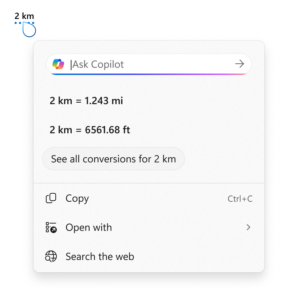
 
Hello Windows Insiders, today we are releasing Windows 11 Insider Preview Build 27950 to the Canary Channel.

Changes and Improvements

[General]

  • This update includes a small set of general improvements and fixes that improve the overall experience for Insiders running this build on their PCs.

[Settings]

  • Advanced Settings will revert to the previous “For Developers” experience after updating to this build. This change will come back soon.

Fixes

[General]

  • Fixed an issue causing some Insiders to experience a rollback attempting to install the latest build with either an 0xC1900101-0x20017 error or 0xC1900101-0x30017 error.

[Taskbar and System Tray]

  • Fixed an issue which could cause the app preview windows in the taskbar to become misaligned (away from the app icon you’d clicked / hovered over) after a display resolution change.

[File Explorer]

  • Fixed an issue where interacting with the context menu in File Explorer could lead to the body of File Explorer becoming unresponsive to clicks.
  • Fixed an issue which could lead to certain apps hanging when launching the Open or Save Dialog.
  • Fixed an issue where with certain apps installed, when you right clicked you may see the context menu unexpectedly switch back and forth with each right click between the normal initial view and “Show more options”.

[Graphics]

  • Fixed an which was causing some Insiders to experience screen flickers when using the browser (and potentially other scenarios) in the latest Canary builds.

[Audio]

  • If you were having issues with audio not working after the latest updates, that should be resolved now. Audio issues can have multiple root causes, though, so if you continue experiencing issues, please file feedback under Devices and Drivers > Audio and Sound in the Feedback Hub, if possible including a trace by using the “Capture the issue” option in Step #4 of the problem report.

[Dynamic Lighting]

  • Fixed an issue in Dynamic Lighting where the Dynamic Lighting Background Controller would occasionally consume excessive CPU after unlocking the machine.

[Other]

  • We've done some underlying work to help improve performance when gaming with game bar or other overlays on top of your game. This may particularly help those with multiple monitors which have different refresh rates. As always, if you're experiencing game performance issues, please file feedback including a trace of the issue, following these steps. Thanks Windows Insiders who've shared feedback so far!

Known issues

[General]

  • We’re working on the fix for an issue causing some Insiders with Arm64 PCs to experience an increase in bugchecks (green screens) with error IRQL_NOT_LESS_OR_EQUAL in the latest Canary builds.

[For developers]

  • PIX on Windows is unable to play back GPU captures on this OS version. This will be addressed by a new PIX release, estimated to arrive by the end of September. In the meantime, if you are impacted, you can use the "Send Feedback" button in PIX or contact us on the DirectX Discord server and we can help provide private builds.

Reminders for Windows Insiders in the Canary Channel

  • The builds we release to the Canary Channel represent the latest platform changes early in the development cycle and should not be seen as matched to any specific release of Windows and features and experiences included in these builds may never get released as we try out different concepts and get feedback. Features may change over time, be removed, or replaced and never get released beyond Windows Insiders. Some of these features and experiences could show up in future Windows releases when they’re ready.
  • Many features in the Canary Channel are rolled out using Control Feature Rollout technology, starting with a subset of Insiders and ramping up over time as we monitor feedback to see how they land before pushing them out to everyone in this channel.
  • Some features may show up in the Dev and Beta Channels first before showing up in the Canary Channel.
  • Some features in active development we preview with Windows Insiders may not be fully localized and localization will happen over time as features are finalized. As you see issues with localization in your language, please report those issues to us via Feedback Hub.
  • To get off the Canary Channel, a clean install of Windows 11 will be required. As a reminder - Insiders can’t switch to a channel that is receiving builds with lower build numbers without doing a clean installation of Windows 11 due to technical setup requirements.
  • The desktop watermark shown at the lower right corner of the desktop is normal for these pre-release builds.
  • Check out Flight Hub for a complete look at what build is in which Insider channel.
Thanks, Amanda & Brandon

Source: Announcing Windows 11 Insider Preview Build 27950 (Canary Channel)
 
Hello Windows Insiders, today we are releasing Windows 11 Insider Preview Build 27954 to the Canary Channel.

What’s new in Build 27954

Changes and Improvements

[General]

  • This update includes a small set of general improvements and fixes that improve the overall experience for Insiders running this build on their PCs.

[Networking]

  • Fixed an issue where you might not be able to connect to shared files and folders if you were using the Server Message Block (SMB) v1 protocol on NetBIOS over TCP/IP NetBIOS (NetBT) after the latest updates.

Known issues

[General]

  • We’re working on the fix for an issue causing some Insiders with Arm64 PCs to experience an increase in bugchecks (green screens) with error IRQL_NOT_LESS_OR_EQUAL in the latest Canary builds.

[For developers]

  • PIX on Windows is unable to play back GPU captures on this OS version. This will be addressed by a new PIX release, estimated to arrive by the end of September. In the meantime, if you are impacted, you can use the "Send Feedback" button in PIX or contact us on the DirectX Discord server and we can help provide private builds.

Reminders for Windows Insiders in the Canary Channel

  • The builds we release to the Canary Channel represent the latest platform changes early in the development cycle and should not be seen as matched to any specific release of Windows and features and experiences included in these builds may never get released as we try out different concepts and get feedback. Features may change over time, be removed, or replaced and never get released beyond Windows Insiders. Some of these features and experiences could show up in future Windows releases when they’re ready.
  • Many features in the Canary Channel are rolled out using Control Feature Rollout technology, starting with a subset of Insiders and ramping up over time as we monitor feedback to see how they land before pushing them out to everyone in this channel.
  • Some features may show up in the Dev and Beta Channels first before showing up in the Canary Channel.
  • Some features in active development we preview with Windows Insiders may not be fully localized and localization will happen over time as features are finalized. As you see issues with localization in your language, please report those issues to us via Feedback Hub.
  • To get off the Canary Channel, a clean install of Windows 11 will be required. As a reminder - Insiders can’t switch to a channel that is receiving builds with lower build numbers without doing a clean installation of Windows 11 due to technical setup requirements.
  • The desktop watermark shown at the lower right corner of the desktop is normal for these pre-release builds.
  • Check out Flight Hub for a complete look at what build is in which Insider channel.
Thanks, Amanda

Source: Announcing Windows 11 Insider Preview Build 27954 (Canary Channel)
 
Hello Windows Insiders, today we are releasing Windows 11 Insider Preview Build 26120.6760 (KB5065793) to the Beta Channel for Windows Insiders on Windows 11, version 24H2. Changes in Beta Channel builds and updates are documented in two buckets: new features, improvements, and fixes that are being gradually rolled out for Insiders who have turned on the toggle to get the latest updates as they are available (via Settings > Windows Update*) and then new features, improvements, and fixes rolling out to everyone in the Beta Channel. For more information, see the Reminders section at the bottom of this blog post.

New features gradually being rolled out to the Beta Channel with toggle on*

[Taskbar & System Tray]

  • We are introducing the ability to do built-in network speed test accessible from the taskbar. You can launch it via the Wi-Fi and Cellular Quick Settings pages or by right-clicking the network icon in the system tray. The tool opens in your default browser and supports testing Ethernet, Wi-Fi, and Cellular connections. This feature helps assess network performance and supports troubleshooting.
[caption id="attachment_178275" align="alignnone" width="300"]
Menu options to Diagnose network problems, Perform speed test, and Network and Internet settings from the network icon in the system tray.
Menu options to Diagnose network problems, Perform speed test, and Network and Internet settings from the network icon in the system tray.[/caption]

[Get Started/Microsoft 365 Copilot]

  • We’re adding a new Microsoft 365 Copilot page to the Get Started experience for managed commercial devices that are managed with an active Microsoft 365 subscription. This experience is designed to help users discover and engage with Microsoft 365 Copilot more easily, providing quick access to key features and helpful guidance directly within the Get Started flow.
[caption id="attachment_178274" align="alignnone" width="467"]
Menu options to Diagnose network problems, Perform speed test, and Network and Internet settings from the network icon in the system tray.
Menu options to Diagnose network problems, Perform speed test, and Network and Internet settings from the network icon in the system tray.[/caption] ALT-TEXT: Get Started experience describing what Microsoft 365 Copilot can do and offers a link to the application.

Changes and Improvements gradually being rolled out to the Beta Channel with toggle on*

[Windows Search]

The following changes and improvements are rolling out for improved Windows Search on Copilot+ PCs:
  • For Insiders with Copilot+ PCs, we’re updating the File Explorer Search Box placeholder text to raise awareness of the improved Windows Search experience introduced earlier this year. Learn more in our January blog post.
[caption id="attachment_178276" align="alignnone" width="352"]
File Explore Search Box with a magnifying glass search icon with the words “Try describing an image or file”.
File Explore Search Box with a magnifying glass search icon with the words “Try describing an image or file”.[/caption]

[File Explorer]

  • New! StorageProvider APIs for cloud providers to integrate with File Explorer Home. Developer documentation available here.

[Emoji]

  • We are temporarily turning off Emoji 16.0 and will bring it back in a future release.

[Voice access]

  • We are introducing a new 'Wait time before acting' setting in voice access, allowing users to configure the delay before a voice command is executed. This provides greater flexibility for users with varying speech patterns, enabling more accurate recognition whether speaking slowly or quickly. To set this up, navigate to voice access settings > Wait time before acting, and choose the option that best fits your preferences.

Fixes gradually being rolled out to the Beta Channel with toggle on*

[General]

  • Fixed an underlying issue which was leading to some screen readers no longer being able to read screen content after the latest flights.

[Click to Do (Preview)]

The following fixes are rolling out for Click to Do on Copilot+ PCs:
  • Fixed an issue where Click to Do may unexpectedly invoke sometimes when pressing WIN + P.

[Taskbar & System Tray]

  • Fixed an issue in the latest builds where the battery icon could get out of sync with the actual charging state (for example, it would show that you weren’t plugged in when you were).

[File Explorer]

  • Fixed an issue where when you customized a folder’s view (for example, sorting files by name or changing the icon size), those settings only applied to the specific navigation path. If you opened the same folder from another app (like a browser), the settings wouldn’t carry over, leading you to need to manually reapply them every time. This was particularly noticeable with the Downloads folder, if you had turned off Group By Date.

[Lock and Login screens]

  • Fixed an issue in the latest build where the media controls might not be displayed on the lock screen although media was playing in an app that supports these controls.

[Windows Update]

  • Fixed an underlying issue which could lead “Update and shutdown” to not actually shut down your PC after.

[Settings]

  • Fixed an issue causing Settings to crash for some Insiders when accessing drive information under Settings > System > Storage. This also impacted accessing the drive information from the properties when you right clicked a drive in File Explorer.
  • Fixed an issue causing the placeholder text in the Settings search box to potentially appear vertically misaligned.

Fixes for everyone in the Beta Channel

[Networking]

  • Fixed an issue where you might not be able to connect to shared files and folders if you were using the Server Message Block (SMB) v1 protocol on NetBIOS over TCP/IP NetBIOS (NetBT) after the latest updates.

[For Developers]

  • There was an issue where PIX on Windows was unable to play back GPU captures on the latest OS versions. This was addressed by a new PIX release late last week.

[Video Playback]

Known issues

[Click to Do]

  • Launching Click to Do on your primary display via right-edge gesture will result in the swipe visuals appearing on the incorrect display. The issue is being investigated.

[Taskbar & System Tray]

  • Our new animations on taskbar previews have been turned off temporarily because they were interfering with the ability to share a window from its preview, we will note when they’re brought back.
  • We have a few issues that need ironing out with the changes in the previous flight when “automatically hide the taskbar” is enabled, including that the system tray may unexpectedly peek up – thanks Insiders that have shared feedback about it. We’re working on it.

[Search]

  • Certain searches may show unexpected text instead of the expected results and images.

[Windows Studio Effects]

  • For some classes of external webcams, turning on "Use Windows Studio Effects" in the advanced camera setting may result in a camera preview failure. This is due to a compatibility issue with the camera firmware and is being addressed with a future update. In the meantime, if you are impacted by this issue, turn off Windows Studio Effects inside the camera settings.

[Xbox Controllers]

  • Some Insiders are experiencing an issue where using their Xbox Controller via Bluetooth is causing their PC to bugcheck. Here is how to resolve the issue. Open Device Manager by searching for it via the search box on your taskbar. Once Device Manager is open, click on "View" and then "Devices by Driver". Find the driver named "oemXXX.inf (XboxGameControllerDriver.inf)" where the "XXX" will be a specific number on your PC. Right-click on that driver and click "Uninstall".

Reminders for Windows Insiders in the Beta Channel

  • Windows Insiders in the Beta Channel on Windows 11, version 24H2 will receive updates based on Windows 11, version 24H2 via an enablement package (Build 26120.xxxx).
  • Updates delivered to the Beta Channel are in a format that offers a preview of enhancements to servicing technology on Windows 11, version 24H2. To learn more, see Introducing Windows 11 checkpoint cumulative updates | Windows IT Pro Blog.
  • Many features in the Beta Channel are rolled out using Controlled Feature Rollout technology, starting with a subset of Insiders and ramping up over time as we monitor feedback to see how they land before pushing them out to everyone in this channel.
  • For Windows Insiders in the Beta Channel who want to be the first to get features gradually rolled out to you, you can turn ON the toggle to get the latest updates as they are available via Settings > Windows Update*. Over time, we will increase the rollouts of features to everyone with the toggle turned on. Should you keep this toggle off, new features will gradually be rolled out to your PC over time once they are ready.
  • Features and experiences included in these builds may never get released as we try out different concepts and get feedback. Features may change over time, be removed, or replaced and never get released beyond Windows Insiders. Some of these features and experiences could show up in future Windows releases when they’re ready.
  • Some features in active development we preview with Windows Insiders may not be fully localized and localization will happen over time as features are finalized. As you see issues with localization in your language, please report those issues to us via Feedback Hub.
  • Please note that some accessibility features may not work with features like Recall and Click to Do while in preview with Windows Insiders.
  • Because the Dev and Beta Channels represent parallel development paths from our engineers, there may be cases where features and experiences show up in the Beta Channel first.
  • Check out Flight Hub for a complete look at what build is in which Insider channel.
Thanks, Amanda

Source: Announcing Windows 11 Insider Preview Build 26120.6760 (Beta Channel)
 
Hello Windows Insiders, today we are releasing Windows 11 Insider Preview Build 26220.6760 (KB5065793) to the Dev Channel for Windows Insiders on Windows 11, version 25H2. Changes in Dev Channel builds and updates are documented in two buckets: new features, improvements, and fixes that are being gradually rolled out for Insiders who have turned on the toggle to get the latest updates as they are available (via Settings > Windows Update*) and then new features, improvements, and fixes rolling out to everyone in the Dev Channel. For more information, see the Reminders section at the bottom of this blog post.

Changes and Improvements gradually being rolled out to the Dev Channel with toggle on*

[Taskbar & System Tray]

  • We are introducing the ability to do built-in network speed test accessible from the taskbar. You can launch it via the Wi-Fi and Cellular Quick Settings pages or by right-clicking the network icon in the system tray. The tool opens in your default browser and supports testing Ethernet, Wi-Fi, and Cellular connections. This feature helps assess network performance and supports troubleshooting.
[caption id="attachment_178275" align="alignnone" width="300"]
Menu options to Diagnose network problems, Perform speed test, and Network and Internet settings from the network icon in the system tray.
Menu options to Diagnose network problems, Perform speed test, and Network and Internet settings from the network icon in the system tray.[/caption]

[Get Started/Microsoft 365 Copilot]

  • We’re adding a new Microsoft 365 Copilot page to the Get Started experience for managed commercial devices that are managed with an active Microsoft 365 subscription. This experience is designed to help users discover and engage with Microsoft 365 Copilot more easily, providing quick access to key features and helpful guidance directly within the Get Started flow.
[caption id="attachment_178274" align="alignnone" width="467"]
Menu options to Diagnose network problems, Perform speed test, and Network and Internet settings from the network icon in the system tray.
Menu options to Diagnose network problems, Perform speed test, and Network and Internet settings from the network icon in the system tray.[/caption]

[Windows Search]

The following changes and improvements are rolling out for improved Windows Search on Copilot+ PCs:
  • For Insiders with Copilot+ PCs, we’re updating the File Explorer Search Box placeholder text to raise awareness of the improved Windows Search experience introduced earlier this year. Learn more in our January blog post
[caption id="attachment_178276" align="alignnone" width="300"]
File Explore Search Box with a magnifying glass search icon with the words “Try describing an image or file”.
File Explore Search Box with a magnifying glass search icon with the words “Try describing an image or file”.[/caption]

Changes and Improvements gradually being rolled out to everyone in the Dev Channel

[File Explorer]

  • New! StorageProvider APIs for cloud providers to integrate with File Explorer Home. Developer documentation available here.

[Emoji]

  • We are temporarily turning off Emoji 16.0 and will bring it back in a future release.

[Voice access]

  • We are introducing a new 'Wait time before acting' setting in voice access, allowing users to configure the delay before a voice command is executed. This provides greater flexibility for users with varying speech patterns, enabling more accurate recognition whether speaking slowly or quickly. To set this up, navigate to voice access settings > Wait time before acting, and choose the option that best fits your preferences.

Fixes gradually being rolled out to the Dev Channel with toggle on*

[General]

  • Fixed an underlying issue which was leading to some screen readers no longer being able to read screen content after the latest flights.

[Click to Do (Preview)]

The following fixes are rolling out for Click to Do on Copilot+ PCs:
  • Fixed an issue where Click to Do may unexpectedly invoke sometimes when pressing WIN + P.

[Taskbar & System Tray]

  • Fixed an issue in the latest builds where the battery icon could get out of sync with the actual charging state (for example, it would show that you weren’t plugged in when you were).

[File Explorer]

  • Fixed an issue where when you customized a folder’s view (for example, sorting files by name or changing the icon size), those settings only applied to the specific navigation path. If you opened the same folder from another app (like a browser), the settings wouldn’t carry over, leading you to need to manually reapply them every time. This was particularly noticeable with the Downloads folder, if you had turned off Group By Date.

[Lock and Login screens]

  • Fixed an issue in the latest build where the media controls might not be displayed on the lock screen although media was playing in an app that supports these controls.

[Windows Update]

  • Fixed an underlying issue which could lead “Update and shutdown” to not actually shut down your PC after.

[Settings]

  • Fixed an issue causing Settings to crash for some Insiders when accessing drive information under Settings > System > Storage. This also impacted accessing the drive information from the properties when you right clicked a drive in File Explorer.
  • Fixed an issue causing the placeholder text in the Settings search box to potentially appear vertically misaligned.

Fixes for everyone in the Dev Channel

[Networking]

  • Fixed an issue where you might not be able to connect to shared files and folders if you were using the Server Message Block (SMB) v1 protocol on NetBIOS over TCP/IP NetBIOS (NetBT) after the latest updates.

[For Developers]

  • There was an issue where PIX on Windows was unable to play back GPU captures on the latest OS versions. This was addressed by a new PIX release late last week.

[Video Playback]

Known issues

[Click to Do]

  • Launching Click to Do on your primary display via right-edge gesture will result in the swipe visuals appearing on the incorrect display. The issue is being investigated.

[Taskbar & System Tray]

  • Our new animations on taskbar previews have been turned off temporarily because they were interfering with the ability to share a window from its preview, we will note when they’re brought back.
  • We have a few issues that need ironing out with the changes in the previous flight when “automatically hide the taskbar” is enabled, including that the system tray may unexpectedly peek up – thanks Insiders that have shared feedback about it. We’re working on it.

[Search]

  • Certain searches may show unexpected text instead of the expected results and images.

[Windows Studio Effects]

  • For some classes of external webcams, turning on "Use Windows Studio Effects" in the advanced camera setting may result in a camera preview failure. This is due to a compatibility issue with the camera firmware and is being addressed with a future update. In the meantime, if you are impacted by this issue, turn off Windows Studio Effects inside the camera settings.

[Xbox Controllers]

  • Some Insiders are experiencing an issue where using their Xbox Controller via Bluetooth is causing their PC to bugcheck. Here is how to resolve the issue. Open Device Manager by searching for it via the search box on your taskbar. Once Device Manager is open, click on "View" and then "Devices by Driver". Find the driver named "oemXXX.inf (XboxGameControllerDriver.inf)" where the "XXX" will be a specific number on your PC. Right-click on that driver and click "Uninstall".

Reminders for Windows Insiders in the Dev Channel

  • Windows Insiders in the Dev Channel receive updates based on Windows 11, version 25H2 via an enablement package (Build 26220.xxxx).
  • Many features in the Dev Channel are rolled out using Controlled Feature Rollout technology, starting with a subset of Insiders and ramping up over time as we monitor feedback to see how they land before pushing them out to everyone in this channel.
  • For Windows Insiders in the Dev Channel who want to be the first to get features gradually rolled out to you, you can turn ON the toggle to get the latest updates as they are available via Settings > Windows Update*. Over time, we will increase the rollouts of features to everyone with the toggle turned on. Should you keep this toggle off, new features will gradually be rolled out to your PC over time once they are ready.
  • Features and experiences included in these builds may never get released as we try out different concepts and get feedback. Features may change over time, be removed, or replaced and never get released beyond Windows Insiders. Some of these features and experiences could show up in future Windows releases when they’re ready.
  • Some features in active development we preview with Windows Insiders may not be fully localized and localization will happen over time as features are finalized. As you see issues with localization in your language, please report those issues to us via Feedback Hub.
  • Please note that some accessibility features may not work with features like Recall and Click to Do while in preview with Windows Insiders.
  • Because the Dev and Beta Channels represent parallel development paths from our engineers, there may be cases where features and experiences show up in the Beta Channel first.
  • Check out Flight Hub for a complete look at what build is in which Insider channel.
Thanks, Amanda

Source: Announcing Windows 11 Insider Preview Build 26220.6760 (Dev Channel)
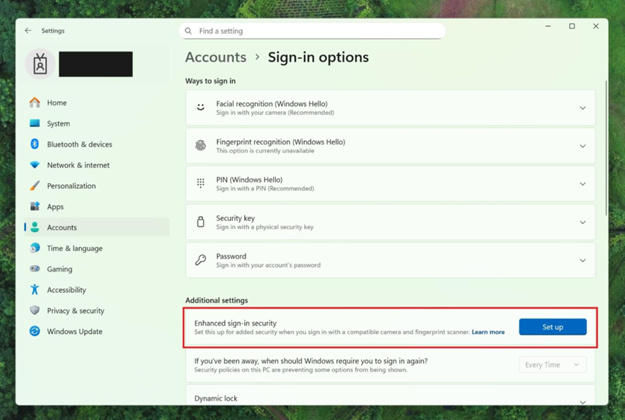
 
Hello Windows Insiders, today we are releasing Windows 11 Insider Preview Build 27959 to the Canary Channel.

What’s new in Build 27959

Changes and Improvements

New setting to move hardware indicators on your screen

We’re excited to introduce a highly requested setting, the option to move the hardware indicators for brightness, volume, airplane mode, and virtual desktops to different positions on your screen. We’ll support the current bottom position and new top left and top center positions on your screen. [caption id="attachment_178009" align="alignnone" width="1024"]
Hardware indicator for volume shown at the top left.
Hardware indicator for volume shown at the top left.[/caption] [caption id="attachment_178010" align="alignnone" width="1024"]
Hardware indicator for volume shown at the top center.
Hardware indicator for volume shown at the top center.[/caption] To change the position of your flyouts, go to Settings > System > Notifications and use the dropdown for Position of the onscreen pop-up. [caption id="attachment_178012" align="alignnone" width="1024"]
Setting to adjust position of hardware indicators highlighted in a red box.
Setting to adjust position of hardware indicators highlighted in a red box.[/caption] FEEDBACK: Please file feedback in Feedback Hub (WIN + F) under Desktop Environment > MTC controls and audio.

[Input]

  • We’re adding a new keyboard shortcut to make it easier for you to insert an En dash (–) or Em dash (—) while typing anywhere in Windows. Going forward, pressing WIN + Minus (-) will insert En dash, and WIN + Shift + Minus (-) will insert Em dash. Note – if you have Magnifier running, WIN + Minus (-) will still zoom out Magnifier, rather than inserting an En dash.

[Windows Share]

  • We’ve added the ability to pin your favorite apps in the Windows share window.
[caption id="attachment_178185" align="alignnone" width="915"]
New pinning option for apps in the Windows share window highlighted in a red box.
New pinning option for apps in the Windows share window highlighted in a red box.[/caption] [Other]
  • We have updated more dialogs to match the Windows 11 visuals including the dialog for when an app can’t open.

Fixes

[General]

  • Fixed an issue causing some Insiders with Arm64 PCs to experience an increase in bugchecks (green screens) with error IRQL_NOT_LESS_OR_EQUAL in the latest Canary builds.

[File Explorer]

  • The File Explorer context menu has been updated to remove the accent colored backplate behind packaged appicons in the Open With list when right clicking a file (for example, Snipping Tool). This change makes icons easier to see.
  • Made some underlying changes to help improve the performance of launching cloud files from File Explorer and loading context menus.
  • Fixed an issue which could lead to icons and text might becoming overlapping on the desktop when using increased text scaling.
  • Fixed an issue where icons in the details, preview, and navigation panes of File Explorer weren’t properly mirrored when using an Arabic or Hebrew display language.

[Taskbar and System Tray]

  • Fixed an issue in the latest builds where the battery icon could get out of sync with the actual charging state (for example, it would show that you weren’t plugged in when you were).
  • Fixed a focus related issue when clicking on an app preview thumbnail which could result on it dismissing but the app window not actually coming to the foreground.

[Start menu]

  • Fixed an underlying issue which was causing Start menu to dismiss if you tried to use WIN + Shift + S to take a screenshot of it.

[Display and Graphics]

  • Fixed an issue where apps and browsers could have partially stuck onscreen content when other maximized / full screen apps were updating in the background. This may have been noticeable particularly when trying to scroll the window content, as only some parts would update.

[Windows Hello]

  • Fixed an issue where Windows Hello Pin setup might fail with error 0x80090010 on Entra-domain joined devices after the latest updates.

[Voice Access]

  • Fixed an issue which could result in Voice Access not working, showing error 9001.

[For developers]

  • There was an issue where PIX on Windows was unable to play back GPU captures on the latest OS versions. This has been addressed by a new PIX release.

[Windows Security]

  • Fixed an issue where the apostrophes in some of the text in the app weren’t displaying correctly.

Known issues

[Power and Battery]

  • [NEW] We’re investigating reports that sleep and shutdown aren’t working correctly for some Insiders after the latest Canary builds.

Reminders for Windows Insiders in the Canary Channel

  • The builds we release to the Canary Channel represent the latest platform changes early in the development cycle and should not be seen as matched to any specific release of Windows and features and experiences included in these builds may never get released as we try out different concepts and get feedback. Features may change over time, be removed, or replaced and never get released beyond Windows Insiders. Some of these features and experiences could show up in future Windows releases when they’re ready.
  • Many features in the Canary Channel are rolled out using Control Feature Rollout technology, starting with a subset of Insiders and ramping up over time as we monitor feedback to see how they land before pushing them out to everyone in this channel.
  • Some features may show up in the Dev and Beta Channels first before showing up in the Canary Channel.
  • Some features in active development we preview with Windows Insiders may not be fully localized and localization will happen over time as features are finalized. As you see issues with localization in your language, please report those issues to us via Feedback Hub.
  • To get off the Canary Channel, a clean install of Windows 11 will be required. As a reminder - Insiders can’t switch to a channel that is receiving builds with lower build numbers without doing a clean installation of Windows 11 due to technical setup requirements.
  • The desktop watermark shown at the lower right corner of the desktop is normal for these pre-release builds.
  • Check out Flight Hub for a complete look at what build is in which Insider channel.
Thanks, Amanda

Source: Announcing Windows 11 Insider Preview Build 27959 (Canary Channel)
 
Hello Windows Insiders, today we are releasing Windows 11 Insider Preview Build 26220.6772 (KB5065797) to the Dev Channel. Changes in Dev Channel builds and updates are documented in two buckets: new features, improvements, and fixes that are being gradually rolled out for Insiders who have turned on the toggle to get the latest updates as they are available (via Settings > Windows Update*) and then new features, improvements, and fixes rolling out to everyone in the Dev Channel. For more information, see the Reminders section at the bottom of this blog post.

New features gradually being rolled out to the Dev Channel with toggle on*

[Click to Do (Preview)]

The following changes and improvements are rolling out for Click to Do on Copilot+ PCs: Image Object select in Click to Do: Image Object select is designed to help you speed up your creative flow and precisely select objects within images. Just hover over your image to preview selectable areas. Once selected, you can easily copy and paste your object into other apps or use it to kick off a chat with Copilot for deeper insights or creative actions. [caption id="attachment_178284" align="alignnone" width="624"]
Image of three kittens sitting on a wooden surface with a computer context menu overlaid on the center kitten. The context menu includes options like Copy, Paste, and Properties, along with other options like “Ask Copilot”.
Image of three kittens sitting on a wooden surface with a computer context menu overlaid on the center kitten. The context menu includes options like "Copy," "Paste," and "Properties," along with other options like “Ask Copilot”.[/caption] Unit conversion: We’re introducing the ability to do unit conversion in Click to Do to help you quickly access conversions for number + unit combinations displayed on screen. Currently, we primarily support conversions for length, area, volume, weight, temperature, and speed.
  • When users hover over a number + unit, a floating tooltip appears showing the conversion.
  • When users select the number + unit, the context menu opens with additional conversion options.
  • Users can also access more conversions via the Copilot app (currently supported in Microsoft Copilot. This capability is not yet available for Windows Insiders in the EEA (European Economic Area) or China.
[caption id="attachment_178285" align="alignnone" width="292"]
Screenshot showing the conversion tool for Click to Do using the example of 2 kilometers. It displays conversions to miles (1.243 mi) and feet (6561.68 ft), with options to copy, open with, or search the web.
Screenshot showing the conversion tool for Click to Do using the example of 2 kilometers. It displays conversions to miles (1.243 mi) and feet (6561.68 ft), with options to copy, open with, or search the web.[/caption]

[Windows Hello]

Windows Hello Enhanced Sign-in Security Now Supports Peripheral Fingerprint Sensors: Windows Hello Enhanced Sign-in Security (ESS) is expanding to support peripheral fingerprint sensors in Windows 11. Previously, ESS was only available on PCs with built-in biometric sensors, but now Windows 11 PCs, including desktops and Copilot+ PCs, can benefit from the most secure sign-in experience Windows Hello has to offer. Just plug in a supported ESS fingerprint reader, head to Settings > Accounts > Sign-in options and follow the prompts to enroll. [caption id="attachment_178286" align="alignnone" width="625"]
Settings dialog under Accounts-->Sign-in options, where Additional settings has an option outlined in red for “Enhanced sign-in security” with a button for “Set up”
Settings dialog under Accounts-->Sign-in options, where Additional settings has an option outlined in red for “Enhanced sign-in security” with a button for “Set up”[/caption] FEEDBACK: Please file feedback in Feedback Hub (WIN + F) under Security and Privacy > Windows Hello Fingerprint.

Changes and Improvements gradually being rolled out to the Dev Channel with toggle on*

[Windows Setup Experience]

  • Ability to name your default user folder in OOBE: You can now customize the name of your default user folder, “C:\User\<name>”, during set up. To do so, follow these steps:
    • On the Microsoft account sign in page,press Shift + F10 to open Command Prompt.
    • Type the following commands:“cd oobe” press enter and then type “SetDefaultUserFolder.cmd <YourFolderName>”
    • <YourFolderName> can be 16 characters max.
    • Only Unicode characters are supported and special characters will be removed
    • Proceed with MSA sign-in.
    • The custom folder name will be applied if valid.
    • If not set, Windows will automatically generate a profile folder name from your Microsoft email address.
  • Local-only commands removal: We are removing known mechanisms for creating a local account in the Windows Setup experience (OOBE). While these mechanisms were often used to bypass Microsoft account setup, they also inadvertently skip critical setup screens, potentially causing users to exit OOBE with a device that is not fully configured for use. Users will need to complete OOBE with internet and a Microsoft account, to ensure device is setup correctly.

[File Explorer]

  • Dark Mode: We’ve made improvements to the dark mode experience in File Explorer starting with key actions like copy, move, and delete dialogs. You’ll now see a consistent dark mode experience in:
    • The default and expanded state for copy, move, and delete dialogs
    • Progress bars and chart views
    • Dialogs for confirming states like skip, override, and file selection
    • Multiple confirmation and error dialogs
[caption id="attachment_178287" align="alignnone" width="685"]
The new discover dialog in dark mode.
The new discover dialog in dark mode.[/caption] [caption id="attachment_178292" align="alignnone" width="686"]
The new copy dialog in dark mode.
The new copy dialog in dark mode.[/caption] [caption id="attachment_178289" align="alignnone" width="700"]
The new recycle bin dialog in dark mode.
The new recycle bin dialog in dark mode.[/caption] [caption id="attachment_178290" align="alignnone" width="690"]
The new replace or skip files dialog in dark mode.
The new replace or skip files dialog in dark mode.[/caption]

Fixes gradually being rolled out to the Dev Channel with toggle on*

[General]

  • Fixed an underlying issue which caused multiple features which were rolling out to unexpectedly disappear from some Insider PCs after the previous flight.

[Taskbar & System Tray]

  • Fixed an issue after the latest updates where when “automatically hide the taskbar” was enabled sometimes you would still see the system tray peeking up while the taskbar was hidden. Also fixed an issue where it wasn’t hiding anymore when you were on the desktop with all app windows minimized.
  • Fixed a focus related issue when clicking on an app preview thumbnail which could result on it dismissing but the app window not actually coming to the foreground.

[File Explorer]

  • Fixed an issue where Encrypted File System (EFS) related dialogs in File Explorer weren’t responding to increased text scaling.

[Windows Studio Effects]

  • Fixed an issue for some classes of external webcams, where turning on "Use Windows Studio Effects" in the advanced camera setting might result in a camera preview failure. If you were impacted by this known issue in the latest builds, and turned off Windows Studio Effects inside the camera settings to workaround it, you can enable it again now.

[Settings]

  • Fixed an issue causing certain network adapters to show an incorrect link speed

[Other]

  • Fixed an issue impacting the ability to start Hyper-V virtual machines with Trusted Platform Module (TPM) on ARM64 devices.
  • Fixed an issue that could affect playback of protected content in certain Blu-ray, DVD, and digital TV apps that used Enhanced Video Rendererwith HDCP enforcement.

Known issues

[Click to Do]

  • Launching Click to Do on your primary display via right-edge gesture will result in the swipe visuals appearing on the incorrect display. The issue is being investigated.

[Lock and login screens]

  • [NEW] The touch keyboard may fail to launch on the login screen. If you encounter this, you can use the on-screen keyboard in the accessibility menu as a workaround.

[Taskbar & System Tray]

  • Our new animations on taskbar previews have been turned off temporarily because they were interfering with the ability to share a window from its preview, we will note when they’re brought back.

[Search]

  • Certain searches may show unexpected text instead of the expected results and images.

[Xbox Controllers]

  • Some Insiders are experiencing an issue where using their Xbox Controller via Bluetooth is causing their PC to bugcheck. Here is how to resolve the issue. Open Device Manager by searching for it via the search box on your taskbar. Once Device Manager is open, click on "View" and then "Devices by Driver". Find the driver named "oemXXX.inf (XboxGameControllerDriver.inf)" where the "XXX" will be a specific number on your PC. Right-click on that driver and click "Uninstall".

Reminders for Windows Insiders in the Dev Channel

  • Windows Insiders in the Dev Channel receive updates based on Windows 11, version 25H2 via an enablement package (Build 26220.xxxx).
  • Many features in the Dev Channel are rolled out using Controlled Feature Rollout technology, starting with a subset of Insiders and ramping up over time as we monitor feedback to see how they land before pushing them out to everyone in this channel.
  • For Windows Insiders in the Dev Channel who want to be the first to get features gradually rolled out to you, you can turn ON the toggle to get the latest updates as they are available via Settings > Windows Update*. Over time, we will increase the rollouts of features to everyone with the toggle turned on. Should you keep this toggle off, new features will gradually be rolled out to your PC over time once they are ready.
  • Features and experiences included in these builds may never get released as we try out different concepts and get feedback. Features may change over time, be removed, or replaced and never get released beyond Windows Insiders. Some of these features and experiences could show up in future Windows releases when they’re ready.
  • Some features in active development we preview with Windows Insiders may not be fully localized and localization will happen over time as features are finalized. As you see issues with localization in your language, please report those issues to us via Feedback Hub.
  • Please note that some accessibility features may not work with features like Recall and Click to Do while in preview with Windows Insiders.
  • Because the Dev and Beta Channels represent parallel development paths from our engineers, there may be cases where features and experiences show up in the Beta Channel first.
  • Check out Flight Hub for a complete look at what build is in which Insider channel.
Thanks, Amanda

Source: Announcing Windows 11 Insider Preview Build 26220.6772 (Dev Channel)
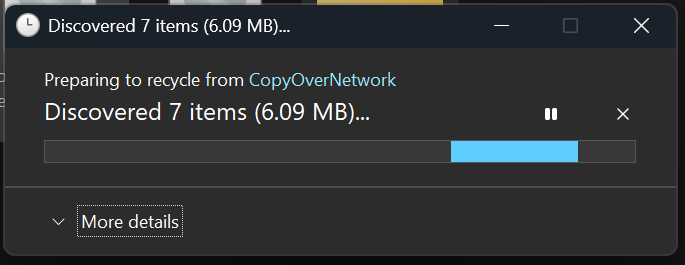
 
Hello Windows Insiders, today we are releasing Windows 11 Insider Preview Build 26120.6772 (KB5065797) to the Beta Channel for Windows Insiders on Windows 11, version 24H2. Changes in Beta Channel builds and updates are documented in two buckets: new features, improvements, and fixes that are being gradually rolled out for Insiders who have turned on the toggle to get the latest updates as they are available (via Settings > Windows Update*) and then new features, improvements, and fixes rolling out to everyone in the Beta Channel. For more information, see the Reminders section at the bottom of this blog post.

New features gradually being rolled out to the Beta Channel with toggle on*

[Click to Do (Preview)]

The following changes and improvements are rolling out for Click to Do on Copilot+ PCs: Image Object select in Click to Do: Image Object select is designed to help you speed up your creative flow and precisely select objects within images. Just hover over your image to preview selectable areas. Once selected, you can easily copy and paste your object into other apps or use it to kick off a chat with Copilot for deeper insights or creative actions. [caption id="attachment_178284" align="alignnone" width="624"]
Image of three kittens sitting on a wooden surface with a computer context menu overlaid on the center kitten. The context menu includes options like Copy, Paste, and Properties, along with other options like “Ask Copilot”.
Image of three kittens sitting on a wooden surface with a computer context menu overlaid on the center kitten. The context menu includes options like "Copy," "Paste," and "Properties," along with other options like “Ask Copilot”.[/caption] Unit conversion: We’re introducing the ability to do unit conversion in Click to Do to help you quickly access conversions for number + unit combinations displayed on screen. Currently, we primarily support conversions for length, area, volume, weight, temperature, and speed.
  • When users hover over a number + unit, a floating tooltip appears showing the conversion.
  • When users select the number + unit, the context menu opens with additional conversion options.
  • Users can also access more conversions via the Copilot app (currently supported in Microsoft Copilot. This capability is not yet available for Windows Insiders in the EEA (European Economic Area) or China.
[caption id="attachment_178285" align="alignnone" width="292"]
Screenshot showing the conversion tool for Click to Do using the example of 2 kilometers. It displays conversions to miles (1.243 mi) and feet (6561.68 ft), with options to copy, open with, or search the web.
Screenshot showing the conversion tool for Click to Do using the example of 2 kilometers. It displays conversions to miles (1.243 mi) and feet (6561.68 ft), with options to copy, open with, or search the web.[/caption]

[Windows Hello]

Windows Hello Enhanced Sign-in Security Now Supports Peripheral Fingerprint Sensors: Windows Hello Enhanced Sign-in Security (ESS) is expanding to support peripheral fingerprint sensors in Windows 11. Previously, ESS was only available on PCs with built-in biometric sensors, but now Windows 11 PCs, including desktops and Copilot+ PCs, can benefit from the most secure sign-in experience Windows Hello has to offer. Just plug in a supported ESS fingerprint reader, head to Settings > Accounts > Sign-in options and follow the prompts to enroll. [caption id="attachment_178286" align="alignnone" width="625"]
Settings dialog under Accounts-->Sign-in options, where Additional settings has an option outlined in red for “Enhanced sign-in security” with a button for “Set up”
Settings dialog under Accounts-->Sign-in options, where Additional settings has an option outlined in red for “Enhanced sign-in security” with a button for “Set up” [/caption] FEEDBACK: Please file feedback in Feedback Hub (WIN + F) under Security and Privacy > Windows Hello Fingerprint.

Changes and Improvements gradually being rolled out to the Beta Channel with toggle on*

[Windows Setup Experience]

  • Ability to name your default user folder in OOBE:You can now customize the name of your default user folder, “C:\User\<name>”, during set up. To do so, follow these steps:
    • On the Microsoft account sign in page,press Shift + F10 to open Command Prompt.
    • Type the following commands:“cd oobe” press enter and then type “SetDefaultUserFolder.cmd <YourFolderName>”
    • <YourFolderName> can be 16 characters max.
    • Only Unicode characters are supported and special characters will be removed
    • Proceed with MSA sign-in.
    • The custom folder name will be applied if valid.
    • If not set, Windows will automatically generate a profile folder name from your Microsoft email address.
  • Local-only commands removal: We are removing known mechanisms for creating a local account in the Windows Setup experience (OOBE). While these mechanisms were often used to bypass Microsoft account setup, they also inadvertently skip critical setup screens, potentially causing users to exit OOBE with a device that is not fully configured for use. Users will need to complete OOBE with internet and a Microsoft account, to ensure device is setup correctly.

[File Explorer]

  • Dark Mode: We’ve made improvements to the dark mode experience in File Explorer starting with key actions like copy, move, and delete dialogs. You’ll now see a consistent dark mode experience in:
    • The default and expanded state for copy, move, and delete dialogs
    • Progress bars and chart views
    • Dialogs for confirming states like skip, override, and file selection
    • Multiple confirmation and error dialogs
[caption id="attachment_178287" align="alignnone" width="685"]
The new discover dialog in dark mode.
The new discover dialog in dark mode.[/caption] [caption id="attachment_178289" align="alignnone" width="700"]
The new recycle bin dialog in dark mode.
The new recycle bin dialog in dark mode.[/caption] [caption id="attachment_178292" align="alignnone" width="686"]
The new copy dialog in dark mode.
The new copy dialog in dark mode.[/caption] [caption id="attachment_178290" align="alignnone" width="690"]
The new replace or skip files dialog in dark mode.
The new replace or skip files dialog in dark mode.[/caption]

Fixes gradually being rolled out to the Beta Channel with toggle on*

[General]

  • Fixed an underlying issue which caused multiple features which were rolling out to unexpectedly disappear from some Insider PCs after the previous flight.

[Taskbar & System Tray]

  • Fixed an issue after the latest updates where when “automatically hide the taskbar” was enabled sometimes you would still see the system tray peeking up while the taskbar was hidden. Also fixed an issue where it wasn’t hiding anymore when you were on the desktop with all app windows minimized.
  • Fixed a focus related issue when clicking on an app preview thumbnail which could result on it dismissing but the app window not actually coming to the foreground.

[File Explorer]

  • Fixed an issue where Encrypted File System (EFS) related dialogs in File Explorer weren’t responding to increased text scaling.

[Windows Studio Effects]

  • Fixed an issue for some classes of external webcams, where turning on "Use Windows Studio Effects" in the advanced camera setting might result in a camera preview failure. If you were impacted by this known issue in the latest builds, and turned off Windows Studio Effects inside the camera settings to workaround it, you can enable it again now.

[Settings]

  • Fixed an issue causing certain network adapters to show an incorrect link speed

[Other]

  • Fixed an issue impacting the ability to start Hyper-V virtual machines with Trusted Platform Module (TPM) on ARM64 devices.
  • Fixed an issue that could affect playback of protected content in certain Blu-ray, DVD, and digital TV apps that used Enhanced Video Rendererwith HDCP enforcement.

Known issues

[Click to Do]

  • Launching Click to Do on your primary display via right-edge gesture will result in the swipe visuals appearing on the incorrect display. The issue is being investigated.

[Lock and login screens]

  • [NEW] The touch keyboard may fail to launch on the login screen. If you encounter this, you can use the on-screen keyboard in the accessibility menu as a workaround.

[Taskbar & System Tray]

  • Our new animations on taskbar previews have been turned off temporarily because they were interfering with the ability to share a window from its preview, we will note when they’re brought back.

[Search]

  • Certain searches may show unexpected text instead of the expected results and images.

[Xbox Controllers]

  • Some Insiders are experiencing an issue where using their Xbox Controller via Bluetooth is causing their PC to bugcheck. Here is how to resolve the issue. Open Device Manager by searching for it via the search box on your taskbar. Once Device Manager is open, click on "View" and then "Devices by Driver". Find the driver named "oemXXX.inf (XboxGameControllerDriver.inf)" where the "XXX" will be a specific number on your PC. Right-click on that driver and click "Uninstall".

Reminders for Windows Insiders in the Beta Channel

  • Windows Insiders in the Beta Channel on Windows 11, version 24H2 will receive updates based on Windows 11, version 24H2 via an enablement package (Build 26120.xxxx).
  • Updates delivered to the Beta Channel are in a format that offers a preview of enhancements to servicing technology on Windows 11, version 24H2. To learn more, see https://aka.ms/CheckpointCumulativeUpdates.
  • Many features in the Beta Channel are rolled out using Controlled Feature Rollout technology, starting with a subset of Insiders and ramping up over time as we monitor feedback to see how they land before pushing them out to everyone in this channel.
  • For Windows Insiders in the Beta Channel who want to be the first to get features gradually rolled out to you, you can turn ON the toggle to get the latest updates as they are available via Settings > Windows Update*. Over time, we will increase the rollouts of features to everyone with the toggle turned on. Should you keep this toggle off, new features will gradually be rolled out to your PC over time once they are ready.
  • Features and experiences included in these builds may never get released as we try out different concepts and get feedback. Features may change over time, be removed, or replaced and never get released beyond Windows Insiders. Some of these features and experiences could show up in future Windows releases when they’re ready.
  • Some features in active development we preview with Windows Insiders may not be fully localized and localization will happen over time as features are finalized. As you see issues with localization in your language, please report those issues to us via Feedback Hub.
  • Please note that some accessibility features may not work with features like Recall and Click to Do while in preview with Windows Insiders.
  • Because the Dev and Beta Channels represent parallel development paths from our engineers, there may be cases where features and experiences show up in the Beta Channel first.
  • Check out Flight Hub for a complete look at what build is in which Insider channel.
Thanks, Amanda

Source: Announcing Windows 11 Insider Preview Build 26120.6772 (Beta Channel)