

The MalwareTips app
Your community, one tap away.
Open MalwareTips from your Home Screen or desktop. Follow discussions, find answers and pick up where you left off.
- Home Screen access
- Optional push alerts
- Your community
You're ready to explore.Explore what's new
Installation instructions
iPhone & iPad
- Open MalwareTips in Safari and tap Share. You may need to open the Page Menu first.
- Choose Add to Home Screen. If it is not listed, use Edit Actions to add it.
- Keep Open as Web App enabled if shown, then tap Add.
Android
- Open MalwareTips in Chrome or another browser that supports app installation.
- Open the browser menu and look for Install app, Install and create shortcut, or Add to Home screen.
- Choose Install and confirm. Wording varies by browser.
Desktop
- Chrome: use the install icon in the address bar, or the menu under Cast, save and share.
- Edge: open the menu, then More tools, Apps and Install this site as an app.
- Safari on Mac: choose Share or File, then Add to Dock. Firefox on Windows: look for the web apps button in the address bar.
If you cannot find an install option, update your browser or use its bookmark option to keep MalwareTips close.
Keep up with your conversations
After installation, open the app and sign in. Enable push notifications in Preferences if you want alerts. On iPhone and iPad, push requires a Home Screen web app and iOS or iPadOS 16.4 or later.
Sign in to manage notificationsInstallation is optional. Your notification settings stay under your control.
You are using an out of date browser. It may not display this or other websites correctly.
You should upgrade or use an alternative browser.
You should upgrade or use an alternative browser.
Solved Cannot remove Google CSE
- Status
- Not open for further replies.

Hello,
Please download Farbar Recovery Scan Tool and save it to your desktop.
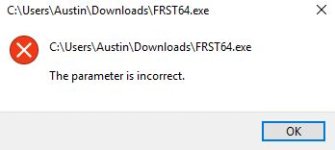
Note: You need to run the version compatible with your system. If you are not sure which version applies to your system download both of them and try to run them.
Only one of them will run on your system, that will be the right version.
Please download Farbar Recovery Scan Tool and save it to your desktop.
Note: You need to run the version compatible with your system. If you are not sure which version applies to your system download both of them and try to run them.
Only one of them will run on your system, that will be the right version.
- Double-click to run it. When the tool opens click Yes to disclaimer.
- Press Scan button.

- It will make a log (FRST.txt) in the same directory the tool is run. Please attach it to your reply.
- The first time the tool is run, it makes also another log (Addition.txt). Please attach it to your reply.
Please download Zemana AntiMalware and save it to your Desktop.
- Install the program and once the installation is complete it will start automatically.
- Without changing any options, press Scan to begin.
- After the short scan is finished, if threats are detected press Next to remove them.
Note: If restart is required to finish the cleaning process, you should click Reboot. If reboot isn't required, please restart your computer manually.
- Open Zemana AntiMalware again.
- Click on icon and double click the latest report.

- Now click File > Save As and choose your Desktop before pressing Save.
- The only left thing is to attach saved report in your next message.


Please re-run Farbar Recovery Scan Tool to give me a fresh look at your system.
- Right-click on icon and select
Run as Administrator to start the tool.

(XP users click run after receipt of Windows Security Warning - Open File). - Make sure that Addition.txt option is checked.

- Press Scan button and wait.
- The tool will produce two logfiles on your desktop: FRST.txt and Addition.txt.
Please uninstall:
amuleC (HKLM-x32\...\{19539992-061C-4E8B-9053-07B175303AF4}) (Version: 1.0.1 - amuleC) <==== ATTENTION
amuleC (HKLM-x32\...\{418DDAC3-E16C-47C2-B5FE-4FBCAB0E10D0}) (Version: 1.0.1 - amuleC) <==== ATTENTION
Fix with Farbar Recovery Scan Tool
 This fix was created for this user for use on that particular machine.
Running it on another one may cause damage and render the system unstable.
Download attached fixlist.txt file and save it to the Desktop:
Both files, FRST and fixlist.txt have to be in the same location or the fix will not work!
Please attach it to your reply.
amuleC (HKLM-x32\...\{19539992-061C-4E8B-9053-07B175303AF4}) (Version: 1.0.1 - amuleC) <==== ATTENTION
amuleC (HKLM-x32\...\{418DDAC3-E16C-47C2-B5FE-4FBCAB0E10D0}) (Version: 1.0.1 - amuleC) <==== ATTENTION
Download attached fixlist.txt file and save it to the Desktop:
Both files, FRST and fixlist.txt have to be in the same location or the fix will not work!
- Right-click on icon and select
Run as Administrator to start the tool.
(XP users click run after receipt of Windows Security Warning - Open File). - Press the Fix button just once and wait.
- If for some reason the tool needs a restart, please make sure you let the system restart normally. After that let the tool complete its run.
- When finishes FRST will generate a log on the Desktop, called Fixlog.txt.
Please attach it to your reply.
Attachments
- Status
- Not open for further replies.
Recently browsing
Members who viewed this thread in the last 5 minutes
You may also like...
-

-
-
P
- Opera
- Patrick Curtin
- · 0
- S
-
