Guide | How To Easy Application Control on Windows

The associated guide may contain user-generated or external content.

Andy Ful

From Hard_Configurator Tools
Thread author
Verified
Honorary Member
Top Poster
Developer
Well-known
Forum Veteran
Dec 23, 2014
10,002
1
65,821
8,398
65
Poland
App Install Control - Easy Application Control on Windows
Post updated/corrected in July 2025

On Windows 11, App Install Control works when SAC is in Evaluate Mode or OFF.
  1. Can be easily applied in a few seconds.
  2. Blocks files originating from the Internet Zone (files downloaded from the Internet - files with MotW).
    On Windows 11, the Default Block List includes over 100 file types (executables, scripts, scriptlets, shortcuts, etc.).
    On Windows 10, the Block List is smaller (.appref-ms, .bat, .chm, .cmd, .com, .cpl, .exe, .gadget, .hta, .js, .jse, .msc, .msi, .msp, .msu, .printerexport, .pif, .ps1, .scr, .settingcontent-ms, .vb, .vbs, .wsf).
  3. Allows popular documents, media files, and other files usually downloaded by home users (except application installers).
  4. Does not affect already installed applications and software auto-updates.
  5. Cannot break anything (installed software, Windows Updates, etc.).
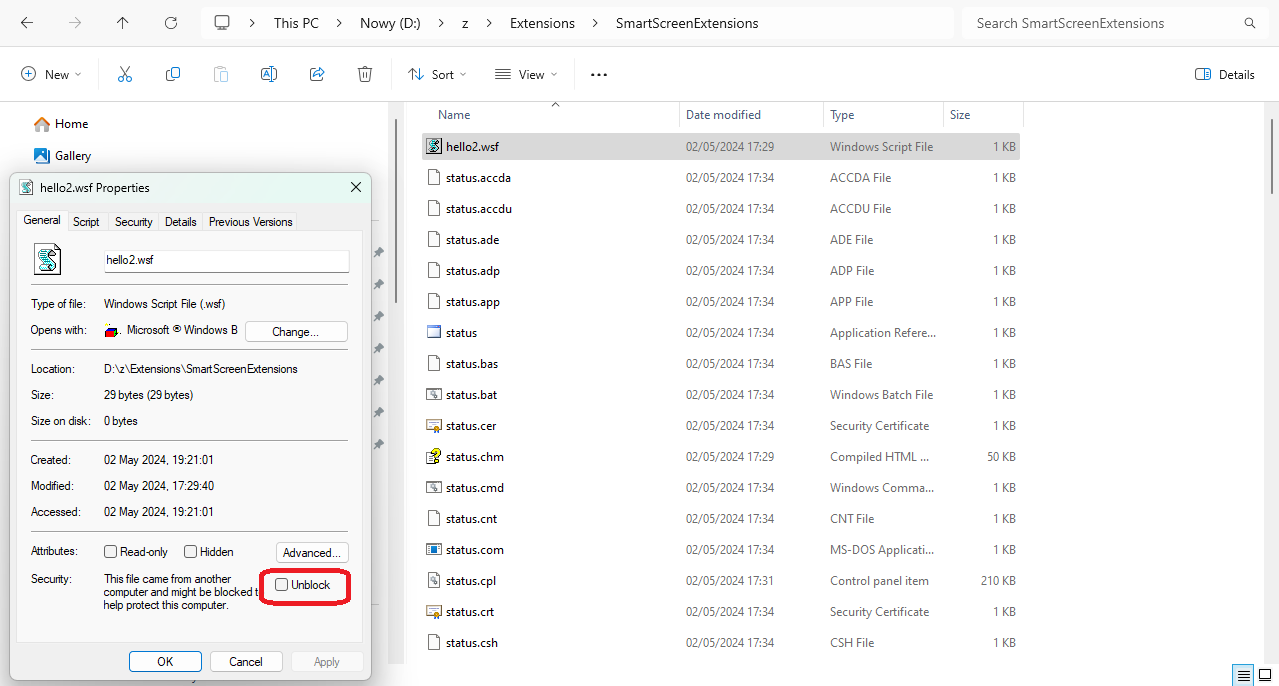
  6. No whitelisting, but the blocked file can be unblocked from the right-click Explorer context menu. Unblocking files bypasses SmartScreen file reputation on execution, so this method should be used with caution and only for files downloaded from highly reputable sources like, for example, the Ninite or Softpedia websites:
    https://ninite.com/
    https://win.softpedia.com/
  7. The Ninite website can be added to the Trusted Zone via Internet Options, and then the downloaded app installers are ignored by Easy Application Control (no need to Unblock the downloaded executable). This method can be recommended for casual users.
    https://malwaretips.com/threads/easy-application-control-on-windows.130803/post-1132454
  8. Another method that avoids Unblocking application installers is installing/updating applications via UniGetUI, Winstall, or Patch My PC. These reputable resources do not use MotW, so the installations are not affected by Easy Application Control.
    https://apps.microsoft.com/detail/xpfftq032ptphf?hl=en-US&gl=US
    https://winstall.app/apps
    https://www.softpedia.com/get/Others/Signatures-Updates/Patch-My-PC.shtml
  9. Allows application installations via Microsoft Store and gaming platforms (Steam, Epic Games, etc.).
  10. Does not protect from malware distributed via removable drives shared with other people.

Default list of blocked file types (Windows 11):
.ade, .adp, .app, .appref-ms, .asp, .bas, .bat, .cer, .chm, .cmd, .cnt, .com, .cpl, .crt, .csh, .der, .exe, .fxp, .gadget, .grp, .hlp, .hpj, .hta, .img, .inf, .ins, .iso, .isp, .its, .js, .jse, .ksh, .lnk, .mad, .maf, .mag, .mam, .maq, .mar, .mas, .mat, .mau, .mav, .maw, .mcf, .mda, .mdb, .mde, .mdt, .mdw, .mdz, .msc, .msh, .msh1, .msh1xml, .msh2, .msh2xml, .mshxml, .msi, .msp, .mst, .msu, .ops, .pcd, .pif, .pl, .plg, .prf, .prg, .printerexport, .ps1, .ps1xml, .ps2, .ps2xml, .psc1, .psc2, .psd1, .psm1, .pst, .reg, .scf, .scr, .sct, .shb, .shs, .slk, .theme, .tmp, .vb, .vbp, .vbs, .vhd, .vhdx, .vsmacros, .vsw, .webpnp, .website, .ws, .wsc, .wsf, .wsh, .xnk

Those are file types that Windows Attachment Manager labels as high-risk:
https://learn.microsoft.com/en-us/t...rivacy/information-about-the-unsafe-file-list

On Windows 11, it is possible to extend the Block List to include other file types by editing the Registry key:
Computer\HKEY_LOCAL_MACHINE\SOFTWARE\Policies\Microsoft\Windows\safer\CodeIdentifiers
Details can be found in the post:
https://malwaretips.com/threads/easy-application-control-on-windows.130803/post-1085791

It would be recommended to add:
.accda, .accdu, .cab, .csv, .diagcab, .dqy, .ecf, .elf, .fon, .ime, .iqy, .jar, .mdf, .mdn, .oqy, .pa, .ppa, .ppam, .rqy, .rtf, .settingcontent-ms, .wll, .wwl, .xla, .xll, .xlm

1714683003112.png


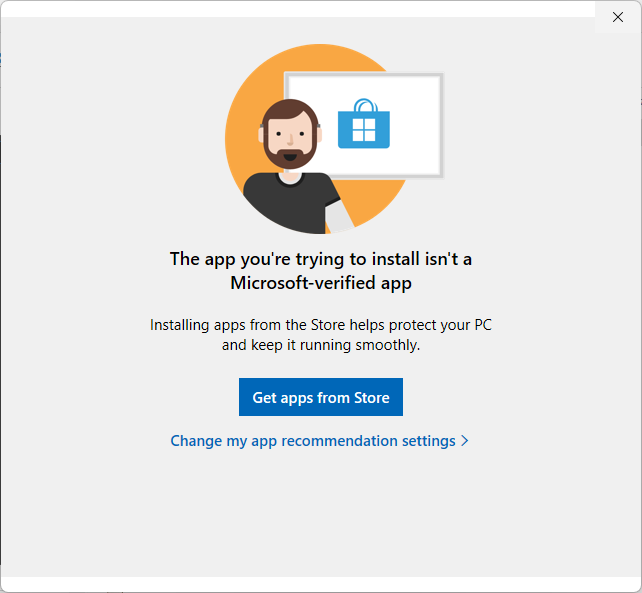
If it is applied by Windows Policy, the user cannot remove it via "Change my app recommendation settings."
Code:
Windows Registry Editor Version 5.00

[HKEY_LOCAL_MACHINE\SOFTWARE\Policies\Microsoft\Windows Defender\SmartScreen]
"ConfigureAppInstallControlEnabled"=dword:00000001
"ConfigureAppInstallControl"="StoreOnly"


How to apply Easy Application Control from the Windows Settings panel (no policy).
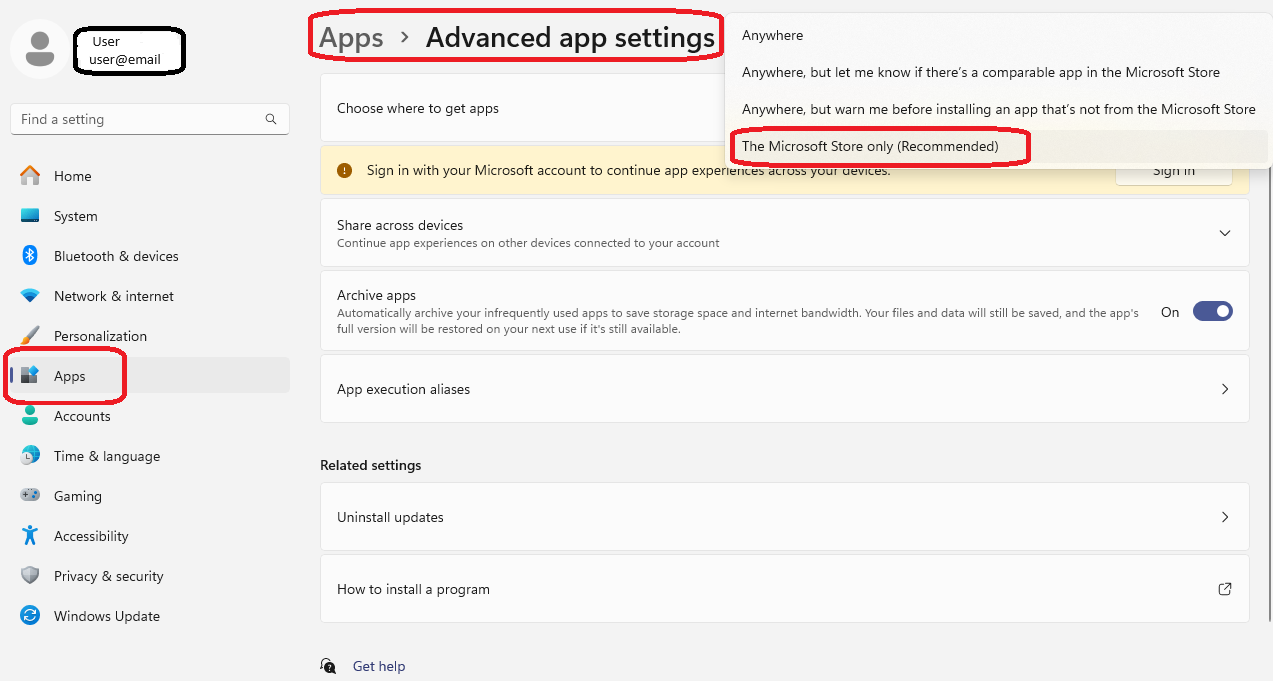
1714682278207.png


How to unblock the file.

1714682221934.png


Easy Application Control can cover almost all initial attack vectors at home if one uses Microsoft Defender + ConfigureDefender, Windows built-in applications (archiver, email-client, etc.), and MS Office. See also:
https://malwaretips.com/threads/easy-application-control-on-windows.130803/post-1085906
 
Last edited:
Updated in June 2025.

I noticed that on Windows 10 22H2 with updates until Jun 2025, the list of protected file types is far smaller:
.appref-ms, .bat, .chm, .cmd, .com, .cpl, .exe, .gadget, .hta, .js, .jse, .msc, .msi, .msp, .msu, .printerexport, .pif, .ps1, .scr, .settingcontent-ms, .vb, .vbs, .wsf
 
Last edited:
This is a great guide to control applications on Windows OS. It's quite useful to secure your system by blocking files downloaded from the internet while allowing popular documents and media files. Also, it's great to know that it doesn't affect already installed applications and updates.
 
Last edited:
Example 2.

Scenario 1
Phishing email ( Thread-Jacking ) ----> PDF with embedded URL ----> ZIP archive downloaded from URL ---> JavaScript (JScript) downloader/launcher in ZIP archive ---> LOLBins (cmd[.]exe, curl.exe, rundll32.exe) used to download and execute a DLL payload

Scenario 2
Phishing email ( Thread-Jacking ) ----> IMG (disk image file) in ZIP attachment ----> Shortcut (LNK file) + malicious DLL ----> Shortcut executes DLL by using LOLBin (rundll32.exe)

ZIP archives must be unpacked from the Explorer.
 
Last edited:
Example 4.

1714730911268.png


The RAR archive must be unpacked from Explorer.
 
Example 5.

malspam ----> email attachment ----> user opens an attachment and executes GuLoader (EXE file) ----> GuLoader downloads/executes payloads

If the attachment is an archive (ZIP, 7-ZIP, RAR) or disk image (ISO, IMG), it must be opened from Explorer (Windows built-in).
 
Example 6.

Scenario 1:
Facebook message ----> archive downloaded (RAR/ZIP) ----> user opens archive and executes the content (BAT/CMD/VBS script) ----> script uses LOLBins (CURL/PowerShell) to download/install/execute secondary payloads or (and) Python-based malware

Scenario 2:
Facebook message ----> archive downloaded (RAR/ZIP) ----> user opens archive and executes the content (malicious MSI loader) ---->
the loader downloads/installs/executes secondary payloads or (and) Python-based malware


The archive (ZIP, RAR) must be unpacked from Explorer (Windows built-in unpacker).
 
Last edited:
Example 6.

Scenario 1:
Facebook message ----> archive downloaded (RAR/ZIP) ----> user opens archive and executes the content (BAT/CMD/VBS script) ----> script uses LOLBins (CURL/PowerShell) to download/install/execute secondary payloads or (and) Python-based malware

Scenario 2:
Facebook message ----> archive downloaded (RAR/ZIP) ----> user opens archive and executes the content (malicious MSI loader) ---->
the loader downloads/installs/executes secondary payloads or (and) Python-based malware


The archive (ZIP, RAR) must be unpacked from Explorer (Windows built-in unpacker).
Incredibly detailed, and quite scary for many average users to look at, not realizing this all hinges on one aspect, them.

Social engineering, the user has to be "Lured" into downloading in the first place. I am however glad to see the initial post in this thread showing built in security windows uses, and why they are there to begin with.
 
App Install Control was invented by Microsoft several years ago with Windows 10 build 15042, although it has significantly improved recently:
  1. Many file types were added.
  2. Several MotW bypasses were patched.
  3. The Windows built-in support for popular archives was added (RAR, 7-ZIP, TAR, etc.).
It is intended for average users at home, but I think that a home administrator is recommended to apply it after installing all needed applications. The home administrator could be probably any MT reader.
Next, the user can install only applications from Microsoft Store or gaming platforms (like Steam, Epic Games, etc.).
App Install Control can be quite useful on Windows 11 for many users who do not need to install new desktop applications.
 
Last edited:
The list of Unsafe Files can be extended by editing the Registry key:
Computer\HKEY_LOCAL_MACHINE\SOFTWARE\Policies\Microsoft\Windows\safer\CodeIdentifiers

1714844544198.png


In the above example, I extended the default Block List to include: .xlam, .xla, .jar, .cab, .diagcab
Interestingly, the well-known SRP key can affect App Install Control, which has nothing to do with SRP policies.
SRP is not installed and added files can be unblocked just like the files from the default Block List.
 
Last edited:
I know these might be newbie question but I just want to make sure something.
Is this features automatic enable?
Example 1,2,4 and 5.
If the attachment is an archive (ZIP, 7-ZIP, RAR) or disk image (ISO, IMG), it must be opened from Explorer (Windows built-in).
The archive (ZIP, 7-ZIP, RAR) must be it must be opened/unpacked from Explorer (Windows built-in) but I thought (7-ZIP and RAR) can't be opened/unpacked via (windows buit-in) or now it can?
Does it mean it will be safe if one use other unpacking application like (7-ZIP, WINRAR, Peazip or Nanazip or others) to opened/unpacked the archive or disk image?
 
I know these might be newbie question but I just want to make sure something.
Is this features automatic enable?
No.

The archive (ZIP, 7-ZIP, RAR) must be it must be opened/unpacked from Explorer (Windows built-in) but I thought (7-ZIP and RAR) can't be opened/unpacked via (windows buit-in) or now it can?

Yes, on Windows 11 (after recent updates).
I am not sure about Windows 10 (does not work on ver. 22H2).

Does it mean it will be safe if one use other unpacking application like (7-ZIP, WINRAR, Peazip or Nanazip or others) to opened/unpacked the archive or disk image?

Yes. Unpacking by 3-rd party archiver application usually loses Mark of the Web (MotW).
7-Zip and Nanazip can be configured to keep MotW (Propagate Zone Id stream must be set to Yes):

1714821761405.png
 
No.


Yes, on Windows 11 (after recent updates).
I am not sure about Windows 10 (does not work on ver. 22H2).


Yes. Unpacking by 3-rd party archiver application usually loses Mark of the Web (MotW).
7-Zip and Nanazip can be configured to keep MotW (Propagate Zone Id stream must be set to Yes):
I misread something but now I understand. In order to detect it and prevent/blocked the attack threat from all the example, the files must have Mark of the Web (MotW).
Regardless of 3-rd party archiver application as long it keep Mark of the Web (MotW), it can be detected and blocked.

Thank you for clarify thing for me.
 
  • Like
Reactions: Andy Ful
I misread something but now I understand. In order to detect it and prevent/blocked the attack threat from all the example, the files must have Mark of the Web (MotW).

Yes. Such protection is efficient (at home), simple, and non-invasive.
But, one must use the software that can keep Mark of the Web. All popular web browsers and some archiver applications can do it.
One must also cover the popular attack vectors via MS Office documents. This requires some safe habits, not allowing macros and attachments embedded in the documents (some 3rd party Office applications must be tweaked).
If one uses an email client application, the simplest solution would be to use the Windows built-in applications (Mail or Outlook) or Thunderbird (all can add MotW to the downloaded email attachments). Of course, the MotW is also added when the users manage emails via a web browser.

Shortly, no tweaking is required when one uses Microsoft Defender (ConfigureDefender), Windows built-in applications, and MS Office applications. Easy Application Control will cover almost all initial attack vectors at home.
Some additional tweaking is recommended when other applications are used.

Post edited.
 
Last edited:
On Windows 11, Smart App Control replaces Easy Application Control. So, Easy Application Control can work only when SAC is in Evaluation or OFF mode.
 
Why would the user like Easy Application Control (EAC) over Smart App Control (SAC) on Windows 11?

There is probably no difference when using Microsoft Defender, Windows built-in applications (archiver, email client, etc.), and Microsoft Office.
But, there can be a problem with games. SAC can block many executables (EXE, DLL, TMP, etc.) in games.
EAC does not block already installed games, and their updates via gaming platforms. Furthermore, the new game can always be installed after unblocking the installer.

Generally, EAC allows the home administrator to install/run/update any application and SAC does not.