Hot Take Here's how to delete services that are frequently left behind when you uninstall Brave browser

lokamoka820

Level 45
Thread author
Verified
Top Poster
Well-known
Mar 1, 2024
3,424
3
11,506
4,369
Banana Republic
Uninstalling Brave browser often leaves behind services, such as Brave Updater service, which can be frustrating for users. This problem is not new and has been brought up multiple times, but Brave was unable to resolve it or provide users with solutions. To completely remove these services, you need to manually delete them after the uninstallation process.

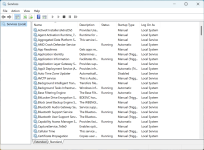
To understand what I mean, you can look at the Windows services:
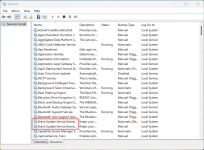
2026-03-20 04_26_35-Services.png

Here are some links to the issue that have been raised in Github and the Brave Community, but no solutions have been found:
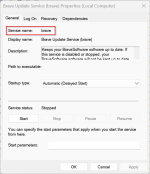
In case you are like me and find it difficult to fall asleep due to software leftovers in your Windows installation, here's how I resolve the problem. First, you need to get the short name of the service instead of its display name. To do this, open Services, then double-click a service to see its short name. In my case, the services were brave and bravem.

2026-03-20 04_28_17-Brave Update Service (brave) Properties (Local Computer).png2026-03-20 04_29_01-Brave Update Service (bravem) Properties (Local Computer).png

Now, to remove a service on Windows, type sc delete service_name into the elevated command prompt and hit Enter. (Where service_name refers to the short name of the service). The output will be displayed as [SC] DeleteService SUCCESS.

Now, in case you encounter an error or, for whatever reason, fail to receive the SUCCESS message (as was the case with me the last time), the registry editor will then need to be used to remove it. Open Registry Editor and navigate to the following registry key HKEY_LOCAL_MACHINE\SYSTEM\CurrentControlSet\Services, each sub-key under this registry key represents a driver or a Service. The key name is the same as the short name of the service.
  • Locate the entry that you wish to remove.
  • Make a backup of the relevant key by exporting it to a .reg file.
  • After exporting, right-click the key and select Delete.
  • To apply, close the Registry Editor and restart the computer.
And that's it; my services no longer include the Brave Updater.

2026-03-21 06_54_11-Services.png
 
Uninstalling Brave browser often leaves behind services, such as Brave Updater service, which can be frustrating for users. This problem is not new and has been brought up multiple times, but Brave was unable to resolve it or provide users with solutions. To completely remove these services, you need to manually delete them after the uninstallation process.

To understand what I mean, you can look at the Windows services:

View attachment 296495

Here are some links to the issue that have been raised in Github and the Brave Community, but no solutions have been found:
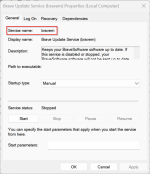
In case you are like me and find it difficult to fall asleep due to software leftovers in your Windows installation, here's how I resolve the problem. First, you need to get the short name of the service instead of its display name. To do this, open Services, then double-click a service to see its short name. In my case, the services were brave and bravem.

View attachment 296496View attachment 296497

Now, to remove a service on Windows, type sc delete service_name into the elevated command prompt and hit Enter. (Where service_name refers to the short name of the service). The output will be displayed as [SC] DeleteService SUCCESS.

Now, in case you encounter an error or, for whatever reason, fail to receive the SUCCESS message (as was the case with me the last time), the registry editor will then need to be used to remove it. Open Registry Editor and navigate to the following registry key HKEY_LOCAL_MACHINE\SYSTEM\CurrentControlSet\Services, each sub-key under this registry key represents a driver or a Service. The key name is the same as the short name of the service.
  • Locate the entry that you wish to remove.
  • Make a backup of the relevant key by exporting it to a .reg file.
  • After exporting, right-click the key and select Delete.
  • To apply, close the Registry Editor and restart the computer.
And that's it; my services no longer include the Brave Updater.

View attachment 296498
That can happen, and the leftover service is usually related to Brave’s update mechanism rather than the browser itself.

If Brave has already been uninstalled, the remaining service can often be removed manually in a safe way.

What is usually left behind

  • A Windows service such as Brave Updater
  • Scheduled tasks related to Brave update checks
  • A leftover folder under Program Files, ProgramData, or the user profile

How to remove the leftover Brave service

Before deleting anything, it is best to confirm the exact service name.

  1. Open Services and locate the Brave-related entry.
  2. Double-click it and note the Service name, not just the display name.
  3. Open Command Prompt as Administrator.
  4. Run:

Code:
sc stop "BraveElevationService"
sc delete "BraveElevationService"

If the service name is different, replace it with the exact name shown in Services.

In some cases Brave may also use an updater service name similar to:
Code:
BraveUpdater

So the command would be:
Code:
sc stop "BraveUpdater"
sc delete "BraveUpdater"

Also check scheduled tasks

Open Task Scheduler and look for Brave-related tasks. If present, delete them manually.

Common places to review:

  • Task Scheduler Library
  • Any Brave or updater-named entries

Remove leftover folders

If they still exist after uninstalling, check these locations:


Delete only clearly Brave-related folders.

Registry cleanup

I would be careful with registry cleaning. Manual removal of the service with
Code:
sc delete
is usually enough. Using aggressive registry cleaners is generally not recommended because they can remove unrelated entries and cause problems.

If the service does not delete immediately

  • Restart Windows and try the command again
  • Make sure no Brave processes are still running in Task Manager
  • Check whether the service is marked for deletion and disappears after reboot

Conclusion

Yes, leftover Brave services are a valid annoyance, and removing them usually requires checking the exact service name, deleting it with
Code:
sc delete
, and then removing any remaining tasks or folders. That is the cleanest manual approach after uninstalling.
 
Nothing an uninstaller would not fix, then again it is sad that in 2026 you still have to rely on such tools.
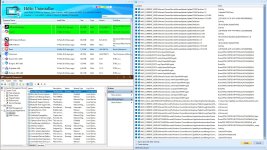
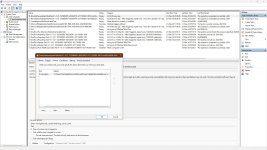
But I do not seem to have Brave Updater services, just scheduled tasks. I use winget to update anyway.

capture_03212026_073805.jpg capture_03212026_073959.jpg

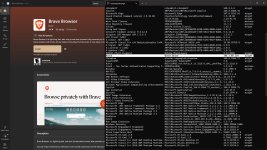
Store version probably does not need it, but I have winget version. :unsure:

capture_03212026_074501.jpg
 
Last edited:
Brave's updater is a forked version of Google's Omaha (now just called Google Update), so it shares the same Windows updating design as Chrome and Edge. Instead of being guided by the user application, it's an independent component running under the SYSTEM user.

According to Brave's documentation on Omaha, the services are supposed to be designed to self-uninstall, although it's been noted on the GitHub that they may linger for hours after uninstalling the browser:
When last application using Omaha client is uninstalled by the user, Omaha client will uninstall itself.

It's unfortunate that they don't go away more cleanly or reliably.
 
I've never had to much trouble removing Brave, Helium which I used on my previous install was a different thing, very difficult to totally remove, now after having a nice clean install I intend to keep it that was & hopefully with judicious use of system imaging I can have less unwanted dross on this install although the last one did last several years with few problems at the end, though it was Pre 24H, then 24H added, then 25H so it didn't do bad.
 
Store version probably does not need it, but I have winget version. :unsure:
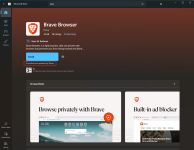
Just a quick note regarding the Brave store version: it is a Win32 application (the same one as Winget), not an MSIX one. As such, the Microsoft Store will only download the default Brave installer and won't update it. The "Provided and updated by vendor" sentence beneath the installation button will let you know the difference.

2026-03-21 18_50_19-Microsoft Store.png2026-03-21 18_51_01-Microsoft Store.png
 

You may also like...