Gandalf_The_Grey
Level 86
Verified
Honorary Member
Top Poster
Content Creator
Well-known
Forum Veteran
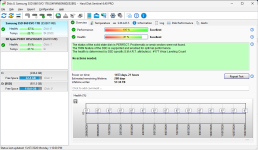
You can avoid losing your data by routinely performing health checks. If you do a check and the drive says that it is failing, then you have time to back up your important data before any data loss occurs.
Windows 11 allows you to check the state of your HDD or SSD using built-in tools. Here’s how you can go about finding the status of your drive:
It is a good idea to check the health every few months so that you don’t get caught out. However, don’t rely on it 100%; keep backing up regardless in case it misses a drive failure.
- Open Settings (Press Win + i)
- Go to System > Storage
- Scroll down and click on Advanced storage settings
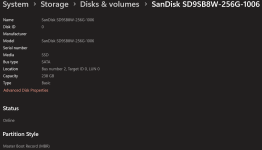
- Click on Disks & volumes
- Under each disk it will give the status, such as Healthy
- Select your main drive from the list and click the Properties button next to it
- Look at the Drive Health section; it will show you: Estimated remaining life, Available spare, and Current Temperature