How to check your disk health in Windows 11 to prevent data loss

Gandalf_The_Grey

Level 85
Thread author
Verified
Honorary Member
Top Poster
Content Creator
Well-known
Forum Veteran
Apr 24, 2016
7,870
6
83,525
8,389
55
The Netherlands
You can avoid losing your data by routinely performing health checks. If you do a check and the drive says that it is failing, then you have time to back up your important data before any data loss occurs.

Windows 11 allows you to check the state of your HDD or SSD using built-in tools. Here’s how you can go about finding the status of your drive:
  1. Open Settings (Press Win + i)
  2. Go to System > Storage
  3. Scroll down and click on Advanced storage settings
  4. Click on Disks & volumes
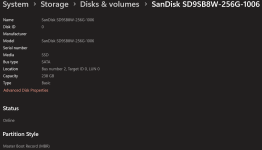
  5. Under each disk it will give the status, such as Healthy
  6. Select your main drive from the list and click the Properties button next to it
  7. Look at the Drive Health section; it will show you: Estimated remaining life, Available spare, and Current Temperature
It is a good idea to check the health every few months so that you don’t get caught out. However, don’t rely on it 100%; keep backing up regardless in case it misses a drive failure.
 
For recently manufactured only

1783874853662.png
 
I use HWiNFO to check the status of system components in general on a monthly basis, and I used to use CrystalDiskInfo as well, but HWiNFO gives the same information in an understandable way because it displays the values in decimal format, while CrystalDiskInfo displays the values in hexadecimal format by default, which requires conversion to understand them.
 
For recently manufactured only

View attachment 298772
However, it's worth noting that the "Drive health" feature is only available for modern Non-Volatile Memory (NVMe) SSDs, not traditional Serial AT Attachment (SATA) or Hard Disk Drives (HDDs). If you have a non-supported media type, it's still possible to check the health with the "Performance Monitor" app, but the information won't be as rich.
 
[...] CrystalDiskInfo displays the values in hexadecimal format by default, which requires conversion to understand them.
Since 2020, when I migrated to Kubuntu, I haven't used CrystalDiskInfo. But if I'm not mistaken, the option to change hexadecimal format to decimal is still available in CrystalDiskInfo settings. It's a simple setting:
Main Menu/ Function/ Advanced Features/ Raw Values/ Select display method of Raw Values: select DEC instead of HEX.
 
Nice, I didnt know that Windows 11 had this native feature, in the past CrystalDiskInfo was my tool of choice.

Kaspersky Premium has this feature too and reports the same values as Win 11.
 
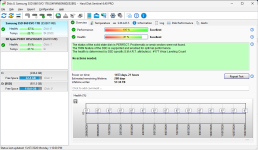
I use Hard Disk Sentinel. It's often available as a giveaway, but I bought it to support the author. I greatly prefer it to CrystalDiskInfo and some of the other such tools, as it give a clear description of a drive's health, rather than just showing values.

Screenshot 2026-07-13 131433.png
 
Since 2020, when I migrated to Kubuntu, I haven't used CrystalDiskInfo. But if I'm not mistaken, the option to change hexadecimal format to decimal is still available in CrystalDiskInfo settings. It's a simple setting:
Main Menu/ Function/ Advanced Features/ Raw Values/ Select display method of Raw Values: select DEC instead of HEX.
But even decimal still shows unexplained figures fot temp and life in the last column (raw values column)!

1783918481048.png
 
The Microsoft-Windows-DiskDiagnosticResolver warns users about faults reported by hard disks that support the Self Monitoring and Reporting Technology (S.M.A.R.T.) standard. This task is triggered automatically by the Diagnostic Policy Service when a S.M.A.R.T. fault is detected.
 
I use CrystalDiskInfo I have a license for Sentinel but IMO its over the top for my personal needs, Crystal is a small program & runs fast though I don't look that often, I am always a fan of multiple backups on externals for all my data so I don't worry to much, main Samsung SSD 980 PRO 1TB still at 87% & that's had much, much stick in its life my secondary drive WDC WDS400T2B0A 4TB @ 98% so all good, from a purely psychological view looking often @ SSD percentages is not good for us, I think :):)