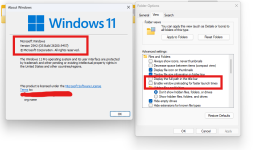
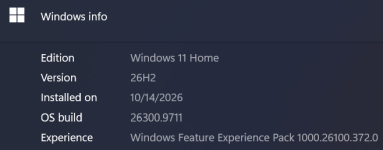
Newer versions of Windows 11 (version 26H2 and later) come with a new feature called “File Explorer Preloading” to improve performance. This article will help you in enabling or disabling file explorer preloading feature in your Windows 11 device.
Ever since Windows 11 operating system was released to public, many users have been complaining about the slow performance of File Explorer (also known as Windows Explorer, This PC and My Computer). It was slow to launch and used to lag during folder navigation.
To resolve this issue and make the File Explorer open faster, Microsoft has added the preloading functionality to Windows 11 operating system.
Windows 11 2026 Update (version 26H2) comes with File Explorer preloading feature enabled by default and users will immediately notice the improved performance of File Explorer after upgrading their devices.
Preloading feature keeps the File Explorer process (explorer.exe) always running in the background and that’s why File Explorer opens instantly without any lag or delay. You can check it yourself using Task Manager (Ctrl+Shift+Esc).
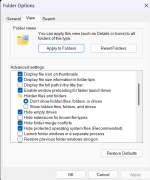
Microsoft has provided a dedicated checkbox option in Folder Options window to quickly enable or disable File Explorer preloading feature. You can modify this new option using following steps:
STEP 1: Open This PC or File Explorer and click on 3-dots (…) menu button showing at the end on the toolbar. Now click on “Options” to open Folder Options window.
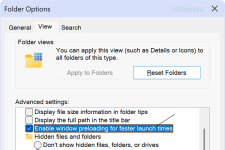
STEP 2: Now go to “View” tab and look for following option:
Now check or uncheck the option to enable or disable the File Explorer preloading feature in your device.
STEP 3: Apply the changes and close Folder Options window.

How to Enable or Disable File Explorer Preloading in Windows 11
Newer versions of Windows 11 (version 26H2 and later) come with a new feature called “File Explorer Preloading” to improve performance. This article