How to setup Kaspersky Internet Security 2016 for Maximum Protection (Guide)

Status
Not open for further replies.
Your configuration is good, however I think it's a bit risky, so should be careful in the question of configuring the "reliable application" because it's bad you see Windows don't work right, for having some system file blocked (untrusted). Windows is constantly updating yesterday I did a scan and found 120 "unknown" most of them system files. So I don't think it's valid to mess with these options, which should be well configured, maybe in maximum settings are: Antivirus file, Web antivirus and other gear options.

PS: Someone could make a configuration for the version Total security 2018.

Excuse my English ;)
 
Your configuration is good, however I think it's a bit risky, so should be careful in the question of configuring the "reliable application" because it's bad you see Windows don't work right, for having some system file blocked (untrusted). Windows is constantly updating yesterday I did a scan and found 120 "unknown" most of them system files. So I don't think it's valid to mess with these options, which should be well configured, maybe in maximum settings are: Antivirus file, Web antivirus and other gear options.

PS: Someone could make a configuration for the version Total security 2018.

Excuse my English ;)
yes TAM is prone to do harm sometimes, i would suggest configuring application control, disabling the "automatically trust digitally signed application", my apps usually end up in low restricted that isn't blocked too much.
 
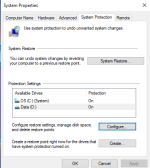
What about this setting on the PC. Both were set to off. Should these be turn on whilst you have anti virus software installed?
 

Attachments

  • Untitled.png
    Untitled.png
    17.7 KB · Views: 624
PS: Someone could make a configuration for the version Total security 2018.
There are no new configurable provisions on the user side except for the following two:
  • There is now protection against infection while the operating system is being restarted (enabled by default)
  • There is now a user-defined list of domains for which connections are not controlled by the application
The additions that Total Security provides are comparatively easy and the guides found here should be enough for optimizing your 'security' aspect.
This very guide and the 2017 guide are all you need for maximizing your protection settings.

What about this setting on the PC. Both were set to off. Should these be turn on whilst you have anti virus software installed?
That protection option is used for System Restore. Not related to AVs. Say you enabled 'Protection' for 'C-drive'. A snapshot of the C-drive will be taken whenever a restore point is created (manually by you or by some program, example when tampering with registry..). The snapshot will include system files, installed applications, registry and system settings.
Snapshots are usually taken when the system is working just fine so that when you confront any system issue, you can get back via Windows options or via Advanced Boot Recovery. Whenever you find your system to be unstable, you can go back to the previous restore point where you system was doing just fine.
For System Restore, typically protection of only the system drive (C in your case) is set, though you can enable protection for D if you need to (based on your understanding of system restores). It will take more space though and not needed if you regularly backup your data to external devices.
 
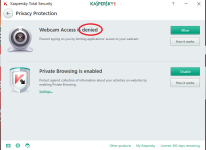
This option can be a little confusing. Denied means unauthorized access to webcam not allowed. But I always have my webcam covered with tape anyways. But it blocked an application.

At first I thought allow meant allow the module to run
 

Attachments

  • Untitled.png
    Untitled.png
    67.3 KB · Views: 603
Last edited:
This option can be a little confusing. Denied means unauthorized access to webcam not allowed. But I always have my webcam covered with tape anyways. But it blocked an application.
Covering the tape has nothing to do with these s/w except that the camera access will physically be blocked from outside.
If you've set Webcam access to 'Deny', other applications will anyway try to access the webcam (those that intend to) but you'll be alerted by Kaspersky each time, that the access of those apps to the webcam was blocked.

At first I thought allow meant allow the module to run
Allow will allow any app to access your webcam but Kasp will notify you whenever one tries to (without blocking access). It will anyway provide an option to deny webcam access to that very app if you wish to.
 
I share with you the settings of a Kaspersky's Forum moderator, most of them i have now adopted.

Code:
* Settings -> General -> Untick Perform recommended actions automatically.

* Settings -> Protection -> File Anti-Virus -> Advanced Settings:
Files types: By format.
Heur Analysis: light.
Scan Mode: On access and modification.

* Application Control:
Untick Trust Digitally signed applications.
Change trust group for unknown applications: High Restricted.
Change trust group for applications started before start-up of Kaspersky: Low Restrict/High Restricted.

* Mail Anti-Virus: High Security Level.

* Private Browsing:
Block detected requests -> Untick allow data collections of websites of Kaspersky.

* Web Anti-Virus: Recommend Security Level.
Advanced Settings:
Configure Kaspersky URL Advisor: check all website categories.

Check if Website can be used by criminals...: enabled.

* FireWall: check the 5 checkboxes.
NetWorks -> Your network device/network connection -> Trusted Type. Edit it and tick the 3 checkboxes notifications on the right. Set Your default printer also.

* System Changes Control: On. Enable check boxes 1,2 & 3.

* Anti-Spam: High Security Level.

* Anti-Banner: On.

* Performance:
Gaming Profile: off.
Concede resources to operating system...: off.
Concede resources to others applications: on.

* Scan: High Security Level.
Advanced Settings -> Quick Scan settings -> Additional Settings -> Scan of compound files: tick the 1st 4 checkboxes.

* Settings -> Additional -> Secure Data Input: edit both categories and check all the checkboxes.

* Settings -> Additional -> Threats and Exclusions: tick -> Detect other software that can...

* Settings -> Additional -> NetWork:
Monitor all network ports.
Encrypted connections scanning: check 3rd radio button. Install Certificate.

* Additional Tools -> Trusted Application Mode -> ENABLE (be a bit patient here until scan is finished).
 
:D:rolleyes: I already posted those settings some time ago here in this forum ;)
 
  • Like
Reactions: frogboy
I share with you the settings of a Kaspersky's Forum moderator, most of them i have now adopted.

Code:
* Settings -> General -> Untick Perform recommended actions automatically.

* Settings -> Protection -> File Anti-Virus -> Advanced Settings:
Files types: By format.
Heur Analysis: light.
Scan Mode: On access and modification.

* Application Control:
Untick Trust Digitally signed applications.
Change trust group for unknown applications: High Restricted.
Change trust group for applications started before start-up of Kaspersky: Low Restrict/High Restricted.

* Mail Anti-Virus: High Security Level.

* Private Browsing:
Block detected requests -> Untick allow data collections of websites of Kaspersky.

* Web Anti-Virus: Recommend Security Level.
Advanced Settings:
Configure Kaspersky URL Advisor: check all website categories.

Check if Website can be used by criminals...: enabled.

* FireWall: check the 5 checkboxes.
NetWorks -> Your network device/network connection -> Trusted Type. Edit it and tick the 3 checkboxes notifications on the right. Set Your default printer also.

* System Changes Control: On. Enable check boxes 1,2 & 3.

* Anti-Spam: High Security Level.

* Anti-Banner: On.

* Performance:
Gaming Profile: off.
Concede resources to operating system...: off.
Concede resources to others applications: on.

* Scan: High Security Level.
Advanced Settings -> Quick Scan settings -> Additional Settings -> Scan of compound files: tick the 1st 4 checkboxes.

* Settings -> Additional -> Secure Data Input: edit both categories and check all the checkboxes.

* Settings -> Additional -> Threats and Exclusions: tick -> Detect other software that can...

* Settings -> Additional -> NetWork:
Monitor all network ports.
Encrypted connections scanning: check 3rd radio button. Install Certificate.

* Additional Tools -> Trusted Application Mode -> ENABLE (be a bit patient here until scan is finished).
this with setting high/untrusted to all deny will have 80% of your apps blocked with no notification :D
 
No problem here with it, just checking Application Control... also, only if no InterNet Connection would lead to that situation, where 80% is a bit exaggerated, just new ones or unknown...
 
  • Like
Reactions: frogboy
No problem here with it, just checking Application Control... also, only if no InterNet Connection would lead to that situation, where 80% is a bit exaggerated, just new ones or unknown...
i had Steam blocked with this settings, i forgot i changed KIS settings so i reinstalled Steam like 2 times before i realized...
it would be fine if KIS would throw notifications when it blocks something.
 
  • Like
Reactions: codswollip
I usually do not have TAM enabled all the time, with stronger tweaks in Application Control, would be enough :)
 
Status
Not open for further replies.