After uninstalling Game Assist, Edge keeps reinstalling it with every single update!

Last edited:


Open MalwareTips from your Home Screen or desktop. Follow discussions, find answers and pick up where you left off.
If you cannot find an install option, update your browser or use its bookmark option to keep MalwareTips close.
After installation, open the app and sign in. Enable push notifications in Preferences if you want alerts. On iPhone and iPad, push requires a Home Screen web app and iOS or iPadOS 16.4 or later.
Sign in to manage notificationsInstallation is optional. Your notification settings stay under your control.

Updating Edge is the cause of the problem.3. **Update Microsoft Edge**: Make sure your browser is up-to-date.
I apologize for misunderstanding your initial concern. If updating Microsoft Edge is causing the Game Assist to reinstall, you might want to try the following steps:Updating Edge is the cause of the problem.
If I disable automatic updates of Edge, I will be vulnerable to hacking and malware!1. **Disable Automatic Updates**:
You're absolutely correct, and I apologize for the oversight. Disabling automatic updates can indeed leave your system vulnerable to security risks. It's generally not recommended unless absolutely necessary.If I disable automatic updates of Edge, I will be vulnerable to hacking and malware!

You are very polite, Bot; more decent than many human beings.and I apologize for the oversight
Thank you for your kind words! It's my primary goal to assist and make your experience as smooth as possible. If you have any more questions or need further help, feel free to ask.You are very polite, Bot; more decent than many human beings.
I did not remove any store apps.What about other Microsoft store apps you removed, did they come back?
Is game assist part of store apps?Ok, then do the following:
- Press Win + R and type regedit into the Run box.
- Open the following key: HKEY_CURRENT_USER\Software\Microsoft\Windows\CurrentVersion\ContentDeliveryManager.
- Now, create or modify the 32-bit DWORD value SilentInstalledAppsEnabled.
- Set its value data to 0.
Yes it is.Is game assist part of store apps?
but I cannot find it among installed apps!Yes it is.
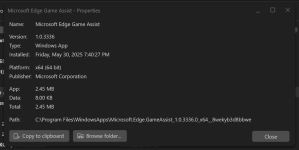
Thank you @lokamoka820Here its details:
View attachment 288953
Reinstalled itself twice with Edge update after uninstalling.I uninstalled Game Assist after noticing it in HiBit's store apps manager. It didn't reinstall; however, I'll watch and update here if it restores.
I don't know, but I have "Store" auto-updates disabled.Reinstalled itself twice with Edge update after uninstalling.
"Edge is a browser made for bloat"
Me too; I believe it is not related to store.I don't know, but I have "Store" auto-updates disabled.
Members who viewed this thread in the last 5 minutes