


Venmo has become one of the most popular peer-to-peer payment apps, allowing users to easily transfer money between friends or pay for goods and services. However, as Venmo’s user base has grown, so too have scams targeting unsuspecting users. In this comprehensive guide, we outline the most common Venmo scams to watch out for, provide tips on how to avoid falling victim, and explain how to enhance your security when using the app.
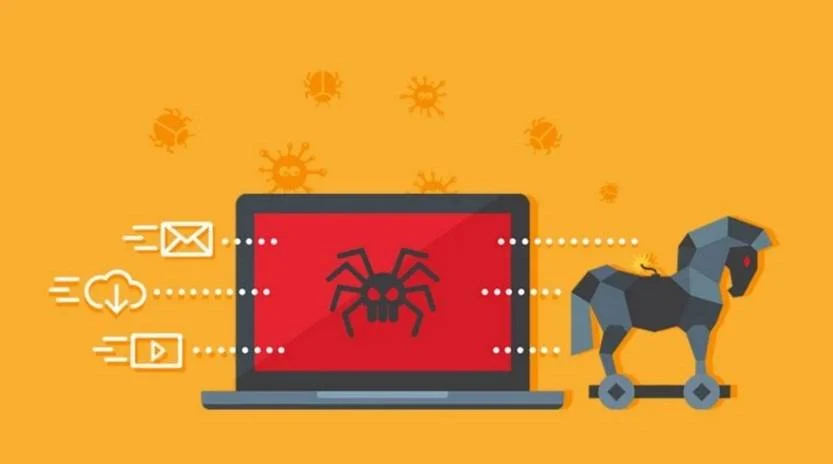
Common Venmo Scams and How to Avoid Them
Here are some of the most common Venmo scams, as well as tips on how you can avoid getting tricked:
1. The “Accidental” Money Transfer Scam
In this scam, a criminal sends you money via Venmo using a stolen credit card or hacked account. Shortly after, they will message you claiming it was an “accident” and ask you to simply send the money back to their Venmo account. However, when Venmo discovers the original transfer was fraudulent, they will debit the money from your account. By that point, the scammer has already withdrawn the money you returned to them.
For example, you sell a desk on Facebook Marketplace for $100. The buyer says he’ll pay through Venmo and transfers you $100. But then he messages you that he accidentally sent $500 instead of $100. He asks you to please return the extra $400 to his Venmo account. You refund the $400, and the buyer withdraws it. A few days later, Venmo reverses the original $500 transaction when they detect it was fraudulent. Now you are out $400 with no desk.
To avoid this, never send money back if someone claims an accidental transfer. Contact Venmo support to verify first. Only transact with people you know and trust.
2. The Fake Buyer Scam
Scammers may pose as buyers if you are selling an item online. They will pay you on Venmo for the item, then once you’ve shipped it, retract the payment leaving you without the item or funds.
For example, you list a used iPhone for sale on eBay for $300. A buyer messages that he wants to purchase it and will pay you through Venmo. You receive a $300 Venmo payment notification, so you ship the phone. But days later the payment is reversed – the buyer scammed you out of your iPhone.
Protect yourself by only shipping items after the Venmo payment has fully cleared, which can take a few days. Be wary of any buyers who push you to ship before the payment has settled.
3. Venmo Phishing Scams
Watch out for emails or texts pretending to be from Venmo and asking you to verify account details. These “phishing” messages often look legitimate but clicking enclosed links can expose your login details or install malware.
For instance, you get an email that appears to be from Venmo, warning that your account will be suspended unless you verify some information. The email has Venmo logos and the sender address looks real. When you click the link to “verify your account,” it takes you to a fake site mimicking Venmo’s login page. As soon as you enter your username and password, the scammer has access to your account.
Always go directly to the real Venmo website or app if you get suspicious communications. And never click links in unsolicited messages.
4. Venmo Smishing Scams
“Smishing” uses text messages instead of emails to trick you into giving up Venmo login credentials or downloading malware. The texts may claim there is a problem with your account that requires immediate action through a link.
For example, you receive a text claiming to be from Venmo, saying there was suspicious activity on your account. The message says you need to urgently click on a link to reset your password and secure your account. However, the link actually downloads malware onto your phone, allowing the hacker to steal your Venmo password next time you log in.
As with phishing scams, ignore these texts. Open the Venmo app manually to view notifications. Legitimate Venmo texts will never ask for sensitive data or contain links.
5. Venmo Identity Theft
Scammers may hack into a friend’s account and then ask to borrow money from you posing as that friend. Or they can piece together enough public details to impersonate someone and target their connections.
For instance, you get a Venmo request from your friend Alec asking to borrow $250 for car repairs. You had just seen Alec last week and he seemed fine, but you decide to help him out anyway. Unfortunately, Alec’s account had been hacked – you just gave $250 to a scammer pretending to be your friend.
Always independently verify strange payment requests, even if they appear to come from someone you know. Call or text the contact using previous conversations – don’t rely on any new account details they sent.
6. The “Stranger in the Street” Scam
Criminals may approach you asking to borrow your phone for an “emergency.” But they quickly open your Venmo app and send an unauthorized payment.
For example, a woman comes up to you on the street asking if she can use your phone to call her son’s school because of a medical emergency. You hand her your unlocked phone. But instead of making a call, the scammer opens your Venmo app and instantly sends $200 to her own account before disappearing into the crowd.
Never hand your unlocked phone to a stranger, even briefly. Also set up biometric login (fingerprint/face ID) on your Venmo app for extra security.
7. Romance Scams
Fraudsters prey on single people seeking relationships online and eventually ask for money after building trust. They may claim visa issues, medical emergencies or other hardships to trick you into sending funds via Venmo.
For instance, you start chatting with someone named Brian on a dating app. After a few weeks, Brian says he is coming to visit you from Europe and asks if you can send him money for the flight through Venmo. You believe you are in love and send Brian $800. But you never hear from him again after the payment.
While getting to know someone online, avoid sharing financial information. Conduct reverse image searches on their photos and be wary of excuses why they can’t meet in person.
8. Paper Check Scams
The scammer sends you a check but asks you to immediately wire back part of the amount via Venmo before the check can bounce. By the time it bounces, they have the money you sent.
For example, you receive a check for $2,500 in the mail claiming it is payment for a mystery shopper assignment. The letter with the check asks you to deposit it, keep $200 for your services, and send the rest back via Venmo right away for processing. You wire the extra $2,300 to the account details provided. A week later, the bank notifies you the original check was fraudulent. But the scammer already withdrew the $2,300 you sent.
Never send payments based on a check before it fully clears, which can take weeks. Only transact with trusted individuals and companies.
9. Overpayment Scams
A scammer intentionally overpays for an item through Venmo using a compromised account, then asks you to refund the difference. But when Venmo reverses the fraudulent transaction, you’re out the refunded money.
For instance, you are selling a laptop for $500 on Craigslist. The buyer sends you $600 on Venmo by mistake. He asks you to please send back the $100 overage. You refund the extra money, but shortly after Venmo cancels the original payment due to suspected fraud. The scammer got the laptop and $100 of your money.
If ever overpaid, simply refund the exact overage amount – no more. Wait until the original payment fully settles before refunding to be safe.
10. Fake Investment Scams
Criminals promise to invest your money and deliver huge returns if you send them funds via Venmo to get started. In reality, they pocket the money and you never see any returns.
For example, you see an Instagram ad promising guaranteed 20% monthly returns on cryptocurrency investments. The poster says they only need an initial investment of $1,000 via Venmo to get started. You send $1,000 but never hear back after that. The “investment” was just a scam to steal your money.
Research investment providers thoroughly and be wary of promised returns that sound too good to be true. Never make payments simply based on a promise of future returns.
11. Onboarding Fee Scams
Fraudsters post fake job listings then “hire” applicants and ask for onboarding fees via Venmo to cover equipment, training, etc. But after the payment, they disappear.
For instance, you apply for a work-from-home job you found online. The “employer” interviews you over chat and tells you that you are hired. But first you need to pay $200 through Venmo to cover your new laptop and software access. Desperate for the job, you send the money. Then the “employer” blocks you on chat and never contacts you again about actual work.
Legitimate employers never ask candidates to pay for their own onboarding. Refuse these types of requests. Only send money for legitimate reasons to people you know and trust.
By understanding how Venmo scams operate, checking payment details carefully, and using common sense, you can avoid becoming a victim. Only transact with trusted individuals, and never send payments based solely on promises of future actions.
Use Venmo Safely With These Security Tips
While scams are an unfortunate risk with any online payment app, there are steps you can take to avoid trouble:
- Only transact with people you personally know and trust.
- Never send money to strangers who contact you out of the blue.
- Do not use Venmo to conduct transactions for people you only know online.
- Enable all available security settings in the Venmo app, such as passcodes.
- Link Venmo to a credit card instead of your bank account.
- Monitor your account closely and report unauthorized activity immediately.
- Never click suspicious links in emails, texts, or social media messages.
- Beware of incredibly generous offers or deals that seem too good to be true.
- Frequently change your Venmo login details and password.
Following these tips and trusting your instincts can go a long way in keeping your money secure. The most important rule is being cautious when dealing with anyone you don’t know well, especially if they initiate contact asking for financial help or promising easy money. Stay vigilant and don’t hesitate to contact Venmo if you suspect foul play.
Lock Down Your Device To Protect Venmo Access
In addition to smart practices on Venmo itself, it’s crucial to keep the device you access Venmo on safe from hackers. Here are key ways to boost overall security:
- Keep your device updated – Maintain the latest OS and security patches which include fixes for vulnerabilities.
- Install antivirus software – Use a reputable antivirus program to scan for and remove malware.
- Enable password/biometric authentication – Prevent unauthorized access to your device by enabling fingerprint, face ID, or passcode locks.
- Avoid public WiFi – Only access Venmo on secure, private networks to prevent snooping of your activity or credentials.
- Install a VPN – A VPN encrypts all network traffic which protects your online banking activity.
- Beware of phishing emails – Links and attachments in unsolicited or suspicious emails could contain malware.
- Log out completely – Don’t just close the Venmo app, make sure to fully log out after each session.
- Clear browsing history – Prevent others from seeing any sensitive lookups by regularly wiping your browser history.
Keeping both your device and Venmo account locked down makes you an unattractive target for scammers seeking easy marks. It requires vigilance, but combining smart everyday habits with caution around unknown accounts or offers will help you avoid the vast majority of Venmo scams. Don’t hesitate to contact their customer support for help identifying and addressing suspicious activity that has you worried.
Here is a section on what to do if you have fallen victim to a Venmo scam:
What To Do If You’ve Been Scammed
Unfortunately, even if you take precautions, you may end up the target of a Venmo scam. If you realize funds were stolen from your account, or you were tricked into sending money to a scammer, take the following steps:
- Contact Venmo customer support immediately through the app or website. Explain exactly what happened and what type of scam you encountered.
- Request to report fraudulent transactions and speak to the security team. Venmo may be able to reverse the transactions, especially if caught quickly.
- Change your Venmo password if your account was compromised. Make sure the new password is unique and enable two-factor authentication.
- Review your account transactions for any additional unauthorized charges. Dispute all fraudulent payments through Venmo.
- Notify your linked bank or card company of the scam. They may be able to stop connected accounts from being accessed.
- Report the Venmo user who scammed you so their account can be blocked. Provide Venmo with any details about how the scam took place.
- Document details like the scammer’s Venmo username, linked email or phone number, and screenshots of your conversations. This creates a paper trail for authorities.
- Contact the FTC to report you have fallen victim to fraud through Venmo or other means. They track scam trends.
- Be mindful of recovery scams. Real Venmo support will never reach out asking for sensitive information or payment to recover stolen funds.
The most critical step is contacting Venmo right away to minimize losses from the scam transaction. Provide as many specifics as possible to increase your odds of having funds returned.
Is Your Device Infected? Run a Free Malware Scan
Slow performance, constant pop-ups, or strange behavior? These are classic signs of a malware infection. A quick way to check is to scan your device with Malwarebytes Free, one of the most trusted malware removal tools available. If you only visited a scam page and didn’t download or install anything, this scan is optional.
The free version detects and removes the most common threats, including:
- Adware — the cause of those annoying pop-ups
- Browser hijackers — unwanted redirects and changed homepages
- Trojans and spyware — hidden programs stealing your data
- Potentially unwanted programs (PUPs) — software you never asked for
👉 Select your device below — Windows, Mac, or Android — then follow the simple steps to download Malwarebytes, scan your system, and remove any threats it finds. The scan usually takes 5 to 20 minutes.
Run a Malware Scan with Malwarebytes for Windows
Malwarebytes is one of the most popular and trusted anti-malware tools for Windows — and it’s completely free for removing infections. It catches threats that many antivirus programs miss, including adware, browser hijackers, and trojans. Follow the steps below to scan your PC and remove what Malwarebytes finds.
Download Malwarebytes
Click the button below to download the latest version of Malwarebytes for Windows from the official source. The free version is all you need — it will scan your computer and remove adware, browser hijackers, and other malicious software at no cost.
Download MalwarebytesOfficial installer for Windows 11 and 10. Your download starts right away.Want real-time protection? See Malwarebytes Premium Malwarebytes Free for WindowsScans and removes malware at no cost
-
Install Malwarebytes
When the download finishes, open your Downloads folder and double-click the MBSetup file. If Windows shows a User Account Control pop-up, click “Yes” to allow the installation.

Follow the On-Screen Prompts to Install Malwarebytes
The setup wizard will walk you through a few quick screens:
-
Choose where you’re installing the program — “Personal Computer” or “Work Computer” — then click Next.

-
Malwarebytes will now install on your device. This usually takes under a minute.

-
When installation is complete, the “Welcome to Malwarebytes” screen will open automatically.

-
On the final screen, click Open Malwarebytes to launch the program.

-
Optional: Check for rootkits with a Custom Scan
You don’t need to change any settings for a normal scan. The standard Threat Scan in the next step is enough for most problems, so you can go straight to it.
If you also want to check for rootkits, use a Custom Scan. In current versions of Malwarebytes, rootkit scanning is only available there:
- On the Scanner tile, click the three-dot menu and select Advanced Scan.
- Choose Custom Scan. In its options, check Scan for rootkits.
- Select your system drive (usually C:\) as the location to scan, then start the scan. It takes longer than a Threat Scan.
- When it finishes, review and quarantine the results as described in the steps below.
Rootkit scanning isn’t available on Windows devices with ARM processors.
Start the Scan
Click the blue Scan button. Malwarebytes will automatically update its virus database and start checking your computer for malware.

-
Wait for the Scan to Finish
The scan checks your entire system for browser hijackers and other malicious programs, so it can take 5 to 20 minutes depending on your computer. Feel free to do something else — just check back occasionally to see the progress.

-
Quarantine the Detected Threats
When the scan is done, you’ll see a list of everything Malwarebytes found — malware, adware, and potentially unwanted programs. Click the “Quarantine” button to remove all of them at once.

Malwarebytes will now remove the malicious files and registry entries and move them safely into quarantine.

-
Restart Your Computer
Some threats can only be fully removed after a reboot. If Malwarebytes asks you to restart, click Yes. Once you’re logged back in, Malwarebytes has finished removing the threats it found.

When the scan is done, check whether the problems you noticed have stopped. If they continue, see the options below.
If you are still having problems with your computer after completing these instructions, then please follow one of the steps:
- Run a computer scan with ESET Online Scanner
- Ask for help in our Windows Malware Removal Help & Support forum.
Run a Malware Scan with Malwarebytes for Mac
Malwarebytes for Mac is a free on-demand scanner that removes the malware other security software tends to miss — adware, browser hijackers, and unwanted programs included. Cleaning an infected Mac with Malwarebytes has always been completely free, and it’s our go-to recommendation. Follow the steps below to scan your Mac and remove what Malwarebytes finds.
-
Download Malwarebytes for Mac
Click the button below to download the latest version of Malwarebytes for Mac.
Download MalwarebytesOfficial installer for macOS. Your download starts right away.Want real-time protection? See Malwarebytes PremiumMalwarebytes Free for MacScans and removes malware at no cost -
Open the Malwarebytes setup file
When the download finishes, open your Downloads folder and double-click the setup file to begin the installation.

-
Follow the On-Screen Prompts to Install Malwarebytes
The Malwarebytes for Mac Installer will guide you through a few quick screens. Click “Continue” and keep following the prompts until the installation completes.



When the installation is complete, Malwarebytes opens to the Welcome to Malwarebytes screen. Click “Get started“.
Malwarebytes needs Full Disk Access to check your whole Mac. When it asks, open System Settings > Privacy & Security > Full Disk Access, turn on Malwarebytes (it may be listed as Malwarebytes Protection), and confirm with your password or Touch ID. Then return to Malwarebytes. On macOS Monterey and earlier, this setting is in System Preferences > Security & Privacy > Privacy.
-
Select “Personal Computer” or “Work Computer”
Malwarebytes will ask what type of computer you’re installing it on. Click either Personal Computer or Work Computer, whichever applies.

-
Start the Scan
Click the “Scan” button. Malwarebytes will automatically update its detection database and begin checking your Mac for malware.

-
Wait for the Scan to Finish
Malwarebytes will scan your Mac for adware, browser hijackers, and other malicious programs. This can take a few minutes, so feel free to do something else — just check back occasionally to see the progress.

-
Quarantine the Detected Threats
When the scan is done, you’ll see a list of everything Malwarebytes found. Click the “Quarantine” button to remove all the threats at once.

-
Restart Your Mac
Malwarebytes will now remove all the malicious files it found. Some threats can only be fully removed after a reboot — if Malwarebytes asks you to restart, allow it. Once you’re logged back in, check whether the problems you noticed have stopped. If they come back, save the scan report and ask for help in our forum.

If the problems you noticed continue after the scan, see the options below.
If you are still experiencing problems while trying to remove a malicious program from your computer, please ask for help in our Mac Malware Removal Help & Support forum.
Run a Malware Scan with Malwarebytes for Android
Malwarebytes for Android scans your phone or tablet for malware, adware, and potentially unwanted apps. The free version scans only when you start a scan. Real-time protection, which checks apps automatically, is part of the paid Premium version.
-
Download Malwarebytes for Android.
You can download Malwarebytes for Android by clicking the link below.
Get Malwarebytes for AndroidOpens Google Play in a new tab.Want real-time protection? See Malwarebytes Premium for AndroidMalwarebytes for AndroidScans your phone and removes malware at no cost -
Install Malwarebytes for Android on your phone.
In the Google Play Store, tap “Install” to install Malwarebytes for Android on your device.

When the installation process has finished, tap “Open” to begin using Malwarebytes for Android. You can also open Malwarebytes by tapping on its icon in your phone menu or home screen.

-
Follow the on-screen prompts to complete the setup process
When Malwarebytes opens, it walks you through a short setup. Tap Get started and follow the prompts. If you see an offer for a trial or a paid plan, read it before you accept. You can skip it and keep using the free scanner.
Malwarebytes will ask for permission to access the files on your phone so it can scan them. Tap Allow, or turn on the permission in the Android screen that opens, then return to Malwarebytes.
-
Run a scan with Malwarebytes for Android
On the main screen, tap Scan now. In some versions, you open the menu, tap Scanner, and then tap Run a scan.
-
Wait for the Malwarebytes scan to complete.
Malwarebytes will now start scanning your phone for adware and other malicious apps. This process can take a few minutes, so we suggest you do something else and periodically check on the status of the scan to see when it is finished.

-
Remove the detected apps.
When the scan has been completed, you will see a list of the threats that Malwarebytes for Android has detected. Next to each detected item, tap the menu icon (three dots), then choose to uninstall the app or delete the file. Android then asks you to confirm. Tap OK or Uninstall to remove the app.
-
Restart your phone.
When the detected apps are removed, restart your phone if Malwarebytes asks you to. Then check whether the problems you noticed have stopped.
If the problems you noticed continue after the scan, see the options below.
If you are still having problems with your phone after completing these instructions, then please follow one of the steps:
- Ask for help in our Mobile Malware Removal Help & Support forum.
- Only as a last resort, reset your phone to factory settings. Read the warning below first.
- Back up your photos, videos, files, and messages, for example to your Google account or a computer.
- Make sure you know your Google account email and password. The phone asks for them after the reset. If you changed the password recently, Google recommends waiting 24 hours before you reset.
- On a Samsung phone, also make sure you know your Samsung account password.
- If you use an authenticator app for two-step verification, move your accounts to another device or save your backup codes first.
Stay Protected: Block Ads and Malicious Sites
No scan can prove a device is completely clean, so it helps to block threats before they reach you. Most infections start with a malicious ad or a fake download button — so blocking them at the source is your best defense.
We recommend AdGuard, which blocks malicious ads, phishing pages, and dangerous redirects before they can reach you.
👉 Download AdGuard and browse safely
Frequently Asked Questions
Q: How can I tell if a Venmo payment request is a scam?
A: Warning signs of a scam include payment requests from strangers, typos or grammatical errors in messages, requests for quick payment without reason, or any threat or sense of urgency. When in doubt, independently verify the request through another communication channel.
Q: What should I do if I realize I was scammed on Venmo?
A: Immediately contact Venmo support through the app or website. Explain the situation and what type of scam occurred. Venmo may be able to reverse fraudulent transactions if caught quickly. You can also report the scammer’s account which could get them banned from the platform.
Q: Is Venmo safe for buying and selling items?
A: There are risks with peer-to-peer transactions for goods and services. Only use Venmo for transactions with people you personally know. For selling items to strangers, use alternatives like PayPal that offer purchase protection.
Q: How do I reset my Venmo password and increase security?
A: In the Venmo app, go to Settings > Password > Change Password. Avoid reusing the same password on multiple accounts. Enable two-factor authentication which adds an extra login step for additional protection.
Q: What information can scammers access if they take over my account?
A: They can view your profile, friend lists, transaction history, linked bank/card details, and contact info. With this info, they could siphon money or further the scam by impersonating you to your network.
Q: Can Venmo scammers take money directly from my bank account?
A: Venmo only directly integrates with bank accounts for depositing funds to your Venmo balance. Scammers need your bank login details to transfer from your bank account – they cannot do this purely by taking over your Venmo.
Q: Is it safe to use Venmo on public WiFi networks?
A: No, public WiFi is insecure and leaves your data vulnerable to interception. Only access Venmo on private, password-protected networks to keep your account safe. Avoid WiFi hotspots when using financial apps.
The Bottom Line
Venmo delivers convenience for making quick payments and transfers, but it has also become a hotbed for schemers and fraudsters. By learning the most common scams to watch for, taking proactive security measures, and applying basic precautions when transacting, you can use Venmo seamlessly without putting your money and identity at risk. Protect yourself while still enjoying easy payments with friends by staying informed and alert.

Join the discussion
0 commentsShare your experience or ask a question about this article.
Discussion
Start the conversation
Have a question or something useful to share? Add the first comment.