A Christmas market invitation can feel like welcome news for a small trader. The dates sound plausible, spaces appear limited, and the message seems timely.
Before paying for a pitch, however, one small detail can separate a genuine council opportunity from a costly seasonal trap.
Overview
What is the Farnham Christmas Market pitch scam?
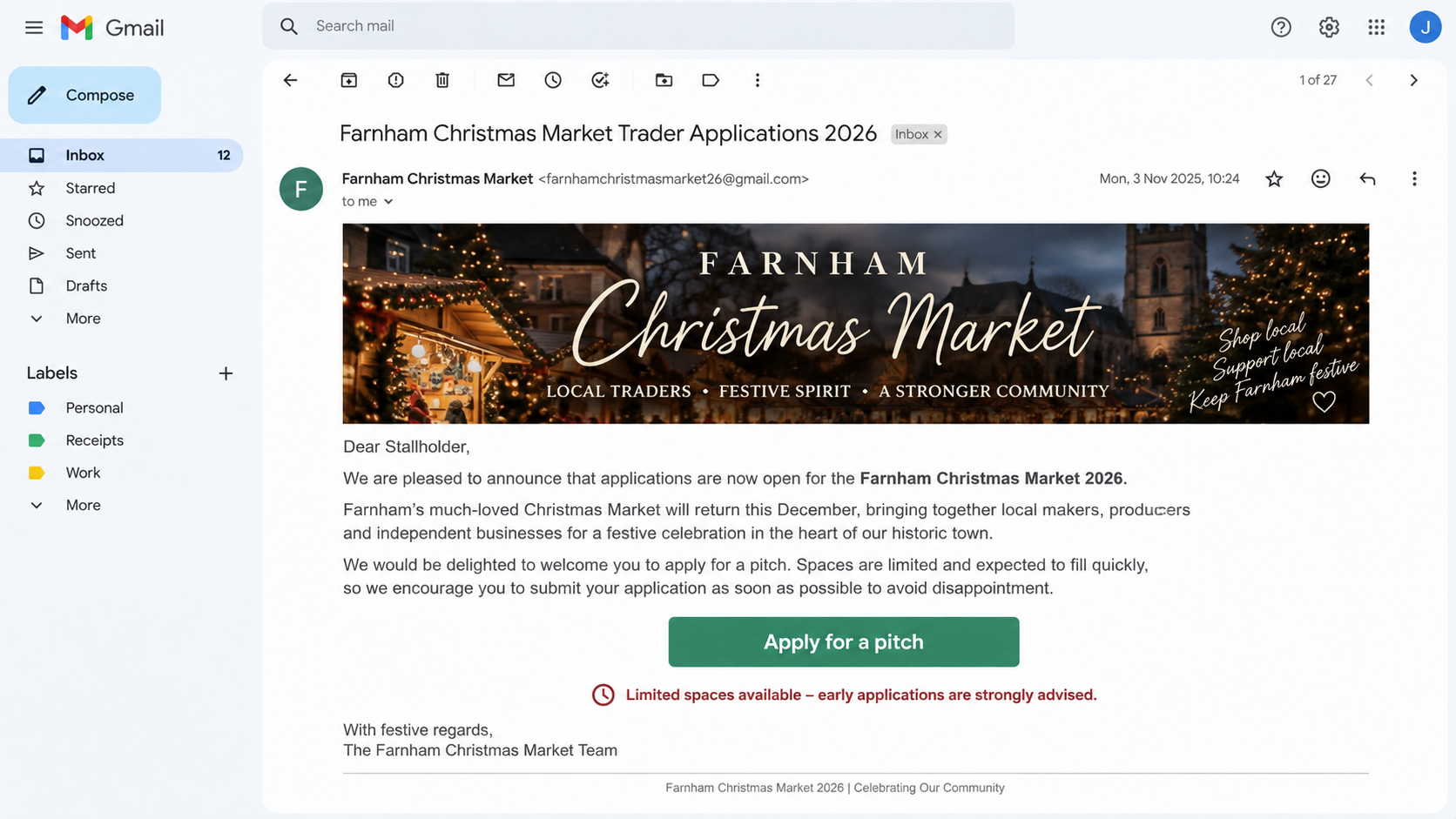
The Farnham Christmas Market pitch scam is a fraudulent trader invitation that falsely claims to represent Farnham Town Council or its Christmas event team.
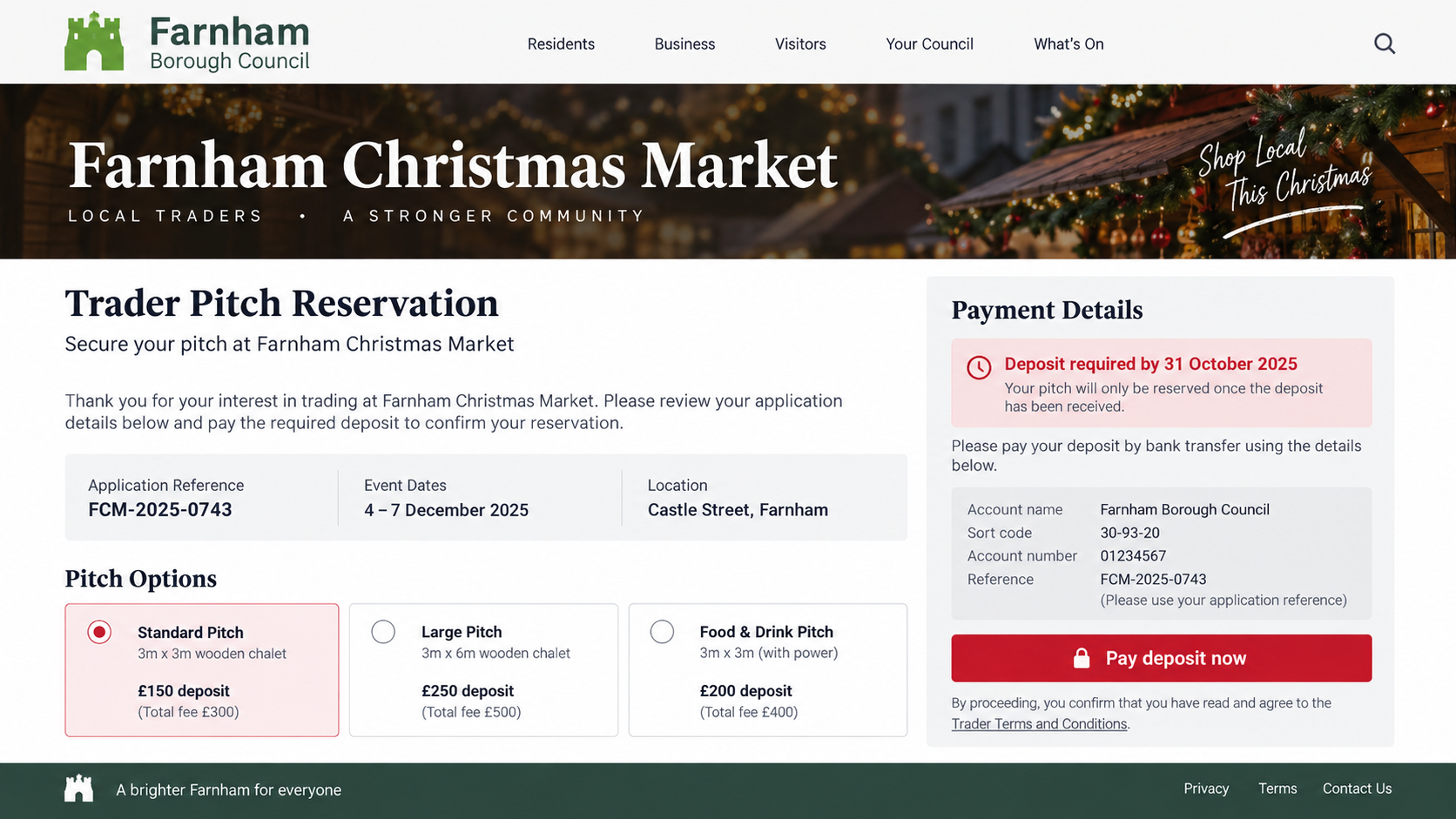
Recipients are encouraged to apply for a stall, reserve a pitch, or pay a deposit before the remaining spaces supposedly disappear.
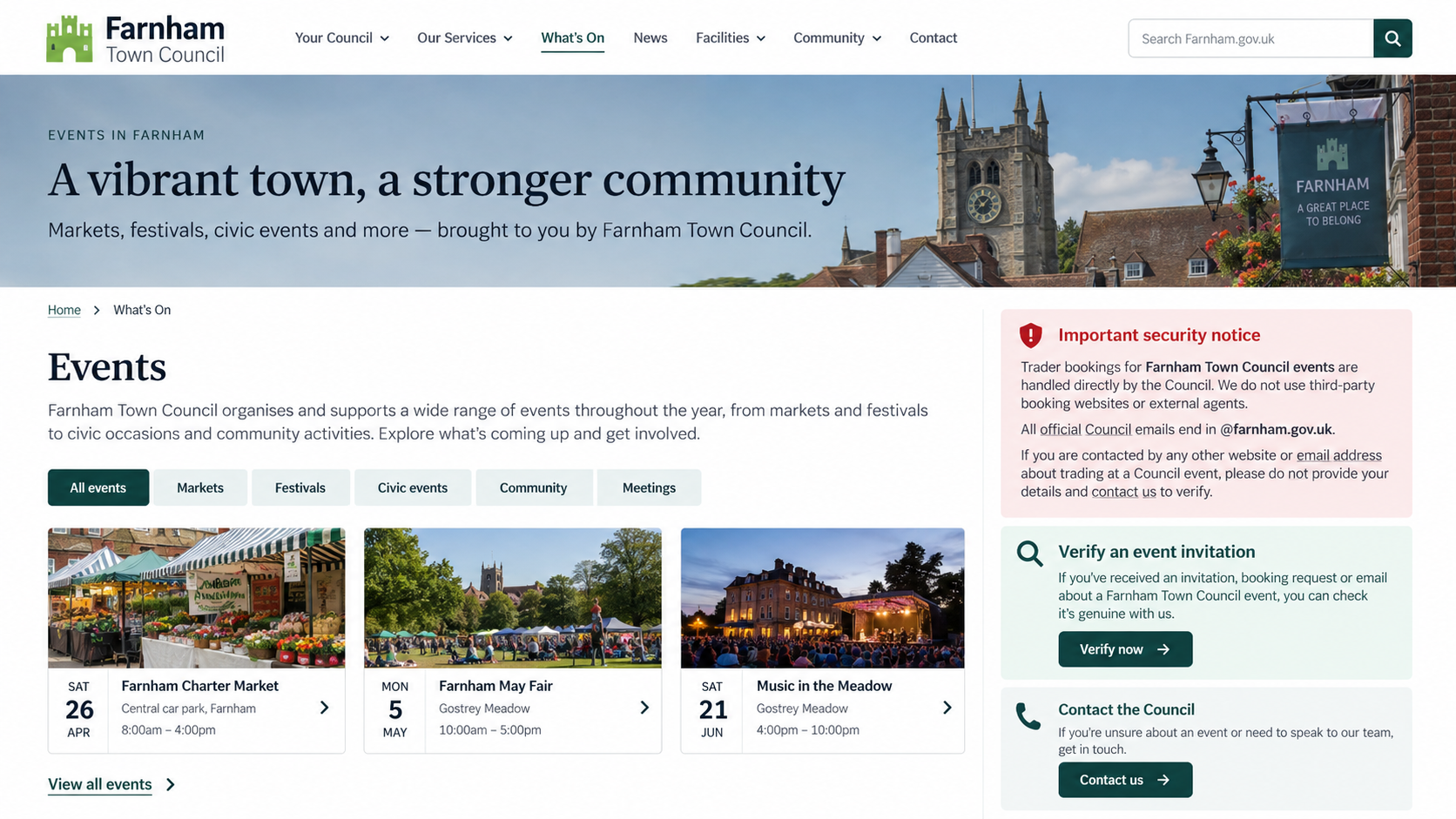
Farnham Town Council warned traders about messages sent from Gmail addresses. The council said official communications use addresses ending in @farnham.gov.uk.
Why the offer can look believable
Christmas markets genuinely recruit independent retailers, food sellers, craftspeople, and community groups months before an event. An application invitation is not unusual by itself.
Criminals can copy dates, venue names, photographs, council logos, stall dimensions, and public contact names from real event pages.
The result may resemble ordinary event administration rather than obvious spam. That professional surface is intended to make a deposit request feel routine.
What the criminals want
The immediate objective is usually money paid for a nonexistent stall. Later requests may involve insurance charges, electricity fees, licences, or refundable security deposits.
A fake application can also collect identity documents, business details, payment information, product photographs, and account credentials useful for further fraud.
The invitation arrives unexpectedly from a free or unrelated email address.
The sender claims only a few Christmas market pitches remain.
A deposit must be paid before the council can confirm anything.
The payment route does not match a known council process.
The recipient is directed to a third-party application website.
Questions receive pressure, vague answers, or another payment demand.
The Warning From Farnham Town Council
The council’s warning is unusually specific. It says messages inviting traders to apply for a Farnham Christmas Market pitch have been circulating from Gmail accounts.
That matters because an attractive flyer or convincing signature cannot override the sender’s real address. A Gmail mailbox is not a Farnham council account.
The council also says it does not use third-party organizers or external websites to sell or book stalls for its events.
A stranger cannot make an outside booking portal official by placing council branding on it. Ownership must be verified independently through the council.
Traders should begin at the council’s known website, not through a link inside the invitation. That reverses control of the verification process.
If the opportunity is genuine, the event team can confirm the application window, fees, availability, and correct payment method through an official channel.
How Seasonal Timing Makes the Invitation More Persuasive
Traders plan Christmas stock, packaging, staffing, and travel long before December. An early invitation therefore fits a real commercial calendar.
Popular events can receive more applications than available spaces. Criminals exploit that competition by suggesting hesitation will cost the trader a valuable weekend.
A vendor may also be juggling several genuine applications. A fabricated message can blend into existing paperwork without inventing an entirely new situation.
The sender may reference products shown on social media. Public research can produce that personalization without any council involvement.
Seasonal excitement matters too. Sellers imagine busy footfall, local visibility, and strong December revenue before examining the payment route carefully.
That optimism is normal. The protection is procedural: verify the organizer before allowing a promising opportunity to influence the decision.
Keep a spreadsheet of applications, official contacts, invoices, and payment dates. An unexpected reference becomes easier to spot when it matches no prior entry.
Share verification with another person. A colleague who did not receive the invitation may notice domain, beneficiary, or contract inconsistencies immediately.
How the Farnham Christmas Market Pitch Scam Works
Step 1: The fraudster identifies likely market traders
Small businesses often advertise their products, upcoming events, and contact details publicly. Market directories and social pages make potential targets easy to find.
The criminal may contact jewellery makers, bakers, artists, gift sellers, food vendors, and other businesses likely to welcome a seasonal sales opportunity.
A personalized greeting can come from public information. Knowing a trading name or product range does not prove access to council records.
Step 2: A polished invitation borrows the council’s identity
The email may display a council logo, Christmas market photograph, local street name, event date, or familiar staff title.
Its sender name might say Farnham Christmas Market Team, while the actual address ends in Gmail or another domain outside council control.
Some versions may attach an application form. Others lead to a website designed to resemble a local-government event portal.
Step 3: Scarcity pushes the trader toward a quick decision
The message claims applications are closing, popular pitch sizes are nearly gone, or another trader is waiting for the same category.
Seasonal events naturally have deadlines. The scammer turns that reality into pressure that discourages a telephone call to the council.
A genuine organizer should tolerate independent verification. Anger, repeated urgency, or warnings that questions will forfeit the space are serious red flags.
Step 4: The fake form gathers valuable business information
The application may request a proprietor’s full name, address, telephone number, identity copy, insurance document, social profile, and banking details.
Some information would appear normal in a real trader application. The danger comes from sending it to an unverified operator.
Collected records can support identity fraud, account recovery attempts, counterfeit trader profiles, or targeted messages to the business’s customers and suppliers.
Step 5: A pitch deposit is demanded outside council channels
The trader receives a supposed approval and payment deadline. Bank transfer, payment application, card form, or cryptocurrency may be offered.
The beneficiary may be an individual, a newly created company, or an account whose name differs from the council and event.
Bank transfers are attractive to criminals because recovery can be difficult after money reaches another account or moves through a money mule.
Step 6: Additional event fees appear after the first payment
A victim who pays may be told that electricity, waste handling, insurance verification, food licensing, equipment rental, or a security bond remains outstanding.
Each demand is framed as the last requirement. The growing investment makes walking away feel harder, which the fraudster deliberately exploits.
No real stall is being reserved. The documents and payment stages exist to keep the victim engaged while more money is requested.
Step 7: The sender disappears or returns under another identity
Contact may stop after the victim questions the process, contacts the council, or refuses another payment. The fake website can vanish without notice.
The same operator can return as a bank investigator, refund service, insurer, or event administrator who promises recovery for another fee.
Information from the application makes follow-up approaches more convincing. Victims should treat unexpected recovery offers as a continuation of the original risk.
What a Genuine Market Application Should Provide
A legitimate application should identify the legal organizer, event location, trading dates, exact fee schedule, cancellation terms, and required documents before payment.
It should explain what the fee includes. Electricity, furniture, shelter, vehicle access, waste collection, security, and overnight storage may have separate conditions.
Food traders should receive clear requirements for hygiene registration, allergens, insurance, equipment, and inspections. Vague promises are not a substitute for written rules.
The organizer should provide a contract or booking terms that can be verified outside the email. A payment alone should never be the only proof.
Real availability can be confirmed through an official event office. A countdown on a third-party page cannot establish that a particular pitch exists.
Traders should also understand refund conditions before paying. Seasonal weather, event cancellation, nonattendance, and application rejection must be addressed in writing.
Red Flags Traders Should Check Before Paying
The sender uses Gmail, Outlook, Yahoo, or another free mailbox.
The domain differs from the council’s verified government address.
The message arrives without any application the trader remembers submitting.
The website appeared only through the invitation and has no independent trail.
The beneficiary is a person or unfamiliar company.
A deposit is described as refundable without written conditions.
The sender refuses a telephone call through the council switchboard.
The form requests excessive identity or banking information.
The pitch must be paid for immediately to avoid losing it.
New charges appear after the original amount has been transferred.
One warning sign may have an innocent explanation. Several together justify stopping the application until the event team confirms every important detail.
Do not use the telephone number, map link, or social profile supplied by the questionable sender. Those channels may be controlled by the same operation.
Company, Address, and Fulfillment Checks
The organizer’s legal identity must match the event
A council logo does not establish authority. Confirm who legally organizes the market and who is entitled to collect trader fees.
Search official council pages independently. If another company is named, ask the council to confirm that relationship before sending documents or money.
The email and telephone routes must belong to the council
Official Farnham Town Council email addresses end in @farnham.gov.uk. A display name cannot turn Gmail into an official council mailbox.
Call a number obtained from the council website. Do not let the sender transfer you to a supposed accounts team or event coordinator.
The address and bank beneficiary must survive comparison
Compare the contract, invoice, bank recipient, website footer, and correspondence. Mismatched legal names or unexplained addresses are not minor administrative details.
A mailbox, virtual office, residential address, or unrelated business can be used to imitate a local presence. Verification must connect every detail.
Fulfillment means a verifiable pitch, not a receipt
An emailed receipt proves only that somebody generated a document. It does not prove the council recorded a booking or allocated a stall.
Ask the official event team to confirm the trader name, pitch type, payment status, and booking reference within its own records.
How to Verify a Farnham Market Invitation Safely
Close the email and open a fresh browser window. Search for Farnham Town Council through a trusted search result or saved address.
Find the council’s official events information and published contact details. Do not copy any contact route from the suspicious message.
Forward the invitation to the official council team only after confirming the destination ends in @farnham.gov.uk.
Ask whether applications are open, whether your reference exists, and whether the council recognizes the sender, portal, and beneficiary.
Compare every payment instruction with the council’s response. Never accept an explanation supplied only by the original sender.
Keep a copy of the invitation and full email headers. They can help the council, bank, and investigators connect related reports.
This process may take a few minutes, but it protects both money and business records. A genuine opportunity will remain genuine after verification.
Protecting a Small Business Beyond the Lost Deposit
A completed trader form may reveal stock plans, turnover estimates, vehicle registrations, insurance records, and staff contact details.
Review which information was submitted and decide what can be replaced, monitored, or limited before another approach arrives.
Tell employees that the supposed booking is fraudulent. Otherwise, a follow-up caller may persuade somebody else to complete an outstanding payment.
Check business email rules and shared inbox permissions when credentials were entered. Criminals may quietly monitor genuine event and supplier conversations.
Watch for invoices using the same branding but different recipient accounts. The operation may reuse application details in a more targeted message.
Search for copied business profiles and product photographs. A fraudster could impersonate the trader when approaching customers or other market organizers.
Record the incident in internal procedures. Future event applications should require a second-person check before new beneficiaries receive money.
Recovery is not only about one transfer. Closing the information trail reduces the chance that the seasonal invitation becomes a longer business compromise.
What to Do if You Have Fallen Victim to This Scam
Stop all payments and contact. Do not pay another charge to preserve the pitch, release a refund, or complete a supposed cancellation.
Call your bank immediately. Identify the transfer as fraud and ask about a recall, beneficiary freeze, card replacement, and account monitoring.
Notify Farnham Town Council through its official website. Provide the sender address, website, payment details, forms, and booking reference used.
Preserve the complete evidence. Save emails with headers, screenshots, contracts, receipts, account names, telephone numbers, and every follow-up demand.
Report the fraud through the appropriate national reporting service and local police when money, identity documents, or threats are involved.
Protect exposed identity information. Contact document issuers, consider fraud alerts, and watch business and personal credit records for unfamiliar activity.
Change passwords from a trusted device if you created an account or reused a password. Enable multi-factor authentication and review active sessions.
Run a full Malwarebytes scan if you downloaded a form, opened an unusual archive, installed software, or allowed browser notifications.
Use AdGuard to reduce malicious advertisements, phishing redirects, and repeated scam domains. It complements verification but cannot reverse a bank transfer.
Warn staff and neighbouring traders. A campaign may approach several vendors from the same public directory using slightly different sender identities.
Reject recovery agents demanding upfront payment. A stranger cannot guarantee a refund, and prior victims are often targeted again.
Is Your Device Infected? Run a Free Malware Scan
Slow performance, constant pop-ups, or strange behavior? These are classic signs of a malware infection. The fastest way to find out is to scan your device with Malwarebytes Anti-Malware Free — one of the most trusted malware removal tools available.
The free version detects and removes the most common threats, including:
Adware — the cause of those annoying pop-ups
Browser hijackers — unwanted redirects and changed homepages
Trojans and spyware — hidden programs stealing your data
Potentially unwanted programs (PUPs) — software you never asked for
👉 Select your device below — Windows, Mac, or Android — then follow the simple steps to download Malwarebytes, scan your system, and remove any threats it finds. The whole process takes about 5 minutes.
Malwarebytes for WindowsMalwarebytes for MacMalwarebytes for Android
Run a Malware Scan with Malwarebytes for Windows
Malwarebytes is one of the most popular and trusted anti-malware tools for Windows — and it’s completely free for removing infections. It catches threats that many antivirus programs miss, including adware, browser hijackers, and trojans. Follow the steps below to scan and clean your PC in just a few minutes.
Download Malwarebytes
Click the button below to download the latest version of Malwarebytes for Windows from the official source. The free version is all you need — it will scan your computer and remove adware, browser hijackers, and other malicious software at no cost.
(The link opens in a new page where your download will start)
Install Malwarebytes
When the download finishes, open your Downloads folder and double-click the MBSetup file. If Windows shows a User Account Control pop-up, click “Yes” to allow the installation.
Follow the On-Screen Prompts to Install Malwarebytes
The setup wizard will walk you through a few quick screens:
Choose where you’re installing the program — “Personal Computer” or “Work Computer” — then click Next.
Malwarebytes will now install on your device. This usually takes under a minute.
When installation is complete, the “Welcome to Malwarebytes” screen will open automatically.
On the final screen, click Open Malwarebytes to launch the program.
Enable “Scan for Rootkits”
Before scanning, turn on rootkit detection so Malwarebytes can find even the most hidden threats. Click the Settings gear icon on the left side of the screen.
In the settings menu, find “Scan for rootkits” and click the toggle so it turns blue.
Done? Click “Dashboard” in the left pane to return to the main screen.
Start the Scan
Click the blue Scan button. Malwarebytes will automatically update its virus database and start checking your computer for malware.
Wait for the Scan to Finish
The scan checks your entire system for browser hijackers and other malicious programs, so it can take several minutes. Feel free to do something else — just check back occasionally to see the progress.
Quarantine the Detected Threats
When the scan is done, you’ll see a list of everything Malwarebytes found — malware, adware, and potentially unwanted programs. Click the “Quarantine” button to remove all of them at once.
Malwarebytes will now remove the malicious files and registry entries and move them safely into quarantine.
Restart Your Computer
Some threats can only be fully removed after a reboot. If Malwarebytes asks you to restart, click Yes. Once you’re logged back in, your PC is clean and you can continue with the next steps in this guide.
When the scan finishes, click Quarantine to remove everything Malwarebytes found. That’s it — your Windows PC is now clean of trojans, adware, and other malware, and should be back to running smoothly.
If your current antivirus allowed this malicious program on your computer, you may want to consider purchasing Malwarebytes Premium to protect against these types of threats in the future. If you are still having problems with your computer after completing these instructions, then please follow one of the steps:
Malwarebytes for Mac is a free on-demand scanner that removes the malware other security software tends to miss — adware, browser hijackers, and unwanted programs included. Cleaning an infected Mac with Malwarebytes has always been completely free, and it’s our go-to recommendation. Follow the steps below to scan and clean your Mac in just a few minutes.
Download Malwarebytes for Mac
Click the button below to download the latest version of Malwarebytes for Mac.
When the download finishes, open your Downloads folder and double-click the setup file to begin the installation.
Follow the On-Screen Prompts to Install Malwarebytes
The Malwarebytes for Mac Installer will guide you through a few quick screens. Click “Continue” and keep following the prompts until the installation completes.
When the installation is complete, Malwarebytes opens to the Welcome to Malwarebytes screen. Click “Get started“.
Select “Personal Computer” or “Work Computer”
Malwarebytes will ask what type of computer you’re installing it on. Click either Personal Computer or Work Computer, whichever applies.
Start the Scan
Click the “Scan” button. Malwarebytes will automatically update its detection database and begin checking your Mac for malware.
Wait for the Scan to Finish
Malwarebytes will scan your Mac for adware, browser hijackers, and other malicious programs. This can take a few minutes, so feel free to do something else — just check back occasionally to see the progress.
Quarantine the Detected Threats
When the scan is done, you’ll see a list of everything Malwarebytes found. Click the “Quarantine” button to remove all the threats at once.
Restart Your Mac
Malwarebytes will now remove all the malicious files it found. Some threats can only be fully removed after a reboot — if Malwarebytes asks you to restart, allow it. Once you’re logged back in, your Mac is clean.
Once the scan is done, remove every threat it detected. Your Mac is now free of adware, rogue browser extensions, and other potentially harmful software.
If your current antivirus allowed a malicious program on your computer, you might want to consider purchasing the full-featured version of Malwarebytes Anti-Malware to protect against these types of threats in the future. If you are still experiencing problems while trying to remove a malicious program from your computer, please ask for help in our Mac Malware Removal Help & Support forum.
Run a Malware Scan with Malwarebytes for Android
Malwarebytes for Android automatically detects and removes dangerous threats like malware and ransomware so you don’t have to worry about your most-used device being compromised. Aggressive detection of adware and potentially unwanted programs keeps your Android phone or tablet running smooth.
Download Malwarebytes for Android.
You can download Malwarebytes for Android by clicking the link below.
In the Google Play Store, tap “Install” to install Malwarebytes for Android on your device.
When the installation process has finished, tap “Open” to begin using Malwarebytes for Android. You can also open Malwarebytes by tapping on its icon in your phone menu or home screen.
Follow the on-screen prompts to complete the setup process
When Malwarebytes will open, you will see the Malwarebytes Setup Wizard which will guide you through a series of permissions and other setup options. This is the first of two screens that explain the difference between the Premium and Free versions. Swipe this screen to continue. Tap on “Got it” to proceed to the next step. Malwarebytes for Android will now ask for a set of permissions that are required to scan your device and protect it from malware. Tap on “Give permission” to continue. Tap on “Allow” to permit Malwarebytes to access the files on your phone.
Update database and run a scan with Malwarebytes for Android
You will now be prompted to update the Malwarebytes database and run a full system scan.
Click on “Update database” to update the Malwarebytes for Android definitions to the latest version, then click on “Run full scan” to perform a system scan.
Wait for the Malwarebytes scan to complete.
Malwarebytes will now start scanning your phone for adware and other malicious apps. This process can take a few minutes, so we suggest you do something else and periodically check on the status of the scan to see when it is finished.
Click on “Remove Selected”.
When the scan has been completed, you will be presented with a screen showing the malware infections that Malwarebytes for Android has detected. To remove the malicious apps that Malwarebytes has found, tap on the “Remove Selected” button.
Restart your phone.
Malwarebytes for Android will now remove all the malicious apps that it has found. To complete the malware removal process, Malwarebytes may ask you to restart your device.
After the scan, tap Remove Selected to delete all detected threats. Your Android phone is now clean — no more malicious apps, adware, or browser redirects.
If your current antivirus allowed a malicious app on your phone, you may want to consider purchasing the full-featured version of Malwarebytes to protect against these types of threats in the future. If you are still having problems with your phone after completing these instructions, then please follow one of the steps:
Restore your phone to factory settings by going to Settings > General management > Reset > Factory data reset.
Now that your device is clean, keep it that way. Most infections start with a malicious ad or a fake download button — so blocking them at the source is your best defense.
We recommend AdGuard, which blocks malicious ads, phishing pages, and dangerous redirects before they can reach you.
No. The warning concerns criminals impersonating Farnham Town Council and its event. A real organization can be used as the cover for a fraudulent message.
Does Farnham Town Council use Gmail for trader bookings?
The council says official email addresses end in @farnham.gov.uk. Treat a Gmail invitation claiming council authority as fraudulent and verify independently.
Can a fake application contain correct event information?
Yes. Dates, locations, photographs, and staff names may be copied from public pages. Accurate details do not authenticate the sender or payment account.
What if I paid but received a confirmation receipt?
A receipt is not proof of a pitch. Ask the official council event team whether the booking and payment appear in its own records.
Should I complete the form if no payment is required yet?
No. An unverified form can collect identity and business records. Confirm the organizer, website, and application process before submitting any information.
Can my bank recover the pitch deposit?
Recovery is not guaranteed, but speed matters. Contact the bank’s fraud team immediately and provide the recipient details and transaction reference.
The Bottom Line
The Farnham Christmas Market pitch scam borrows a real local event to sell a stall that the sender has no authority to offer.
Verify every invitation through Farnham Town Council’s official website. A council opportunity should never depend on trusting Gmail, an outside portal, or an unconfirmed bank account.
10 Rules to Avoid Online Scams
Here are 10 practical safety rules to help you avoid malware, online shopping scams, crypto scams, and other online fraud. Each tip includes a quick “if you already got hit” action.
Stop and verify before you click, log in, download, or pay.
Most scams win by creating urgency. Verify using a trusted method: type the website address yourself, use the official app, or call a known number (not the one in the message).
If you already clicked: close the page, do not enter passwords, and run a malware scan.
Keep your operating system, browser, and apps updated.
Updates patch security holes used by malware and malicious ads. Turn on automatic updates where possible.
If you saw a scary “update now” pop-up: close it and update only through your device settings or the official app store.
Use layered protection: antivirus plus an ad blocker.
Antivirus helps block malware. An ad blocker reduces scam redirects, phishing pages, and malvertising.
If your browser is acting weird: remove unknown extensions, reset the browser, then run a full scan.
Install apps, software, and extensions only from official sources.
Avoid cracked software, “keygens,” and random downloads. During installs, choose Custom/Advanced and decline bundled offers you do not recognize.
If you already installed something suspicious: uninstall it, restart, and scan again.
Treat links and attachments as untrusted by default.
Phishing often impersonates delivery services, banks, and popular brands. If it is unexpected, do not open attachments or log in through the message.
If you entered credentials: change the password immediately and enable 2FA.
Shop safely: research the store, then pay with protection.
Be cautious with brand-new stores, “closing sale” stories, and prices that make no sense. Prefer credit cards or PayPal for dispute options. Avoid wire transfers, gift cards, and crypto payments.
If you already paid: contact your card issuer or PayPal quickly to dispute the transaction.
Crypto rule: never pay a “fee” to withdraw or recover money.
Common patterns include fake profits, then “tax,” “gas,” or “verification” fees. Another is a “recovery agent” who demands upfront crypto.
If you already sent crypto: stop paying, save evidence (wallet addresses, TXIDs, chats), and report the scam to the platform used.
Secure your accounts with unique passwords and 2FA (start with email).
Use a password manager and unique passwords for every account. Enable 2FA using an authenticator app when possible.
If you suspect an account takeover: change passwords, sign out of all devices, and review recent logins and recovery settings.
Back up important files and keep one backup offline.
Backups protect you from ransomware and device failure. Keep at least one backup on an external drive that is not always connected.
If you suspect infection: do not connect backup drives until the system is clean.
If you think you are a victim: stop losses, document evidence, and escalate fast.
Move quickly. Speed matters for disputes, account recovery, and limiting damage.
Stop payments and contact: do not send more money or respond to the scammer.
Call your bank or card issuer: block transactions, replace the card if needed, and start a dispute or chargeback.
Secure your email first: change the email password, enable 2FA, and remove unfamiliar recovery options.
Secure other accounts: change passwords, enable 2FA, and log out of all sessions.
Scan your device: remove suspicious apps or extensions, then run a full malware scan.
Save evidence: screenshots, emails, order pages, tracking pages, wallet addresses, TXIDs, and chat logs.
Report it: to the payment provider, marketplace, social platform, exchange, or wallet service involved.
These rules are intentionally simple. Most online losses happen when decisions are rushed. Slow down, verify independently, and use payment methods and account controls that give you recourse.
Hello! I'm Lapain Epuran, your go-to source for detailed and honest product reviews. From tech gadgets to miracle cures, I provide insights to help you make informed choices. Join me as we discover what's truly worth your time and money.