

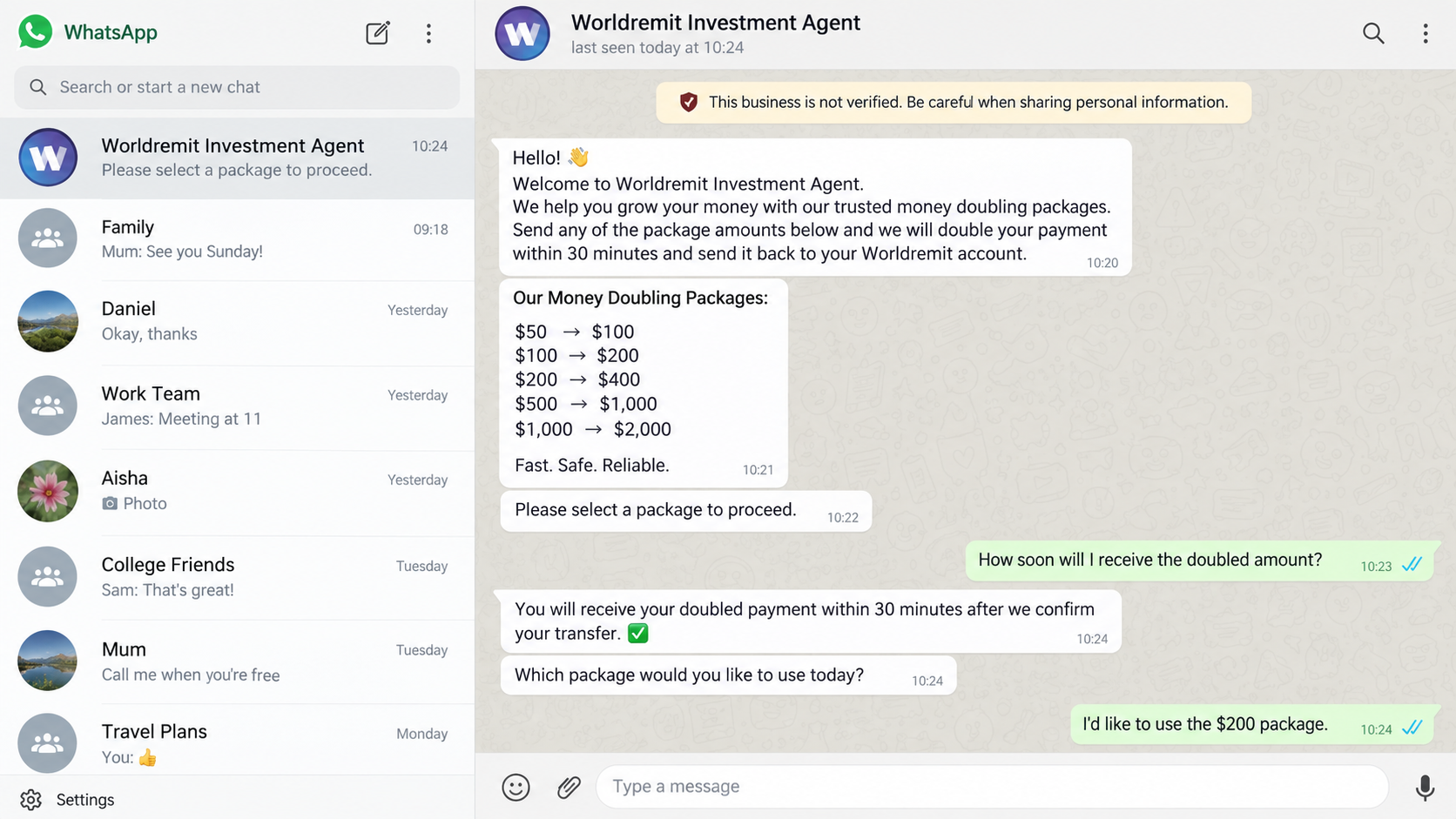
A WhatsApp message promises to turn a modest transfer into twice as much money within minutes. The offer arrives with package choices and confident instructions.
The familiar WorldRemit name makes the conversation feel safer. That borrowed trust is precisely where this scheme becomes dangerous.
Overview
What is the WorldRemit money doubling scam?
The WorldRemit money doubling scam is an investment and account-takeover scheme that uses a name resembling the legitimate WorldRemit remittance service.
Promoters claim participants can select a package, send money, and receive double or triple the amount after a short processing period.
The promised return does not exist. Bank of Ghana warnings describe an unlicensed operation using the pseudo name “Worldremit” to solicit deposits and capture WhatsApp accounts.
The legitimate company is not the operator
WorldRemit is a real international money-transfer company. Its existence does not authenticate a WhatsApp investment agent, money-doubling package, or unrelated payment destination.
The genuine company has warned that it is not connected with money-doubling schemes. Its normal service sends money; it does not multiply customer deposits.
Capitalization, spacing, copied logos, and profile images can create confusion. Verification must come from the official app or website, not the chat.
Why the scheme targets both money and WhatsApp
The first loss may be the payment sent for a package. A second stage can trick the victim into surrendering a genuine WhatsApp verification code.
That code can authorize a new session or account registration. The criminals may then impersonate the victim and promote the scheme to trusted contacts.
- A stranger promises a guaranteed 2X or 3X return.
- Package prices are presented through WhatsApp messages.
- Payment goes to an individual, wallet, or unrelated account.
- A verification code is described as a payout requirement.
- The promoter uses Worldremit, World Remit, or copied branding.
- More fees appear when the promised return fails to arrive.
The Two Deceptions Hidden in One Conversation
The investment promise and the WhatsApp request may look like separate administrative steps. In reality, they can support two thefts at once.
The money-doubling pitch persuades the target to make a voluntary transfer. Because it is described as an investment, the recipient may hesitate to report it.
The verification-code request attacks the communication account. A code sent by WhatsApp is connected to a login, registration, or security action.
No investment service needs the code that protects somebody else’s messaging account. Renaming it an activation number does not change its function.
Once inside WhatsApp, criminals can read accessible messages, copy contacts, join groups, and continue the pitch from an identity other people recognize.
A recommendation from a friend may therefore come from a stolen account. Trust in the person should prompt an independent call, not an immediate transfer.
How the WorldRemit Money Doubling Scam Works
Step 1: The offer appears in WhatsApp or social media
A promoter posts screenshots of supposed payouts, customer praise, or a limited investment window. The profile may use WorldRemit colors and branding.
Some targets receive a direct message from an unknown account. Others see the offer shared by a friend whose WhatsApp account was compromised earlier.
The presentation is deliberately simple. Choose an amount, make a transfer, and wait for a much larger payment.
Step 2: Package choices create the appearance of a real program
The chat lists several entry levels. A small package lowers resistance, while larger tiers promise more impressive returns.
Structured pricing resembles a product menu, but no investment strategy, regulated entity, contract, or risk explanation supports the promised result.
A guaranteed doubling within minutes is not normal investing. It is an impossible sales claim designed to replace due diligence with excitement.
Step 3: The victim sends money to the operator
Payment may be requested through mobile money, bank transfer, remittance service, cryptocurrency, or another fast method chosen by the criminal.
The recipient name often differs from WorldRemit. The promoter may explain that it belongs to an agent, cashier, regional manager, or payout processor.
Those labels provide no protection. The destination is controlled by the operator or a money mule, not a licensed doubling program.
Step 4: A fabricated dashboard shows the payout as pending
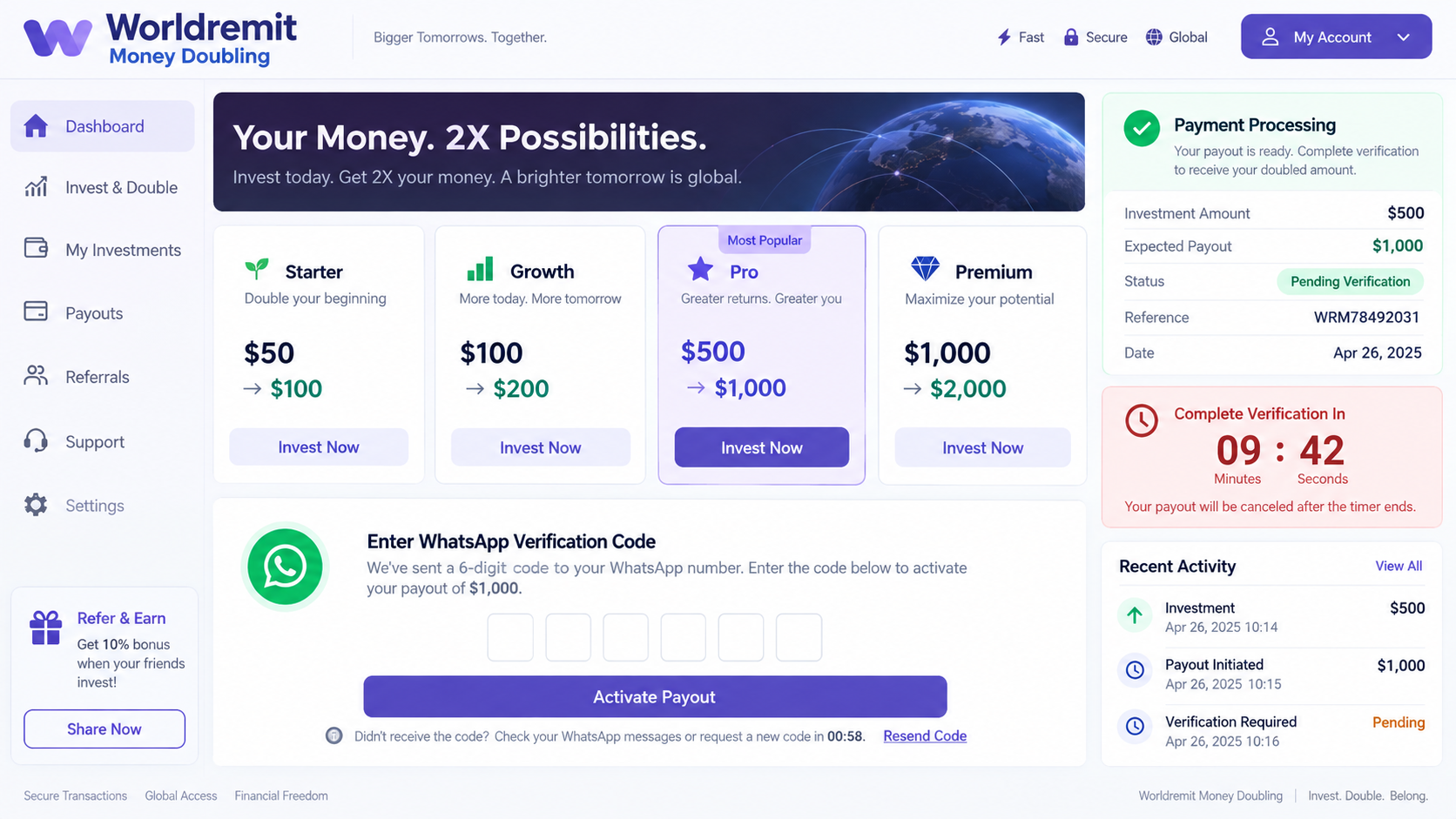
After payment, the victim may receive a screenshot or website link showing a balance twice the deposited amount.
The numbers are not evidence of real funds. A webpage can display any balance without holding money or connecting to a financial institution.
A countdown or pending status keeps the victim focused on completing the next instruction instead of questioning the original transfer.
Step 5: The WhatsApp verification code is requested
The fraudster triggers a real WhatsApp registration or linked-device request using the victim’s telephone number. WhatsApp then sends a genuine code.
The scam page calls it a payout code, investor verification number, or activation token. The timing makes the explanation appear credible.
Entering or forwarding the code gives the attacker what is needed to authorize access. The message itself may warn that the code must not be shared.
Step 6: The WhatsApp account promotes the fraud to contacts
The criminal may terminate existing sessions, add two-step verification, and impersonate the owner before friends realize anything changed.
Contacts receive the same investment story from a familiar number. Some may trust it because the account belongs to a relative, colleague, or community leader.
The stolen identity becomes advertising infrastructure. One takeover can create many new targets without purchasing advertisements.
Step 7: Release fees and recovery demands extend the loss
If the victim asks for the promised return, the operator invents a tax, withdrawal fee, insurance payment, network charge, or account upgrade.
Every new amount is said to unlock a larger balance. Paying does not bring the victim closer to withdrawal because the displayed profits are fictional.
Later, another person may promise to recover the money or WhatsApp account for an advance fee. That is commonly a second fraud attempt.
Why a Money-Doubling Promise Cannot Be Genuine
A guaranteed 100% return within minutes would create unlimited money. Any operator with that ability would not need small deposits from strangers on WhatsApp.
Legitimate investments involve uncertainty, documented risks, licensed intermediaries, custody arrangements, and disclosures. Their value can fall as well as rise.
Remittance services charge a fee to move existing funds between senders and recipients. They do not manufacture an equal second payment.
Testimonials are not proof. Scam operators can invent names, edit transaction screenshots, recycle videos, and ask compromised contacts to repeat the pitch.
A small early payout also does not validate the program. Some schemes return part of a victim’s own deposit to encourage a much larger transfer.
The proper test is whether a regulator authorizes the exact entity accepting funds. A logo, chat profile, or payment receipt cannot answer that question.
How Fake Proof of Payment Is Manufactured
Transaction screenshots can be edited with ordinary design tools. Names, amounts, dates, status labels, and reference numbers require no access to a bank.
A screen recording can show a staged account or demo interface. Movement on the screen does not establish ownership of the displayed balance.
Group members praising the program may be controlled by one operator. Repeated language and immediate replies often reveal coordinated social proof.
Some promoters display genuine transfers without explaining their purpose. A real transaction can be a victim payment, recycled receipt, or movement between accomplices.
The operator may briefly return a small amount. That payment is marketing funded by deposits and is meant to unlock confidence in a larger package.
Ask whether profits come from a documented economic activity. “Trading,” “forex,” and “global finance” are labels, not evidence of revenue.
Independent custody matters. When one promoter controls deposits, dashboard numbers, withdrawal approval, and support, every apparent safeguard has the same source.
Never let another participant’s claimed success replace licensing checks. That person may be mistaken, compensated, compromised, or entirely fictional.
A legitimate statement identifies the institution holding funds. You should verify that relationship without asking the promoter for permission.
Warning Signs in the WhatsApp Conversation
- The sender promises fixed profits without explaining any genuine investment.
- The return is guaranteed regardless of market conditions.
- Money must be sent before written terms are provided.
- The beneficiary is not the company displayed in the profile.
- The operator communicates only through WhatsApp or another chat service.
- A real verification code is renamed as a payout code.
- The sender discourages contacting WorldRemit or financial regulators.
- A timer threatens to cancel the supposed profit.
- Withdrawals require additional deposits rather than normal identification.
- Contacts suddenly repeat the same promotional wording.
Do not test the scheme with a small amount. A modest payment confirms that you are responsive and may lead to more aggressive targeting.
Do not share a code to see what happens. A single submission can transfer control of a messaging account within seconds.
Company, Address, and Fulfillment Checks
Separate WorldRemit from the impersonator
WorldRemit is a legitimate remittance brand. The money-doubling operator is borrowing a similar name and must not be treated as the company.
Open the official WorldRemit app or type its known address yourself. Ask support whether the promotion, agent, and payment destination are recognized.
Check the entity with the financial regulator
Deposit-taking and investment activity require legal authority. Search the relevant central bank or securities regulator for the exact entity and licence.
A promoter may quote a registration number from another company. Confirm the name, address, activity, status, and contact details directly in the regulator’s record.
Compare numbers, addresses, and payment recipients
WhatsApp profile names are editable and telephone numbers can be obtained cheaply. Neither proves an office exists or belongs to a licensed service.
Compare the beneficiary with the claimed operator. Personal accounts, unexplained agents, and rotating mobile-money numbers are incompatible with transparent financial custody.
Fulfillment means withdrawable funds, not screen balances
A screenshot showing $1,000 after a $500 transfer is only an image. Real funds must be independently visible and withdrawable without another deposit.
Never pay a fee to release a guaranteed return. When withdrawal depends on repeated payments, the displayed account is serving the scam.
How to Protect Your WhatsApp Account
Enable two-step verification inside WhatsApp and add a recovery email you control. Use a PIN that is not shared with banking or device passwords.
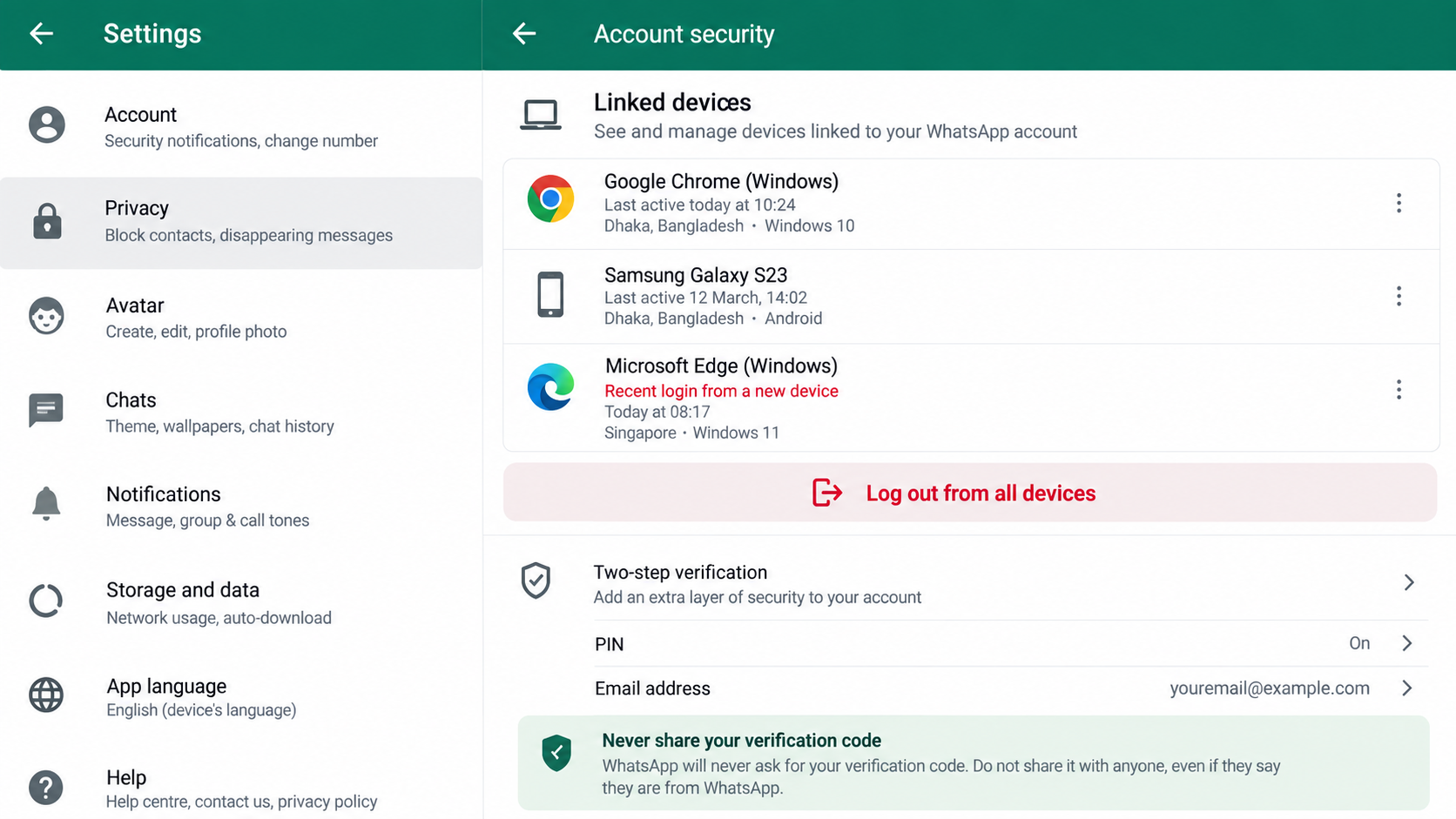
Review Linked Devices regularly. Remove any browser, computer, or location you do not recognize, then change related account credentials.
Read verification messages completely. The service explains what the code authorizes and warns against sharing it with other people.
Ask your mobile carrier about SIM protection if unexpected service loss or replacement messages appear. A stolen telephone number can weaken account recovery.
Tell close contacts through another channel if your account is compromised. A short warning can stop payments sent in your name.
Be suspicious when a friend suddenly promotes guaranteed returns. Call the person directly and ask a question only the genuine contact can answer.
Why Victims Keep Receiving New Investment Offers
A completed payment marks the telephone number as responsive. Lists of responsive targets can be reused or sold to other fraud groups.
Later messages may mention the original amount, promoter, or withdrawal problem. Familiar facts make the new sender appear connected to a real investigation.
One approach may promise legal recovery. Another claims an overlooked profit remains available after an identity or compliance fee.
A stolen WhatsApp account can expose group memberships and relationships. Criminals use that context to create offers suited to each community.
Changing the profile name does not remove unfamiliar linked devices. Review sessions, two-step verification, recovery email, and mobile-carrier security together.
Do not argue inside investment groups. Preserve evidence, report administrators, and leave after warning trusted contacts through a separate channel.
Block unsolicited financial promotions even when they reference a recent loss. Genuine regulators do not recruit victims through private investment chats.
Expect persistence for several months. Consistent refusal, stronger account controls, and rapid reporting gradually reduce the value of the stolen target profile.
What to Do if You Have Fallen Victim to This Scam
- Stop sending money. Ignore taxes, unlocking charges, verification deposits, and promises that one final payment will release the doubled balance.
- Contact the bank, mobile-money provider, remittance service, or exchange immediately. Request a recall, recipient freeze, fraud report, and account review.
- Recover WhatsApp through the official application. Register your number again, review linked devices, and enable two-step verification with a secure PIN.
- Notify your contacts through another channel. Explain that investment messages, emergency requests, or payment instructions from your account may be fraudulent.
- Save all evidence. Keep chat exports, profile details, telephone numbers, payment receipts, beneficiary names, wallet addresses, links, and verification messages.
- Report the operation to the relevant financial regulator and police. In Ghana, include the Bank of Ghana warning context and every payment destination.
- Secure your email and mobile account. Change unique passwords, review recovery settings, remove unfamiliar sessions, and protect the telephone account from SIM changes.
- Run a full Malwarebytes scan if you installed an application, opened a file, or followed instructions that changed device settings.
- Use AdGuard to block known phishing pages, malicious advertisements, and redirects. It reduces future exposure but cannot restore transferred funds.
- Watch for recovery fraud. Do not pay investigators, hackers, agents, or officials who guarantee retrieval of money for an upfront charge.
- Monitor financial and messaging accounts for several months. Stolen identity details may support later loan, impersonation, or account-recovery attempts.
Is Your Device Infected? Run a Free Malware Scan
Slow performance, constant pop-ups, or strange behavior? These are classic signs of a malware infection. The fastest way to find out is to scan your device with Malwarebytes Free — one of the most trusted malware removal tools available.
The free version detects and removes the most common threats, including:
- Adware — the cause of those annoying pop-ups
- Browser hijackers — unwanted redirects and changed homepages
- Trojans and spyware — hidden programs stealing your data
- Potentially unwanted programs (PUPs) — software you never asked for
👉 Select your device below — Windows, Mac, or Android — then follow the simple steps to download Malwarebytes, scan your system, and remove any threats it finds. The scan usually takes 5 to 20 minutes.
Run a Malware Scan with Malwarebytes for Windows
Malwarebytes is one of the most popular and trusted anti-malware tools for Windows — and it’s completely free for removing infections. It catches threats that many antivirus programs miss, including adware, browser hijackers, and trojans. Follow the steps below to scan and clean your PC in just a few minutes.
Download Malwarebytes
Click the button below to download the latest version of Malwarebytes for Windows from the official source. The free version is all you need — it will scan your computer and remove adware, browser hijackers, and other malicious software at no cost.
Download MalwarebytesOfficial installer for Windows 11 and 10. Your download starts right away.Want real-time protection? See Malwarebytes Premium Malwarebytes Free for WindowsScans and removes malware at no cost
-
Install Malwarebytes
When the download finishes, open your Downloads folder and double-click the MBSetup file. If Windows shows a User Account Control pop-up, click “Yes” to allow the installation.

Follow the On-Screen Prompts to Install Malwarebytes
The setup wizard will walk you through a few quick screens:
-
Choose where you’re installing the program — “Personal Computer” or “Work Computer” — then click Next.

-
Malwarebytes will now install on your device. This usually takes under a minute.

-
When installation is complete, the “Welcome to Malwarebytes” screen will open automatically.

-
On the final screen, click Open Malwarebytes to launch the program.

-
Enable “Scan for Rootkits”
Before scanning, turn on rootkit detection so Malwarebytes can find even the most hidden threats. Click the Settings gear icon on the left side of the screen.

In the settings menu, find “Scan for rootkits” and click the toggle so it turns blue.

Done? Click “Dashboard” in the left pane to return to the main screen.
Start the Scan
Click the blue Scan button. Malwarebytes will automatically update its virus database and start checking your computer for malware.

-
Wait for the Scan to Finish
The scan checks your entire system for browser hijackers and other malicious programs, so it can take 5 to 20 minutes depending on your computer. Feel free to do something else — just check back occasionally to see the progress.

-
Quarantine the Detected Threats
When the scan is done, you’ll see a list of everything Malwarebytes found — malware, adware, and potentially unwanted programs. Click the “Quarantine” button to remove all of them at once.

Malwarebytes will now remove the malicious files and registry entries and move them safely into quarantine.

-
Restart Your Computer
Some threats can only be fully removed after a reboot. If Malwarebytes asks you to restart, click Yes. Once you’re logged back in, Malwarebytes has finished removing the threats it found.

That’s it — your Windows PC is now clean of trojans, adware, and other malware, and should be back to running smoothly.
If you are still having problems with your computer after completing these instructions, then please follow one of the steps:
- Run a computer scan with ESET Online Scanner
- Ask for help in our Windows Malware Removal Help & Support forum.
Run a Malware Scan with Malwarebytes for Mac
Malwarebytes for Mac is a free on-demand scanner that removes the malware other security software tends to miss — adware, browser hijackers, and unwanted programs included. Cleaning an infected Mac with Malwarebytes has always been completely free, and it’s our go-to recommendation. Follow the steps below to scan and clean your Mac in just a few minutes.
-
Download Malwarebytes for Mac
Click the button below to download the latest version of Malwarebytes for Mac.
Download MalwarebytesOfficial installer for macOS. Your download starts right away.Want real-time protection? See Malwarebytes PremiumMalwarebytes Free for MacScans and removes malware at no cost -
Open the Malwarebytes setup file
When the download finishes, open your Downloads folder and double-click the setup file to begin the installation.

-
Follow the On-Screen Prompts to Install Malwarebytes
The Malwarebytes for Mac Installer will guide you through a few quick screens. Click “Continue” and keep following the prompts until the installation completes.



When the installation is complete, Malwarebytes opens to the Welcome to Malwarebytes screen. Click “Get started“.
-
Select “Personal Computer” or “Work Computer”
Malwarebytes will ask what type of computer you’re installing it on. Click either Personal Computer or Work Computer, whichever applies.

-
Start the Scan
Click the “Scan” button. Malwarebytes will automatically update its detection database and begin checking your Mac for malware.

-
Wait for the Scan to Finish
Malwarebytes will scan your Mac for adware, browser hijackers, and other malicious programs. This can take a few minutes, so feel free to do something else — just check back occasionally to see the progress.

-
Quarantine the Detected Threats
When the scan is done, you’ll see a list of everything Malwarebytes found. Click the “Quarantine” button to remove all the threats at once.

-
Restart Your Mac
Malwarebytes will now remove all the malicious files it found. Some threats can only be fully removed after a reboot — if Malwarebytes asks you to restart, allow it. Once you’re logged back in, your Mac is clean.

That’s it — your Mac is now free of adware, rogue browser extensions, and other potentially harmful software.
If you are still experiencing problems while trying to remove a malicious program from your computer, please ask for help in our Mac Malware Removal Help & Support forum.
Run a Malware Scan with Malwarebytes for Android
Malwarebytes for Android automatically detects and removes dangerous threats like malware and ransomware so you don’t have to worry about your most-used device being compromised. Aggressive detection of adware and potentially unwanted programs keeps your Android phone or tablet running smooth.
-
Download Malwarebytes for Android.
You can download Malwarebytes for Android by clicking the link below.
Get Malwarebytes for AndroidOpens Google Play in a new tab.Want real-time protection? See Malwarebytes Premium for AndroidMalwarebytes for AndroidScans your phone and removes malware at no cost -
Install Malwarebytes for Android on your phone.
In the Google Play Store, tap “Install” to install Malwarebytes for Android on your device.

When the installation process has finished, tap “Open” to begin using Malwarebytes for Android. You can also open Malwarebytes by tapping on its icon in your phone menu or home screen.

-
Follow the on-screen prompts to complete the setup process
When Malwarebytes will open, you will see the Malwarebytes Setup Wizard which will guide you through a series of permissions and other setup options.
This is the first of two screens that explain the difference between the Premium and Free versions. Swipe this screen to continue.
Tap on “Got it” to proceed to the next step.
Malwarebytes for Android will now ask for a set of permissions that are required to scan your device and protect it from malware. Tap on “Give permission” to continue.
Tap on “Allow” to permit Malwarebytes to access the files on your phone.
-
Update database and run a scan with Malwarebytes for Android
You will now be prompted to update the Malwarebytes database and run a full system scan.

Click on “Update database” to update the Malwarebytes for Android definitions to the latest version, then click on “Run full scan” to perform a system scan.

-
Wait for the Malwarebytes scan to complete.
Malwarebytes will now start scanning your phone for adware and other malicious apps. This process can take a few minutes, so we suggest you do something else and periodically check on the status of the scan to see when it is finished.

-
Click on “Remove Selected”.
When the scan has been completed, you will be presented with a screen showing the malware infections that Malwarebytes for Android has detected. To remove the malicious apps that Malwarebytes has found, tap on the “Remove Selected” button.

-
Restart your phone.
Malwarebytes for Android will now remove all the malicious apps that it has found. To complete the malware removal process, Malwarebytes may ask you to restart your device.
That’s it — your Android phone is now clean — no more malicious apps, adware, or browser redirects.
If you are still having problems with your phone after completing these instructions, then please follow one of the steps:
- Restore your phone to factory settings by going to Settings > General management > Reset > Factory data reset.
- Ask for help in our Mobile Malware Removal Help & Support forum.
Stay Protected: Block Ads and Malicious Sites
Now that your device is clean, keep it that way. Most infections start with a malicious ad or a fake download button — so blocking them at the source is your best defense.
We recommend AdGuard, which blocks malicious ads, phishing pages, and dangerous redirects before they can reach you.
👉 Download AdGuard and browse safely
Frequently Asked Questions
Is WorldRemit a scam?
No. WorldRemit is a legitimate money-transfer company. Criminals use a similar name and copied branding to promote an unrelated money-doubling scheme.
Can WorldRemit double money sent through its service?
No. A remittance service transfers funds between people. It does not offer guaranteed 2X packages or multiply a deposit within minutes.
Why does the scam ask for a WhatsApp code?
The code can authorize account access. The scammer calls it payout verification so the victim unknowingly helps transfer control of WhatsApp.
What if the offer came from somebody I know?
Their WhatsApp account may be compromised. Contact them by telephone or another trusted channel before believing the message or sending money.
Are dashboard profits proof that my investment worked?
No. A scam website can display any number. A balance is meaningful only when independently verified and withdrawable without further payments.
Can I recover a mobile-money or bank transfer?
Recovery is uncertain, but immediate reporting improves the chance of interruption. Contact the provider’s fraud team and supply complete recipient details.
The Bottom Line
The WorldRemit money doubling scam combines an impossible investment promise with a dangerous request for WhatsApp security codes.
Do not send a test payment or share any code. Verify financial offers through regulators and official company channels, never through the promoter’s chat.

Join the discussion
0 commentsShare your experience or ask a question about this article.
Discussion
Start the conversation
Have a question or something useful to share? Add the first comment.