

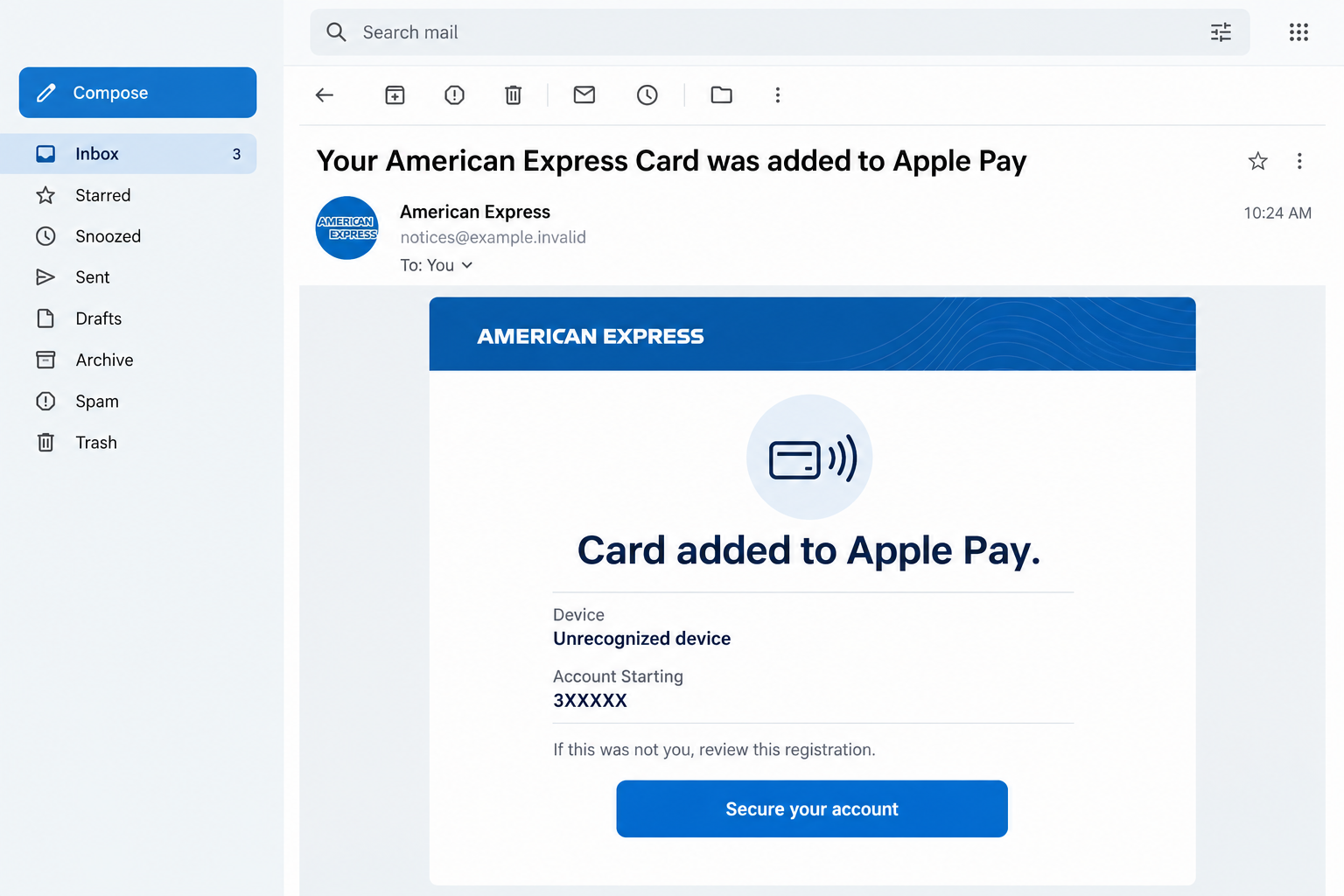
An email says your American Express card has just been added to Apple Pay. You haven’t touched your wallet settings, and the device mentioned means nothing to you.
It’s the kind of notice that interrupts everything else. Before taking its suggested next step, there’s an important distinction worth understanding.
Overview
A card-security warning with a different target
The American Express Added to Apple Pay email scam borrows a plausible concern: somebody enrolling your card in an unfamiliar digital wallet.
The reported message directs the recipient to a counterfeit American Express sign-in form. Its immediate target is the account’s User ID and password.
That distinction matters. Receiving this email doesn’t establish that a card was actually enrolled, or that Apple Pay has been breached.
American Express and Apple Pay are legitimate services. The deception is the message and the sign-in route presented as a way to protect your card.
What gives the message its pull
References to an unrecognized device, location, and partial account information make an ordinary inbox message feel like an active security incident.
One reported detail, an account beginning with 3 followed by placeholder characters, isn’t meaningful identification of a particular cardholder.
The reassuring button is the turning point. It offers a solution before you’ve had time to establish whether the alleged problem exists.
- The claim concerns wallet enrollment, not necessarily a completed purchase.
- The requested sign-in belongs to American Express, rather than a normal email conversation.
- The message’s protective wording doesn’t authenticate its destination.
- Actual account activity needs checking through a separately opened, trusted channel.
Two situations that need different responses
A fabricated enrollment warning and a real unauthorized wallet enrollment can look similar at first. You don’t need to guess which one applies.
Contacting the issuer through its established app or the number on your card lets you investigate without trusting the email.
The available campaign details don’t include a tested live phishing destination, original headers, or verified transactions. Further demands for codes would require their own assessment.
Why an Apple Pay Alert Can Catch a Careful Cardholder
Most people recognize an extravagant prize email. A notification about something they didn’t do is harder to put aside, especially when it concerns everyday spending.
You might have recently replaced a device, helped a family member with a wallet, or received a replacement card. Those ordinary events create uncertainty.
The sender doesn’t have to know your explanation. The warning leaves enough room for you to supply one, then encourages you to fix it immediately.
Even someone who never uses Apple Pay may worry that somebody else does. The message can attract attention without accurately describing the recipient’s habits.
Its strongest trick is making the dangerous action feel defensive. You’re not being asked to buy anything. You’re supposedly stopping somebody else from doing so.
Take that concern seriously, but choose your own route. A genuine account problem won’t become safer because you used an unverified link to investigate it.
How the American Express Apple Pay Email Scam Works
Step 1: The message supplies an alarming account event
The opening claim concerns a card being added to a wallet you don’t recognize. That creates a question you reasonably want answered.
Banking names, familiar colors, and automated-notice formatting make the email resemble routine account correspondence. None of those visual elements requires access to your account.
A display name is especially easy to misunderstand. The name shown above a message isn’t the same thing as a verified relationship with your card issuer.
Don’t reply with a card number to help the sender identify you. Your first task is checking the event, not providing missing information.
If you aren’t an American Express customer, that mismatch is useful. It doesn’t mean you need to create an account to investigate the supposed registration.
Step 2: A security button becomes the obvious next move
The email presents its own account-security link as the answer. This keeps the reader inside the sender’s chosen path.
That’s a subtle change of control. You started with a question about your card, but the message is now deciding which website should receive your information.
A button’s wording describes what the sender wants you to believe. It doesn’t tell you who operates the page underneath.
Likewise, a footer containing familiar corporate language doesn’t authenticate the button above it. Public legal text and logos can be copied independently.
You can break this stage without solving any technical puzzle. Close the email and open the Amex app from the icon you normally use.
Step 3: The destination imitates an American Express login
The reported landing page requests the credentials used for the card account. This is where an apparent cancellation becomes a credential-collection attempt.
A familiar-looking form can have password masking, neatly aligned fields, and a working submit button. Those features describe the interface, not its owner.
HTTPS isn’t a bank identity check either. An encrypted connection to the wrong website still delivers information to the wrong website.
If your password manager doesn’t recognize the page, don’t manually override that hesitation just because the branding looks right. Inspect the destination independently.
Autofill behavior isn’t a complete verdict, because settings vary. It is another reason to pause rather than force your banking credentials into an unfamiliar form.
Step 4: Submitted credentials create a separate account risk
Once a password reaches a counterfeit form, treat it as exposed. You don’t have to wait for a suspicious transaction to justify changing it.
A failed submission or error message doesn’t mean the information was discarded. The page can receive the details before displaying its next screen.
Account takeover isn’t guaranteed. Additional authentication and issuer controls can interrupt misuse. They don’t make an exposed password suitable for continued use.
A reused password also creates a wider problem. Consider which other accounts share it, especially the inbox receiving financial notifications and password resets.
Don’t test your old password on the suspicious page again. Recovery should happen through the genuine account, with help from the issuer when needed.
Step 5: Any follow-up request needs a fresh check
Someone who knows you’ve responded may approach you as a helpful fraud investigator. The original email can become the opening for a more personal conversation.
This is a possible follow-on risk, not a verified stage in every copy of this campaign. Respond according to what actually happened.
A code, app approval, or device-access request is a separate authorization decision. Read the genuine notification rather than accepting another person’s explanation of it.
American Express warns about scams involving verification codes and remote access. Its guidance is to verify doubts using the number on the back of your card.
Don’t move money, install a support tool, or disclose a code merely to complete the email’s supposed security procedure.
Checking the Alert Without Using Its Links
Start with the card issuer
Use your usual Amex app or a website address you already trust. If you need to call, read the number from the physical card.
Explain the distinction clearly: you received an enrollment notice and want to know whether an unauthorized wallet credential actually exists.
Ask about recent account changes and unfamiliar activity. A support representative can assess information that an email recipient cannot establish from branding alone.
If the real account shows no matching problem, don’t return to the message to finish its investigation. Its demand has lost its reason for existing.
If another authorized cardholder uses the account, ask about recent setup through a conversation you initiate. Don’t forward the suspicious button as a convenient way to check.
Keep travel or an upcoming purchase in mind when contacting support. Explain any urgent need for access, but let the issuer choose appropriate protection.
Don’t delay reporting because replacing a card sounds inconvenient. Describe the exposure first; the issuer can determine which credential or access requires attention.
Understand what checking your own Wallet can show
Reviewing Apple Wallet on your devices can clarify your own setup. It doesn’t necessarily reveal every payment credential connected to your card account elsewhere.
Apple’s card-management instructions explain removing a card from your device and contacting its issuer for help with payment cards.
Removing a card from your own device isn’t the same as asking the issuer to investigate an unfamiliar device. Describe the actual concern when requesting help.
If a device really is lost, follow Apple’s lost-device procedures. Don’t mark a device lost simply because an unsolicited email claims one exists.
Keep the evidence small and useful
Save the message and the destination address if it’s already visible. Note whether you entered a password, disclosed a code, or approved anything.
Those distinctions help support choose the right response. A timeline is more useful than a collection of screenshots showing only the sender’s logo.
Preserve any genuine security notification that arrived around the same time. Its description of an attempted action may clarify what a submitted code actually concerned.
Don’t erase that history simply because the suspicious page vanished. A missing website doesn’t change whether credentials or approvals were already given.
Never include complete card details or live security codes in a public warning. Share sensitive evidence only through the issuer’s verified process.
What to Do if You Have Fallen Victim to This Scam
- Leave the counterfeit route.
Close the form and stop any conversation that began through it. Don’t submit another password or code to reverse a previous submission.
Write down what you already did while it’s fresh. Being specific helps you recover faster; there’s no benefit in blaming yourself.
- Speak to American Express directly.
Use the number on your card or secure support in the real app. Mention both the claimed Apple Pay event and the information you exposed.
Ask whether account access, a card, or a digital-wallet credential needs restricting. Don’t assume one password change resolves every possible payment issue.
- Replace the exposed login.
On a trusted device, change the password through the genuine service. Use a unique replacement and update other accounts that reused the compromised one.
Protect your recovery email as well. Review its recovery details and recent activity if the same credentials could have allowed access there.
- Review actual account activity.
Look for transactions and contact-detail changes you don’t recognize. Report questionable activity promptly, keeping the issuer’s case number and any follow-up instructions.
Describe accurately whether you authorized an action under deception or never initiated it. That context matters when the provider investigates.
- Handle software exposure separately.
If you installed something, granted remote access, or noticed an unexpected download, use Malwarebytes to check the device and remove any detected threats.
AdGuard can reduce some advertising and tracking exposure. Neither tool resets an exposed Amex password or cancels a wallet credential with the issuer.
- Report the message and avoid recovery offers.
The American Express Security Center lists spoof@americanexpress.com for phishing reports. Preserve the original email if requested, then use your mailbox’s phishing-report option.
Anyone promising guaranteed reimbursement for an upfront payment creates another risk. Continue the case through the issuer, not an unsolicited recovery contact.
Is Your Device Infected? Run a Free Malware Scan
Slow performance, constant pop-ups, or strange behavior? These are classic signs of a malware infection. The fastest way to find out is to scan your device with Malwarebytes Free — one of the most trusted malware removal tools available.
The free version detects and removes the most common threats, including:
- Adware — the cause of those annoying pop-ups
- Browser hijackers — unwanted redirects and changed homepages
- Trojans and spyware — hidden programs stealing your data
- Potentially unwanted programs (PUPs) — software you never asked for
👉 Select your device below — Windows, Mac, or Android — then follow the simple steps to download Malwarebytes, scan your system, and remove any threats it finds. The scan usually takes 5 to 20 minutes.
Run a Malware Scan with Malwarebytes for Windows
Malwarebytes is one of the most popular and trusted anti-malware tools for Windows — and it’s completely free for removing infections. It catches threats that many antivirus programs miss, including adware, browser hijackers, and trojans. Follow the steps below to scan and clean your PC in just a few minutes.
Download Malwarebytes
Click the button below to download the latest version of Malwarebytes for Windows from the official source. The free version is all you need — it will scan your computer and remove adware, browser hijackers, and other malicious software at no cost.
Download MalwarebytesOfficial installer for Windows 11 and 10. Your download starts right away.Want real-time protection? See Malwarebytes Premium Malwarebytes Free for WindowsScans and removes malware at no cost
-
Install Malwarebytes
When the download finishes, open your Downloads folder and double-click the MBSetup file. If Windows shows a User Account Control pop-up, click “Yes” to allow the installation.

Follow the On-Screen Prompts to Install Malwarebytes
The setup wizard will walk you through a few quick screens:
-
Choose where you’re installing the program — “Personal Computer” or “Work Computer” — then click Next.

-
Malwarebytes will now install on your device. This usually takes under a minute.

-
When installation is complete, the “Welcome to Malwarebytes” screen will open automatically.

-
On the final screen, click Open Malwarebytes to launch the program.

-
Enable “Scan for Rootkits”
Before scanning, turn on rootkit detection so Malwarebytes can find even the most hidden threats. Click the Settings gear icon on the left side of the screen.

In the settings menu, find “Scan for rootkits” and click the toggle so it turns blue.

Done? Click “Dashboard” in the left pane to return to the main screen.
Start the Scan
Click the blue Scan button. Malwarebytes will automatically update its virus database and start checking your computer for malware.

-
Wait for the Scan to Finish
The scan checks your entire system for browser hijackers and other malicious programs, so it can take 5 to 20 minutes depending on your computer. Feel free to do something else — just check back occasionally to see the progress.

-
Quarantine the Detected Threats
When the scan is done, you’ll see a list of everything Malwarebytes found — malware, adware, and potentially unwanted programs. Click the “Quarantine” button to remove all of them at once.

Malwarebytes will now remove the malicious files and registry entries and move them safely into quarantine.

-
Restart Your Computer
Some threats can only be fully removed after a reboot. If Malwarebytes asks you to restart, click Yes. Once you’re logged back in, Malwarebytes has finished removing the threats it found.

That’s it — your Windows PC is now clean of trojans, adware, and other malware, and should be back to running smoothly.
If you are still having problems with your computer after completing these instructions, then please follow one of the steps:
- Run a computer scan with ESET Online Scanner
- Ask for help in our Windows Malware Removal Help & Support forum.
Run a Malware Scan with Malwarebytes for Mac
Malwarebytes for Mac is a free on-demand scanner that removes the malware other security software tends to miss — adware, browser hijackers, and unwanted programs included. Cleaning an infected Mac with Malwarebytes has always been completely free, and it’s our go-to recommendation. Follow the steps below to scan and clean your Mac in just a few minutes.
-
Download Malwarebytes for Mac
Click the button below to download the latest version of Malwarebytes for Mac.
Download MalwarebytesOfficial installer for macOS. Your download starts right away.Want real-time protection? See Malwarebytes PremiumMalwarebytes Free for MacScans and removes malware at no cost -
Open the Malwarebytes setup file
When the download finishes, open your Downloads folder and double-click the setup file to begin the installation.

-
Follow the On-Screen Prompts to Install Malwarebytes
The Malwarebytes for Mac Installer will guide you through a few quick screens. Click “Continue” and keep following the prompts until the installation completes.



When the installation is complete, Malwarebytes opens to the Welcome to Malwarebytes screen. Click “Get started“.
-
Select “Personal Computer” or “Work Computer”
Malwarebytes will ask what type of computer you’re installing it on. Click either Personal Computer or Work Computer, whichever applies.

-
Start the Scan
Click the “Scan” button. Malwarebytes will automatically update its detection database and begin checking your Mac for malware.

-
Wait for the Scan to Finish
Malwarebytes will scan your Mac for adware, browser hijackers, and other malicious programs. This can take a few minutes, so feel free to do something else — just check back occasionally to see the progress.

-
Quarantine the Detected Threats
When the scan is done, you’ll see a list of everything Malwarebytes found. Click the “Quarantine” button to remove all the threats at once.

-
Restart Your Mac
Malwarebytes will now remove all the malicious files it found. Some threats can only be fully removed after a reboot — if Malwarebytes asks you to restart, allow it. Once you’re logged back in, your Mac is clean.

That’s it — your Mac is now free of adware, rogue browser extensions, and other potentially harmful software.
If you are still experiencing problems while trying to remove a malicious program from your computer, please ask for help in our Mac Malware Removal Help & Support forum.
Run a Malware Scan with Malwarebytes for Android
Malwarebytes for Android automatically detects and removes dangerous threats like malware and ransomware so you don’t have to worry about your most-used device being compromised. Aggressive detection of adware and potentially unwanted programs keeps your Android phone or tablet running smooth.
-
Download Malwarebytes for Android.
You can download Malwarebytes for Android by clicking the link below.
Get Malwarebytes for AndroidOpens Google Play in a new tab.Want real-time protection? See Malwarebytes Premium for AndroidMalwarebytes for AndroidScans your phone and removes malware at no cost -
Install Malwarebytes for Android on your phone.
In the Google Play Store, tap “Install” to install Malwarebytes for Android on your device.

When the installation process has finished, tap “Open” to begin using Malwarebytes for Android. You can also open Malwarebytes by tapping on its icon in your phone menu or home screen.

-
Follow the on-screen prompts to complete the setup process
When Malwarebytes will open, you will see the Malwarebytes Setup Wizard which will guide you through a series of permissions and other setup options.
This is the first of two screens that explain the difference between the Premium and Free versions. Swipe this screen to continue.
Tap on “Got it” to proceed to the next step.
Malwarebytes for Android will now ask for a set of permissions that are required to scan your device and protect it from malware. Tap on “Give permission” to continue.
Tap on “Allow” to permit Malwarebytes to access the files on your phone.
-
Update database and run a scan with Malwarebytes for Android
You will now be prompted to update the Malwarebytes database and run a full system scan.

Click on “Update database” to update the Malwarebytes for Android definitions to the latest version, then click on “Run full scan” to perform a system scan.

-
Wait for the Malwarebytes scan to complete.
Malwarebytes will now start scanning your phone for adware and other malicious apps. This process can take a few minutes, so we suggest you do something else and periodically check on the status of the scan to see when it is finished.

-
Click on “Remove Selected”.
When the scan has been completed, you will be presented with a screen showing the malware infections that Malwarebytes for Android has detected. To remove the malicious apps that Malwarebytes has found, tap on the “Remove Selected” button.

-
Restart your phone.
Malwarebytes for Android will now remove all the malicious apps that it has found. To complete the malware removal process, Malwarebytes may ask you to restart your device.
That’s it — your Android phone is now clean — no more malicious apps, adware, or browser redirects.
If you are still having problems with your phone after completing these instructions, then please follow one of the steps:
- Restore your phone to factory settings by going to Settings > General management > Reset > Factory data reset.
- Ask for help in our Mobile Malware Removal Help & Support forum.
Stay Protected: Block Ads and Malicious Sites
Now that your device is clean, keep it that way. Most infections start with a malicious ad or a fake download button — so blocking them at the source is your best defense.
We recommend AdGuard, which blocks malicious ads, phishing pages, and dangerous redirects before they can reach you.
👉 Download AdGuard and browse safely
What If You Only Opened the Email?
Reading the warning is different from submitting a password. Don’t assume that the card or device is compromised merely because the message reached your inbox.
If you clicked but didn’t enter anything, close the page. Check for unexpected downloads, browser permission changes, or an unfamiliar installed application.
Keep the browser updated. Don’t approve notifications or install an extension to make the supposed cancellation work.
If a file downloaded automatically, you don’t need to open it to identify the email as suspicious. Ask trusted support how to handle it safely.
For a work-managed device, report the incident to your security team. Give the time and actions taken instead of trying to conceal a mistaken click.
A clean device check and an account check answer different questions. Keep both in proportion to the exposure you actually had.
Frequently Asked Questions
Does this email prove my card was added to Apple Pay?
No. The claim needs confirmation from the issuer. A fabricated warning can exist without any real wallet enrollment or unauthorized purchase.
Is American Express responsible for this phishing page?
The reported page impersonates the company. Copied branding doesn’t establish an authorized relationship, and the warning concerns that counterfeit route rather than legitimate Amex services.
Should I remove every card from my own Wallet?
Not automatically. Ask the issuer about the specific card and any unfamiliar wallet credential. Deleting your own cards may not address the alleged event elsewhere.
What if I entered my password but no code?
Change the exposed password through the genuine account and notify the issuer. An additional security step might prevent misuse, but the password still needs replacing.
Can a security-code request really be dangerous?
Yes. Read what the genuine notification says the code authorizes. Don’t provide it to an unsolicited caller or a page reached through this message.
Will an antivirus scan fix the account?
A scan can help with malicious software. It cannot recall credentials already disclosed, resolve a billing dispute, or disable an unauthorized payment credential at the issuer.
The Bottom Line
Don’t use this email’s security button. The reported route turns concern about Apple Pay into a request for American Express login details.
Check the claim with the issuer independently. If you submitted information, replace the exposed credentials and explain any wallet or transaction concern directly to Amex.

Join the discussion
0 commentsShare your experience or ask a question about this article.
Discussion
Start the conversation
Have a question or something useful to share? Add the first comment.