


A BlockDAG reward page can look like one more task on your crypto checklist. The name is familiar, and the next button seems straightforward.
Before opening your wallet, take a closer look at who is offering the reward and what the page expects you to approve.
Overview
The reward page borrows an existing project’s identity
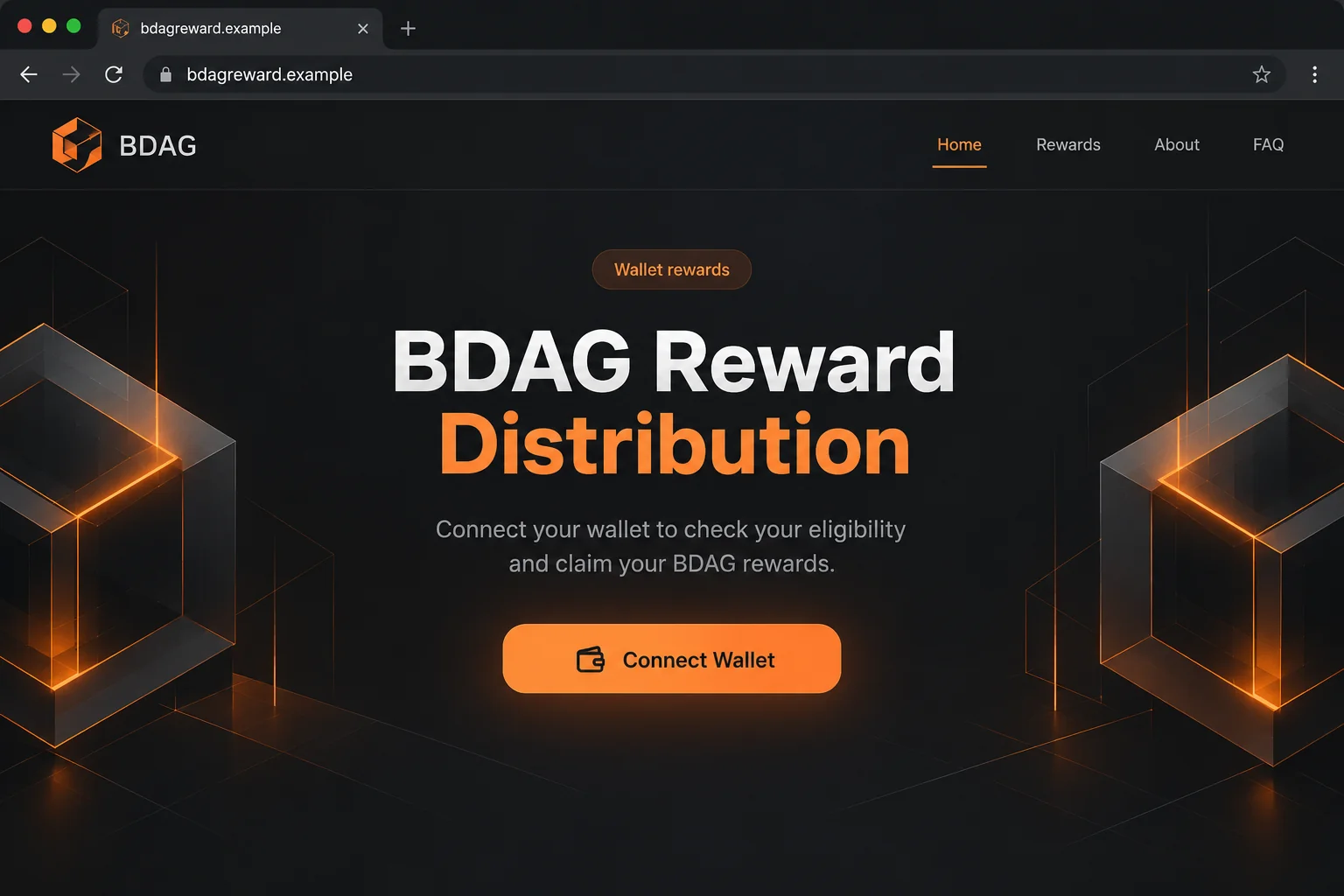
The reported offer used bdagreward[.]live to present a BDAG distribution and invite wallet connections. It was an impersonation page, not an authenticated reward announcement.
BlockDAG has its own website at blockdag.network. A page borrowing that project’s name does not become part of it merely by displaying familiar branding.
The distinction matters if you already follow the project. Recognizing a token name can make a separate website feel like an extension of an account.
This warning concerns the counterfeit distribution. It is not an endorsement of BlockDAG, its marketing, token price, or any investment associated with the project.
The important details are the origin and wallet request
Watch for a journey in which a promotional message sends you directly to a claim interface before you have independently verified the announcement.
- A reward offer appears on a separate, unfamiliar website.
- The page invites a wallet connection under the BDAG name.
- Branding supplies reassurance, but the announcement’s origin remains unconfirmed.
- A wallet request may follow, requiring its own careful inspection.
No particular reward amount or deadline is necessary for this scheme to be dangerous. The central problem is letting an impersonator guide a wallet interaction.
Connecting and authorizing are different events
The case was reported as a wallet-draining lure. However, a basic connection does not, by itself, demonstrate that assets were transferred or spending permission granted.
The exact request shown after connection was not independently inspected. Depending on the wallet and network, a harmful approval, signature, or transaction could create the loss.
The lead image is an illustrative interface using an example address. It is not a captured transaction or proof of the site’s current appearance.
How the BlockDAG Rewards Scam Works
Step 1: A reward claim catches someone already interested in BDAG
A reward pitch does not need to persuade you to discover a new asset. It can simply appear to offer something connected to an existing interest.
That changes the question in your mind. Instead of asking who runs the website, you may begin asking whether your wallet qualifies.
Perhaps you arrive from a forwarded message or encounter a promotional link while reading crypto discussions. Those are possible entry points, not verified distribution channels here.
Wherever the link appears, keep the original post or message separate from the project itself. Anyone can write a ticker symbol into a promotion.
A reply below a genuine announcement can also lead elsewhere. Being visually close to the real project does not give that reply authority.
Step 2: The website turns familiarity into apparent legitimacy
Once the page opens, the project name does much of the persuasive work. A visitor who recognizes BDAG may overlook the independent website behind it.
The reported domain, bdagreward[.]live, makes the reward theme part of the address. That naming choice can feel descriptive without establishing ownership.
Do not reduce the check to whether an address contains the right letters. A brand word inside a domain is not an ownership certificate.
Likewise, an encrypted connection protects traffic between your browser and that website. It does not tell you whether the person receiving the traffic is honest.
The useful comparison is with an announcement reached independently from the project’s established channels, not another link supplied by the same promotion.
Step 3: The reward becomes a reason to open a wallet
A claim button gives the visitor an immediate task. The page no longer asks you to evaluate an advertisement, it asks you to finish a process.
In legitimate applications, a connection can let the website see a public address and request actions. That familiar behavior helps counterfeit applications blend in.
Seeing your usual wallet window does not authenticate the website underneath it. The wallet may be faithfully displaying a request from an untrustworthy origin.
Pause before approving anything, even if the first request appears limited. A routine-looking connection can be followed by a materially different request.
Closing the page at this point is a reasonable decision. You do not owe a reward website another attempt just because the first screen looked convincing.
Step 4: A misleading request can cross the line into asset access
The dangerous point is an authorization you do not understand. A button labeled as claiming a reward cannot change what the underlying wallet request does.
A transaction might send an asset. A token approval might permit later spending. Some signatures can authorize actions without looking like an immediate payment.
These are general wallet risks, not a claim that every one appeared on bdagreward[.]live. The exact payload would be needed to identify its operation.
Compare the wallet’s explanation with the promised outcome. A supposed incoming reward should not quietly require broad access to unrelated holdings.
If the wallet shows an unexpected asset, recipient, network, or spending limit, reject the request. Do not let the website explain away a contradictory warning.
A small displayed network fee is not the whole risk. The authorization associated with that fee may matter much more than the amount paid for processing.
Step 5: The visitor may discover the problem after leaving
An immediate outgoing transfer can be obvious in wallet activity. A standing permission may be less noticeable until someone uses it later.
This is why closing a browser tab is not a complete response after approving something suspicious. The relevant event may already exist on the network.
Disconnecting also has a narrower purpose than many people expect. It can end an application’s connection without canceling every authorization previously granted.
The right response depends on the actual exposure. Merely viewing a page, connecting an address, signing a transaction, and disclosing a recovery phrase require different actions.
Start with your wallet’s activity and trusted support documentation. Do not return to the reward page to ask the same operator whether your funds are safe.
How to Check a BDAG Promotion Without Trusting the Promotion
Begin from a route you already know
Open the project’s established website independently. Look for the particular announcement and verify the full destination it identifies, rather than searching for similar reward wording.
The BlockDAG website provides a starting point for checking project communications, not a guarantee about investment value or every third-party offer.
Real projects sometimes use additional domains for specific services. A different domain needs authenticated confirmation, not an automatic assumption that it is either genuine or fraudulent.
If you cannot find a clear, consistent announcement, stop. Missing a speculative reward is preferable to letting an unfamiliar page test your willingness to sign.
Read the wallet, not just the website
Keep track of three separate identities: the website making the claim, the application requesting access, and the address or contract receiving authority.
Matching colors between two screens cannot establish that those identities belong together. An approval should have a purpose you can explain in ordinary language.
Do not approve a request simply because it has no obvious transfer amount. Some permissions concern future spending rather than a payment shown right now.
Be especially wary when instructions tell you to ignore simulations, hide warnings, or approve repeatedly until a reward appears. Troubleshooting should not mean abandoning consent.
Keep a real project separate from a counterfeit offer
An impersonation can abuse a real project’s name without the project operating that page. Conversely, a real project’s existence does not validate the impersonation.
Neither token listings nor a logo copied from official materials establish a relationship with a reward operator. Those details can be copied without permission.
The safe decision here is specific: do not use the reported bdagreward[.]live claim offer. There is no reason to authorize that page to handle your assets.
What to Do If You Responded to the Fake Reward Page
Stop the claim process and identify what you actually did. Write down whether you only visited, connected, signed, transferred funds, or entered secret wallet information.
Check the wallet’s activity through its normal interface. Do not approve another request to see whether the claim can be canceled.
If nothing was signed and no secret was entered, avoid assuming a loss occurred. Record the event, disconnect the unfamiliar application, and monitor activity.
Review relevant permissions using your wallet provider’s guidance. A rejected transaction and an approved spending permission are not equivalent outcomes.
For supported EVM networks, MetaMask explains spending caps and revocation. Use instructions that match your actual wallet and chain.
Revocation may require a network fee. It can stop an applicable ongoing permission, but it cannot reverse an already completed transfer.
Treat exposed recovery words as a separate emergency. If you typed a recovery phrase or private key into a website, consider that wallet compromised.
Changing an extension password does not replace the wallet’s underlying keys. Use a trusted device and the provider’s procedure to create a genuinely new wallet.
Protect remaining legitimate holdings promptly. Do not send additional funds to the exposed wallet in an attempt to activate, unlock, or repair it.
Preserve transaction details before they become difficult to find. Save transaction hashes, network names, affected addresses, timestamps, and the original promotional link.
Keep the token quantity separate from any estimated $ value. A fluctuating price should not obscure the actual assets that moved.
Never include recovery phrases or private keys in a report. Anyone investigating a public transaction can begin with public identifiers.
Contact relevant support and reporting channels. Notify your wallet provider and any exchange that may be involved using contact details found independently.
Provide a concise timeline and transaction hashes. Ask what information they need, rather than assuming they can freeze assets outside their control.
Report financial losses to the appropriate authorities. A report creates a record, but no honest responder can promise that every blockchain transfer is recoverable.
Check the device if the interaction went beyond the wallet. An unexpected extension, downloaded application, or remote-support session calls for device cleanup too.
Malwarebytes can help check for malicious software. Obtain it through a trusted route, not a download offered by the reward page.
AdGuard can reduce exposure to some malicious ads and redirects. Neither tool revokes on-chain permissions or brings back transferred tokens.
Reject follow-up recovery offers. Someone contacting you about a guaranteed reversal may be using the original loss to sell a second deception.
Do not pay an unlocking charge, disclose recovery words, or grant remote access to a person promising to release a reward or retrieve stolen assets.
Keep future communication within channels you opened yourself. An unsolicited helper should not inherit control just because the previous page caused a problem.
Is Your Device Infected? Run a Free Malware Scan
Slow performance, constant pop-ups, or strange behavior? These are classic signs of a malware infection. A quick way to check is to scan your device with Malwarebytes Free, one of the most trusted malware removal tools available. If you only visited a scam page and didn’t download or install anything, this scan is optional.
The free version detects and removes the most common threats, including:
- Adware — the cause of those annoying pop-ups
- Browser hijackers — unwanted redirects and changed homepages
- Trojans and spyware — hidden programs stealing your data
- Potentially unwanted programs (PUPs) — software you never asked for
👉 Select your device below — Windows, Mac, or Android — then follow the simple steps to download Malwarebytes, scan your system, and remove any threats it finds. The scan usually takes 5 to 20 minutes.
Run a Malware Scan with Malwarebytes for Windows
Malwarebytes is one of the most popular and trusted anti-malware tools for Windows — and it’s completely free for removing infections. It catches threats that many antivirus programs miss, including adware, browser hijackers, and trojans. Follow the steps below to scan your PC and remove what Malwarebytes finds.
Download Malwarebytes
Click the button below to download the latest version of Malwarebytes for Windows from the official source. The free version is all you need — it will scan your computer and remove adware, browser hijackers, and other malicious software at no cost.
Download MalwarebytesOfficial installer for Windows 11 and 10. Your download starts right away.Want real-time protection? See Malwarebytes Premium Malwarebytes Free for WindowsScans and removes malware at no cost
-
Install Malwarebytes
When the download finishes, open your Downloads folder and double-click the MBSetup file. If Windows shows a User Account Control pop-up, click “Yes” to allow the installation.

Follow the On-Screen Prompts to Install Malwarebytes
The setup wizard will walk you through a few quick screens:
-
Choose where you’re installing the program — “Personal Computer” or “Work Computer” — then click Next.

-
Malwarebytes will now install on your device. This usually takes under a minute.

-
When installation is complete, the “Welcome to Malwarebytes” screen will open automatically.

-
On the final screen, click Open Malwarebytes to launch the program.

-
Optional: Check for rootkits with a Custom Scan
You don’t need to change any settings for a normal scan. The standard Threat Scan in the next step is enough for most problems, so you can go straight to it.
If you also want to check for rootkits, use a Custom Scan. In current versions of Malwarebytes, rootkit scanning is only available there:
- On the Scanner tile, click the three-dot menu and select Advanced Scan.
- Choose Custom Scan. In its options, check Scan for rootkits.
- Select your system drive (usually C:\) as the location to scan, then start the scan. It takes longer than a Threat Scan.
- When it finishes, review and quarantine the results as described in the steps below.
Rootkit scanning isn’t available on Windows devices with ARM processors.
Start the Scan
Click the blue Scan button. Malwarebytes will automatically update its virus database and start checking your computer for malware.

-
Wait for the Scan to Finish
The scan checks your entire system for browser hijackers and other malicious programs, so it can take 5 to 20 minutes depending on your computer. Feel free to do something else — just check back occasionally to see the progress.

-
Quarantine the Detected Threats
When the scan is done, you’ll see a list of everything Malwarebytes found — malware, adware, and potentially unwanted programs. Click the “Quarantine” button to remove all of them at once.

Malwarebytes will now remove the malicious files and registry entries and move them safely into quarantine.

-
Restart Your Computer
Some threats can only be fully removed after a reboot. If Malwarebytes asks you to restart, click Yes. Once you’re logged back in, Malwarebytes has finished removing the threats it found.

When the scan is done, check whether the problems you noticed have stopped. If they continue, see the options below.
If you are still having problems with your computer after completing these instructions, then please follow one of the steps:
- Run a computer scan with ESET Online Scanner
- Ask for help in our Windows Malware Removal Help & Support forum.
Run a Malware Scan with Malwarebytes for Mac
Malwarebytes for Mac is a free on-demand scanner that removes the malware other security software tends to miss — adware, browser hijackers, and unwanted programs included. Cleaning an infected Mac with Malwarebytes has always been completely free, and it’s our go-to recommendation. Follow the steps below to scan your Mac and remove what Malwarebytes finds.
-
Download Malwarebytes for Mac
Click the button below to download the latest version of Malwarebytes for Mac.
Download MalwarebytesOfficial installer for macOS. Your download starts right away.Want real-time protection? See Malwarebytes PremiumMalwarebytes Free for MacScans and removes malware at no cost -
Open the Malwarebytes setup file
When the download finishes, open your Downloads folder and double-click the setup file to begin the installation.

-
Follow the On-Screen Prompts to Install Malwarebytes
The Malwarebytes for Mac Installer will guide you through a few quick screens. Click “Continue” and keep following the prompts until the installation completes.



When the installation is complete, Malwarebytes opens to the Welcome to Malwarebytes screen. Click “Get started“.
Malwarebytes needs Full Disk Access to check your whole Mac. When it asks, open System Settings > Privacy & Security > Full Disk Access, turn on Malwarebytes (it may be listed as Malwarebytes Protection), and confirm with your password or Touch ID. Then return to Malwarebytes. On macOS Monterey and earlier, this setting is in System Preferences > Security & Privacy > Privacy.
-
Select “Personal Computer” or “Work Computer”
Malwarebytes will ask what type of computer you’re installing it on. Click either Personal Computer or Work Computer, whichever applies.

-
Start the Scan
Click the “Scan” button. Malwarebytes will automatically update its detection database and begin checking your Mac for malware.

-
Wait for the Scan to Finish
Malwarebytes will scan your Mac for adware, browser hijackers, and other malicious programs. This can take a few minutes, so feel free to do something else — just check back occasionally to see the progress.

-
Quarantine the Detected Threats
When the scan is done, you’ll see a list of everything Malwarebytes found. Click the “Quarantine” button to remove all the threats at once.

-
Restart Your Mac
Malwarebytes will now remove all the malicious files it found. Some threats can only be fully removed after a reboot — if Malwarebytes asks you to restart, allow it. Once you’re logged back in, check whether the problems you noticed have stopped. If they come back, save the scan report and ask for help in our forum.

If the problems you noticed continue after the scan, see the options below.
If you are still experiencing problems while trying to remove a malicious program from your computer, please ask for help in our Mac Malware Removal Help & Support forum.
Run a Malware Scan with Malwarebytes for Android
Malwarebytes for Android scans your phone or tablet for malware, adware, and potentially unwanted apps. The free version scans only when you start a scan. Real-time protection, which checks apps automatically, is part of the paid Premium version.
-
Download Malwarebytes for Android.
You can download Malwarebytes for Android by clicking the link below.
Get Malwarebytes for AndroidOpens Google Play in a new tab.Want real-time protection? See Malwarebytes Premium for AndroidMalwarebytes for AndroidScans your phone and removes malware at no cost -
Install Malwarebytes for Android on your phone.
In the Google Play Store, tap “Install” to install Malwarebytes for Android on your device.

When the installation process has finished, tap “Open” to begin using Malwarebytes for Android. You can also open Malwarebytes by tapping on its icon in your phone menu or home screen.

-
Follow the on-screen prompts to complete the setup process
When Malwarebytes opens, it walks you through a short setup. Tap Get started and follow the prompts. If you see an offer for a trial or a paid plan, read it before you accept. You can skip it and keep using the free scanner.
Malwarebytes will ask for permission to access the files on your phone so it can scan them. Tap Allow, or turn on the permission in the Android screen that opens, then return to Malwarebytes.
-
Run a scan with Malwarebytes for Android
On the main screen, tap Scan now. In some versions, you open the menu, tap Scanner, and then tap Run a scan.
-
Wait for the Malwarebytes scan to complete.
Malwarebytes will now start scanning your phone for adware and other malicious apps. This process can take a few minutes, so we suggest you do something else and periodically check on the status of the scan to see when it is finished.

-
Remove the detected apps.
When the scan has been completed, you will see a list of the threats that Malwarebytes for Android has detected. Next to each detected item, tap the menu icon (three dots), then choose to uninstall the app or delete the file. Android then asks you to confirm. Tap OK or Uninstall to remove the app.
-
Restart your phone.
When the detected apps are removed, restart your phone if Malwarebytes asks you to. Then check whether the problems you noticed have stopped.
If the problems you noticed continue after the scan, see the options below.
If you are still having problems with your phone after completing these instructions, then please follow one of the steps:
- Ask for help in our Mobile Malware Removal Help & Support forum.
- Only as a last resort, reset your phone to factory settings. Read the warning below first.
- Back up your photos, videos, files, and messages, for example to your Google account or a computer.
- Make sure you know your Google account email and password. The phone asks for them after the reset. If you changed the password recently, Google recommends waiting 24 hours before you reset.
- On a Samsung phone, also make sure you know your Samsung account password.
- If you use an authenticator app for two-step verification, move your accounts to another device or save your backup codes first.
Stay Protected: Block Ads and Malicious Sites
No scan can prove a device is completely clean, so it helps to block threats before they reach you. Most infections start with a malicious ad or a fake download button — so blocking them at the source is your best defense.
We recommend AdGuard, which blocks malicious ads, phishing pages, and dangerous redirects before they can reach you.
👉 Download AdGuard and browse safely
Make Your Next Wallet Decision Easier
A useful habit is to separate research from signing. Read a promotion with the wallet closed, and decide whether the offer is authentic before starting its workflow.
This prevents a website from turning each unanswered question into another button. You can inspect an announcement without giving its operator a live authorization opportunity.
For holdings you rely on, avoid experimenting with unsolicited claim links. A separate, minimally funded testing wallet can limit exposure, but it cannot make deception trustworthy.
Bookmarks also help when they were created from a verified destination. Reaching the same page through an advertisement each time recreates an unnecessary opportunity for impersonation.
If another person manages shared holdings, agree that unexpected rewards require a second review. One calm conversation is often enough to interrupt a rushed authorization.
After any suspicious interaction, describe events without blaming yourself. Clear details about the last request are more useful than trying to prove you should have noticed sooner.
Frequently Asked Questions
Is bdagreward[.]live an official BlockDAG reward website?
It was reported as a counterfeit BDAG distribution lure. Do not use it to claim rewards or treat its branding as authenticated project communication.
Does connecting a wallet automatically empty it?
No. A connection is different from a harmful authorization or transfer. Check exactly what you approved instead of assuming connection alone proves theft.
Can a hardware wallet make this claim safe?
A hardware wallet helps protect keys, but a harmful transaction you approve can still move assets. Verify the request rather than relying on the device alone.
Will disconnecting remove every spending permission?
Not necessarily. Relevant approvals may remain active after disconnection. Use the wallet provider’s network-specific instructions to inspect and revoke permissions where appropriate.
Should I send a fee to recover a missing BDAG reward?
Do not pay the reward operator an activation or recovery charge. A demand for another payment does not establish that a real allocation exists.
Does this warning mean BlockDAG itself operates the scam?
No. The warning is about a separate impersonation website. It neither attributes that page to the project nor recommends the project’s investment claims.
The Bottom Line
Do not authorize the fake BlockDAG rewards offer at bdagreward[.]live. Familiar branding is being used to make an unverified wallet interaction feel routine.
If you responded, check the last action you approved. Review permissions, protect exposed keys, and preserve transaction records without paying anyone to unlock a supposed reward.

Join the discussion
0 commentsShare your experience or ask a question about this article.
Discussion
Start the conversation
Have a question or something useful to share? Add the first comment.