

A rewards page can look like the last stop after weeks of using a DeFi platform. One familiar name makes the next click feel routine.
If you reached a page advertising Merkl rewards, pause before opening your wallet. The address and the requested permission deserve a closer look.
Overview
The Merkl name belongs to a real rewards platform
The Merkl Rewards scam impersonates an established service that distributes incentives across decentralized finance applications. The fraudulent offer should not be confused with Merkl itself.
Real reward programs give this impersonation a convincing setting. Someone who has supplied liquidity or participated in a campaign may already expect a claimable balance.
The reported counterfeit used app.claim-merkle[.]xyz. The genuine application identified for comparison is app.merkl.xyz. That extra spelling and different domain are not minor cosmetic changes.
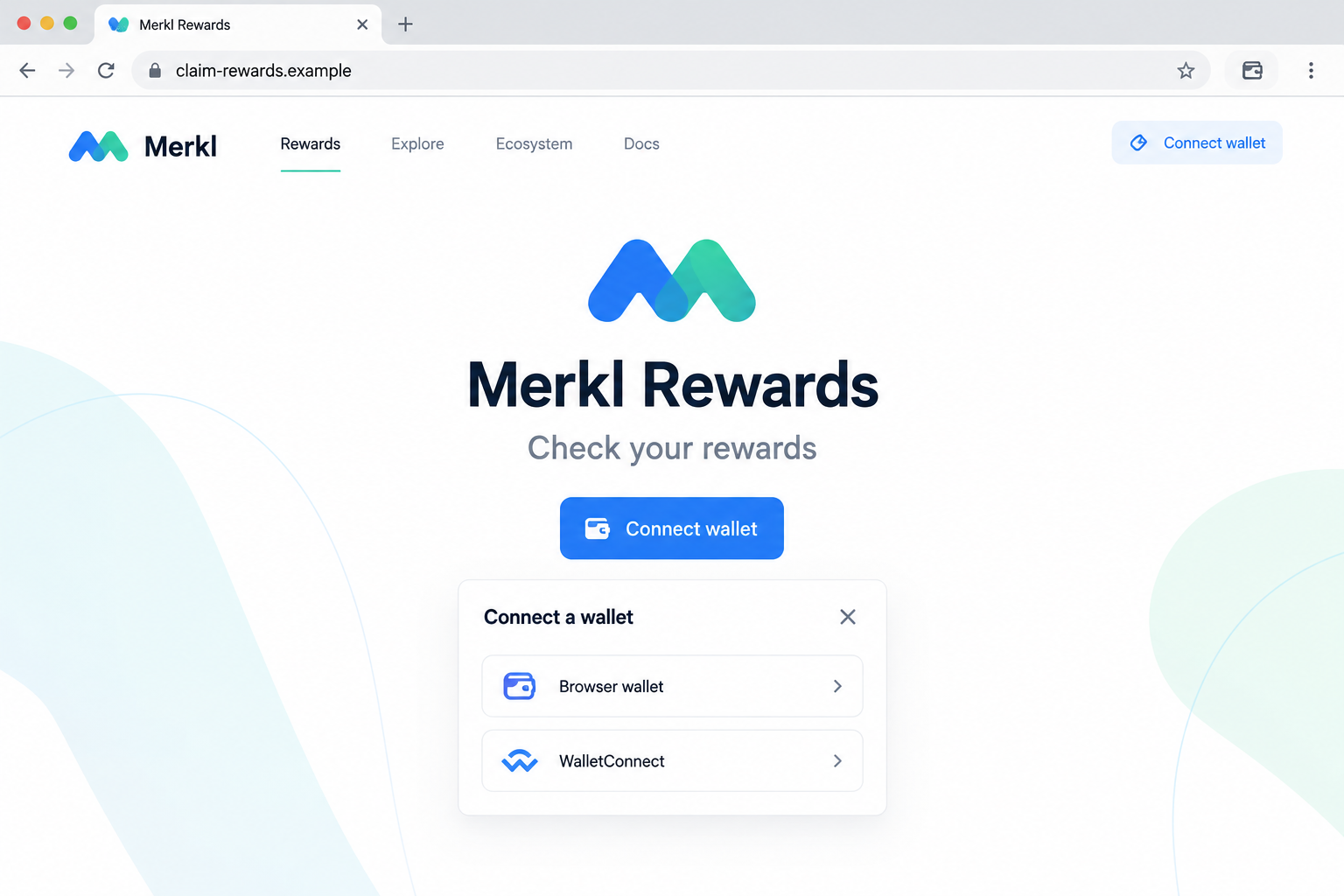
Our lead image is an original illustration with a nonfunctional example address. It explains the lure without presenting a recreated interface as captured evidence.
A rewards claim can conceal a different wallet instruction
The reported page was described as a cryptocurrency-draining lure. Its claim or connection prompt was intended to bring a visitor into a dangerous wallet interaction.
However, connecting a wallet is not the same as granting token-spending permission. A transfer, approval, harmful signature, or exposed key creates a different level of risk.
- The reward story supplies a reason to open the wallet.
- The lookalike address borrows recognition from the genuine project.
- The wallet request, not the button label, determines what is authorized.
- A completed transfer cannot be canceled simply by closing the page.
What this warning establishes, and what it does not
This is a documented impersonation case, not a claim that the historical page remains accessible. Our current capture attempt did not produce a usable page.
We did not connect a funded wallet, sign a request, identify a contract, or observe a theft. No specific stolen amount or operator identity is established here.
The useful decision is still straightforward: do not use the reported lookalike to claim anything. Verify a reward through the genuine service before considering wallet authorization.
Why This Rewards Offer Can Catch Experienced Crypto Users
It resembles an unfinished task, not an unexpected prize
A person actively using DeFi may have rewards spread across protocols and networks. Checking one more dashboard can feel like account maintenance rather than speculation.
That expectation matters. The scam does not need to convince every visitor that free money exists. It only needs to interrupt someone already expecting an incentive.
For example, a liquidity provider might recognize a campaign name and assume a shared claim link belongs to it. Recognition replaces verification at precisely the wrong moment.
A familiar pool or token name is public information. An impersonator can put it on a webpage without having any relationship with your actual participation.
The word “claim” encourages you to focus on receiving
Claiming suggests an incoming asset. A wallet request may instead concern an outgoing transfer, permission to spend existing tokens, or another action entirely.
Read the transaction as though the website’s explanation were absent. Which account is acting, which network is selected, and what permission or movement is being requested?
A small network charge does not mean the rest of the operation is harmless. The amount shown as gas is not necessarily the value exposed.
Likewise, a request without an immediate network fee can still deserve scrutiny. Some signed messages have consequences beyond proving that you control an address.
How the Merkl Rewards Scam Works
Step 1: A claim link arrives outside your normal rewards routine
The entry point may be a shared link, search result, message, or advertisement. Those are possible delivery routes, not a verified distribution history for every copy.
The important change is that you are following someone else’s route to a financial action. You have not yet established that the destination belongs to Merkl.
Even a link posted by a familiar account needs checking. Accounts can be compromised, and legitimate users can unknowingly repeat a convincing false offer.
Stop before connecting anything. Open the project through an independently verified bookmark or official documentation and look for the relevant campaign there.
Step 2: The domain passes a quick glance but fails a careful comparison
In this case, app.claim-merkle[.]xyz combines an application-style subdomain with a claim-related name. It looks relevant while remaining separate from merkl.xyz.
The portion before the first dot does not establish ownership. Putting “app” at the beginning cannot turn an unrelated registered domain into the genuine application.
Compare the full hostname, not the tab title. A browser padlock also cannot certify a reward program, since encrypted connections are available to deceptive websites.
Do not test a suspicious address by sending a small amount. A test payment creates exposure without proving the next request will be safe.
Step 3: The page turns eligibility into a reason to connect
The counterfeit presents wallet connection as the ordinary next step toward checking or receiving rewards. That fits the language people already encounter in DeFi.
A connection can reveal an account’s public address and allow a site to request further interactions. It does not, by itself, disclose the recovery phrase.
Public blockchain balances can often be inspected by anyone who knows an address. A page displaying correct holdings therefore does not prove it is an authorized service.
If you connected and nothing else happened, avoid assuming the entire wallet has been emptied. Check what you actually approved before choosing the response.
Step 4: A wallet prompt may authorize something the page never explained
This is where the reward story can become an asset-loss risk. A malicious request may seek spending access or ask you to sign a transaction.
An approval can let a specified contract move a specified token within its allowance. Broad or unlimited permissions can leave more exposed than the reward being advertised.
Other attacks use transfer requests or signatures with effects a casual reader may miss. The precise route depends on the network, wallet, and requested operation.
We have not verified which request the historical counterfeit generated. Treat these as mechanisms to check in your own wallet history, not an invented transaction trace.
Reject a prompt you cannot explain. If the interface hides important details or pressures you to continue despite a warning, the sensible response is to stop.
Step 5: Closing the website may leave an earlier permission intact
Disconnecting removes the site’s active connection in the wallet. It does not necessarily revoke an approval already recorded on the blockchain.
MetaMask’s disconnection guidance explicitly distinguishes these actions. An existing spending allowance requires its own review and, where appropriate, revocation.
If assets moved, preserve the transaction hash and network. A wallet’s display alone can be incomplete, delayed, or set to a different account or chain.
Never follow a recovery link supplied by the claim page. That would let the same unverified party define both the problem and its supposed solution.
Check the Permission, Not Just the Reward Amount
Three situations call for different responses
A visit without an authorization is different from an approved token allowance. An exposed recovery phrase is more serious still because it compromises control of the wallet.
Write down which actions occurred. “I clicked the link” does not tell a support team whether you connected, signed, approved, transferred, or typed a secret.
Find the affected account and network in your wallet’s activity view. If a transaction exists, open the explorer through the wallet rather than an unsolicited message.
A failed transaction may still have consumed gas. It also does not establish that every separate request failed, so review the sequence rather than one entry.
A legitimate claim should fit the campaign you actually joined
Consult Merkl’s official documentation for the service’s reward framework. A copied name on another domain cannot substitute for a verified campaign.
Check the relevant network and reward token against your own activity. A claim mentioning unrelated assets or asking for an unexplained outgoing action deserves immediate skepticism.
Do not assume every incentive is identical. Different campaigns can have different eligibility rules, and points or displayed estimates may not be immediately transferable tokens.
If a genuine reward appears missing, use support reached through the authentic service. Never provide a recovery phrase to someone offering to synchronize or validate a wallet.
What to Do if You Fell Victim to This Scam
You can respond without returning to the counterfeit page. Start with the specific action you took, then address any permission, secret, or transfer involved.
Stop further requests and keep a brief record.
Reject pending prompts. Save the page address, message that led there, approximate time, affected public wallet address, and transaction hashes without recording secrets.
Do not reconnect merely to obtain a better screenshot. Your existing history is more useful than another interaction with the suspected page.
If you only connected, disconnect and inspect activity.
Use the wallet’s own connection settings to remove the site. Review recent requests and transactions for the relevant account and network.
A connection alone is not proof of asset theft. If there was no further authorization, avoid unnecessary transfers prompted by strangers claiming an emergency.
Review any token allowances you approved.
Follow your wallet provider’s official instructions or a trusted explorer’s approval tools. Confirm the network, token, spender, and allowance before acting.
MetaMask explains approval revocation. Revoking an allowance can require a network transaction, but it cannot reverse assets already transferred.
Treat a disclosed recovery phrase as a separate emergency.
Use a trusted, uncompromised device and official wallet guidance to establish a new wallet with new secrets. Another account derived from the exposed phrase is insufficient.
Seek provider guidance before adding funds to a wallet showing automated theft. Fresh gas can be taken too, and a copied recovery phrase cannot be made private again.
Report actual losses with transaction details.
Contact the relevant exchange if a transfer involved its account, and report the incident through your country’s cybercrime channels. Provide hashes, networks, times, and addresses.
Blockchain records can support investigation, but they do not guarantee recovery. Do not pay a stranger who promises to reverse transactions or unlock stolen cryptocurrency.
Check the device only if software exposure occurred.
If the page persuaded you to install an extension, run a file, or grant remote access, stop that activity and assess the device before further financial use.
Malwarebytes can help check for malicious software. A clean scan does not revoke blockchain permissions, replace exposed keys, or recover cryptocurrency.
Close the route that brought you there.
Report the original post, advertisement, or message and warn anyone you forwarded it to. Remove the false address from bookmarks and saved claim lists.
AdGuard may reduce some malicious advertising exposure, but it cannot authenticate reward campaigns or make an unsafe wallet signature harmless.
Is Your Device Infected? Run a Free Malware Scan
Slow performance, constant pop-ups, or strange behavior? These are classic signs of a malware infection. The fastest way to find out is to scan your device with Malwarebytes Free — one of the most trusted malware removal tools available.
The free version detects and removes the most common threats, including:
- Adware — the cause of those annoying pop-ups
- Browser hijackers — unwanted redirects and changed homepages
- Trojans and spyware — hidden programs stealing your data
- Potentially unwanted programs (PUPs) — software you never asked for
👉 Select your device below — Windows, Mac, or Android — then follow the simple steps to download Malwarebytes, scan your system, and remove any threats it finds. The scan usually takes 5 to 20 minutes.
Run a Malware Scan with Malwarebytes for Windows
Malwarebytes is one of the most popular and trusted anti-malware tools for Windows — and it’s completely free for removing infections. It catches threats that many antivirus programs miss, including adware, browser hijackers, and trojans. Follow the steps below to scan and clean your PC in just a few minutes.
Download Malwarebytes
Click the button below to download the latest version of Malwarebytes for Windows from the official source. The free version is all you need — it will scan your computer and remove adware, browser hijackers, and other malicious software at no cost.
Download MalwarebytesOfficial installer for Windows 11 and 10. Your download starts right away.Want real-time protection? See Malwarebytes Premium Malwarebytes Free for WindowsScans and removes malware at no cost
-
Install Malwarebytes
When the download finishes, open your Downloads folder and double-click the MBSetup file. If Windows shows a User Account Control pop-up, click “Yes” to allow the installation.

Follow the On-Screen Prompts to Install Malwarebytes
The setup wizard will walk you through a few quick screens:
-
Choose where you’re installing the program — “Personal Computer” or “Work Computer” — then click Next.

-
Malwarebytes will now install on your device. This usually takes under a minute.

-
When installation is complete, the “Welcome to Malwarebytes” screen will open automatically.

-
On the final screen, click Open Malwarebytes to launch the program.

-
Enable “Scan for Rootkits”
Before scanning, turn on rootkit detection so Malwarebytes can find even the most hidden threats. Click the Settings gear icon on the left side of the screen.

In the settings menu, find “Scan for rootkits” and click the toggle so it turns blue.

Done? Click “Dashboard” in the left pane to return to the main screen.
Start the Scan
Click the blue Scan button. Malwarebytes will automatically update its virus database and start checking your computer for malware.

-
Wait for the Scan to Finish
The scan checks your entire system for browser hijackers and other malicious programs, so it can take 5 to 20 minutes depending on your computer. Feel free to do something else — just check back occasionally to see the progress.

-
Quarantine the Detected Threats
When the scan is done, you’ll see a list of everything Malwarebytes found — malware, adware, and potentially unwanted programs. Click the “Quarantine” button to remove all of them at once.

Malwarebytes will now remove the malicious files and registry entries and move them safely into quarantine.

-
Restart Your Computer
Some threats can only be fully removed after a reboot. If Malwarebytes asks you to restart, click Yes. Once you’re logged back in, Malwarebytes has finished removing the threats it found.

That’s it — your Windows PC is now clean of trojans, adware, and other malware, and should be back to running smoothly.
If you are still having problems with your computer after completing these instructions, then please follow one of the steps:
- Run a computer scan with ESET Online Scanner
- Ask for help in our Windows Malware Removal Help & Support forum.
Run a Malware Scan with Malwarebytes for Mac
Malwarebytes for Mac is a free on-demand scanner that removes the malware other security software tends to miss — adware, browser hijackers, and unwanted programs included. Cleaning an infected Mac with Malwarebytes has always been completely free, and it’s our go-to recommendation. Follow the steps below to scan and clean your Mac in just a few minutes.
-
Download Malwarebytes for Mac
Click the button below to download the latest version of Malwarebytes for Mac.
Download MalwarebytesOfficial installer for macOS. Your download starts right away.Want real-time protection? See Malwarebytes PremiumMalwarebytes Free for MacScans and removes malware at no cost -
Open the Malwarebytes setup file
When the download finishes, open your Downloads folder and double-click the setup file to begin the installation.

-
Follow the On-Screen Prompts to Install Malwarebytes
The Malwarebytes for Mac Installer will guide you through a few quick screens. Click “Continue” and keep following the prompts until the installation completes.



When the installation is complete, Malwarebytes opens to the Welcome to Malwarebytes screen. Click “Get started“.
-
Select “Personal Computer” or “Work Computer”
Malwarebytes will ask what type of computer you’re installing it on. Click either Personal Computer or Work Computer, whichever applies.

-
Start the Scan
Click the “Scan” button. Malwarebytes will automatically update its detection database and begin checking your Mac for malware.

-
Wait for the Scan to Finish
Malwarebytes will scan your Mac for adware, browser hijackers, and other malicious programs. This can take a few minutes, so feel free to do something else — just check back occasionally to see the progress.

-
Quarantine the Detected Threats
When the scan is done, you’ll see a list of everything Malwarebytes found. Click the “Quarantine” button to remove all the threats at once.

-
Restart Your Mac
Malwarebytes will now remove all the malicious files it found. Some threats can only be fully removed after a reboot — if Malwarebytes asks you to restart, allow it. Once you’re logged back in, your Mac is clean.

That’s it — your Mac is now free of adware, rogue browser extensions, and other potentially harmful software.
If you are still experiencing problems while trying to remove a malicious program from your computer, please ask for help in our Mac Malware Removal Help & Support forum.
Run a Malware Scan with Malwarebytes for Android
Malwarebytes for Android automatically detects and removes dangerous threats like malware and ransomware so you don’t have to worry about your most-used device being compromised. Aggressive detection of adware and potentially unwanted programs keeps your Android phone or tablet running smooth.
-
Download Malwarebytes for Android.
You can download Malwarebytes for Android by clicking the link below.
Get Malwarebytes for AndroidOpens Google Play in a new tab.Want real-time protection? See Malwarebytes Premium for AndroidMalwarebytes for AndroidScans your phone and removes malware at no cost -
Install Malwarebytes for Android on your phone.
In the Google Play Store, tap “Install” to install Malwarebytes for Android on your device.

When the installation process has finished, tap “Open” to begin using Malwarebytes for Android. You can also open Malwarebytes by tapping on its icon in your phone menu or home screen.

-
Follow the on-screen prompts to complete the setup process
When Malwarebytes will open, you will see the Malwarebytes Setup Wizard which will guide you through a series of permissions and other setup options.
This is the first of two screens that explain the difference between the Premium and Free versions. Swipe this screen to continue.
Tap on “Got it” to proceed to the next step.
Malwarebytes for Android will now ask for a set of permissions that are required to scan your device and protect it from malware. Tap on “Give permission” to continue.
Tap on “Allow” to permit Malwarebytes to access the files on your phone.
-
Update database and run a scan with Malwarebytes for Android
You will now be prompted to update the Malwarebytes database and run a full system scan.

Click on “Update database” to update the Malwarebytes for Android definitions to the latest version, then click on “Run full scan” to perform a system scan.

-
Wait for the Malwarebytes scan to complete.
Malwarebytes will now start scanning your phone for adware and other malicious apps. This process can take a few minutes, so we suggest you do something else and periodically check on the status of the scan to see when it is finished.

-
Click on “Remove Selected”.
When the scan has been completed, you will be presented with a screen showing the malware infections that Malwarebytes for Android has detected. To remove the malicious apps that Malwarebytes has found, tap on the “Remove Selected” button.

-
Restart your phone.
Malwarebytes for Android will now remove all the malicious apps that it has found. To complete the malware removal process, Malwarebytes may ask you to restart your device.
That’s it — your Android phone is now clean — no more malicious apps, adware, or browser redirects.
If you are still having problems with your phone after completing these instructions, then please follow one of the steps:
- Restore your phone to factory settings by going to Settings > General management > Reset > Factory data reset.
- Ask for help in our Mobile Malware Removal Help & Support forum.
Stay Protected: Block Ads and Malicious Sites
Now that your device is clean, keep it that way. Most infections start with a malicious ad or a fake download button — so blocking them at the source is your best defense.
We recommend AdGuard, which blocks malicious ads, phishing pages, and dangerous redirects before they can reach you.
👉 Download AdGuard and browse safely
Frequently Asked Questions
Is Merkl itself a scam?
This warning concerns an impersonating rewards page, not the genuine Merkl platform. Verify the service and individual campaign independently before authorizing a claim.
A legitimate platform’s existence is exactly what makes its name useful to an impersonator. It does not validate every page carrying that name.
Does connecting a wallet let the website take all my crypto?
Not by itself. Connection, token approval, transaction signing, and recovery-phrase disclosure are different actions with different consequences. Check which ones actually occurred.
Do not let that distinction become reassurance about a request you signed. Review the permission or transaction rather than trusting the website’s explanation.
Is app.claim-merkle[.]xyz the official Merkl application?
No. That is the reported impersonation address. The genuine application identified in this case uses app.merkl.xyz, a different registered domain.
A future lookalike may use another name. Start from an independently verified project source rather than maintaining a list of blocked spellings alone.
Will disconnecting revoke my token approvals?
No. A site connection and an on-chain allowance are separate. Review approvals through your wallet’s official guidance and revoke suspicious permissions where applicable.
If a recovery phrase was exposed, approval cleanup alone does not restore control. The wallet’s underlying secrets must be treated as compromised.
Can a security scan recover tokens taken through a claim page?
No. Scanning addresses malicious software on a device. It cannot cancel a confirmed blockchain transfer or withdraw an authorization already granted to a contract.
Use scans when there was installation or other software exposure, alongside the wallet-specific response appropriate to what you authorized.
What if the claim site now shows an error?
An unavailable page does not cancel earlier permissions or prove the reward was genuine. Use saved messages and wallet activity to investigate what happened.
You do not need to wait for the site to return before reporting a loss or checking an allowance.
The Bottom Line
Do not claim Merkl rewards through app.claim-merkle[.]xyz or another unverified lookalike. Reach the genuine platform independently and match the claim to your actual campaign.
If you already responded, inspect the exact wallet action. Disconnect a connection, review a granted allowance, and treat disclosed recovery secrets as compromised.
The reward headline tells you what the page wants you to expect. The wallet instruction tells you what you are actually authorizing.

Join the discussion
0 commentsShare your experience or ask a question about this article.
Discussion
Start the conversation
Have a question or something useful to share? Add the first comment.