

A message says your wallet may qualify for an early-supporter token allocation. The subject is specific enough to make you wonder whether you missed an announcement.
The opportunity sounds familiar if you followed the project. Before you take the next step, check who sent the invitation and where it leads.
Overview
The email uses a real airdrop idea as its cover
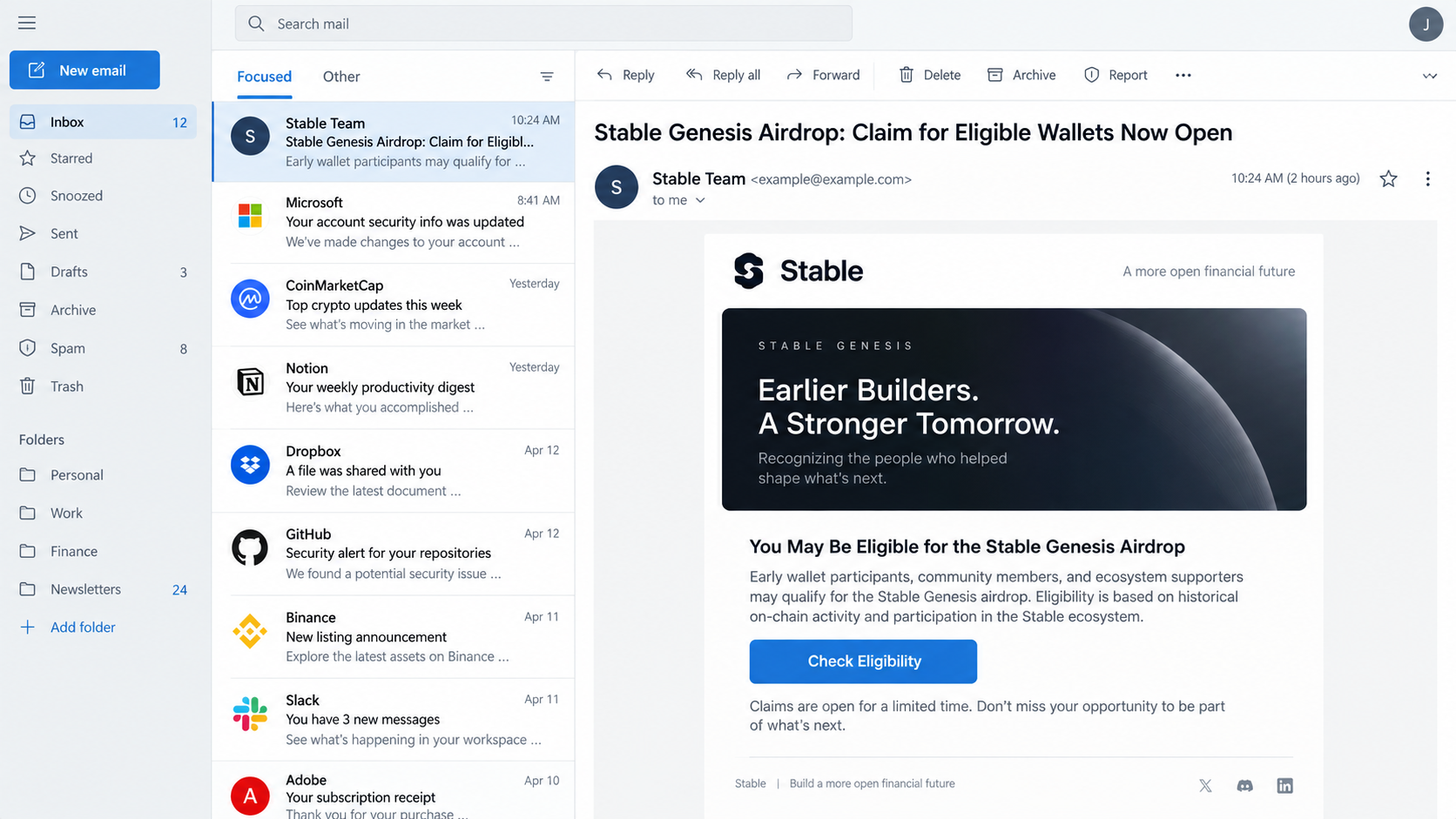
An investigated message used the subject “Stable Genesis Airdrop: Claim for Eligible Wallets Now Open.” It claimed to come from the Stable team.
The message said early users, asset holders, and community participants might qualify for STABLE tokens. It urged them to visit a claim page.
This is more subtle than inventing a nonexistent cryptocurrency from nothing. Stable is a real project, and legitimate distribution information has existed.
The scam is the unauthorized message and its destination, not a judgment that every Stable token claim or the project itself is fraudulent.
Because legitimate claims can require a wallet connection, the sender borrowed that normal action and wrapped a malicious page around it.
The destination asks for a recovery phrase
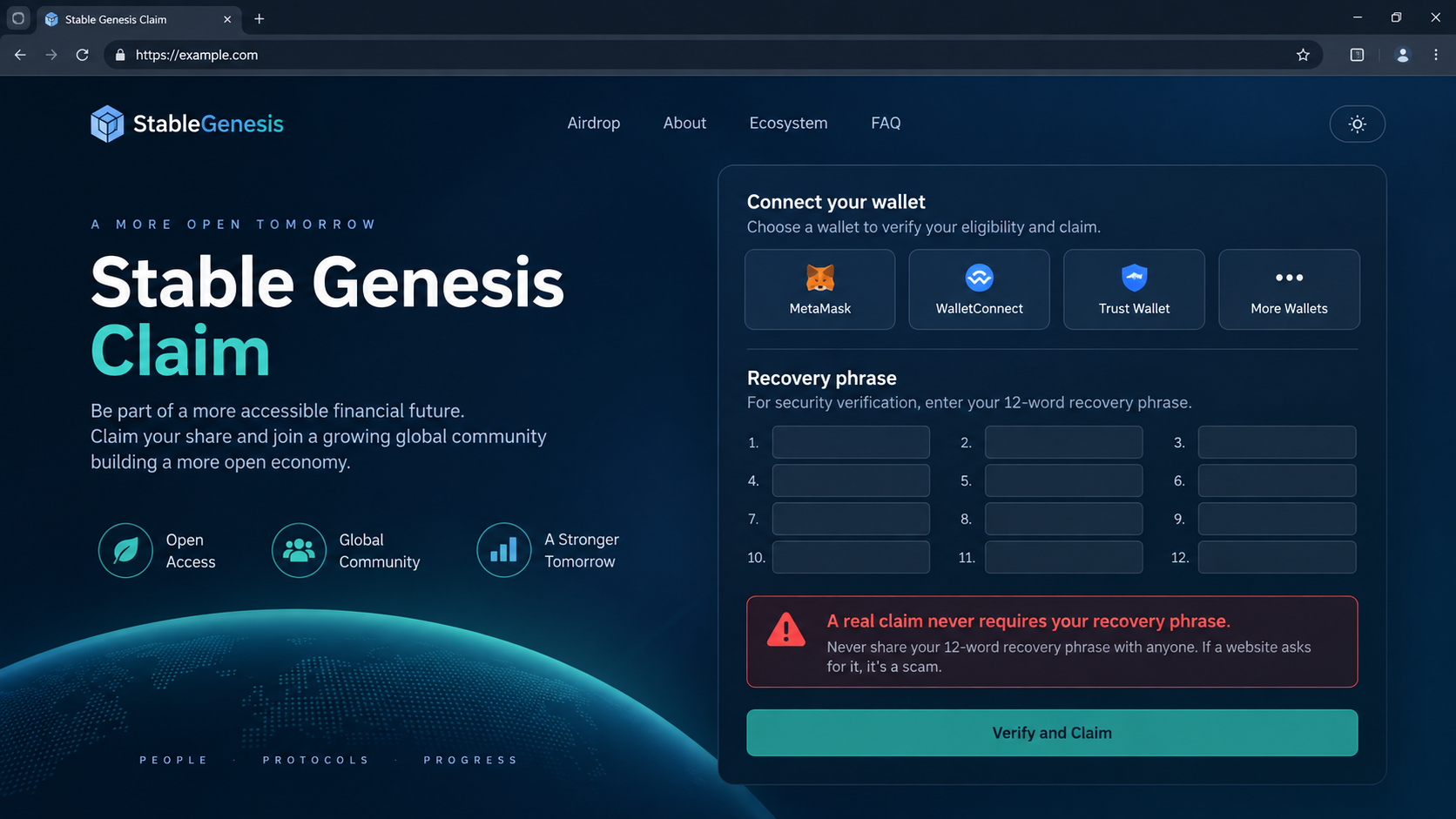
The examined email led to a counterfeit claim website. It invited the visitor to connect a wallet and then requested its secret recovery words.
Those words are not an eligibility detail. They are the backup that can recreate the wallet and grant control of assets held through it.
One remarkable contradiction sits in the message itself: it says the project will never ask for a recovery phrase, while the linked page eventually does.
That contradiction is the shortest way to understand the trap. The email uses correct safety language to earn trust, then its own link breaks that rule.
What can be verified without touching the email link
A legitimate claim should be discoverable from the project’s known official channels, with the exact destination and eligibility rules visible there.
Independent listings describe a real Stable Genesis distribution tied to earlier pre-deposit participation. That does not validate a separate unsolicited email.
Before connecting any wallet, make these checks outside the message:
- Open the project site from a saved bookmark or a verified profile you already trust.
- Find the claim announcement there, including the exact linked domain.
- Compare your actual past participation with the published eligibility criteria.
- Read the wallet request carefully before signing or approving anything.
- Leave immediately if the site asks for recovery words or a private key.
The campaign’s documented destination used a claim-themed domain unrelated to the project’s primary site. A name resembling the project is not ownership evidence.
The Detail That Makes This Airdrop Lure Work
Crypto users often receive legitimate announcements through email, social feeds, and community servers. They are accustomed to checking eligibility through a wallet address.
A distribution can also have a window and a snapshot. The message borrowed both ideas to make delay feel costly.
The body listed several ways a recipient might have qualified, from early activity to asset holdings. Broad criteria let many readers imagine a match.
It also said the allocation would appear only after a wallet was connected. That postpones the moment when the claim can be disproved.
A user who does not remember every protocol interaction may decide to check just in case. The page then controls the explanation for whatever appears.
Even the line saying private keys are never needed serves a purpose. It anticipates a common objection and makes the invitation sound security-aware.
The linked page’s later recovery-phrase request exposes that reassurance as part of the deception. A warning is worthless when the same sender’s journey contradicts it.
The opening illustration is a brand-aware reconstruction of the email format, not a capture of a victim’s mailbox. No live attack link appears in it.
The next illustration shows the critical request using empty fields and a reserved example domain. It cannot receive a real wallet phrase.
How the Stable Genesis Airdrop Email Scam Works
Step 1: The attacker copies a plausible project announcement
The scam begins with the existence of a real topic: a Stable token distribution and the expectation that some early participants may qualify.
The criminal does not have to know whether the recipient owns STABLE or joined a pre-deposit program. A large mailing list can reach enough interested people.
Project names, token symbols, and familiar DeFi terms provide convincing surface detail. None of them proves the sender can see a recipient’s wallet history.
The subject line targets the fear of missing an allocation rather than the fear of an account breach. That changes the reader’s emotional starting point.
A recipient who has participated before may feel that ignoring the email means abandoning a reward already earned.
Step 2: Eligibility language sends the reader to a chosen site
The email lists possible qualifying behavior such as early use, community activity, or holdings at a snapshot date.
Those categories sound technical and fair, but the message provides no individualized proof of the recipient’s eligibility.
Instead, it tells the user to open a claim page selected by the email sender. The sender thus controls both the promise and the route used to test it.
One examined destination used an airdrop-themed domain under a claims-style address, not a primary project domain.
The exact address can change or disappear. The mismatch between an unsolicited message and an independently confirmed official claim route matters more than one hostname.
Step 3: The page encourages wallet interaction
Once opened, the imitation site offers a claim workflow and asks the visitor to connect a cryptocurrency wallet.
Connecting a wallet is not automatically a loss event. Many genuine decentralized applications use connections to display balances or check eligibility.
That ordinary behavior makes it an effective doorway. The visitor may mentally categorize the first prompt as normal and continue through the next screen.
Wallet pop-ups can present signatures, approvals, chain changes, or transaction requests. Each one has a different effect and must be read independently.
Do not approve a transaction merely because the page calls it an eligibility check. The wallet’s own transaction details deserve a careful review.
Step 4: The false claim turns into a backup request
The reviewed site ultimately requested the visitor’s secret recovery phrase. That is not a normal part of a token allocation check.
The phrase can derive the private keys for accounts created from that seed. An attacker who receives it may import the wallet elsewhere.
No administrator needs those words to calculate whether an address participated in a snapshot. Public blockchain history can be checked without taking ownership of the wallet.
The email’s own assurance that private keys are unnecessary makes the request more revealing, not less. Its website has abandoned the rule the message advertised.
A cautious reader should stop at this point, even if the page has polished logos, HTTPS, a countdown, or an accurate token description.
Step 5: Exposure can lead to an irreversible transfer
After the phrase is submitted, the operator can reconstruct the wallet and attempt to transfer assets to addresses under their control.
That can happen quickly or after a delay. An unchanged balance immediately after submission is not a clean bill of health.
The public case establishes the phishing request, not a verified total of successful thefts. Do not infer a specific loss amount from the page alone.
If an approval was also granted, it can create a separate problem. Revoking that approval does not make the disclosed phrase private again.
The right response depends on what was done: viewed the page, connected a wallet, signed a transaction, or typed the recovery phrase.
Legitimate Claim Versus Fake Claim
There is a real difference between using a wallet to check a genuine allocation and typing its backup into a website.
A legitimate portal can examine a public address and historical participation. It may request a normal connection or a claim transaction that the wallet displays.
It should not request seed words through a browser form. Those words are not required to prove ownership of a public address to a legitimate claim interface.
Real airdrop availability can change. An older article, social post, or search snippet may remain visible after the official claim terms change.
That is why the safest starting point is the project’s current official announcement, not a result that merely contains the right token name.
Third-party airdrop directories can be useful for discovery, but they are not the final authority for the exact link or an unexpected wallet prompt.
Be particularly careful with a “verification” page that introduces new requirements after you connect, especially a request for a backup phrase or an unreviewed approval.
Sender, Claim Page, Wallet, and Transaction Checks
Verify the sender beyond the display name
“Stable Team” can be typed into an email display-name field by anyone. Inspect the underlying sending domain and compare it with established project communications.
A plausible address is still not conclusive if a mailbox or mailing platform has been compromised. Use the independent official channel as the final check.
Do not reply with wallet details or screenshots of recovery words to ask whether the message is authentic.
Locate the real claim from official navigation
Start from the project’s known website or its verified social account, then follow its current claim instructions. Do not let an unsolicited email choose the portal.
Compare the full registered domain, not only the first word. A fraudster can place “stable” before an unrelated domain and make it look project-specific.
Look for eligibility requirements that match your documented participation. A page that promises everyone a reward without any real check deserves suspicion.
Read every wallet prompt before accepting
Connection, message signature, token allowance, chain change, and transfer are different actions. A page may describe one while the wallet displays another.
Reject requests you cannot explain. Use a separate low-value wallet for exploring unfamiliar applications, never a treasury wallet full of assets.
Do not use a seed phrase as a troubleshooting credential when a connection fails. A genuine support team cannot need that secret to fix a browser flow.
Check for unauthorized activity across every chain
A seed may secure more than one network and account. Inspect the full set, not only the token named in the email.
Record transaction hashes, destinations, dates, and any suspicious approvals. These facts help exchanges or investigators without exposing the secret again.
Consider an unexpected approval dangerous even when no transfer has occurred. The permission may let a contract move certain tokens later.
What to Do if You Followed the Fake Stable Claim
- If you only opened the page, leave it. Close the tab and do not return through the email. Check for downloads or browser permission requests before clearing the message.
- If you connected a wallet, inspect what you approved. Review recent signatures, token allowances, and transactions in the wallet or a trusted block explorer.
- If you signed a suspicious approval, revoke it. Use a verified allowance manager and consider moving valuable tokens to a fresh wallet. An approval can remain active after the page closes.
- If you typed recovery words, create a new seed. Treat the old wallet as compromised. Move remaining assets to addresses generated from the new phrase on a trusted device.
- Check all derived accounts and chains. A single seed may control several addresses and assets. Do not secure only the STABLE-related account.
- Secure connected services. Change any email, exchange, or cloud password entered during the flow. Revoke unknown sessions and enable stronger authentication.
- Scan when software was involved. Run Malwarebytes if a file or extension was installed. AdGuard can help block malicious links later, but cannot undo a shared recovery phrase.
- Save evidence without publishing secrets. Keep the email, headers, site address, wallet prompts, and transaction hashes. Never send seed words to a reporter, exchange, or recovery agent.
- Report the impersonation. Notify the real project through its verified channel, your wallet provider, hosting services, and the appropriate cybercrime agency if assets moved.
- Beware of a second scam. Anyone promising guaranteed asset recovery for an upfront fee or another wallet connection may be targeting the same loss again.
Is Your Device Infected? Run a Free Malware Scan
Slow performance, constant pop-ups, or strange behavior? These are classic signs of a malware infection. The fastest way to find out is to scan your device with Malwarebytes Free — one of the most trusted malware removal tools available.
The free version detects and removes the most common threats, including:
- Adware — the cause of those annoying pop-ups
- Browser hijackers — unwanted redirects and changed homepages
- Trojans and spyware — hidden programs stealing your data
- Potentially unwanted programs (PUPs) — software you never asked for
👉 Select your device below — Windows, Mac, or Android — then follow the simple steps to download Malwarebytes, scan your system, and remove any threats it finds. The scan usually takes 5 to 20 minutes.
Run a Malware Scan with Malwarebytes for Windows
Malwarebytes is one of the most popular and trusted anti-malware tools for Windows — and it’s completely free for removing infections. It catches threats that many antivirus programs miss, including adware, browser hijackers, and trojans. Follow the steps below to scan and clean your PC in just a few minutes.
Download Malwarebytes
Click the button below to download the latest version of Malwarebytes for Windows from the official source. The free version is all you need — it will scan your computer and remove adware, browser hijackers, and other malicious software at no cost.
Download MalwarebytesOfficial installer for Windows 11 and 10. Your download starts right away.Want real-time protection? See Malwarebytes Premium Malwarebytes Free for WindowsScans and removes malware at no cost
-
Install Malwarebytes
When the download finishes, open your Downloads folder and double-click the MBSetup file. If Windows shows a User Account Control pop-up, click “Yes” to allow the installation.

Follow the On-Screen Prompts to Install Malwarebytes
The setup wizard will walk you through a few quick screens:
-
Choose where you’re installing the program — “Personal Computer” or “Work Computer” — then click Next.

-
Malwarebytes will now install on your device. This usually takes under a minute.

-
When installation is complete, the “Welcome to Malwarebytes” screen will open automatically.

-
On the final screen, click Open Malwarebytes to launch the program.

-
Enable “Scan for Rootkits”
Before scanning, turn on rootkit detection so Malwarebytes can find even the most hidden threats. Click the Settings gear icon on the left side of the screen.

In the settings menu, find “Scan for rootkits” and click the toggle so it turns blue.

Done? Click “Dashboard” in the left pane to return to the main screen.
Start the Scan
Click the blue Scan button. Malwarebytes will automatically update its virus database and start checking your computer for malware.

-
Wait for the Scan to Finish
The scan checks your entire system for browser hijackers and other malicious programs, so it can take 5 to 20 minutes depending on your computer. Feel free to do something else — just check back occasionally to see the progress.

-
Quarantine the Detected Threats
When the scan is done, you’ll see a list of everything Malwarebytes found — malware, adware, and potentially unwanted programs. Click the “Quarantine” button to remove all of them at once.

Malwarebytes will now remove the malicious files and registry entries and move them safely into quarantine.

-
Restart Your Computer
Some threats can only be fully removed after a reboot. If Malwarebytes asks you to restart, click Yes. Once you’re logged back in, Malwarebytes has finished removing the threats it found.

That’s it — your Windows PC is now clean of trojans, adware, and other malware, and should be back to running smoothly.
If you are still having problems with your computer after completing these instructions, then please follow one of the steps:
- Run a computer scan with ESET Online Scanner
- Ask for help in our Windows Malware Removal Help & Support forum.
Run a Malware Scan with Malwarebytes for Mac
Malwarebytes for Mac is a free on-demand scanner that removes the malware other security software tends to miss — adware, browser hijackers, and unwanted programs included. Cleaning an infected Mac with Malwarebytes has always been completely free, and it’s our go-to recommendation. Follow the steps below to scan and clean your Mac in just a few minutes.
-
Download Malwarebytes for Mac
Click the button below to download the latest version of Malwarebytes for Mac.
Download MalwarebytesOfficial installer for macOS. Your download starts right away.Want real-time protection? See Malwarebytes PremiumMalwarebytes Free for MacScans and removes malware at no cost -
Open the Malwarebytes setup file
When the download finishes, open your Downloads folder and double-click the setup file to begin the installation.

-
Follow the On-Screen Prompts to Install Malwarebytes
The Malwarebytes for Mac Installer will guide you through a few quick screens. Click “Continue” and keep following the prompts until the installation completes.



When the installation is complete, Malwarebytes opens to the Welcome to Malwarebytes screen. Click “Get started“.
-
Select “Personal Computer” or “Work Computer”
Malwarebytes will ask what type of computer you’re installing it on. Click either Personal Computer or Work Computer, whichever applies.

-
Start the Scan
Click the “Scan” button. Malwarebytes will automatically update its detection database and begin checking your Mac for malware.

-
Wait for the Scan to Finish
Malwarebytes will scan your Mac for adware, browser hijackers, and other malicious programs. This can take a few minutes, so feel free to do something else — just check back occasionally to see the progress.

-
Quarantine the Detected Threats
When the scan is done, you’ll see a list of everything Malwarebytes found. Click the “Quarantine” button to remove all the threats at once.

-
Restart Your Mac
Malwarebytes will now remove all the malicious files it found. Some threats can only be fully removed after a reboot — if Malwarebytes asks you to restart, allow it. Once you’re logged back in, your Mac is clean.

That’s it — your Mac is now free of adware, rogue browser extensions, and other potentially harmful software.
If you are still experiencing problems while trying to remove a malicious program from your computer, please ask for help in our Mac Malware Removal Help & Support forum.
Run a Malware Scan with Malwarebytes for Android
Malwarebytes for Android automatically detects and removes dangerous threats like malware and ransomware so you don’t have to worry about your most-used device being compromised. Aggressive detection of adware and potentially unwanted programs keeps your Android phone or tablet running smooth.
-
Download Malwarebytes for Android.
You can download Malwarebytes for Android by clicking the link below.
Get Malwarebytes for AndroidOpens Google Play in a new tab.Want real-time protection? See Malwarebytes Premium for AndroidMalwarebytes for AndroidScans your phone and removes malware at no cost -
Install Malwarebytes for Android on your phone.
In the Google Play Store, tap “Install” to install Malwarebytes for Android on your device.

When the installation process has finished, tap “Open” to begin using Malwarebytes for Android. You can also open Malwarebytes by tapping on its icon in your phone menu or home screen.

-
Follow the on-screen prompts to complete the setup process
When Malwarebytes will open, you will see the Malwarebytes Setup Wizard which will guide you through a series of permissions and other setup options.
This is the first of two screens that explain the difference between the Premium and Free versions. Swipe this screen to continue.
Tap on “Got it” to proceed to the next step.
Malwarebytes for Android will now ask for a set of permissions that are required to scan your device and protect it from malware. Tap on “Give permission” to continue.
Tap on “Allow” to permit Malwarebytes to access the files on your phone.
-
Update database and run a scan with Malwarebytes for Android
You will now be prompted to update the Malwarebytes database and run a full system scan.

Click on “Update database” to update the Malwarebytes for Android definitions to the latest version, then click on “Run full scan” to perform a system scan.

-
Wait for the Malwarebytes scan to complete.
Malwarebytes will now start scanning your phone for adware and other malicious apps. This process can take a few minutes, so we suggest you do something else and periodically check on the status of the scan to see when it is finished.

-
Click on “Remove Selected”.
When the scan has been completed, you will be presented with a screen showing the malware infections that Malwarebytes for Android has detected. To remove the malicious apps that Malwarebytes has found, tap on the “Remove Selected” button.

-
Restart your phone.
Malwarebytes for Android will now remove all the malicious apps that it has found. To complete the malware removal process, Malwarebytes may ask you to restart your device.
That’s it — your Android phone is now clean — no more malicious apps, adware, or browser redirects.
If you are still having problems with your phone after completing these instructions, then please follow one of the steps:
- Restore your phone to factory settings by going to Settings > General management > Reset > Factory data reset.
- Ask for help in our Mobile Malware Removal Help & Support forum.
Stay Protected: Block Ads and Malicious Sites
Now that your device is clean, keep it that way. Most infections start with a malicious ad or a fake download button — so blocking them at the source is your best defense.
We recommend AdGuard, which blocks malicious ads, phishing pages, and dangerous redirects before they can reach you.
👉 Download AdGuard and browse safely
Frequently Asked Questions
Is the real Stable project a scam?
No such conclusion follows from this case. The investigated email and claim site impersonated a real project and tried to obtain wallet secrets.
Was there a genuine Stable Genesis distribution?
Public project and airdrop information describes a real distribution for certain prior participants. Eligibility and current claim routes must be verified through official channels.
Why does the email say it never asks for a recovery phrase?
That safety sentence makes the message sound credible. Its linked page later contradicts it, which is a strong sign the journey is attacker-controlled.
Does connecting a wallet always mean it was drained?
No. A connection alone is different from signing an approval, transferring funds, or exposing a seed. Review the exact actions completed.
What if I entered my phrase but nothing is missing?
Move remaining assets to a new seed anyway. The phrase cannot be made secret again, and theft may happen after the initial visit.
Can a blockchain transaction be reversed after theft?
Confirmed transfers are generally irreversible. Report quickly to exchanges and authorities, but reject anyone who guarantees recovery in exchange for a fee.
The Bottom Line
The fake Stable Genesis airdrop email turns a plausible allocation notice into a page that requests wallet recovery words. The real project is not the operator.
Find claims through verified channels and read every wallet action. If you exposed a seed, abandon it and move your assets to a new one.

Join the discussion
0 commentsShare your experience or ask a question about this article.
Discussion
Start the conversation
Have a question or something useful to share? Add the first comment.