


Most people don’t get nervous when an app reminds them about a feature they haven’t used. A Dropbox email about easier syncing can look like ordinary account advice.
This one describes a service you may recognize. Before you follow it, pay attention to which account it eventually asks you to use.
Overview
A routine Dropbox reminder hides an unrelated destination
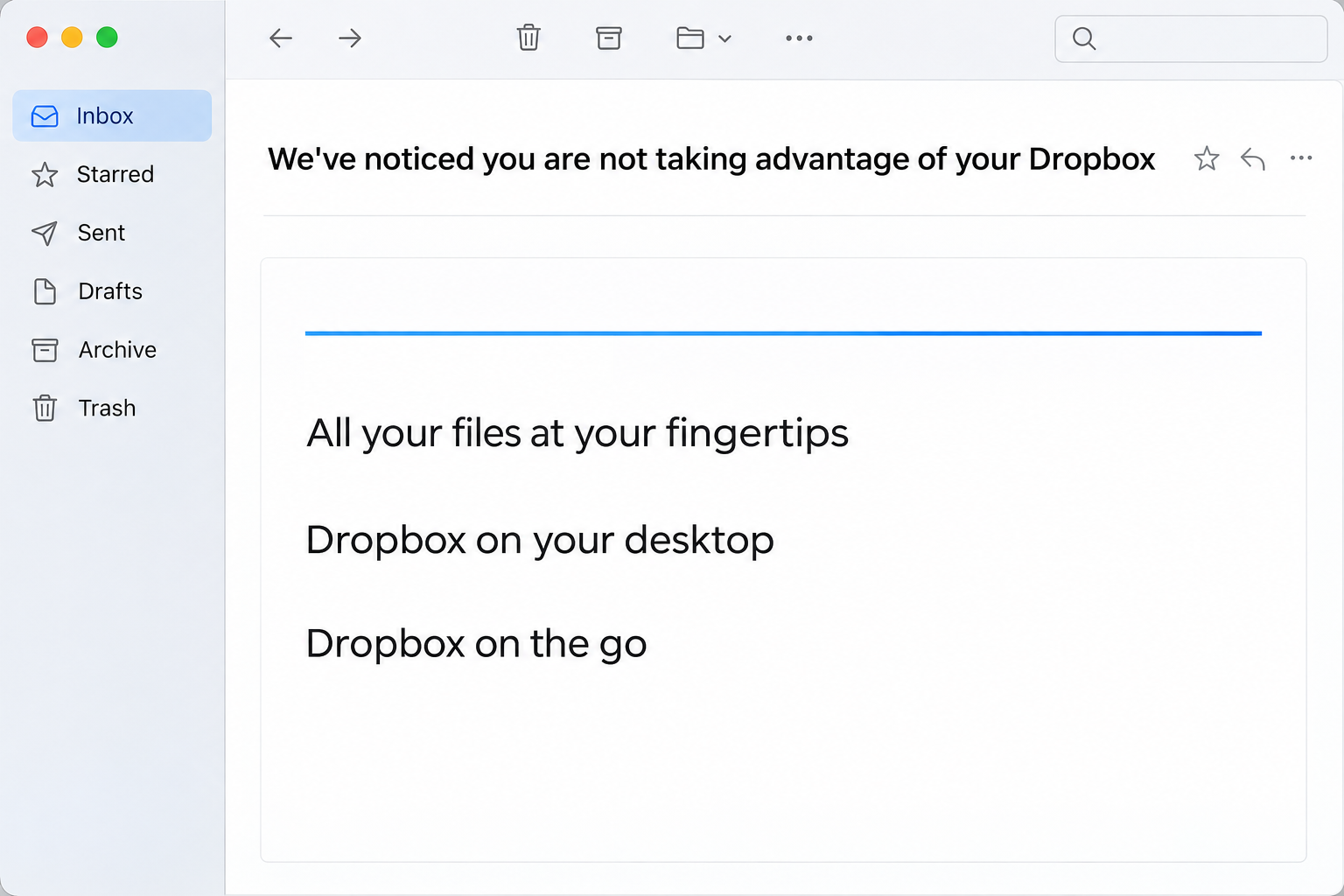
The Dropbox service usage reminder scam sends an email saying you aren’t taking full advantage of your Dropbox account. It talks about desktop files, mobile access, and syncing.
None of those topics sounds particularly urgent. That makes the message different from phishing that threatens to delete files or stop a paid subscription unless you act immediately.
The reported email offered two ways to visit the account. Both links went to the same phishing destination, not to an authenticated Dropbox account page.
In the documented version, the page imitated a Gmail sign-in. The jump from an unsolicited Dropbox reminder to a mailbox password request is the central warning sign.
How to recognize this particular email
If you’re deciding whether a note in your inbox matches the case, look at the subject and what the message says you can do next.
- The subject says you’re not taking advantage of Dropbox.
- The body promotes desktop syncing and access from a mobile device.
- “View your account” and “Visit your Dropbox” appear as separate choices.
- The email imitates an ordinary promotional footer, including an unsubscribe option.
- The alternate page asks for an email login rather than showing your files or settings.
Dropbox does offer real sync and mobile features. Accurate descriptions of those features don’t verify the email that repeats them.
The phishing page was not a Dropbox sign-in
The page in the recorded example mimicked Gmail. Reports describe a page designed to vary by email provider, but the article does not assume every possible theme was observed.
That distinction matters if you used the form. Start with the email account whose password you provided, not just the Dropbox account named in the opening message.
Dropbox and Google are legitimate services. Neither gains control of an unrelated page simply because that page borrows a familiar logo, color scheme, or sign-in screen.
The documented attack asked for account credentials. It does not establish that the email itself infected devices, copied anyone’s files, or was connected to an official Dropbox promotion.
How the Dropbox Service Usage Reminder Scam Works
Step 1: The notice fits in with ordinary product email
The message sounds like an account engagement reminder, not like a bill. Someone who signed up for Dropbox years ago might remember getting similar tips.
A fake alert often gives itself away with an immediate deadline. This email can work without one because its offer feels optional and useful.
Look for those same features in the app if they interest you. Doing so is quicker than trying to prove that an unexpected promotional email is genuine.
Even if you don’t use the account anymore, it is safe to skip this particular notice. Ignoring it does not turn off syncing on a device.
Step 2: Familiar product features make the invitation feel useful
The email describes getting to files while away from a computer and keeping copies synchronized. Those benefits give the reader a reason to open the account even without a problem.
An email can accurately describe products the sender doesn’t operate. Copying a list of features doesn’t give the sender a right to see your credentials.
The footer adds the appearance of an ordinary mailing. An unsubscribe label or printed company address can be copied just as easily as a paragraph about mobile access.
If you want to change marketing preferences, go to the known account or help center. Don’t use the link in this message to make the change.
Step 3: Separate calls to action lead to the same place
One link invites you to view the account, while another suggests visiting Dropbox. The alternatives can make the message look like a typical software campaign.
In the sample, both routes led off the expected service. Neither was necessary to check a sync setting, get the app, or look at the account.
Don’t assume the lower link is safer because it sounds more direct. The wording beside a link doesn’t establish who owns the page you will see.
You can compare a suspicious hostname with Dropbox’s list of official domains, but don’t visit the page to find out whether it looks genuine.
Read the actual address rather than the display name. A company name in a page title or somewhere in a longer address is not verification.
If you’re in a mail app that doesn’t show the full link safely, skip that inspection. You can find the feature directly without checking the sender’s destination at all.
Step 4: The promised account page turns into an email sign-in
The observed page copied a Gmail sign-in. Someone expecting a Dropbox page might interpret this as a normal identity check and type the password in without stopping.
Using a legitimate identity provider when you intentionally start from an app can be normal. A page that only looks like that provider is different.
Leave the page if the sequence doesn’t make sense. Start again inside Dropbox rather than trying to complete the sign-in with a different address.
If you used your mailbox password there, don’t focus solely on Dropbox. Whoever received it may try to access other services through that mailbox.
Which Account Should You Check First?
If the fake form asked for your email password and you entered it, deal with that inbox first. Access to reset messages can matter more than the original file service.
If you reused a password for Dropbox, protect it separately. Password changes and session controls for one service don’t necessarily secure the other one.
Open Dropbox from its regular application or an established bookmark. Check recent account activity and devices, and review important shared links if you think anyone got in.
A missing file is not always evidence of an attack. Sync delays, deletion, and changes made by a collaborator have different explanations that you can check in your real account.
On a work team, let the people responsible for shared files know what was exposed. They can review access and decide whether any shared links should be changed.
Consult Dropbox’s guidance on phishing and suspicious messages when reporting the email. Keep credentials and confidential files out of the report.
Verify a sync problem without changing the account
If a file looks stale, start by checking the name, folder, and last modified time on the device that edited it. Don’t use a notice to reconnect syncing.
Sign in the regular way and confirm whether the item appears in the account. That can help distinguish a local computer problem from a change to a shared file.
If you have a personal and a work Dropbox, check which account is attached to each device. A file missing from the other account doesn’t necessarily signal a problem.
Check access without disrupting a shared folder
Before disabling a link, find out whether a colleague or customer still relies on it. Your admin can help separate intended access from a change nobody requested.
Where several people use the same folder, ask who made a recent change using a trusted channel. Compare their answer with the available activity or version information.
Handle shared accounts with extra care. Tell the people who manage the workspace if anyone used the mailbox password on the fake page, even if Dropbox appears normal.
Don’t send a sample file to a person who says they’re verifying your storage. The actual support channel can advise on diagnosing most sync issues without that step.
If someone asks you to re-share a file after an incident, check both the recipient and the original request. Give access only when you know who needs it.
When the issue is just an unwanted promotional message, you can report it and move on. There is no need to unlink all your devices as a precaution.
Keeping a separate backup can help if an actual file change is discovered later. The backup doesn’t replace recovering the login or checking who has access now.
What to Do if You Have Fallen Victim to This Scam
-
If you only received it, report the email and skip the invitation.
Choose your mail app’s phishing control when available. If you are genuinely interested in a syncing feature, find it inside your existing Dropbox account instead.
Don’t send the message to other people as an example with its buttons intact. Share the subject and a brief description through a safe channel.
-
If you followed a link, close the page and note what it requested.
Write down whether it showed a mailbox sign-in or asked for a password or a verification prompt. Don’t reopen the page to fill in gaps.
If you gave only an email address, watch for more targeted contact. An address alone is different from a working password or approved sign-in.
-
If you entered a mailbox password, recover that account from its real provider.
Use your known app or a trusted device, change the password, and follow the provider’s process for checking sessions and account recovery information.
If you can’t sign in or suspect another person is connected, reach the provider through its recovery process. For a managed account, tell your support team immediately.
-
Look for changes you didn’t make in email and Dropbox.
Check for unfamiliar forwarding and new rules in email, and review devices, activity and shared access in Dropbox if the account might be affected.
If you discover an unexpected file share, record what you saw before making changes on a work account. An admin can help review who had access.
-
Replace shared passwords and check other accounts that depend on that inbox.
Prioritize services that receive reset messages there. Give each a unique password and review their recovery or sign-in methods if you have reason to suspect access.
If you approved a prompt or read out a one-time code, explain that when reporting the exposure. A password change may not end an existing session.
-
Tell the people who rely on the affected account.
If someone sent messages or file links from your account, warn collaborators through another route. Let them know where to verify the next legitimate share.
If files were modified or deleted, review available version or recovery options through Dropbox support. Don’t send payment to someone who promises to restore access.
If you clicked but didn’t provide data or download anything, don’t interpret the unfamiliar sign-in as proof of infection. Concentrate first on the actions and exposures you can identify.
Frequently Asked Questions
Is the Dropbox service usage reminder email a real syncing notice?
It borrows real product features, but the documented copy led to a fake email login. You don’t need the reminder to check your syncing preferences.
Open Dropbox independently to see which devices are connected and what those devices are syncing. Use the app’s own settings when you want to change something.
Why would a Dropbox email open a page that looks like Gmail?
That appearance can make a request for mailbox credentials seem routine. In this specimen the destination was not a genuine Google or Dropbox sign-in.
A recognized logo is not enough to trust the request. Stop and restart from the provider you intended to visit if something changes unexpectedly.
Is the unsubscribe control in the reminder safe to use?
Don’t use controls from this suspicious message. A familiar footer is a presentation choice, not evidence that the email actually came from the company.
If you want to change legitimate Dropbox emails, find your settings through the site or app you know. Treat the suspicious copy as phishing separately.
Can the sender see my Dropbox files because I opened the email?
Reading the email doesn’t itself grant access to your files. What you do after opening the message determines whether you may have exposed an account.
If you typed a working password or approved access, recover the affected account and check file shares. Don’t infer exposure simply from an ordinary sync error.
Should I change only my Dropbox password after using the fake form?
Start with the service whose credentials you provided. In the reported Gmail-style flow that means your email account, even though the email used Dropbox branding.
If you used the same password on Dropbox or another platform, change it there too. Check current sessions instead of relying solely on the new password.
What if I never had a Dropbox account?
An unsolicited product message can reach people who don’t use the service. There is nothing you need to activate or confirm just because the message arrived.
Report it as phishing and ignore any follow-up. If you entered credentials for an account you do use, secure that account directly.
The Bottom Line
Skip the Dropbox reminder and check sync or marketing settings from your own account when you actually need them. The email’s two buttons lead away from that trusted route.
If you already entered a password, secure the mailbox first. Then review any Dropbox account or other service that shares that password or depends on that inbox.

Join the discussion
0 commentsShare your experience or ask a question about this article.
Community experiences
Did this happen to you?
Your experience could help someone recognize the same scam. Submit a private report for our team to review.
I experienced this tooReports are reviewed before publication. Sharing publicly is always your choice.
Discussion
Start the conversation
Have a question or something useful to share? Add the first comment.