


An email says someone updated the details on your Microsoft account. It includes a reference and asks you to review a change you may never have made.
The notice looks orderly enough to belong in a service inbox. Before you open its account review link, there are two places worth checking.
Overview
Two versions made the same security claim
One recipient reported three unexpected messages in about a week. They said they checked their Microsoft account independently, found no unfamiliar access and left the email link alone.
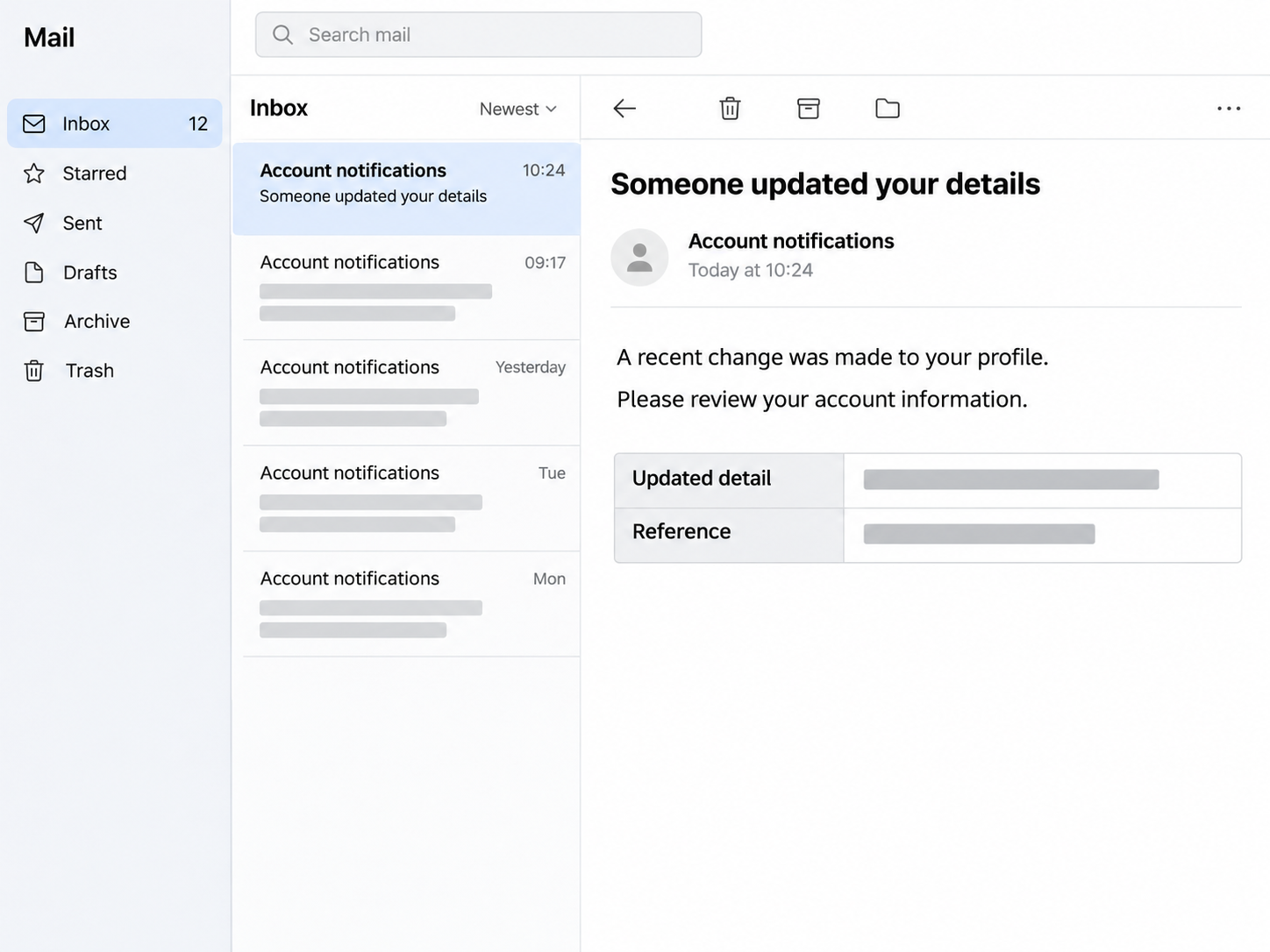
A screenshot of one message showed the display name MSN-Update-Information and a subject about someone updating the recipient’s details. The body supplied a reference and offered to review the change.
A separate Canadian recipient described an MSN phone-number warning with a more specific claim. That email said a new number had been added and the account was under review.
The image above reconstructs the account-change format with the details masked. It captures the layout without reproducing the link or identifying the account.
An address in the message is only useful when you know its field
In the first screenshot, billing-microsoft[.]com appeared beside the visible To label. That field identifies a displayed recipient and cannot tell you who actually sent the email.
In the second case, the recipient identified the sender as an address at doctorinter[.]net.
The notice presented itself as a Microsoft account message despite the unrelated sender the recipient supplied.
The review links’ destinations are unknown. There is also no evidence tying the two messages to the same sender.
The claim can be checked without the message
Open your Microsoft account from a trusted route and review recent activity and current security information. The fake notice is trying to make its link the path to both.
- Look at your real account activity for a sign-in or change you do not recognize.
- Check whether your recovery numbers and email addresses still belong to you.
- Separate the message’s From and To fields before judging where it came from.
- Use your mail app’s phishing report option after preserving anything you need for support.
Even a convincing message can give you a false picture of your account. The account itself is where you can confirm the status and fix a real change.
What Microsoft Says About Its Account Notices
Microsoft’s account team guidance identifies accountprotection.microsoft.com as the domain it uses for account-team mail such as security codes and account updates.
A familiar display name does not show that address. Mail apps may highlight the sender name and hide most of the delivery details until you expand the header.
Expand the recipient and sender information separately.
The fact that an address looks unusual is more useful if you can tell whether it belongs to the sender, recipient or reply field.
This is especially important with the screenshot showing a billing-style address next to To.
It would be a mistake to treat the screenshot as proof that the domain sent the warning.
The Canadian phone-number report provides a stronger sender clue. The user gave an unrelated From domain and described a message that explicitly claimed to be about an MSN account.
The evidence supports a warning about the impersonation. It offers no basis to name the person controlling the sender or state that both messages came from one operation.
A reference number is easy to display in an email. Compare what the message says actually changed with the values you can see in your account.
How the Fake Microsoft Account Update Email Scam Works
Step 1: The subject describes an account change you never requested
The message arrives looking like it concerns an account you know. A vague subject about updated details gives readers room to imagine the worst before they read the body.
The phone-number version is more specific.
It tells the reader the new number has already been added, which makes checking it feel like a task they are already late to do.
Step 2: The email gives the change a label and a reference
A reference makes the message look as if it came from a support system.
In the screenshot, the field for the changed detail and the reference were placed side by side.
The visual design gives the impression that an account event exists somewhere. You can test that impression by looking at the account independently for the stated event.
Step 3: A review link offers a quick way to intervene
Both versions direct the recipient toward reviewing the purported change. The first recipient kept the link unopened, so the available report cannot show what the page would have displayed.
A fake sign-in request is a known risk with account impersonation. If you arrive at one while following a suspicious email, close it and open Microsoft separately.
An account alert can create the urge to fix things immediately. Keeping the inbox and your actual account in separate tabs makes that distinction practical.
Step 4: The effect depends on what the recipient submits
Someone who merely reads the message remains in control of what happens next.
Entering a password, submitting a code or approving a sign-in gives the recipient a more urgent recovery task.
The two reports do not supply a completed login or a confirmed loss of access.
The documented lure is the claim that an account change must be disputed through the email.
A successful Microsoft account takeover could expose mail or settings connected to other services. Look first for changes in security information and unfamiliar access if you already responded.
Where to Look When the Email Says Something Changed
Look for the specific event Microsoft records
Microsoft’s Recent activity documentation shows what kinds of events appear and explains how to flag an activity entry that looks suspicious.
Choose an independent route into the account security area. Check the relevant time range and focus on the claimed phone change or any access you did not expect.
A rough location can sometimes reflect how your connection is routed. Check the time, device and type of event as well before deciding whether it was yours.
An unsuccessful sign-in attempt has a different meaning from a successful login you cannot explain. Use Microsoft’s security prompts inside the account if you find the latter.
Check the recovery details themselves
A notice about a new phone number gives you something concrete to inspect. Review the numbers and email addresses listed for sign-in and recovery using settings you opened independently.
If a real contact change shows up, use Microsoft’s own steps to secure the account. Keep access to a recovery method you control while fixing unfamiliar entries.
You can also look for other changes that an impersonation email would not mention. If someone accessed your Outlook mailbox, an unexpected forwarding address or rule may need attention.
Inspect your sent messages for replies or notices you never wrote. That can help you decide which contacts need a warning about requests that appeared to come from you.
Keep work and personal accounts on separate recovery paths
If the account is issued by an employer or school, use that organization’s help channel.
A system administrator may be able to review events unavailable to the person who received the email.
Show the security team your original mail or use its built-in reporting channel. A crop showing just the button may hide sender details the security team needs.
Microsoft’s guidance on suspicious email in Outlook explains how to report the message in Outlook and where to get help if you suspect someone accessed the account.
When a Genuine Microsoft Notice Arrives Around the Same Time
It is possible to get a real sign-in or account email while a separate impersonator also contacts you. Treat each notice as a claim that you can verify independently.
Check which event the notice describes. An attempted sign-in and a successful change to your recovery information call for different checks.
A password you changed yourself can explain a legitimate notice. If the timing or action differs from your own, review the account before deciding that you caused it.
When you have multiple Microsoft addresses, check which one you are signed into before reviewing activity. A perfectly normal activity page is less useful if it belongs to another account.
Repeated messages can make a warning feel more credible. In the recent report, checking the real account directly gave the recipient better information than counting how many emails arrived.
If you plan to save a screenshot, keep the visible headings with their address labels. Cropping the header into a string of addresses alone makes it harder to interpret later.
If the mail app offers an original-message view, preserve it through your normal reporting route. The security team may be able to use details that never appeared in the screenshot.
Before you forward anything to friends, remove recovery phone numbers, references and personal addresses.
For a work account, follow your employer’s phishing reporting process instead of forwarding to a personal inbox.
If the notice uses an old service name you recognize
A label like MSN can catch your attention if you have used the same mailbox for years. An old brand name can still be typed into any display name.
Think about where you normally sign into that address. Use your known route rather than a page supplied by a reminder about the brand’s earlier name.
A notice may also arrive at a second address you use for recovery. Review the account named in the message, taking care to stay signed into the correct profile.
If your own settings show a number you no longer have, replace it through the real account. Check whether Microsoft identifies any pending change before starting another request.
A shared family computer can leave several browsers signed into different accounts. Read the email address shown in the account menu before assuming the activity list belongs to you.
If you tell someone else about the warning, describe the subject and the sender field you could actually see. There is no need to send them the suspicious link.
What to Do if You Have Fallen Victim to This Scam
-
Leave the review link alone and use a saved bookmark, trusted app or independent address to reach your Microsoft account.
-
Look for a successful sign-in, phone number or recovery email you cannot explain in Recent activity and your current security settings.
-
Change any password you entered on a suspicious page through Microsoft directly, then replace the same password on every other account that uses it.
-
Report work messages through your organization’s security channel, or use the mail app’s phishing report feature for a personal Outlook inbox.
-
Review mailbox rules, forwarding addresses and sent items if someone may have signed in or your contacts received messages you never sent.
-
If you cannot get in, use Microsoft’s recovery guide and have the dates and account changes ready to explain when the problem started.
If you gave the page a code or accepted a sign-in prompt, mention that when speaking to support. A code approval can affect which sessions need to be reviewed.
Microsoft’s guide for recovering a compromised account starts with its sign-in helper. Enter recovery information only through Microsoft or the organization responsible for your account.
If you only opened the email and never followed the link, there is less to address. Check the claimed change directly, report the message and leave the email link unopened.
If a page downloaded a file or asked for software, tell support what actually happened. An attachment or installed app presents a different problem from an inbox warning alone.
Frequently Asked Questions
Does this subject mean my Microsoft details really changed?
The subject is a claim that the sender made. Check your account’s security settings and activity directly to see whether a change actually occurred.
What does billing-microsoft.com show in the screenshot?
In the public image, it appears on the To line. That placement means the image alone does not establish that the domain sent the email.
Which address does Microsoft document for its account team?
Microsoft’s consumer support identifies accountprotection.microsoft.com for account-team notifications. Compare the complete sender domain and pull up the account separately if anything seems unusual.
What if someone really added a phone number?
Use the security area inside your account to review the change and follow the recovery instructions. For a work account, involve your organization’s help desk immediately.
Do I need to reset my password after just receiving the email?
An unsolicited message alone is not evidence of account access. Act promptly if you typed your password into its page, gave away a code or found an unauthorized login.
Can I report it without following the review link?
Use the phishing option in Outlook or your own mail provider. If the message went to a work inbox, send it through your organization’s approved reporting process.
The Bottom Line
Skip the email’s review link and check the Microsoft account directly. A subject about updated details and a formatted reference number cannot confirm which settings changed.
If you entered credentials or approved a sign-in, treat the account check as urgent. Use Microsoft’s recovery instructions and review the recovery details and recent activity from a trusted device.

Join the discussion
0 commentsShare your experience or ask a question about this article.
Community experiences
Did this happen to you?
Your experience could help someone recognize the same scam. Submit a private report for our team to review.
I experienced this tooReports are reviewed before publication. Sharing publicly is always your choice.
Discussion
Start the conversation
Have a question or something useful to share? Add the first comment.