


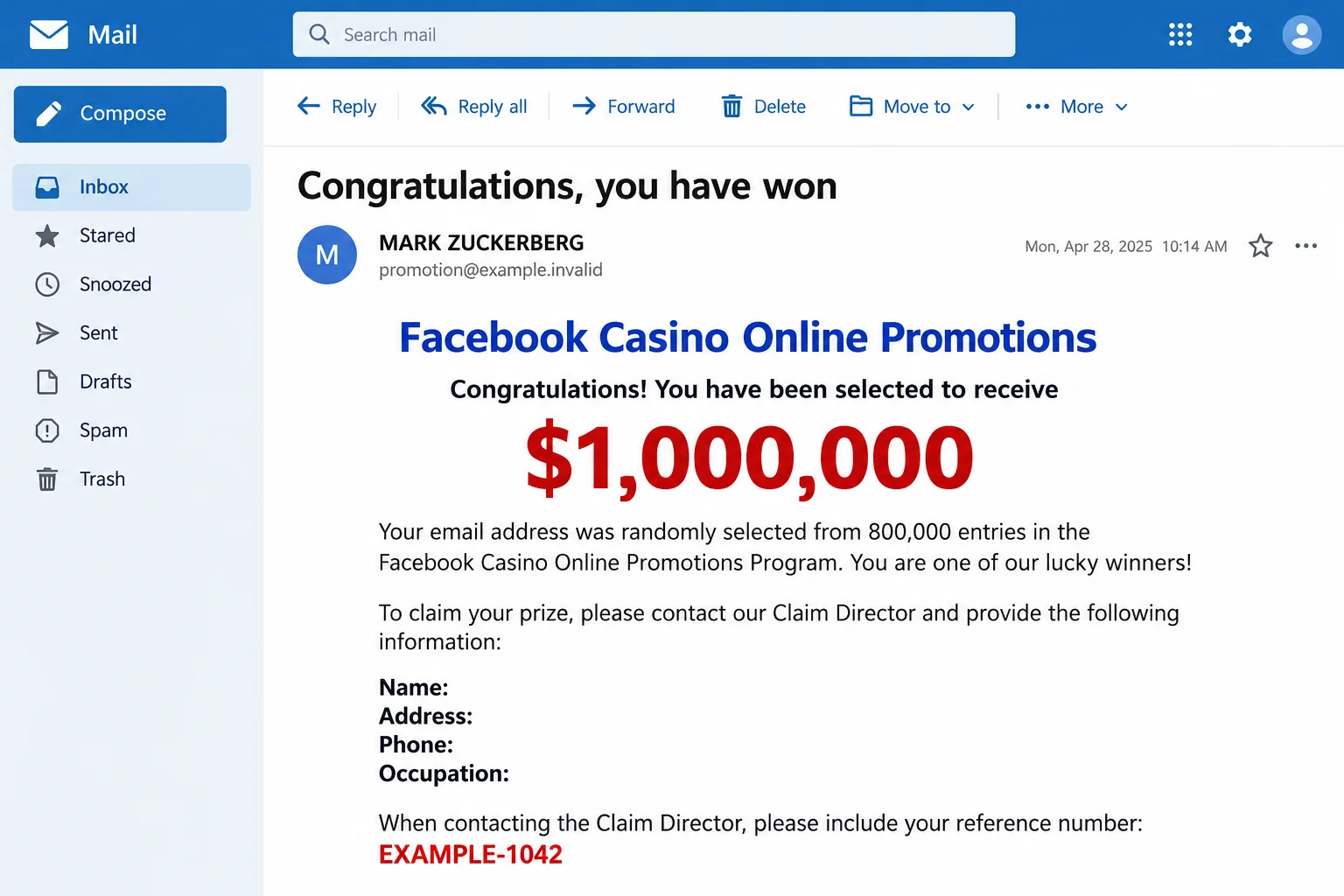
A message announces that your email address has won $1,000,000. There are reference numbers, a named claims contact, and instructions that make collecting it sound straightforward.
It’s a life-changing amount to see in an ordinary inbox. Before answering, take a closer look at the promotion and the person asking for your details.
Overview
A prize announcement borrows Facebook’s identity
The Facebook Casino Online Promotions email scam presents an unsolicited lottery-style win. One reported message uses Mark Zuckerberg’s name and claims selection from 800,000 email entries.
That is a story told by the sender, not a prize confirmed by Facebook. A display name and a list of winning numbers don’t authenticate it.
The use of Facebook’s identity should not be confused with a promotion run by Meta. This warning concerns the impersonating message, not Facebook itself.
The first request is for a detailed personal profile
The recipient is directed toward a supposed Claim Director. The requested information includes a name, residential address, phone number, age, and occupation.
Those questions move the exchange beyond harmless congratulations. They give a stranger identifying details and a way to continue the approach outside the original inbox.
The claim also invokes supposed official sponsorship. That language supplies an appearance of oversight without providing independently verifiable rules or an authenticated awarding organization.
The danger grows when collecting money requires sending money
This is an advance-fee prize lure. A demand for tax, clearance, or processing money would ask you to pay for a reward that hasn’t been established.
No genuine payout or completed fee transaction is established here. The email illustration shows the pitch, not a real award or a conversation with its operator.
- There is an unexpected cash prize attached to your email address.
- Recognizable names stand in for verifiable contest rules.
- A claims contact wants personal information before any trustworthy entitlement exists.
- Further payments may be presented as the final condition for receiving the money.
Why the Winning Numbers Feel More Convincing Than They Are
Reference codes look like administrative details. They suggest an application has already been processed and someone simply needs to finish the paperwork.
But a reference number is useful only when a real organization can match it to its own records. An email author can invent one immediately.
The same applies to a category, drawing number, or payment-agent title. Each can make the message longer without supplying a single independent check.
Consider what is missing instead: the contest you entered, its published rules, the organizer’s verified contact, and a credible explanation of how you became eligible.
Not remembering an entry isn’t the only concern. A claim that email addresses were randomly selected can be used to explain away that very question.
That explanation should not substitute for authentication. A stranger cannot establish a debt to you simply by declaring that your address appeared in a draw.
It also helps to separate Facebook’s familiar name from the unfamiliar transaction. Knowing the platform doesn’t mean knowing the person who sent this message.
Think about the records you would normally expect before receiving a substantial payment. There should be an identifiable reason for it beyond a message announcing your good fortune.
A document supplied by the same claims contact doesn’t independently fill that gap. Letterheads and payment certificates can repeat the original claim without confirming its truth.
How the Facebook Casino Online Promotions Scam Works
Step 1: The message gives you a reason to imagine the payout
The opening arrives as good news rather than a warning. It encourages you to think about what the prize could solve before checking who offered it.
A large amount can make a small request feel proportionate. Providing an address might seem like a reasonable preliminary step toward something much more valuable.
The winning details reinforce that impression. You appear to be a named beneficiary in an existing process, not someone being asked to consider an unsolicited proposition.
Pause at this point. The amount on the screen has not become money in an account you control, and the sender has not proved your entitlement.
Step 2: A claims representative becomes the source of every answer
The invitation moves you toward an individual presented as responsible for release. That person may supply explanations, forms, or additional contacts as the exchange continues.
The problem is circular verification. Asking the alleged agent whether the prize is genuine lets the same party both make the claim and certify it.
A reply from another address doesn’t solve that problem if the original sender introduced it. Several names can still belong to one unverified conversation.
The safe alternative is independent contact with the organization supposedly running the promotion. Use its established website, not a directory or number supplied by the claimant.
Step 3: The personal profile makes the conversation more targeted
Sharing your name and contact information allows follow-up messages to become more specific. The next email can repeat details you supplied and appear better informed.
That does not mean the sender discovered something independently. Familiar details may have come from your own reply.
Occupation and location can also help tailor a payment story. A supposed processing requirement may be described differently depending on the recipient’s circumstances.
Be especially cautious if a later form requests identity documents, bank details, or account access. None becomes appropriate merely because you already answered the first questions.
Step 4: A release condition turns the promised prize into a bill
Advance-fee schemes commonly introduce a cost before the reward can move. It might be called an administrative charge, tax payment, insurance, or transfer clearance.
These are possible follow-on demands, not a fee schedule verified for every version of this email. The exact payment method and amount can change.
What matters is the direction of the money. You are being asked to send real funds while the promised prize remains a claim controlled by someone else.
Paying once does not establish that the next demand is legitimate. Another obstacle can appear, with another explanation for why the payout still cannot happen.
The time and money already invested can make stopping difficult. They are reasons to protect yourself now, not evidence that one final payment will work.
Step 5: The operator tries to keep the exchange alive
If you hesitate, the contact may emphasize a deadline or say the money is almost ready. A new representative may offer to resolve the remaining difficulty.
After losses, another approach may promise recovery for an upfront charge. Treat that as a separate unverified offer, even if it mentions the original transaction accurately.
Someone who knows about the scam may have obtained information from the same conversation. Knowledge of your loss does not prove an ability to recover it.
Breaking contact removes the operator’s easiest opportunity to introduce another demand. Keep records for your payment provider rather than negotiating another release condition.
What a Real Prize Check Should Establish
Start with the organizer, not the excitement. A trustworthy contest should have rules you can find independently and an identifiable business or organization responsible for it.
Check eligibility, how entry works, how winners are selected, and how the organizer contacts them. Those details should agree without requiring a conversation with an unknown agent.
A general page about Facebook promotions does not confirm this particular email. Nor does finding a real company with a similar name.
The important match is between the exact promotion, its rules, its authorized contact, and your actual participation. A logo alone establishes none of those connections.
The FTC’s prize-scam guidance explains the central warning sign: paying to receive a supposed prize is a scam pattern.
Do not confuse a stranger’s upfront collection demand with ordinary tax obligations on genuine winnings. A claim agent’s payment instructions are not independent tax advice.
You also don’t need to provide a bank login for someone to verify your identity. A password or one-time code authorizes account access, not prize eligibility.
Sender Names, Contact Details, and the Spam-Folder Excuse
The reported message tries to explain why it might have landed in spam. That preemptively reframes a useful warning as an inconvenience caused by email filtering.
Spam placement alone doesn’t decide whether an email is fraudulent. But an instruction to disregard filtering should not persuade you to trust an otherwise unsupported prize.
Likewise, a message in the main inbox is not approved by Facebook. Delivery and authentication of the promotion are different questions.
A phone number’s country code does not establish the caller’s location or identity. Do not infer who operates the scheme from that detail alone.
Contact details in old messages can also change or be reassigned. The practical lesson is to avoid the supplied claims route, not investigate strangers by calling it.
If you want help assessing the message, share a redacted copy with someone you trust. Keep your full address, identification numbers, and account details out of public posts.
What to Do if You Have Fallen Victim to This Scam
Stop the claims conversation. Don’t send another fee, form, or confirmation. You can end contact without first persuading the sender that the prize is false.
Save the message and chat history before blocking. A brief account of what happened is more useful than continuing an argument with the alleged agent.
Record what you shared. List contact information, document images, banking details, passwords, and codes separately. Each creates a different kind of exposure.
If you supplied only a name and phone number, watch for targeted follow-ups. That alone doesn’t establish access to your bank or email.
Contact the payment company immediately if you paid. Use the number in its official app or on your card. Explain the false-prize demand accurately.
Ask whether a transfer can be stopped or recalled. For gift cards, keep the card and receipt. Recovery depends on the payment circumstances and isn’t guaranteed.
Give the payment investigator a clear timeline. Include when the prize arrived, the fee explanation, payment dates, recipient details, and transaction references.
Be accurate about payments you authorized under deception. Don’t describe them as transactions you never made; the provider needs the real circumstances to assess available options.
Protect accounts that were actually exposed. Replace any password supplied to the contact, beginning with your email if that password was shared or reused.
Review recovery information and unfamiliar sessions through the genuine service. Never read an authentication code to a person claiming it will release the prize.
Address identification misuse when necessary. If you sent identity documents or sensitive numbers, contact the relevant issuing organization and local identity-theft support channels.
Ask about appropriate alerts or monitoring for your country. Don’t buy an expensive protection package from a person introduced by the prize contact.
Check the device only if the exchange involved software. If you installed an app, opened a suspicious download, or allowed remote access, investigate that exposure.
Malwarebytes can help check for unwanted software. AdGuard may reduce malicious advertising exposure, but neither tool retrieves a prize payment or removes information already shared.
Warn and report without spreading private details. Report the email using your provider’s phishing or spam controls and report any impersonating social account.
Tell family members if the sender might approach them through your identity. Keep transaction references for a formal fraud report and reject paid recovery guarantees.
Is Your Device Infected? Run a Free Malware Scan
Slow performance, constant pop-ups, or strange behavior? These are classic signs of a malware infection. A quick way to check is to scan your device with Malwarebytes Free, one of the most trusted malware removal tools available. If you only visited a scam page and didn’t download or install anything, this scan is optional.
The free version detects and removes the most common threats, including:
- Adware — the cause of those annoying pop-ups
- Browser hijackers — unwanted redirects and changed homepages
- Trojans and spyware — hidden programs stealing your data
- Potentially unwanted programs (PUPs) — software you never asked for
👉 Select your device below — Windows, Mac, or Android — then follow the simple steps to download Malwarebytes, scan your system, and remove any threats it finds. The scan usually takes 5 to 20 minutes.
Run a Malware Scan with Malwarebytes for Windows
Malwarebytes is one of the most popular and trusted anti-malware tools for Windows — and it’s completely free for removing infections. It catches threats that many antivirus programs miss, including adware, browser hijackers, and trojans. Follow the steps below to scan your PC and remove what Malwarebytes finds.
Download Malwarebytes
Click the button below to download the latest version of Malwarebytes for Windows from the official source. The free version is all you need — it will scan your computer and remove adware, browser hijackers, and other malicious software at no cost.
Download MalwarebytesOfficial installer for Windows 11 and 10. Your download starts right away.Want real-time protection? See Malwarebytes Premium Malwarebytes Free for WindowsScans and removes malware at no cost
-
Install Malwarebytes
When the download finishes, open your Downloads folder and double-click the MBSetup file. If Windows shows a User Account Control pop-up, click “Yes” to allow the installation.

Follow the On-Screen Prompts to Install Malwarebytes
The setup wizard will walk you through a few quick screens:
-
Choose where you’re installing the program — “Personal Computer” or “Work Computer” — then click Next.

-
Malwarebytes will now install on your device. This usually takes under a minute.

-
When installation is complete, the “Welcome to Malwarebytes” screen will open automatically.

-
On the final screen, click Open Malwarebytes to launch the program.

-
Optional: Check for rootkits with a Custom Scan
You don’t need to change any settings for a normal scan. The standard Threat Scan in the next step is enough for most problems, so you can go straight to it.
If you also want to check for rootkits, use a Custom Scan. In current versions of Malwarebytes, rootkit scanning is only available there:
- On the Scanner tile, click the three-dot menu and select Advanced Scan.
- Choose Custom Scan. In its options, check Scan for rootkits.
- Select your system drive (usually C:\) as the location to scan, then start the scan. It takes longer than a Threat Scan.
- When it finishes, review and quarantine the results as described in the steps below.
Rootkit scanning isn’t available on Windows devices with ARM processors.
Start the Scan
Click the blue Scan button. Malwarebytes will automatically update its virus database and start checking your computer for malware.

-
Wait for the Scan to Finish
The scan checks your entire system for browser hijackers and other malicious programs, so it can take 5 to 20 minutes depending on your computer. Feel free to do something else — just check back occasionally to see the progress.

-
Quarantine the Detected Threats
When the scan is done, you’ll see a list of everything Malwarebytes found — malware, adware, and potentially unwanted programs. Click the “Quarantine” button to remove all of them at once.

Malwarebytes will now remove the malicious files and registry entries and move them safely into quarantine.

-
Restart Your Computer
Some threats can only be fully removed after a reboot. If Malwarebytes asks you to restart, click Yes. Once you’re logged back in, Malwarebytes has finished removing the threats it found.

When the scan is done, check whether the problems you noticed have stopped. If they continue, see the options below.
If you are still having problems with your computer after completing these instructions, then please follow one of the steps:
- Run a computer scan with ESET Online Scanner
- Ask for help in our Windows Malware Removal Help & Support forum.
Run a Malware Scan with Malwarebytes for Mac
Malwarebytes for Mac is a free on-demand scanner that removes the malware other security software tends to miss — adware, browser hijackers, and unwanted programs included. Cleaning an infected Mac with Malwarebytes has always been completely free, and it’s our go-to recommendation. Follow the steps below to scan your Mac and remove what Malwarebytes finds.
-
Download Malwarebytes for Mac
Click the button below to download the latest version of Malwarebytes for Mac.
Download MalwarebytesOfficial installer for macOS. Your download starts right away.Want real-time protection? See Malwarebytes PremiumMalwarebytes Free for MacScans and removes malware at no cost -
Open the Malwarebytes setup file
When the download finishes, open your Downloads folder and double-click the setup file to begin the installation.

-
Follow the On-Screen Prompts to Install Malwarebytes
The Malwarebytes for Mac Installer will guide you through a few quick screens. Click “Continue” and keep following the prompts until the installation completes.



When the installation is complete, Malwarebytes opens to the Welcome to Malwarebytes screen. Click “Get started“.
Malwarebytes needs Full Disk Access to check your whole Mac. When it asks, open System Settings > Privacy & Security > Full Disk Access, turn on Malwarebytes (it may be listed as Malwarebytes Protection), and confirm with your password or Touch ID. Then return to Malwarebytes. On macOS Monterey and earlier, this setting is in System Preferences > Security & Privacy > Privacy.
-
Select “Personal Computer” or “Work Computer”
Malwarebytes will ask what type of computer you’re installing it on. Click either Personal Computer or Work Computer, whichever applies.

-
Start the Scan
Click the “Scan” button. Malwarebytes will automatically update its detection database and begin checking your Mac for malware.

-
Wait for the Scan to Finish
Malwarebytes will scan your Mac for adware, browser hijackers, and other malicious programs. This can take a few minutes, so feel free to do something else — just check back occasionally to see the progress.

-
Quarantine the Detected Threats
When the scan is done, you’ll see a list of everything Malwarebytes found. Click the “Quarantine” button to remove all the threats at once.

-
Restart Your Mac
Malwarebytes will now remove all the malicious files it found. Some threats can only be fully removed after a reboot — if Malwarebytes asks you to restart, allow it. Once you’re logged back in, check whether the problems you noticed have stopped. If they come back, save the scan report and ask for help in our forum.

If the problems you noticed continue after the scan, see the options below.
If you are still experiencing problems while trying to remove a malicious program from your computer, please ask for help in our Mac Malware Removal Help & Support forum.
Run a Malware Scan with Malwarebytes for Android
Malwarebytes for Android scans your phone or tablet for malware, adware, and potentially unwanted apps. The free version scans only when you start a scan. Real-time protection, which checks apps automatically, is part of the paid Premium version.
-
Download Malwarebytes for Android.
You can download Malwarebytes for Android by clicking the link below.
Get Malwarebytes for AndroidOpens Google Play in a new tab.Want real-time protection? See Malwarebytes Premium for AndroidMalwarebytes for AndroidScans your phone and removes malware at no cost -
Install Malwarebytes for Android on your phone.
In the Google Play Store, tap “Install” to install Malwarebytes for Android on your device.

When the installation process has finished, tap “Open” to begin using Malwarebytes for Android. You can also open Malwarebytes by tapping on its icon in your phone menu or home screen.

-
Follow the on-screen prompts to complete the setup process
When Malwarebytes opens, it walks you through a short setup. Tap Get started and follow the prompts. If you see an offer for a trial or a paid plan, read it before you accept. You can skip it and keep using the free scanner.
Malwarebytes will ask for permission to access the files on your phone so it can scan them. Tap Allow, or turn on the permission in the Android screen that opens, then return to Malwarebytes.
-
Run a scan with Malwarebytes for Android
On the main screen, tap Scan now. In some versions, you open the menu, tap Scanner, and then tap Run a scan.
-
Wait for the Malwarebytes scan to complete.
Malwarebytes will now start scanning your phone for adware and other malicious apps. This process can take a few minutes, so we suggest you do something else and periodically check on the status of the scan to see when it is finished.

-
Remove the detected apps.
When the scan has been completed, you will see a list of the threats that Malwarebytes for Android has detected. Next to each detected item, tap the menu icon (three dots), then choose to uninstall the app or delete the file. Android then asks you to confirm. Tap OK or Uninstall to remove the app.
-
Restart your phone.
When the detected apps are removed, restart your phone if Malwarebytes asks you to. Then check whether the problems you noticed have stopped.
If the problems you noticed continue after the scan, see the options below.
If you are still having problems with your phone after completing these instructions, then please follow one of the steps:
- Ask for help in our Mobile Malware Removal Help & Support forum.
- Only as a last resort, reset your phone to factory settings. Read the warning below first.
- Back up your photos, videos, files, and messages, for example to your Google account or a computer.
- Make sure you know your Google account email and password. The phone asks for them after the reset. If you changed the password recently, Google recommends waiting 24 hours before you reset.
- On a Samsung phone, also make sure you know your Samsung account password.
- If you use an authenticator app for two-step verification, move your accounts to another device or save your backup codes first.
Stay Protected: Block Ads and Malicious Sites
No scan can prove a device is completely clean, so it helps to block threats before they reach you. Most infections start with a malicious ad or a fake download button — so blocking them at the source is your best defense.
We recommend AdGuard, which blocks malicious ads, phishing pages, and dangerous redirects before they can reach you.
👉 Download AdGuard and browse safely
Helping Someone Who Still Wants to Believe the Prize
Ridicule rarely helps. A person may be thinking about bills, a family emergency, or money already sent, rather than the technical details of the email.
Focus on the next action: no more payments while the claim is checked independently. That can create breathing room without demanding an immediate admission of embarrassment.
Offer to sit with them while they contact their bank through its real app. Keep the alleged claims representative out of that conversation.
If new calls arrive, avoid confirming additional information just to make them stop. Save threatening messages, block unwanted contacts, and seek local help for persistent harassment.
If they worry about losing their place in the promotion, explain that a deadline printed by the sender is not evidence of an actual award.
The useful goal is preventing another loss. Once the contact stops controlling the pace, it becomes easier to separate a hoped-for payout from the facts.
Frequently Asked Questions
Is Facebook Casino Online Promotions a real $1,000,000 award?
The unsolicited email described here is a false-prize scheme. Its use of Facebook’s name and winning references does not establish a genuine Meta promotion.
Does Mark Zuckerberg’s name in the sender field prove anything?
No. A displayed sender name can be chosen by the person sending the email. It is not verification that the named person contacted you.
Can my email address win without me remembering an entry?
A stranger’s claim that your address was selected is not proof. Verify the exact organizer and published contest rules without using that stranger’s contact information.
What if the agent says the fee is for tax?
Do not pay the claimed release charge. Describing a demand as tax doesn’t authenticate the prize or make the recipient a legitimate collector.
Am I infected if I only read the announcement?
Reading this prize claim does not itself establish infection. Device investigation becomes relevant if you opened harmful files, installed software, or granted access during the exchange.
Should I pay someone who promises to recover the fee?
Reject unsolicited recovery guarantees and upfront demands. Work directly with your payment provider and appropriate reporting channels instead of another stranger promising a release.
The Bottom Line
Do not claim this Facebook Casino prize or pay its supposed agent. The familiar branding and reference numbers don’t make the promised award real.
If you already responded, stop the exchange, preserve your records, and contact your payment provider about any money sent. Protect only the accounts and information actually exposed.

Join the discussion
0 commentsShare your experience or ask a question about this article.
Community experiences
Did this happen to you?
Your experience could help someone recognize the same scam. Submit a private report for our team to review.
I experienced this tooReports are reviewed before publication. Sharing publicly is always your choice.
Discussion
Start the conversation
Have a question or something useful to share? Add the first comment.