


An email announcing a life-changing international award can stir hope before common sense catches up. The official tone and enormous figure make the message difficult to ignore.
Prize notices deserve patient verification, especially when nobody remembers entering. The details below show which questions reveal what the celebration is hiding.
Overview
An Unsolicited $3,000,000.00 Award
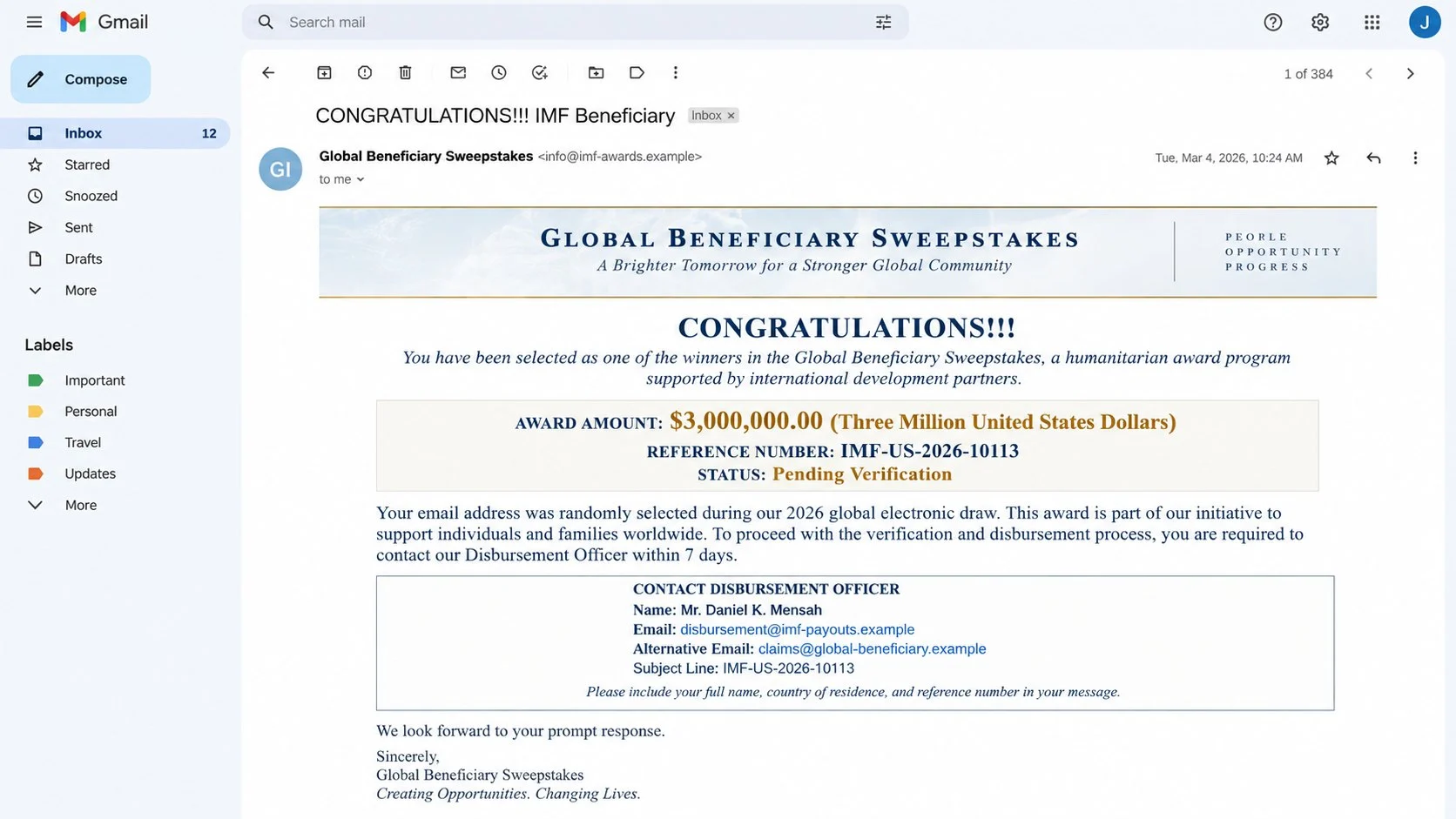
The IMF Global Beneficiary Sweepstakes scam tells recipients they were selected for a $3,000,000.00 international prize, despite never entering a drawing.
Its subject reads “CONGRATULATIONS!!!. IMF Beneficiary.” The notice presents reference IMF-US-2026-10113 and describes the award as pending verification.
The recipient is labeled an “International Award Recipient,” a grand title that sounds official while explaining nothing about eligibility or selection.
The International Monetary Fund does not run this supposed sweepstakes and is not involved. Its name is being misused to manufacture credibility.
A Personal Contact Replaces an Official Claims Process
The message instructs the recipient to contact a supposed Disbursement Officer or Claims Manager. The named representative is “Melvin Morrison.”
Instead of an institutional claims portal, the campaign uses a personal webmail address. That choice breaks the official story immediately.
- The recipient entered no contest or beneficiary program.
- The award arrives without verifiable rules or drawing records.
- A public institution’s name is paired with free email service.
- The winner must initiate private contact to unlock the process.
- Identity documents and personal details are likely requested next.
- Fees appear only after the victim becomes emotionally invested.
Replying signals that the address is active and the recipient is curious. That begins a longer, personalized advance-fee operation.
The Prize Is Bait for Payments and Personal Data
No legitimate $3,000,000.00 fund waits behind the correspondence. The apparent fortune exists only to make smaller requests feel reasonable.
Operators may demand identification, bank information, addresses, telephone numbers, or signatures. Those records can support identity theft and additional targeting.
They then invent clearance charges, taxes, legal certificates, courier costs, insurance, or transfer expenses. Every payment produces another obstacle.
This is an advance-fee scam. The victim pays real money while the promised award remains permanently one invented requirement away.
How the IMF Global Beneficiary Sweepstakes Scam Works
Step 1: A Mass Email Declares the Recipient a Winner
The first message is often distributed widely. It does not need accurate knowledge about the recipient because the prize story is deliberately universal.
Words such as “global,” “beneficiary,” and “international” create scale and authority. They also make the selection process difficult to question precisely.
A reference number resembles case management. In reality, a typed identifier is effortless to invent and proves neither registration nor award ownership.
The enormous amount transforms the reader’s attention. Even a skeptical person may wonder whether replying once could confirm an extraordinary opportunity.
Step 2: Institutional Language Creates Borrowed Trust
The email invokes the IMF because its name is associated with governments, financial stability, and international programs. That reputation is valuable camouflage.
Scammers may add formal titles, seals, slogans, or bureaucratic formatting. None establishes that the message originated from the real institution.
The mismatch between official claims and ordinary email infrastructure is crucial. A claims manager using personal webmail cannot validate a multinational award.
Recipients should judge the channel, not the tone. Impressive language is easier to copy than secure institutional procedures.
Step 3: The Reply Opens a One-to-One Conversation
Once someone responds, the operator shifts from a mass lure to personal persuasion. Questions and instructions can now adapt to that individual.
The fake officer may congratulate the winner warmly and explain that confidentiality protects the claim. Secrecy isolates the victim from skeptical relatives.
Deadlines may be introduced, supposedly because unclaimed funds will expire. The pressure discourages independent research and thoughtful consultation.
The fraudster may also call or move the conversation to a messaging application. Multiple channels make the fictional case feel more active.
Step 4: Verification Becomes Identity Collection
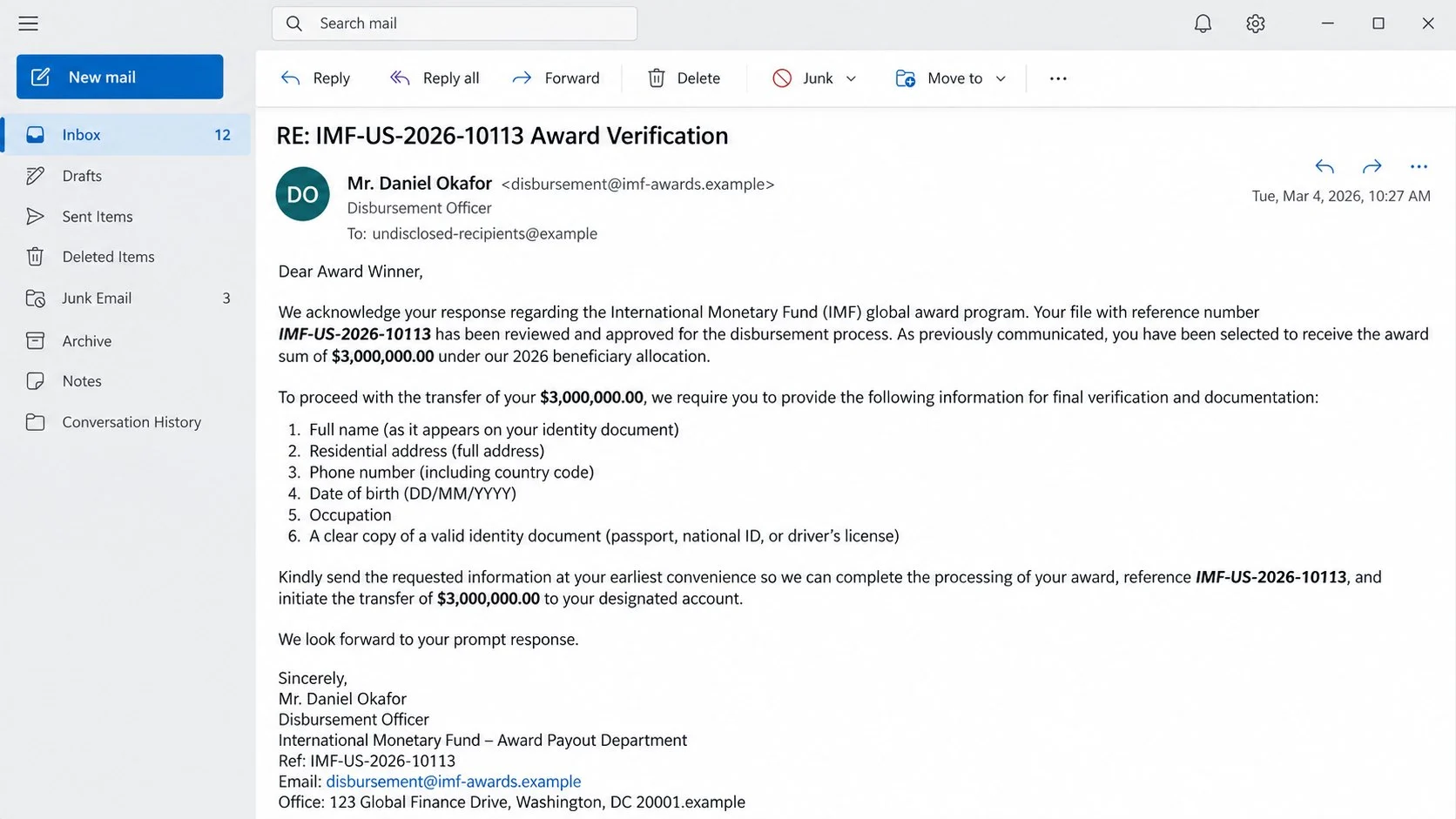
The next stage commonly requests a full name, residential address, telephone number, date of birth, occupation, and copy of identification.
Each request is framed as standard beneficiary verification. Yet the recipient has never been shown legitimate contest rules, entry records, or an authenticated award.
Document copies can support account opening, impersonation, recovery scams, or more convincing fraud. They remain dangerous even if no fee is paid.
Bank details may be requested under the pretext of arranging a transfer. Sharing them can expose additional financial and identity information.
Step 5: A Mandatory Fee Appears Before Release
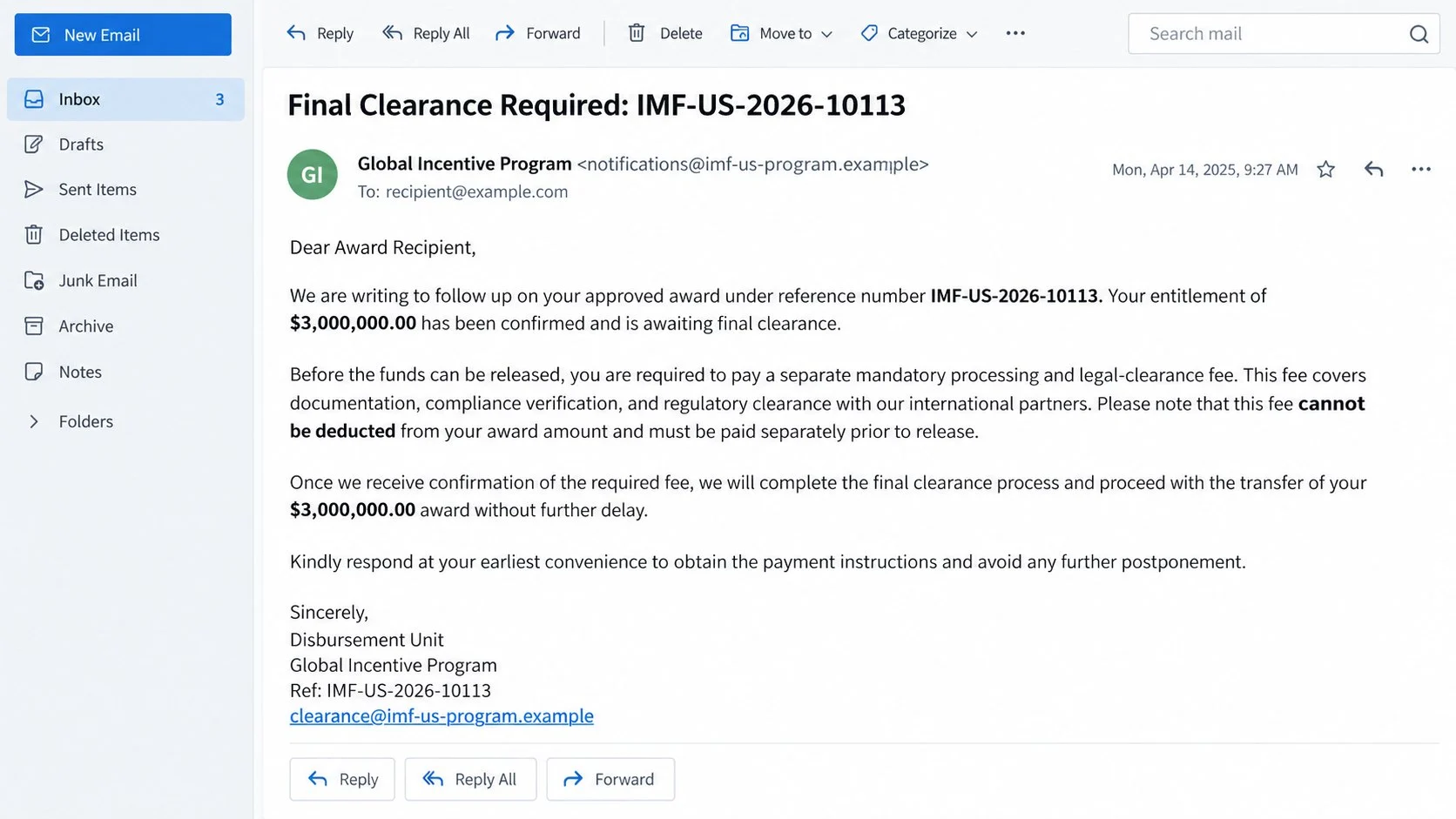
After the victim supplies information, the case is declared approved. A final charge suddenly blocks the promised transfer.
The fee may be described as processing, anti-money-laundering certification, tax clearance, legal documentation, insurance, or secure delivery.
The operator insists that it cannot be deducted from the award. That illogical rule forces the victim to send money separately.
Payment methods often reduce recovery options, including wire transfer, cryptocurrency, gift cards, or transfers to individuals and unfamiliar companies.
Step 6: Each Payment Produces Another Requirement
Paying never releases the fictional prize. Instead, a new official-looking problem appears: an expired certificate, currency charge, customs hold, or compliance review.
Sunk costs make stopping emotionally difficult. Victims may send more because abandoning the claim would mean accepting that earlier payments are gone.
When payments finally stop, another criminal may offer recovery assistance for an upfront fee. That second approach often uses information from the first operation.
The chain ends only when the victim disengages. There is no hidden stage at which the $3,000,000.00 becomes real.
How to Verify an Unexpected International Award
Start With the Missing Entry
A genuine sweepstakes needs rules, eligibility criteria, entry records, drawing dates, and an identifiable organizer. Ask when and how you entered.
Being “randomly selected by email” is not a satisfactory explanation for a $3,000,000.00 award. A reference number cannot replace an entry trail.
Search your own records before engaging. If no entry, nomination, grant application, or official program exists, the foundation of the claim is missing.
Compare the Contact Method With the Claimed Institution
Visit the institution’s genuine website independently and examine its public programs. Do not use addresses, numbers, or links supplied by the prize email.
An official organization communicates through controlled domains and documented procedures. Personal Gmail or similar accounts contradict the supposed authority.
Call a verified public number if uncertainty remains. Ask whether the named award, reference format, and alleged officer exist.
Demand Transparent Rules Without Sending Documents
Do not provide identification merely to learn what the program is. The organizer should already publish rules and privacy information.
Ask for the legally registered sponsor, jurisdiction, drawing record, entry source, and formal terms. Vague answers reveal that the process cannot withstand scrutiny.
Legitimate verification should not require secrecy. Show the correspondence to a trusted person, lawyer, bank adviser, or consumer-protection office.
Reject Every Pay-to-Receive Explanation
A prize that requires advance payment is not a prize. Taxes, when genuinely owed, are handled through lawful tax procedures rather than secret transfers.
Claims that fees cannot be deducted from the promised $3,000,000.00 are designed to sound procedural. They exist solely to extract separate funds.
Never send cryptocurrency, gift cards, cash, or wire transfers to release unexpected winnings. Those methods are chosen because recovery can be difficult.
What to Do If You Fell Victim to the IMF Sweepstakes Scam
Do not feel embarrassed. These operations are built around patient persuasion and official-looking correspondence. Focus on stopping further loss and protecting exposed information.
- End all communication with the operators.
Stop replying, calling, or negotiating. Block their addresses and numbers, but preserve the full conversation before deleting anything.
Do not send a final explanation. Additional engagement provides more opportunities for threats, sympathy, or new payment excuses.
- Contact the payment provider immediately.
Tell your bank, card issuer, transfer service, or cryptocurrency platform that the transaction funded an advance-fee fraud. Request recall or dispute options.
Speed matters, although recovery is not guaranteed. Give the provider dates, recipients, amounts, receipts, and reference numbers.
- Protect any identity records you shared.
If you sent identification, contact the issuing authority for guidance. Consider fraud alerts, credit monitoring, or a credit freeze where available.
Change answers to security questions that used exposed details. Watch for accounts, loans, or mobile services you did not request.
- Secure email and financial accounts.
Replace passwords if you shared them or reused related credentials. Review sessions, recovery settings, beneficiaries, and recent account activity.
Enable strong multifactor authentication. Tell your bank if criminals know account numbers, balances, signatures, or correspondence patterns.
- Preserve evidence and report the fraud.
Save emails, headers, attachments, chat logs, telephone numbers, payment instructions, wallet addresses, and document copies. Keep them in chronological order.
Report the scheme to local police or the national fraud authority. Also notify any real institution whose name was impersonated.
- Check devices used for downloaded forms.
If you opened an attachment or installed anything, disconnect suspicious software and run a thorough Malwarebytes scan. Remove detected threats before changing sensitive credentials.
AdGuard can help filter known malicious pages and deceptive advertising. It will not recover money or verify a prize, so continue account monitoring.
- Expect recovery scammers to make contact.
Criminals may promise investigators, lawyers, or agents who can retrieve the loss for another fee. Treat unsolicited recovery offers as hostile.
Use only professionals you locate and verify independently. Nobody can guarantee the return of transferred funds for an advance payment.
Is Your Device Infected? Run a Free Malware Scan
Slow performance, constant pop-ups, or strange behavior? These are classic signs of a malware infection. A quick way to check is to scan your device with Malwarebytes Free, one of the most trusted malware removal tools available. If you only visited a scam page and didn’t download or install anything, this scan is optional.
The free version detects and removes the most common threats, including:
- Adware — the cause of those annoying pop-ups
- Browser hijackers — unwanted redirects and changed homepages
- Trojans and spyware — hidden programs stealing your data
- Potentially unwanted programs (PUPs) — software you never asked for
👉 Select your device below — Windows, Mac, or Android — then follow the simple steps to download Malwarebytes, scan your system, and remove any threats it finds. The scan usually takes 5 to 20 minutes.
Run a Malware Scan with Malwarebytes for Windows
Malwarebytes is one of the most popular and trusted anti-malware tools for Windows — and it’s completely free for removing infections. It catches threats that many antivirus programs miss, including adware, browser hijackers, and trojans. Follow the steps below to scan your PC and remove what Malwarebytes finds.
Download Malwarebytes
Click the button below to download the latest version of Malwarebytes for Windows from the official source. The free version is all you need — it will scan your computer and remove adware, browser hijackers, and other malicious software at no cost.
Download MalwarebytesOfficial installer for Windows 11 and 10. Your download starts right away.Want real-time protection? See Malwarebytes Premium Malwarebytes Free for WindowsScans and removes malware at no cost
-
Install Malwarebytes
When the download finishes, open your Downloads folder and double-click the MBSetup file. If Windows shows a User Account Control pop-up, click “Yes” to allow the installation.

Follow the On-Screen Prompts to Install Malwarebytes
The setup wizard will walk you through a few quick screens:
-
Choose where you’re installing the program — “Personal Computer” or “Work Computer” — then click Next.

-
Malwarebytes will now install on your device. This usually takes under a minute.

-
When installation is complete, the “Welcome to Malwarebytes” screen will open automatically.

-
On the final screen, click Open Malwarebytes to launch the program.

-
Optional: Check for rootkits with a Custom Scan
You don’t need to change any settings for a normal scan. The standard Threat Scan in the next step is enough for most problems, so you can go straight to it.
If you also want to check for rootkits, use a Custom Scan. In current versions of Malwarebytes, rootkit scanning is only available there:
- On the Scanner tile, click the three-dot menu and select Advanced Scan.
- Choose Custom Scan. In its options, check Scan for rootkits.
- Select your system drive (usually C:\) as the location to scan, then start the scan. It takes longer than a Threat Scan.
- When it finishes, review and quarantine the results as described in the steps below.
Rootkit scanning isn’t available on Windows devices with ARM processors.
Start the Scan
Click the blue Scan button. Malwarebytes will automatically update its virus database and start checking your computer for malware.

-
Wait for the Scan to Finish
The scan checks your entire system for browser hijackers and other malicious programs, so it can take 5 to 20 minutes depending on your computer. Feel free to do something else — just check back occasionally to see the progress.

-
Quarantine the Detected Threats
When the scan is done, you’ll see a list of everything Malwarebytes found — malware, adware, and potentially unwanted programs. Click the “Quarantine” button to remove all of them at once.

Malwarebytes will now remove the malicious files and registry entries and move them safely into quarantine.

-
Restart Your Computer
Some threats can only be fully removed after a reboot. If Malwarebytes asks you to restart, click Yes. Once you’re logged back in, Malwarebytes has finished removing the threats it found.

When the scan is done, check whether the problems you noticed have stopped. If they continue, see the options below.
If you are still having problems with your computer after completing these instructions, then please follow one of the steps:
- Run a computer scan with ESET Online Scanner
- Ask for help in our Windows Malware Removal Help & Support forum.
Run a Malware Scan with Malwarebytes for Mac
Malwarebytes for Mac is a free on-demand scanner that removes the malware other security software tends to miss — adware, browser hijackers, and unwanted programs included. Cleaning an infected Mac with Malwarebytes has always been completely free, and it’s our go-to recommendation. Follow the steps below to scan your Mac and remove what Malwarebytes finds.
-
Download Malwarebytes for Mac
Click the button below to download the latest version of Malwarebytes for Mac.
Download MalwarebytesOfficial installer for macOS. Your download starts right away.Want real-time protection? See Malwarebytes PremiumMalwarebytes Free for MacScans and removes malware at no cost -
Open the Malwarebytes setup file
When the download finishes, open your Downloads folder and double-click the setup file to begin the installation.

-
Follow the On-Screen Prompts to Install Malwarebytes
The Malwarebytes for Mac Installer will guide you through a few quick screens. Click “Continue” and keep following the prompts until the installation completes.



When the installation is complete, Malwarebytes opens to the Welcome to Malwarebytes screen. Click “Get started“.
Malwarebytes needs Full Disk Access to check your whole Mac. When it asks, open System Settings > Privacy & Security > Full Disk Access, turn on Malwarebytes (it may be listed as Malwarebytes Protection), and confirm with your password or Touch ID. Then return to Malwarebytes. On macOS Monterey and earlier, this setting is in System Preferences > Security & Privacy > Privacy.
-
Select “Personal Computer” or “Work Computer”
Malwarebytes will ask what type of computer you’re installing it on. Click either Personal Computer or Work Computer, whichever applies.

-
Start the Scan
Click the “Scan” button. Malwarebytes will automatically update its detection database and begin checking your Mac for malware.

-
Wait for the Scan to Finish
Malwarebytes will scan your Mac for adware, browser hijackers, and other malicious programs. This can take a few minutes, so feel free to do something else — just check back occasionally to see the progress.

-
Quarantine the Detected Threats
When the scan is done, you’ll see a list of everything Malwarebytes found. Click the “Quarantine” button to remove all the threats at once.

-
Restart Your Mac
Malwarebytes will now remove all the malicious files it found. Some threats can only be fully removed after a reboot — if Malwarebytes asks you to restart, allow it. Once you’re logged back in, check whether the problems you noticed have stopped. If they come back, save the scan report and ask for help in our forum.

If the problems you noticed continue after the scan, see the options below.
If you are still experiencing problems while trying to remove a malicious program from your computer, please ask for help in our Mac Malware Removal Help & Support forum.
Run a Malware Scan with Malwarebytes for Android
Malwarebytes for Android scans your phone or tablet for malware, adware, and potentially unwanted apps. The free version scans only when you start a scan. Real-time protection, which checks apps automatically, is part of the paid Premium version.
-
Download Malwarebytes for Android.
You can download Malwarebytes for Android by clicking the link below.
Get Malwarebytes for AndroidOpens Google Play in a new tab.Want real-time protection? See Malwarebytes Premium for AndroidMalwarebytes for AndroidScans your phone and removes malware at no cost -
Install Malwarebytes for Android on your phone.
In the Google Play Store, tap “Install” to install Malwarebytes for Android on your device.

When the installation process has finished, tap “Open” to begin using Malwarebytes for Android. You can also open Malwarebytes by tapping on its icon in your phone menu or home screen.

-
Follow the on-screen prompts to complete the setup process
When Malwarebytes opens, it walks you through a short setup. Tap Get started and follow the prompts. If you see an offer for a trial or a paid plan, read it before you accept. You can skip it and keep using the free scanner.
Malwarebytes will ask for permission to access the files on your phone so it can scan them. Tap Allow, or turn on the permission in the Android screen that opens, then return to Malwarebytes.
-
Run a scan with Malwarebytes for Android
On the main screen, tap Scan now. In some versions, you open the menu, tap Scanner, and then tap Run a scan.
-
Wait for the Malwarebytes scan to complete.
Malwarebytes will now start scanning your phone for adware and other malicious apps. This process can take a few minutes, so we suggest you do something else and periodically check on the status of the scan to see when it is finished.

-
Remove the detected apps.
When the scan has been completed, you will see a list of the threats that Malwarebytes for Android has detected. Next to each detected item, tap the menu icon (three dots), then choose to uninstall the app or delete the file. Android then asks you to confirm. Tap OK or Uninstall to remove the app.
-
Restart your phone.
When the detected apps are removed, restart your phone if Malwarebytes asks you to. Then check whether the problems you noticed have stopped.
If the problems you noticed continue after the scan, see the options below.
If you are still having problems with your phone after completing these instructions, then please follow one of the steps:
- Ask for help in our Mobile Malware Removal Help & Support forum.
- Only as a last resort, reset your phone to factory settings. Read the warning below first.
- Back up your photos, videos, files, and messages, for example to your Google account or a computer.
- Make sure you know your Google account email and password. The phone asks for them after the reset. If you changed the password recently, Google recommends waiting 24 hours before you reset.
- On a Samsung phone, also make sure you know your Samsung account password.
- If you use an authenticator app for two-step verification, move your accounts to another device or save your backup codes first.
Stay Protected: Block Ads and Malicious Sites
No scan can prove a device is completely clean, so it helps to block threats before they reach you. Most infections start with a malicious ad or a fake download button — so blocking them at the source is your best defense.
We recommend AdGuard, which blocks malicious ads, phishing pages, and dangerous redirects before they can reach you.
👉 Download AdGuard and browse safely
Why Intelligent People Continue Paying
Advance-fee fraud is not a single ridiculous request. It is a sequence that gradually changes what the victim believes is reasonable.
The first reply costs nothing, so curiosity feels harmless. Providing a name then makes the fictional claim seem more personal and concrete.
After documents are submitted, the operator celebrates progress. The victim begins imagining debts paid, family helped, and a future transformed.
The first fee appears tiny beside $3,000,000.00. That comparison is artificial, yet it makes a costly transfer resemble a sensible administrative expense.
When another charge arrives, earlier losses create pressure to continue. Walking away feels like forfeiting both the prize and money already sent.
Scammers alternate authority, reassurance, and urgency. They may become sympathetic after a refusal, then threatening as a deadline approaches.
Isolation strengthens the effect. Confidentiality claims keep the story away from relatives or advisers who might challenge its contradictions.
The solution is not sharper intuition alone. External verification and a firm refusal to prepay remove the operator’s emotional leverage.
Common Fee Stories Used After the First Reply
A “processing fee” suggests ordinary administration. In truth, a real organization can explain costs publicly and does not demand secret payment from random winners.
A “tax certificate” borrows the language of government. Taxes are not settled by wiring money to a private claims manager.
An “anti-terrorism” or “anti-money-laundering” clearance sounds intimidating. Compliance checks do not create a prize that the recipient never entered.
A courier or diplomatic delivery charge adds physical detail. The promised package remains fictional, regardless of tracking forms or photographs.
Insurance fees imply protection for the transfer. Genuine insurers do not appear suddenly through an unverified email chain.
Currency conversion charges may be justified as cross-border necessity. Reputable financial institutions disclose exchange costs through authenticated channels.
Late penalties are used when a victim hesitates. A supposed award should not grow more expensive because someone seeks independent advice.
Finally, recovery charges target people who already recognized the fraud. The new operator may secretly belong to the same network.
Every version shares one principle: real money must leave before imaginary money arrives. Recognizing that pattern ends the debate.
Forged certificates do not improve the claim. A seal, signature, or official-looking letter remains meaningless when its issuing organization cannot verify it.
Telephone conversations add performance, not proof. Callers can rehearse titles, departments, and procedures while operating far outside the institution they impersonate.
Never let a deadline prevent consultation. A genuine entitlement survives reasonable questions, while fraud depends on keeping scrutiny brief and private.
Frequently Asked Questions
Does the IMF run a Global Beneficiary Sweepstakes?
No. The named institution is being impersonated. The unexpected $3,000,000.00 award and private claims contact are part of the fraud.
Is reference IMF-US-2026-10113 proof of a claim?
No. Anyone can type a reference into an email. A valid case must connect to an authentic program and independently confirmed records.
Why did the message call me a beneficiary?
The term sounds formal and financially important. It lets the sender avoid explaining any real contest entry or legal entitlement.
Can a legitimate prize require taxes first?
Unexpected winners should never transfer private fees to release funds. Genuine tax obligations follow official law and verified government procedures.
What if I only sent a copy of my ID?
Treat the document as exposed. Contact its issuer, monitor credit and accounts, preserve evidence, and follow identity-theft guidance in your jurisdiction.
Can someone recover money for an upfront fee?
Be extremely cautious. Guaranteed recovery promises and advance charges commonly form a second scam aimed at previous victims.
The Bottom Line
The IMF Global Beneficiary Sweepstakes email invents a $3,000,000.00 award to obtain personal records and repeated advance payments. No prize awaits behind the fees.
Do not reply, send documents, or pay. Verify institutional claims independently and involve your bank quickly if money has already moved.

Join the discussion
0 commentsShare your experience or ask a question about this article.
Community experiences
Did this happen to you?
Your experience could help someone recognize the same scam. Submit a private report for our team to review.
I experienced this tooReports are reviewed before publication. Sharing publicly is always your choice.
Discussion
Start the conversation
Have a question or something useful to share? Add the first comment.