


You install a Chrome VPN to make browsing feel safer. A familiar name, a polished listing and a simple Connect button make the choice seem straightforward.
Then you hear about fake Chrome VPN extensions and wonder whether yours belongs on that list. Here is where to look, and what matters most.
Overview
What was uncovered
Socket linked 737 Chrome VPN and proxy extensions to a campaign involving brand impersonation and deceptive premium-server offers in August 2026.
Researchers examined the code in 522 downloaded packages, and 520 set up proxies. They later examined three more, bringing the total to 525.
Some entries in the original research were known only from store listings, which explains why the campaign count is larger than the number tested.
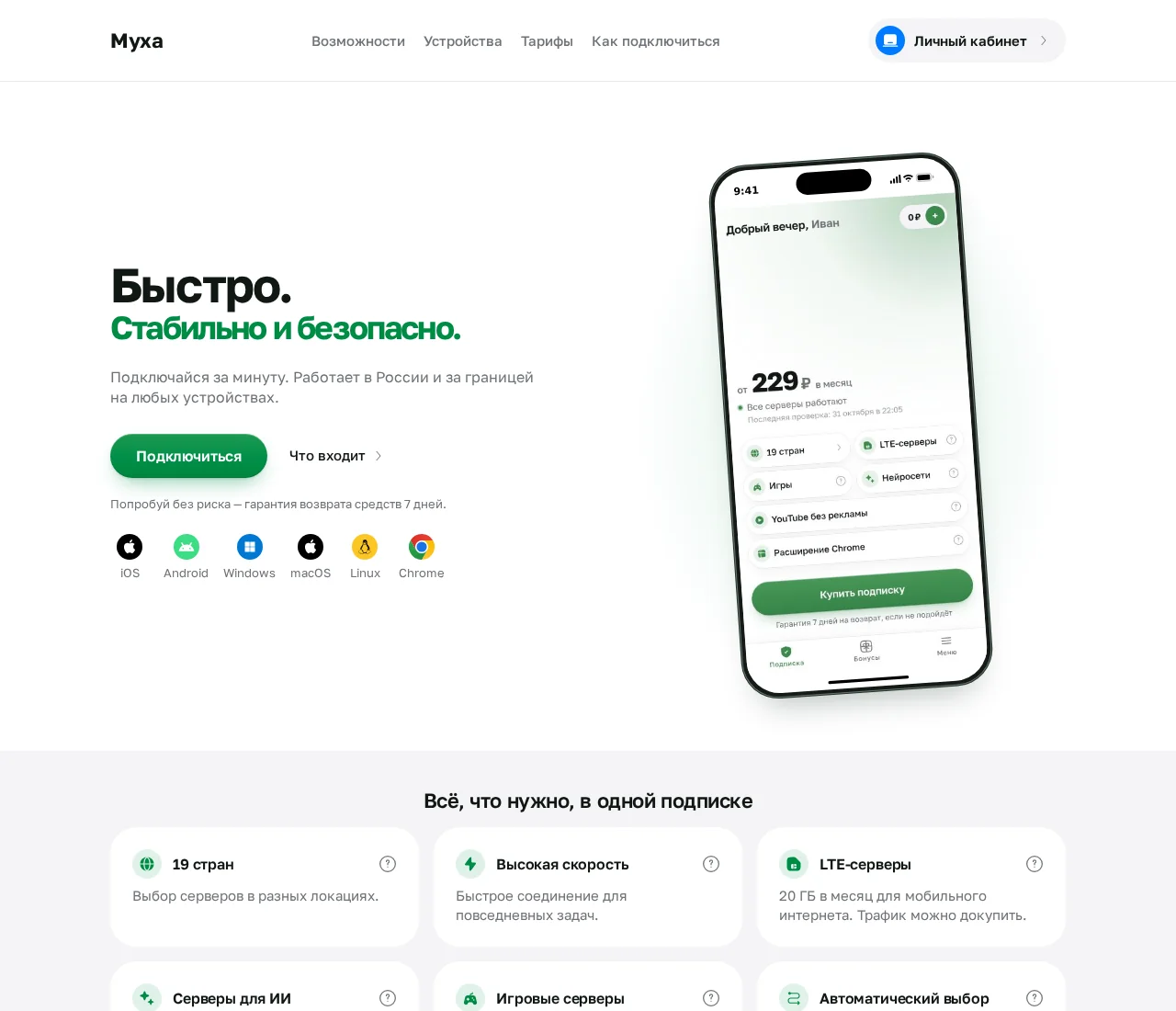
Reported examples include Myxa VPN (aaeiefggdeljohngedhpmgidkjcdoebb) and a “1.1.1.1 VPN” listing (ilbpmeeaifiojjiohfffjmgpgcfcaajg). Match the exact ID, not just the name.
The problem is misplaced trust, not proxy technology
A browser VPN extension can change where Chrome sends its connections. The provider becomes part of your browsing route, even when the permissions list looks short.
Proxy services have legitimate uses. The warning here concerns misleading identities and offers, not a claim that every VPN extension is malicious.
Match the response to what you actually did
- Only saw a listing: There is no reason to assume your computer was infected.
- Installed an affected extension: Remove it and check the browser’s settings.
- Used its connection: Review the accounts you accessed and any security warnings.
- Bought access: Handle cancellation separately from removing the software.
- Used a work computer: Ask IT before removing managed extensions or changing network settings.
How to Remove a Fake Chrome VPN Extension
Start with Chrome’s own controls. You do not need to buy a cleanup package or paste commands into a terminal to uninstall an ordinary extension.
Step 1: Disconnect the extension and save its identity
Stop using the affected browser for banking, email or other sensitive activity while you work through these checks.
Type chrome://extensions into Chrome’s address bar. This opens a built-in browser page, not a website supplied by the VPN seller.
Turn off the suspect extension using its switch. Select Details and save its name and any available store link.
If you need its extension ID, enable Developer mode on this management page to reveal the ID. Viewing it does not require installing developer software.
Keep a screenshot of the card and any receipt. You need a record of what you installed, not a copy of the extension’s program files.
Step 2: Remove the extension from the affected profile
On the extension’s card, select Remove, then confirm Remove again. Unpinning its toolbar icon only hides it and is not removal.
The switch and Remove button belong to each extension’s own card. Find your VPN rather than deleting unrelated browser tools.
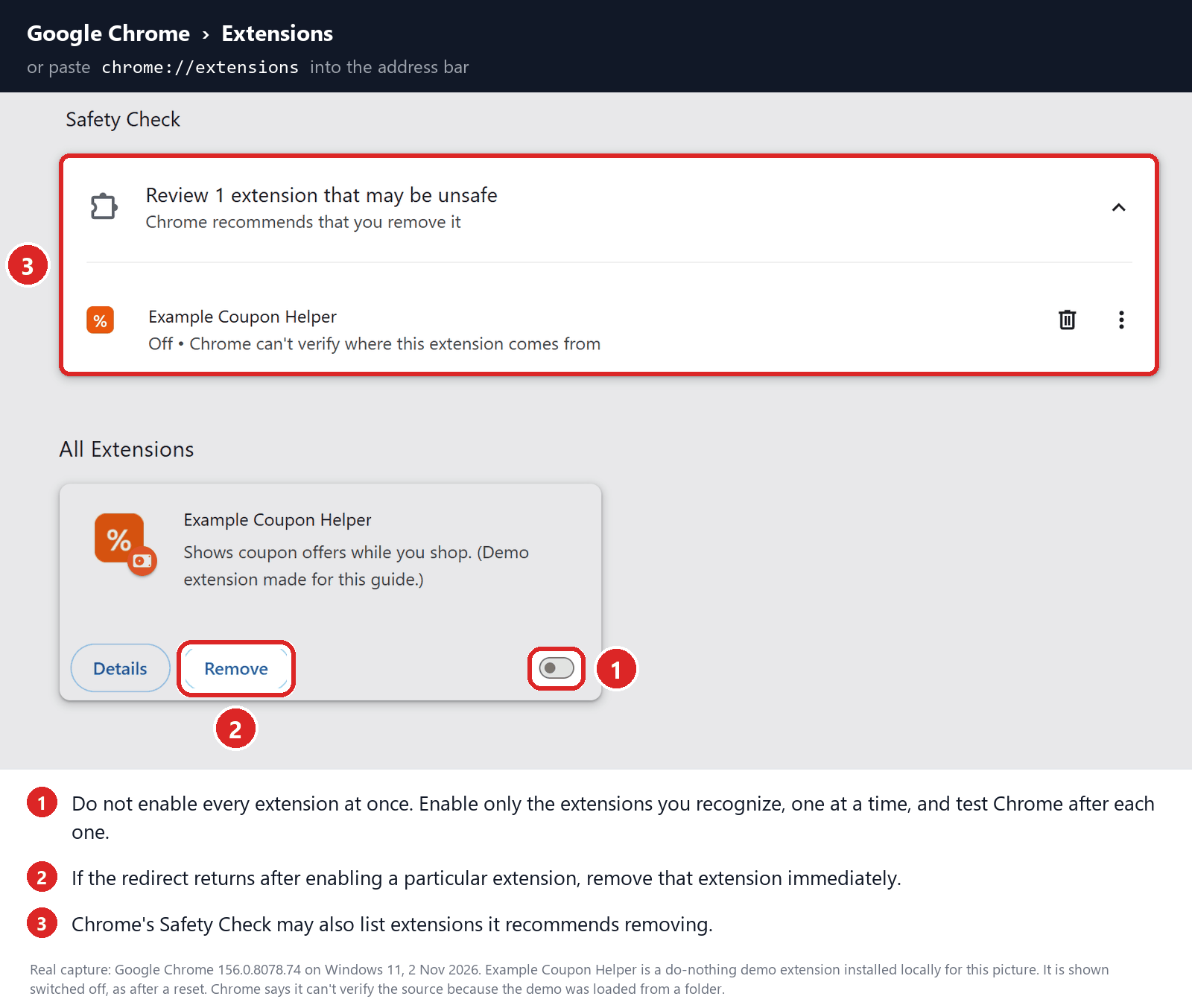
If Chrome has already disabled a flagged extension, leave it disabled and remove it. Do not choose Repair or reinstall a suspect copy to make it work.
Use Chrome’s profile button to check any other profiles you use. An extension present in one profile may not appear in another profile’s list.
Repeat the removal wherever you find the same unwanted item. Check other computers you use with Chrome, too, rather than assuming one removal settles every installation.
Step 3: Check proxy settings without breaking legitimate access
Open chrome://settings/system and look for the option to open your computer’s proxy settings. Chrome may also identify an extension controlling a setting.
Browser extension proxy rules and operating-system proxy settings are separate. Clean Windows settings do not mean an unwanted Chrome extension has lost its routing control.
On Windows
Open Settings, Network & internet, Proxy. Review both Use setup script and Use a proxy server.
Record existing addresses before changing anything. If an entry is confirmed unwanted, open its Set up or Edit control, turn it off and save.
Keep settings supplied by your employer, school or a trusted service. Do not switch off every networking option simply because you see the word proxy.
On a Mac
Open System Settings, Network, choose the active connection, then select Details, Proxies. Review any enabled proxy or automatic configuration.
Remove only an unwanted configuration you can identify. Record the original values and leave legitimate organizational settings alone.
If changing an entry breaks access, stop and ask for help. Replacing it with an address suggested by an unknown support account is not a safe fix.
Step 4: Reset Chrome only if unwanted browser changes remain
Removing a proxy extension does not automatically require resetting your browser. Skip this step if normal browsing returns and no unwanted settings remain.
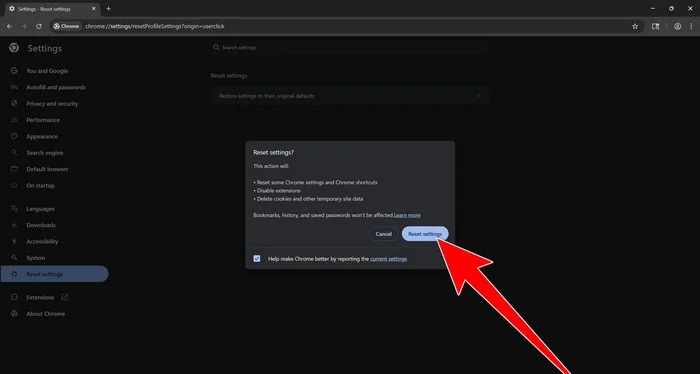
If your startup pages, search settings or site permissions are still changed, open Chrome Settings, Reset settings, Restore settings to their original defaults.
Read the confirmation before proceeding. A reset changes browser settings, disables extensions and clears cookies or site data, which can sign you out.
Saved bookmarks, browsing history and passwords remain. Some settings changes can apply across devices where you are signed in, so consider other devices before confirming.
If that is the repair you intend, select Reset settings. Do not run additional profile-deletion scripts afterward.
Afterward, keep the suspect VPN removed. Restore only browser tools you recognize and actually need, rather than switching every disabled extension back on.
Step 5: Get help if removal is blocked or the extension returns
A missing Remove button, repeated reinstallation or unexpected management policy needs a closer look. It is not a reason to start deleting Windows folders.
Type chrome://management to check whether Chrome is managed. Use chrome://policy to view applied policies without changing them.
Management is normal on many work and school computers. Send the extension details to the administrator instead of trying to defeat their controls.
On a personal device, ask a trusted technician or the MalwareTips removal-help forum to investigate unexpected restrictions.
Explain whether you installed only a browser extension or also ran a separate installer. That difference determines whether additional device cleanup is necessary.
Step 6: Restart, update and confirm the unwanted control is gone
Close and reopen Chrome, then revisit the affected profile’s extension list. Confirm that the suspect item has not returned.
On Windows or Mac, open Help, About Google Chrome, finish any offered update and relaunch. On Linux, update Chrome through your package manager.
Check a familiar, nonsensitive website before signing into important accounts. If access works, revisit the extension list to confirm the unwanted item is still absent.
If errors persist, note the exact message and seek help. Do not disable certificate warnings or reinstall the suspect VPN just to restore connectivity.
A working browser is a useful result, not a guarantee about earlier exposure. Account security and subscription payments still need their own attention.
How the Fake Chrome VPN Extensions Scam Works
Step 1: A familiar name makes the listing feel trustworthy
The campaign borrowed identities associated with established privacy services. Familiar words can make a listing feel like an official product before the publisher gets checked.
That is the shortcut to avoid: recognizing a brand name is not the same as confirming who published the extension.
Step 2: A small permission opens a significant trust decision
Chrome provides a legitimate proxy permission for extensions that manage browser routing. Few permissions do not necessarily mean little influence over your connection.
Restricting ordinary website access is not a substitute for removal here. Google’s guidance distinguishes website permissions from lower-level VPN or proxy controls.
Think about what you are allowing, not just how long the permission prompt is. A privacy tool deserves scrutiny precisely because you intend to trust it.
Step 3: A premium menu promises more than it delivers
Socket found 200 advertised premium hostnames across 40 domains failed DNS resolution during its testing. Those historical results are not a current availability test.
A country flag in a menu is not proof of a functioning server. A payment page cannot resolve that question by itself, either.
Do not pay an upgrade fee merely to troubleshoot a connection that never worked. First establish who is selling access and what the purchased tier actually includes.
Step 4: The upgrade leads to a paid account
An upgrade may send you outside the extension to the seller’s account or payment service. Check the plan and renewal terms before authorizing a charge.
Removing the software closes one route into your browsing. It does not notify a payment processor that you no longer want recurring access.
What a Proxy Can See, Even When HTTPS Is Working
A proxy is an intermediary. Instead of connecting directly, your browser sends relevant traffic through another server, which forwards it toward the destination.
SOCKS5 describes a way to relay that traffic. It does not, by itself, add the protected tunnel people often expect from a full VPN application.
However, an HTTPS website can still encrypt the connection between your browser and that website. Passing through a SOCKS5 relay does not automatically decrypt it.
The practical concern includes connection metadata, destinations and information sent over unencrypted HTTP. The exact visibility depends on the connection and other protections in use.
Do not assume every saved password was stolen merely because you connected. Equally, do not dismiss exposure because a public IP-checking website displayed a different address.
A changed IP shows a routing result. It does not authenticate the provider, establish a no-logging policy or prove that every other application is protected.
The Subscription Behind the Extension
Do not confuse the copied brand with the seller
Keep the publisher, the advertised brand and the merchant on your receipt separate. A familiar security company’s name on a listing does not make it responsible.
The Myxa-branded subscription page now offers access across several device types, including Chrome. Those other applications should not automatically inherit findings about the researched extensions.
Read the renewal setting, not just the monthly price
The current Myxa homepage says automatic renewal is enabled by default where recurring payments are available. It says users can disable it before payment or afterward.
Its public offer says an enabled subscription renews 24 hours before expiration when a linked card or sufficient balance is available.
These are published terms, not a tested checkout. If you already paid, inspect your own account’s renewal status and retain the cancellation confirmation.
The refund promise has a narrower condition
The homepage advertises a seven-day refund guarantee. The public offer limits requests to the first payment and says the service must not have been substantially used.
It also excludes repeat purchases within the same account. Ask for the applicable condition in writing rather than assuming every charge has the same refund promise.
Your receipt is the starting point for a dispute
Save the merchant name, payment date, transaction reference, advertised plan and next renewal date. Keep support replies alongside the original receipt.
If the merchant name differs from the browser extension, explain that relationship to your payment provider. Do not guess which company charged you from a logo.
Use a verified support route from the purchase record. Never give support a browser password, authentication code or remote control merely to request cancellation.
How to Check a VPN Extension Before Trusting It
Begin outside the store search results. Open the privacy provider’s genuine website independently, then follow its own link to the browser extension.
Compare that destination with the item you installed. The full store address and extension ID are more useful than a similar icon or spelling.
A real vendor may offer different products for a browser and the whole computer. Confirm which one you need before granting access or buying a plan.
Read what the extension changes and which company handles support. If the vendor’s website cannot explain the listing, stop instead of treating the uncertainty as reassurance.
Store badges provide context, not an unlimited security guarantee. Google describes Featured and Established Publisher badges differently, so do not confuse a review score with either.
Reviews also answer different questions. Someone saying a video loaded successfully has not necessarily checked privacy, ownership, billing or future updates.
When comparing privacy claims, look for a clear explanation of retained information. No browsing-content logs and no collection of any technical data are different promises.
Do not install another unfamiliar extension to inspect the first one. Use the browser’s controls and official help before adding more software to the problem.
What to Do if You Have Fallen Victim to This Scam
-
Prioritize any account showing suspicious activity. Use a trusted browser or device, open the service independently and follow its official recovery instructions.
For Google accounts, review security events and unfamiliar devices. Correct unauthorized recovery information, connected access and mail forwarding, rather than changing only the password.
-
Replace passwords that may have been exposed. Start with credentials entered on unencrypted sites while connected, passwords typed into a fake page and reused versions.
Use unique replacements and enable stronger authentication. Revoke unfamiliar sessions where the service allows it; uninstalling an extension does not sign an intruder out.
-
Cancel unwanted renewal in the actual billing account. Removing Chrome software or deleting a shortcut is not a subscription cancellation.
Check the next billing date, turn renewal off and save the resulting confirmation. If access is blocked, send a written cancellation through the verified support route.
-
Request a refund and contact the payment provider promptly. Explain the misleading offer, the amount and whether the disputed charge was authorized.
Ask about stopping future merchant charges and disputing the payment. Do not assume replacing a card alone cancels a subscription or guarantees a refund.
-
Keep a small, useful evidence folder. Include the extension ID, store address, screenshots, receipt, terms and messages about cancellation or server access.
Remove passwords, full card details and personal identifiers before sharing anything publicly. A clear timeline is more helpful than reinstalling the extension to gather more evidence.
-
Report the impersonation and get help with persistent symptoms. Send the listing details to the imitated brand and use the store’s reporting process.
For unresolved device problems, describe exactly what you installed to a trusted helper. Do not pay an unsolicited recovery service promising guaranteed refunds or secret cleanup.
Frequently Asked Questions
Are all Chrome VPN extensions scams?
No. Legitimate providers offer browser tools. This warning concerns the identified impersonation campaign, not the existence of Chrome’s proxy feature or every paid VPN.
Does SOCKS5 let someone read every HTTPS password?
No. Relaying a connection does not automatically remove HTTPS encryption. Unencrypted traffic and connection metadata still deserve attention, along with any separate phishing or account compromise.
Is removing the toolbar icon enough?
No. Hiding an icon leaves the extension installed. Open Chrome’s extension management page and remove the unwanted item from its card.
Will uninstalling the extension cancel my subscription?
No. Cancel through the billing account or verified merchant support, then keep confirmation. If charges continue, contact the payment provider with your cancellation record.
Do I need to reset my computer?
Not automatically. Begin with extension removal and relevant settings checks. Reappearing software, blocked removal or a separate installer calls for additional investigation, not blind deletion.
What if I never clicked Connect?
Remove the unwanted extension anyway. Do not assume all browsing was intercepted, and check billing separately if you purchased access before trying the connection.
The Bottom Line
Do not install or pay for the fake Chrome VPN extensions identified in this campaign. A borrowed identity is not a trustworthy privacy service.
If you installed one, remove it, check the affected profile and routing settings, and secure accounts according to your actual exposure.
If you paid, deal with renewal and refunds separately. A clean extension list does not stop a subscription charge.

Join the discussion
0 commentsShare your experience or ask a question about this article.
Your progress
Did these steps help?
Let us know how the guide worked for you.
Describe what you see and the step you reached. Keep passwords and other private information out.
Discussion
Start the conversation
Have a question or something useful to share? Add the first comment.