


A familiar cleaner promises less clutter and a faster computer. The download looks ordinary, and choosing the free version seems like a harmless place to start.
If something felt wrong after installing it, pause before opening more accounts. The important question is what actually ran, not how reassuring the download page looked.
Overview
A fake CCleaner installer, not the genuine utility
Malwarebytes researchers documented a Windows download impersonating CCleaner that installed browser spyware identifying itself as GhostDesk.
This warning concerns the malicious imitation, not every copy of CCleaner. The unrelated legitimate application using the GhostDesk name should not be confused with this payload either.
The browser becomes part of the exposure
The reported extension could capture typed information, cookies, and active-tab images, and replace pasted cryptocurrency addresses. That last behavior is address substitution, not cryptocurrency mining.
Removing a suspicious shortcut doesn’t address what ran underneath it. A browser that still opens normally can be the place where sensitive information is exposed.
Cleanup and account recovery need different actions
Use the Windows procedure below if you ran the suspicious installer. A downloaded file that was never executed is a different starting point, so describe your actions accurately.
- Contain the affected computer before continuing sensitive work.
- Scan Windows and investigate any unresolved results.
- Review Chrome extensions after the underlying software is addressed.
- Protect accounts and check payments separately from device cleanup.
How to Remove GhostDesk Spyware from Windows
Step 1: Contain the computer and preserve what happened
Disconnect Wi-Fi or unplug the network cable. Stop using this computer for email, banking, trading, passwords, and cryptocurrency transfers while the situation is assessed.
On a work or school computer, contact the responsible IT team first. Don’t restart, remove software, or run cleanup tools until its evidence-preservation requirements are clear.
Keep the download’s name, source, approximate execution time, and existing security alerts. Don’t rerun the installer to demonstrate the problem or send it to friends.
An online scanner needs controlled internet access for updates. If active compromise is suspected, have trusted support plan that access or an alternative examination before reconnecting.
Step 2: Obtain the genuine ESET Online Scanner
Once your cleanup plan permits it, use this site’s established route to ESET Online Scanner, a free one-time Windows scanner.
The destination should identify ESET Online Scanner. Paid full-protection offers are separate; you don’t need to buy them to follow this procedure.
Some download links may support MalwareTips through an affiliate relationship. This doesn’t make a purchase necessary or change the scanner’s limits.
Open your Downloads folder and locate esetonlinescanner.exe. Confirm you obtained it from the genuine ESET page before opening it.
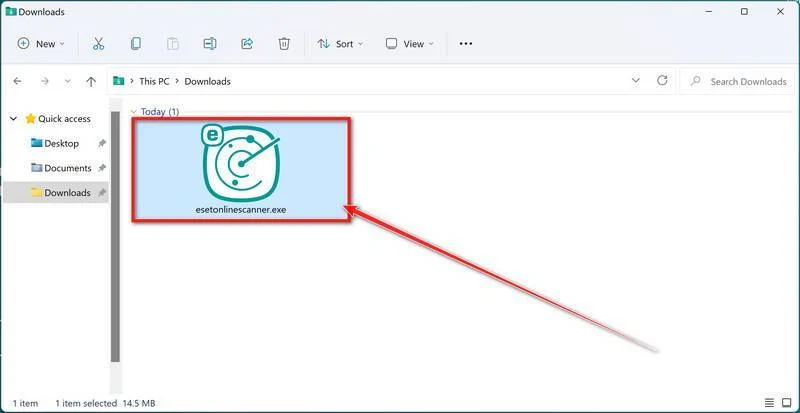
The tutorial pictures identify the relevant controls. Interface wording can change, so use the actual application’s prompts rather than a matching filename as your only check.
Step 3: Open the scanner and review its terms
Run the genuine executable. If Windows asks for permission to let it make changes, confirm the expected application before choosing Yes.
Select the language you want, then choose Get started.
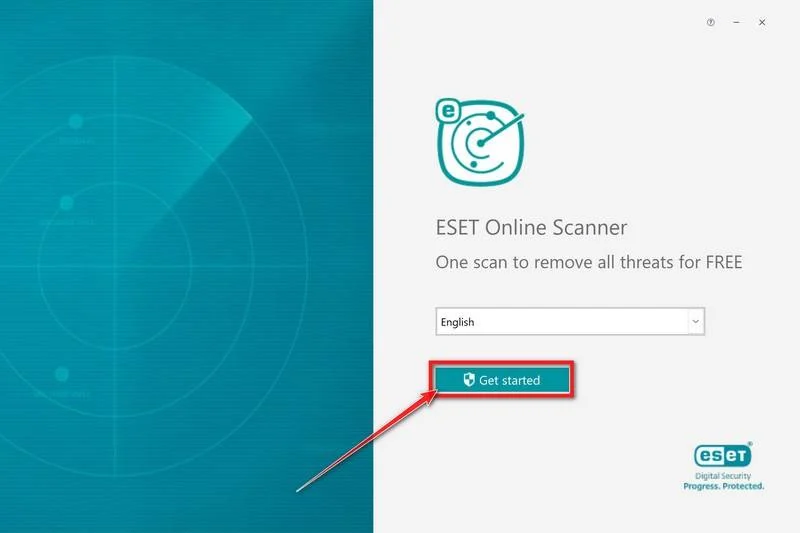
Read the current terms presented by ESET. Choose Accept if you agree, then continue through any further Get Started prompt.
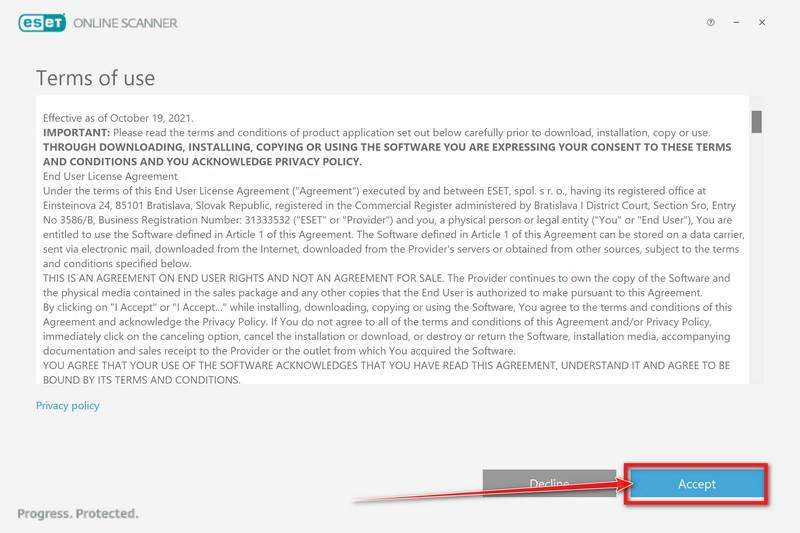
Unexpected requests to disable Windows security or use an unrelated installer are not part of these instructions. Stop and obtain help if the setup differs materially.
Step 4: Choose optional feedback preferences
The application may offer its Customer Experience Improvement Program and Detection feedback system. Review both options and choose your preferences, then select Continue.
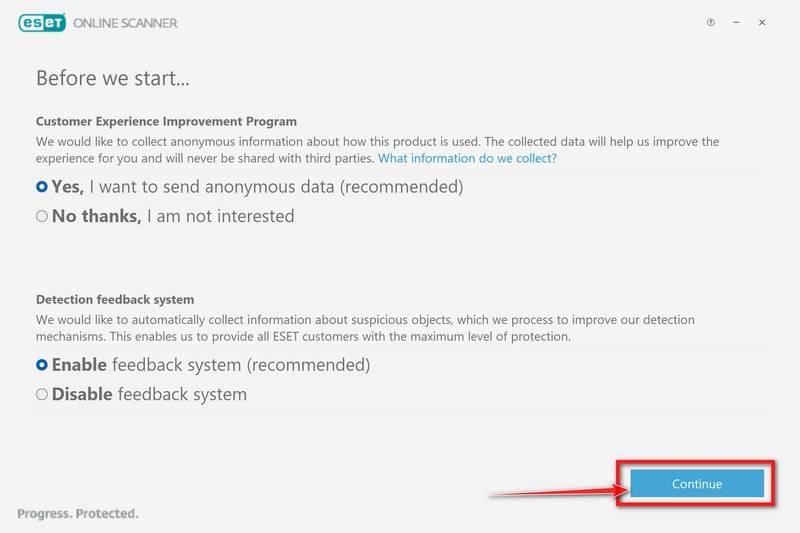
Participation in feedback is not a requirement to repair GhostDesk. If you’re reopening the application, choose Computer scan from its welcome screen.
Step 5: Select Full Scan and unwanted-application detection
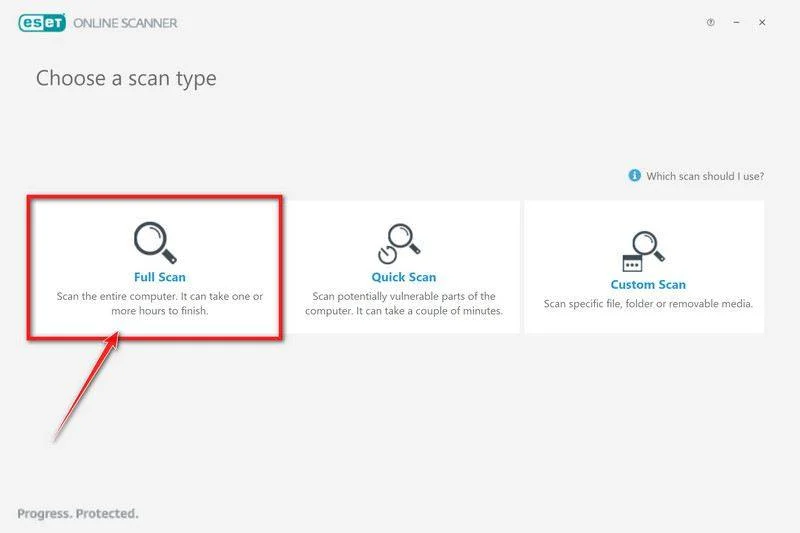
Choose Full Scan from the available scan types. This is a system examination, not a claim that every inaccessible or excluded file will be inspected.
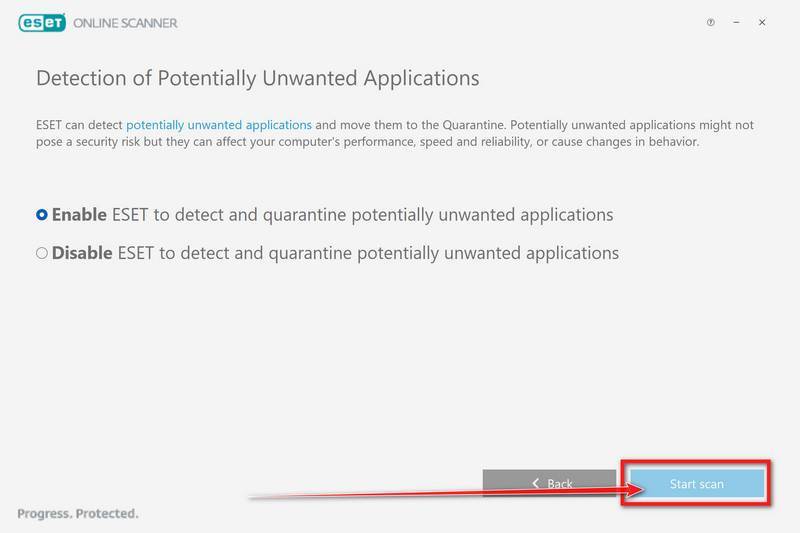
At the potentially unwanted applications setting, select Enable, then Start scan. Keep any coverage warnings for the person helping you assess the result.
Step 6: Let updates and scanning complete
ESET downloads module updates before the file examination begins. The picture below shows that preparation stage, not a completed scan or a GhostDesk detection.
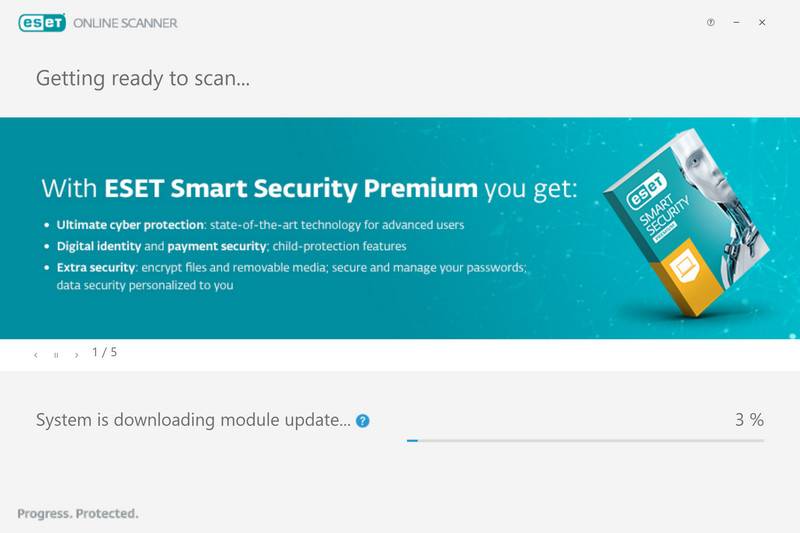
Wait for the actual scan to finish. Don’t sign into accounts while you wait, and don’t treat a stopped scan as a clean result.
If updating fails or the application closes unexpectedly, save the error details. Ask trusted support how to continue rather than repeatedly restarting the suspicious download.
Step 7: Review actions, quarantine, and the saved report
Open View detailed results when the examination ends. Read each detection and its recorded action, especially anything that could not be resolved.
ESET can clean or quarantine detected items automatically. Don’t restore something simply because it resembles a useful Windows file; have any disputed detection assessed first.
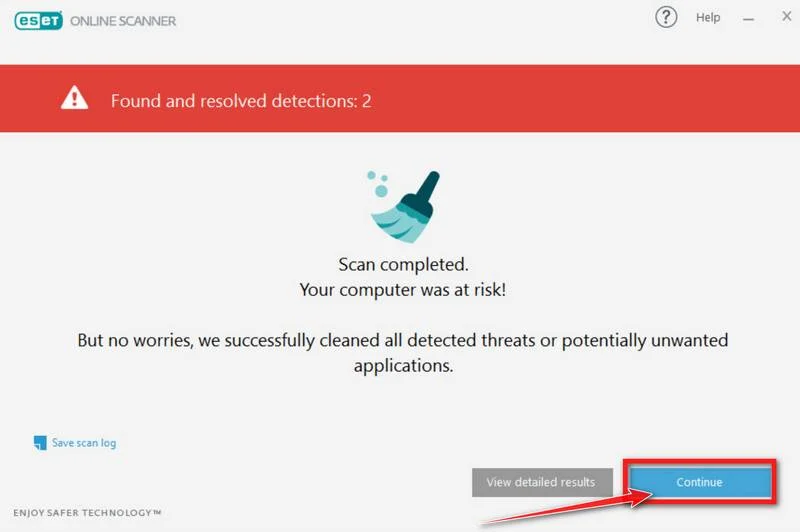
Select Save scan log before moving on. The pictured arrow points to Continue, not to the detailed-results control.
Keep the report even if nothing was found. It records one examination, not everything that may have happened to the computer or accounts beforehand.
Don’t copy quarantined executables into a personal backup for safekeeping. Preserve the detection record and let a responder decide how evidence should be retained.
Step 8: Complete requested follow-up and seek help when needed
Restart if the scanner requests it and your response plan permits it. Save work first, then check any follow-up results and unresolved actions.
Optional monthly scans and paid protection aren’t required to finish the one-time scan. Don’t let a sales offer distract from the report.
If detections return, Chrome components change again, or the scan cannot complete, use the MalwareTips Windows removal-help forum with your saved logs.
The official ESET instructions explain its controls. For a confirmed, persistent compromise, discuss professional rebuilding instead of repeating scans indefinitely.
How the Fake Cleaner Reaches Into Chrome
Step 1: The download borrows a trusted product’s identity
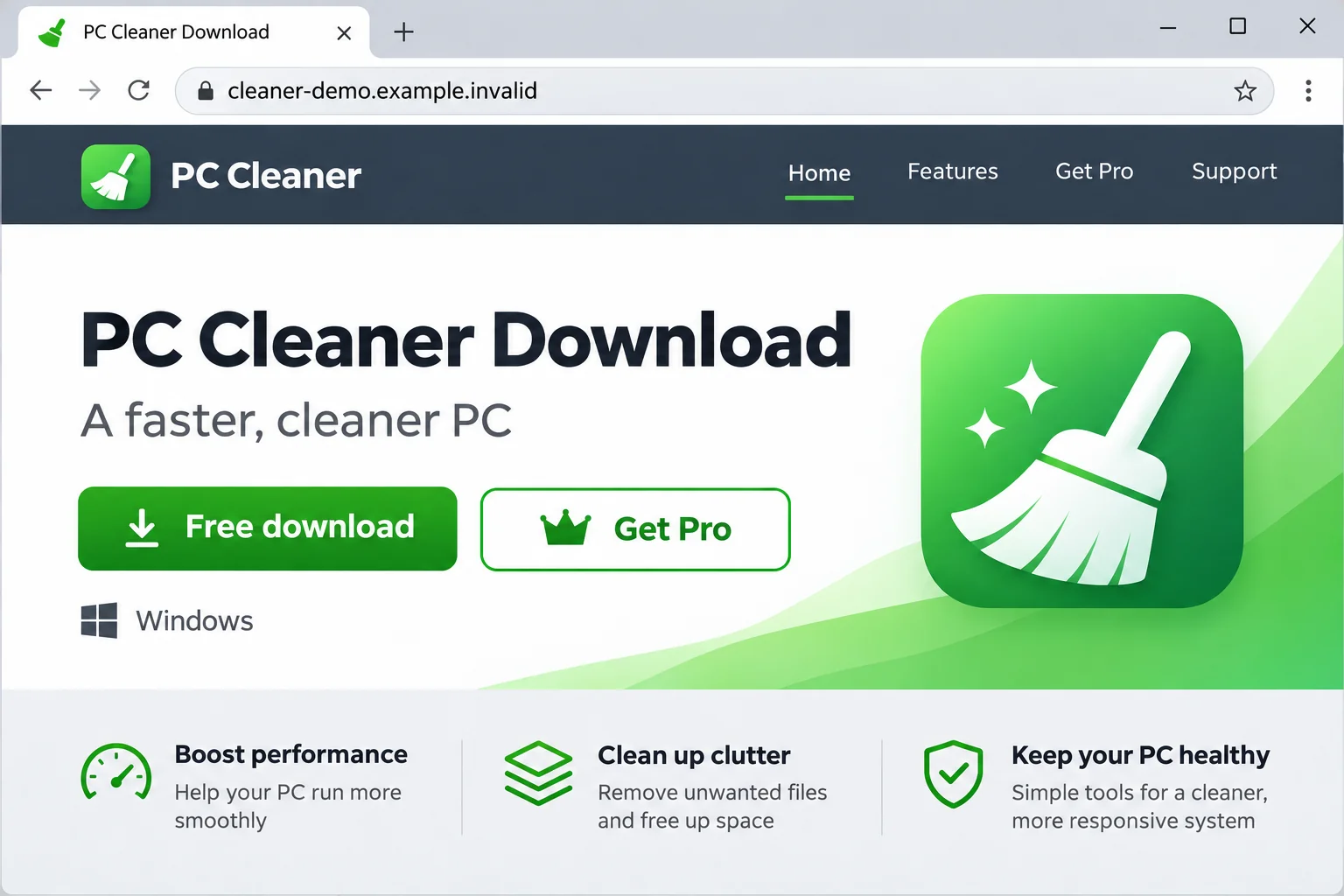
In the reported sample, normal and Pro download buttons delivered the same malicious executable. Choosing the apparently simpler option didn’t avoid the trap.
Branding and an icon are easy to imitate. The decision that matters happens before execution: whether the file came from the publisher you intended to trust.
Step 2: Windows execution changes extension components
The loading chain used CScript and modified Chrome Security Extension components, including a manifest and JavaScript files. This was more than an unwanted homepage setting.
Don’t delete cscript.exe, Runtime Broker files, or arbitrary AppData folders yourself. Similar names can belong to legitimate components; cleanup needs file identity and context.
Step 3: The extension sends data out and swaps pasted addresses
During browsing, the payload sends captured form data, cookies, and tab images through its relay to the operator.
At paste time, its content script can replace a cryptocurrency address. If you approve the substituted destination, the transfer can go to the wrong recipient.
Repair Chrome Without Wiping Unrelated Data
Review the browser after the underlying Windows cleanup, with IT involvement where applicable. Removing one visible extension first may leave software that can alter it again.
Open Chrome’s menu, choose Extensions, then Manage extensions. Record the name and details of suspicious entries before taking action.
For an extension confirmed as unwanted, choose Remove and confirm. Google’s extension-management instructions describe these controls.
Don’t assume everything unfamiliar is malicious. Work software and legitimate extensions can have names you don’t recognize, so ask the administrator about managed entries.
If removal is blocked or an entry returns, stop treating this as a simple browser preference. Give support the extension details and scan report.
A reinstall or profile replacement may be appropriate after investigation, but neither should start with deleting your whole browser-data folder.
Before changing profiles, identify what you need to retain and how it is stored. Bookmarks, saved access, and local-only information deserve a deliberate backup plan.
Don’t automatically restore a full suspect profile or reinstall every old extension into a fresh one. Reintroduce only what you can identify and trust.
Tell anyone sharing this computer which browser profile is affected. Otherwise, a family member may sign into another account while you’re still working through cleanup.
Normal browsing afterward is useful, but not proof that past information stayed private. Device repair and account recovery still need separate decisions.
What to Do About Accounts and Crypto Payments
-
List sensitive activity during the suspected exposure.
From a trusted device, note accounts used since running the file. Prioritize email, banking, exchanges, work access, and password-management services.
This is an assessment of possible exposure, not a claim that every listed account was stolen. Record actual alerts and unexplained activity alongside the dates.
-
Secure exposed sign-ins through the real provider.
Replace passwords that may have been captured, review active sessions, and remove unfamiliar account access. Use official recovery if you can no longer sign in.
Because cookies were among the reported targets, don’t assume a password change alone settles existing sessions. Ask the provider which access must be revoked.
Check the recovery email as well. Google’s compromised-account guidance covers unfamiliar activity, recovery settings, connected access, and email forwarding.
-
Contact financial services promptly about suspicious activity.
Use a known app or independently verified support route. Explain the possible browser compromise and provide the times and transactions you actually recognize as suspicious.
Distinguish an unfamiliar withdrawal from a trade you recognize. Export the provider’s transaction records for support instead of relying only on a balance screenshot.
Ask about restrictions or recovery options without assuming a refund. If the computer had workplace access, tell the security team rather than rotating shared credentials alone.
-
Validate payment destinations before using the computer again.
Clipboard address replacement can send a payment somewhere different from your intended destination. Compare the complete receiving address with a trusted source before approving any transfer.
Use recipient details obtained independently of the affected browser. Pasting an address twice from the same compromised environment isn’t an independent check.
Don’t send a small payment merely to test suspected spyware. If a transfer already went to an unfamiliar address, preserve its transaction identifier, network, destination, and amount.
A screenshot of the recipient’s name is not a substitute for the actual destination. Have the relevant provider assess the transaction without promising that it can reverse it.
-
Escalate any exposed wallet recovery phrase separately.
If you typed recovery words into the affected browser, treat that as more serious than an exposed website password. Changing an app password doesn’t replace those words.
Follow your wallet maker’s verified compromise process. Trezor’s guidance explains moving assets to a wallet with a new backup, with important access-preservation precautions.
Never accept a replacement phrase or destination from someone who contacts you offering recovery. Preserve your access and obtain trustworthy help before any irreversible change.
-
Keep a record of what is fixed and what remains open.
Save scan logs, extension details, security notifications, and support references privately. Don’t publish passwords, session material, or recovery words while asking for help.
Keep the time zone with each timestamp so support can compare events against its own logs.
If uncertainty remains about the Windows installation, discuss rebuilding from trusted media. Plan backups first; restoring the entire compromised environment can defeat the point.
Return to the Genuine Download Route
When checking CCleaner, start at the genuine publisher’s download page, not a saved link from the imitation. Don’t reopen the malicious installer to compare it.
The original download-page illustration above uses a fictional address. It explains the kind of lure, not the appearance of a newly captured campaign site.
Keep operating-system and browser updates current, but don’t confuse updating with investigating a known compromise. A newer browser version cannot revoke an already stolen session.
Frequently Asked Questions
Does this mean legitimate CCleaner is GhostDesk spyware?
No. This case concerns a download impersonating CCleaner. A familiar product name or icon doesn’t establish that an executable came from its genuine publisher.
Should I delete every file named CScript or Runtime Broker?
No. Those names can refer to legitimate Windows components. Arbitrary deletion can damage the system and evidence without resolving the malicious loading chain.
Is GhostDesk mining cryptocurrency?
The described browser behavior includes replacing pasted cryptocurrency addresses. That is different from using your computer to mine coins; mining isn’t established by this report.
Will removing the Chrome extension finish the cleanup?
Not necessarily. The reported attack begins with Windows execution. Address the underlying software, investigate returning extensions, and protect any accounts that may have been exposed.
Does the ESET scan require a paid subscription?
No. This guide uses the free one-time ESET Online Scanner. Optional paid protection isn’t required, and no scanner purchase guarantees complete recovery.
Can I use a clean scan as proof my accounts are safe?
No. A scan assesses the device within its scope. Review sessions, exposed credentials, and suspicious transactions separately, using a trusted device and genuine support channels.
The Bottom Line
Do not run the fake cleaner again or use the affected browser for sensitive work. Contain Windows, follow the GhostDesk spyware removal steps, and investigate returning extensions.
Secure exposed account access separately and validate any questionable crypto payment. If you can’t establish a trustworthy system, obtain qualified help before returning it to normal use.

Join the discussion
0 commentsShare your experience or ask a question about this article.
Discussion
Start the conversation
Have a question or something useful to share? Add the first comment.