


A Mac download can look reassuringly familiar right up to the moment an instruction doesn’t fit. It’s easy to wonder whether you’re simply missing a step.
If you stopped halfway through an unfamiliar installation, that pause matters. The first thing to establish is what you actually did, not how convincing the window looked.
Overview
What DigitStealer is
DigitStealer is a macOS information stealer that security researchers at Jamf analyzed in a deceptive download. It isn’t a normal dependency for installing a Mac app.
The researchers examined a disk image that instructed visitors to drag an item into Terminal.
The instruction looked like setup help, but following through could run software the visitor never intended to install.
That’s different from a criminal simply asking you to type a password on a website. Running software can give it access to information already stored on the Mac.
The download is also distinct from the genuine software it imitates. If you recognize a name in a report, don’t assume the legitimate developer distributed the malicious copy.
Where the Mac model matters
Jamf reported a hardware check in the samples it examined, aimed at newer Apple silicon. That is a finding about those samples, not a promise about every future DigitStealer build.
An M-series chip or an Intel processor does not tell you who made a file. If you executed an untrusted download, use that fact to decide how to respond.
You can check your Mac’s chip in About This Mac if support asks. You don’t need to work out the chip generation before reporting what you did.
Which information could be exposed
The analysis described collection of browser and other data, along with a wallet-related branch. That doesn’t mean every sample stole the same items or every victim lost money.
Which accounts need attention depends on what you used on that Mac. A machine used for work email and a machine used for online banking present different problems.
- Browser sessions deserve attention even when you never typed a password while the suspect installer was open.
- A password saved in a browser may be relevant even if you haven’t used the account recently.
- Wallet software deserves its own review if you manage crypto on the Mac.
- An employer may have separate rules for handling a Mac connected to work accounts.
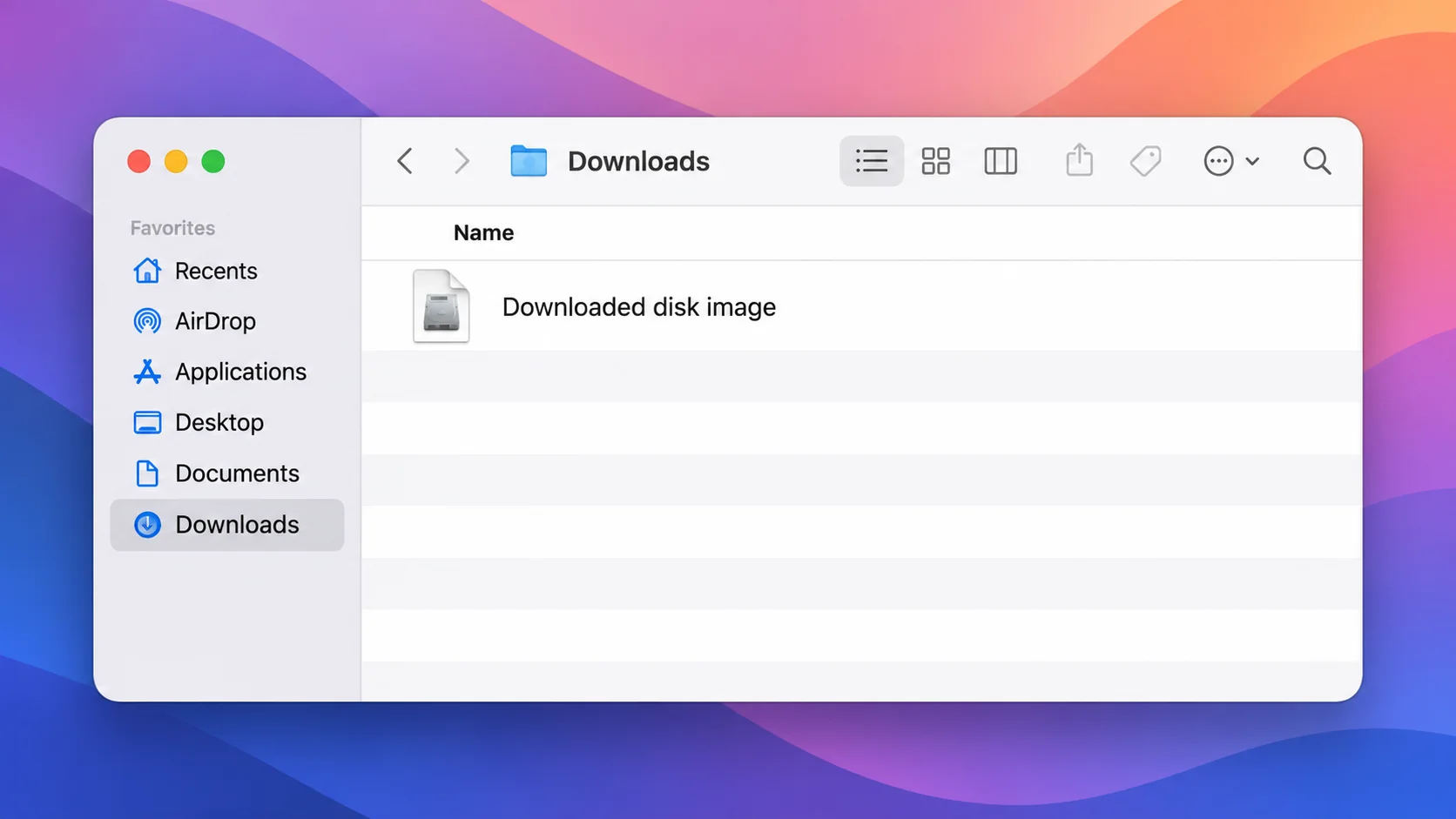
Finder can show a disk image, and macOS can mount one without your having run the suspicious item inside. Those actions don’t automatically have the same consequences.
If all you did was view the listing, don’t use a scary screenshot as proof of infection. If you ran an item or approved a prompt, document that distinction.
If you’re unsure, write down what the window asked, what you clicked, and whether Terminal opened. You can give support that information without recreating the event.
Finder can show you a file’s name and location. That doesn’t mean the file came from the vendor named on the page that offered it.
A normal macOS security warning can help explain why a file didn’t open. Don’t treat a web page’s suggestion to bypass that warning as an explanation from Apple.
A password prompt means something wants authorization.
If the prompt appeared after you started a questionable download, note whether you approved it and whether you were signed in as an administrator.
How the DigitStealer Infection Happens
Step 1: The download borrows the look of a Mac utility
The person looking for a utility expects a name, a screenshot, and a download button. A lookalike page can deliver those signals without having any relationship to the developer.
A disk image is a familiar delivery format on macOS, which makes the file feel ordinary. The format tells you how macOS can present the contents, not whether they’re trustworthy.
Return to the developer through a bookmark or a fresh search for its official site. Never use the same questionable download page to verify where its own file came from.
Step 2: Setup asks for a shortcut through Terminal
Dragging a legitimate app into Applications is one thing. A download insisting that you interact with Terminal is asking you to cross a different trust boundary.
Terminal is a real Apple utility, and using it is not inherently unsafe. The risk is running an instruction supplied by an unverified download without knowing what it does.
The real setup screen for a similar utility is a better comparison than another forum post repeating the same workaround. Check with the developer independently before proceeding.
Step 3: The stealer runs behind the familiar interface
Once the unsafe instruction is executed, what happens on screen may not reflect everything happening in the background. An absent app window isn’t evidence that nothing ran.
The code can check the Mac and collect selected information without presenting a normal installer finish screen. Jamf examined particular samples, so don’t use their hardware checks to dismiss symptoms.
This is also why opening a fresh Terminal window after the fact proves very little. Terminal may look completely normal when no suspicious program is visibly running.
Step 4: Account and wallet risks can outlast the file
Jamf also documented wallet-targeting behavior involving a counterfeit replacement for Ledger software in a branch of the investigation. That is not evidence that authentic Ledger software is malicious.
Account data copied while the stealer was active does not return when you delete the disk image. You need to address access separately, ideally from another trusted device.
For a wallet, a recovery phrase has a different role from a login password. If it may have been exposed, a desktop scan is not the answer to that part.
What to Do if You Ran a Suspect DigitStealer Download
-
Stop using the affected Mac for sensitive activity. Close the suspect window and disconnect its network connection if you ran the item or suspect active compromise.
Use a known-clean phone or computer for banking, email, and support. The clean device is also where you should open vendor instructions, rather than returning to the download page.
-
Write down the point where you stopped. Note the file name, approximate time, and whether you mounted the image, opened an item, or approved any prompts.
Preserve screenshots you already have if they don’t reveal secrets. Don’t rerun the file for a better screenshot or copy it into a shared folder as an example.
-
Tell the people responsible for work access early. If this is a managed Mac, call your help desk using the internal directory or a known number.
If you used a personal Mac for work, make that clear. A company can check its own sign-in and endpoint records even when it doesn’t manage your machine.
-
Secure the most useful accounts first. From another device, start with primary email, password managers, and accounts that grant access to other services.
Review recovery contact details, unfamiliar devices, and recent sessions. Where the provider offers it, sign out other sessions instead of assuming a new password automatically ends every one.
-
Use a different process for money and wallets. Report unauthorized activity to the bank or exchange through its established fraud channel, not through a link in an email.
If anyone entered a wallet recovery phrase into unexpected desktop software, contact the wallet maker through its verified support channel. Never send the phrase as proof.
-
Record future alerts without following their links. A sign-in alert or password reset you didn’t request may help you prioritize follow-up with a provider.
Keep transaction identifiers and support case numbers in a note on the clean device. You don’t need to send downloaded files to a bank to report unusual activity.
How to Remove DigitStealer From macOS
Step 1: Decide who should handle the cleanup
The instructions below are for a personal Mac you control. If your employer wants to preserve the device, don’t start removing items or performing a reinstall before getting directions.
If the suspicious code ran and financial or business accounts were involved, also consider professional help. A technician needs the timeline more than a theory about which version you downloaded.
Step 2: Check what macOS is set to reopen
Open System Settings, select General, then open Login Items & Extensions. Apple describes the controls in its guide to Mac login items.
Inspect entries that appeared around the download, rather than removing everything you don’t recognize. A VPN, backup app, or employer security agent can have an unfamiliar component name.
In Finder, eject the mounted image if it is still open.
For a personal investigation, remove the suspect downloaded image and related installer once you no longer need them as evidence.
Look in Applications for a copy installed at the same time.
If you can’t tell a genuine app from a lookalike, take a screenshot and ask for help before removing it.
Step 3: Install the Mac scanner from its legitimate route
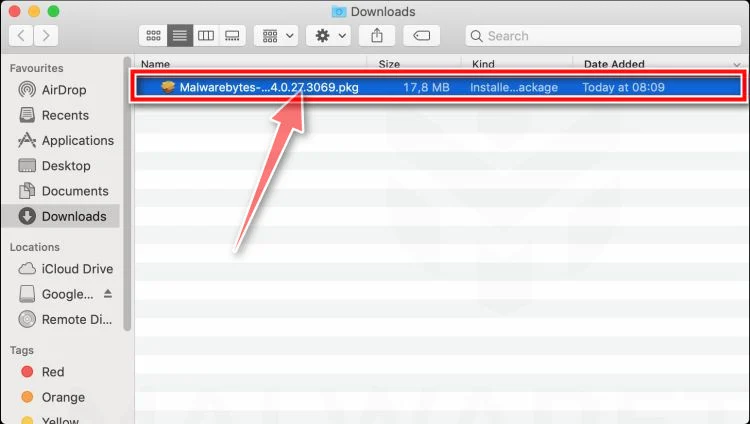
Use the Malwarebytes installer for Mac, not a fix promoted beside the suspect file. It is the macOS package, not the Windows executable.
When you can, download the installer on a clean computer. If you’re coordinating with IT, follow its instructions for transferring an approved installer or reconnecting the Mac.
Open the verified package using normal macOS installation prompts. The installation and scan images below show an older Malwarebytes interface, so current button placement may vary.
If a website tells you to disable system protections to install the scanner, stop.
Chrome or Safari loading a website is not proof that the website hosts the genuine installation package.
Step 4: Run the scan and review what was found
Open Malwarebytes and start a scan using its Scan control. Give the scan time to finish before treating the displayed results as the result of a completed check.
Read the full list of findings before acting.
If the scanner identifies a malicious item, follow its quarantine instructions and record the name if you need to share it with your support team.
Restart only when prompted or when your support team asks, then check that the detection hasn’t returned. Update macOS and your browsers through their official update mechanisms afterward.
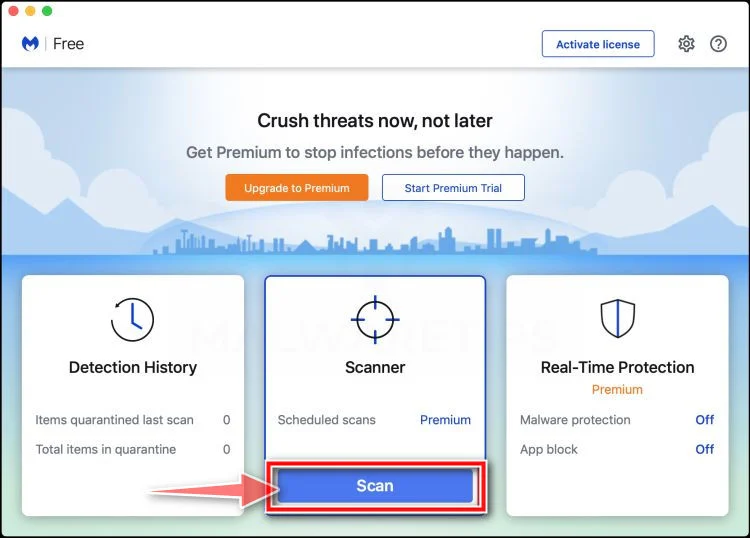
If you want ongoing protection, the Malwarebytes Mac Premium option is an optional affiliate link. The paid feature comparison is separate from the immediate cleanup.
Step 5: Treat persistent symptoms as unfinished work
If a deleted login item returns or the Mac keeps detecting the same threat, leave it out of routine use.
That pattern is worth investigating rather than dismissing after each restart.
Mac malware help is available through the MalwareTips support categories. Don’t post recovery phrases, account exports, or unredacted support screenshots to a public forum.
When a professional determines that a clean reinstall is warranted, check your backups first. A backup from the affected period can contain the very item you’re trying to avoid.
Step 6: Rebuild your download trail without reopening anything
Browser download history and Finder can help establish when the file reached the Mac. Look at existing history rather than navigating back to the site.
If you downloaded the app because you needed it immediately, check with the genuine vendor about current installation instructions. Use a clean device if you still suspect the Mac.
If other people rely on the same shared download, tell them where the suspect copy was found. Don’t distribute that file around the office to demonstrate the problem.
Frequently Asked Questions
Is DigitStealer a Windows virus?
DigitStealer in the Jamf research is a macOS information stealer. A Windows alert with similar wording needs its own verification, not a Mac installation or recovery procedure.
Does dragging an item always execute it?
It depends on where you dragged it and what you did afterward. Dragging a file in Finder isn’t the same as running an instruction through Terminal.
If you can’t remember, tell technical support exactly what you do recall. You can report uncertainty without taking the additional risk of repeating the instructions.
Can a Mac be affected without an administrator password?
Some activity may be possible using the account already signed in. The absence of an administrator password prompt does not establish that no program ran or no data was accessible.
Do I need to reinstall genuine wallet software?
If a desktop wallet application may have been replaced or tampered with, verify the current guidance from its maker on a clean device before reopening it.
Don’t type a recovery phrase into a new window to test whether it is genuine. Check the provider’s trusted procedure and treat possible disclosure as a separate problem.
Why did my Mac start working normally after I closed Terminal?
The experience may have ended at a failed download or a closed window. But normal behavior alone cannot confirm which of those outcomes happened or whether information was copied.
Does a clean scan mean I can ignore account alerts?
A clean result describes what the scanner found during that scan. A provider can still see a session or recovery change that happened before you started cleaning the Mac.
Review any genuine account alerts from another device. Go to the provider directly so you don’t confuse the original incident with a second deceptive notification.
The Bottom Line
The strongest clue in the documented DigitStealer case wasn’t the file extension or an unfamiliar brand. It was a download asking the reader to run something unexpected through Terminal.
If you ran it, secure your accounts as well as the Mac. If you stopped earlier, establish what happened before deciding that a complete reinstall or password reset is necessary.

Join the discussion
0 commentsShare your experience or ask a question about this article.
Community experiences
Did this happen to you?
Your experience could help someone recognize the same scam. Submit a private report for our team to review.
I experienced this tooReports are reviewed before publication. Sharing publicly is always your choice.
Discussion
Start the conversation
Have a question or something useful to share? Add the first comment.