

The email looks like another provider-administration task: check your contact information, sign a document, and keep your access in order.
Then it mentions suspension. For a busy office handling healthcare paperwork, that is the sentence most likely to get an immediate response.
Overview
A false HHSC notice targets the person managing provider access
The HHSC STEPS phishing scam impersonates the Texas Health and Human Services Commission’s Provider Finance Department, known as PFD.
It targets primary entity contacts for State of Texas Electronic Providers, or STEPS. The request sounds like routine housekeeping but threatens consequences for ignoring it.
HHSC’s official provider alert identifies these emails as fraudulent. PFD did not send them.
Ignoring this fraudulent message will not suspend or revoke a provider’s license or contract. A real administrative obligation should be checked separately.
The document request carries a licensing threat
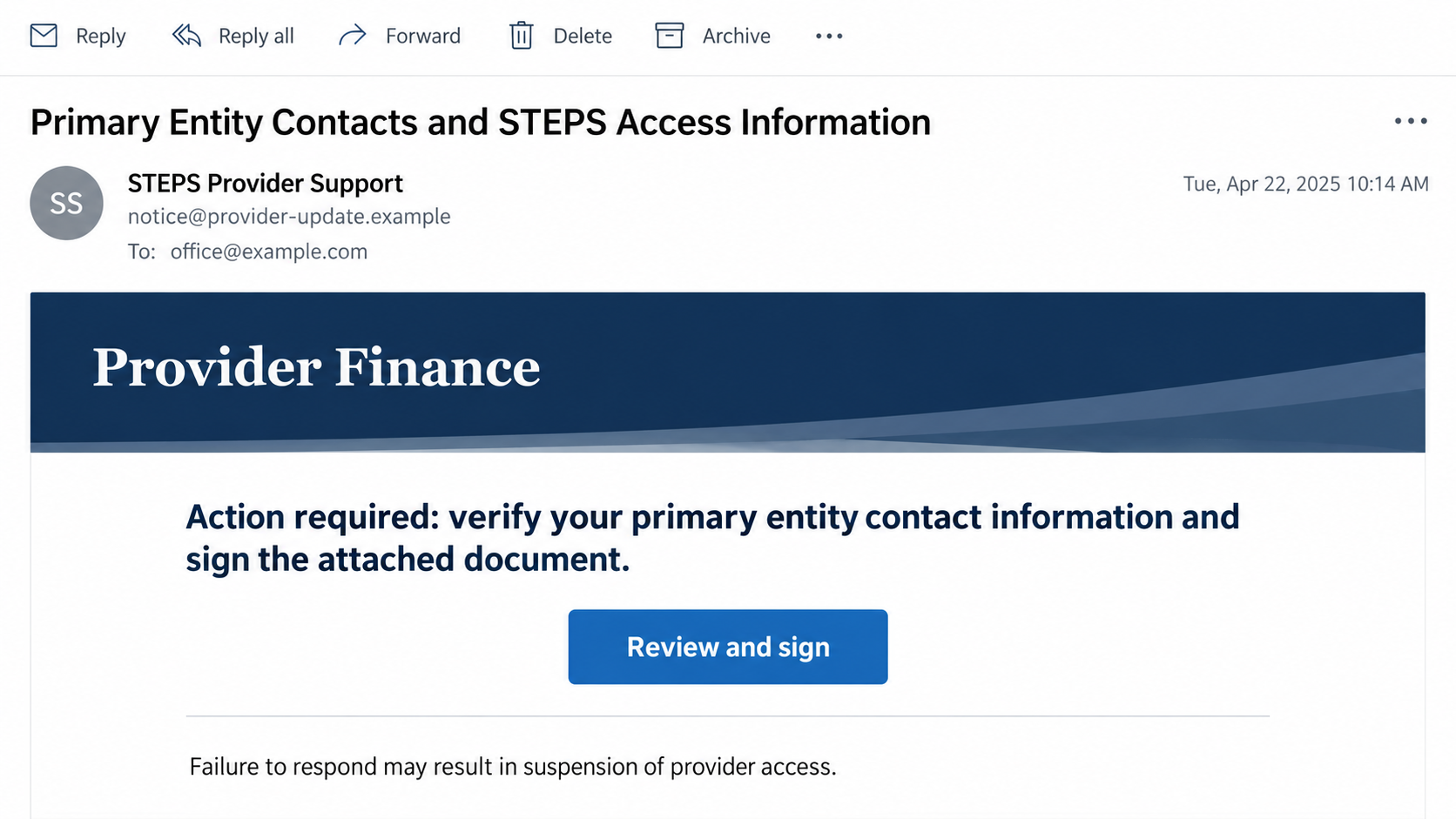
The reported email asks recipients to verify information and sign a document. It uses the PFD logo and threatens suspension or revocation.
The subject identified by HHSC is “Primary Entity Contacts and STEPS Access Information.” The reported sender used Gmail rather than an HHSC address.
These are the details worth comparing:
- A familiar provider-finance identity in the message’s branding.
- A request to confirm information through the sender’s chosen destination.
- A document or signing step that makes the process appear formal.
- A threat involving access, licensing, or continued participation.
- An address or link inconsistent with the official service.
The correct response starts outside the email
Open your established STEPS bookmark or reach PFD through HHSC’s genuine website. Don’t ask the questionable sender to validate its own request.
The image above is a fictional illustration of the administrative lure. It is not an original HHSC email or a captured provider account.
The real agency and STEPS service are not the scam. The fraud is an outsider borrowing their authority to obtain information.
Why This Lands Differently From Ordinary Junk Mail
Provider offices already manage deadlines, contact records, and access permissions. A message about keeping those records current doesn’t necessarily look out of place.
The phrase “primary entity contact” also sounds specific. A recipient may assume that someone using the correct administrative language understands their actual account.
That assumption can be costly. A criminal can copy the vocabulary of a real process without having authority to administer it.
The licensing threat adds pressure beyond an ordinary password reminder. It suggests an office’s ability to continue work could depend on finishing one small task.
Don’t let the severity of the threatened consequence reduce the quality of the check. Important administrative decisions deserve an established channel.
The same distinction applies if the email reaches a shared mailbox. Several employees seeing it doesn’t make the sender more authentic.
One colleague may assume another already checked it. A short internal note assigning verification can prevent everyone from relying on somebody else’s presumed approval.
If this isn’t your role, send the concern to the person who handles provider administration using your normal internal route. Don’t complete the form for them.
How the HHSC STEPS Phishing Scam Works
Step 1: The message adopts a recognizable provider-finance identity
The email arrives under the appearance of HHSC PFD. Its subject connects the request to contact information and STEPS access.
Those details make it relevant to the recipient’s job. The attacker doesn’t need to sell an unrelated product or invent a prize.
Expand the sender information before trusting the display name. The agency’s alert describes a Gmail sender, despite the official-looking branding.
Don’t use one reported address as an exhaustive blocklist. Another copy can change that address while keeping the same misleading request.
Step 2: Verification and signing make the request look procedural
The recipient is asked to confirm information and sign a document. These familiar actions can make the email feel like a required administrative update.
A signing interface is not an identity check on the person requesting your signature. A polished form can still be an unauthorized collection point.
Before sending business information, establish which genuine process requires it. Check through the portal or agency, not through links inside the questionable instruction.
Keep patient information out of the conversation. A message about provider contacts doesn’t justify attaching clinical documents or examples of recent patient work.
Step 3: A suspension threat discourages delay
The message warns that failing to respond could cause suspension or revocation. A recipient may interpret that as a threat to Medicaid participation.
HHSC expressly says the email is fraudulent and ignoring it will not trigger the threatened license or contract action.
That assurance concerns the scam email. It doesn’t mean providers should ignore genuine notices or assume that every administrative requirement is optional.
If you are worried about a real deadline, ask the actual agency which requirement applies. The fraudster’s countdown shouldn’t become your office’s decision-making process.
Step 4: The link or form seeks sensitive information
The email directs the recipient toward a location supplied by the sender. Information entered there can leave the control of the provider’s organization.
The official alert warns about sensitive personal or business information. It does not establish one identical final form or malware payload for every message.
Don’t test the destination with a real account to see whether it works. A successful-looking response would not establish that HHSC controls the page.
Stop before submitting, then report the original message to your IT team. They can investigate the link without asking office staff to experiment with it.
Check the Portal and the Request Separately
Use the route your organization already trusts
Open a saved STEPS bookmark or navigate from HHSC’s real website. Avoid a search advertisement offering a convenient replacement sign-in page.
Review your actual account for the alleged task. If the email’s request doesn’t appear there, don’t return to its form to finish anyway.
An absent notice isn’t a reason to guess. Ask PFD directly whether a real contact update or signature is required.
If your office uses a delegated administrator, have that person handle the inquiry. Sharing credentials with several colleagues creates a separate access problem.
Read the whole address, not just the familiar words
HHSC identifies its official domain and notes that automated STEPS notifications can use noreplypfdsteps@hhs.texas.gov. Compare the actual address, not a chosen sender name.
A clear mismatch is useful evidence. A plausible display field still shouldn’t override an unexpected demand for sensitive information.
The same applies to links. An address can contain “Texas,” “provider,” or “STEPS” without being an HHSC service.
Give colleagues the established portal bookmark, not a collection of addresses copied from a suspicious email. That keeps their next check outside the sender’s instructions.
Verify what the document is asking you to authorize
Check the purpose, requested information, and intended recipient before signing anything. Don’t assume a signature is harmless because no payment is requested.
If the document concerns a real organizational decision, involve the authorized person. An emailed threat doesn’t grant a new employee permission to bind the organization.
For legal questions about a document already signed, consult your organization’s appropriate adviser. Don’t rely on the impersonator’s explanation of what it means.
If the Message Reached a Shared Office Mailbox
Preserve the original email and tell colleagues not to process it while verification is pending. A quiet pause is more useful than five separate replies.
Ask whether anyone already opened the form, entered a password, sent documents, or approved an account change. Avoid blaming the person who answers honestly.
Record which account was used. A shared mailbox password, personal work login, and separate provider-portal credential may need different containment steps.
Don’t forward a live attachment broadly as a warning. Your IT team can advise on distributing a safe description or screenshot.
If a form was completed, identify the information disclosed rather than guessing from its title. The submitted fields matter more than the word “verification.”
For example, entering an office phone number is different from supplying a portal password. Tell IT which happened so urgent account work isn’t delayed.
If several employees used the form, list each affected account privately. Resetting one person’s password won’t address a second person’s separate submission.
Note whether a signature was typed, a document uploaded, or a login prompt approved. These details help your organization reconstruct what the sender obtained.
Keep the time of the action as accurately as possible. Administrators can compare it with their own account records without asking you to reopen the destination.
If you aren’t sure which fields you completed, say so. Don’t fill gaps with guesses or return to the form to recreate the experience.
Also distinguish a downloaded document from one you actually opened. The file can be preserved for authorized review without another employee testing it.
Finally, tell the provider administrator whether any genuine contact information was changed afterward. An incident report should cover the real account as well as the email.
Keep a copy of the report and the agency’s response with the administrative record. That helps the next person understand why the message wasn’t processed.
Once the incident is contained, review how unusual provider requests are verified. A repeatable check works better than hoping everyone recognizes one subject line.
What to Do if You Have Fallen Victim to This Scam
-
Stop submitting information and notify IT. Explain whether you only read the message, followed a link, completed a form, or opened a downloaded file.
Include the time and the account used. Don’t send passwords or secret codes in the incident report itself.
-
Secure exposed credentials on the real service. Work with your administrator to replace the password and review active sessions or recent account changes.
If the password was reused, identify those accounts too. Protect work email promptly because it may receive recovery messages for other services.
-
List personal and business information disclosed. Identify contact records, identifiers, documents, or signatures actually submitted. Keep possible exposure separate from confirmed disclosure.
Let the responsible security and privacy staff determine follow-up. Don’t independently notify patients or outside organizations without coordinating the response.
-
Check financial actions if any occurred. If a later stage requested payment or banking access, contact your organization’s finance team and bank immediately.
Describe the exact transaction or approval. The published HHSC warning doesn’t establish that every recipient encounters a payment demand.
-
Preserve the original message and relevant records. Keep sender details, headers where available, screenshots, submitted-document copies, and the destination already recorded by your browser.
Don’t revisit the page to collect more evidence. Ask IT how to retain material without exposing additional staff.
-
Verify the genuine administrative position with PFD. Use HHSC’s independently reached contact route and explain that an impersonation message claimed a required update.
Keep real provider maintenance separate from the scam response. Removing the false request shouldn’t leave a genuine account issue unresolved.
-
Address risky downloads with your IT team. If you opened an unexpected file or installed software, let them examine the device and consider Malwarebytes.
AdGuard can help reduce access to known malicious destinations. Neither tool revokes a disclosed password, retrieves a document, or replaces account-security work.
Build a Check That Survives a Changed Subject Line
A warning circulated today may name one Gmail account. Tomorrow’s copy could use different wording or a different sender.
Teach the decision instead: an unexpected request involving credentials, provider status, or organizational signatures gets checked through the real service.
Make that check accessible to the person covering reception or administration during absences. Fraud doesn’t wait for the usual account manager to return.
Keep official contact information in a shared, controlled place. Don’t make employees search the suspicious email for the person who can verify it.
When somebody pauses a questionable request, acknowledge the useful action. Employees should not feel that protecting the office means risking criticism for working too slowly.
A genuine agency inquiry can continue after verification. The aim is to process real obligations safely, not to stop all provider correspondence.
Frequently Asked Questions
Will ignoring this email suspend my provider license?
HHSC says the fraudulent email will not cause suspension or revocation if unanswered. Check genuine licensing or contract questions through the actual agency.
Is STEPS itself a fraudulent service?
No. The State of Texas Electronic Providers service is legitimate. The scam borrows HHSC PFD branding to make an unauthorized information request.
Does the correct subject line make an email official?
No. Criminals can copy administrative wording. Verify the sender and check the specific task through your established portal or independently contacted PFD representative.
What if I signed but didn’t enter a password?
Tell your organization what you signed and supplied. Preserve the document and let the appropriate security or legal contact assess it without relying on the sender.
Should I test the page with incorrect details?
No. You don’t need to interact with it to report it. Let authorized security staff examine the destination through their established process.
Is reading the email proof my computer has malware?
No. Describe any clicks, downloaded files, or installations separately. A device check may be appropriate, but the message alone doesn’t establish an infection.
The Bottom Line
Don’t verify or sign through the HHSC STEPS phishing email. Use the real portal or contact PFD independently before disclosing provider information.
If you already responded, tell IT what left your control and secure affected accounts. The false suspension threat is a reason to verify, not rush.

Join the discussion
0 commentsShare your experience or ask a question about this article.
Discussion
Start the conversation
Have a question or something useful to share? Add the first comment.