


A Keeta-branded page says rewards depend on your token balance and activity. It sounds like a distribution with rules, rather than a random giveaway.
Before checking what your wallet might qualify for, check who is asking you to connect it.
Overview
A counterfeit distribution borrows Keeta’s name
The Keeta KTA distribution scam uses overview-keeta[.]pro to promote supposed $KTA rewards. The reported page imitates the genuine project’s identity.
Its eligibility story references balances, on-chain activity and ecosystem participation. Those details make the offer sound as though a formal distribution process already exists.
The reported objective is to obtain wallet access for cryptocurrency theft. That accusation concerns the counterfeit distribution, not the legitimate Keeta platform.
The real project uses keeta.com. Recognizing its official address does not validate a similarly named reward page, nor does it constitute investment advice about $KTA.
The live warning is a reason to stop, not continue
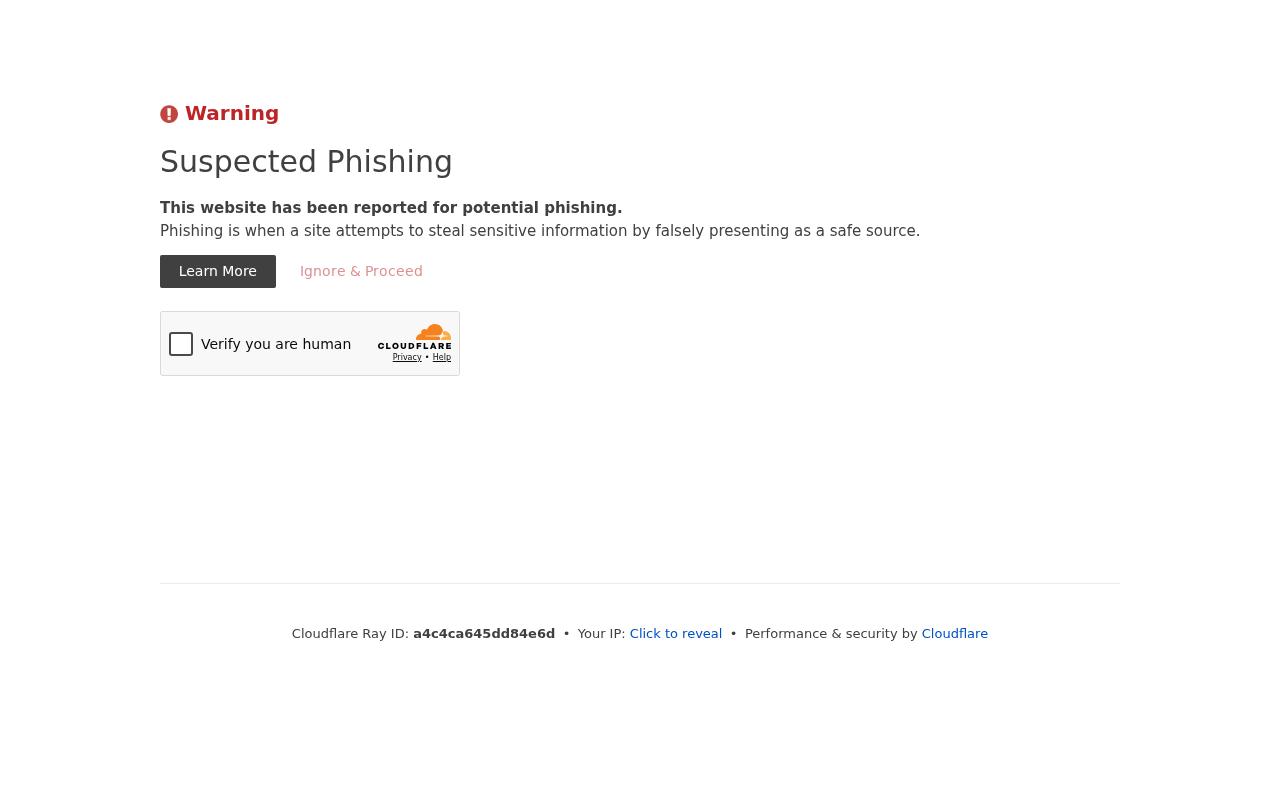
The original capture above shows a provider warning identifying suspected phishing. It is what the reported domain displayed during our visit, not its earlier distribution interface.
We did not bypass that warning, solve its challenge or connect a wallet. The exact request that an earlier visitor received remains untested.
- The reported counterfeit domain is overview-keeta[.]pro.
- The pitch claims rewards based on measurable-looking eligibility rules.
- The requested next action involves connecting a wallet.
- A warning screen is not an invitation to investigate by signing something.
A connection alone normally does not authorize every asset transfer. Review subsequent requests, existing permissions and any disclosed secrets before deciding what exposure occurred.
The right response depends on the wallet interaction
If you merely saw the promotion, do not claim through it. If you opened the site, reject new requests and leave.
If you signed, approved, transferred or supplied recovery information, inspect that specific action. These are different ways an interaction can become financially dangerous.
No malicious transaction was simulated here, and no particular blockchain or approval method is confirmed for every version of the page.
Do not assume that a generic EVM allowance tool applies to every account branded as Keeta-related. The actual wallet, network and request determine the remedy.
Why Rule-Based Rewards Can Feel More Believable
An unexplained promise of free cryptocurrency is easy to question. A reward supposedly calculated from participation can feel more earned.
The counterfeit pitch gives you reasons you might qualify: holding tokens, using a network or participating in an ecosystem. You may already recognize yourself in that description.
But describing a calculation is not evidence that the project approved it. A page can name eligibility factors without controlling any genuine distribution.
The language also encourages a seemingly harmless first step. Checking eligibility feels less consequential than buying a token or making an investment.
A wallet interaction can still carry consequences even when a website calls it a check. Read the wallet’s own request, not just the explanation beside the claim button.
Do not let the prospect of qualifying turn into a reason to ignore the source. Verification should happen before the wallet becomes involved.
For a genuine project announcement, start from the established project site and follow its own publication channels. A reply or advertisement using the same name is not equivalent.
If the distribution cannot be confirmed there, decline the offer. You do not need a complete investigation of the operator to refuse unexplained access to your assets.
How the Keeta KTA Distribution Scam Works
Step 1: Introduce a Reward That Seems Connected to Past Activity
The invitation presents $KTA as a reward for behavior you may already have completed. This makes the offer seem less like speculation and more like collecting an entitlement.
A balance-based rule may prompt a holder to think the site already recognizes their position. An activity-based rule may do the same for someone who used related services.
Neither impression authenticates the page. Public blockchain information can sometimes reveal activity without the site having any official relationship with the project.
A website may also display generic eligibility language to every visitor. Do not assume it has verified your history because its explanation sounds relevant.
Check whether the genuine project announced the specific distribution. The useful confirmation is an exact match to the program and destination, not a general discussion of rewards.
If a promotion reaches you through social media or messaging, keep its origin in mind. A familiar account or popular post can be compromised or impersonated.
Step 2: Make an Unrelated Domain Look Like a Project Subsection
Overview-keeta[.]pro sounds like a dashboard or informational overview. The word overview can make the address seem descriptive rather than suspicious.
It is nevertheless a separate registered domain from keeta.com. The project name appearing after a hyphen does not make it an official subsection.
Likewise, a polished page design cannot supply ownership evidence. Names, colors and logos can be reproduced without authorization.
Use the project’s established website as your starting point. Do not follow a new reward URL merely because a message claims the normal site is busy.
Search-result placement also is not approval. If an advertisement or copied page introduces a different domain, verify it through the project before doing anything with a wallet.
The provider’s suspected-phishing screen reinforces the decision to stop. Bypassing it would add risk without proving that the distribution is genuine.
Step 3: Ask for a Wallet Under the Cover of Eligibility
The reported page steers visitors toward connecting a wallet. That can expose a public account address and permit the site to request further interactions.
A list of familiar wallet brands is not an endorsement by those wallet companies. Standard connection interfaces can be used by trustworthy applications and impostors alike.
Check the selected account and the permissions actually described. Do not casually switch to a better-funded account because the first one is declared ineligible.
An empty account is not a safety certificate either. A later deposit can become relevant if a harmful authorization or exposed secret is still usable.
Merely disclosing a public address is different from giving a private key. Keep that distinction clear when describing the incident to support.
If you declined every additional request, start by removing the connection and examining history. Do not assume that seeing a connection indicator proves a completed theft.
Step 4: Seek Authority That Can Affect Real Assets
A drainer needs some means of authorizing movement, such as a transfer, a usable signature, a token allowance or compromised wallet secrets.
The precise mechanism for this reported site was not recovered. Any claim that it uses one specific contract method would go beyond the available evidence.
The practical checkpoint is the wallet confirmation. Compare the requested asset, recipient, permissions and network with the action you intended.
Refuse a request you cannot understand. A site calling the operation reward verification cannot change what the wallet is actually authorizing.
Some signatures can carry authority without an immediate visible transfer or network fee. The absence of a payment screen therefore does not make an unexplained signature safe.
Never provide a seed phrase to claim a distribution. A recovery secret controls access; it is not a harmless eligibility identifier.
Step 5: Keep the Reward Story Going After Access Was Granted
A page can continue displaying eligibility messages even after a harmful operation. Those messages do not show the true state of an account.
Use the wallet’s actual history and the relevant network explorer to inspect transfers. Record the transaction hash and receiving address if assets moved unexpectedly.
If the page requests another payment to release rewards or correct a failed claim, stop. That new request needs verification, not automatic compliance because you already started.
A second supposed support agent may use the same story to offer recovery. Someone knowing the counterfeit domain is not evidence that they can restore funds.
Completed blockchain transfers generally lack a normal payment-reversal process. Reporting can still help identify a receiving service or preserve evidence for investigators.
Do not confuse that reporting value with a promise of reimbursement. Refuse guaranteed outcomes from people asking for additional cryptocurrency up front.
Review the Actual Authorization, Not Just the Connection List
For a connection without a signed operation
Disconnect the site through your wallet settings and reject outstanding prompts. Then check whether anything was accepted in a separate confirmation window.
Record the account involved. If several wallets or accounts are available, a connection on one does not automatically describe the permissions on all the others.
A screenshot of a success message can help document the website’s claim. It cannot replace the wallet’s transaction history when assessing financial loss.
For token approvals on a supported network
Existing spending authority may remain after a site is disconnected. MetaMask’s disconnect guidance explains why that action differs from revoking approvals.
Use the wallet provider’s appropriate allowance-review instructions. Verify the correct network and token before attempting any corrective transaction.
Do not apply those instructions blindly to native accounts or unsupported networks. Ask official wallet support about the exact transaction or signature you accepted.
For a phrase or private key given away
A password change inside the wallet app does not make an exposed recovery phrase private again. The attacker may retain the same recovery capability.
Prepare a genuinely new wallet through trusted software or hardware, using a secure device. Importing the old phrase into a new app does not create new secrets.
If automated withdrawals appear to consume every deposit, get qualified help before adding more funds for fees. Repeating the same transfer can increase the loss.
Record Assets, Not Just the Page’s Reward Estimate
If you report a loss, identify the asset, quantity and network that actually moved. A cash estimate supplied by the counterfeit site is not a transaction record.
Separate a pending request from a confirmed transfer. Also distinguish an approval transaction from the later movement of tokens it might permit.
A screenshot of a large promised allocation should be saved as evidence of the pitch, not counted as cryptocurrency you previously owned.
These distinctions help a wallet provider or investigator understand the incident without chasing a fictional balance. They also prevent misleading recovery agents from defining the loss for you.
What to Do if You Have Fallen Victim to This Scam
End the counterfeit distribution interaction. Close overview-keeta[.]pro, reject prompts and leave any warning intact. Do not reconnect to obtain a better reward screenshot.
Write down whether you connected, signed, approved, sent assets or disclosed recovery information. The distinction will determine what needs attention.
Check public account activity through trusted tools. Use the correct explorer or wallet history, not a balance reported only by the claim page.
Save transaction references, asset identifiers and destination addresses. Keep private keys and recovery phrases out of screenshots, reports and support messages.
Remove unsafe authority where possible. Review allowances and other permissions for the relevant account and network, using the wallet provider’s genuine instructions.
Verify revocation requests themselves. A fake approval-repair page can create another dangerous authorization while claiming to remove the first one.
Replace secrets that were exposed. If a phrase or key was supplied, arrange safe migration rather than relying on the old wallet’s new password.
For valuable accounts or unclear signed messages, seek competent assistance through a verified provider. Do not accept help from an unsolicited direct-message recovery specialist.
Check the device only if the interaction created a software concern. An installed extension, downloaded utility or recurring unwanted redirect deserves investigation.
Malwarebytes may detect unwanted programs, while AdGuard can reduce deceptive advertising routes. Neither tool cancels blockchain permissions or retrieves transferred tokens.
The scanning component below addresses that separate device risk. Do not treat its completion as proof that a crypto account is safe.
Report the impersonation and any loss. Contact the real project through a verified channel and use appropriate local fraud-reporting services.
If a receiving exchange is identifiable, give its official abuse team the public transaction evidence. Refuse release fees, recovery taxes or guarantees of a reversal.
Is Your Device Infected? Run a Free Malware Scan
Slow performance, constant pop-ups, or strange behavior? These are classic signs of a malware infection. A quick way to check is to scan your device with Malwarebytes Free, one of the most trusted malware removal tools available. If you only visited a scam page and didn’t download or install anything, this scan is optional.
The free version detects and removes the most common threats, including:
- Adware — the cause of those annoying pop-ups
- Browser hijackers — unwanted redirects and changed homepages
- Trojans and spyware — hidden programs stealing your data
- Potentially unwanted programs (PUPs) — software you never asked for
👉 Select your device below — Windows, Mac, or Android — then follow the simple steps to download Malwarebytes, scan your system, and remove any threats it finds. The scan usually takes 5 to 20 minutes.
Run a Malware Scan with Malwarebytes for Windows
Malwarebytes is one of the most popular and trusted anti-malware tools for Windows — and it’s completely free for removing infections. It catches threats that many antivirus programs miss, including adware, browser hijackers, and trojans. Follow the steps below to scan your PC and remove what Malwarebytes finds.
Download Malwarebytes
Click the button below to download the latest version of Malwarebytes for Windows from the official source. The free version is all you need — it will scan your computer and remove adware, browser hijackers, and other malicious software at no cost.
Download MalwarebytesOfficial installer for Windows 11 and 10. Your download starts right away.Want real-time protection? See Malwarebytes Premium Malwarebytes Free for WindowsScans and removes malware at no cost
-
Install Malwarebytes
When the download finishes, open your Downloads folder and double-click the MBSetup file. If Windows shows a User Account Control pop-up, click “Yes” to allow the installation.

Follow the On-Screen Prompts to Install Malwarebytes
The setup wizard will walk you through a few quick screens:
-
Choose where you’re installing the program — “Personal Computer” or “Work Computer” — then click Next.

-
Malwarebytes will now install on your device. This usually takes under a minute.

-
When installation is complete, the “Welcome to Malwarebytes” screen will open automatically.

-
On the final screen, click Open Malwarebytes to launch the program.

-
Optional: Check for rootkits with a Custom Scan
You don’t need to change any settings for a normal scan. The standard Threat Scan in the next step is enough for most problems, so you can go straight to it.
If you also want to check for rootkits, use a Custom Scan. In current versions of Malwarebytes, rootkit scanning is only available there:
- On the Scanner tile, click the three-dot menu and select Advanced Scan.
- Choose Custom Scan. In its options, check Scan for rootkits.
- Select your system drive (usually C:\) as the location to scan, then start the scan. It takes longer than a Threat Scan.
- When it finishes, review and quarantine the results as described in the steps below.
Rootkit scanning isn’t available on Windows devices with ARM processors.
Start the Scan
Click the blue Scan button. Malwarebytes will automatically update its virus database and start checking your computer for malware.

-
Wait for the Scan to Finish
The scan checks your entire system for browser hijackers and other malicious programs, so it can take 5 to 20 minutes depending on your computer. Feel free to do something else — just check back occasionally to see the progress.

-
Quarantine the Detected Threats
When the scan is done, you’ll see a list of everything Malwarebytes found — malware, adware, and potentially unwanted programs. Click the “Quarantine” button to remove all of them at once.

Malwarebytes will now remove the malicious files and registry entries and move them safely into quarantine.

-
Restart Your Computer
Some threats can only be fully removed after a reboot. If Malwarebytes asks you to restart, click Yes. Once you’re logged back in, Malwarebytes has finished removing the threats it found.

When the scan is done, check whether the problems you noticed have stopped. If they continue, see the options below.
If you are still having problems with your computer after completing these instructions, then please follow one of the steps:
- Run a computer scan with ESET Online Scanner
- Ask for help in our Windows Malware Removal Help & Support forum.
Run a Malware Scan with Malwarebytes for Mac
Malwarebytes for Mac is a free on-demand scanner that removes the malware other security software tends to miss — adware, browser hijackers, and unwanted programs included. Cleaning an infected Mac with Malwarebytes has always been completely free, and it’s our go-to recommendation. Follow the steps below to scan your Mac and remove what Malwarebytes finds.
-
Download Malwarebytes for Mac
Click the button below to download the latest version of Malwarebytes for Mac.
Download MalwarebytesOfficial installer for macOS. Your download starts right away.Want real-time protection? See Malwarebytes PremiumMalwarebytes Free for MacScans and removes malware at no cost -
Open the Malwarebytes setup file
When the download finishes, open your Downloads folder and double-click the setup file to begin the installation.

-
Follow the On-Screen Prompts to Install Malwarebytes
The Malwarebytes for Mac Installer will guide you through a few quick screens. Click “Continue” and keep following the prompts until the installation completes.



When the installation is complete, Malwarebytes opens to the Welcome to Malwarebytes screen. Click “Get started“.
Malwarebytes needs Full Disk Access to check your whole Mac. When it asks, open System Settings > Privacy & Security > Full Disk Access, turn on Malwarebytes (it may be listed as Malwarebytes Protection), and confirm with your password or Touch ID. Then return to Malwarebytes. On macOS Monterey and earlier, this setting is in System Preferences > Security & Privacy > Privacy.
-
Select “Personal Computer” or “Work Computer”
Malwarebytes will ask what type of computer you’re installing it on. Click either Personal Computer or Work Computer, whichever applies.

-
Start the Scan
Click the “Scan” button. Malwarebytes will automatically update its detection database and begin checking your Mac for malware.

-
Wait for the Scan to Finish
Malwarebytes will scan your Mac for adware, browser hijackers, and other malicious programs. This can take a few minutes, so feel free to do something else — just check back occasionally to see the progress.

-
Quarantine the Detected Threats
When the scan is done, you’ll see a list of everything Malwarebytes found. Click the “Quarantine” button to remove all the threats at once.

-
Restart Your Mac
Malwarebytes will now remove all the malicious files it found. Some threats can only be fully removed after a reboot — if Malwarebytes asks you to restart, allow it. Once you’re logged back in, check whether the problems you noticed have stopped. If they come back, save the scan report and ask for help in our forum.

If the problems you noticed continue after the scan, see the options below.
If you are still experiencing problems while trying to remove a malicious program from your computer, please ask for help in our Mac Malware Removal Help & Support forum.
Run a Malware Scan with Malwarebytes for Android
Malwarebytes for Android scans your phone or tablet for malware, adware, and potentially unwanted apps. The free version scans only when you start a scan. Real-time protection, which checks apps automatically, is part of the paid Premium version.
-
Download Malwarebytes for Android.
You can download Malwarebytes for Android by clicking the link below.
Get Malwarebytes for AndroidOpens Google Play in a new tab.Want real-time protection? See Malwarebytes Premium for AndroidMalwarebytes for AndroidScans your phone and removes malware at no cost -
Install Malwarebytes for Android on your phone.
In the Google Play Store, tap “Install” to install Malwarebytes for Android on your device.

When the installation process has finished, tap “Open” to begin using Malwarebytes for Android. You can also open Malwarebytes by tapping on its icon in your phone menu or home screen.

-
Follow the on-screen prompts to complete the setup process
When Malwarebytes opens, it walks you through a short setup. Tap Get started and follow the prompts. If you see an offer for a trial or a paid plan, read it before you accept. You can skip it and keep using the free scanner.
Malwarebytes will ask for permission to access the files on your phone so it can scan them. Tap Allow, or turn on the permission in the Android screen that opens, then return to Malwarebytes.
-
Run a scan with Malwarebytes for Android
On the main screen, tap Scan now. In some versions, you open the menu, tap Scanner, and then tap Run a scan.
-
Wait for the Malwarebytes scan to complete.
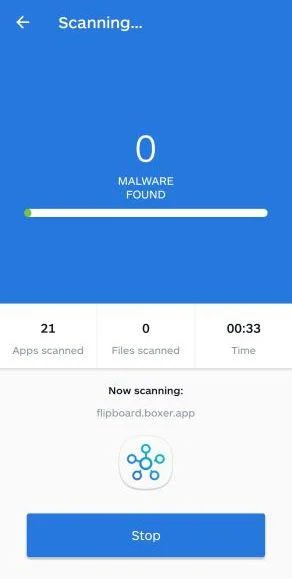
Malwarebytes will now start scanning your phone for adware and other malicious apps. This process can take a few minutes, so we suggest you do something else and periodically check on the status of the scan to see when it is finished.
-
Remove the detected apps.
When the scan has been completed, you will see a list of the threats that Malwarebytes for Android has detected. Next to each detected item, tap the menu icon (three dots), then choose to uninstall the app or delete the file. Android then asks you to confirm. Tap OK or Uninstall to remove the app.
-
Restart your phone.
When the detected apps are removed, restart your phone if Malwarebytes asks you to. Then check whether the problems you noticed have stopped.
If the problems you noticed continue after the scan, see the options below.
If you are still having problems with your phone after completing these instructions, then please follow one of the steps:
- Ask for help in our Mobile Malware Removal Help & Support forum.
- Only as a last resort, reset your phone to factory settings. Read the warning below first.
- Back up your photos, videos, files, and messages, for example to your Google account or a computer.
- Make sure you know your Google account email and password. The phone asks for them after the reset. If you changed the password recently, Google recommends waiting 24 hours before you reset.
- On a Samsung phone, also make sure you know your Samsung account password.
- If you use an authenticator app for two-step verification, move your accounts to another device or save your backup codes first.
Stay Protected: Block Ads and Malicious Sites
No scan can prove a device is completely clean, so it helps to block threats before they reach you. Most infections start with a malicious ad or a fake download button — so blocking them at the source is your best defense.
We recommend AdGuard, which blocks malicious ads, phishing pages, and dangerous redirects before they can reach you.
👉 Download AdGuard and browse safely
Frequently Asked Questions
Is this warning saying that Keeta is a scam?
No. It concerns a counterfeit reward site using Keeta’s identity. It is not a verdict on the project’s technology, services or token investment value.
Is overview-keeta[.]pro the same as keeta.com?
No. They are separate domains. A familiar brand name in a hyphenated address does not demonstrate an official connection.
Why does the image show a phishing warning instead of rewards?
That is the genuine screen encountered during the original capture. The warning was not bypassed, so the earlier claim interface is not presented as live evidence.
Did connecting necessarily transfer my KTA?
Not necessarily. Review any subsequent signatures, approvals and transfers. A normal basic connection is not equivalent to permission to move every asset.
Can disconnecting undo a token approval?
No. Where an approval exists, it needs the appropriate separate revocation process. The exact steps depend on the network, token and wallet.
Should I pay a fee to unlock the promised distribution?
Do not pay the counterfeit page. An extra fee does not establish a genuine reward or a method of recovering cryptocurrency already lost.
The Bottom Line
Do not connect or sign through this Keeta KTA distribution site. Its copied identity and reward rules do not justify granting authority over real assets.
If you already interacted, review what the wallet actually authorized. Remove unsafe permissions, replace exposed secrets and report transfers without paying anyone a recovery fee.

Join the discussion
0 commentsShare your experience or ask a question about this article.
Discussion
Start the conversation
Have a question or something useful to share? Add the first comment.