

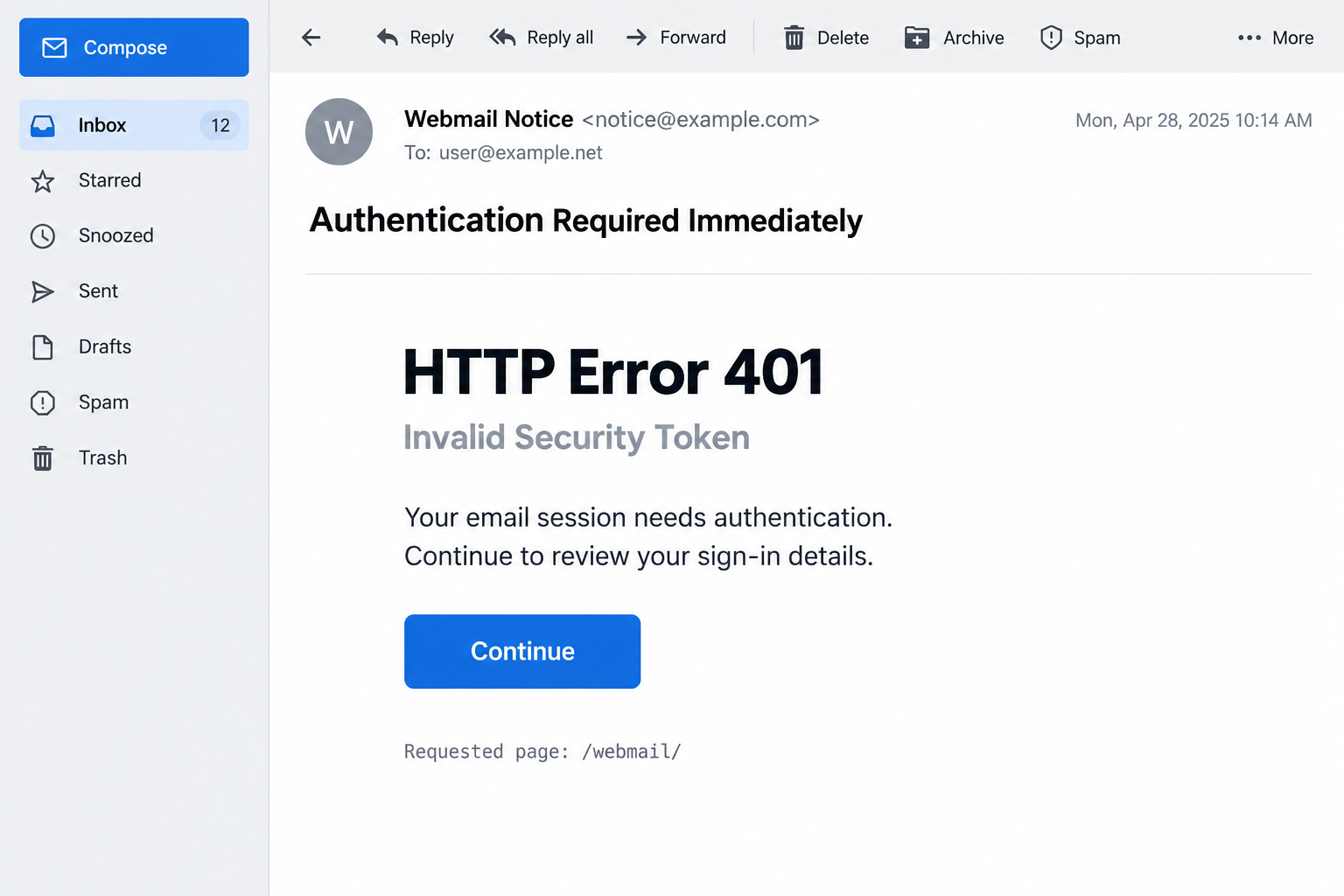
An email announces an HTTP Error 401 and an invalid security token. It sounds technical, but the proposed fix appears simple: continue and sign in again.
Before trying to repair anything, check where the error actually appeared. A phrase in an email is different from a problem reported by your usual service.
Overview
The email borrows a real technical term
The HTTP Error 401 email scam uses authentication language to justify a password request. A reported message blames an expired or outdated Outlook, OWA, or webmail service.
It claims that re-entering the password will assign a new security token and restore normal email use. That repair story is the reason given for continuing.
The message’s technical explanation is not a diagnostic result from your computer. An email author can print an error code without the account experiencing that error.
The Continue link is the point of exposure
The reported campaign directs recipients to a counterfeit login site. Its objective is obtaining the email credential, not performing an authorized update to the mail service.
No raw original email or exact destination is available here for a current capture. The case should not be read as a live test of a particular form.
That limitation doesn’t make the requested repair sensible. Confirm account problems in the legitimate service before treating an outside message as the route to authentication.
A genuine 401 response is not itself a scam
HTTP 401 is a real response associated with missing or invalid authentication. It can appear during ordinary use of a legitimate website or application.
The fraud lies in using that term to redirect you into an impostor’s credential request. Don’t label every genuine authentication error as an attack.
- Establish whether the real service is reporting any problem at all.
- Open the known mailbox address rather than the email’s Continue button.
- Do not provide passwords to an unexplained repair page.
- Tell your administrator what you entered if you already followed the instructions.
What HTTP 401 Actually Tells You
A website and browser exchange responses while you use a service. A 401 response concerns authentication for the resource being requested, not a universal diagnosis of your device.
Mozilla’s HTTP 401 reference explains the code in that context. It doesn’t mean an unknown email sender is entitled to repair your account.
A real sign-in flow may ask you to authenticate again when a session expires. The safe place to do that is the genuine service you intentionally opened.
That distinction is easy to lose when a message combines several familiar terms. Outlook, a token, and an expired service can sound like a coherent technical finding.
But naming a product doesn’t establish a relationship with it. The email still needs an authentic sender, a legitimate purpose, and an appropriate destination.
Don’t try to resolve the uncertainty by entering your password first and checking afterward. The secret can be exposed before the page displays any visible result.
You do not have to understand every detail of authentication to refuse an unexplained form. Asking the provider or administrator is a valid troubleshooting step.
How the HTTP Error 401 Email Scam Works
Step 1: A technical warning creates a repair problem
The message presents an account issue as something already diagnosed. Its error label supplies an explanation before the reader checks whether email access is actually interrupted.
A recipient who recently encountered a slow app may connect that inconvenience with the warning. A coincidental problem can make the message’s diagnosis seem plausible.
Begin with observation instead. Open your existing mail app directly and note what it reports. Don’t accept the email’s account of a problem as the only evidence.
If nothing is wrong in the real service, there is no reason to create a repair session on a new website simply to satisfy the notice.
Step 2: Product names make the explanation sound familiar
The warning associates its repair with recognizable email tools. That can make a generic invitation feel relevant to people using different providers or workplace systems.
A list of product names is not proof that the sender knows your configuration. It may be broad enough to cover many recipients without identifying anyone’s actual setup.
The word token adds technical weight, but it doesn’t establish what failed, which system issued anything, or why your current password belongs in the proposed form.
Don’t let unfamiliar terminology end the verification process. If the notice were genuine, the responsible support team should be able to explain the required action through established channels.
Step 3: The repair promise makes credential entry feel necessary
The Continue button narrows the reader’s attention to one path forward. A password request is framed as restoring service rather than disclosing a secret to another party.
A counterfeit page can look like the sign-in screen you expected. The browser address matters more than the colors, logo, or reassuring text.
Check the destination before authenticating. For a company identity provider, use the approved access route or ask IT rather than guessing from the page design.
Don’t override a password manager’s failure to recognize the site by copying the secret manually. That hesitation may be the most useful warning in the process.
A padlock isn’t a verdict about ownership. Encryption can protect a connection to an impostor just as it protects a connection to a genuine provider.
Step 4: An apparent failure can invite repeated disclosures
If the page rejects a password, the recipient may try another variation. That can expose more than one secret while the supposed repair makes no progress.
Stop after recognizing the questionable destination. An error displayed by a form doesn’t tell you whether the information typed into it was collected.
Do not provide recovery codes, accept unexpected prompts, or install software to make the repair continue. Each request needs separate justification from a trusted source.
This case does not establish that a command-pasting or malware-installation stage occurred. If such instructions appear in your encounter, report them as additional exposure rather than assuming.
Step 5: A password disclosure becomes an identity-recovery task
Once the account credential may have reached someone else, the priority changes. You need to secure the identity, not keep trying to complete the email’s repair.
Whether unauthorized access succeeded depends on protections and circumstances. A still-working mailbox cannot answer that question on its own.
Check actual account records and involve the administrator for managed identities. Sessions, recovery methods, and connected applications may need attention as well as the password.
Keep genuine technical troubleshooting separate. A real application error may still need support after the exposed account is secured, but the fraudulent message should not direct either process.
How to Investigate a Real Sign-In Error Safely
Return to the service you intentionally use
Close the page opened from the message. Launch the established application or use a known bookmark, and check whether the same issue appears there.
Record the actual error from that trusted service. Include the time and whether it affects one application or several, without copying passwords into a support ticket.
If the issue affects a work account, use the help desk’s normal reporting route. The administrator can compare the report with service and identity information.
Let legitimate support decide whether settings need changing
Don’t alter server addresses, mail routing, authentication options, or organizational policies because an outside warning uses a technical code. Those changes can create new problems.
Similarly, an instruction to disable protection isn’t a normal consequence of seeing a login error. Ask why a change is required and who authorized it.
On a shared computer, establish which account and browser session are affected. Another user’s working mailbox doesn’t necessarily diagnose your own problem.
Preserve useful evidence before broad cleanup
Clearing data or resetting applications can remove information support needs and may sign you out elsewhere. Don’t make sweeping changes just to see whether an email disappears.
For a suspected incident, preserve the original message and destination. Follow the organization’s evidence process rather than sending private links to random diagnostic websites.
A screenshot can be helpful, but redact account secrets and sensitive business information. The person helping you usually needs the error and context, not your private credentials.
What to Do If You Entered a Password
Leave the supposed repair page. Don’t submit more passwords or use another button offered by the same sender. Make a brief note of your actions.
If you only received the notice and took no action, report it through your email or workplace process. That alone doesn’t establish account access or infection.
Secure the exposed credential on the real account. Use a trusted device and legitimate access route. Choose a replacement that isn’t used on another service.
If you tried multiple passwords on the fake form, identify which real accounts used them and replace those credentials too. Don’t put the passwords into your incident notes.
Ask the administrator to review account access. Managed work or school identities can require containment beyond the controls visible to an individual user.
Microsoft’s compromised-email guidance covers sessions, authentication methods, permissions, and mailbox changes that may need investigation.
Check for consequences instead of relying on the page’s response. Review unfamiliar messages, recovery changes, or other activity with the provider.
If business contacts received fraudulent instructions, involve the appropriate security and finance staff. A targeted warning through a trusted channel can help prevent another loss.
Handle any software installation as a separate issue. Stop using an affected workplace machine for sensitive activity and contact IT before making cleanup changes.
Malwarebytes is an option for checking a personal device after suspicious software ran. It doesn’t repair a stolen session or validate an authentication page.
AdGuard can help reduce exposure to certain malicious ads. It is not a token-repair service and won’t make a credential request legitimate.
Keep the evidence and follow legitimate recovery channels. Save the email, its destination, and the approximate time of exposure without revisiting the site.
Report financial loss to the affected payment provider separately. Avoid anyone offering to repair the account privately for a fee or asking for additional secrets.
Is Your Device Infected? Run a Free Malware Scan
Slow performance, constant pop-ups, or strange behavior? These are classic signs of a malware infection. The fastest way to find out is to scan your device with Malwarebytes Free — one of the most trusted malware removal tools available.
The free version detects and removes the most common threats, including:
- Adware — the cause of those annoying pop-ups
- Browser hijackers — unwanted redirects and changed homepages
- Trojans and spyware — hidden programs stealing your data
- Potentially unwanted programs (PUPs) — software you never asked for
👉 Select your device below — Windows, Mac, or Android — then follow the simple steps to download Malwarebytes, scan your system, and remove any threats it finds. The scan usually takes 5 to 20 minutes.
Run a Malware Scan with Malwarebytes for Windows
Malwarebytes is one of the most popular and trusted anti-malware tools for Windows — and it’s completely free for removing infections. It catches threats that many antivirus programs miss, including adware, browser hijackers, and trojans. Follow the steps below to scan and clean your PC in just a few minutes.
Download Malwarebytes
Click the button below to download the latest version of Malwarebytes for Windows from the official source. The free version is all you need — it will scan your computer and remove adware, browser hijackers, and other malicious software at no cost.
Download MalwarebytesOfficial installer for Windows 11 and 10. Your download starts right away.Want real-time protection? See Malwarebytes Premium Malwarebytes Free for WindowsScans and removes malware at no cost
-
Install Malwarebytes
When the download finishes, open your Downloads folder and double-click the MBSetup file. If Windows shows a User Account Control pop-up, click “Yes” to allow the installation.

Follow the On-Screen Prompts to Install Malwarebytes
The setup wizard will walk you through a few quick screens:
-
Choose where you’re installing the program — “Personal Computer” or “Work Computer” — then click Next.

-
Malwarebytes will now install on your device. This usually takes under a minute.

-
When installation is complete, the “Welcome to Malwarebytes” screen will open automatically.

-
On the final screen, click Open Malwarebytes to launch the program.

-
Enable “Scan for Rootkits”
Before scanning, turn on rootkit detection so Malwarebytes can find even the most hidden threats. Click the Settings gear icon on the left side of the screen.

In the settings menu, find “Scan for rootkits” and click the toggle so it turns blue.

Done? Click “Dashboard” in the left pane to return to the main screen.
Start the Scan
Click the blue Scan button. Malwarebytes will automatically update its virus database and start checking your computer for malware.

-
Wait for the Scan to Finish
The scan checks your entire system for browser hijackers and other malicious programs, so it can take 5 to 20 minutes depending on your computer. Feel free to do something else — just check back occasionally to see the progress.

-
Quarantine the Detected Threats
When the scan is done, you’ll see a list of everything Malwarebytes found — malware, adware, and potentially unwanted programs. Click the “Quarantine” button to remove all of them at once.

Malwarebytes will now remove the malicious files and registry entries and move them safely into quarantine.

-
Restart Your Computer
Some threats can only be fully removed after a reboot. If Malwarebytes asks you to restart, click Yes. Once you’re logged back in, Malwarebytes has finished removing the threats it found.

That’s it — your Windows PC is now clean of trojans, adware, and other malware, and should be back to running smoothly.
If you are still having problems with your computer after completing these instructions, then please follow one of the steps:
- Run a computer scan with ESET Online Scanner
- Ask for help in our Windows Malware Removal Help & Support forum.
Run a Malware Scan with Malwarebytes for Mac
Malwarebytes for Mac is a free on-demand scanner that removes the malware other security software tends to miss — adware, browser hijackers, and unwanted programs included. Cleaning an infected Mac with Malwarebytes has always been completely free, and it’s our go-to recommendation. Follow the steps below to scan and clean your Mac in just a few minutes.
-
Download Malwarebytes for Mac
Click the button below to download the latest version of Malwarebytes for Mac.
Download MalwarebytesOfficial installer for macOS. Your download starts right away.Want real-time protection? See Malwarebytes PremiumMalwarebytes Free for MacScans and removes malware at no cost -
Open the Malwarebytes setup file
When the download finishes, open your Downloads folder and double-click the setup file to begin the installation.

-
Follow the On-Screen Prompts to Install Malwarebytes
The Malwarebytes for Mac Installer will guide you through a few quick screens. Click “Continue” and keep following the prompts until the installation completes.



When the installation is complete, Malwarebytes opens to the Welcome to Malwarebytes screen. Click “Get started“.
-
Select “Personal Computer” or “Work Computer”
Malwarebytes will ask what type of computer you’re installing it on. Click either Personal Computer or Work Computer, whichever applies.

-
Start the Scan
Click the “Scan” button. Malwarebytes will automatically update its detection database and begin checking your Mac for malware.

-
Wait for the Scan to Finish
Malwarebytes will scan your Mac for adware, browser hijackers, and other malicious programs. This can take a few minutes, so feel free to do something else — just check back occasionally to see the progress.

-
Quarantine the Detected Threats
When the scan is done, you’ll see a list of everything Malwarebytes found. Click the “Quarantine” button to remove all the threats at once.

-
Restart Your Mac
Malwarebytes will now remove all the malicious files it found. Some threats can only be fully removed after a reboot — if Malwarebytes asks you to restart, allow it. Once you’re logged back in, your Mac is clean.

That’s it — your Mac is now free of adware, rogue browser extensions, and other potentially harmful software.
If you are still experiencing problems while trying to remove a malicious program from your computer, please ask for help in our Mac Malware Removal Help & Support forum.
Run a Malware Scan with Malwarebytes for Android
Malwarebytes for Android automatically detects and removes dangerous threats like malware and ransomware so you don’t have to worry about your most-used device being compromised. Aggressive detection of adware and potentially unwanted programs keeps your Android phone or tablet running smooth.
-
Download Malwarebytes for Android.
You can download Malwarebytes for Android by clicking the link below.
Get Malwarebytes for AndroidOpens Google Play in a new tab.Want real-time protection? See Malwarebytes Premium for AndroidMalwarebytes for AndroidScans your phone and removes malware at no cost -
Install Malwarebytes for Android on your phone.
In the Google Play Store, tap “Install” to install Malwarebytes for Android on your device.

When the installation process has finished, tap “Open” to begin using Malwarebytes for Android. You can also open Malwarebytes by tapping on its icon in your phone menu or home screen.

-
Follow the on-screen prompts to complete the setup process
When Malwarebytes will open, you will see the Malwarebytes Setup Wizard which will guide you through a series of permissions and other setup options.
This is the first of two screens that explain the difference between the Premium and Free versions. Swipe this screen to continue.
Tap on “Got it” to proceed to the next step.
Malwarebytes for Android will now ask for a set of permissions that are required to scan your device and protect it from malware. Tap on “Give permission” to continue.
Tap on “Allow” to permit Malwarebytes to access the files on your phone.
-
Update database and run a scan with Malwarebytes for Android
You will now be prompted to update the Malwarebytes database and run a full system scan.

Click on “Update database” to update the Malwarebytes for Android definitions to the latest version, then click on “Run full scan” to perform a system scan.

-
Wait for the Malwarebytes scan to complete.
Malwarebytes will now start scanning your phone for adware and other malicious apps. This process can take a few minutes, so we suggest you do something else and periodically check on the status of the scan to see when it is finished.

-
Click on “Remove Selected”.
When the scan has been completed, you will be presented with a screen showing the malware infections that Malwarebytes for Android has detected. To remove the malicious apps that Malwarebytes has found, tap on the “Remove Selected” button.

-
Restart your phone.
Malwarebytes for Android will now remove all the malicious apps that it has found. To complete the malware removal process, Malwarebytes may ask you to restart your device.
That’s it — your Android phone is now clean — no more malicious apps, adware, or browser redirects.
If you are still having problems with your phone after completing these instructions, then please follow one of the steps:
- Restore your phone to factory settings by going to Settings > General management > Reset > Factory data reset.
- Ask for help in our Mobile Malware Removal Help & Support forum.
Stay Protected: Block Ads and Malicious Sites
Now that your device is clean, keep it that way. Most infections start with a malicious ad or a fake download button — so blocking them at the source is your best defense.
We recommend AdGuard, which blocks malicious ads, phishing pages, and dangerous redirects before they can reach you.
👉 Download AdGuard and browse safely
Explain the Problem Clearly When Asking for Help
Instead of saying the email updated your token, describe what you actually saw. For example, you opened a link and typed a password into a page.
That account of events avoids adopting the attacker’s explanation. Support can then investigate whether there was a real authentication failure, credential exposure, or both.
Include whether you approved another prompt, granted access to an application, or downloaded anything. A short sequence is more useful than a long list of guesses.
Don’t reinstall the operating system merely because the email mentioned an error. That could destroy evidence and won’t by itself revoke access to an online identity.
Likewise, don’t assume deleting browser history recovers the account. It may remove a record of the destination while leaving the actual security problem untouched.
Once support establishes the cause, keep the resolution with the case reference. A later message claiming the repair is incomplete should be checked against that genuine record.
For an organization, a simple explanation of normal sign-in troubleshooting can reduce uncertainty. Employees should know where to ask about technical warnings without using the warning’s own links.
The point isn’t to memorize every HTTP status code. It is to avoid giving an unfamiliar sender authority over your account merely because the explanation sounds technical.
Keep technical evidence separate from account secrets
An error screenshot may include a signed-in address, document name, or private link. Review it before sending it beyond the support team responsible for that environment.
Don’t paste session tokens or recovery codes into a public discussion to prove that the warning is real. They can be sensitive even when they resemble meaningless text.
If a support agent needs more detail, use the provider’s verified case channel. An unsolicited person offering help isn’t entitled to the same information.
Keep the distinction in your notes: what the actual service reported, what the email claimed, and what you did afterward. That makes later investigation much clearer.
A technical-looking explanation can be investigated without accepting it. The safest troubleshooting starts with accurate observations and a trusted destination, not another attempt at the suspicious form.
Frequently Asked Questions
Is HTTP 401 a real error?
Yes. It concerns authentication for a requested resource. Seeing those words in an email doesn’t establish that your real mailbox produced that response.
Can re-entering a password renew a genuine session?
A legitimate service may require authentication again. That doesn’t justify entering credentials through an unverified email. Return to the known service first.
Does mentioning Outlook make this a Microsoft notice?
No. Product names and technical paths can be copied into a message. Verify the sender, purpose, and destination independently rather than trusting recognizable terminology.
What if the fake form rejected my password?
Treat a genuine password entered there as disclosed. The form’s error doesn’t prove it failed to record the information. Secure the affected account safely.
Should I disable security settings to fix the error?
No. Don’t weaken protections because an unexpected notice suggests a repair. Consult the provider or responsible administrator about an actual error in the real service.
Will deleting the email resolve everything?
Only if there was no further exposure requiring action. Submitted credentials, accepted permissions, or installed software need their own response beyond deleting the original notice.
The Bottom Line
Do not use the HTTP Error 401 email’s repair link. Confirm a genuine authentication issue through the service you normally use, not the message’s technical story.
If you entered credentials, protect the account and report the exposure. An invalid-token explanation does not make an impostor’s password form a legitimate fix.

Join the discussion
0 commentsShare your experience or ask a question about this article.
Discussion
Start the conversation
Have a question or something useful to share? Add the first comment.