


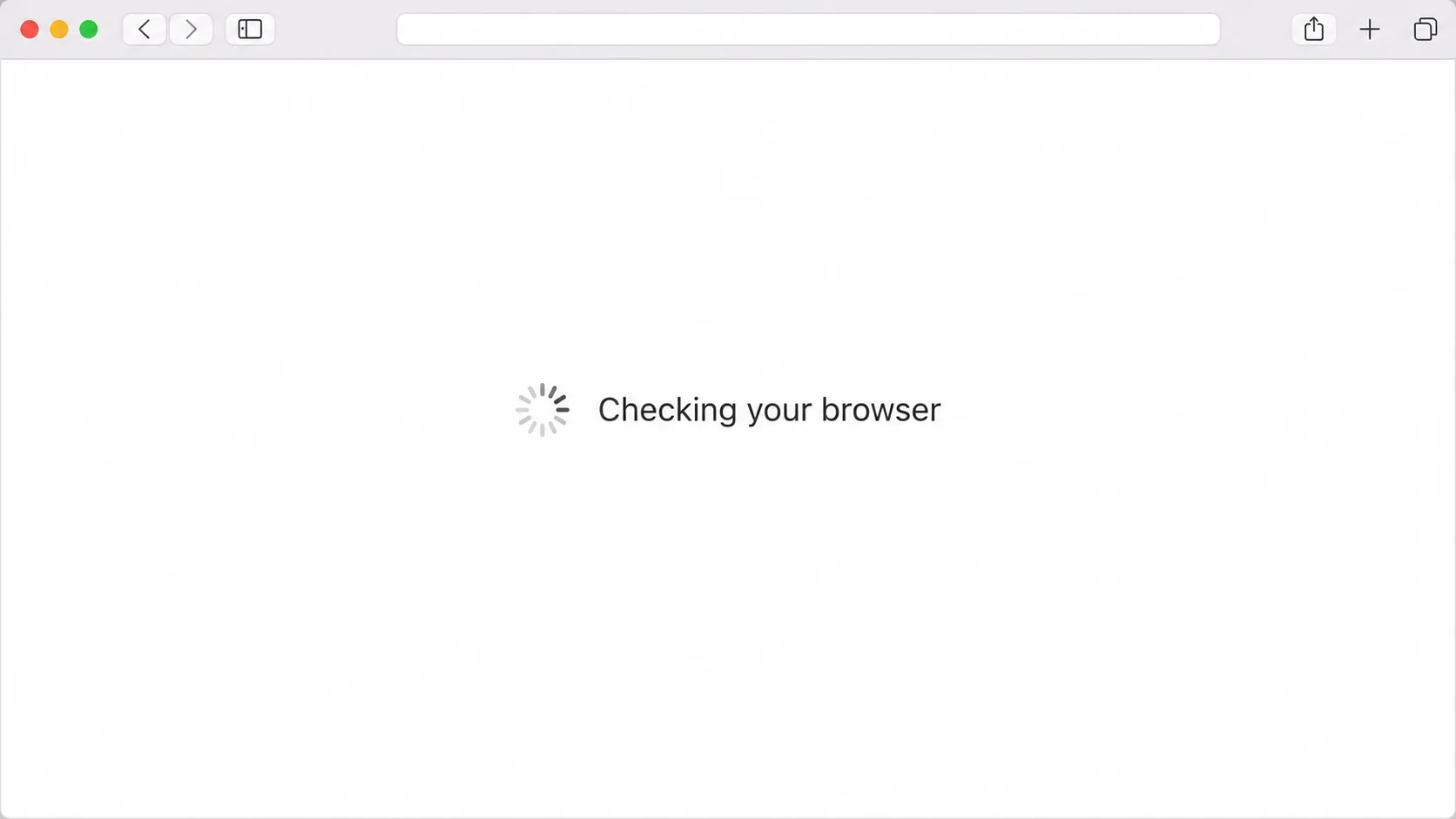
The page looks like a browser check that got stuck. Then it says you need to finish in a different app before you can see what you came for.
It’s easy to lose track of what a website can ask you to do. The important detail is what you did after seeing that message.
Overview
Infiniti Stealer turned a browser check into a Mac threat
Malwarebytes researchers identified Infiniti Stealer in a campaign that used a fake human-verification page. They first tracked the malware as NukeChain before identifying it by the name Infiniti.
The page borrowed the appearance of a familiar web security check. It then crossed a clear boundary by asking visitors to run something from the page in macOS Terminal.
The lead depicts a reconstructed waiting screen, not the original verification page or a usable prompt. A spinning icon alone tells you nothing about whether your Mac was infected.
What the reported sample could collect
The reported sample was built for Apple silicon and targeted data already available on the Mac. The categories included browser credentials, Keychain entries, wallet information and some developer files.
This was not limited to one tab. A developer who handled nothing financial on that Mac could still have credentials capable of reaching software repositories or a hosted service.
Separate what you saw from what you actually did:
- If you closed the page, the reported chain did not begin just because the verification screen was visible.
- If you copied text but didn’t execute it, replace the clipboard contents with harmless text before using them elsewhere.
- If you pressed Return on the supplied text or can’t tell, treat account and local data exposure as possible.
Why a clean-looking desktop isn’t a useful all-clear
The researchers described a chain that could remove some of its own traces. The Terminal window may close, and there may be no unfamiliar application sitting in the Dock afterward.
A Mac that’s running normally may still have been exposed. Conversely, a fan spinning hard or a single browser stall doesn’t establish that Infiniti was ever on it.
Use the action you remember, records from the time and trustworthy detection results to guide the response. Don’t try the instructions again to see whether the same thing happens.
How the Infiniti Fake Verification Scam Works
Step 1: The page turns an interruption into something familiar
Real websites sometimes pause to check traffic. Most people have seen a plain page with a spinner, a security provider’s name or a message about verifying their browser.
The imitation takes advantage of an ordinary delay. You’re already waiting for the page and may expect to make one small effort to get through.
Look at what the page wants, not how it looks. A website can ask you to interact with a challenge in the browser; it doesn’t need Terminal for a CAPTCHA.
Step 2: The page asks you to step outside the browser
Terminal can be a legitimate tool, but it runs instructions with the access available to the account using it.
Text supplied by the website doesn’t become safe because you paste it yourself.
ClickFix is the name for this kind of deception. The attacker tries to make running something feel like the solution to a display problem or a half-completed verification.
Pasting can be especially misleading if the clipboard already contains text you haven’t read. If you opened Terminal but didn’t run anything, close it instead of investigating the pasted line.
Step 3: Executing the instruction creates the real exposure
The observed case did not depend on visitors downloading a normal signed app and opening it from Finder. The browser prompt persuaded them to start the sequence from Terminal.
A brief wait or disappearing window can’t tell you whether it completed. If you remember running the command, work from that fact rather than waiting for another obvious sign.
The research identified a payload for Apple silicon. That describes one documented sample, not a guarantee that an Intel Mac is safe against any command a website gives it.
Step 4: Data taken from the Mac can still work elsewhere
Credentials and other files may remain valuable even after the computer is isolated. A password held in a browser, an account session and a project key have different remedies.
When you create a replacement credential, make sure you retire the old one. Rotating a project token without revoking the original can leave an attacker with the same access.
For a wallet, a password that unlocks the local application is separate from recovery words.
If the recovery secret was exposed, changing only the app password doesn’t protect the old wallet.
Reconstruct What You Did, Not What You Saw
Go through the sequence once on paper or a second device. Start with the site you meant to visit, the last screen you remember and the action you performed.
If the page appeared after a search result or an ad, keep that distinction in the timeline.
It helps the site owner investigate without assuming their own page served the prompt.
If someone else has the Mac now, share the timeline without asking them to repeat your steps.
A support person can work from recorded symptoms and timestamps instead of revisiting the lure.
It’s easy to remember that you opened Terminal and forget exactly what happened next. Say you’re uncertain about execution rather than treating a missing confirmation as evidence that nothing ran.
Don’t clear the browser’s history while you’re still working out when this happened.
If an administrator requests logs, follow the approved process and don’t paste command text into a public forum.
Work Through the Accounts in the Order They Depend on Each Other
Think of your email account as a place that can unlock access elsewhere.
If it still accepts an exposed session, resetting other passwords first may leave someone able to reset them again.
After email, move to services that can authorize payments, release funds or approve work access. If you use the same address for personal and company recovery, inform the company separately.
Projects can contain credentials without advertising that on the desktop.
Ask a maintainer to check which development and deployment keys were available on that Mac before resuming work from another machine.
You don’t need to read every secret yourself before starting. Give the person responsible enough nonsecret context to identify the project, revoke what was exposed and protect dependent applications.
Once a service confirms that unauthorized access is closed, record that result beside the provider’s name. Don’t carry the old credentials back to the repaired Mac just to simplify setup.
What to Do if You Have Fallen Victim to This Scam
-
Stop sensitive work on the affected Mac. If you ran the supplied instruction, turn off Wi-Fi from Control Center and unplug Ethernet if your Mac uses it.
Keep it disconnected while you decide what to preserve. If it’s a managed device, inform your IT team before restarting, scanning or deleting anything they may need to examine.
-
Write down what you remember without revisiting the page. Record the approximate time, where you started and how far you got.
Save a photo of any alert if it’s already visible.
If you copied the prompt but stopped short of running it, say so clearly. That distinction can change the amount of account recovery and device cleanup a responder recommends.
-
Change exposed account access from another device. Start with your primary email and Apple Account. Check the recovery details and list of registered devices, and remove access you don’t recognize.
Then review any browser-saved logins for banking or work. For each affected account, change the password and use the provider’s own tool to sign out active sessions where available.
-
Check wallets and development accounts separately. Make a list of the wallets used on that Mac and any service keys or project secrets you stored there.
Use published guidance from a verified wallet provider on a trusted device.
Never send a recovery phrase to an adviser, or enter it into a website offering to recover your assets.
For project credentials, tell the owner which repositories and environments you could access. Revoke exposed keys, review recent activity and update legitimate systems that depended on those keys.
-
Ask the bank or service to review activity you can’t explain. Call using an independently verified contact. Save the date and transaction identifiers without sharing passwords or new authentication codes.
A clean scan can’t replace this step. Only the provider can tell you what it sees in the account, and it may be able to suspend access while you investigate.
How to Remove Infiniti Stealer From Your Mac
Step 1: Keep the suspect files separate from anything you restore
Start with an inventory on a personal Mac. Note when you ran the text and what appears in Downloads around that time. Don’t open an unknown file to identify it.
Preserve needed personal documents separately from installers, scripts and browser profile folders. On a work machine, follow the evidence procedure instead of copying company files to personal media.
Don’t assume the threat is a visible item in Applications.
An absent icon is a reason to scan and verify, not a reason to start removing files by age or name.
Step 2: Review login and background software without guessing
Open System Settings > General > Login Items & Extensions. Look at apps set to open and items allowed to run in the background, especially changes close to the incident.
For an identified unwanted login item, select it and use the removal control. Turn off a known unwanted background item only after you confirm what it belongs to.
An unfamiliar name may belong to backup software, security tools or a device manager. If you can’t match an entry to a known app, record it and ask support.
Step 3: Install the Mac scanner using a verified package
Use the Malwarebytes for Mac package from a trusted device instead of looking for a virus cleaner on the page that delivered the fake check.
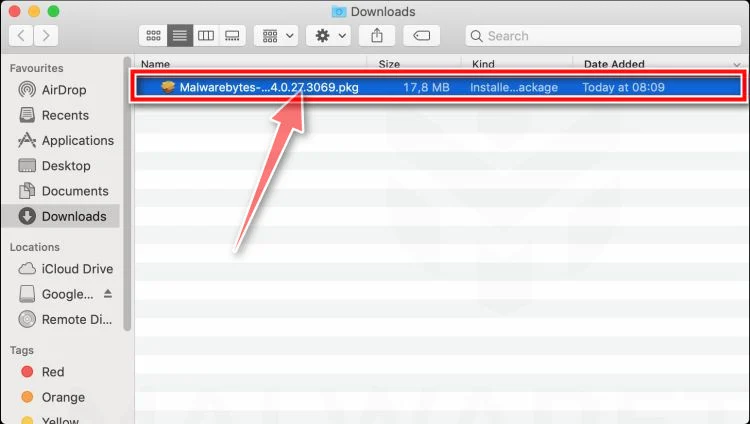
Transfer the verified installer using known clean media if appropriate. In Finder, open Downloads and select the package. The example shows an older version number, so your filename may differ.
Follow the installer’s setup prompts and approve the verified installer only. Don’t lower macOS security settings to force it to open.
Ask a technician if installation requires reconnecting an unsafe Mac.
Step 4: Scan and follow the result instead of the symptom
Open Malwarebytes from Finder > Applications and locate the scanner. Choose Scan or the equivalent current control; the older dashboard shown below identifies the scanner area.
When the scan finishes, open the results view. Use the offered quarantine action for a verified threat and restart if prompted.
Reopen Malwarebytes and check whether the finding has cleared or returned.
The disappearing Terminal window isn’t the test for cleanup. Neither is a clean first scan proof that no key or browser password was taken when the command ran.
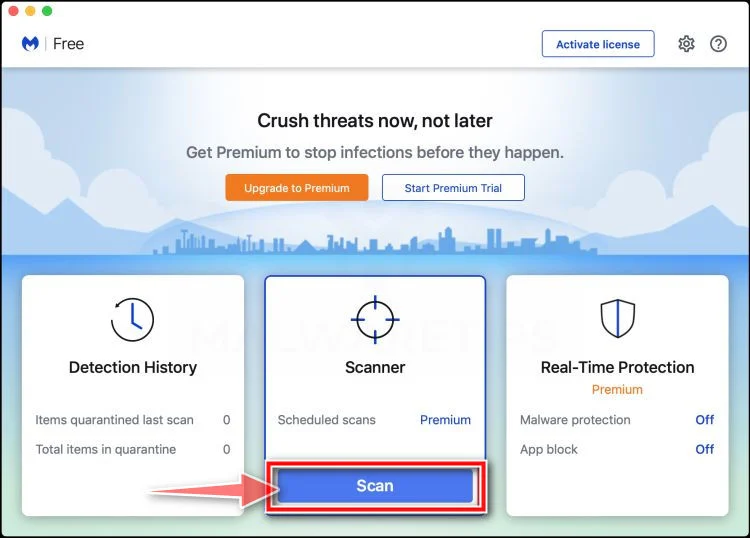
The optional Malwarebytes for Mac protection offer is an affiliate link. A purchase doesn’t undo theft or replace the credential checks above.
Step 5: Check the Mac after a safe restart and update
Review the login and background list again. Check Safari under Safari > Settings > Extensions, or your usual browser’s extensions section. Remove only software you can identify as unwanted.
When you can safely reconnect, open System Settings > General > Software Update and install available security updates. Don’t take operating system updates from a website offering a quick fix.
If detections recur or an administrator can’t tell what ran, keep the Mac away from sensitive work and ask the MalwareTips support community or a trusted technician.
For confirmed compromise with uncertain scope, discuss a clean rebuild.
Before erasing anything, confirm your backups and account access, and don’t restore the old apps or full profile without trusted review.
Frequently Asked Questions
Is every browser verification screen an Infiniti Stealer attack?
No, ordinary browser checks aren’t evidence of this malware. The warning sign in the reported campaign was a web page asking you to run an instruction in Terminal.
Does opening Terminal start the infection?
Opening the app by itself doesn’t execute the text from the webpage. If you pasted the instruction and ran it, isolate the Mac and follow the recovery sequence.
Can I rely on the fact that my Mac is Intel?
The researchers found an Apple silicon payload in this case. That doesn’t make an unknown command safe on Intel, so base your response on your actions, not just the processor.
Why does the Mac seem completely normal afterward?
The attack isn’t necessarily designed to keep a window open or install something obvious in Applications. A quiet screen doesn’t tell you what files were accessed earlier.
Is changing my Apple Account password enough?
It protects one account but doesn’t recover every session, project secret or wallet exposed on the machine. Review which accounts and files were available when you ran the instruction.
Should I erase my Mac right away?
Stop sensitive activity and preserve what you need first. A clean rebuild can make sense for confirmed or unresolved compromise, but erasing data before checking backups can cause another loss.
The Bottom Line
Don’t move a CAPTCHA check into Terminal. The Infiniti campaign used that change of context to turn a familiar-looking browser interruption into a risk for Mac credentials and files.
If you ran an instruction from that screen, isolate the computer and secure accounts elsewhere. Use the Mac procedure above and get help before trusting the device with new credentials.

Join the discussion
0 commentsShare your experience or ask a question about this article.
Community experiences
Did this happen to you?
Your experience could help someone recognize the same scam. Submit a private report for our team to review.
I experienced this tooReports are reviewed before publication. Sharing publicly is always your choice.
Discussion
Start the conversation
Have a question or something useful to share? Add the first comment.