


The work on your Mac may look local: a repository, a terminal tab and a handful of configuration files. Some of those files can open doors far beyond the laptop.
ShadeStager puts that distinction in focus. If a security alert mentioned the name, the next question isn’t simply whether the Mac still runs normally.
Overview
Why a developer laptop matters to ShadeStager
ShadeStager is a macOS implant designed to collect credentials and technical information. Mosyle’s researchers described the sample and its findings through 9to5Mac.
Its areas of interest included browser data and credentials for developer tools. An attacker who obtained usable credentials could reach services that continue operating after the laptop is disconnected.
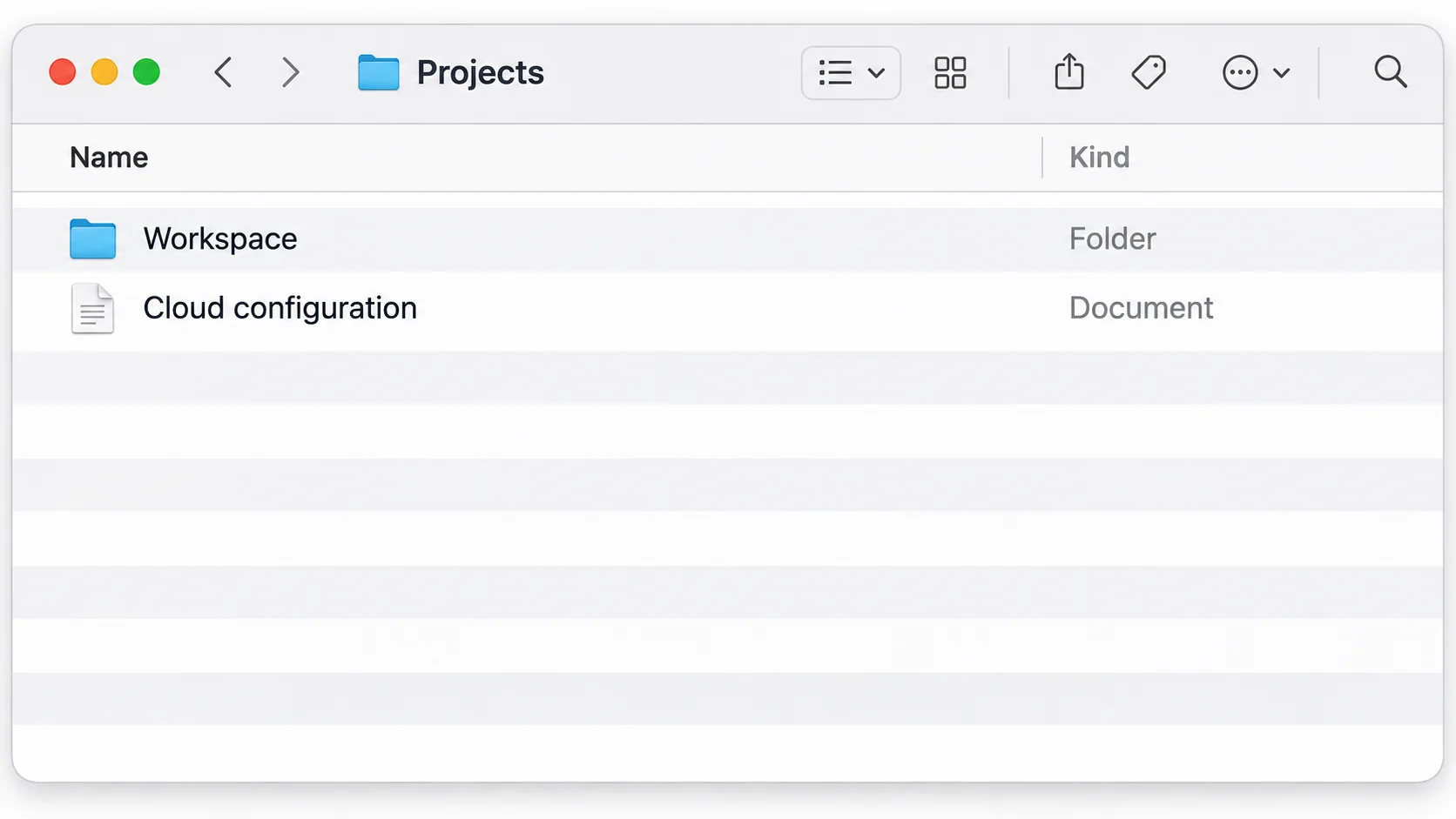
The Finder view above uses fictional filenames. It doesn’t show a real developer’s files or evidence from an infected Mac. The folder represents the kind of workspace that needs review.
Access that doesn’t look like a password
You may not think about an SSH key after setting up a server.
A cloud command-line session can feel just as routine once you stop seeing an interactive sign-in each time.
Those conveniences have value outside the laptop. What a copied credential can do depends on its permissions, its expiry and whether the service still accepts it.
Sort possible exposure by the service that can actually stop it:
- Ask the identity provider to review browser-based sessions and unusual sign-ins.
- Check repositories, hosted registries and servers with the owners responsible for their access controls.
- Ask cloud or cluster administrators to find and invalidate credentials accepted by the affected environments.
What the sample shows, and what remains unknown
The public account describes the analyzed sample as apparently unfinished. It supports a warning about the information the software was built to collect, not a count of confirmed victims.
There’s no established consumer-facing lure for this sample. Don’t assume a particular download, advertisement or email was the source without evidence from the device and the people who administer it.
The report also discussed a separate sample called Phoenix Worm. Being analyzed in the same report doesn’t make the two pieces of software one attack chain.
How ShadeStager Changes the Scope of an Incident
The Mac can be the first affected system, not the last
Think of the laptop as a place where access to other systems accumulates.
A token you generated for a single task can still be present months after you’ve stopped thinking about it.
A copied token doesn’t need to look like a person entering a password every time. Its permissions may allow access to the workspace or resources that already trust that token.
The way to check is through the service that issued the credential. Ask when it was used, what it was allowed to do and how to disable it.
Don’t count on a fresh Mac login password to settle this. Changing that password protects one device account.
It doesn’t tell a cloud provider that a different credential should stop working.
Some access paths affect colleagues as well as you
A repo credential may be limited to reading one project, or it might allow changes that eventually reach customers.
Identify what the actual credential can do before deciding what was exposed.
The same principle applies to registries. If an account could publish build artifacts, ask the maintainer to check whether anyone published or replaced anything during the relevant period.
Separate suspicion from evidence in any notice you send. You may know the device was flagged but still be waiting to learn whether a token was used.
That distinction lets coworkers prioritize urgent revocations without prematurely announcing a confirmed breach. Keep checking activity even after the threatened access has been closed.
Multiple forms of cloud access need different decisions
A browser session for the cloud console, a long-lived key and a short-lived credential from an identity provider may all lead to similar screens while presenting different recovery problems.
Tell the cloud administrator how you normally sign in.
If you had more than one account or tenant available, list them separately so a review of one doesn’t end the search.
On a Kubernetes environment, avoid assuming that changing a laptop password changes a cluster credential.
Ask the cluster owner to identify what authenticated it and to check the relevant audit records.
Record shared credentials and their dependencies as well. If a build still needs the old key, coordinate the replacement with the people who operate the service.
Make an Access Inventory Before Reconnecting
Start with the last activity you remember on the affected Mac.
List the projects you opened, browser profiles you used and remote systems you connected to since the possible exposure started.
Don’t open secrets to copy them into the inventory. Record the provider, credential name or nonsecret identifier, approximate date, permissions if known, and the person who can revoke each credential.
For a personal server, choose a verified management path from another device.
Check that you can still administer the server before removing a key, so you don’t accidentally lock yourself out.
For an organization, provide enough detail to identify the account and time window.
Use the incident channel the organization already provides, not a new chat someone suggested through the affected browser.
Your inventory won’t be perfect immediately. Start with email and work identity because they can approve or reset many other kinds of access, then trace outward to individual services.
Keep the status of each item concrete. A new key exists, the old key is disabled, and the dependent service works again are separate events you can check.
If you’re supporting a small team without a security staff, assign each service to one named maintainer.
That prevents two people from changing credentials in conflicting ways while another account goes unchecked.
Don’t overlook the accounts where code is shared with people outside your organization. A personal repository or a client’s build workspace may not appear on your employer’s list of systems.
Ask each maintainer to say whether anything was actually changed, which access was removed and how they confirmed the replacement works.
Record that as a result, not merely a task assignment.
Retain incident records somewhere that doesn’t depend on access being restored to the affected Mac. Keep those records private and leave actual token values or recovery phrases out of them.
What to Do if Your Mac Was Flagged for ShadeStager
-
Disconnect the Mac when a credible alert indicates compromise. Turn off Wi-Fi and disconnect the network cable if connected.
Keep it out of the normal workspace until the device response is planned.
On an employer’s device, use another device to contact security. Give them the detection name and timestamp before restarting or moving files. They may need evidence that’s lost during cleanup.
-
Use an unaffected device to protect the identity account. Start with the email address or company identity you use to approve sign-ins and reset access to other services.
Ask the administrator to revoke active sessions as appropriate.
If it’s your personal account, open its published security settings, change the password and check registered devices, recovery contacts and verification methods.
-
Send the relevant owners a list of services, not a bundle of credentials. Separate source control, cloud projects, server access, registries and clusters, and name any shared accounts.
Ask those teams to keep the logs for the exposure window and verify which grants were active. Where there’s evidence of unauthorized access, follow your organization’s reporting plan.
-
Invalidate the original access, not just the copy on disk. Revoke exposed tokens at their issuer and remove compromised key authorization from the systems that accepted it.
Where rotation could interrupt production, work with the owner to provision a replacement securely.
Test the legitimate dependency, then verify that the old credential no longer works through the provider’s controls.
-
Look for consequences that removing the implant won’t undo. Review unexpected repository changes, published packages, newly granted access or cloud resources that appear without a corresponding work request.
Check the affected browser accounts too. A developer-focused threat can still take an ordinary saved login, and a company audit doesn’t necessarily cover your personal accounts.
How to Remove ShadeStager From a Mac
Step 1: Keep device evidence and recovery data separate
Don’t try to pinpoint ShadeStager by the age of a folder.
Record the alert’s exact name, the Mac’s account and the reported file location before deciding which specific item needs attention.
If it’s your own Mac, set aside essential documents from a known-good backup where available. Don’t copy a suspect installer, entire browser profile or old credential folder into fresh storage.
If the alert came from a managed security product, use that team’s containment process. Bringing in your own scanner can change evidence even when you don’t intend it to.
Step 2: Review known unwanted startup items
On a personal Mac, open System Settings > General > Login Items & Extensions. Review both programs that open when you sign in and apps that can run in the background.
When a scanner or responder has identified an unwanted item, select it and use the removal control in the login list.
Disable a matching unwanted background entry if it’s still enabled.
Use Apple’s login-item guide if the location looks unfamiliar. Review changes, but don’t remove a trusted VPN, backup agent or administrative tool simply because it also starts automatically.
Step 3: Use the right installer for macOS
Get the Malwarebytes Mac installer using a separate trusted computer if possible. Transfer the verified package without bringing other files from the affected computer back onto the clean device.
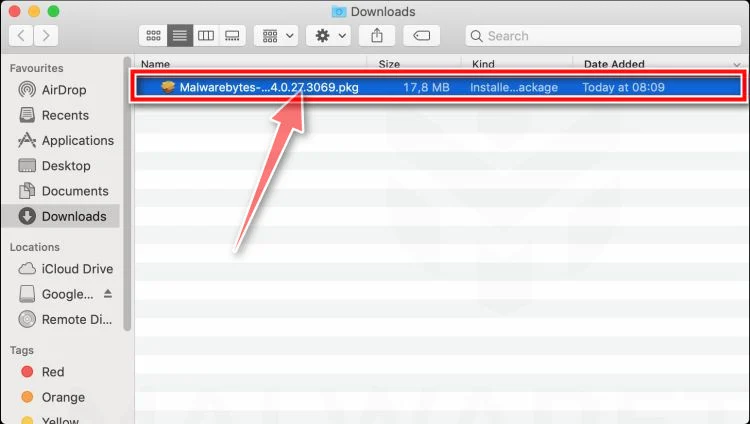
On the affected Mac, open Finder and locate the downloaded package.
The screenshot shows an earlier version, so compare the publisher and source rather than trying to match the version number.
Run the package and follow its installer dialogs. If you’re asked to change unrelated system security settings, stop and verify the installer instead of working around the warning.
Step 4: Scan the Mac and check what happens to the detection
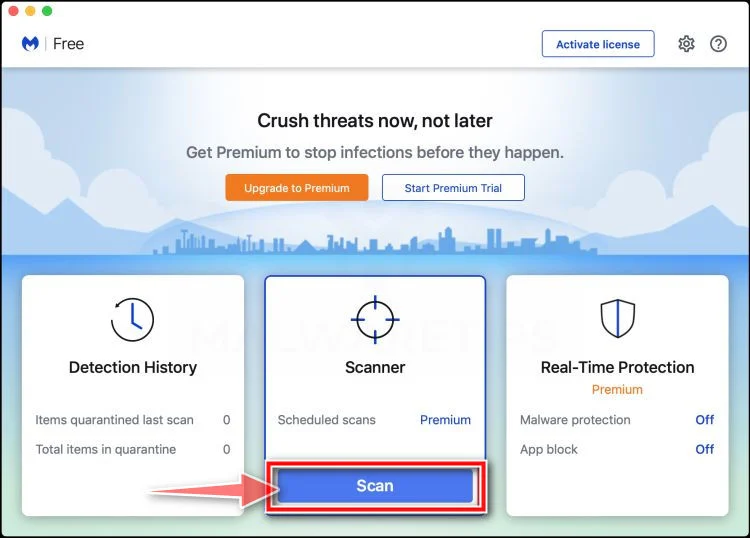
Launch Malwarebytes in Applications and use the scan control in the main window. The older dashboard pictured below shows the scanner area; current releases may style the control differently.
Wait for the scanner to finish its inspection. Review the findings and quarantine confirmed threats.
If the program requests a restart, do that before checking whether the original detection has cleared.
Make a note of a detection that can’t be removed or comes back. Don’t attempt to make the report disappear by deleting nearby files you have not identified.
If you want paid prevention features, Malwarebytes Premium for Mac is an optional affiliate offer. Buying it isn’t necessary for the initial manual scan or for revoking credentials.
Step 5: Decide whether the Mac needs a rebuild before reuse
On a personal device, verify that the unwanted login entries and detections stay gone after restarting. Also check for suspicious extensions in whichever browser profile was active around the incident.
If signs remain, consult your IT team or the MalwareTips support boards. With a confirmed backdoor or uncertain persistence, discuss rebuilding from trusted media rather than repeating scans indefinitely.
Erasing a Mac removes local data and may make evidence unavailable.
Verify backups and access to setup accounts before any erase, and ask what can be restored without bringing affected settings back.
After recovery, reconnect through a trusted network and install macOS security updates. Only provision new keys when the person responsible for the device is satisfied that it’s ready to use.
Frequently Asked Questions
Is ShadeStager the same as Phoenix Worm?
No link that makes them the same threat was established in the cited research. Mosyle’s findings cover two different samples, so don’t infer one infection from the other.
Do I need to change just the password I use to unlock the Mac?
No, match the response to what was accessible on that machine. A password change on the laptop won’t revoke an exposed browser session, cloud credential or server key.
Is a clean scan enough to restore my cloud access?
A scanner reports on the device, not what happened in the cloud. Check the provider’s activity and revoke suspect credentials before you sign back in from the recovered Mac.
Can I restore my old SSH folder from backup?
Don’t bring an exposed private key back into use merely because it’s in a backup.
Generate and authorize a replacement with the appropriate owner, then retire access for the old key.
Does the report establish what originally infected a particular Mac?
No, the analyzed sample doesn’t prove the initial access route on your device. A responder needs evidence from your own timeline, security product and environment to draw that conclusion.
Should I post the detection file on a public forum?
Don’t upload a malware file or anything containing your company’s data. Share nonsecret detection details with authorized support and use its approved evidence channel if it needs more.
The Bottom Line
Treat a credible ShadeStager detection as a possible access problem beyond the Mac.
Disconnect the device, identify who controls the affected credentials and make sure old access can no longer be used.
Run the appropriate Mac removal procedure or have your organization rebuild it. Before you resume normal work, check the accounts and systems that accepted the old credentials as well.

Join the discussion
0 commentsShare your experience or ask a question about this article.
Your progress
Did these steps help?
Let us know how the guide worked for you.
Describe what you see and the step you reached. Keep passwords and other private information out.
Discussion
Start the conversation
Have a question or something useful to share? Add the first comment.