


Imagine receiving an email claiming hackers took control of your phone’s camera and microphone, allegedly recording your most private moments. As your heart drops reading their threats to expose intimate videos, the message demands immediate payment to maintain secrecy.
This is the alarming scenario behind the “I’ve Got Access to Your Smartphone” scam preying on victims across the globe. Don’t let fear or uncertainty cloud your judgement if confronted with these extortion tactics. Read on to learn how to spot their deceptive methods, remain calm under pressure, and emerge unscathed.
Overview of the Scam
The “I’ve Got Access to Your Smartphone” scam starts with an alarming email informing you that a hacker has complete access to your phone. The email often contains explicit details or images, making bold claims that your camera has been activated to record you without your knowledge.
The scam email threatens to send compromising photos, videos or information to your contacts if you don’t pay a ransom, usually demanding $500 – $1000 in Bitcoin. Some key details of this scam include:
- The emails are customized with your name and details to appear credible.
- They claim you visited explicit sites which installed malware granting them total access.
- The hackers threaten to extract data, activate your mic and camera, or control your device remotely.
- The email urges you to pay the ransom in Bitcoin within hours to avoid them releasing private images or videos.
- They use pressure tactics and threats to create urgency for payment.
This scam proliferated through spam email campaigns, often using subject lines like “Your data has been hacked” or “I know your secret”. The emails are customized to the recipient and crafted to create fear, uncertainty and doubt. Don’t let the threats fool you – it’s extremely rare for this level of remote access to be achieved by spam campaigns alone.
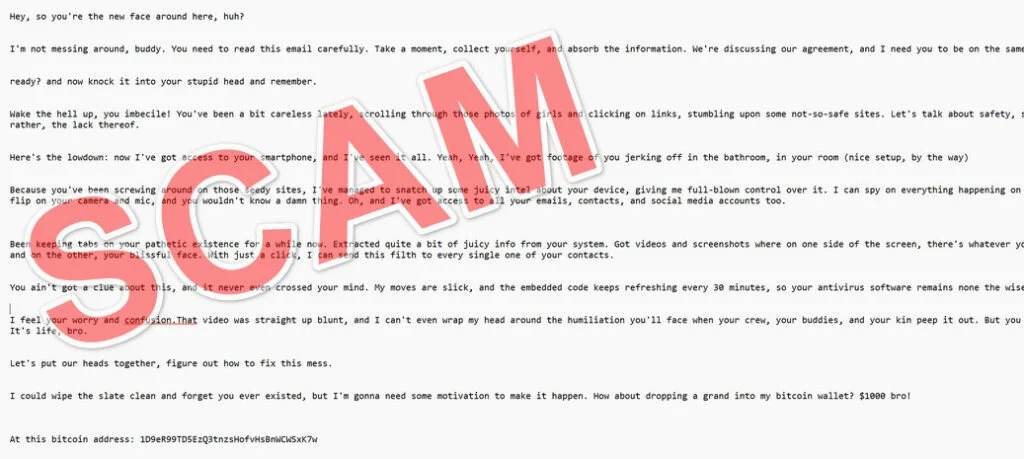
Here is how this email scam looks:
Hey, so you’re the new face around here, huh?
I’m not messing around, buddy. You need to read this email carefully. Take a moment, collect yourself, and absorb the information. We’re discussing our agreement, and I need you to be on the same page.
ready? and now knock it into your stupid head and remember.
Wake the hell up, you imbecile! You’ve been a bit careless lately, scrolling through those photos of girls and clicking on links, stumbling upon some not-so-safe sites. Let’s talk about safety, shall we? Or rather, the lack thereof.
Here’s the lowdown: now I’ve got access to your smartphone, and I’ve seen it all. Yeah, Yeah, I’ve got footage of you jerking off in the bathroom, in your room (nice setup, by the way)
Because you’ve been screwing around on those seedy sites, I’ve managed to snatch up some juicy intel about your device, giving me full-blown control over it. I can spy on everything happening on your screen, flip on your camera and mic, and you wouldn’t know a damn thing. Oh, and I’ve got access to all your emails, contacts, and social media accounts too.
Been keeping tabs on your pathetic existence for a while now. Extracted quite a bit of juicy info from your system. Got videos and screenshots where on one side of the screen, there’s whatever you’re watching, and on the other, your blissful face. With just a click, I can send this filth to every single one of your contacts.
You ain’t got a clue about this, and it never even crossed your mind. My moves are slick, and the embedded code keeps refreshing every 30 minutes, so your antivirus software remains none the wiser.
I feel your worry and confusion.That video was straight up blunt, and I can’t even wrap my head around the humiliation you’ll face when your crew, your buddies, and your kin peep it out. But you know what? It’s life, bro.
Let’s put our heads together, figure out how to fix this mess.
I could wipe the slate clean and forget you ever existed, but I’m gonna need some motivation to make it happen. How about dropping a grand into my bitcoin wallet? $1000 bro!
At this bitcoin address: 1D9eR99TD5EzQ3tnzsHofvHsBnWCWSxK7w
Once you pay up, you’ll sleep like a baby. I keep my word.
Pay attention, I’m telling you straight: ‘We gotta make a deal’. I want you to know I’m coming at you with good intentions. I’ll keep my end of the bargain and wipe everything clean once you come through with the payment. My program will sniff out that Bitcoin payment and erase all the dirt I got on you. Don’t waste your time replying to this, it’s useless. The email and wallet are made just for you, untraceable. I don’t mess up, buddy.
And trust me, I’ve been thinking about my own privacy and safety. If I catch a whiff that you’ve shared this message with anyone else (like if it shows up on some other device), that video’s going straight to all your contacts.
And don’t even think about trying to switch off your phone or reset it to factory settings. It’s futile. Everything you need is in my hands, under my control.
You got 5-6 hours to get it sorted. I’m giving you plenty of time to think it over and do what’s right by our agreement. I’m expecting that payment.
Don’t take it personally. Think of it as a little life advice and be more vigilant in the future.
Honestly, those online tips about covering your camera aren’t as useless as they seem.
Good luck with that. Farewell.
Who’s Behind the Scam?
The “I’ve Got Access” scam is operated by cybercriminal groups who cast a wide net with mass spam emails seeking quick ransom payments. Very little effort goes into targeting individuals specifically.
The emails originate from botnets – networks of infected computers – which make them hard to trace. The hackers conceal their identity using anonymity tools like VPNs and encrypted email services.
Payment is demanded in Bitcoin as it offers a layer of pseudonymity. With no central authority, Bitcoin transactions are not easily traced to a real-world identity.
How Widespread is the Scam?
This scam exploded in popularity in 2020, with millions of examples intercepted. One security firm reported blocking over 80 million instances in just 3 months of 2021.
The rise corresponds with increased remote work and device usage during the pandemic, creating more opportunities for cybercriminals. Mass spam campaigns make this a “numbers game”, knowing a small percentage of recipients will pay up out of fear.
Are the Threats Real?
For the vast majority of recipients, the threats are completely empty. The hackers have no access to your device or accounts. However, some core elements make the scam convincing:
- Spear-phishing: Emails may include your name and partial credentials to appear legitimate. Criminals can obtain limited information from data breaches, social media sites, and password reuse.
- Malware risks: While opening attachments or links is unlikely to result in hackers gaining full control of your device, it can infect your system with malware like info-stealing Trojans.
- Webcam access: While rare, there are malware variants which could activate your webcam without permission. However, malware infections require action like downloading files rather than simply opening emails.
- Account breaches: If hackers gained access to a related account through phishing or password reuse, they may have limited data to reference. Changing passwords regularly can limit this exposure.
For the vast majority of recipients, the email itself does nothing to compromise your device or accounts. But social engineering and partial information obtained elsewhere can make the threats appear credible on the surface.
How Does the “Access to Your Smartphone” Scam Work?
While technical details vary, the scam follows the same formula:
1. Cast a Wide Net with Spam Emails
Criminals rely on sheer volume, sending millions of emails to random addresses. The cost is minimal to send customized mass mailings. Even a low response rate results in profits.
Email databases from past breaches provide names, emails, locations, and passwords to make threats credible. Details like city, age, or partial credentials increase apparent legitimacy.
2. Make Bold Claims and Threats in the Email
The email uses intimidation and urgency to demand fast payment. Threats may include:
- Claims of recording you via your webcam or accessing your files
- Threats to send videos/recordings to your contacts
- Demands for payment in Bitcoin within 5 or 6 hours
- Warnings not to go to the police or tell others
By putting you on a short timeline, criminals create pressure to pay rather than think rationally. Even if the claims seem improbable, the threats instill unease and fear.
3. Demand Ransom Payment in Bitcoin
Payment demands range from $500 to $2000, with bitcoin the preferred currency. Criminals favor bitcoin for anonymity, ease of transfer, and lack of fraud protection.
The scam email provides a unique bitcoin wallet address to send payment. This makes the transaction difficult to trace, especially when routed through cryptocurrency “mixers”.
4. Follow Up With More Threats
If the initial email doesn’t prompt payment, scammers might follow up with more threats:
- Countdown clocks added to increase urgency
- Lies that information was sent to contacts or authorities
- Demands for larger payments with tighter deadlines
These tactics leverage fear while also pressuring victims who may have considered paying initially. Even if threats are empty, the psychological pressure can mount.
5. Disappear After Receiving Ransom
Once ransom is paid, the criminals usually cut off all communication and tracelessly withdraw funds.
With no real evidence to distribute, and bitcoin payments being irreversible, victims have no recourse to recover funds. The hackers simply move on toRepeat the scam with fresh targets.
What to Do If You’re Targeted by This Scam
If you receive a suspicious email making threats and demanding bitcoin, follow these steps:
- Remain calm: The claims are almost always a bluff, so don’t act rashly out of fear.
- Do not pay the ransom: Payment provides zero guarantees, and only encourages more scam attempts.
- Check login locations: Sign into accounts like Google, Facebook, and iCloud to check recent login locations for unauthorized access. Update passwords if concerned.
- Run security scans: Install trusted antivirus software and run full system scans to check for malware. Run webcam checks for evidence of unauthorized access.
- Report the email: Forward the scam email to your email provider’s abuse address, like spam@google.com for Gmail. You can also report it to the FBI Internet Crime Complaint Center.
- Learn from the incident: Evaluate your online habits, security practices, password hygiene and installed software to minimize future risk.
With awareness, caution, and some security steps, you can protect yourself online without ceding to criminal extortion and threats.
Is Your Device Infected? Run a Free Malware Scan
Slow performance, constant pop-ups, or strange behavior? These are classic signs of a malware infection. A quick way to check is to scan your device with Malwarebytes Free, one of the most trusted malware removal tools available. If you only visited a scam page and didn’t download or install anything, this scan is optional.
The free version detects and removes the most common threats, including:
- Adware — the cause of those annoying pop-ups
- Browser hijackers — unwanted redirects and changed homepages
- Trojans and spyware — hidden programs stealing your data
- Potentially unwanted programs (PUPs) — software you never asked for
👉 Select your device below — Windows, Mac, or Android — then follow the simple steps to download Malwarebytes, scan your system, and remove any threats it finds. The scan usually takes 5 to 20 minutes.
Run a Malware Scan with Malwarebytes for Windows
Malwarebytes is one of the most popular and trusted anti-malware tools for Windows — and it’s completely free for removing infections. It catches threats that many antivirus programs miss, including adware, browser hijackers, and trojans. Follow the steps below to scan your PC and remove what Malwarebytes finds.
Download Malwarebytes
Click the button below to download the latest version of Malwarebytes for Windows from the official source. The free version is all you need — it will scan your computer and remove adware, browser hijackers, and other malicious software at no cost.
Download MalwarebytesOfficial installer for Windows 11 and 10. Your download starts right away.Want real-time protection? See Malwarebytes Premium Malwarebytes Free for WindowsScans and removes malware at no cost
-
Install Malwarebytes
When the download finishes, open your Downloads folder and double-click the MBSetup file. If Windows shows a User Account Control pop-up, click “Yes” to allow the installation.

Follow the On-Screen Prompts to Install Malwarebytes
The setup wizard will walk you through a few quick screens:
-
Choose where you’re installing the program — “Personal Computer” or “Work Computer” — then click Next.

-
Malwarebytes will now install on your device. This usually takes under a minute.

-
When installation is complete, the “Welcome to Malwarebytes” screen will open automatically.

-
On the final screen, click Open Malwarebytes to launch the program.

-
Optional: Check for rootkits with a Custom Scan
You don’t need to change any settings for a normal scan. The standard Threat Scan in the next step is enough for most problems, so you can go straight to it.
If you also want to check for rootkits, use a Custom Scan. In current versions of Malwarebytes, rootkit scanning is only available there:
- On the Scanner tile, click the three-dot menu and select Advanced Scan.
- Choose Custom Scan. In its options, check Scan for rootkits.
- Select your system drive (usually C:\) as the location to scan, then start the scan. It takes longer than a Threat Scan.
- When it finishes, review and quarantine the results as described in the steps below.
Rootkit scanning isn’t available on Windows devices with ARM processors.
Start the Scan
Click the blue Scan button. Malwarebytes will automatically update its virus database and start checking your computer for malware.

-
Wait for the Scan to Finish
The scan checks your entire system for browser hijackers and other malicious programs, so it can take 5 to 20 minutes depending on your computer. Feel free to do something else — just check back occasionally to see the progress.

-
Quarantine the Detected Threats
When the scan is done, you’ll see a list of everything Malwarebytes found — malware, adware, and potentially unwanted programs. Click the “Quarantine” button to remove all of them at once.

Malwarebytes will now remove the malicious files and registry entries and move them safely into quarantine.

-
Restart Your Computer
Some threats can only be fully removed after a reboot. If Malwarebytes asks you to restart, click Yes. Once you’re logged back in, Malwarebytes has finished removing the threats it found.

When the scan is done, check whether the problems you noticed have stopped. If they continue, see the options below.
If you are still having problems with your computer after completing these instructions, then please follow one of the steps:
- Run a computer scan with ESET Online Scanner
- Ask for help in our Windows Malware Removal Help & Support forum.
Run a Malware Scan with Malwarebytes for Mac
Malwarebytes for Mac is a free on-demand scanner that removes the malware other security software tends to miss — adware, browser hijackers, and unwanted programs included. Cleaning an infected Mac with Malwarebytes has always been completely free, and it’s our go-to recommendation. Follow the steps below to scan your Mac and remove what Malwarebytes finds.
-
Download Malwarebytes for Mac
Click the button below to download the latest version of Malwarebytes for Mac.
Download MalwarebytesOfficial installer for macOS. Your download starts right away.Want real-time protection? See Malwarebytes PremiumMalwarebytes Free for MacScans and removes malware at no cost -
Open the Malwarebytes setup file
When the download finishes, open your Downloads folder and double-click the setup file to begin the installation.

-
Follow the On-Screen Prompts to Install Malwarebytes
The Malwarebytes for Mac Installer will guide you through a few quick screens. Click “Continue” and keep following the prompts until the installation completes.



When the installation is complete, Malwarebytes opens to the Welcome to Malwarebytes screen. Click “Get started“.
Malwarebytes needs Full Disk Access to check your whole Mac. When it asks, open System Settings > Privacy & Security > Full Disk Access, turn on Malwarebytes (it may be listed as Malwarebytes Protection), and confirm with your password or Touch ID. Then return to Malwarebytes. On macOS Monterey and earlier, this setting is in System Preferences > Security & Privacy > Privacy.
-
Select “Personal Computer” or “Work Computer”
Malwarebytes will ask what type of computer you’re installing it on. Click either Personal Computer or Work Computer, whichever applies.

-
Start the Scan
Click the “Scan” button. Malwarebytes will automatically update its detection database and begin checking your Mac for malware.

-
Wait for the Scan to Finish
Malwarebytes will scan your Mac for adware, browser hijackers, and other malicious programs. This can take a few minutes, so feel free to do something else — just check back occasionally to see the progress.

-
Quarantine the Detected Threats
When the scan is done, you’ll see a list of everything Malwarebytes found. Click the “Quarantine” button to remove all the threats at once.

-
Restart Your Mac
Malwarebytes will now remove all the malicious files it found. Some threats can only be fully removed after a reboot — if Malwarebytes asks you to restart, allow it. Once you’re logged back in, check whether the problems you noticed have stopped. If they come back, save the scan report and ask for help in our forum.

If the problems you noticed continue after the scan, see the options below.
If you are still experiencing problems while trying to remove a malicious program from your computer, please ask for help in our Mac Malware Removal Help & Support forum.
Run a Malware Scan with Malwarebytes for Android
Malwarebytes for Android scans your phone or tablet for malware, adware, and potentially unwanted apps. The free version scans only when you start a scan. Real-time protection, which checks apps automatically, is part of the paid Premium version.
-
Download Malwarebytes for Android.
You can download Malwarebytes for Android by clicking the link below.
Get Malwarebytes for AndroidOpens Google Play in a new tab.Want real-time protection? See Malwarebytes Premium for AndroidMalwarebytes for AndroidScans your phone and removes malware at no cost -
Install Malwarebytes for Android on your phone.
In the Google Play Store, tap “Install” to install Malwarebytes for Android on your device.

When the installation process has finished, tap “Open” to begin using Malwarebytes for Android. You can also open Malwarebytes by tapping on its icon in your phone menu or home screen.

-
Follow the on-screen prompts to complete the setup process
When Malwarebytes opens, it walks you through a short setup. Tap Get started and follow the prompts. If you see an offer for a trial or a paid plan, read it before you accept. You can skip it and keep using the free scanner.
Malwarebytes will ask for permission to access the files on your phone so it can scan them. Tap Allow, or turn on the permission in the Android screen that opens, then return to Malwarebytes.
-
Run a scan with Malwarebytes for Android
On the main screen, tap Scan now. In some versions, you open the menu, tap Scanner, and then tap Run a scan.
-
Wait for the Malwarebytes scan to complete.
Malwarebytes will now start scanning your phone for adware and other malicious apps. This process can take a few minutes, so we suggest you do something else and periodically check on the status of the scan to see when it is finished.

-
Remove the detected apps.
When the scan has been completed, you will see a list of the threats that Malwarebytes for Android has detected. Next to each detected item, tap the menu icon (three dots), then choose to uninstall the app or delete the file. Android then asks you to confirm. Tap OK or Uninstall to remove the app.
-
Restart your phone.
When the detected apps are removed, restart your phone if Malwarebytes asks you to. Then check whether the problems you noticed have stopped.
If the problems you noticed continue after the scan, see the options below.
If you are still having problems with your phone after completing these instructions, then please follow one of the steps:
- Ask for help in our Mobile Malware Removal Help & Support forum.
- Only as a last resort, reset your phone to factory settings. Read the warning below first.
- Back up your photos, videos, files, and messages, for example to your Google account or a computer.
- Make sure you know your Google account email and password. The phone asks for them after the reset. If you changed the password recently, Google recommends waiting 24 hours before you reset.
- On a Samsung phone, also make sure you know your Samsung account password.
- If you use an authenticator app for two-step verification, move your accounts to another device or save your backup codes first.
Stay Protected: Block Ads and Malicious Sites
No scan can prove a device is completely clean, so it helps to block threats before they reach you. Most infections start with a malicious ad or a fake download button — so blocking them at the source is your best defense.
We recommend AdGuard, which blocks malicious ads, phishing pages, and dangerous redirects before they can reach you.
👉 Download AdGuard and browse safely
Frequently Asked Questions About the “I’ve Got Access to Your Smartphone” Scam
1. What is the “I’ve Got Access to Your Smartphone” scam?
This is a common spam email scam where the sender claims to have complete access to your phone, accounts, and webcam. The email threatens to send compromising videos or information to your contacts if you don’t pay a ransom in bitcoin within hours.
2. How does the smartphone access scam work?
The scammers send millions of emails to random addresses, crafted to appear urgent and credible. The emails claim you visited unsafe sites which installed malware allowing total access. In reality, just opening the email doesn’t give them any control. They threaten to extract private data or record you, demanding bitcoin payment immediately.
3. Are the hackers’ threats real?
For most recipients, the threats are completely empty and no real hacking has occurred. However, spear-phishing using names/details from breaches, account password reuse, or malware risks can make the claims appear plausible initially. The goal is social engineering through fear and uncertainty rather than actual device compromise for most targets.
4. What tactics do the scammers use?
- Spear-phishing with names/emails from databases
- Malware risks from downloaded files
- Webcam access malware in rare cases
- Account credential reuse
- Bold claims of access/control over your device
- Threats to send videos/images to your contacts
- Short payment deadlines to create urgency
- Follow-up threats if you don’t pay quickly
5. Should I pay the ransom?
No, you should never pay the ransom. Payment provides no guarantees, shows the criminals they can profit off the scam, and encourages further extortion attempts. There are no assurances the criminals will actually delete any data after receiving payment.
6. What should I do if I receive this scam email?
- Remain calm, as the claims are usually false.
- Do not pay any ransom demands.
- Check login locations on accounts and update passwords.
- Run security scans to check for malware.
- Report the scam email to your email provider.
- Learn from the incident and improve security practices.
7. How can I protect myself from this scam?
- Use unique passwords on all accounts and enable 2-factor authentication where possible.
- Install comprehensive antivirus software and run frequent scans.
- Keep software updated and don’t open attachments/links from unknown senders.
- Cover webcams when not in use as a precaution.
- Report scam emails to your provider to block future waves.
8. Who should I contact for help with this scam?
If targeted by this scam, report it to your email provider, local law enforcement, and organizations like the FBI Internet Crime Complaint Center (IC3). Check account login locations and run security scans. Seek assistance from a computer technician if you have concerns about malware on your device.
9. How can I recover money paid as ransom?
Unfortunately, bitcoin payments are essentially untraceable and irreversible. This makes ransom recovery extremely difficult, even if law enforcement gets involved. Avoiding payment altogether is critical, as sending funds is likely permanent.
10. How widespread is this smartphone access scam?
This scam has exploded in popularity recently, with millions of examples seen in the wild. Its growth corresponds with increased remote work and device usage during the pandemic. With inexpensive distribution via email spam campaigns, criminals only need a tiny response rate to profit.
The Bottom Line on the “Access to Your Smartphone” Scam
This scam capitalizes on fear and uncertainty to extort money, but a few key facts deflate the hackers’ claims:
- Empty threats: The scam depends on rattling recipients, but lacks real evidence in most cases. Stay calm, as rash decisions benefit criminals.
- No system compromise: Merely opening an email cannot provide the claimed levels of access or control. Take steps like security scans to verify device integrity.
- Disposable contact: The fake emails and bitcoin addresses quickly disappear after use, making follow up or tracing extremely difficult. Don’t expect follow through or real hacking capability.
- Irreversible payments: Ransom payment provides no guarantees, and emboldens scammers to continue unchecked. Don’t expect recourse after paying.
Understanding the manipulative tactics and empty threats allows you to spot this scam. Please be vigilant, refrain from opening unexpected files or links, perform security checks, and avoid enabling criminals through ransom payment. With care and awareness, you can protect yourself online.

Join the discussion
0 commentsShare your experience or ask a question about this article.
Community experiences
Did this happen to you?
Your experience could help someone recognize the same scam. Submit a private report for our team to review.
I experienced this tooReports are reviewed before publication. Sharing publicly is always your choice.
Discussion
Start the conversation
Have a question or something useful to share? Add the first comment.