

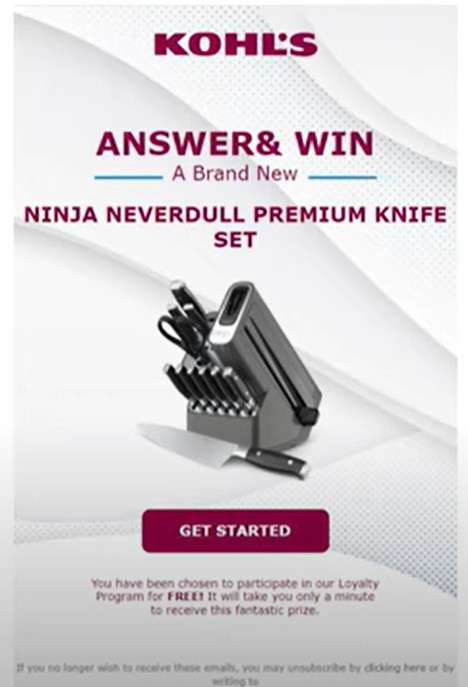
An enticing email offer has been circulating, luring unsuspecting individuals with the prospect of winning a free Kohl’s Ninja Knife Set. This “giveaway” tempts recipients by claiming they’ve been specially selected to receive a high-quality knife set absolutely free.
While such a valuable item being given away at no cost may seem too good to be true, the professional presentation of the email and invocation of the trusted Kohl’s brand could convince some that the offer is legitimate. However, closer inspection reveals that this is nothing more than a deceptive scam designed to dupe users into surrendering money and personal information.
This article will provide a detailed exposé of the Kohl’s Ninja Knife Set Email scam. We’ll examine how this con operates at multiple stages to successfully ensnare victims. By comprehending the sneaky tactics leveraged throughout this scam, individuals can equip themselves to recognize and avoid falling prey.
Scam Overview
The Kohl’s Ninja Knife Set Email scam is perpetrated through an unsolicited message claiming the recipient has been specially selected to receive a free knife set. This tantalizing prize is offered at an improbably low cost of just $9.95 to cover shipping and handling.
However, this is just a ruse to induce recipients to enter their personal details and unknowingly enroll in a concealed subscription. Victims are subsequently slammed with exorbitant recurring monthly charges they didn’t agree to.
This scam is essentially a bait-and-switch scheme engineered to profit off of deceit. By dangling the prospect of a free premium knife set, the operators entice interest and urgency. But when users attempt to “claim” their prize, the true costs become evident.
The email itself is designed to look official and invoke familiarity through appropriating Kohl’s branding. However, closer inspection reveals a mismatch between the email domain and legitimate Kohl’s websites. This is a tell-tale sign of impersonation.
When recipients click the call-to-action button embedded in the email, they are led to an external website unaffiliated with Kohl’s. This site utilizes misleading displays showing an expiring timer and emphasizes the initial $9.95 payment. But hidden in obscure fine print are monthly subscription terms that renew indefinitely until canceled.
The entirety of this scam – from the official-looking email to the deceitful third-party website – is intricately designed to mislead, rush, and manipulate victims. By presenting users with partial truths laced with falsehoods, their schemes often evade detection and are alarmingly successful.
However, armed with knowledge of their devious tactics, individuals can recognize this Kohl’s knife set scam before falling victim. Being able to identify the warning signs enables one to steer clear of this con and its efforts to swindle both money and personal data. We will outline the scam processes in detail next.
How the Scam Works
The Kohl’s Ninja Knife Set scam routinely ensnares unsuspecting victims through executing an array of deceptive techniques at multiple stages. We will examine the components of this scam step-by-step:
Stage 1: The Enticing Email
The bait that lures victims into this scam is the enticing email. This message is structured to entice recipients, build trust, and convey a sense of urgency.
The email arrive unsolicited in inboxes from an address like “Kohl’s Giveaway” or “Kohl’s Loyalty Department”. The subject lines help garner attention, containing phrases declaring the recipient has won, such as:
- Congratulations, You’ve Won a Kohl’s Ninja Knife Set!
- We Have a Free Ninja Knife Set For You from Kohl’s!
- Hurry – Claim Your Kohl’s Ninja Knife Set Now!
These subject lines are tactical, aiming to grab interest by declaring the recipient has won and implying quick action must be taken.
The email body continues these tactics with enthusiastic congratulatory messaging about being selected and urgency cues stressing the limited availability of this special offer.
Branding is leveraged to build familiarity and trust, with copious use of Kohl’s logos and imagery. This establishes perceived legitimacy, leading recipients to believe the offer is sanctioned by Kohl’s.
In reality, the senders have no affiliation with Kohl’s. They are simply invoking the brand recognition to appear credible.
A prominent call-to-action button urging users to “Claim Their Prize” aims to propel recipients to the next phase of the scam – visiting the deceptive website.
Stage 2: The Deceitful Website
Clicking the call-to-action button redirects users away from their email provider to an external website.
This site utilizes additional deception tactics to continue rushing and misleading victims. The website domain itself (e.g. sosimpledevices.com, kohlswinners.com, etc.) will bear no official relation to the genuine Kohl’s domain.
The website is made to resemble a legitimate customer experience portal. Kohl’s branding remains prominent, and the knife set offer is displayed with terms like “Congratulations Winner!” This upholds the illusion that users are interacting with Kohl’s’s promotions.
False scarcity is conveyed through countdown timers implying the offer expires soon. This adds to the urgency intended to rush victims.
Once recipients are convinced they’ve arrived at a legitimate claim site, they are prompted to enter personal details like their name, address, email, and phone number.
Users willingly surrender this data believing it is required to deliver their prize. In reality, it enables scammers to harvest credentials for fraud purposes.
With their information entered, users are shown an order summary displaying the incredible deal they’re getting – a knife set for just a $9.95 shipping fee. This small upfront cost seems completely reasonable and helps dispel any lingering doubts over the offer’s legitimacy.
In their haste, victims overlook or miss key details exposing the offer’s duplicity. Scattered in fine print are monthly subscription terms that if consented, will trigger recurring credit card charges. This critical information is intentionally obscured to avoid detection.
Once users submit payment for the $9.95 “shipping”, the trap is sprung. They have unknowingly been enrolled in the concealed monthly billing program that bills their card repeatedly without consent.
Stage 3: Monthly Billing Nightmare
In the weeks following the initial transaction, victims report unexpectedly seeing exorbitant monthly charges from unfamiliar merchants on their credit card or bank statements.
These recurring billing charges can vary but are typically between $100 – $200 per month. Some unfortunate individuals have reported being drained thousands before noticing the unauthorized charges.
The monthly costs are attributed to vague subscription plans, described on billing statements as “apps”, “software”, “membership”, or other innocuous-sounding services. In reality, no software or apps are provided. Victims receive nothing for these unauthorized credit card charges.
These mysterious subscription plans also have ambiguous cancellation policies. Victims who spot the charges and attempt to cancel are often unable to end the billing. They get trapped in frustrating customer service runarounds designed to prolong the billing.
Some victims have reported calls to cancel only result in more recurring monthly plans being opened in their name – a deceitful tactic to maximize illegitimate revenue from the scammed individuals.
The nightmare continues as long as the scammers can keep the fraudulent billing active on victims’ accounts. Only proactive detection and intervention can stop these unwanted charges from accumulating.
Why It Succeeds
It is estimated Kohl’s Ninja knife set scams have ensnared thousands of victims, netting scammers substantial illegitimate profits. But what causes this con to succeed?
Trust in Branding – By appropriating trusted brands like Kohl’s, scammers inherit instant credibility. This convinces users the offers are legitimate.
Believable Backstory – The premise of being specially selected out of loyalty members lends believability that recipients were singled out for the prize offer.
Appealing Incentive – A free premium knife set is an enticing prospect, especially when obtainable for seemingly negligible cost.
Deceptive Urgency Tactics – Countdown timers and repeated urgency messaging mentally rushes victims, suppressing critical evaluation.
Obscured Terms – Burying auto-renewal in fine print enables scammers to conceal the true costs amid other benign order details.
Legitimate Façades – From email presentation to the website design, the scam maintains a professional sheen that adds to perceptions of authenticity.
Each element combines to form an elaborate trap – one that ensnares even savvy users. But forearmed with knowledge of their tactics, individuals can detect red flags and sidestep being scammed.
What To Do If You’ve Fallen Victim
For those unfortunate souls who have fallen prey to the Kohl’s Ninja knife set scam, immediate and decisive action must be taken to halt the fraud in progress and recover lost funds. Here are the key steps victims should follow:
Step 1: Alert Your Financial Institutions
Immediately upon discovering unauthorized charges, victims should contact their credit card provider and/or bank. Reporting the fraudulent transactions will prompt these institutions to block any ongoing billing and begin fraud investigations.
Providing statements showing the illegitimate charges will help support claims of being scammed. Financial institutions can also assist with beginning the chargeback process to recover lost money.
Step 2: Change Account Credentials
To prevent scammers from accessing accounts, all passwords and login credentials should be changed for any platforms breached, including:
- Email accounts which received the scam message
- Credit cards / payment accounts scammed
- Retailer accounts like Amazon or PayPal if credentials were reused
Updating this sensitive information limits the potential damage from credential theft. Enable multi-factor authentication wherever possible as an added account security layer.
Step 3: Freeze Credit Reports
Scammers possessing personal data commonly utilize this to commit identity fraud. Victims should place a credit freeze with the major credit bureaus (Experian, Equifax, TransUnion) to lock down credit reports against fraudulent new lines of credit. This prevents scammers from financially exploiting stolen information.
Step 4: Watch for Repeat Attempts
Kohl’s Ninja knife set scammers frequently target victims repeatedly once they’re on the hook. Watch vigilantly for new emails or correspondence related to prize claims, shipping status, etc. These are renewed phishing attempts and should be ignored.
Remain wary of phone calls regarding warranties, missed deliveries, or other high-pressure scenarios. These are often pretexts to extract payment or information.
Step 5: Report the Scam Activity
The following agencies should be alerted to help authorities track and shut down Kohl’s Ninja knife set scams:
- FTC Fraud Complaints – Report fraud incidents to the FTC to aid investigations.
- FBI IC3 Complaints – Submit scam details to the FBI’s cybercrime division.
- Kohl’s Corporate – Inform Kohl’s of branding misuse for legal action.
- Email Providers – Report phishing emails as spam/abuse so filters can be updated.
- Domain Registrars – Report scam websites to get fraudulent domains seized and disabled.
By reporting, victims help protect others from falling prey to variants of this scam. Share details on scam reporting sites as well to maximize exposure of their tactics.
Is Your Device Infected? Run a Free Malware Scan
Slow performance, constant pop-ups, or strange behavior? These are classic signs of a malware infection. The fastest way to find out is to scan your device with Malwarebytes Free — one of the most trusted malware removal tools available.
The free version detects and removes the most common threats, including:
- Adware — the cause of those annoying pop-ups
- Browser hijackers — unwanted redirects and changed homepages
- Trojans and spyware — hidden programs stealing your data
- Potentially unwanted programs (PUPs) — software you never asked for
👉 Select your device below — Windows, Mac, or Android — then follow the simple steps to download Malwarebytes, scan your system, and remove any threats it finds. The scan usually takes 5 to 20 minutes.
Run a Malware Scan with Malwarebytes for Windows
Malwarebytes is one of the most popular and trusted anti-malware tools for Windows — and it’s completely free for removing infections. It catches threats that many antivirus programs miss, including adware, browser hijackers, and trojans. Follow the steps below to scan and clean your PC in just a few minutes.
Download Malwarebytes
Click the button below to download the latest version of Malwarebytes for Windows from the official source. The free version is all you need — it will scan your computer and remove adware, browser hijackers, and other malicious software at no cost.
Download MalwarebytesOfficial installer for Windows 11 and 10. Your download starts right away.Want real-time protection? See Malwarebytes Premium Malwarebytes Free for WindowsScans and removes malware at no cost
-
Install Malwarebytes
When the download finishes, open your Downloads folder and double-click the MBSetup file. If Windows shows a User Account Control pop-up, click “Yes” to allow the installation.

Follow the On-Screen Prompts to Install Malwarebytes
The setup wizard will walk you through a few quick screens:
-
Choose where you’re installing the program — “Personal Computer” or “Work Computer” — then click Next.

-
Malwarebytes will now install on your device. This usually takes under a minute.

-
When installation is complete, the “Welcome to Malwarebytes” screen will open automatically.

-
On the final screen, click Open Malwarebytes to launch the program.

-
Enable “Scan for Rootkits”
Before scanning, turn on rootkit detection so Malwarebytes can find even the most hidden threats. Click the Settings gear icon on the left side of the screen.

In the settings menu, find “Scan for rootkits” and click the toggle so it turns blue.

Done? Click “Dashboard” in the left pane to return to the main screen.
Start the Scan
Click the blue Scan button. Malwarebytes will automatically update its virus database and start checking your computer for malware.

-
Wait for the Scan to Finish
The scan checks your entire system for browser hijackers and other malicious programs, so it can take 5 to 20 minutes depending on your computer. Feel free to do something else — just check back occasionally to see the progress.

-
Quarantine the Detected Threats
When the scan is done, you’ll see a list of everything Malwarebytes found — malware, adware, and potentially unwanted programs. Click the “Quarantine” button to remove all of them at once.

Malwarebytes will now remove the malicious files and registry entries and move them safely into quarantine.

-
Restart Your Computer
Some threats can only be fully removed after a reboot. If Malwarebytes asks you to restart, click Yes. Once you’re logged back in, Malwarebytes has finished removing the threats it found.

That’s it — your Windows PC is now clean of trojans, adware, and other malware, and should be back to running smoothly.
If you are still having problems with your computer after completing these instructions, then please follow one of the steps:
- Run a computer scan with ESET Online Scanner
- Ask for help in our Windows Malware Removal Help & Support forum.
Run a Malware Scan with Malwarebytes for Mac
Malwarebytes for Mac is a free on-demand scanner that removes the malware other security software tends to miss — adware, browser hijackers, and unwanted programs included. Cleaning an infected Mac with Malwarebytes has always been completely free, and it’s our go-to recommendation. Follow the steps below to scan and clean your Mac in just a few minutes.
-
Download Malwarebytes for Mac
Click the button below to download the latest version of Malwarebytes for Mac.
Download MalwarebytesOfficial installer for macOS. Your download starts right away.Want real-time protection? See Malwarebytes PremiumMalwarebytes Free for MacScans and removes malware at no cost -
Open the Malwarebytes setup file
When the download finishes, open your Downloads folder and double-click the setup file to begin the installation.

-
Follow the On-Screen Prompts to Install Malwarebytes
The Malwarebytes for Mac Installer will guide you through a few quick screens. Click “Continue” and keep following the prompts until the installation completes.



When the installation is complete, Malwarebytes opens to the Welcome to Malwarebytes screen. Click “Get started“.
-
Select “Personal Computer” or “Work Computer”
Malwarebytes will ask what type of computer you’re installing it on. Click either Personal Computer or Work Computer, whichever applies.

-
Start the Scan
Click the “Scan” button. Malwarebytes will automatically update its detection database and begin checking your Mac for malware.

-
Wait for the Scan to Finish
Malwarebytes will scan your Mac for adware, browser hijackers, and other malicious programs. This can take a few minutes, so feel free to do something else — just check back occasionally to see the progress.

-
Quarantine the Detected Threats
When the scan is done, you’ll see a list of everything Malwarebytes found. Click the “Quarantine” button to remove all the threats at once.

-
Restart Your Mac
Malwarebytes will now remove all the malicious files it found. Some threats can only be fully removed after a reboot — if Malwarebytes asks you to restart, allow it. Once you’re logged back in, your Mac is clean.

That’s it — your Mac is now free of adware, rogue browser extensions, and other potentially harmful software.
If you are still experiencing problems while trying to remove a malicious program from your computer, please ask for help in our Mac Malware Removal Help & Support forum.
Run a Malware Scan with Malwarebytes for Android
Malwarebytes for Android automatically detects and removes dangerous threats like malware and ransomware so you don’t have to worry about your most-used device being compromised. Aggressive detection of adware and potentially unwanted programs keeps your Android phone or tablet running smooth.
-
Download Malwarebytes for Android.
You can download Malwarebytes for Android by clicking the link below.
Get Malwarebytes for AndroidOpens Google Play in a new tab.Want real-time protection? See Malwarebytes Premium for AndroidMalwarebytes for AndroidScans your phone and removes malware at no cost -
Install Malwarebytes for Android on your phone.
In the Google Play Store, tap “Install” to install Malwarebytes for Android on your device.

When the installation process has finished, tap “Open” to begin using Malwarebytes for Android. You can also open Malwarebytes by tapping on its icon in your phone menu or home screen.

-
Follow the on-screen prompts to complete the setup process
When Malwarebytes will open, you will see the Malwarebytes Setup Wizard which will guide you through a series of permissions and other setup options.
This is the first of two screens that explain the difference between the Premium and Free versions. Swipe this screen to continue.
Tap on “Got it” to proceed to the next step.
Malwarebytes for Android will now ask for a set of permissions that are required to scan your device and protect it from malware. Tap on “Give permission” to continue.
Tap on “Allow” to permit Malwarebytes to access the files on your phone.
-
Update database and run a scan with Malwarebytes for Android
You will now be prompted to update the Malwarebytes database and run a full system scan.

Click on “Update database” to update the Malwarebytes for Android definitions to the latest version, then click on “Run full scan” to perform a system scan.

-
Wait for the Malwarebytes scan to complete.
Malwarebytes will now start scanning your phone for adware and other malicious apps. This process can take a few minutes, so we suggest you do something else and periodically check on the status of the scan to see when it is finished.

-
Click on “Remove Selected”.
When the scan has been completed, you will be presented with a screen showing the malware infections that Malwarebytes for Android has detected. To remove the malicious apps that Malwarebytes has found, tap on the “Remove Selected” button.

-
Restart your phone.
Malwarebytes for Android will now remove all the malicious apps that it has found. To complete the malware removal process, Malwarebytes may ask you to restart your device.
That’s it — your Android phone is now clean — no more malicious apps, adware, or browser redirects.
If you are still having problems with your phone after completing these instructions, then please follow one of the steps:
- Restore your phone to factory settings by going to Settings > General management > Reset > Factory data reset.
- Ask for help in our Mobile Malware Removal Help & Support forum.
Stay Protected: Block Ads and Malicious Sites
Now that your device is clean, keep it that way. Most infections start with a malicious ad or a fake download button — so blocking them at the source is your best defense.
We recommend AdGuard, which blocks malicious ads, phishing pages, and dangerous redirects before they can reach you.
👉 Download AdGuard and browse safely
Frequently Asked Questions
What is the Kohl’s Ninja knife set scam?
This is a scam where victims receive an unsolicited email claiming they’ve won a free Kohl’s Ninja knife set. It lures victims to a fake website that charges an initial fee and secretly signs them up for recurring monthly billing.
How does the Kohl’s Ninja knife set scam work?
The scam sends an official looking email with Kohl’s branding that convinces recipients the offer is legitimate. Clicking a link takes victims to a deceitful website that rushes users through entering personal info and accepting hidden subscription terms. This grants scammers the ability to repeatedly charge their cards.
What are some red flags of the Kohl’s scam?
Red flags include getting an unsolicited email, mismatches between the sender domain and Kohl’s.com, urgently limited-time offers, improbably low costs, hidden fine print subscriptions, and unfamiliar recurring charges from merchants you didn’t authorize.
I think I fell for the Kohl’s scam – what should I do?
Immediately contact your bank and credit card company to report fraudulent charges so they can begin investigations. Change any account passwords that may be compromised. Place a fraud alert and credit freeze with credit bureaus to prevent identity theft. Watch for repeat scam attempts via email or phone calls. Report the scam to the FTC, FBI, Kohl’s, and other agencies.
How can I avoid the Kohl’s Ninja knife set scam?
Avoid clicking links or filing out forms in unsolicited emails offering free prizes or gifts. Be wary of massive discounts on expensive items. Carefully read fine print for hidden terms and recurring billing. Beware of high-pressure offers with ticking countdown timers. Verify domain matches the company’s real website. If it seems too good to be true, it’s likely a scam.
Has Kohl’s issued any statements about this scam?
Kohl’s has warned customers that this scam is unaffiliated with them. They advise exercising caution with knife set giveaways requiring upfront fees, as they do not operate in this manner. Kohl’s also takes legal action where possible against scammers misusing their brand without consent.
Where can I report the Kohl’s Ninja knife set scam?
You can file complaints regarding this scam with the FTC, FBI, Kohl’s corporate, your email provider, domain name registrars, and various scam reporting sites to maximize exposure around this fraudulent activity.
Conclusion
The Kohl’s Ninja Knife Set Email scam ensnares countless victims by weaponizing psychological tricks and elaborate deception tactics. Lured by a tantalizing free knife set offer, recipients end up surrendering money and personal data that scammers ruthlessly exploit.
This con seamlessly manufactures credibility throughout the scam journey, from the initial email to the deceitful claim website. Urgency pressure, appealing incentives, trusted branding, and obscured billing details collectively serve to rush and trick victims.
Nonetheless, by analyzing their manipulative techniques, individuals can recognize red flags to avoid being deceived. Heeding warning signs like unsolicited offers, mismatched domains, and concealed subscription terms enables one to steer clear of this scam’s traps.
For those defrauded by this scam, swift and decisive actions are imperative. Fraudulent charges must be halted, credentials changed, and complaints filed with various regulatory bodies. Leveraging all available solutions maximizes the chance of recovering lost money and stopping recurring victimization.
Deceptive online scams will surely continue evolving. But by informing ourselves of common exploit tactics and identifying telltale warning signs, we can empower our collective vigilance against cybercriminal acts like the Kohl’s Ninja Knife Set scam.

Join the discussion
0 commentsShare your experience or ask a question about this article.
Discussion
Start the conversation
Have a question or something useful to share? Add the first comment.