

Live Security Platinum is a malicious program also known as rogue security software, which will display fake security alerts in an attempt to scare you into buying this fake security product.
In addition, Live Security Platinum has also hijacked your PC,blocking your from running files,so now when your trying to open and executable file (file ending with .exe), this program will instead display this fake alerts:
Warning!

Application cannot be executed. The file rdpclip.exe is infected. Please active your antivirus software.
Security Monitor: WARNING!

Attention! System detected a potential hazard (TrojanSPM/LX) on your computer that may infect executable files. Your private information and PC safety is at risk.

To get rid of unwanted spyware and keep your computer safe you need to update your current security software.

Click Yes to download official intrusion detection system (IDS software).
Live Security Platinum Warning Spyware.IEMonster activity detected. This is spyware that attempts to steal passwords from Internet Explorer, Mozilla FireFox, Outlook and other programs. Click here to remove it immediately with Live Security Platinum
Live Security Platinum Firewall Alert Live Security Platinum Firewall has blocked a program from accessing the Internet. Internet Explorer Internet Browser is infected with SVCHOST.Stealth.Key-logger. This worm is trying to send your credit card details using Internet Explorer Internet Browser to connect to remove host
Live Security Platinum will also cause malicious browser redirects and system slowdowns so it needs to be removed from your computer as soon as possible.
This is are a few images of Live Security Platinum:
![[Image: Live Security Platinum virus]](http://malwaretips.com/blogs/wp-content/uploads/2012/06/Live-Security-Platinum.png "Live Security Platinum")
![[Image: Live Security Platinum Alert]](http://malwaretips.com/blogs/wp-content/uploads/2012/06/Live-Security-Platinum-alert1.png "Live Security Platinum fake alert")
![[Image: Live Security Platinum Warning]](http://malwaretips.com/blogs/wp-content/uploads/2012/06/Live-Security-Platinum-warning1.png "Live Security Platinum fake warning")
Registration codes for Live Security Platinum
As an optional step,you can use the following license key to register Live Security Platinum and stop the fake alerts.
AA39754E-715219CE
Please keep in mind that entering the above registration code will NOT remove Live Security Platinum from your computer , instead it will just stop the fake alerts so that you’ll be able to complete our removal guide more easily.
Live Security Platinum Removal Guide
STEP 1 : Start your computer in Safe Mode with Networking
- Remove all floppy disks, CDs, and DVDs from your computer, and then restart your computer.
- Press and hold the F8 key as your computer restarts.Please keep in mind that you need to press the F8 key before the Windows start-up logo appears.
Note: With some computers, if you press and hold a key as the computer is booting you will get a stuck key message. If this occurs, instead of pressing and holding the “F8 key”, tap the “F8 key” continuously until you get the Advanced Boot Options screen. - On the Advanced Boot Options screen, use the arrow keys to highlight Safe Mode with Networking , and then press ENTER.
![[Image: Safemode.jpg]](data:image/gif;base64,R0lGODlhAQABAAAAACH5BAEKAAEALAAAAAABAAEAAAICTAEAOw== "Safe Mode with Networking screen")
![[Image: Safemode.jpg]](http://malwaretips.com/images/removalguide/safemode.jpg "Safe Mode with Networking screen")
STEP 2: Remove Live Security Platinum malicious proxy server
Live Security Platinum may add a proxy server which prevents the user from accessing the internet,follow the below instructions to remove the proxy.
- Start the Internet Explorer browser and if you are using Internet Explorer 9 ,click on the gear icon (Tools for Internet Explorer 8 users) ,then select Internet Options.
- Go to the tab Connections.At the bottom, click on LAN settings.
- Uncheck the option Use a proxy server for your LAN. This should remove the malicious proxy server and allow you to use the internet again.
![[Image: IE gear icon]](http://malwaretips.com/images/removalguide/icongear.jpg "Gear Icon") (Tools for Internet Explorer 8 users) ,then select Internet Options.
(Tools for Internet Explorer 8 users) ,then select Internet Options.![[Image: Internet-options-IE.png]](http://malwaretips.com/images/removalguide/ie1.png "Internet Options in IE")
![[Image: Remove-proxy-server2.png]](http://malwaretips.com/images/removalguide/ie2.png "Connections tab in Internet Explorer")
![[Image: Remove-proxy-server3.png]](http://malwaretips.com/images/removalguide/ie3.png "Uncheck the option Use a proxy server for your LAN")
If you are a Firefox users, go to Firefox(upper left corner) → Options → Advanced tab → Network → Settings → Select No Proxy
STEP 3: Repair your Windows Registry from Live Security Platinum malicious changes.
Smart Fortress 2012 has changed your Windows registry settings so that when you try to run a executable file (ending with .exe ) , it will instead launch the infection rather than the desired program.
- Download the registryfix.reg file to fix the malicious registry changes from Live Security Platinum.
REGISTRYFIX.REG DOWNLOAD LINK (This link will automatically download the registry fix called registryfix.reg) - Double-click on registryfix.reg file to run it. Click “Yes” for Registry Editor prompt window,then click OK.
![[Image: fix registry]](http://malwaretips.com/blogs/wp-content/uploads/2011/12/registry.png "Remove Live Security Platinum (Uninstall Guide) 1")
STEP 4: Run RKill to terminate known malware processes associated with Live Security Platinum.
RKill is a program that will attempt to terminate all malicious processes associated with Live Security Platinum,so that we will be able to perform the next step without being interrupted by this malicious software.
Because this utility will only stop Live Security Platinum running process, and does not delete any files, after running it you should not reboot your computer as any malware processes that are configured to start automatically will just be started again.
- While your computer is in Safe Mode with Networking ,please download the latest official version of RKill.Please note that we will use a renamed version of RKILL so that Live Security Platinum won’t block this utility from running.
RKILL DOWNLOAD LINK (This link will automatically download RKILL renamed as iExplore.exe) - Double-click on the iExplore.exe icon in order to automatically attempt to stop any processes associated with Live Security Platinum.
- RKill will now start working in the background, please be patient while the program looks for various malware programs and tries to terminate them.
IF you are having problems starting or running RKill, you can download any other renamed versions of RKill from here. - When Rkill has completed its task, it will generate a log. You can then proceed with the rest of the guide.
![[Image: run-rkill-1.png]](http://malwaretips.com/images/removalguide/rkill1.png "RKILL ICON")
![[Image: run-rkill-2.png]](http://malwaretips.com/images/removalguide/rkill2.png "RKILL Command prompt")
![[Image: Live Security Platinum rkill3.jpg]](http://malwaretips.com/images/removalguide/rkill3.png "RKILL LOG")
WARNING: Do not reboot your computer after running RKill as the malware process will start again , preventing you from properly performing the next step.
STEP 5: Remove Live Security Platinum malicious files with Malwarebytes Anti-Malware FREE
- Download the latest official version of Malwarebytes Anti-Malware FREE.
MALWAREBYTES ANTI-MALWARE DOWNLOAD LINK (This link will open a download page in a new window from where you can download Malwarebytes Anti-Malware Free) - Start the Malwarebytes’ Anti-Malware installation process by double clicking on mbam-setup file.
- When the installation begins, keep following the prompts in order to continue with the setup process. Do not make any changes to default settings and when the program has finished installing, make sure you leave both the Update Malwarebytes’ Anti-Malware and Launch Malwarebytes’ Anti-Malware checked. Then click on the Finish button. If Malwarebytes’ prompts you to reboot, please do not do so.
- Malwarebytes Anti-Malware will now start and you’ll be prompted to start a trial period , please select ‘Decline‘ as we just want to use the on-demand scanner.
- On the Scanner tab,select Perform full scan and then click on the Scanbutton to start scanning your computer.
- Malwarebytes’ Anti-Malware will now start scanning your computer for Live Security Platinum malicious files as shown below.
- When the scan is finished a message box will appear, click OK to continue.
- You will now be presented with a screen showing you the malware infections that Malwarebytes’ Anti-Malware has detected.Please note that the infections found may be different than what is shown in the image.Make sure that everything is Checked (ticked) and click on the Remove Selectedbutton.
- Malwarebytes’ Anti-Malware will now start removing the malicious files.After completing this task it will display a message stating that it needs to reboot,please allow this request and then let your PC boot in Normal mode.
![[Image: Malwarebytes Installer]](http://malwaretips.com/images/removalguide/malwarebytes-setup.png "Malwarebytes Anti-Malware Installer")
![[Image: Finishing Malwarebytes installation]](http://malwaretips.com/images/removalguide/update-malwarebytes.png "Malwarebytes last setup screen")
![[Image: Decline Malwarebytes trial]](http://malwaretips.com/images/removalguide/mbam3.PNG "Decline trial period in Malwarebytes Anti-Malware")
![[Image: Starting a full system sca]](http://malwaretips.com/images/removalguide/start-scan-malwarebytes.png "Perform a Full System Scan with Malwarebytes Anti-Malware")
![[Image: Malwarebytes scanning for malicious files]](http://malwaretips.com/images/removalguide/scan-malwarebytes.png "Malwarebytes Anti-Malware scanning for Live Security Platinum")
![[Image: Malwarebytes scan results]](http://malwaretips.com/images/removalguide/results-malwarebytes.png "Malwarebytes when the system scan has finished")
![[Image: Infections found by Malwarebytes]](http://malwaretips.com/images/removalguide/detection-malwarebytes.png "Removing the infections found by Malwarebytes")
STEP 6: Double check your system for any left over infections with HitmanPro
- This step can be performed in Normal Mode ,so please download the latest official version of HitmanPro.
HITMANPRO DOWNLOAD LINK(This link will open a download page in a new window from where you can download HitmanPro) - Double click on the previously downloaded fileto start the HitmanPro installation.
IF you are experiencing problems while trying to starting HitmanPro, you can use the “Force Breach” mode.To start this program in Force Breach mode, hold down the left CTRL-key when you start HitmanPro and all non-essential processes are terminated, including the malware process. (How to start HitmanPro in Force Breach mode – Video) - Click on Next to install HitmanPro on your system.
- The setup screen is displayed, from which you can decide whether you wish to install HitmanPro on your machine or just perform a one-time scan, select a option then click on Next to start a system scan.
- HitmanPro will start scanning your system for malicious files. Depending on the size of your hard drive, and the performance of your computer, this step will take several minutes.
- Once the scan is complete,a screen displaying all the malicious files that the program found will be shown as seen in the image below.After reviewing each malicious object click Next.
- Click Activate free license to start the free 30 days trial and remove the malicious files.
- HitmanPro will now start removing the infected objects, and in some instances, may suggest a reboot in order to completely remove the malware from your system. In this scenario, always confirm the reboot action to be on the safe side.
![[Image: hitmanpro-icon.png]](http://malwaretips.com/images/removalguide/hpro1.png "HitmanPro Installer")
![[Image: installing-hitmanpro.png]](http://malwaretips.com/images/removalguide/hpro2.png "HitmanPro installation process")
![[Image: hitmanpro-setup-options.png]](http://malwaretips.com/images/removalguide/hpro3.png "HitmanPro setup options")
![[Image: hitmanpro-scanning.png]](http://malwaretips.com/images/removalguide/hpro4.png "HitmanPro scanning for Live Security Platinum")
![[Image: hitmanpro-scan-results.png]](http://malwaretips.com/images/removalguide/hpro5.png "HitmanPro Live Security Platinum scan results")
![[Image: hitmanpro-activation.png]](http://malwaretips.com/images/removalguide/hpro6.png "Activate HitmanPro free license to remove detected infections")
STEP 7: Remove any left over malicious registry keys and files
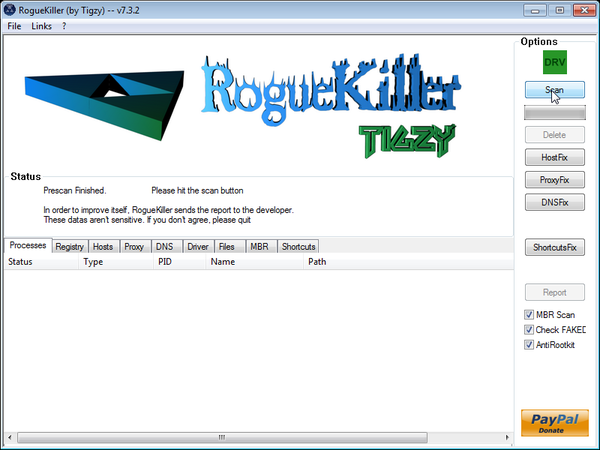
Live Security Platinum has sadded some malicious registry keys to your Windows installation , to remove this malicious changes we need to run a scan with RogueKiller
- Please download the latest official version of RogueKiller.
ROGUEKILLER DOWNLOAD LINK (This link will automatically download RogueKiller on your computer) - Double click on RogueKiller.exe to start this utility and then wait for the Prescan to complete.This should take only a few seconds and then you can click the Start button to perform a system scan.
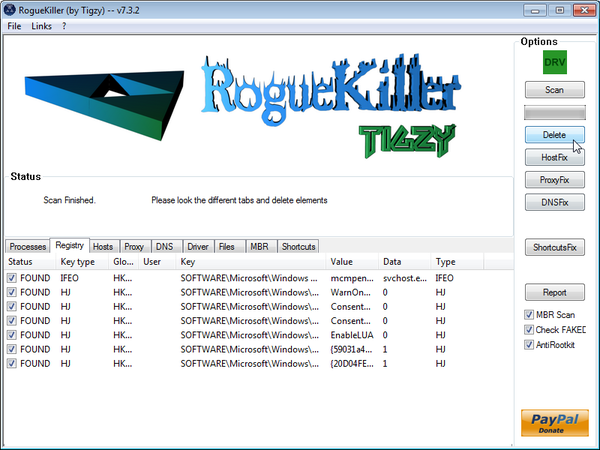
- After the scan has completed, press the Delete button to remove any malicious registry keys.
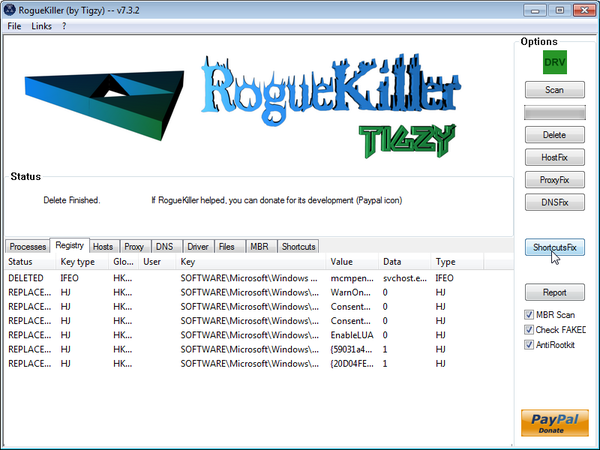
- Next we will need to restore your shortcuts, so click on the ShortcutsFix button and allow the program to run.









Thanks – really clear tips and no pushing products. Great advice!
Hey Stelian,thanks a lot for creating this guide. But my Malwarebytes’ Anti-Malware did not manage to complete its full scan (I’ve tried four times and usually the scan only runs 20 minutes+) and my laptop shuts itself off. And also when I’m running IExplore/RKill it does not terminate any processes. Any input from you(or any other user) would be greatly appreciated.Thanks a lot!
Hello,
Lets try do this another way.Please follow the below steps while your computer is in Normal Mode:
1.Run a scan with Malwarebytes Anti-Malware in Chameleon Mode:
2.Next,please perform a scan with HitmanPro as seen on the guide.
3. Run a scan with ESET Online Scanner
ESET Online Scanner Download Link (This link will automatically download ESET Online Scanner on your computer.)
Waiting for your reply to tell me how everything is working.. :) Good luck!
Hey Stelian,progress has been made,my pc is on normal mode now without any sight of Live Security Platinum.However, the ESET scanner could not be updated and states “cannot get update.Is proxy configured?”,any solutions to this? Thanks !
Did you check for any proxy server (see step 2 on the guide)?
Can you try to disable your antivirus and firewall while doing the ESET scan and see if this will fix the problem…
Thanks a bunch for your help! The Live Platinum Security virus would not allow me to connect to the internet at all, even after trying all the internet connection tips. I finally resorted to using the fake registration code, and that allowed me to gain access to the internet once again. I am now running all the software to get rid of the virus for good! Thanks again!
Thanks so much!!!!
Thank you very much for your helpful information in removing this virus.I am really greatful to you. Best wishes for you.
THAX n GBU
I share an iMac (OSX 10.6.8) with my wife. We installed Parallels 7 desktop to run Windows 7 on the Mac so she could access a work related site that requires a PC. The other day she was checking e-mail on the Mac side (aol.com) and found an official looking e-mail from USPS saying that a package she was supposed to have sent was undeliverable. She never sent such a package. She clicked a link to get more info about the package, and it downloaded Live Security Platinum. Not knowing what that was she tried to open it, and it opened Windows and displayed the Live Security Platinum Warnings and error messages. The correct thing to do would have been to send the USPS e-mail to Spam.
Since my wife only uses Windows 7 to get on one web site , and she has no other data files saved on the PC side, is it possible to re-install Parallels, Windows and Explorer to remove the Live Security Platinum? What do you think?
Thanks,
Joe
Hello Joe,
Yes,I think that if you reinstall Windows on Pararels you should be fine..This type of products work like a sandbox so basically if you do a reinstall you should be ok!
Something that your wife needs to read: http://malwaretips.com/blogs/how-to-easily-avoid-pc-infections/ .. Stay safe!:D
Yeah!! The solution worked great..!! Thanks for the help!!
Don’t even realize when was the virus get into my pc..
Thank you so much!! You are my savior :)
Further help please!
Firstly as with all the comments, thanks for you advice. Top man.
I have cleared the Live Security Platinum malware using your initial steps, followed by both Kaspersky Virus Removal Tool and then ESET Online Scanner utility. Like one of the other threads everything is working fine but my windows firewall is corrupted as is my windows update. I get the error message “update your firewall settings” then when I click on “use recommended settings” I get the error message “windows cannot change some of your settings. Error code 0x8007042c”. On the Windows update page this was also corrupted. Following your advice I installed and ran through all the steps of tweaking.com – windows repair (all in one) but the Firewall error perists. The windows update now allows checking for updates but throws an error when I try to download and install new updates. Please help. It would be a great shame after clearing things so well to have to re-install the operating system (Win 7 profession 64-bit). Fix this am I become a Barcelona fan!
Hello,
Lets try to fix this and have a new FC Barcelona fan:D
First run a scan with RogueKiller:
ROGUEKILLER DOWNLOAD LINK (This link will automatically download RogueKiller on your computer)
Next,you’ll need to run a File System Check and Disk Check… To do this , download Windows Repair All In One and install this utility.
Then go to Step 2 (Check File System) and click on “DO IT”, after this step is done, go to Step 3 (System File Check) and again click on DO IT.
NEXT,go to the last Startup Repairs tab and click the Start button (bottom right)
Note: When asked if you would like to create a restore point. It is recommended just in-case something does not go as planned.
Note: Leave everything else unchecked
Let me know everything goes…:D
Thanks – I seem to be all sorted. I am officially a FC Barcelona fanatic!. Top man, keep up the good work.
Chris
Thanks for the effort. Your instruction helps me by fixed my problems. Thanks!
Thank you Thank you, Stelian!!!
I successfully removed Live Security Platinum, however the Firewall on my McAfee Security Center is off. I can’t turn it on anymore, every time I turned it on, it went off again. Is it because of the Hitman Pro or Malwarebytes’ Anti-Malware? Thank you for your heavenly help again!
I have no idea why you can’t turn your McAfee Firewall on,however a re-install should fix this.However I do advise you to remove McAfee and install another security product because McAfee is not that great..
Quick tips;
Free – Avast 7 Free version or COMODO Internet Security
Paid : Norton Internet Security 2012 or Avast Internet Security 7
Anyway ,you should really start a thread in our Security Configuration forum as you need to build a layerd security config: http://malwaretips.com/Forum-Security-Configuration-Wizard
Also it would very good if you took the time and read this article that I’ve wrote: http://malwaretips.com/blogs/how-to-easily-avoid-pc-infections/ .. If you follow it,then we’ll never meet again in this conditions:)
Thank you Thank you, Stelian! Will go read the articles now!
Thank you for all the time and effort in putting this together. I have followed the instructions after having this physically show up on my Start menu and pop up when browsing starting two days ago (who knows how long it’s been around). We have 4 users on our home computer and my daughter used hers before we notified her not to, it just showed up today in her user account.
I didn’t need to use the registration code, although a few things popped up initially the other day…I was able to start in Safe Mode, LAN wasn’t checked, used Registryfix, Rkill, and Malwarebytes (already on my computer but had to update) with moderate success. Live Security Platinum still showed up in my start menu so I ran Kaspersky checking the five boxes you listed for others (including my huge removable drive). Finally, LSP is wiped out of my start menu but I still have three flashing suspicious icons (7966335.exe-two of these same item and Java Auto Updater) “is requesting permission to…” The Java program is one that had corrupted files/virus. I plan on running the Eset Online Scanner next unless you have another suggestion.
Hello,
Please do a ESET Online Scan,and next do a scan with RogueKiller as seen below:
ROGUEKILLER DOWNLOAD LINK (This link will automatically download RogueKiller on your computer)
If you are still experiencing problems while trying to remove this rogue from your machine, please start a new thread in our Malware Removal Assistance forum.
Good luck!
Hello
When I went to add the rkill it gives me a message that says the iexplore.exe has stopped working and the only option is “close program”. I have tried downloading other versions of the rkill but they continue to give me that same message. I left it be while typing this and in the notepad that pops up it said that it terminated the process downloads\explorer.exe is that what is suppose to happen to continue on to the next step with the malwarebytes?
Hello,
Lets try do this another way.Please follow the below steps…
STEP 1. While in NORMAL MODE,download HitmanPro and then start this program in ForceBreach Mode
1.Here are the direct download links for HitmanPro,
– http://dl.surfright.nl/HitmanPro36.exe (For 32bit)
– http://dl.surfright.nl/HitmanPro36_x64.exe (For 64bit)
2.Hold down the left CTRL-key when you start HitmanPro and all non-essential processes are terminated, including this rogue malicious process
Here is a video that explains with graphic details how to do this : http://www.youtube.com/watch?v=m6eRWTv2STk
3. Let HitmanPro scan and remove the detected infections.
STEP 2: While in NORMAL MODE,download/Run Rkill and then run a scan with Malwarebytes
1.Download any re-named version of Rkill (direct download links bellow):
RKILL DOWNLOAD LINK #1
RKILL DOWNLOAD LINK #2
RKILL DOWNLOAD LINK #3
2.Next,please perform a scan with Malwarebytes and then do a RogueKiller and Unhide.exe scan as seen on the guide
STEP 3. Run a scan with ESET Online Scanner
ESET Online Scanner Download Link (This link will automatically download ESET Online Scanner on your computer.)
Waiting for your reply to tell me how everything is working.. :) Good luck!
I got to the point of installing Malwarebytes a Anti-Malware and right after clicking finish, I got an error message staying I couldn’t run the program in SAFE MODE. At this point, is it safe for me to reboot in normal mode to continue the removal process?
Yes,you can try to run a scan in Normal mode,if it doesn’t work than reply and I’ll help you. :)
Good luck!
Thanks sooo much for your help and the money you just saved me. Do you know of any good, FREE anti-virus software I can install until im able to but the Norton i seen advertised recently?
just tried it on mine and got the same error. however, i just clicked ok and it still ran fine while in safe mode. hope this helps
No you’re fine to just continue.. just rerun the Malaware Bytes software again, it’s because you chose incorrectly during the installation, but no worries all is good.
I got that message too. Then the program updated and i was able to continue.
Thank you very much for putting this together. It was easy to follow and appears to have worked well. Going forward, will the Malwarebytes Anti-Malware be enough to protect my computer? What’s the recommended method to prevent something similar going forward?
-Nat
As a quick answer :
Free – Avast 7 Free version or COMODO Internet Security
Paid : Norton Internet Security 2012 or Avast Internet Security 7
Anyway ,you should really start a thread in our Security Configuration forum as you need to build a layerd security config: http://malwaretips.com/Forum-Security-Configuration-Wizard
Also it would very good if you took the time and read this article that I’ve wrote: http://malwaretips.com/blogs/how-to-easily-avoid-pc-infections/ .. If you follow it,then we’ll never meet again in this conditions:)
Thanks for the help and advice.
-started in safe mode removing the Live Security Platinum references from registry per another’s suggestions
-came back with malwarebytes scanned and removed some more
-next reboot found malwarbytes was picking up some items still
-used Rkill I believe from the links above and returned nothing
-Hitman Pro was a life saver…however, it took two attempts and a “force to delete instead of quarantine” to take.
-thought I was complete…decided to run ESET scanner and now have found 2 infected files variant of Win32/Injector.TYT trojan JS/Redirector.NIQ trojan”…which makes sense as while testing I had just clicked on a few google search results pages that bounced me to some obviously incorrect pages.
I likely missed a step or followed the instructions from multiple sources that overlapped with yours, but I’m worried every time I add a new scanner I find new stuff. Regardless, thank you and I’ll keep following the thread for any new advice. Good luck everyone and keep at it.
Hello Mark,
You can perform a scan with the following utilities for your peace of mind:
1.Run a scan with Kaspersky Virus Removal Tool
Click here to download the Kaspersky Virus Removal Tool.
2.Run a scan with Eset Online Scanner.
ESET Online Scanner Download Link (This link will automatically download ESET Online Scanner on your computer.)
Stay safe!
Your generosity in providing this information and providing your time is amazing. See, there are some “good guys” still around.
I went through the steps successfully. Found it interesting that every scan, the last one being eset, found virus’
A heart felt thank you.
Flash
THANK YOU! THANK YOU! THANK YOU!You are the best!! You saved me 100$…. ***** you geek Squad!
Thank you MalwareTips.coM!
Hello, I followed all the steps and it worked great! However, since I got the virus off my laptop Firefox takes forever to respond and the computer seems slow any suggestion?
You can try to uninstall and then re-install back Firefox.
As far as the slow down did you check your startup items?If no,then you can use Malwarebytes StartupLite to remove any unnacesary files from starting with Windows.
Next,please defragment your computer – http://windows.microsoft.com/en-us/windows7/improve-performance-by-defragmenting-your-hard-disk
Also please run a scan with ESET Online Scanner,just to make sure you don’t have any left over infections.
ESET Online Scanner Download Link (This link will automatically download ESET Online Scanner on your computer.)
If it is still slow than you’ll need to run a File System Check and Disk Check… To do this , download Windows Repair All In One and install this utility.
Then go to Step 2 (Check File System) and click on “DO IT”, after this step is done, go to Step 3 (System File Check) and again click on DO IT.
NEXT,go to the last Startup Repairs tab and click the Start button (bottom right)
Note: When asked if you would like to create a restore point. It is recommended just in-case something does not go as planned.
Note: Leave everything else unchecked
I’m going to use the windows repair right now, but I don’t see “Repair Temp Files” I only see “Remove Temp Files” is that the option I’m suppose to chose?
Yes,Remove Temp Files….made a typo :)….
Thank for the help, but the computer is still very slow and unresponsive, to the point where it says Windows is not responding. What should I do? Should I factory restart my laptop?
Lets try one more thing and than if it doesn’t work, your can reset your computer.
Please follow this guide and run a scan with Combofix.
Let me know if that fixed the problem or not.
Thanks for the help, the computer starting running normally again on normal mode without me using combofix. However, if the computer starts acting up again I will use it and get back to you. Thanks again for the help.
Phenomenal. Thanks.
hello, here is my story, i was checking a blog, and then suddenly the virus installed on the computer, sending his messages constantly, and not letting me open any executable files, not even the notepad; since i coulnt log on the internet to check your advice, i was very desesperate and i didnt know what to do; then suddenly out of curiosity, i decided to restart the computer in secure mode, then i feel relaxed again beacause the messages stopped and it let me open other executables; so what i did afterwards was to right click the icon of the virus on the desktop, and when i found the adress, i went to the carpet and delete it, and then i throw the trash, after that i delete the icon of the desktop; then i restart the computer in normal mode, and run the mcafee to make a complete revision of the computer, and it didnt found anything. My question is, is the problem really solved? or do i need to check something else?
Hello Dank,
Did you run a scan with Malwarebytes and HitmanPro?
As a additional step ,you can perform a check with ESET Online Scanner:
ESET Online Scanner Download Link (This link will automatically download ESET Online Scanner on your computer.)
Stay safe!
thanks for the respond, the think is that when i delete the virus, i did it manually by right click the delete botton and then empty the trash; i check this page afterwards, and i am worry that what i did was not enough, still i dont see any problems any more; what i want to know if the only thing i still need to do is to make more scans with other softwares, or if there is the certainty that there is nothing else around, and that my deleting it manually is not enough, i delete a carpet with three archives, and then i delete all the icons; i will make more scans anyway, but i would like to know what else can the virus do, beacause i have access to internet, and i can click on executables now, is there any other treat that virus do? or if it is possible that it reinsurrect again some how?
Thank you!!! These steps worked great for removing the virus from my computer, and using the License Key to stop the fake alerts was very satisfying for some reason.