

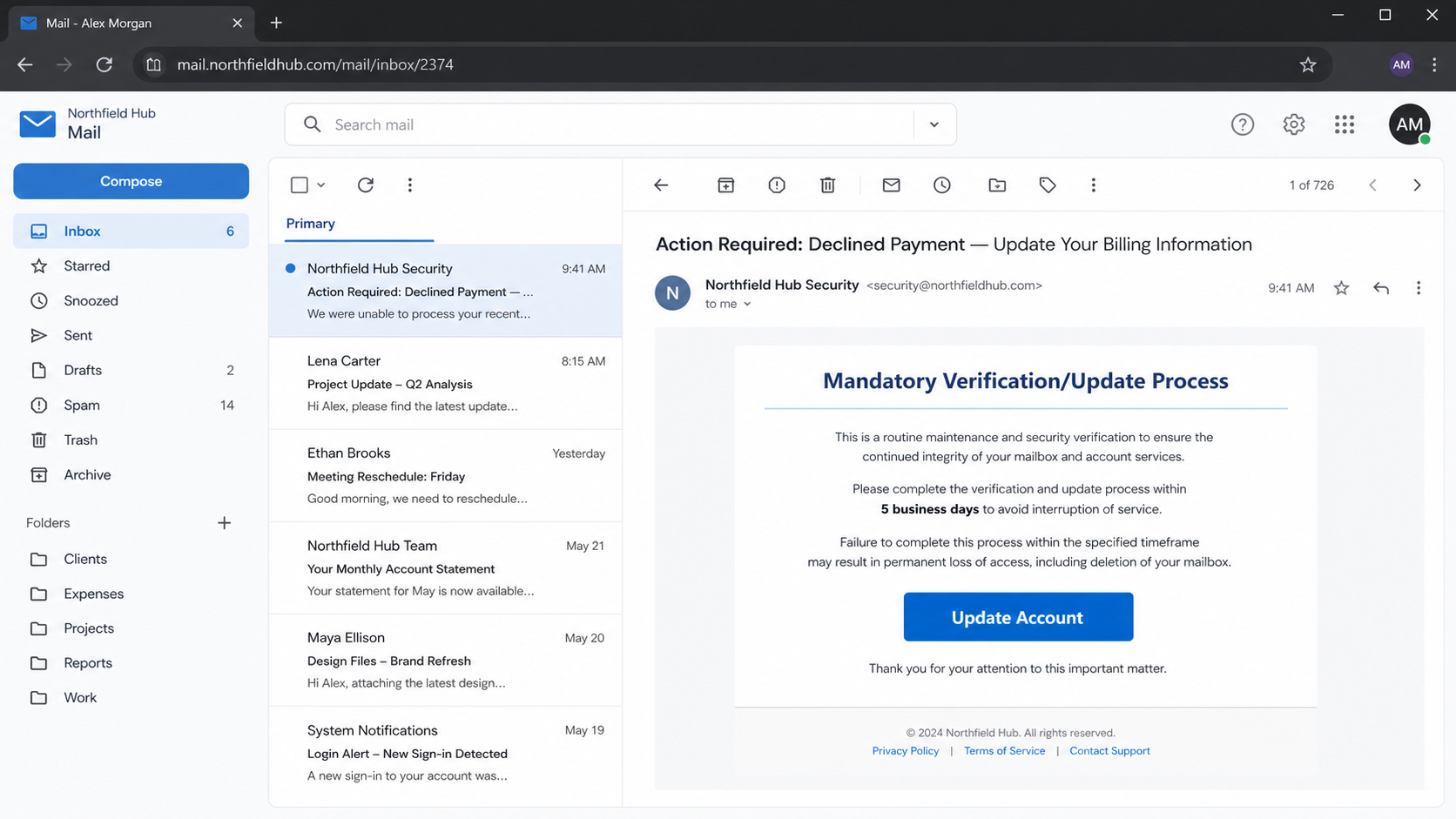
A mandatory verification message gives you five business days to act, or it says the mailbox and saved messages could be lost. That is an unsettling promise.
The Mandatory Verification Update scam uses that pressure to keep you focused on a button instead of asking who actually controls it.
Overview
It turns account maintenance into a deadline
The Mandatory Verification Update scam uses an account-maintenance story to obtain login details. It claims that verification or an update is required within a short window.
A version of this lure refers to five business days and warns that mail access or stored messages could be affected. The consequence is designed to sound permanent.
The link does not repair an account. It leads toward a page where the attacker can request the username and password that secure the mailbox.
Inconsistent wording can expose the deception
Some samples use a subject that does not match the body, mixing device fears, payment language, or account notices in one message. That mismatch is a useful clue.
Legitimate providers generally keep a clear relationship between the subject, message content, and account area they reference. Phishing templates can be carelessly combined.
Even a polished button cannot correct contradictory wording. When the story shifts, pause and verify through a separate route.
The fake form can imitate several providers
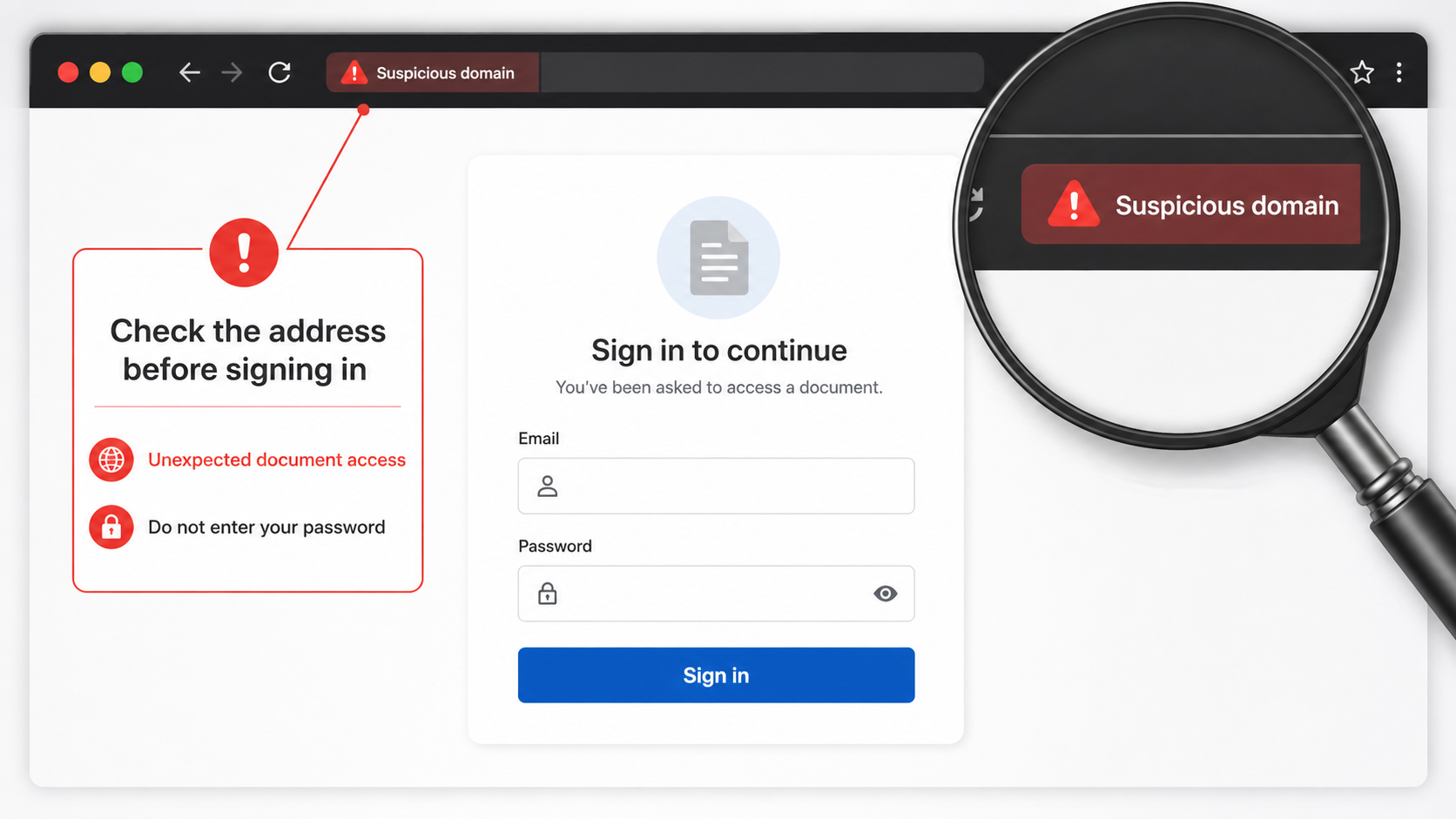
The destination page may appear generic at first, then change after an email address is supplied. It can display a familiar logo or provider-style layout.
That tailoring is not a secure account check. It is a common way to make a copied form feel more relevant to the person who opened it.
The decisive question is where you arrived, not how familiar the form looks. An account update should live inside the normal account you independently opened.
- A short deadline paired with vague threats about losing mail or saved messages.
- A subject line that seems unrelated to the body of the email.
- A broad update request that does not name a real account setting.
- An urgent button instead of a path through the standard account portal.
- A login page that changes appearance after you enter an email address.
- A sender that cannot be confirmed by your provider or organization administrator.
Why Deadline-Based Verification Emails Work So Well
Email carries personal records, work files, receipts, and password resets. A threat to delete or suspend it can make even careful people act quickly.
Five business days sounds measured instead of panicked. That makes the message feel like a policy deadline rather than a dramatic scam.
Attackers use this calmer form of urgency because it can bypass the instinct to question a loud alarm. The deadline still pushes people toward an immediate action.
A genuine provider may occasionally request attention to account information. It should still offer a clear notice inside the account and a verified support path.
Suspicious messages often avoid specific account facts that only the provider would know. They replace those facts with general language about validation or compliance.
Look closely at the claimed result of ignoring the message. Broad phrases about losing everything are meant to frighten, not to explain a normal process.
The safest response is to open the actual mail account from a trusted starting point. This lets you see whether any real notice appears in its settings.
If your organization provides the mailbox, its established IT team can verify an update without asking you to use an unexpected page.
A provider does not become legitimate because it claims a deadline. Authority must come from the real domain, the account portal, and independent support options.
When a deadline feels stressful, take the smallest safe action first: stop, open a new tab, and check the account without the email link.
How the Mandatory Verification Update Scam Works
Step 1: A broad warning uses an urgent subject line
The campaign may begin with a subject about exposure, billing, or security. The subject is selected to earn attention before the reader sees the full message.
After opening it, the body can pivot to an entirely different demand for mailbox verification. This lack of a coherent story is not normal account communication.
A rushed reader may overlook the mismatch because both topics sound serious. The scam depends on that first impression rather than careful consistency.
Read the subject and body together before acting. If they describe different problems, do not reward the message with a click.
Step 2: The body introduces a five-business-day clock
The text says verification or an update must be completed within five business days. A specific time frame makes the claim feel like a recorded policy.
It may warn that access, stored messages, or account features will be affected after the deadline. The threat is vague enough to apply to almost anyone.
The email does not need to prove that your mailbox has a problem. It only needs to make inaction feel more dangerous than the unknown link.
A reasonable account notice remains verifiable when you refuse the link. If it cannot be found inside the account, the deadline is not a reason to submit data.
Step 3: The update button hides an unrelated destination
The email may use a prominent instruction such as Update Account or Click Here to Update. The wording points to an action instead of giving useful information.
The underlying destination can be unrelated to the organization named in the email. It may be a generic page built only for collecting credentials.
Do not rely on a padlock icon or a tidy design. A secure connection only confirms encryption to that site, not the site’s right to request your password.
Navigate to the provider from a separate tab or app. If an update is legitimate, it should survive that independent route.
Step 4: A counterfeit portal asks for mailbox access
The false page may present a sign-in box before it shows any update instructions. That order reveals that your credentials are the intended prize.
It can use wording such as verify, continue, or confirm to make a password request look like a routine security checkpoint.
A page copied from a provider can still send everything you type to someone else. The form’s colors and spacing are not proof of ownership.
Close the tab if it asks for a password after an unexpected email. You can confirm account status from the real service without completing the request.
Step 5: The form may change after learning your address
Some fake portals first collect an email address, then present a second screen tailored to the apparent provider. This staged approach can feel unusually convincing.
The page may recognize only the domain portion of the address, not the account itself. It can still display a logo or phrase associated with that domain.
That personalization is generated by the scam kit, not by a secure connection to the legitimate mail system. Treat it as a warning, not reassurance.
If you supplied an address but no password, monitor for more targeted messages. The campaign may now know which branding to use in a later attempt.
Step 6: The stolen credentials are tried on the real account
Attackers can test captured credentials against the actual mail provider shortly after receiving them. Speed matters because victims may change passwords once suspicious.
A successful sign-in can expose password-reset emails, customer conversations, and documents that support identity theft or business impersonation.
If multi-factor protection is enabled, the attacker may trigger a genuine code prompt. A second fake screen can then ask the victim to enter that code.
This chain is why even one submitted password should be treated as a security incident. Waiting for visible damage gives the attacker more time.
Step 7: Mailbox changes can hide the intrusion
After access is gained, the attacker may add forwarding rules, hide security alerts, or alter recovery information. These changes can keep them connected quietly.
They may also search existing messages for invoices, payment terms, and known contacts. That information can support fraud that looks personal and well timed.
The mailbox can continue to function normally while these changes happen. A lack of obvious disruption does not prove that the account is safe.
Reviewing rules, sessions, recovery settings, and connected applications is therefore as important as changing the password itself.
Company, Address, and Fulfillment Checks
The claimed provider should match the full sender address
A message can display a provider name while arriving from an unrelated address. Compare the entire address with official messages you already trust.
Do not focus only on the part before the at sign. The domain after it is the more useful clue to who controlled the sending account.
If there is any doubt, retrieve provider contact details from the official site or account dashboard rather than from the email.
An account update should not lead to a mystery domain
A real mailbox update belongs in the provider’s normal account area or a documented organization portal. A disconnected web address breaks that expected relationship.
Misspellings, unfamiliar extensions, and extra hyphenated words can all signal an imitation. Close the page before entering a user name or password.
Even a page with a valid certificate can be fraudulent when it is hosted on the wrong domain.
Independent support is the right verification path
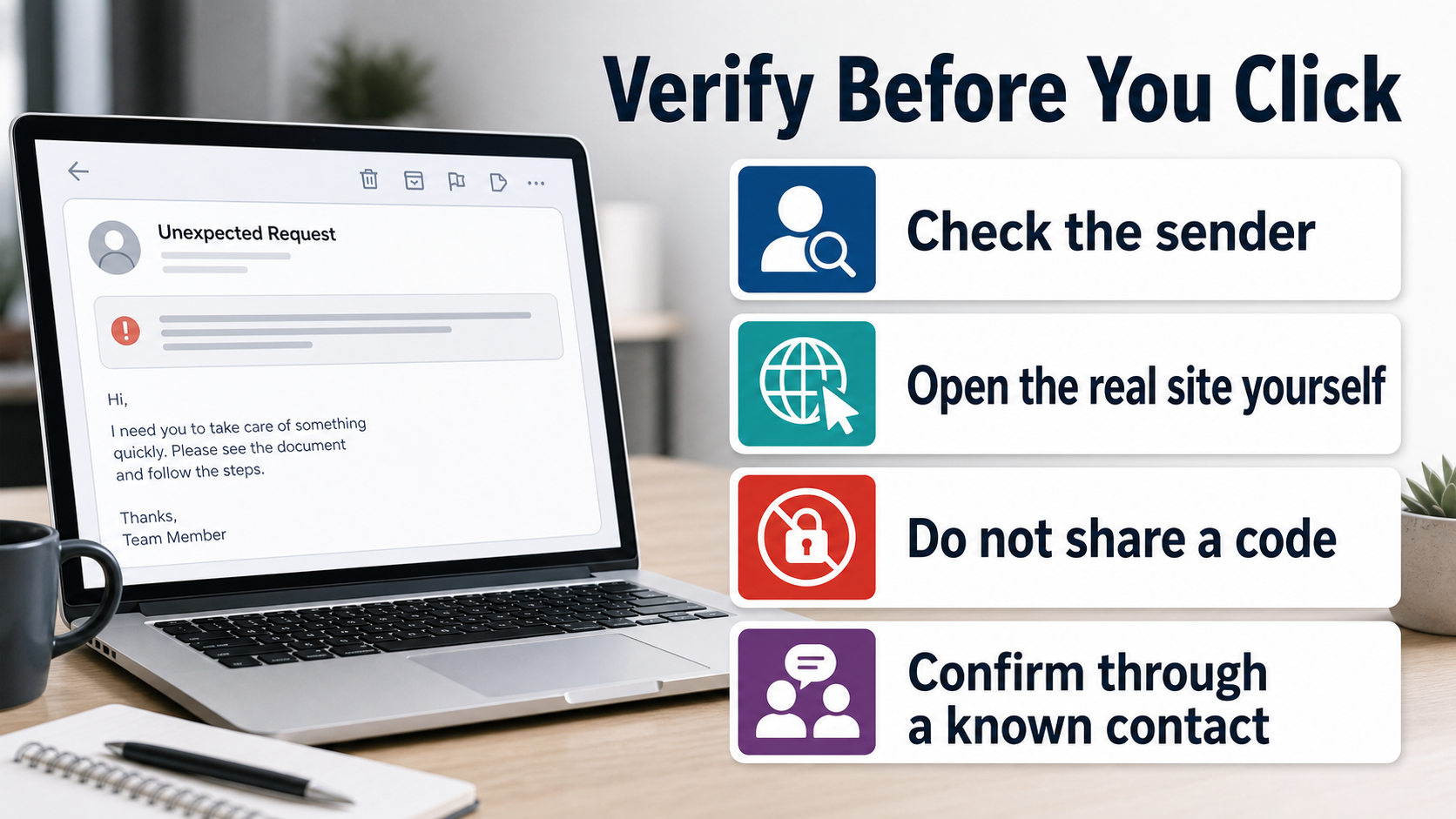
A real service offers support through an account dashboard, phone listing, help center, or organization administrator that can be reached without the suspicious email.
Use an existing contact method to ask whether an update is required. Never reply to the message or call a number found only inside it.
This approach lets you investigate the claim while denying the scammer the chance to control the next step.
Credential theft leaves a different kind of trail
There is no shipment, license order, or normal account-service record behind this phishing attempt. The attacker is pursuing data rather than providing a service.
Save the sender, visible deadline, page address, and time received. Those details are useful when reporting the campaign to a provider or employer.
Avoid sending the live link to others as proof. A screenshot or original message attachment is safer for reporting purposes.
How to Check a Mailbox Update Without Taking the Bait
Begin from your browser bookmarks, password manager, or a trusted mail app. Do not start from a button in an unexpected warning.
After signing in normally, look for account notices, security settings, and mail-service messages. A real update should appear in at least one of those places.
If the email claims that mail will be erased, verify whether the provider has an official policy describing that outcome. Vague deletion threats deserve skepticism.
Use a known help channel when the account is important for work, school, or financial recovery. A brief confirmation is safer than guessing.
Check whether the email knows anything meaningful about your account. Generic warnings often lack the details a provider would include for a genuine issue.
Take mismatched language seriously. A message that begins with one problem and ends with another can be a recycled phishing template.
Do not submit codes, recovery answers, or backup email addresses to fix a claim that you have not independently verified.
If the message came to a business inbox, forward it only through the company’s documented phishing-report process. This protects other recipients without spreading the link.
Remember that a short deadline is a persuasion tactic, not evidence. You can safely check the account without following the sender’s schedule.
The key habit is simple: verify the need in the real account first, then make changes only within that trusted environment.
What to Do if You Have Fallen Victim to This Scam
- Use your regular mailbox login to check the account, then discard the update page without entering anything further.
- Change the mailbox password promptly if you entered it, and use a unique passphrase that does not match any other online account.
- Review sign-in history, active devices, browser sessions, recovery information, mail rules, forwarding settings, and delegated access for unauthorized changes.
- Remove any unfamiliar recovery address, app permission, filter, or forwarding destination, then save the corrected settings inside the official account portal.
- Change passwords wherever the same credential was reused, with priority given to financial services, workplace platforms, and other email accounts.
- Enable multi-factor authentication through the legitimate provider and store recovery codes in a safe place that is not inside the affected mailbox.
- Inspect Sent, Drafts, Trash, and deleted folders for messages you did not send, especially payment requests or password-reset conversations.
- Run a Malwarebytes scan if the scam page led to a download, suggested a browser add-on, or caused any unusual device behavior.
- Use AdGuard as another layer against malicious advertising and scam pages, but continue using trusted bookmarks for all account-maintenance tasks.
- Report the message to the actual provider, workplace security team, or school administrator using a known reporting channel.
- Keep the message and screenshots of the deadline for your records, while avoiding additional clicks on the suspicious destination.
- Be cautious of anyone who later claims they can restore deleted mail for a fee. Recovery offers can be a second scam aimed at worried victims.
Is Your Device Infected? Run a Free Malware Scan
Slow performance, constant pop-ups, or strange behavior? These are classic signs of a malware infection. The fastest way to find out is to scan your device with Malwarebytes Free — one of the most trusted malware removal tools available.
The free version detects and removes the most common threats, including:
- Adware — the cause of those annoying pop-ups
- Browser hijackers — unwanted redirects and changed homepages
- Trojans and spyware — hidden programs stealing your data
- Potentially unwanted programs (PUPs) — software you never asked for
👉 Select your device below — Windows, Mac, or Android — then follow the simple steps to download Malwarebytes, scan your system, and remove any threats it finds. The scan usually takes 5 to 20 minutes.
Run a Malware Scan with Malwarebytes for Windows
Malwarebytes is one of the most popular and trusted anti-malware tools for Windows — and it’s completely free for removing infections. It catches threats that many antivirus programs miss, including adware, browser hijackers, and trojans. Follow the steps below to scan and clean your PC in just a few minutes.
Download Malwarebytes
Click the button below to download the latest version of Malwarebytes for Windows from the official source. The free version is all you need — it will scan your computer and remove adware, browser hijackers, and other malicious software at no cost.
Download MalwarebytesOfficial installer for Windows 11 and 10. Your download starts right away.Want real-time protection? See Malwarebytes Premium Malwarebytes Free for WindowsScans and removes malware at no cost
-
Install Malwarebytes
When the download finishes, open your Downloads folder and double-click the MBSetup file. If Windows shows a User Account Control pop-up, click “Yes” to allow the installation.

Follow the On-Screen Prompts to Install Malwarebytes
The setup wizard will walk you through a few quick screens:
-
Choose where you’re installing the program — “Personal Computer” or “Work Computer” — then click Next.

-
Malwarebytes will now install on your device. This usually takes under a minute.

-
When installation is complete, the “Welcome to Malwarebytes” screen will open automatically.

-
On the final screen, click Open Malwarebytes to launch the program.

-
Enable “Scan for Rootkits”
Before scanning, turn on rootkit detection so Malwarebytes can find even the most hidden threats. Click the Settings gear icon on the left side of the screen.

In the settings menu, find “Scan for rootkits” and click the toggle so it turns blue.

Done? Click “Dashboard” in the left pane to return to the main screen.
Start the Scan
Click the blue Scan button. Malwarebytes will automatically update its virus database and start checking your computer for malware.

-
Wait for the Scan to Finish
The scan checks your entire system for browser hijackers and other malicious programs, so it can take 5 to 20 minutes depending on your computer. Feel free to do something else — just check back occasionally to see the progress.

-
Quarantine the Detected Threats
When the scan is done, you’ll see a list of everything Malwarebytes found — malware, adware, and potentially unwanted programs. Click the “Quarantine” button to remove all of them at once.

Malwarebytes will now remove the malicious files and registry entries and move them safely into quarantine.

-
Restart Your Computer
Some threats can only be fully removed after a reboot. If Malwarebytes asks you to restart, click Yes. Once you’re logged back in, Malwarebytes has finished removing the threats it found.

That’s it — your Windows PC is now clean of trojans, adware, and other malware, and should be back to running smoothly.
If you are still having problems with your computer after completing these instructions, then please follow one of the steps:
- Run a computer scan with ESET Online Scanner
- Ask for help in our Windows Malware Removal Help & Support forum.
Run a Malware Scan with Malwarebytes for Mac
Malwarebytes for Mac is a free on-demand scanner that removes the malware other security software tends to miss — adware, browser hijackers, and unwanted programs included. Cleaning an infected Mac with Malwarebytes has always been completely free, and it’s our go-to recommendation. Follow the steps below to scan and clean your Mac in just a few minutes.
-
Download Malwarebytes for Mac
Click the button below to download the latest version of Malwarebytes for Mac.
Download MalwarebytesOfficial installer for macOS. Your download starts right away.Want real-time protection? See Malwarebytes PremiumMalwarebytes Free for MacScans and removes malware at no cost -
Open the Malwarebytes setup file
When the download finishes, open your Downloads folder and double-click the setup file to begin the installation.

-
Follow the On-Screen Prompts to Install Malwarebytes
The Malwarebytes for Mac Installer will guide you through a few quick screens. Click “Continue” and keep following the prompts until the installation completes.



When the installation is complete, Malwarebytes opens to the Welcome to Malwarebytes screen. Click “Get started“.
-
Select “Personal Computer” or “Work Computer”
Malwarebytes will ask what type of computer you’re installing it on. Click either Personal Computer or Work Computer, whichever applies.

-
Start the Scan
Click the “Scan” button. Malwarebytes will automatically update its detection database and begin checking your Mac for malware.

-
Wait for the Scan to Finish
Malwarebytes will scan your Mac for adware, browser hijackers, and other malicious programs. This can take a few minutes, so feel free to do something else — just check back occasionally to see the progress.

-
Quarantine the Detected Threats
When the scan is done, you’ll see a list of everything Malwarebytes found. Click the “Quarantine” button to remove all the threats at once.

-
Restart Your Mac
Malwarebytes will now remove all the malicious files it found. Some threats can only be fully removed after a reboot — if Malwarebytes asks you to restart, allow it. Once you’re logged back in, your Mac is clean.

That’s it — your Mac is now free of adware, rogue browser extensions, and other potentially harmful software.
If you are still experiencing problems while trying to remove a malicious program from your computer, please ask for help in our Mac Malware Removal Help & Support forum.
Run a Malware Scan with Malwarebytes for Android
Malwarebytes for Android automatically detects and removes dangerous threats like malware and ransomware so you don’t have to worry about your most-used device being compromised. Aggressive detection of adware and potentially unwanted programs keeps your Android phone or tablet running smooth.
-
Download Malwarebytes for Android.
You can download Malwarebytes for Android by clicking the link below.
Get Malwarebytes for AndroidOpens Google Play in a new tab.Want real-time protection? See Malwarebytes Premium for AndroidMalwarebytes for AndroidScans your phone and removes malware at no cost -
Install Malwarebytes for Android on your phone.
In the Google Play Store, tap “Install” to install Malwarebytes for Android on your device.

When the installation process has finished, tap “Open” to begin using Malwarebytes for Android. You can also open Malwarebytes by tapping on its icon in your phone menu or home screen.

-
Follow the on-screen prompts to complete the setup process
When Malwarebytes will open, you will see the Malwarebytes Setup Wizard which will guide you through a series of permissions and other setup options.
This is the first of two screens that explain the difference between the Premium and Free versions. Swipe this screen to continue.
Tap on “Got it” to proceed to the next step.
Malwarebytes for Android will now ask for a set of permissions that are required to scan your device and protect it from malware. Tap on “Give permission” to continue.
Tap on “Allow” to permit Malwarebytes to access the files on your phone.
-
Update database and run a scan with Malwarebytes for Android
You will now be prompted to update the Malwarebytes database and run a full system scan.

Click on “Update database” to update the Malwarebytes for Android definitions to the latest version, then click on “Run full scan” to perform a system scan.

-
Wait for the Malwarebytes scan to complete.
Malwarebytes will now start scanning your phone for adware and other malicious apps. This process can take a few minutes, so we suggest you do something else and periodically check on the status of the scan to see when it is finished.

-
Click on “Remove Selected”.
When the scan has been completed, you will be presented with a screen showing the malware infections that Malwarebytes for Android has detected. To remove the malicious apps that Malwarebytes has found, tap on the “Remove Selected” button.

-
Restart your phone.
Malwarebytes for Android will now remove all the malicious apps that it has found. To complete the malware removal process, Malwarebytes may ask you to restart your device.
That’s it — your Android phone is now clean — no more malicious apps, adware, or browser redirects.
If you are still having problems with your phone after completing these instructions, then please follow one of the steps:
- Restore your phone to factory settings by going to Settings > General management > Reset > Factory data reset.
- Ask for help in our Mobile Malware Removal Help & Support forum.
Stay Protected: Block Ads and Malicious Sites
Now that your device is clean, keep it that way. Most infections start with a malicious ad or a fake download button — so blocking them at the source is your best defense.
We recommend AdGuard, which blocks malicious ads, phishing pages, and dangerous redirects before they can reach you.
👉 Download AdGuard and browse safely
Frequently Asked Questions
Will a legitimate provider delete my saved messages after five business days?
Real providers can have policies, but a threat like this must be confirmed inside the official account or through established support, never through an email button.
Why does the subject not match the verification message?
Phishing campaigns sometimes reuse templates and combine unrelated wording. A contradictory subject and body can reveal that the sender is not following a real account process.
What if I entered only my email address?
Do not return to the page. Your address may be used for more tailored follow-up messages, so watch for new login requests and verify future notices independently.
Can a fake update page copy my provider’s design?
Yes. Logos, colors, and familiar wording can be copied. The address in the browser and the route you used to reach the page are more reliable than appearance.
Should I reply to ask whether the deadline is real?
No. Replying can confirm that the address is monitored. Contact the provider or administrator through a number, portal, or address you already know is legitimate.
What information should I report to my employer?
Include the sender address, subject, visible deadline, time received, and any destination shown by the link. Do not include passwords, codes, or sensitive mailbox contents.
The Bottom Line
The Mandatory Verification Update scam uses a calm-looking deadline to make an unverified page feel necessary. The deadline is persuasive language, not proof of an account problem.
Check notices inside the mail service you trust. When a real update exists, you will not need a stranger’s link to find it.

Join the discussion
0 commentsShare your experience or ask a question about this article.
Discussion
Start the conversation
Have a question or something useful to share? Add the first comment.