


Imagine receiving what appears to be a legitimate company email with a subject like:
“Important: Validate Your Email for the New Interface Upgrade.”
The message looks official, complete with company branding, a formal tone, and a clear call to action: “Validate Email Now.”
But here’s the problem — it’s not real. It’s a carefully crafted phishing attack designed to trick you into entering your credentials on a fake login page. Once scammers have your login information, they can access your accounts, steal sensitive data, or even compromise entire organizations.
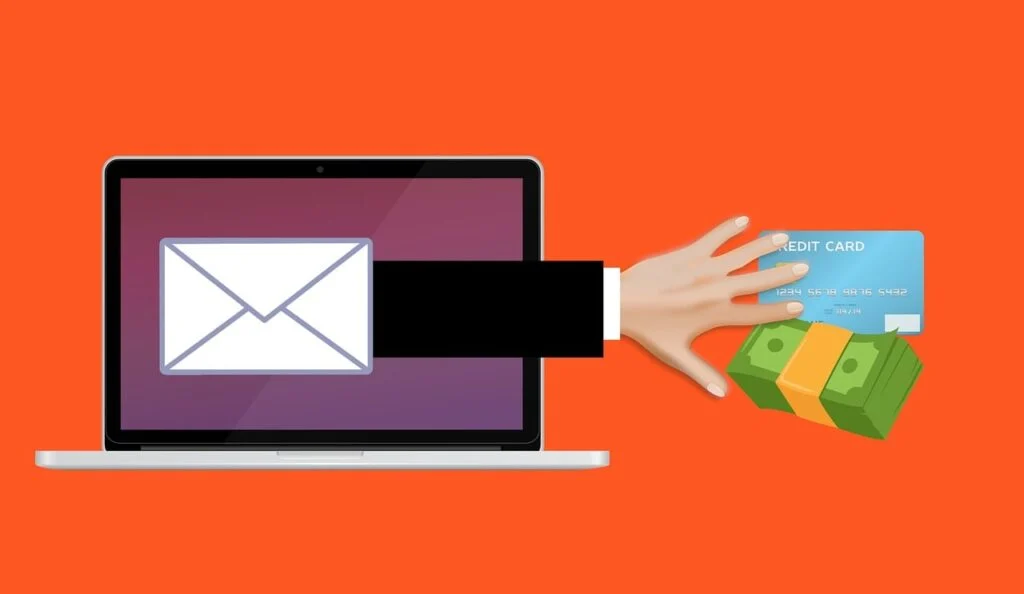
Scam Overview
The Migration to New Email Interface Email Scam is a targeted phishing campaign that impersonates IT support or email administrators. The goal is to steal login credentials by luring recipients into a fraudulent “validation” process.
The email often contains:
- Subject line:
“Important: Validate Your Email for the New Interface Upgrade”
“Migration Notice: Validate Your Email Account”
“Action Required: Validate Email Access” - Sender name:
Often spoofed to look like “IT Department,” “Admin Support,” or the name of the email service provider. - Message body:
The text announces an “upgrade” to a new email domain or interface to enhance security and performance. It then instructs the recipient to validate their email address to avoid disruptions to their account. - Call to action:
A large, prominent button labeled “Validate Email Now,” which links to a fake login page. - Tone:
Urgent but polite, designed to lower suspicion and make the request sound routine.
Why this scam works so well
- It uses a common scenario: Email migrations and interface upgrades are standard in many companies, so employees are less likely to question the notice.
- The design looks professional: The message often includes corporate colors, logos, and headers.
- The urgency triggers quick action: Language like “to avoid disruption to your email access” pressures recipients to act immediately.
- It exploits trust in IT departments: Most people trust internal communication and don’t expect phishing from their own organization.
The ultimate goal
The scam’s primary goal is to harvest email credentials — typically your email address and password — through a fake login portal. Once obtained, attackers can:
- Access your email account and read sensitive messages
- Reset passwords for other online services
- Steal financial or business data
- Send phishing or malware-laden emails to your contacts
- Compromise entire organizational networks
In some cases, attackers also install persistent access or sell the stolen credentials on underground markets.
How the Scam Works
To fully understand how dangerous this scam is, let’s break down the typical flow of the Migration to New Email Interface Email Scam.
Step 1: The phishing email arrives
The scam begins when the victim receives an email with a subject like:
“Important: Validate Your Email for the New Interface Upgrade.”
The sender name is carefully spoofed to appear as:
- Admin Support
- IT Department
- System Administrator
- [Company Name] Webmail
The email content explains that the organization has “updated its email domain and login interface” and requires users to validate their email address to avoid login issues.
Step 2: A false sense of urgency is created
The message claims the validation process is:
- Quick and easy
- Required to “avoid disruption”
- Necessary to maintain access
This is a psychological manipulation tactic. By creating time pressure and the fear of losing access, attackers push recipients to act without verifying authenticity.
Step 3: The victim clicks “Validate Email Now”
The prominent call-to-action button leads to a fraudulent website designed to mimic the victim’s legitimate email provider or company portal.
Examples of fake domain names include:
mail-upgrade-secure.comwebmail-validate-login.netoutlook-secureauth.org- or even compromised legitimate websites used as redirects.
Step 4: The fake login page captures credentials
The victim sees a professional-looking login screen identical or nearly identical to their usual email interface. They are prompted to:
- Enter their email address
- Enter their password
Once submitted, the credentials are sent to the attacker’s server.
Sometimes the fake page displays a “Validation successful” message or redirects to the real email login page, making it less obvious that a phishing attack occurred.
Step 5: Attackers access the victim’s account
With valid credentials in hand, scammers quickly:
- Log in to the victim’s email
- Search for sensitive information
- Forward or exfiltrate messages
- Set up auto-forwarding rules to monitor incoming mail
- Use the email to launch further phishing attacks
Step 6: Further exploitation or sale of credentials
Depending on the victim’s account:
- Personal accounts may be used to steal personal data, reset passwords on other services, or commit identity theft.
- Corporate accounts may lead to Business Email Compromise (BEC), financial fraud, and network infiltration.
Credentials may also be sold on dark web marketplaces, often within hours of the compromise.
Common Variants of the Migration to New Email Interface Email Scam
Phishing campaigns often use slight variations in wording, layout, and sender identity to bypass spam filters and fool different types of users. While the core structure remains the same—a fake message urging you to validate your account to keep your email access—the details change to make the scam look legitimate.
Here are three common variants of this phishing scam, with examples of subject lines and message text.
1. Standard Email Interface Upgrade Notice
Subject: Important: Validate Your Email for the New Interface Upgrade
Body Example:
“We are pleased to announce the migration of our email system to a new, secure interface.
To ensure uninterrupted access to your account, please validate your email address with the new domain.
Click the button below to complete the validation:
[Validate Email Now]
This step is required to avoid service interruption.”
Why It Works:
This is the most common variant. It looks clean, professional, and uses polite language. It mimics routine IT upgrade notifications, which many employees receive in real corporate environments.
2. Security Upgrade Warning
Subject: Security Alert: Validate Your Email Now to Avoid Suspension
Body Example:
“As part of our enhanced security upgrade, we require all users to validate their email credentials to comply with the new system.
Failure to do so will result in temporary suspension of your email account.
Please validate now to continue using your email without disruption.
[Validate Email Now]”
Why It Works:
This version uses fear and urgency to pressure recipients. The threat of suspension is designed to make the victim act quickly without verifying the legitimacy of the email.
3. IT Department Urgent Notification
Subject: Action Required: Immediate Validation Needed
Body Example:
“Dear User,
Our IT Department is migrating all accounts to a new and more secure email platform.
To ensure continuous access to your mailbox, we need you to validate your credentials immediately.
Failure to complete this process within 24 hours will result in restricted access.
[Validate Account]”
Why It Works:
This version imitates internal IT communication, often using the organization’s name or IT department title. It appears more “official” and can trick employees who regularly receive similar instructions from their real IT team.
These variants all lead to the same end goal: to make the recipient click the button and enter their login credentials on a fake page controlled by scammers.
Tip: Legitimate IT upgrade notifications will always come from verified domains, and they will never ask you to enter your password on an unfamiliar website. If in doubt, contact your IT department through official channels.
What to Do If You Have Fallen Victim
If you clicked the “Validate Email Now” button or entered your credentials, immediate action is crucial. Here’s what you should do step by step:
1. Change your email password immediately
- Log in to your email provider’s legitimate website directly (not through the phishing link).
- Change your password to a strong, unique one.
- If possible, change it from a secure device to avoid any malware interference.
2. Enable multi-factor authentication (MFA)
- MFA adds a second verification layer (e.g., a code sent to your phone or an authentication app).
- Even if scammers have your password, MFA can prevent them from logging in.
3. Review your email account for suspicious activity
- Check sent emails to see if any unauthorized messages were sent.
- Review inbox rules and forwarding settings — attackers often create hidden auto-forwarding rules to keep receiving your emails.
- Remove any unknown connected apps or devices.
4. Notify your IT department or email provider
- If this is a work email, contact your IT team immediately.
- They can secure your account, log out unauthorized sessions, and monitor for further compromise.
5. Secure all other accounts linked to your email
- Many services (banking, social media, shopping, etc.) use your email for password resets.
- Change passwords on critical accounts, especially financial ones.
6. Run a full malware scan on your device
- Although this scam mainly relies on phishing, some campaigns also distribute malware.
- Use reputable antivirus software to scan your system thoroughly.
7. Be on alert for follow-up scams
- Once attackers know your email is active, they may target you again with follow-up phishing attempts.
- Stay cautious with any future emails asking for credentials or personal information.
8. Report the phishing email
- Report the phishing email to:
- Your company’s IT or security team
- Your email service provider
- National cybersecurity authorities (e.g., CERT)
9. Consider identity theft protection
- If sensitive personal or financial information was accessed, consider setting fraud alerts with your bank or credit bureaus.
Is Your Device Infected? Run a Free Malware Scan
Slow performance, constant pop-ups, or strange behavior? These are classic signs of a malware infection. A quick way to check is to scan your device with Malwarebytes Free, one of the most trusted malware removal tools available. If you only visited a scam page and didn’t download or install anything, this scan is optional.
The free version detects and removes the most common threats, including:
- Adware — the cause of those annoying pop-ups
- Browser hijackers — unwanted redirects and changed homepages
- Trojans and spyware — hidden programs stealing your data
- Potentially unwanted programs (PUPs) — software you never asked for
👉 Select your device below — Windows, Mac, or Android — then follow the simple steps to download Malwarebytes, scan your system, and remove any threats it finds. The scan usually takes 5 to 20 minutes.
Run a Malware Scan with Malwarebytes for Windows
Malwarebytes is one of the most popular and trusted anti-malware tools for Windows — and it’s completely free for removing infections. It catches threats that many antivirus programs miss, including adware, browser hijackers, and trojans. Follow the steps below to scan your PC and remove what Malwarebytes finds.
Download Malwarebytes
Click the button below to download the latest version of Malwarebytes for Windows from the official source. The free version is all you need — it will scan your computer and remove adware, browser hijackers, and other malicious software at no cost.
Download MalwarebytesOfficial installer for Windows 11 and 10. Your download starts right away.Want real-time protection? See Malwarebytes Premium Malwarebytes Free for WindowsScans and removes malware at no cost
-
Install Malwarebytes
When the download finishes, open your Downloads folder and double-click the MBSetup file. If Windows shows a User Account Control pop-up, click “Yes” to allow the installation.

Follow the On-Screen Prompts to Install Malwarebytes
The setup wizard will walk you through a few quick screens:
-
Choose where you’re installing the program — “Personal Computer” or “Work Computer” — then click Next.

-
Malwarebytes will now install on your device. This usually takes under a minute.

-
When installation is complete, the “Welcome to Malwarebytes” screen will open automatically.

-
On the final screen, click Open Malwarebytes to launch the program.

-
Optional: Check for rootkits with a Custom Scan
You don’t need to change any settings for a normal scan. The standard Threat Scan in the next step is enough for most problems, so you can go straight to it.
If you also want to check for rootkits, use a Custom Scan. In current versions of Malwarebytes, rootkit scanning is only available there:
- On the Scanner tile, click the three-dot menu and select Advanced Scan.
- Choose Custom Scan. In its options, check Scan for rootkits.
- Select your system drive (usually C:\) as the location to scan, then start the scan. It takes longer than a Threat Scan.
- When it finishes, review and quarantine the results as described in the steps below.
Rootkit scanning isn’t available on Windows devices with ARM processors.
Start the Scan
Click the blue Scan button. Malwarebytes will automatically update its virus database and start checking your computer for malware.

-
Wait for the Scan to Finish
The scan checks your entire system for browser hijackers and other malicious programs, so it can take 5 to 20 minutes depending on your computer. Feel free to do something else — just check back occasionally to see the progress.

-
Quarantine the Detected Threats
When the scan is done, you’ll see a list of everything Malwarebytes found — malware, adware, and potentially unwanted programs. Click the “Quarantine” button to remove all of them at once.

Malwarebytes will now remove the malicious files and registry entries and move them safely into quarantine.

-
Restart Your Computer
Some threats can only be fully removed after a reboot. If Malwarebytes asks you to restart, click Yes. Once you’re logged back in, Malwarebytes has finished removing the threats it found.

When the scan is done, check whether the problems you noticed have stopped. If they continue, see the options below.
If you are still having problems with your computer after completing these instructions, then please follow one of the steps:
- Run a computer scan with ESET Online Scanner
- Ask for help in our Windows Malware Removal Help & Support forum.
Run a Malware Scan with Malwarebytes for Mac
Malwarebytes for Mac is a free on-demand scanner that removes the malware other security software tends to miss — adware, browser hijackers, and unwanted programs included. Cleaning an infected Mac with Malwarebytes has always been completely free, and it’s our go-to recommendation. Follow the steps below to scan your Mac and remove what Malwarebytes finds.
-
Download Malwarebytes for Mac
Click the button below to download the latest version of Malwarebytes for Mac.
Download MalwarebytesOfficial installer for macOS. Your download starts right away.Want real-time protection? See Malwarebytes PremiumMalwarebytes Free for MacScans and removes malware at no cost -
Open the Malwarebytes setup file
When the download finishes, open your Downloads folder and double-click the setup file to begin the installation.

-
Follow the On-Screen Prompts to Install Malwarebytes
The Malwarebytes for Mac Installer will guide you through a few quick screens. Click “Continue” and keep following the prompts until the installation completes.



When the installation is complete, Malwarebytes opens to the Welcome to Malwarebytes screen. Click “Get started“.
Malwarebytes needs Full Disk Access to check your whole Mac. When it asks, open System Settings > Privacy & Security > Full Disk Access, turn on Malwarebytes (it may be listed as Malwarebytes Protection), and confirm with your password or Touch ID. Then return to Malwarebytes. On macOS Monterey and earlier, this setting is in System Preferences > Security & Privacy > Privacy.
-
Select “Personal Computer” or “Work Computer”
Malwarebytes will ask what type of computer you’re installing it on. Click either Personal Computer or Work Computer, whichever applies.

-
Start the Scan
Click the “Scan” button. Malwarebytes will automatically update its detection database and begin checking your Mac for malware.

-
Wait for the Scan to Finish
Malwarebytes will scan your Mac for adware, browser hijackers, and other malicious programs. This can take a few minutes, so feel free to do something else — just check back occasionally to see the progress.

-
Quarantine the Detected Threats
When the scan is done, you’ll see a list of everything Malwarebytes found. Click the “Quarantine” button to remove all the threats at once.

-
Restart Your Mac
Malwarebytes will now remove all the malicious files it found. Some threats can only be fully removed after a reboot — if Malwarebytes asks you to restart, allow it. Once you’re logged back in, check whether the problems you noticed have stopped. If they come back, save the scan report and ask for help in our forum.

If the problems you noticed continue after the scan, see the options below.
If you are still experiencing problems while trying to remove a malicious program from your computer, please ask for help in our Mac Malware Removal Help & Support forum.
Run a Malware Scan with Malwarebytes for Android
Malwarebytes for Android scans your phone or tablet for malware, adware, and potentially unwanted apps. The free version scans only when you start a scan. Real-time protection, which checks apps automatically, is part of the paid Premium version.
-
Download Malwarebytes for Android.
You can download Malwarebytes for Android by clicking the link below.
Get Malwarebytes for AndroidOpens Google Play in a new tab.Want real-time protection? See Malwarebytes Premium for AndroidMalwarebytes for AndroidScans your phone and removes malware at no cost -
Install Malwarebytes for Android on your phone.
In the Google Play Store, tap “Install” to install Malwarebytes for Android on your device.

When the installation process has finished, tap “Open” to begin using Malwarebytes for Android. You can also open Malwarebytes by tapping on its icon in your phone menu or home screen.

-
Follow the on-screen prompts to complete the setup process
When Malwarebytes opens, it walks you through a short setup. Tap Get started and follow the prompts. If you see an offer for a trial or a paid plan, read it before you accept. You can skip it and keep using the free scanner.
Malwarebytes will ask for permission to access the files on your phone so it can scan them. Tap Allow, or turn on the permission in the Android screen that opens, then return to Malwarebytes.
-
Run a scan with Malwarebytes for Android
On the main screen, tap Scan now. In some versions, you open the menu, tap Scanner, and then tap Run a scan.
-
Wait for the Malwarebytes scan to complete.
Malwarebytes will now start scanning your phone for adware and other malicious apps. This process can take a few minutes, so we suggest you do something else and periodically check on the status of the scan to see when it is finished.

-
Remove the detected apps.
When the scan has been completed, you will see a list of the threats that Malwarebytes for Android has detected. Next to each detected item, tap the menu icon (three dots), then choose to uninstall the app or delete the file. Android then asks you to confirm. Tap OK or Uninstall to remove the app.
-
Restart your phone.
When the detected apps are removed, restart your phone if Malwarebytes asks you to. Then check whether the problems you noticed have stopped.
If the problems you noticed continue after the scan, see the options below.
If you are still having problems with your phone after completing these instructions, then please follow one of the steps:
- Ask for help in our Mobile Malware Removal Help & Support forum.
- Only as a last resort, reset your phone to factory settings. Read the warning below first.
- Back up your photos, videos, files, and messages, for example to your Google account or a computer.
- Make sure you know your Google account email and password. The phone asks for them after the reset. If you changed the password recently, Google recommends waiting 24 hours before you reset.
- On a Samsung phone, also make sure you know your Samsung account password.
- If you use an authenticator app for two-step verification, move your accounts to another device or save your backup codes first.
Stay Protected: Block Ads and Malicious Sites
No scan can prove a device is completely clean, so it helps to block threats before they reach you. Most infections start with a malicious ad or a fake download button — so blocking them at the source is your best defense.
We recommend AdGuard, which blocks malicious ads, phishing pages, and dangerous redirects before they can reach you.
👉 Download AdGuard and browse safely
The Bottom Line
The Migration to New Email Interface Email Scam is an increasingly common phishing attack that exploits trust and urgency to steal credentials. It’s convincing because email migrations are a routine part of many organizations’ IT operations.
Scammers use this familiarity to trick recipients into clicking a fake “Validate Email Now” button and entering their credentials on a fraudulent page.
Key takeaways:
- Never enter your login details through links sent by email.
- Always verify IT messages through official channels.
- Enable multi-factor authentication for an extra layer of security.
- Report phishing attempts to protect yourself and others.
By understanding how this scam works and reacting quickly, you can protect your personal and organizational data from being compromised.
Frequently Asked Questions (FAQ)
What is the Migration to New Email Interface Email Scam?
It’s a phishing campaign disguised as a legitimate IT or email provider message. The email instructs recipients to “validate” their email addresses as part of an upgrade, but the link leads to a fake login page that steals credentials.
How can I recognize this phishing email?
Common signs include:
- Urgent language about “validation” or “upgrade”
- Suspicious or mismatched links
- Generic greetings like “Dear User”
- Buttons that lead to non-official domains
What happens if I click the “Validate Email Now” button?
You’ll be redirected to a fake login page. If you enter your credentials, attackers can immediately access your email account.
Why do scammers use this type of phishing email?
Because real IT departments often send similar upgrade notifications, recipients are more likely to trust the message and comply without verifying.
I entered my credentials. What should I do now?
- Change your password immediately
- Enable MFA
- Check your account for unauthorized activity
- Notify your IT department or email provider
- Secure other linked accounts
Can this scam affect my organization?
Yes. If attackers gain access to a corporate account, they can launch internal phishing, steal data, and compromise entire networks.
How can I prevent this from happening again?
- Always verify suspicious messages with IT
- Never log in through email links
- Use MFA on all important accounts
- Keep your security software updated
Is this scam only targeting companies?
No. Personal email users are also at risk, especially those using popular platforms like Outlook, Gmail, or Roundcube.
Should I report the phishing attempt even if I didn’t fall for it?
Yes. Reporting helps block similar emails for others and alerts your provider to the phishing campaign.
Can security software help?
Yes. Email security tools and antivirus software can detect and block phishing attempts before they reach your inbox.
Final Thoughts
The Migration to New Email Interface Email Scam is a textbook example of a modern phishing attack — well-crafted, convincing, and highly dangerous if not recognized in time. By staying informed, being cautious with unsolicited emails, and enabling strong security measures like MFA, you can protect yourself and your organization from these threats.
Remember: legitimate IT departments will never ask you to log in through third-party links. When in doubt, always contact your support team directly.

Join the discussion
0 commentsShare your experience or ask a question about this article.
Discussion
Start the conversation
Have a question or something useful to share? Add the first comment.