


A budget document you weren’t expecting lands in your inbox. The notice has a file name, a date, and a reference, like something filed by a project team.
It’s the sort of message you might open just to work out why you received it. That’s when it pays to take a closer look.
Overview
The file is a claim in the message, not a document you have
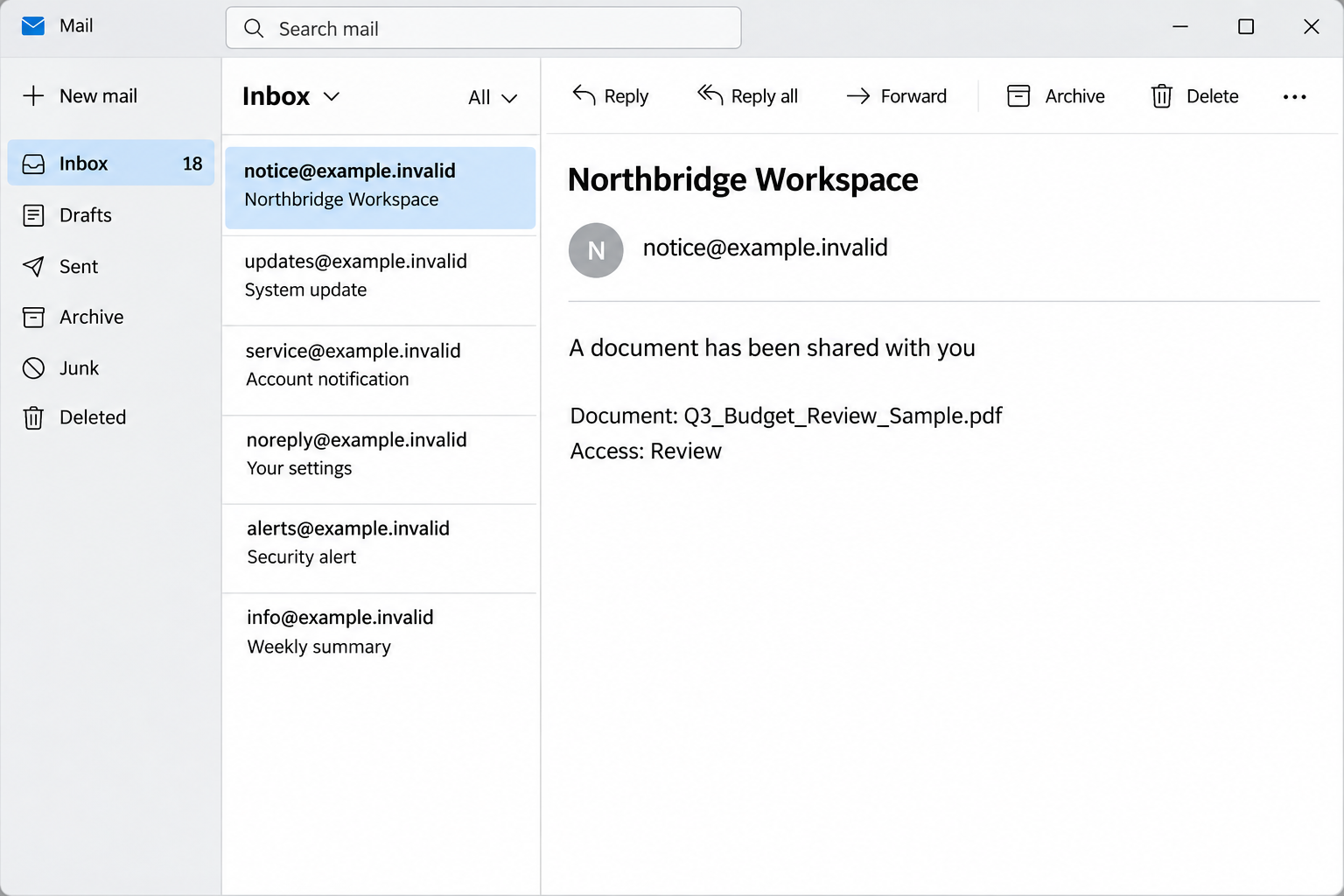
The Northbridge Workspace email says a business contact shared a budget PDF. It lists Q3_Budget_Review_Sample.pdf along with a date and a reference number.
Those details describe a document. They don’t give you a document, establish that someone uploaded it, or verify that the person whose name appears in the notice sent it.
The subject in the reported sample says Northbridge Workspace. The body doesn’t supply a previously established workspace relationship that would explain why this message reached you.
The image shows an abbreviated reconstruction of the email layout. The real message included more details, including a supposed sender name and an invitation to open the file.
The best-looking line is the one you should act on independently
The notice even tells recipients to check with the sender or IT if the document is unexpected. That sounds responsible and may make the rest of the email feel safer.
You can take that suggestion literally without trusting the message. Look up the purported contact through your own directory or records, rather than replying to the email.
An unsolicited notice can be dangerous and still contain sensible wording.
In this case the useful instruction is to verify independently, not to trust the link because the email suggests verification.
What this case does and doesn’t show
The documented link couldn’t be examined at the time. A credential prompt is a plausible destination for a lure like this, but the exact landing page is unconfirmed.
There is no basis to say it used a particular email provider’s login screen, that it ran malware, or that anyone whose name appeared in the message participated.
Give more weight to facts you can independently verify:
- Did you expect budget material at this stage of the project?
- Does the supposed contact recognize the filename without being sent the link?
- Is the document visible in a workspace your organization already uses?
- Can the file owner confirm the share and its permissions through your normal channel?
One missing answer may have an ordinary explanation. Several missing answers are enough reason to leave the button alone while you verify the request.
How the Northbridge Workspace Email Scam Works
Step 1: The subject puts the message in a familiar category
“A document has been shared with you” is a normal kind of notification. The trick is that you may recognize the category without recognizing the platform or the sender.
Employees often receive invites from external clients and contractors. An unfamiliar workspace name isn’t automatically disqualifying, which is why the right alternative is confirmation rather than an automatic yes.
If the sender is unknown, there’s no need to fill in the missing business context yourself. Ask a colleague who actually owns the project whether an upload was expected.
Step 2: The budget filename gives the notice a reason to exist
An oddly specific filename can feel reassuring. A date and reference number add the administrative detail people associate with messages from real collaboration systems.
None of those fields are a digital signature or proof of ownership. The case doesn’t establish how the sender chose the name or whether the recipient had a relevant project.
A finance employee may already be reviewing quarterly numbers. Another recipient may assume the notice went to the wrong person and open it just to find out.
Step 3: The email substitutes an outside route for an established workspace
The recipient is asked to open a link rather than receiving a PDF in the message.
External links are normal in collaboration, but you still need to verify this one independently.
You don’t have to follow a link to decide whether a document share makes sense.
In any known service, check your existing workspace or ask the owner where the share should appear.
Not every legitimate external share shows up automatically in your dashboard. If it doesn’t, ask the confirmed document owner to explain the missing invitation through a verified channel.
Step 4: The danger depends on what the destination asks you to do
The report could not confirm what the linked page showed.
If a page asks for your mailbox password outside your trusted provider, close it rather than submitting anything to test it.
The same applies if it asks you to approve an unexpected login or grant access to your mail. Those are account decisions, not ordinary prerequisites for confirming a filename.
Don’t assume that a missing or broken destination is safe. The message still arrived outside a verified sharing arrangement, and you don’t need to wait for it to work.
Verify a Shared Budget File Without Exposing Your Account
Check the project, then the platform
Start with the work you already know about. If it could be a real budget review, contact the project owner or the person responsible for sharing financial material.
Ask them to identify the file in their own words. A simple “Did you share a budget document with me today?” is better than sending them the untrusted link.
An unexpected deadline doesn’t change this check. If you’re on a tight schedule, ask the confirmed sender to share through the normal tool or arrange another way to review it.
For a file shared from outside your company, confirm that the sender intended to grant access to your work address.
A forwarded invitation may be genuine but belong to somebody else.
Use another channel even when you recognize the name
Recognizing a real person doesn’t authenticate a message that uses their name. Even an actual reply in an existing mailbox might not be reliable if that mailbox is compromised.
If money, payroll, or confidential forecasts are involved, verify eligibility and timing in a separate known conversation. A quick internal call can spare everyone a chain of suspicious forwards.
When you reach the legitimate platform, check both the displayed account and the organization that owns the file. Sometimes a real access request is for a different email address.
That kind of error can be fixed by the document owner. You don’t have to try a work password on an unfamiliar page to find out.
Keep account recovery separate from suspicious financial activity
If you ever handed over a work mailbox password after opening a document notice, ask IT to review the exposure. A password change alone may not close every existing session.
Microsoft’s compromised mailbox guidance describes the administrator’s job. Sign-in activity, unexpected forwarding, and changes to recovery methods are different clues.
For business accounts, bring in finance if the affected inbox contained supplier invoices or approvals. Tell them to confirm any disputed payment request through their established verification route.
The budget email itself doesn’t establish a payment scam. This check is for cases where account access was exposed and later messages may have used that access.
What to Do if You Have Fallen Victim to This Scam
-
If you did nothing past reading, report the notice. Use your mail application’s phishing option or your company’s reporting process. Keep the message out of any active project thread.
You don’t need to notify everybody mentioned in the email. Report through the appropriate channel and let the security team decide who needs an alert.
-
If you opened the linked page, close it and record what you saw.
Note any request for a login, code, permissions, or download. Don’t visit again to get a better description.
If your browser downloaded something, check its history without opening the file. Let IT handle the file if the device is managed.
-
If you typed a password, act from a trusted device. Visit the genuine provider. Change the exposed password and ask IT or the provider to review active sessions.
Replace reused credentials elsewhere and check for unfamiliar recovery methods. Report an approved authentication prompt even if you never entered the password.
-
Check for unexpected mailbox or sharing changes. Look for unfamiliar rules, sent mail, recovery details, and documents shared without your approval. Let your administrator preserve evidence before deleting anything suspicious.
If people received unexpected requests from your account, warn them through a separate verified route, especially when the requests mention a budget or payment.
-
Escalate based on what actually happened. A file you ran needs device review.
A payment sent because of a follow-up needs the bank or provider. A stolen login needs account recovery.
For a personal report, the FTC’s phishing advice explains how to report the message and respond to identity information exposure.
What a Legitimate File Invitation Can Confirm
A real owner can explain why you received it
The safest verification isn’t a checklist of visual details. It’s a confirmed relationship between the sender, the account they meant to invite, and the work the document supports.
A genuine document owner can usually tell you whether you need to view, comment, or edit.
They can also correct your account or change the invitation if it went somewhere wrong.
If a supposed budget review requires an unfamiliar person to install software or change authentication methods, stop. The document owner can work with IT to provide another route.
A read-only share has a narrow purpose
Before you use any unfamiliar service for work, find out whether you can view the file without introducing a new account or giving it access to your mailbox.
It’s reasonable for a known service to require a normal sign-in. It’s different when a page of unknown ownership asks to read or send your existing mail.
Collaborating doesn’t require sharing a password with the file owner. If access is restricted, ask the owner to adjust the legitimate share instead.
A real verification process leaves room for a question
The sample notice uses formal detail, but a real work process usually gives you someone to ask. Use that person rather than judging whether the typography looks professional.
Your organization can make this easier by providing one obvious route to verify external invites. That way, department names and reference strings don’t have to do the work of authentication.
Keep a Real Budget Review Moving
Ask for a clean re-share rather than a forwarded invitation
A legitimate collaborator can send a fresh share after you confirm the request. If the workspace is new to your organization, ask IT whether it meets your data-handling requirements.
When the subject is budgeting, even a summary can be confidential. Ask for the minimum access you need and confirm which account is authorized before accepting a new share.
If email access was exposed, have the confirmed owner review their sharing list too. A mailbox compromise and a newly exposed document are related problems, but they require different fixes.
Handle a visible reference like a note, not a credential
You can paste a short reference into an internal support ticket if it helps identify the message.
A reference doesn’t let the recipient verify the email’s link or retrieve a file.
Give IT the subject, time, and intended account. If they need the original message headers, use the approved reporting feature rather than pasting the whole message into a shared channel.
If colleagues are expecting the real file, tell them it’s waiting on verification. Don’t send the deceptive notice as a substitute or ask them to sign in on your behalf.
Decide when the incident is finished
If the only event was delivery, reporting the notice and getting a confirmed document route can close the loop. There is no missing download to chase.
If account access was exposed, check back after the provider’s security review. Find out whether any new sharing or forwarding settings need to be reversed before the team resumes work.
Frequently Asked Questions
Is the Northbridge Workspace email the budget PDF itself?
No. The documented message merely names a PDF and directs the reader elsewhere. The filename on its own doesn’t authenticate the notice or provide access to a file.
Did the reported link definitely show a fake Microsoft login?
That’s not confirmed. The linked page couldn’t be examined. Don’t treat any unexpected page as Microsoft merely because it uses familiar words or graphics.
Does a specific reference number prove the document exists?
No. A reference number helps match records only when a trusted workspace or a verified document owner can confirm it.
What if I work with the person whose name appears in the notice?
Contact that person through an established channel and ask whether they shared this file. Don’t assume the sender identity from the name printed in the body.
Should I run a scan after reading the email?
Not simply because you read it. If you ran something you didn’t expect to download, the device needs separate assessment; if you typed your password, secure your account.
Can an external document share ever be legitimate?
Yes. Check the actual sender and project, then use an approved collaboration route. Legitimate external sharing doesn’t make an unrelated, unexpected invitation trustworthy.
The Bottom Line
Don’t open the budget file through the unexpected Northbridge Workspace notice. Verify the purported sender separately and use a workspace your organization recognizes.
If you submitted account details, protect the real account now. If the message only reached your inbox, report it without helping the sender confirm that its link was opened.

Join the discussion
0 commentsShare your experience or ask a question about this article.
Discussion
Start the conversation
Have a question or something useful to share? Add the first comment.