


A payroll email says something changed before your next payday. You haven’t heard about an adjustment, but the subject sounds routine enough to get your attention.
It even promises a breakdown of taxes and deductions. If the message landed at the right moment, that detail can make it feel personal.
Overview
The email looks like a normal pay-cycle notice
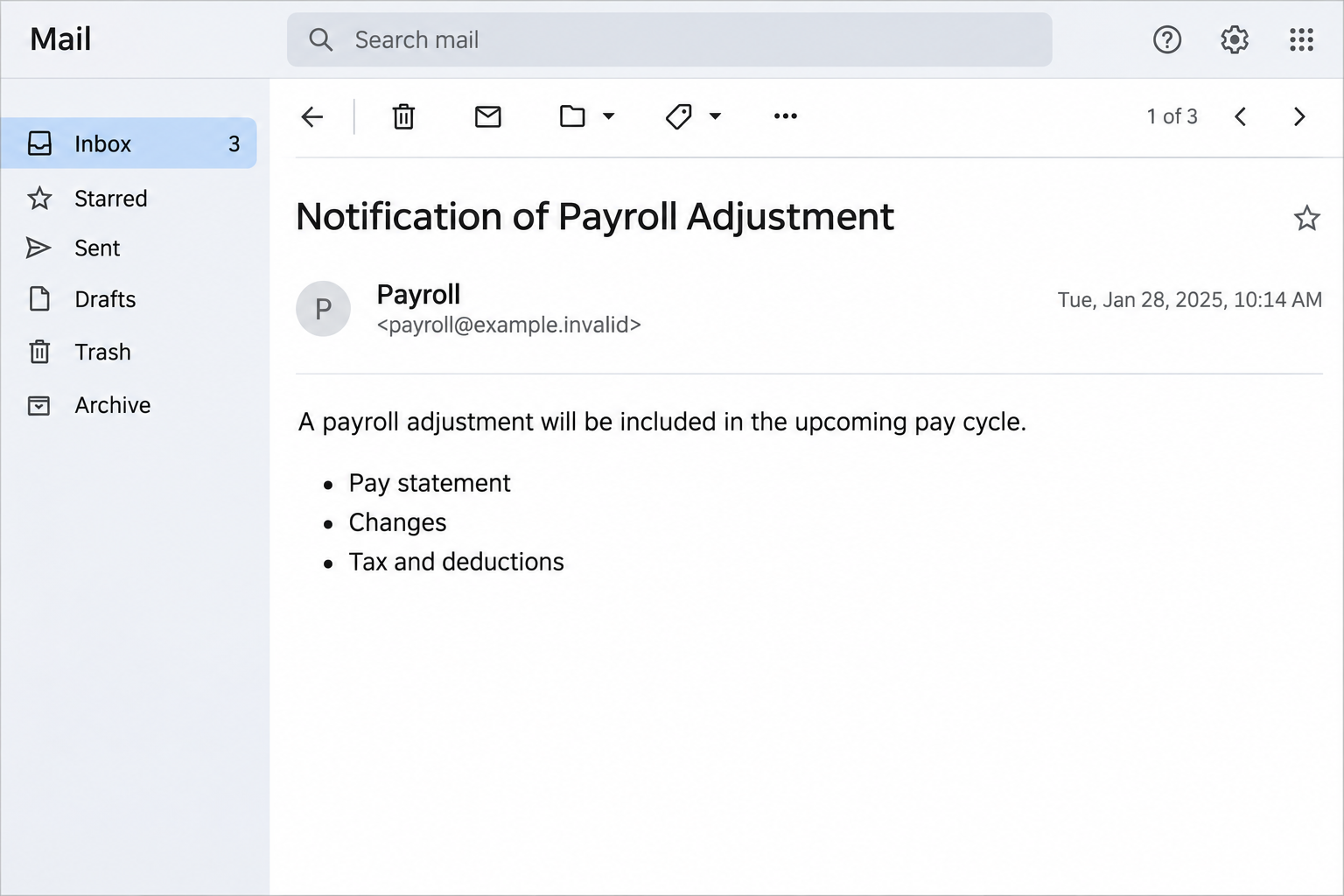
The Payroll Adjustment email presents itself as a message from HR. Its subject talks about an adjustment, and the sender says an updated statement is ready to review.
In the reported example, the supposed statement covers your pay stub, the reason for changes, and tax and deduction information. Those are three subjects an employee might reasonably care about.
It also refers to managers or approvers and the next pay run. There’s no flashy prize or threat. The message reads like a mundane office process.
One line says the message is from your safe sender list.
A claim written into an email isn’t the same as an independently verified sender or an alert from your provider.
The promised notice isn’t a pay stub
The documented button led to a file containing JavaScript, not a document showing payroll figures.
The report did not identify a final malware family or a reliable filename for every delivery.
The distinction is easy to miss if Windows shortens or hides file extensions.
The last part of the name helps identify what the file is, not just what the sender calls it.
JavaScript on the web is ordinary.
A standalone script pulled from an unsolicited email is a different proposition, especially if you’re being asked to open it as though it were paperwork.
What’s not documented here matters. This isn’t evidence that your employer changed your salary, that your mailbox was already compromised, or that a particular password stealer was installed.
Your next action depends on what reached the computer
Look for your own last action rather than trying to reproduce the download. People can encounter the same email and end up with very different problems.
- If the email only arrived in your inbox, report it using the normal phishing process.
- If the browser downloaded a file, note the time and status without opening it.
- If you ran the file, stop using that computer for payroll, email, and other sensitive work.
- If you provided credentials anywhere else in the interaction, secure those accounts separately.
The mail view above recreates recognizable wording for identification. It doesn’t show a real HR account or authenticate the message purportedly sent by your employer.
How the Payroll Adjustment Email Scam Works
Step 1: It arrives with a plausible reason to check your pay
The email picks a subject people want to resolve promptly. Even someone who rarely opens HR mail may be curious when the message implies their take-home amount changed.
The copy leaves the precise change out of the inbox.
An employee who just changed schedules, benefits, or deductions may supply a perfectly reasonable explanation without any proof from the sender.
The real test is whether the upcoming pay cycle shows a change in the system your employer already uses, or whether your payroll team can confirm one directly.
Step 2: It borrows familiar payroll procedures
The email doesn’t just promise a document. It tells you what you might find there and who might handle discrepancies.
Familiar roles make the request sound like it came from work.
The name in an email header can look internal even when the underlying address isn’t. Company-specific words in the message don’t authenticate it either.
Ask which trusted source can confirm the notice. You can still do that without seeing a file, opening a link, or sharing a copy of your actual payslip.
Step 3: A download starts where a statement should appear
The button suggests a reviewable notice, but the observed file wasn’t a payroll document. Close the page before giving it more permission or opening the downloaded item.
Your browser’s download history can show whether the file arrived, was interrupted, or was blocked. You can read that information without opening or previewing the file.
On a work computer, don’t remove the only evidence before IT has had a chance to look at it.
Your company may already have a way to quarantine the file remotely.
Step 4: Opening a script creates a device incident
If the suspicious file actually ran, the computer may have been exposed to additional code.
The reported campaign doesn’t give you enough information to know the final payload from the email subject.
A work computer could still look normal. There may be no error message, strange icon, or missing document to help you tell whether anything changed.
Get help based on the execution, not the absence of visible symptoms. Tell the incident team what you did immediately before and after, including which accounts were open.
Check Your Real Pay Without Using the Message
Sign in where you already get your payslips
Open the usual employee portal from a saved address or your company intranet. If your employer uses a mobile app, launch the one you already installed.
Look at the date and status of the latest pay statement.
An upcoming payroll period might not have posted yet, and that’s not a reason to use a link you don’t trust.
If no statement is there, ask payroll when they post. Give the pay period, not your tax identifier, full bank account number, or password.
Use a different channel for changes that matter
If you recently changed direct deposit, ask payroll which request they have on record. Use a contact from the internal directory, not a reply address printed in the notice.
Accounts payable and HR can also coordinate if the same message reached several departments. One employee shouldn’t have to decide whether it was a company-wide notice by comparing forwarded links.
If someone later asks you to “fix” a deposit account, confirm the request through your official payroll process. Don’t send bank details in a reply to either email.
Collect the facts IT needs, not the file it wants you to run
Write down the time, subject, affected device, and what happened when you interacted. If you saw an extension or a browser warning, include the exact wording you remember.
Use the phishing reporting control or contact the help desk separately. Microsoft’s reporting guide explains why the original message can help administrators trace delivery.
If it was a personal email account, preserve basic details and follow the provider’s reporting process.
You don’t need to send your wages or employer’s private paperwork along with the report.
What to Do if You Have Fallen Victim to This Scam
If this happened on a managed computer, contact the help desk before using the scan guide. For a personal PC, use it only if there’s credible device exposure.
Leave the original download unopened. Don’t test the file on another computer. Record the displayed name, download time, and whether the browser blocked it.
Use your workplace’s approved report process if the file is on a managed device. Avoid forwarding it to a manager or converting it to send around.
If anything ran, isolate the affected machine. Stop working there, disconnect the network when safe, and reach the help desk from an unaffected device.
Tell them about any prompts, windows, or account sessions that were active. Don’t try to reproduce the problem so you can describe it better.
Confirm your payroll details independently. Contact your employer through a known HR directory entry. Ask them to check the pay period and any direct-deposit changes you didn’t authorize.
If money went missing, contact both payroll and your bank. Keep the date, expected amount, and any verified case number.
Secure accounts exposed on the affected machine. Use a known-clean device for password changes. Ask IT to check sessions or sign-ins and verify existing multifactor methods.
If you reused an exposed password, start with email and payroll, then replace it on each other affected account.
Preserve the timeline. Record who you notified, when, and what they asked you to do. If a new email claims to continue the incident, verify it with your original contact.
Is Your Device Infected? Run a Free Malware Scan
Slow performance, constant pop-ups, or strange behavior? These are classic signs of a malware infection. A quick way to check is to scan your device with Malwarebytes Free, one of the most trusted malware removal tools available. If you only visited a scam page and didn’t download or install anything, this scan is optional.
The free version detects and removes the most common threats, including:
- Adware — the cause of those annoying pop-ups
- Browser hijackers — unwanted redirects and changed homepages
- Trojans and spyware — hidden programs stealing your data
- Potentially unwanted programs (PUPs) — software you never asked for
👉 Select your device below — Windows, Mac, or Android — then follow the simple steps to download Malwarebytes, scan your system, and remove any threats it finds. The scan usually takes 5 to 20 minutes.
Run a Malware Scan with Malwarebytes for Windows
Malwarebytes is one of the most popular and trusted anti-malware tools for Windows — and it’s completely free for removing infections. It catches threats that many antivirus programs miss, including adware, browser hijackers, and trojans. Follow the steps below to scan your PC and remove what Malwarebytes finds.
Download Malwarebytes
Click the button below to download the latest version of Malwarebytes for Windows from the official source. The free version is all you need — it will scan your computer and remove adware, browser hijackers, and other malicious software at no cost.
Download MalwarebytesOfficial installer for Windows 11 and 10. Your download starts right away.Want real-time protection? See Malwarebytes Premium Malwarebytes Free for WindowsScans and removes malware at no cost
-
Install Malwarebytes
When the download finishes, open your Downloads folder and double-click the MBSetup file. If Windows shows a User Account Control pop-up, click “Yes” to allow the installation.

Follow the On-Screen Prompts to Install Malwarebytes
The setup wizard will walk you through a few quick screens:
-
Choose where you’re installing the program — “Personal Computer” or “Work Computer” — then click Next.

-
Malwarebytes will now install on your device. This usually takes under a minute.

-
When installation is complete, the “Welcome to Malwarebytes” screen will open automatically.

-
On the final screen, click Open Malwarebytes to launch the program.

-
Optional: Check for rootkits with a Custom Scan
You don’t need to change any settings for a normal scan. The standard Threat Scan in the next step is enough for most problems, so you can go straight to it.
If you also want to check for rootkits, use a Custom Scan. In current versions of Malwarebytes, rootkit scanning is only available there:
- On the Scanner tile, click the three-dot menu and select Advanced Scan.
- Choose Custom Scan. In its options, check Scan for rootkits.
- Select your system drive (usually C:\) as the location to scan, then start the scan. It takes longer than a Threat Scan.
- When it finishes, review and quarantine the results as described in the steps below.
Rootkit scanning isn’t available on Windows devices with ARM processors.
Start the Scan
Click the blue Scan button. Malwarebytes will automatically update its virus database and start checking your computer for malware.

-
Wait for the Scan to Finish
The scan checks your entire system for browser hijackers and other malicious programs, so it can take 5 to 20 minutes depending on your computer. Feel free to do something else — just check back occasionally to see the progress.

-
Quarantine the Detected Threats
When the scan is done, you’ll see a list of everything Malwarebytes found — malware, adware, and potentially unwanted programs. Click the “Quarantine” button to remove all of them at once.

Malwarebytes will now remove the malicious files and registry entries and move them safely into quarantine.

-
Restart Your Computer
Some threats can only be fully removed after a reboot. If Malwarebytes asks you to restart, click Yes. Once you’re logged back in, Malwarebytes has finished removing the threats it found.

When the scan is done, check whether the problems you noticed have stopped. If they continue, see the options below.
If you are still having problems with your computer after completing these instructions, then please follow one of the steps:
- Run a computer scan with ESET Online Scanner
- Ask for help in our Windows Malware Removal Help & Support forum.
Run a Malware Scan with Malwarebytes for Mac
Malwarebytes for Mac is a free on-demand scanner that removes the malware other security software tends to miss — adware, browser hijackers, and unwanted programs included. Cleaning an infected Mac with Malwarebytes has always been completely free, and it’s our go-to recommendation. Follow the steps below to scan your Mac and remove what Malwarebytes finds.
-
Download Malwarebytes for Mac
Click the button below to download the latest version of Malwarebytes for Mac.
Download MalwarebytesOfficial installer for macOS. Your download starts right away.Want real-time protection? See Malwarebytes PremiumMalwarebytes Free for MacScans and removes malware at no cost -
Open the Malwarebytes setup file
When the download finishes, open your Downloads folder and double-click the setup file to begin the installation.

-
Follow the On-Screen Prompts to Install Malwarebytes
The Malwarebytes for Mac Installer will guide you through a few quick screens. Click “Continue” and keep following the prompts until the installation completes.



When the installation is complete, Malwarebytes opens to the Welcome to Malwarebytes screen. Click “Get started“.
Malwarebytes needs Full Disk Access to check your whole Mac. When it asks, open System Settings > Privacy & Security > Full Disk Access, turn on Malwarebytes (it may be listed as Malwarebytes Protection), and confirm with your password or Touch ID. Then return to Malwarebytes. On macOS Monterey and earlier, this setting is in System Preferences > Security & Privacy > Privacy.
-
Select “Personal Computer” or “Work Computer”
Malwarebytes will ask what type of computer you’re installing it on. Click either Personal Computer or Work Computer, whichever applies.

-
Start the Scan
Click the “Scan” button. Malwarebytes will automatically update its detection database and begin checking your Mac for malware.

-
Wait for the Scan to Finish
Malwarebytes will scan your Mac for adware, browser hijackers, and other malicious programs. This can take a few minutes, so feel free to do something else — just check back occasionally to see the progress.

-
Quarantine the Detected Threats
When the scan is done, you’ll see a list of everything Malwarebytes found. Click the “Quarantine” button to remove all the threats at once.

-
Restart Your Mac
Malwarebytes will now remove all the malicious files it found. Some threats can only be fully removed after a reboot — if Malwarebytes asks you to restart, allow it. Once you’re logged back in, check whether the problems you noticed have stopped. If they come back, save the scan report and ask for help in our forum.

If the problems you noticed continue after the scan, see the options below.
If you are still experiencing problems while trying to remove a malicious program from your computer, please ask for help in our Mac Malware Removal Help & Support forum.
Run a Malware Scan with Malwarebytes for Android
Malwarebytes for Android scans your phone or tablet for malware, adware, and potentially unwanted apps. The free version scans only when you start a scan. Real-time protection, which checks apps automatically, is part of the paid Premium version.
-
Download Malwarebytes for Android.
You can download Malwarebytes for Android by clicking the link below.
Get Malwarebytes for AndroidOpens Google Play in a new tab.Want real-time protection? See Malwarebytes Premium for AndroidMalwarebytes for AndroidScans your phone and removes malware at no cost -
Install Malwarebytes for Android on your phone.
In the Google Play Store, tap “Install” to install Malwarebytes for Android on your device.

When the installation process has finished, tap “Open” to begin using Malwarebytes for Android. You can also open Malwarebytes by tapping on its icon in your phone menu or home screen.

-
Follow the on-screen prompts to complete the setup process
When Malwarebytes opens, it walks you through a short setup. Tap Get started and follow the prompts. If you see an offer for a trial or a paid plan, read it before you accept. You can skip it and keep using the free scanner.
Malwarebytes will ask for permission to access the files on your phone so it can scan them. Tap Allow, or turn on the permission in the Android screen that opens, then return to Malwarebytes.
-
Run a scan with Malwarebytes for Android
On the main screen, tap Scan now. In some versions, you open the menu, tap Scanner, and then tap Run a scan.
-
Wait for the Malwarebytes scan to complete.
Malwarebytes will now start scanning your phone for adware and other malicious apps. This process can take a few minutes, so we suggest you do something else and periodically check on the status of the scan to see when it is finished.

-
Remove the detected apps.
When the scan has been completed, you will see a list of the threats that Malwarebytes for Android has detected. Next to each detected item, tap the menu icon (three dots), then choose to uninstall the app or delete the file. Android then asks you to confirm. Tap OK or Uninstall to remove the app.
-
Restart your phone.
When the detected apps are removed, restart your phone if Malwarebytes asks you to. Then check whether the problems you noticed have stopped.
If the problems you noticed continue after the scan, see the options below.
If you are still having problems with your phone after completing these instructions, then please follow one of the steps:
- Ask for help in our Mobile Malware Removal Help & Support forum.
- Only as a last resort, reset your phone to factory settings. Read the warning below first.
- Back up your photos, videos, files, and messages, for example to your Google account or a computer.
- Make sure you know your Google account email and password. The phone asks for them after the reset. If you changed the password recently, Google recommends waiting 24 hours before you reset.
- On a Samsung phone, also make sure you know your Samsung account password.
- If you use an authenticator app for two-step verification, move your accounts to another device or save your backup codes first.
Stay Protected: Block Ads and Malicious Sites
No scan can prove a device is completely clean, so it helps to block threats before they reach you. Most infections start with a malicious ad or a fake download button — so blocking them at the source is your best defense.
We recommend AdGuard, which blocks malicious ads, phishing pages, and dangerous redirects before they can reach you.
👉 Download AdGuard and browse safely
If the payroll file ran on personal Windows, Malwarebytes can help check the device. If this happened at work, report execution without waiting for a scan.
AdGuard can reduce some unwanted browsing exposure later. It won’t replace payroll verification or remove code that’s already been executed.
Check Windows After a Suspicious Payroll Download Ran
Preserve the record before making changes
If IT manages the device, give them first control of the response. Unplanned removal or resetting Windows can destroy clues about what ran and other devices that might be affected.
For a personal Windows PC, don’t use the Downloads folder as a place to open the sample. A trusted technician can investigate it without requiring you to test it again.
Scan from the system’s own security settings
Open Windows Security and find Virus & threat protection. Read Protection history for entries around the incident. Note what was blocked, quarantined, or left unresolved.
Microsoft’s Windows Security instructions explain how to choose a Full scan. If there’s reason to suspect persistent malware, discuss an offline scan that restarts the machine.
Use the separate scanner route included with the scan guide if appropriate for your PC.
Get download tools from a trusted source, never from a link supplied by the payroll message.
After the scan, keep confirmed malware quarantined. If the same detection returns or security settings won’t stay enabled, arrange help from a technician rather than assuming a restart fixed it.
Recheck the things malware cleanup doesn’t control
Email, payroll, and financial accounts may need their own security review. If you used them after execution, ask the account owner to look for changes that shouldn’t be there.
Your payroll department can confirm deposit instructions and recent changes. A scanner has no access to that record, and a corrected paycheck doesn’t tell you that the computer is safe.
Confirm the Pay Issue Without Circulating Payroll Records
Check the current pay period before raising an accounting dispute
A message about the next cycle can arrive before any payroll data is posted. Ask your payroll contact when the record will be available instead of relying on the email.
If a statement already exists, compare the pay period, gross amount, and deductions with your own records. Keep the actual numbers inside your employer’s approved process.
If payroll confirms a real change, ask how they announced it. A real change and a fake email can coincide without the fake message having access to payroll.
Keep an account change from turning into a missed deposit
If payroll finds new banking details you didn’t submit, ask whether the pending payment can be stopped or recalled. Don’t ask for account changes through the suspicious thread.
Leave any new payroll credentials off the affected computer until it’s cleared. Changing a password on an untrusted machine can expose the replacement before you use it elsewhere.
Make a note of the last pay cycle that arrived correctly. It helps payroll distinguish a recent account change from a delayed or returned payment.
Let employees know what a real correction looks like
A useful internal warning can name the subject and tell people which portal to use without forwarding the original file. Include where employees should report execution.
If you manage payroll, state whether any legitimate adjustment is in progress. That answers the concern that made people want to read the email in the first place.
Busy employees will remember a clear route, such as the app they already use or the help desk number in company records, more easily than a list of scam phrases.
Frequently Asked Questions
Is the Notification of Payroll Adjustment email a real pay-stub notice?
The reported example directed recipients to a script instead of a statement. Check the real portal or ask payroll before opening any unexpected notice with that subject.
Does this campaign change the direct-deposit information itself?
That isn’t established for this email. It was documented as a file-delivery lure. Still ask payroll to check your deposit record if the account or device was exposed.
Where can I check whether the browser saved anything?
Use the browser’s Downloads menu and look for the entry near the time you clicked. Note its filename and status without selecting Open or bypassing a block.
What if I opened the email but didn’t run the file?
Report the message. Reading it alone isn’t equivalent to executing a download, and clicking once doesn’t prove execution. Check what the browser actually did.
Can IT do anything if no warning appeared?
Yes. The time, device, original message, and download details give your team a place to start. Don’t wait for a visible symptom before reporting possible execution.
Should I send my pay information to prove the email is false?
No. Start with the original phishing report and a trusted payroll contact. Never include your password, full banking details, or a real pay stub in an unverified reply.
The Bottom Line
Treat this payroll notice as a malicious download, not a shortcut to a pay stub. Use the employee portal or ask payroll about the actual pay cycle.
If you opened the downloaded file, stop using the affected device for sensitive accounts and report what ran. Ask payroll to confirm any changes through its normal records.

Join the discussion
0 commentsShare your experience or ask a question about this article.
Discussion
Start the conversation
Have a question or something useful to share? Add the first comment.