


A supplier receives what appears to be an invitation from a global pharmaceutical company. The request includes product specifications, quantities, formal branding, and a procurement contact.
Winning a recognized customer could transform an ordinary sales week. That possibility makes the attached quotation document feel worthy of immediate, careful attention.
Overview
The Pfizer RFQ scam targets businesses seeking legitimate orders
The Pfizer Request for Quotation scam impersonates corporate procurement staff and invites vendors to price equipment, materials, or other commercial goods.
Unlike consumer phishing, this campaign speaks the language of business purchasing. It references quantities, specifications, delivery terms, and quotation deadlines.
Some messages claim to represent Pfizer Manufacturing Belgium. They reuse a genuine corporate name and address to create credibility around an unrelated email domain.
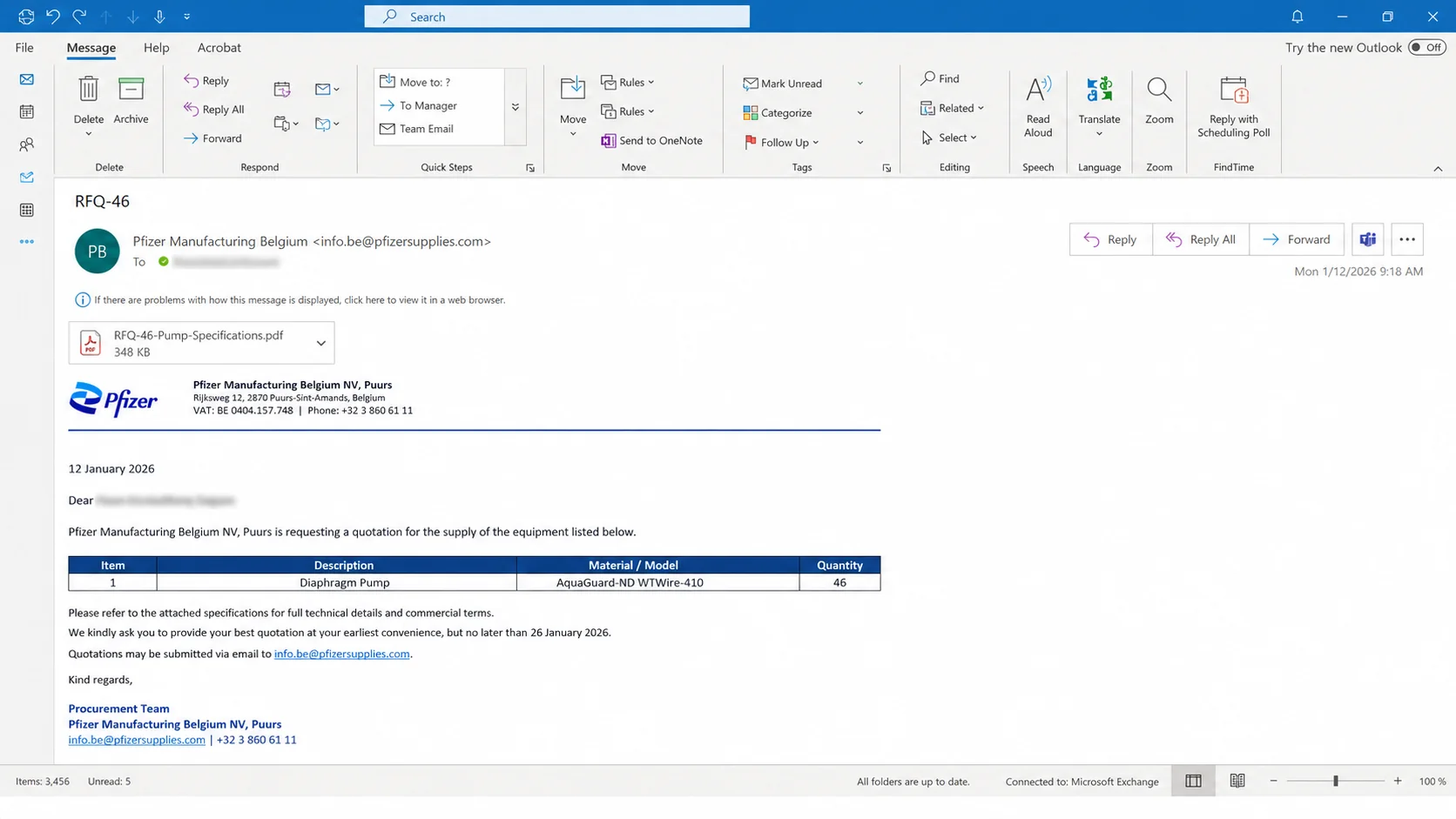
An observed 2026 variant used the subject “RFQ-46” and requested 46 AquaGuard-ND WTWire-410 pumps.
The reply address was info.be@pfizersupplies[.]com. That lookalike domain is visually persuasive, but it is not the established pfizer.com corporate domain.
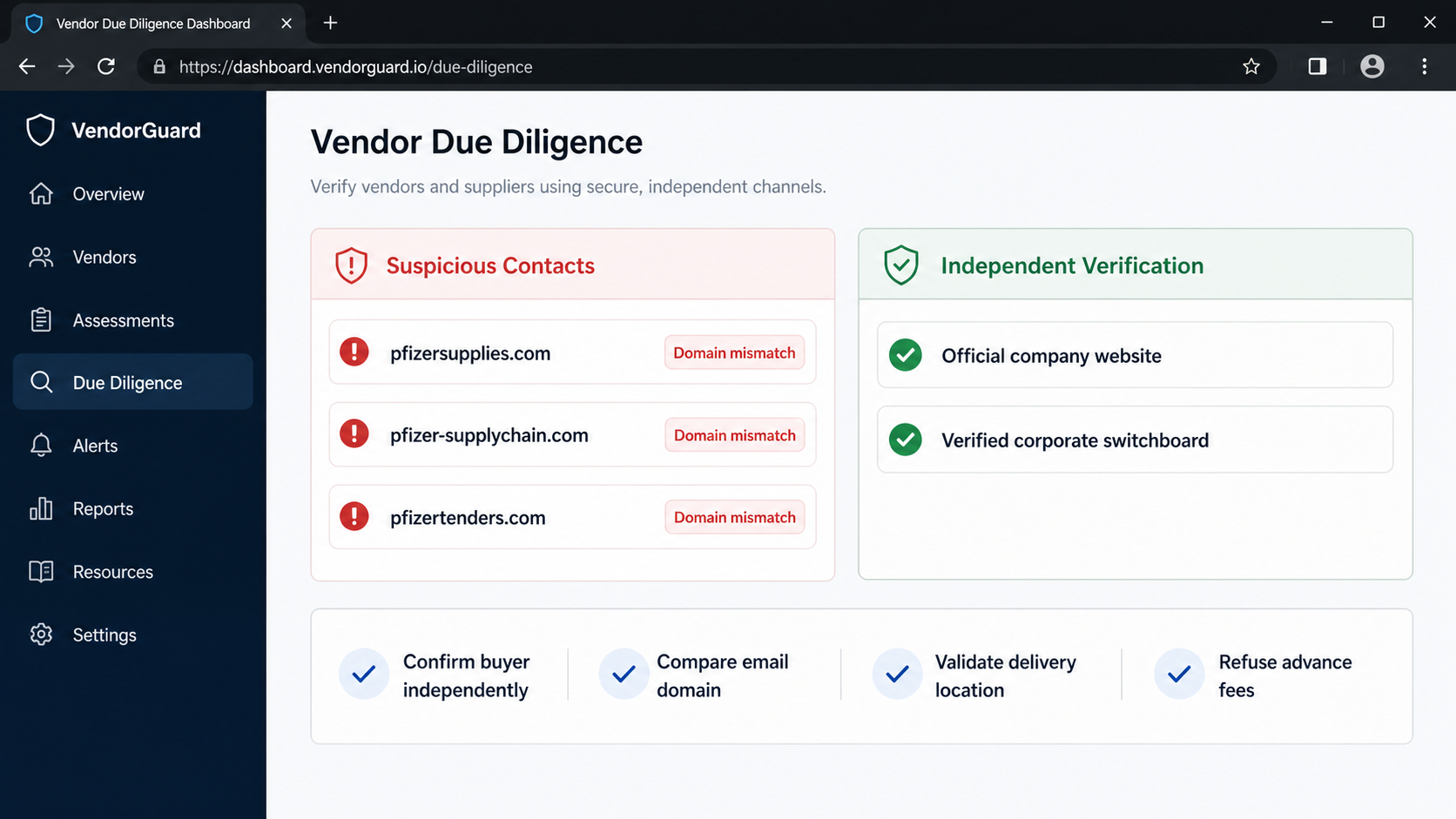
Other reported impersonation domains have included pfizer-supplies[.]com, pfizer-supplychain[.]com, pfizernvsupplychains[.]com, be-pfizer[.]com, and pfizertenders[.]com.
Domain changes let the scheme survive individual takedowns. The lasting warning is an unexpected large buyer using a newly introduced communications route.
The document borrows procurement details to look routine
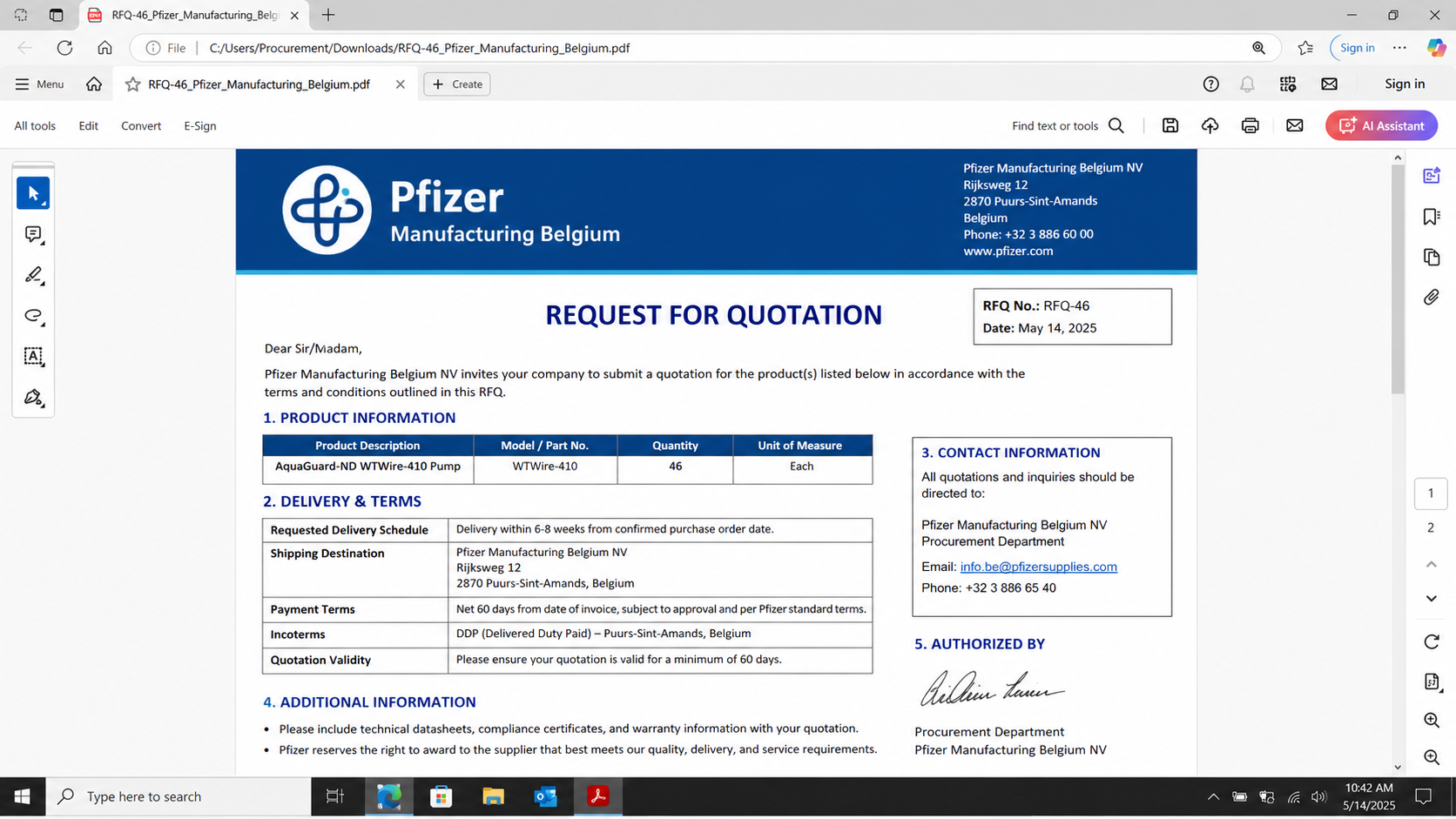
The email may include a PDF labeled as a request for quotation. Inside are a logo, reference number, delivery request, buyer identity, and formal signature block.
These elements are easy to copy from public corporate materials, directories, press releases, professional profiles, and genuine procurement examples.
A named employee can be a real person whose identity was borrowed. Their existence does not prove they sent the message or know about the request.
Specific product codes and quantities create a useful illusion of internal planning. A seller starts calculating availability and margins instead of questioning the buyer.
Fraudulent orders may progress through several polite exchanges. The operator asks for catalogs, company records, payment terms, and shipping capabilities like an ordinary purchasing department.
Common warning signs include:
- A major company contacting a vendor through an unfamiliar lookalike domain.
- A large order arriving without previous supplier qualification.
- A PDF whose branding is stronger than its verifiable contact trail.
- Pressure to reply only to the sender’s new address.
- A delivery location that changes late in the exchange.
- Requests for fees, credit, or sensitive records before verification.
- Resistance when the vendor contacts the company independently.
The objective can change as the victim cooperates
Some procurement impostors want confidential business information. Others pursue advance-fee payments, stolen goods, account credentials, or trade credit obtained under a famous name.
A seller may be asked to pay registration, tender, compliance, insurance, shipping, or administrative costs before the supposed order becomes active.
Another route involves shipping valuable goods to a warehouse, freight forwarder, rented unit, or intermediary. The promised corporate payment never arrives.
Fraudsters can also collect quotations and letterheads for use in later schemes. Supplier documents help them impersonate a real vendor elsewhere.
Banking information, tax records, director identification, and signatures can support identity theft or unauthorized account changes.
A linked portal may request Microsoft or business email credentials. That expands a purchase-order fraud into mailbox compromise and invoice interception.
The correct response depends on what was requested. Verification must cover the sender, buyer, domain, document, payment, and proposed delivery chain.
How The Scam Works
Step 1: Criminals select suppliers with useful products or credit
The operators search manufacturer directories, trade listings, exhibition catalogs, corporate websites, and professional networks for sales contacts.
They prefer companies accustomed to remote inquiries and cross-border transactions. A legitimate international buyer would naturally communicate through email and freight arrangements.
Public catalogs reveal product families, technical terminology, minimum quantities, and brands. That information helps the criminal compose a plausible request.
Smaller vendors can be attractive because one prestigious order matters greatly. Staff may hesitate to challenge a potential customer known worldwide.
Businesses offering payment terms face additional exposure. Fraudsters can seek goods now while promising settlement weeks after delivery.
The targeting does not prove a data breach at the impersonated company. Much of the necessary information is available openly.
Step 2: A lookalike corporate identity is assembled
The attacker registers or acquires a domain containing Pfizer and purchasing-related words. Hyphens, regional terms, and department labels make it look specialized.
An email signature reproduces corporate styling, office addresses, legal names, telephone formatting, and the title of a supposed buyer.
Public identities may be copied because a quick search then finds a person with an appropriate role. The search result falsely reassures the recipient.
The criminal may configure the domain to receive replies and publish a basic website. Technical polish can make the infrastructure appear older or more established.
None of this transfers control from the registrant to Pfizer. The exact domain ending remains the decisive ownership clue.
Vendors should maintain approved-customer records. A new address claiming an existing relationship must be verified through the previously recorded contact.
Step 3: The RFQ creates a realistic commercial task
The first email requests availability and pricing for a defined product. Reference numbers such as RFQ-46 imitate internal procurement tracking.
A PDF provides tables, quantities, shipping expectations, and quotation instructions. Its formal appearance encourages the sales team to treat it as active work.
The product can change between campaigns. Pumps, valves, laboratory supplies, electronics, or general equipment all support the same business narrative.
Large but believable quantities promise meaningful revenue. The vendor may prioritize the request and involve managers before authenticating the buyer.
The scammer often answers product questions competently enough to continue. Online catalogs and copied technical sheets supply much of the required vocabulary.
A real procurement document must be validated through the buyer’s known process, not judged solely by formatting quality.
Step 4: Conversation builds confidence gradually
The operator may ask for a quotation, availability schedule, warranty terms, company registration, and payment conditions over several exchanges.
Normal pacing helps the relationship feel organic. Immediate demands for money would expose the scheme before the supplier invests time.
Each reply creates commitment. After preparing a detailed quote, staff become more motivated to preserve the opportunity.
The criminal may approve the proposal quickly or negotiate small details. A little friction makes the supposed purchasing process feel genuine.
Copied legal language and confidentiality notices add corporate atmosphere without providing enforceable protection.
At this stage, call Pfizer using a number found on its independently opened website. Ask the switchboard to confirm the department and request.
Step 5: The operator requests value, access, or sensitive records
Once trust exists, the conversation shifts. The vendor may be told to pay a registration charge, purchase tender documents, or use a designated logistics provider.
An advance fee can be relatively small beside the expected order. That comparison makes the loss feel like a reasonable cost of winning business.
Alternatively, the impostor asks the supplier to ship goods on credit. A false purchase order and famous company name appear to support payment later.
Requests for tax forms, bank letters, passports, corporate certificates, or account credentials can enable additional fraud.
A portal link might supposedly handle onboarding or document exchange. If it asks for an email password, the operation may be expanding into credential theft.
Do not provide information merely because it is common in procurement. Confirm who receives it and why before transmission.
Step 6: Delivery and payment instructions separate from Pfizer
Goods may be directed to a fulfillment building, shared warehouse, freight forwarder, residential address, or unrelated business rather than an authenticated Pfizer facility.
A warehouse can accept parcels without knowing the upstream identity. Its existence does not validate the purchaser.
Late address changes are particularly dangerous. They can occur after credit approval, when staff assume the buyer has already passed review.
Fake checks, altered bank confirmations, or forged remittance notices may appear to prove payment. Settlement must be confirmed inside the vendor’s own financial account.
If the supplier prepaid a fraudulent service, the recipient can disappear once funds become irreversible.
If goods were shipped, the criminal arranges rapid forwarding or collection before the seller discovers the corporate identity was false.
Step 7: Stolen business material feeds future impersonation
The damage may continue after the order fails. Submitted quotations reveal pricing, staff names, signatures, letterheads, and product capabilities.
Criminals can reuse that material to impersonate the vendor in another transaction. A genuine-looking quote becomes evidence in someone else’s scam.
Compromised mailbox credentials give access to real customer threads. Fraudulent bank changes inserted there can produce losses far beyond the original RFQ.
Tax and corporate documents may support account opening, social engineering, or fraudulent credit applications.
Operators frequently abandon one lookalike domain and register another. Blocking a single address is necessary but cannot replace procedural verification.
Businesses should record the indicators and share them internally. Future approaches may reuse the same product request with a different buyer name.
Why a Real Address or Employee Name Proves Very Little
Corporate addresses, executive names, department titles, and logos are public information. Criminals can copy them accurately without entering any protected system.
A sender may even quote a genuine registration number. That number identifies the company being impersonated, not the person controlling the email.
Search results can create circular reassurance. The victim finds the copied employee online and assumes the message must therefore be theirs.
Verification requires a separate communication path. A known switchboard, established supplier portal, or previously confirmed buyer can connect the request to the real organization.
Telephone numbers in the signature are part of the untrusted message. Calling them only asks the impostor to confirm their own story.
Physical delivery locations deserve the same independence. A genuine building can be abused as a temporary receiving point or falsely named without its owner’s knowledge.
Sender, Procurement Request, Contact, and Payment Checks
Compare every domain character carefully
Check the From, Reply-To, linked portals, document addresses, and final reply destination. Fraudsters may use different lookalike domains at separate stages.
Company words placed before “.com” do not establish ownership. Compare the full address with independently located corporate contact information.
New spelling, extra hyphens, regional abbreviations, and purchasing terms deserve verification even when the email signature looks perfect.
Authenticate the RFQ through a separate route
Call the corporate switchboard from the official website and request the procurement department. Provide the reference without relying on the email’s telephone number.
Ask whether the company invited your business, whether the named buyer owns the request, and which portal governs supplier onboarding.
A legitimate opportunity will survive reasonable due diligence. Pressure to avoid normal verification is itself valuable evidence.
Investigate the delivery chain before extending credit
Search the destination and identify its actual occupant. A freight or fulfillment facility is not automatically the headquarters, buyer, or end user.
Confirm shipping instructions with the authenticated buyer. Repeat verification after any address, quantity, carrier, or contact change.
Use documented credit controls even for famous names. The reputation belongs to Pfizer, not to whoever copied it into a PDF.
Refuse unverified fees and payment evidence
Do not pay tender, registration, insurance, inspection, or logistics charges introduced by an unverified buyer. Independently confirm any mandatory process.
Trust cleared funds shown by your own bank, not screenshots, PDFs, or messages claiming that a transfer is pending.
Require dual approval for new beneficiary details and urgent refunds. A polished procurement story should never override financial controls.
What to Do if You Have Fallen Victim to This Scam
- Stop the transaction and preserve everything. Save emails, headers, PDFs, quotations, telephone records, bank details, delivery instructions, and portal addresses.
- Contact Pfizer independently. Use its official website or switchboard to report the impersonation and verify that the procurement request was unauthorized.
- Call your bank or payment provider. Request a recall, fraud review, or beneficiary freeze immediately when fees or refunds were transferred.
- Intercept shipped goods if possible. Contact the carrier, freight provider, insurer, and destination facility before collection or onward movement occurs.
- Protect exposed business identities. Monitor tax records, credit, bank mandates, and account changes when corporate documents or personal identification were shared.
- Secure affected computers and mailboxes. Change submitted credentials, revoke sessions, inspect rules, and run Malwarebytes on devices used with suspicious files or portals.
- Block the infrastructure company-wide. Add domains and addresses to security controls. AdGuard can reduce accidental revisits but cannot recover goods or funds.
- Warn partners about copied documents. Explain that quotations, signatures, or letterheads may be reused, and require independent confirmation of future payment changes.
Is Your Device Infected? Run a Free Malware Scan
Slow performance, constant pop-ups, or strange behavior? These are classic signs of a malware infection. A quick way to check is to scan your device with Malwarebytes Free, one of the most trusted malware removal tools available. If you only visited a scam page and didn’t download or install anything, this scan is optional.
The free version detects and removes the most common threats, including:
- Adware — the cause of those annoying pop-ups
- Browser hijackers — unwanted redirects and changed homepages
- Trojans and spyware — hidden programs stealing your data
- Potentially unwanted programs (PUPs) — software you never asked for
👉 Select your device below — Windows, Mac, or Android — then follow the simple steps to download Malwarebytes, scan your system, and remove any threats it finds. The scan usually takes 5 to 20 minutes.
Run a Malware Scan with Malwarebytes for Windows
Malwarebytes is one of the most popular and trusted anti-malware tools for Windows — and it’s completely free for removing infections. It catches threats that many antivirus programs miss, including adware, browser hijackers, and trojans. Follow the steps below to scan your PC and remove what Malwarebytes finds.
Download Malwarebytes
Click the button below to download the latest version of Malwarebytes for Windows from the official source. The free version is all you need — it will scan your computer and remove adware, browser hijackers, and other malicious software at no cost.
Download MalwarebytesOfficial installer for Windows 11 and 10. Your download starts right away.Want real-time protection? See Malwarebytes Premium Malwarebytes Free for WindowsScans and removes malware at no cost
-
Install Malwarebytes
When the download finishes, open your Downloads folder and double-click the MBSetup file. If Windows shows a User Account Control pop-up, click “Yes” to allow the installation.

Follow the On-Screen Prompts to Install Malwarebytes
The setup wizard will walk you through a few quick screens:
-
Choose where you’re installing the program — “Personal Computer” or “Work Computer” — then click Next.

-
Malwarebytes will now install on your device. This usually takes under a minute.

-
When installation is complete, the “Welcome to Malwarebytes” screen will open automatically.

-
On the final screen, click Open Malwarebytes to launch the program.

-
Optional: Check for rootkits with a Custom Scan
You don’t need to change any settings for a normal scan. The standard Threat Scan in the next step is enough for most problems, so you can go straight to it.
If you also want to check for rootkits, use a Custom Scan. In current versions of Malwarebytes, rootkit scanning is only available there:
- On the Scanner tile, click the three-dot menu and select Advanced Scan.
- Choose Custom Scan. In its options, check Scan for rootkits.
- Select your system drive (usually C:\) as the location to scan, then start the scan. It takes longer than a Threat Scan.
- When it finishes, review and quarantine the results as described in the steps below.
Rootkit scanning isn’t available on Windows devices with ARM processors.
Start the Scan
Click the blue Scan button. Malwarebytes will automatically update its virus database and start checking your computer for malware.

-
Wait for the Scan to Finish
The scan checks your entire system for browser hijackers and other malicious programs, so it can take 5 to 20 minutes depending on your computer. Feel free to do something else — just check back occasionally to see the progress.

-
Quarantine the Detected Threats
When the scan is done, you’ll see a list of everything Malwarebytes found — malware, adware, and potentially unwanted programs. Click the “Quarantine” button to remove all of them at once.

Malwarebytes will now remove the malicious files and registry entries and move them safely into quarantine.

-
Restart Your Computer
Some threats can only be fully removed after a reboot. If Malwarebytes asks you to restart, click Yes. Once you’re logged back in, Malwarebytes has finished removing the threats it found.

When the scan is done, check whether the problems you noticed have stopped. If they continue, see the options below.
If you are still having problems with your computer after completing these instructions, then please follow one of the steps:
- Run a computer scan with ESET Online Scanner
- Ask for help in our Windows Malware Removal Help & Support forum.
Run a Malware Scan with Malwarebytes for Mac
Malwarebytes for Mac is a free on-demand scanner that removes the malware other security software tends to miss — adware, browser hijackers, and unwanted programs included. Cleaning an infected Mac with Malwarebytes has always been completely free, and it’s our go-to recommendation. Follow the steps below to scan your Mac and remove what Malwarebytes finds.
-
Download Malwarebytes for Mac
Click the button below to download the latest version of Malwarebytes for Mac.
Download MalwarebytesOfficial installer for macOS. Your download starts right away.Want real-time protection? See Malwarebytes PremiumMalwarebytes Free for MacScans and removes malware at no cost -
Open the Malwarebytes setup file
When the download finishes, open your Downloads folder and double-click the setup file to begin the installation.

-
Follow the On-Screen Prompts to Install Malwarebytes
The Malwarebytes for Mac Installer will guide you through a few quick screens. Click “Continue” and keep following the prompts until the installation completes.



When the installation is complete, Malwarebytes opens to the Welcome to Malwarebytes screen. Click “Get started“.
Malwarebytes needs Full Disk Access to check your whole Mac. When it asks, open System Settings > Privacy & Security > Full Disk Access, turn on Malwarebytes (it may be listed as Malwarebytes Protection), and confirm with your password or Touch ID. Then return to Malwarebytes. On macOS Monterey and earlier, this setting is in System Preferences > Security & Privacy > Privacy.
-
Select “Personal Computer” or “Work Computer”
Malwarebytes will ask what type of computer you’re installing it on. Click either Personal Computer or Work Computer, whichever applies.

-
Start the Scan
Click the “Scan” button. Malwarebytes will automatically update its detection database and begin checking your Mac for malware.

-
Wait for the Scan to Finish
Malwarebytes will scan your Mac for adware, browser hijackers, and other malicious programs. This can take a few minutes, so feel free to do something else — just check back occasionally to see the progress.

-
Quarantine the Detected Threats
When the scan is done, you’ll see a list of everything Malwarebytes found. Click the “Quarantine” button to remove all the threats at once.

-
Restart Your Mac
Malwarebytes will now remove all the malicious files it found. Some threats can only be fully removed after a reboot — if Malwarebytes asks you to restart, allow it. Once you’re logged back in, check whether the problems you noticed have stopped. If they come back, save the scan report and ask for help in our forum.

If the problems you noticed continue after the scan, see the options below.
If you are still experiencing problems while trying to remove a malicious program from your computer, please ask for help in our Mac Malware Removal Help & Support forum.
Run a Malware Scan with Malwarebytes for Android
Malwarebytes for Android scans your phone or tablet for malware, adware, and potentially unwanted apps. The free version scans only when you start a scan. Real-time protection, which checks apps automatically, is part of the paid Premium version.
-
Download Malwarebytes for Android.
You can download Malwarebytes for Android by clicking the link below.
Get Malwarebytes for AndroidOpens Google Play in a new tab.Want real-time protection? See Malwarebytes Premium for AndroidMalwarebytes for AndroidScans your phone and removes malware at no cost -
Install Malwarebytes for Android on your phone.
In the Google Play Store, tap “Install” to install Malwarebytes for Android on your device.

When the installation process has finished, tap “Open” to begin using Malwarebytes for Android. You can also open Malwarebytes by tapping on its icon in your phone menu or home screen.

-
Follow the on-screen prompts to complete the setup process
When Malwarebytes opens, it walks you through a short setup. Tap Get started and follow the prompts. If you see an offer for a trial or a paid plan, read it before you accept. You can skip it and keep using the free scanner.
Malwarebytes will ask for permission to access the files on your phone so it can scan them. Tap Allow, or turn on the permission in the Android screen that opens, then return to Malwarebytes.
-
Run a scan with Malwarebytes for Android
On the main screen, tap Scan now. In some versions, you open the menu, tap Scanner, and then tap Run a scan.
-
Wait for the Malwarebytes scan to complete.
Malwarebytes will now start scanning your phone for adware and other malicious apps. This process can take a few minutes, so we suggest you do something else and periodically check on the status of the scan to see when it is finished.

-
Remove the detected apps.
When the scan has been completed, you will see a list of the threats that Malwarebytes for Android has detected. Next to each detected item, tap the menu icon (three dots), then choose to uninstall the app or delete the file. Android then asks you to confirm. Tap OK or Uninstall to remove the app.
-
Restart your phone.
When the detected apps are removed, restart your phone if Malwarebytes asks you to. Then check whether the problems you noticed have stopped.
If the problems you noticed continue after the scan, see the options below.
If you are still having problems with your phone after completing these instructions, then please follow one of the steps:
- Ask for help in our Mobile Malware Removal Help & Support forum.
- Only as a last resort, reset your phone to factory settings. Read the warning below first.
- Back up your photos, videos, files, and messages, for example to your Google account or a computer.
- Make sure you know your Google account email and password. The phone asks for them after the reset. If you changed the password recently, Google recommends waiting 24 hours before you reset.
- On a Samsung phone, also make sure you know your Samsung account password.
- If you use an authenticator app for two-step verification, move your accounts to another device or save your backup codes first.
Stay Protected: Block Ads and Malicious Sites
No scan can prove a device is completely clean, so it helps to block threats before they reach you. Most infections start with a malicious ad or a fake download button — so blocking them at the source is your best defense.
We recommend AdGuard, which blocks malicious ads, phishing pages, and dangerous redirects before they can reach you.
👉 Download AdGuard and browse safely
Frequently Asked Questions
Does Pfizer send suppliers requests for quotation?
Large companies use procurement processes, but any unexpected request must be authenticated through official, independently located channels before a vendor commits resources.
Is pfizersupplies.com an official Pfizer email domain?
The reported campaign used that lookalike domain for impersonation. Do not assume a domain is official merely because it contains the company’s name.
Why does the PDF contain a real corporate address?
Addresses are public and easily copied. Their accuracy says nothing about who registered the email domain or created the document.
What can scammers gain without receiving money?
They can collect business records, bank details, signatures, pricing, credit terms, credentials, and professional documents useful for later impersonation.
Should a vendor ship after receiving a purchase order?
Only after authenticating the buyer, purchase order, credit, and destination through established procedures. A PDF alone does not create trustworthy payment assurance.
How should a late delivery-address change be handled?
Pause fulfillment and reverify through the authenticated buyer. Never approve the change using only the email thread that requested it.
The Bottom Line
The Pfizer RFQ scam transforms a prestigious sales opportunity into a vehicle for fees, goods, credentials, or sensitive business documents.
Its paperwork can be precise because logos, addresses, staff names, and product information are easy to copy from public sources.
Verify the buyer outside the conversation, protect credit controls, and remember that a famous name offers no protection when the domain belongs elsewhere.

Join the discussion
0 commentsShare your experience or ask a question about this article.
Discussion
Start the conversation
Have a question or something useful to share? Add the first comment.